How to Turn Off Alexa+ Ads on Echo Show: Amazon Says You Can’t, and 6 Settings That Still Help
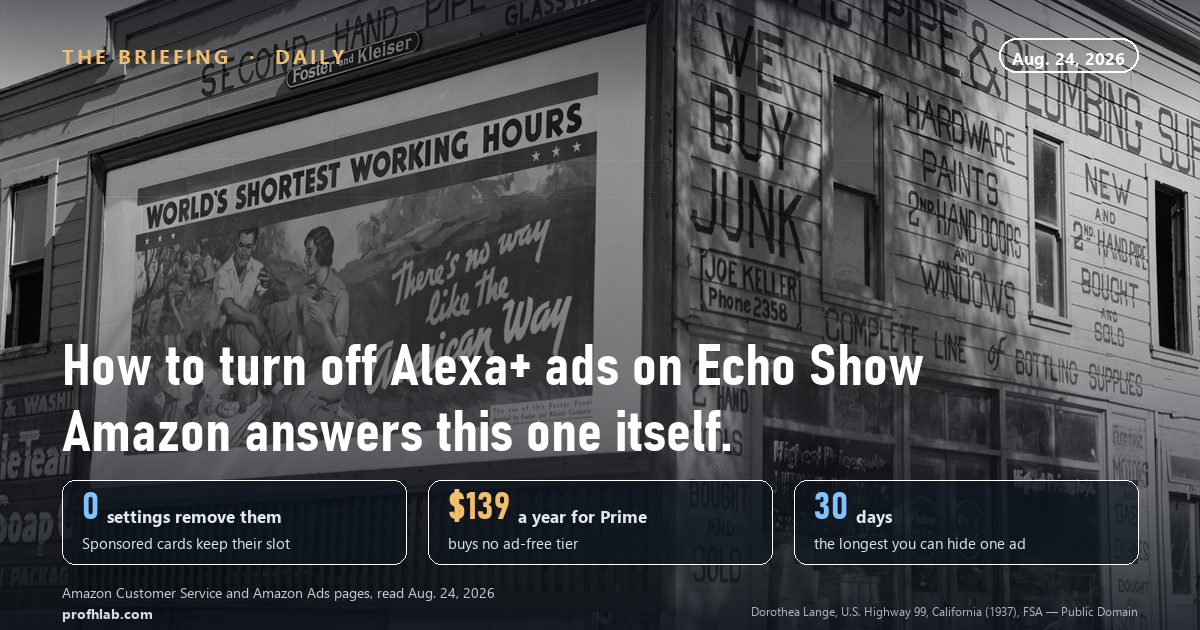
Somewhere in America tonight, a slideshow of grandchildren is being interrupted by a full-screen pitch for a streaming channel, and the person watching is picking up a phone to search how to turn off Alexa+ ads on Echo Show.
They will find a dozen guides that promise a fix. Four taps, one toggle, ads gone. Then they will open Settings, look for the menu the guide named, fail to find it, and conclude that Amazon took the setting away.
Amazon did not take it away. It moved it. And on the question those guides are actually answering — can you make the sponsored ads stop — Amazon has already published the answer itself, in a plain sentence on an ordinary help page, and the answer is no.
So here is what we did on August 24, 2026: read Amazon’s current help pages for Echo devices with a screen, wrote down the exact menu paths, checked the price of every Alexa+ plan for an ad-free tier, and then fetched the eight pages ranking for this question to see what they are telling people. Five of them returned readable steps. All five send you to a menu that Amazon’s own documentation no longer uses.
Jump to what you need
The short answer, in Amazon’s words · The exact menu path (it moved) · Six switches that actually change what you see · Why there are more ads than there were in spring · Does paying stop them? · The quietest Echo Show you can build · The ten-minute pass · Questions people actually ask
Can you turn off sponsored ads on Echo Show? Here is Amazon’s own sentence
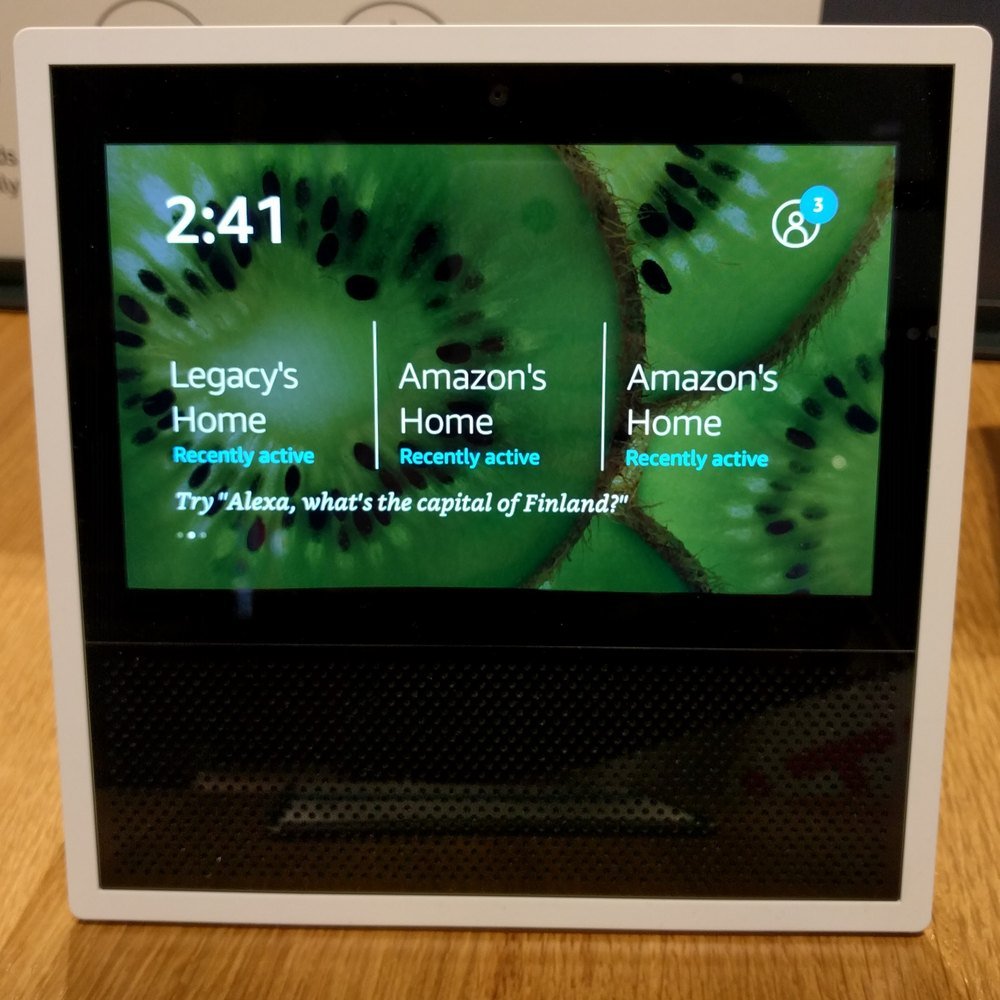
Amazon’s help page is called Manage Ads and Other Suggested Content on Your Echo Devices with a Screen. It describes the rotating cards, notes that the ads carry a Sponsored label at the bottom of the screen, and then says this: “You can’t turn off these ads, but you can skip an ad by swiping from right to the left on the screen.”
That is the whole ballgame, published by the company, on a page anyone can open. A second Amazon page — the one about advertising preferences on Alexa — closes the obvious loophole before you get to it: if you switch off interest-based ads, “you will still see or hear ads on Alexa-enabled devices, but they may be less relevant to you.”
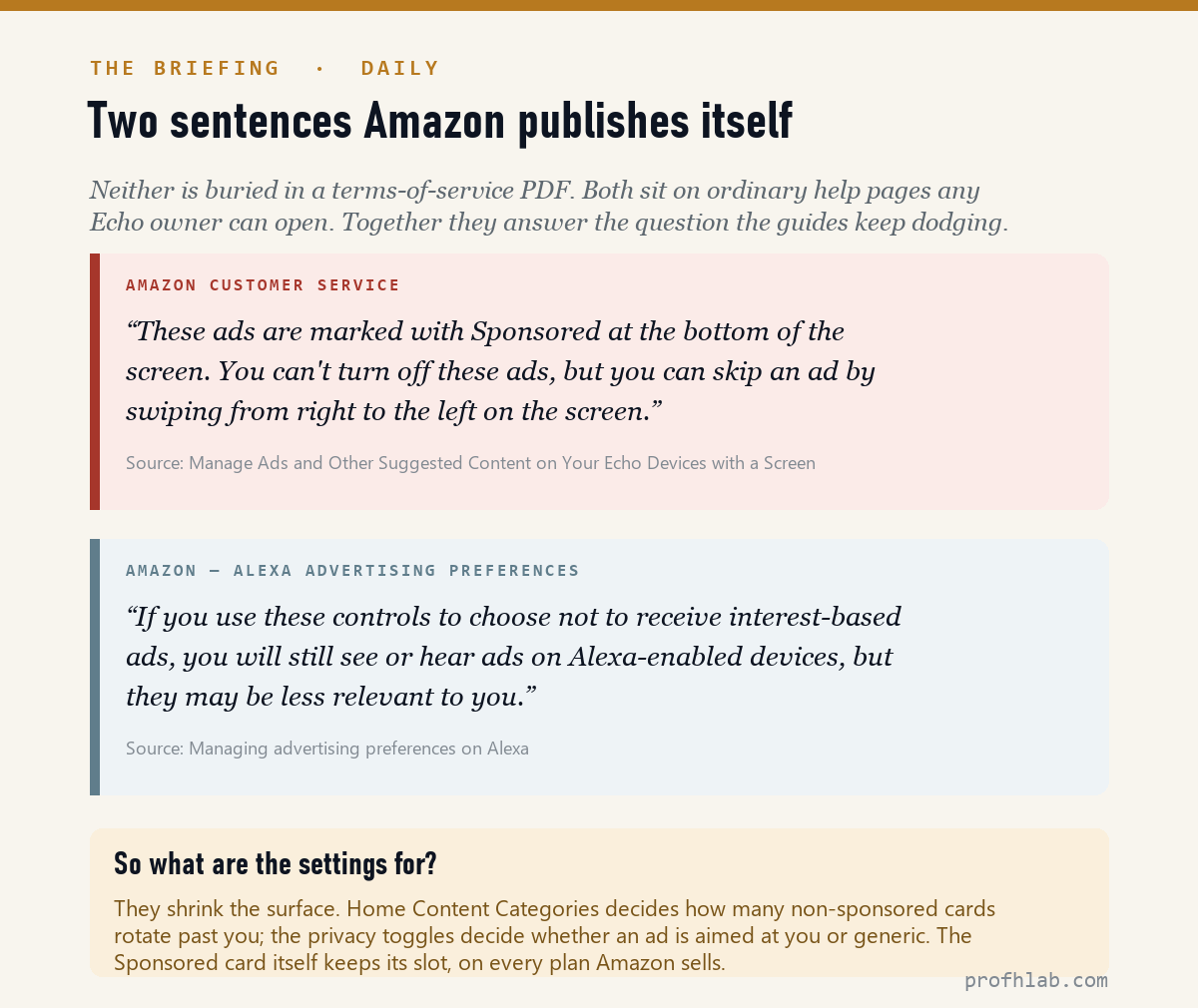
So the honest framing of this article is not “how to remove ads.” It is how to shrink the surface area they run on, which the settings genuinely do, and which is the difference between a screen that interrupts you a dozen times an evening and one that mostly shows a clock.
The exact menu path — and why your guide sent you to the wrong one
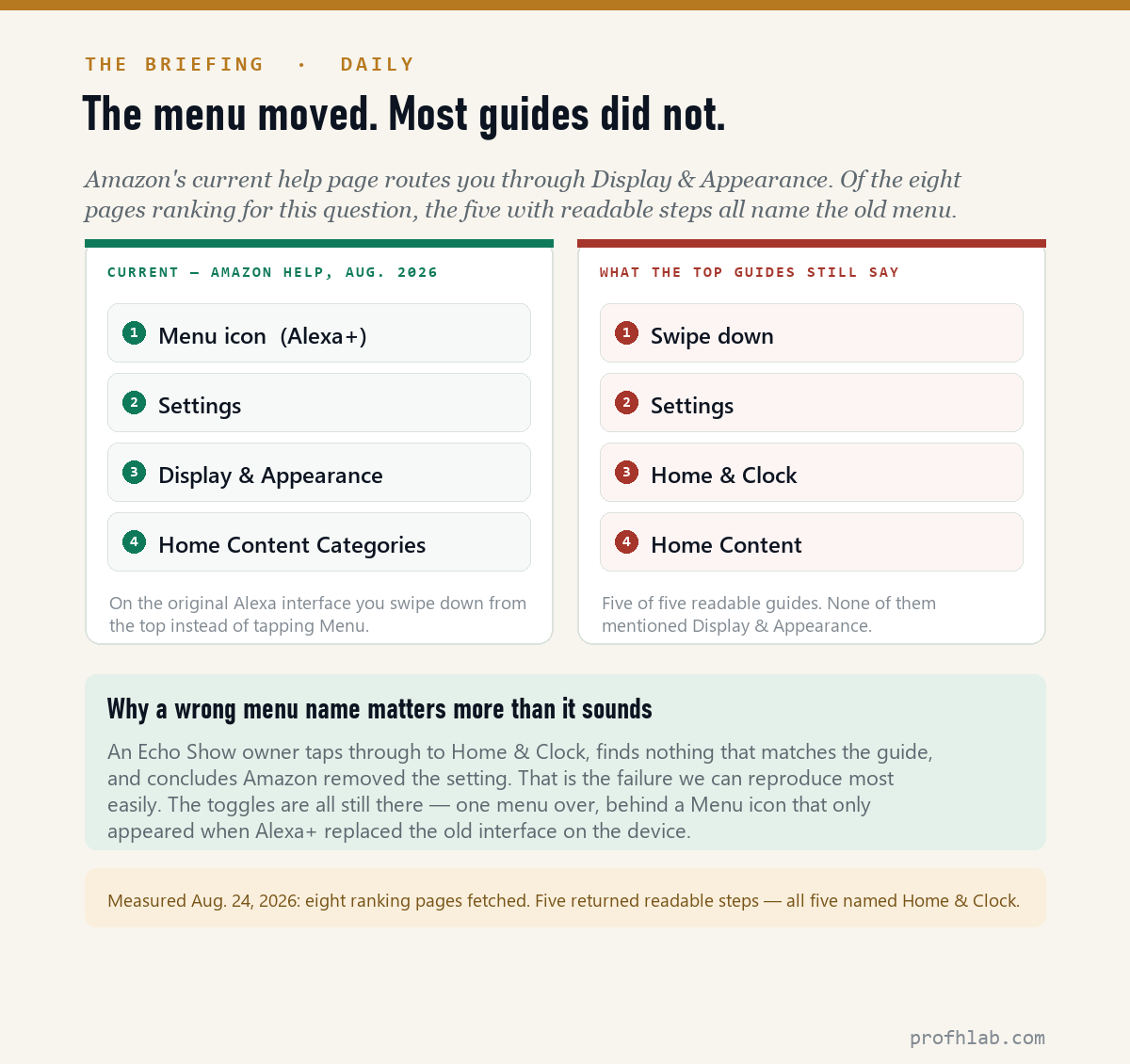
Here is the single most useful thing in this piece. Amazon’s current help page, Customize the Home Screen on Your Echo Devices with a Screen, gives this route:
- Say “Go to Settings” — or, if you are on Alexa+, tap the Menu icon on the screen, then Settings. On the original Alexa interface you swipe down from the top of the screen instead.
- Select Display & Appearance.
- Select Home Content Categories.
- Turn each category’s switch on or off.
Now compare that with what the guides say. We fetched the eight pages ranking for this question on August 24. Five returned readable step-by-step instructions. All five routed readers through Settings › Home & Clock › Home Content. Not one of them mentioned Display & Appearance, and not one mentioned the Menu icon that Alexa+ introduced.
Two caveats Amazon puts on the page, and we will not pretend otherwise. The steps cover Echo Show 1st and 2nd generation, 5, 8, 10, 11 (2025 release), 15 and 21. And Amazon notes that on the Echo Hub and Echo Show 5 the settings menu items “may vary,” with a software update coming. If your Show 5 looks different from the list above, that is why.
Six switches that actually change what you see
None of these makes the Sponsored card disappear. Each one measurably reduces how often something you did not ask for takes over the screen.
| Switch | Where it lives | What it actually does |
|---|---|---|
| Home Content Categories | Settings › Display & Appearance | The big one. Turn off shopping, recommendations, trending, things-to-try and the rest, one category at a time. Read each label first — switching off everything also removes news, weather and notification cards. |
| Adaptive Content | Settings › Display & Appearance | On by default. It watches your distance and swaps to the big rotating view when you step back. Switch it off — or choose Manual View under Home Screen Layout — and pick Widget View as the default instead. |
| Interest-based ads (Amazon) | Settings › Privacy & Permissions › Manage Your Alexa Data | Stops Amazon aiming ads using what you browse and buy. The count does not drop; the relevance does. |
| Third-party skill ads | Settings › Privacy & Permissions › Manage Skill Permissions and Ad Preferences | Tells outside skill and content providers not to use your advertising ID. Same screen lets you reset those IDs, which starts the profile over. |
| Hide one ad, 30 days | On the ad itself | Tap the information marker at the bottom right and choose an option. Reporting an ad as offensive also hides it for 30 days and opens an investigation. Thirty days is the ceiling. |
| Edit Interests (Alexa+) | Settings › Accounts & Profiles › Your Profile & Family | Steers what the personalized cards pull from. Requires a Voice ID and a Visual ID first. You can also just say, “Alexa, add gardening to my interests.” |
One line from Amazon’s help page is worth pinning up: “When and how often content displays depends on what you open and engage with on the home screen.” Tapping a card teaches the machine you want more of that card. The cheapest setting on this list is the one where you stop touching the screen.
Why there are more ads than there were in spring
This is not your imagination, and it is not a bug. Amazon spent 2026 building an advertising business inside the Echo Show, and it announced each step on its own advertising site.
On June 17, 2026, Amazon Ads opened Conversational Entertainment Ads on Alexa+ to self-service advertisers — described as “a new display advertising format on eligible Echo Show devices” that folds sponsored film and TV content into entertainment-related voice questions. You can subscribe to a Prime Video Channel or rent a title from the ad itself. Until that date the format was a managed buy only, through Amazon’s demand-side platform.
Six days later, on June 23, 2026, Amazon introduced Alexa+ Agentic Ads, in beta on Echo Show: “Order food, buy concert tickets, complete the task — all through a natural conversation with Alexa+.” Charlotte Maines, Amazon’s VP of content and advertising for Alexa, put the logic bluntly: the format “closes the gap between intent and action — a customer can go from curiosity to a completed purchase in a single conversation.” The launch partners were Papa Johns for food and Ticketmaster for concerts.
Read that from the kitchen counter rather than from Cannes and it says something specific. The ad is no longer a picture you ignore while the pasta boils. It is a checkout counter that can hear you. Which is exactly why the swipe-left gesture matters more than it sounds: on a device with your card on file, the safest response to a conversational ad is to not converse with it.

Does paying stop them? What an ad-free Echo Show costs
This is the question that separates an annoyance from a grievance, so we checked every plan Amazon sells, on Amazon’s own pages, on August 24.
Prime is $14.99 a month or $139 a year ($6.99 a month on Prime Access for qualifying government-assistance recipients, $7.49 for Prime for Young Adults). Alexa+ is included with Prime at no extra charge; without Prime, the Alexa+ Standard plan is $19.99 a month, and there is a free, usage-limited Alexa+ experience on Alexa.com and in the app.
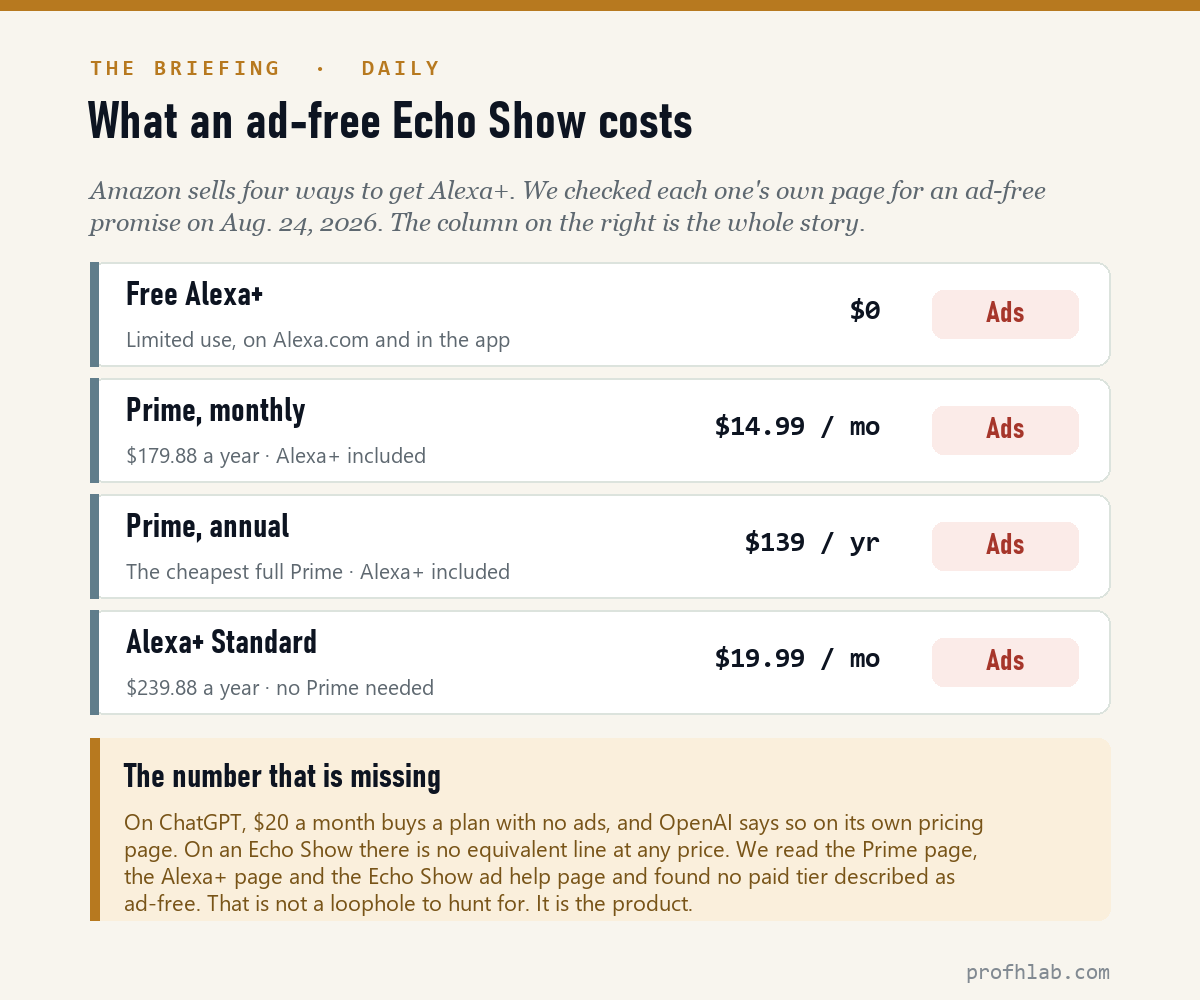
Not one of those pages describes a tier without ads on the device, and the Echo Show ad help page draws no distinction between Prime members, Alexa+ Standard subscribers and everyone else. Compare that with the software on your desk: OpenAI puts ads on ChatGPT’s free tiers and says on its own pricing page that Plus has none. Twenty dollars buys silence there. On an Echo Show, silence is not for sale — and that is a product decision, not an oversight you can outflank.
The quietest Echo Show you can build
Turn every Home Content Category off and the device stops rotating cards at you. What is left is the clock over your own photos, which is what most people wanted from a kitchen screen in the first place.
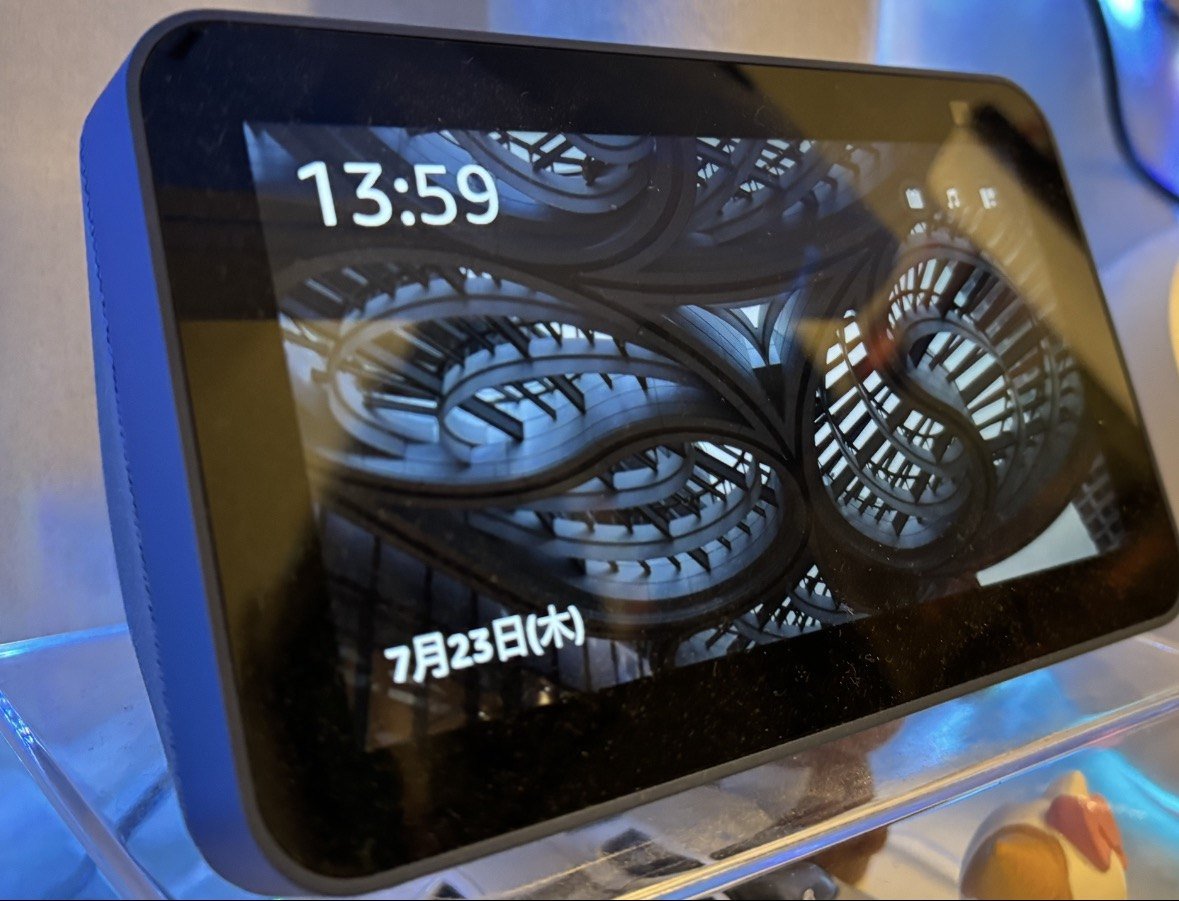
Be clear-eyed about the trade. Those same switches carry your weather card, your news brief, your reminders and your delivery notifications. A lot of Echo Show owners — particularly older ones who bought the thing for the big clock and the video calls — will find that a fair swap. Anyone using it as a household dashboard will not. There is no setting that separates “useful cards” from “cards that sell,” because Amazon does not sort them that way.
What to do with this — a ten-minute pass on one Echo Show
- Find out which Alexa you have. If there is a Menu icon on the screen, you are on Alexa+. If you swipe down from the top for Settings, you are on the original interface. Everything below works on both; only the first tap differs.
- Settings › Display & Appearance › Home Content Categories. Go down the list. Turn off shopping, recommendations, trending and things-to-try. Leave weather and reminders on if you use them.
- Same menu › Adaptive Content (or Home Screen Layout). Switch it off and choose Widget View, or select Manual View. This is the one that stops the screen going full-bleed when you walk away.
- Settings › Privacy & Permissions › Manage Your Alexa Data. Turn off interest-based ads from Amazon.
- Same area › Manage Skill Permissions and Ad Preferences. Turn off third-party interest-based ads and reset your advertising IDs.
- Set up Photo Display so the screen has something of yours to fall back on.
- Then leave it alone for a week. Amazon says frequency follows engagement. Not tapping the cards is a setting.
Doing this for a parent or a neighbor? Amazon has a help page for setting up an Echo with a screen remotely, so you can walk them through it without driving over.
No downgrade path, and ads built from shopping, not conversation
- “Can I go back to the old Alexa?” Amazon does not publish a downgrade path from Alexa+ on a device that has received it. What you can change is the interface behavior — Adaptive Content, the home screen layout and the content categories — which is where nearly all of the complaints actually land.
- “Is it listening in order to sell to me?” Interest-based ads on Alexa are built from what you browse and buy on Amazon and what you play through skills, per Amazon’s advertising-preferences page — not, in Amazon’s account, from ambient conversation. The same page is where you switch that targeting off and reset the IDs behind it. Adaptive Content uses the camera for distance, and Amazon states those images are processed on the device and never sent to the cloud; closing the camera shutter disables the feature entirely.
- “What else in my house is doing this?” The same pattern — a device you already paid for growing an ad surface after the fact — is now on phones, TVs and chatbots. Our companion piece on what actually has an off switch on a phone runs the same test on twelve of them.
Echo Show’s Sponsored ads stay, but you can skip or hide them
Can you turn off sponsored ads on Echo Show?
No. Amazon’s help page states plainly that you cannot turn off the ads marked Sponsored. You can skip one by swiping right to left, and you can hide a specific ad for 30 days by tapping the information marker at its bottom right.
How do I turn off Alexa+ ads on Echo Show?
You cannot remove them, but you can shrink what else rotates past you. Tap the Menu icon, then Settings › Display & Appearance › Home Content Categories, and switch off the categories you do not want. Then switch off Adaptive Content in the same menu, and turn off interest-based ads under Privacy & Permissions.
Does Amazon Prime remove ads from the Echo Show?
No. Prime costs $14.99 a month or $139 a year and includes Alexa+ at no extra charge, but neither the Prime page nor the Echo Show ad help page describes any ad-free tier. The $19.99-a-month Alexa+ Standard plan does not remove them either.
Why does my Echo Show keep showing full-screen ads?
Two things stack. Adaptive Content is on by default and switches the display to a larger, simpler view when you step away from it, and Amazon expanded its Echo Show ad formats through 2026 — conversational entertainment ads in April and June, and Agentic Ads in beta from June 23. Turning off Adaptive Content and clearing the Home Content Categories addresses the first.
How do I make my Echo Show only show photos and the clock?
Switch off every category under Settings › Display & Appearance › Home Content Categories, then set up Photo Display. Be aware that this also removes weather, news and notification cards, and that Sponsored cards still have their slot.
Where is Home Content on my Echo Show? I only see Home & Clock in the guides.
Amazon renamed and moved it. On current software the route is Settings › Display & Appearance › Home Content Categories. Amazon also notes that menu items on the Echo Hub and Echo Show 5 may differ pending a software update.
Sources
- Amazon Customer Service, Manage Ads and Other Suggested Content on Your Echo Devices with a Screen — the “you can’t turn off these ads” statement, the swipe-to-skip gesture and the 30-day hide. Retrieved Aug. 24, 2026.
- Amazon Customer Service, Customize the Home Screen on Your Echo Devices with a Screen — the Display & Appearance › Home Content Categories path, supported devices and the Echo Hub / Echo Show 5 caveat. Retrieved Aug. 24, 2026.
- Amazon Customer Service, Turn Adaptive Content On or Off and What Is Adaptive Content? — default-on status, Manual View, on-device processing, supported models. Retrieved Aug. 24, 2026.
- Amazon, Managing advertising preferences on Alexa — “you will still see or hear ads,” the Amazon and third-party toggles, and resetting advertising IDs. Retrieved Aug. 24, 2026.
- Amazon Customer Service, Personalize Your Content on Your Echo Show with Alexa+ — Edit Interests, and the Voice ID / Visual ID prerequisite. Retrieved Aug. 24, 2026.
- Amazon Ads, Amazon introduces Alexa+ Agentic Ads, June 23, 2026 — beta on Echo Show, the Charlotte Maines quote, Papa Johns and Ticketmaster.
- Amazon Ads, Conversational Entertainment Ads on Alexa+, June 17, 2026 — format definition, eligible Echo Show devices, U.S. availability, and the April 7 managed-buy launch.
- Amazon, Alexa+ product page and Amazon Prime — $19.99 Standard plan, the free limited tier, and Prime at $14.99 / month or $139 / year. Retrieved Aug. 24, 2026.
- About Amazon, Alexa+ now available to everyone in the US — and free for Prime members, February 2026 — the pricing structure as announced.
The same fight on ChatGPT and your phone, plus current prices
- ChatGPT ads: how to turn them off without paying $20
- How do I get rid of AI on my phone? Twelve places, one real off switch
- The AI price tracker: what every major plan costs this month
Written by Prof. H, who reads the manufacturer’s own help page before repeating what a roundup said. Every menu path and price above was checked against Amazon’s documentation on August 24, 2026, and the count of competing guides is a fetch we ran the same day. This is not financial advice.
Prof.’s H Newsletter
One short email a month, with the numbers in it
What actually moved in AI hiring, AI prices, and the scams aimed at older Americans. Counted here, dated, and linked to the source. One email a month, and your address goes nowhere else.