How to Use ChatGPT: A Step-by-Step Guide for Beginners Over 50 (2026)
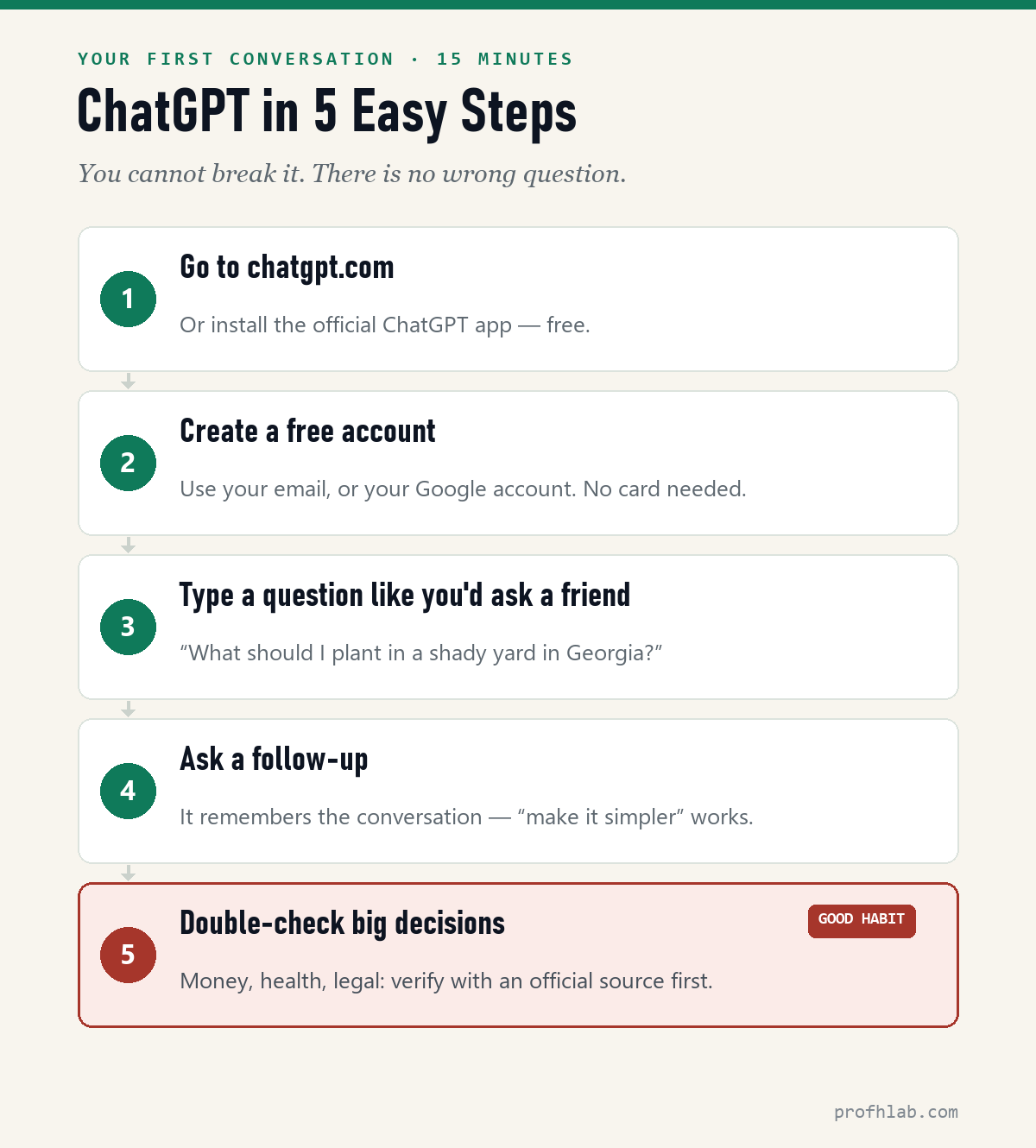
Short answer: Go to chatgpt.com (or install the official ChatGPT app), create a free account with your email — no credit card — and type a question the way you’d ask a friend. Prefer talking? Tap the voice icon and speak. That’s genuinely all there is to it. This is a plain-English ChatGPT tutorial for seniors and late starters — every fact checked in August 2026 — and it walks you through each step, plus the safety habits worth knowing.
Why trust this: I’m a professor of AI and robotics and a former Samsung researcher. I’ve taught this technology to PhD students and to complete beginners — and beginners are more fun.
Here’s the thing nobody tells you: you cannot break ChatGPT. There’s no wrong question, no wrong button, nothing to delete by mistake. It’s a conversation, not a machine to operate. And you’d be in good company: three in ten Americans over 50 have already used AI like this, according to AARP’s 2026 technology survey — up from just 9% two years earlier. They use it for recipes, letters, travel plans, and explaining confusing paperwork. Fifteen minutes from now, you’ll be one of them.
I explain AI in plain English — get one short, friendly email a month. Unsubscribe anytime.
The 5 steps at a glance
Step 1 — Go to the real ChatGPT
On a computer (three small moves):
- Open the program you already use for the internet — Chrome, Edge, or Safari.
- Click once in the long address bar at the very top of the window (not a search box in the middle of a page — the bar at the top).
- Type chatgpt.com and press Enter.
What you’ll see: a mostly empty page with a message box — that plainness is correct. You’re in the right place.
On a phone or tablet: open the App Store (iPhone/iPad — the blue “A” icon) or Google Play (Android — the colorful triangle), tap the search field, and type ChatGPT. One important check before you tap Get/Install:
- The app is called ChatGPT and the developer line under the name says OpenAI. That’s the real one, and it’s free to download.
- Skip look-alikes. Security researchers at McAfee found copycat “AI chat” apps charging up to $312 a year for what the real app does free — and fake “ChatGPT download” websites have been caught spreading malware. If it isn’t chatgpt.com or the official app store listing by OpenAI, don’t install it.
Then tap Get (iPhone) or Install (Android), wait for it to finish, and tap Open. From now on the ChatGPT icon — a black knot shape on a white square — sits on your home screen with your other apps. That icon is how you come back tomorrow.
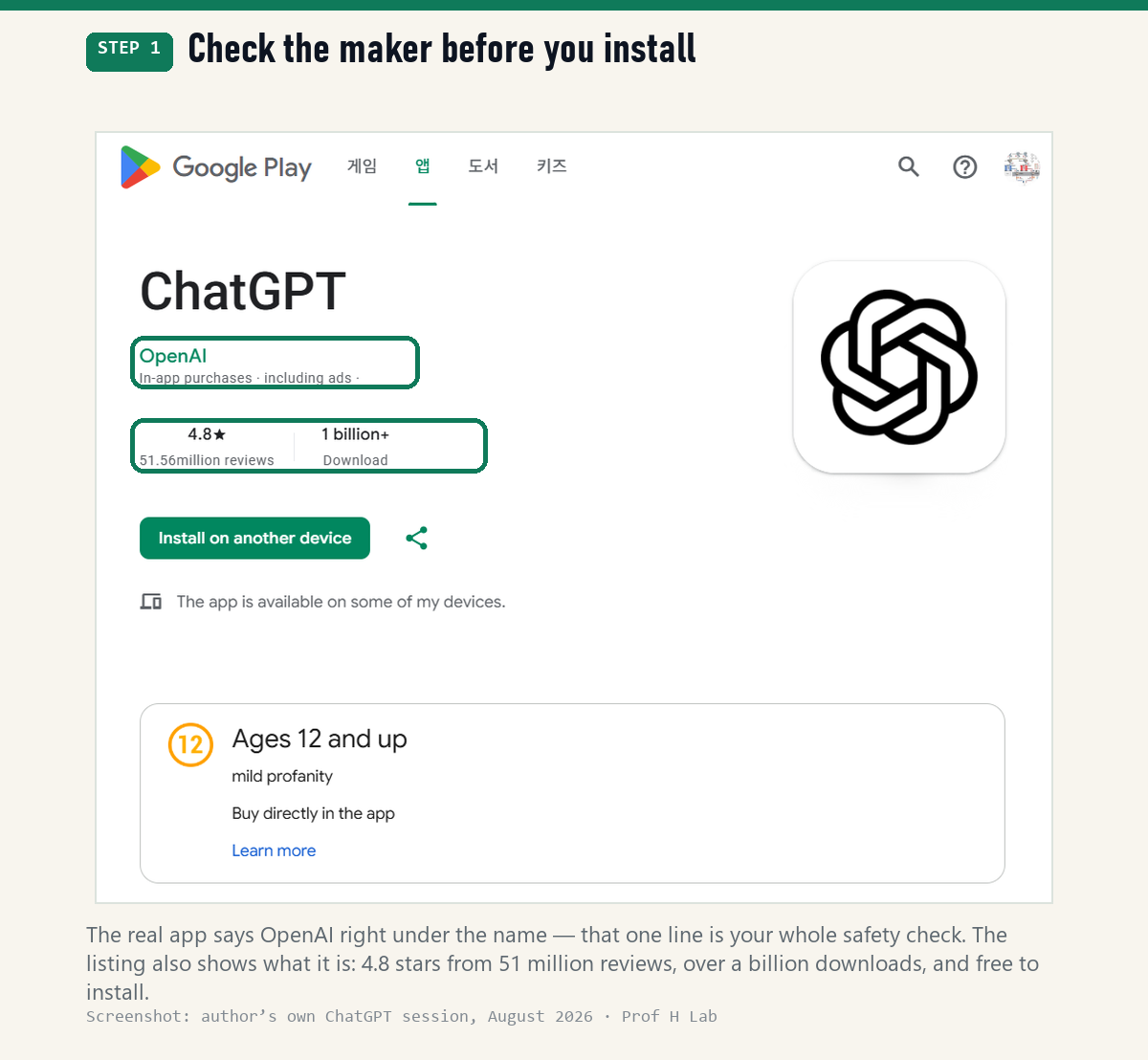
Here’s the real listing, so you know what right looks like. Under the name it says OpenAI — that single line is the whole safety check. Everything else on the page is reassurance: 4.8 stars from more than 51 million reviews, over a billion downloads, free to install.
One line on that page worries people, so let me settle it now: under the developer it says “In-app purchases · including ads.” That does not mean installing costs anything. It means paid plans exist inside the app if you ever want one, and that the free version shows ads. Installing is free, and nothing can charge you unless you deliberately buy a plan.
Step 2 — Create a free account (no credit card)
Why bother with an account? One reason only: it saves your conversations, so you can come back tomorrow and pick up where you left off. (You can even try ChatGPT without an account at chatgpt.com — but then nothing is saved.)
- Click or tap Sign up.
- Easiest path: the Continue with Google (or Apple) button — it uses an account you already have, so there’s no new password to invent or remember. Or use your email address.
- Enter your name and birth date. You may be asked to confirm a code sent to you by text message — that’s normal, and it’s the last hoop.
No payment information is requested at any point, and there’s nothing to cancel later, because you haven’t signed up for anything paid.
Meet the screen — you only need three things
New software feels overwhelming because you assume you must understand all of it. You don’t. On day one, exactly three things matter:
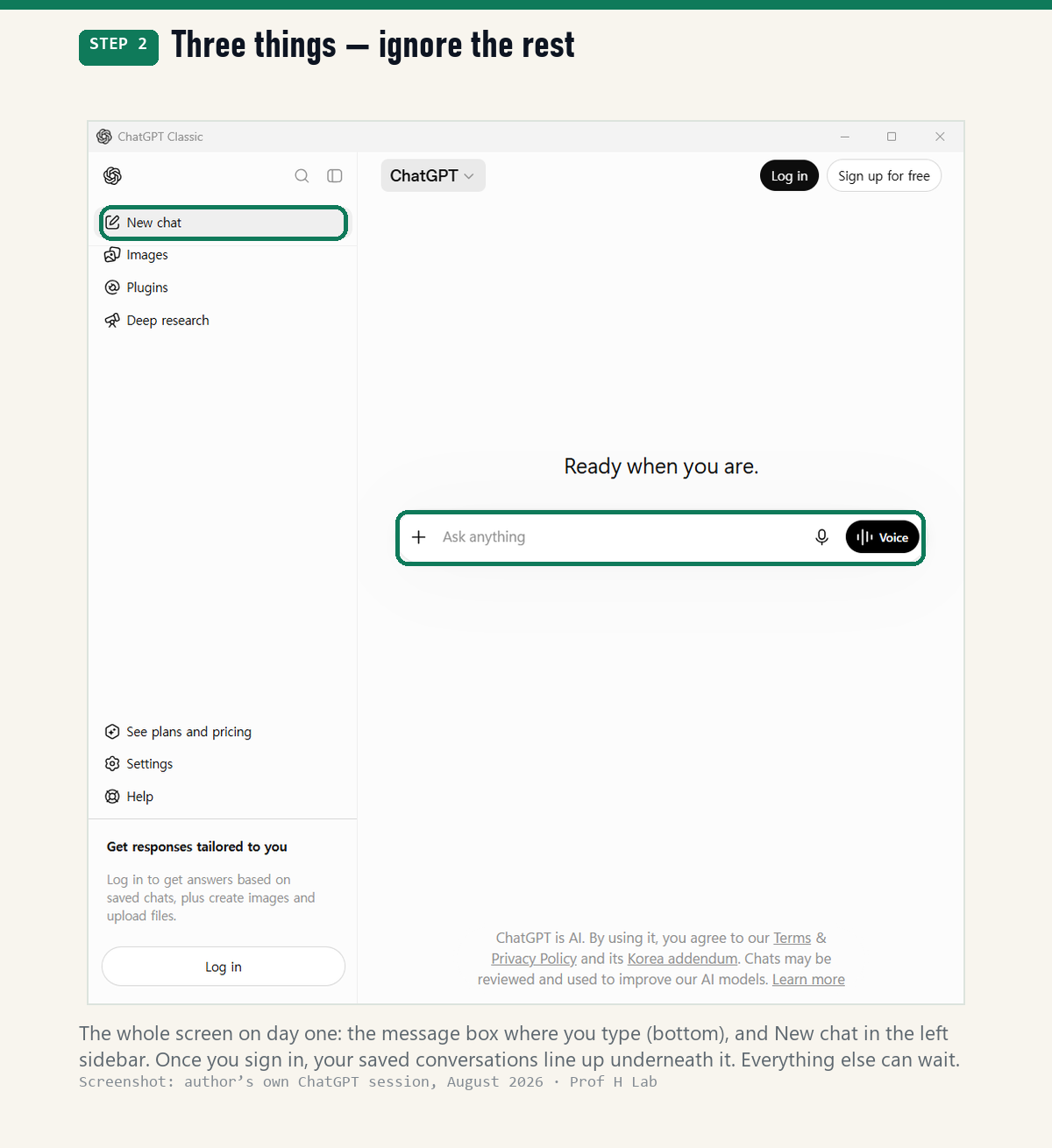
- The message box — the long box near the bottom that says “Ask anything.” This is where you type, and it’s 95% of everything. (At its right end you’ll see a small microphone and a Voice button — that’s Step 4’s business.)
- The send arrow — a small ↑ that appears at the right end of that box the moment you start typing. Don’t go looking for it on an empty screen; it isn’t there yet. Pressing Enter does the same job.
- New chat — top of the left sidebar. Once you’re signed in, every conversation you have is saved in that list, underneath it. You cannot lose your work.
Everything else — Images, Plugins, Settings — can be safely ignored today. It will all still be there when you’re curious.
Step 3 — Ask your first question, like you’d ask a friend
Click once inside the message box at the bottom — you’ll see a thin blinking line appear. That blink means “I’m listening; type here.” Now type in ordinary English. Full sentences, half sentences, typos — all fine. Real examples to steal:
- “What can I cook tonight with chicken thighs, rice, and spinach?”
- “Rewrite this note to my landlord so it’s firm but polite: [paste your note]”
- “Explain this letter from my insurance company in plain English: [paste the letter]”
- “Plan a 4-day trip to Savannah for two people who like history and don’t like walking too much.”
Two of those examples say [paste your note] — and if copying and pasting isn’t something you do comfortably, skip it entirely and take a picture instead. Tap the + at the left end of the message box, choose your camera, photograph the letter lying flat on the table, then type your question underneath: “Explain this in plain English.” It reads the picture. For anyone who finds a phone keyboard fiddly, that one trick replaces most of the typing in this guide.
Press Enter — or, on a phone, tap the ↑ arrow (there, the keyboard’s return key often just starts a new line). What you’ll see: the answer starts appearing word by word, as if someone were typing it live. That’s normal — it’s not stuck, and you don’t need to do anything. Just read along. When the words stop, it’s done and waiting for you.
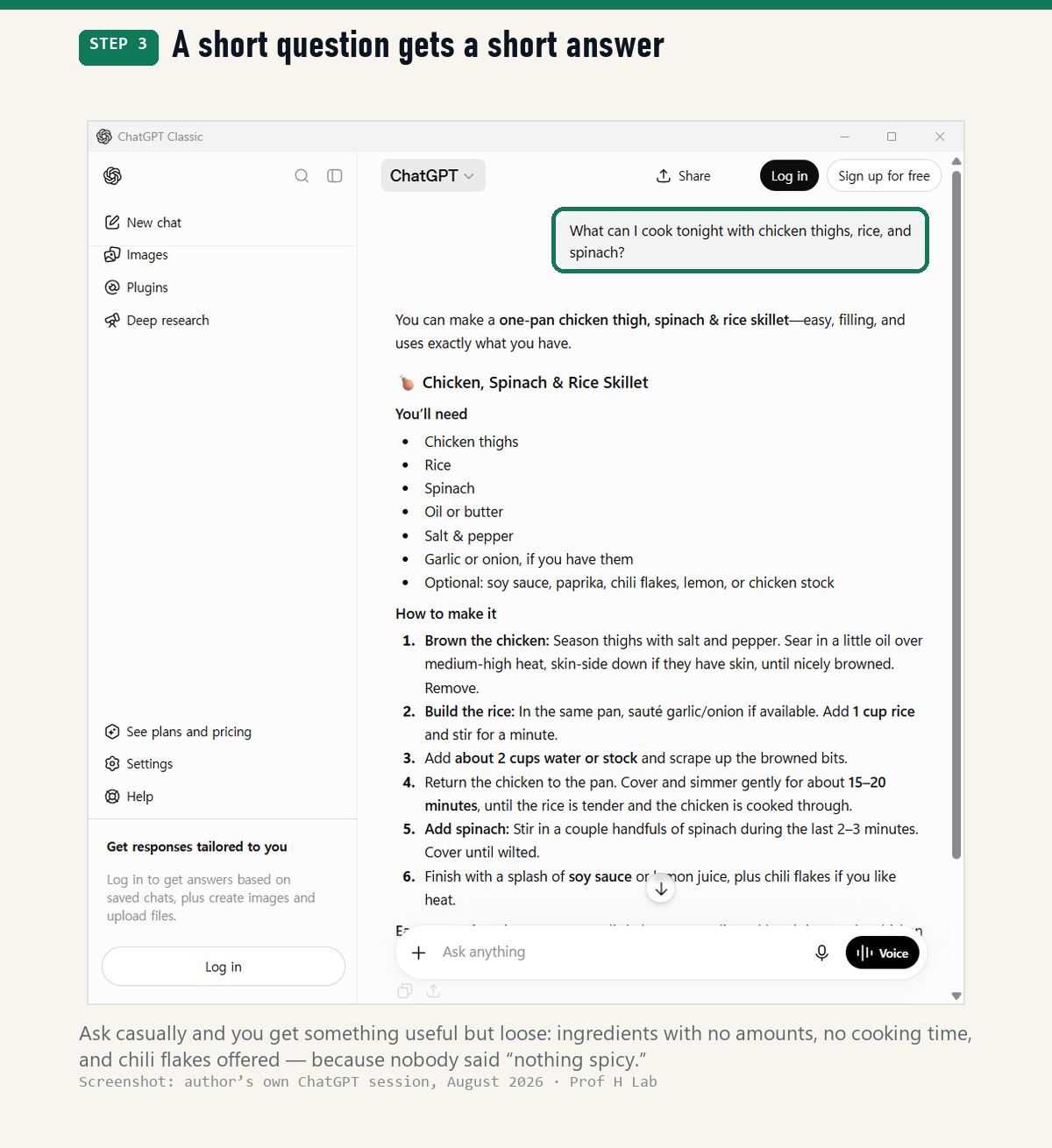
That’s my actual first attempt, and it’s worth studying for a second. The answer is friendly and usable — but look closely: ingredients with no amounts, no cooking time, and chili flakes offered as an option. Why? Because I never mentioned how many people, how long, or that I didn’t want it spicy. It filled the gaps I left.
So here’s the one habit that changes everything. Add three details — who it’s for, how long you have, and one thing you don’t want — and ask again:
I have chicken thighs, rice, spinach, and half an onion.
Give me one simple recipe under 30 minutes, for two people,
nothing spicy — and a short shopping list if I'm missing basics.
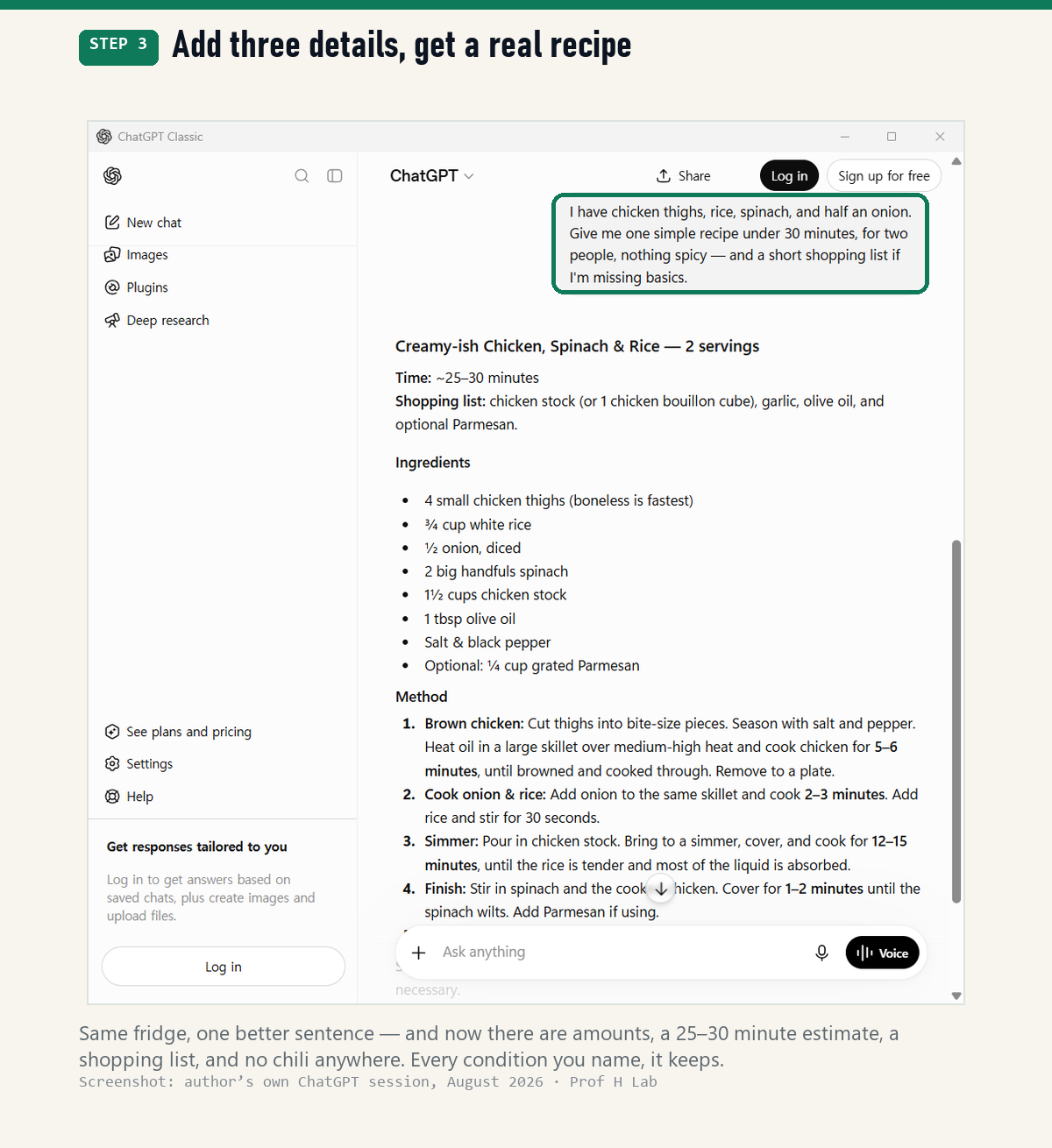
Same fridge, same tool, one better sentence. Here is exactly what came back, trimmed only where it repeats itself:
Creamy-ish Chicken, Spinach & Rice — 2 servings
Time: ~25–30 minutes
Shopping list: chicken stock (or 1 chicken bouillon cube), garlic, olive oil, and optional Parmesan.Ingredients: 4 small chicken thighs (boneless is fastest) · ¾ cup white rice · ½ onion, diced · 2 big handfuls spinach · 1½ cups chicken stock · 1 tbsp olive oil · salt & black pepper · optional: ¼ cup grated Parmesan
Method:
1. Brown chicken: Cut thighs into bite-size pieces. Season with salt and pepper. Heat oil in a large skillet over medium-high heat and cook 5–6 minutes, until browned and cooked through. Remove to a plate.
2. Cook onion & rice: Add onion to the same skillet and cook 2–3 minutes.Add rice and stir for 30 seconds.
3. Simmer: Pour in chicken stock. Bring to a simmer, cover, and cook 12–15 minutes, until the rice is tender.
4. Finish: Stir in spinach and the cooked chicken. Cover 1–2 minutes until the spinach wilts. Add Parmesan if using.
5. Taste and adjust salt and pepper. Serve hot.
That took about eight seconds. Now — how to read what comes back. Three quick checks, using this answer as the example:
- Did it give you something you can act on? Look at what arrived: a name, a time estimate, quantities, numbered steps in cooking order. Not an essay about chicken. If yours reads like a lecture instead, that’s fixable in four words — “make it a simple list.”
- Notice what it assumed. Nobody said white rice, olive oil, or Parmesan; it chose them. It also decided boneless thighs would be fastest and added garlic to the shopping list unprompted. None of that is a mistake — every assumption is simply an invitation. Don’t have stock? Say “use water instead.” Hate Parmesan? Say so. You correct it the way you’d correct a friend, in one sentence.
- Spot the part that’s a guess about the outside world. It knows cooking; it does not know your cupboard, your store’s hours, or today’s prices. Recipes, wording, explanations — trust and adjust. Facts about the world out there — that’s the double-check category from Step 5.
And notice what it did keep: two servings, under 30 minutes, nothing spicy — every condition from the question, honored. That’s the whole trick. The clearer your sentence, the closer the first answer lands.
Step 4 — Follow up (this is where it gets good)
Here’s the part that surprises everyone: you don’t start over. ChatGPT remembers everything in the conversation you’re in — so just type your next thought into the same box, short and casual, without repeating yourself:
- “Make it shorter.”
- “Simpler, please — no technical words.”
- “Give me a version I could read out loud at a birthday dinner.”
- “What would you ask next, if you were me?”
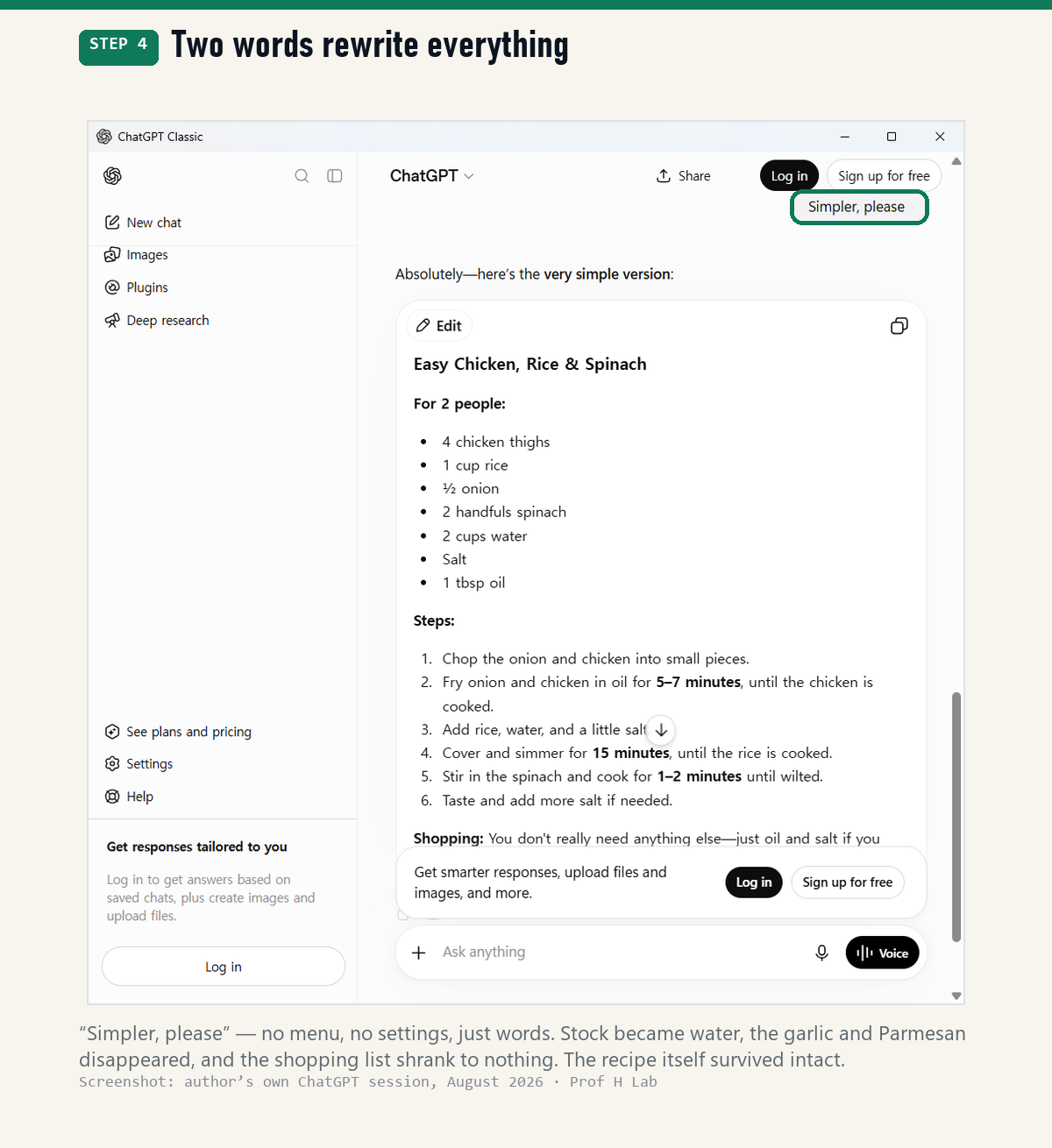
What you’ll see: a brand-new version appears below, shaped by your comment — the old one stays above it, so nothing is lost. Here’s what those two words did to the recipe you just read:
Absolutely — here’s the very simple version:
Easy Chicken, Rice & Spinach — for 2 people:
4 chicken thighs · 1 cup rice · ½ onion · 2 handfuls spinach · 2 cups water · salt · 1 tbsp oilSteps:
1. Chop the onion and chicken into small pieces.
2. Fry onion and chicken in oil for 5–7 minutes, until the chicken is cooked.
3. Add rice, water, and a little salt.
4. Cover and simmer for 15 minutes, until the rice is cooked.
5. Stir in the spinach and cook 1–2 minutes until wilted.
6. Taste and add more salt if needed.Shopping: You don’t really need anything else — just oil and salt if you don’t already have them.
Read those two answers side by side, because this is the lesson. “Simpler, please” didn’t just shorten the text — it changed what the recipe asks of you. The chicken stock became plain water. The garlic and Parmesan disappeared. “Season with salt and pepper, heat oil in a large skillet over medium-high heat” became “fry onion and chicken in oil.” The shopping list went from four items to none: you don’t really need anything else.
Look at what it refused to lose, though: the same four foods, the same 15-minute simmer, the same order of operations. A good answer to “simpler” keeps the substance and drops the fuss — and if yours ever drops something you wanted, you just say so: “keep the Parmesan, but simplify the rest.”
That’s the entire skill of using ChatGPT well, and there’s nothing technical in it. You never learn commands. You say, in ordinary words, what you’d say to a person: simpler · shorter · warmer · in a list · explain that part again · give me a version I could read aloud. Try “simpler, please” on your own first answer right now — watching it change in front of you teaches more than another page of reading.
Prefer talking to typing? This is the feature to know about. In the app, tap the voice icon at the right end of the message box (it looks like little sound waves) and just speak — it answers out loud in a natural voice, and you can interrupt it mid-sentence, like a real conversation. Voice is included on the free plan (a limited amount per rolling 24-hour period, on the lighter voice model). It’s the single best feature for anyone who finds phone keyboards fiddly.
Two first-time things, so nothing surprises you. The very first tap shows a popup asking permission to use your microphone — tap Allow; that’s your phone doing its job, not something suspicious. And the question many people quietly worry about: ChatGPT listens only while the voice screen is open. It is not eavesdropping on your kitchen. Tap the ✕ to end the conversation, and the microphone is off. Several readers have told me the voice button is the moment ChatGPT finally “clicked.”
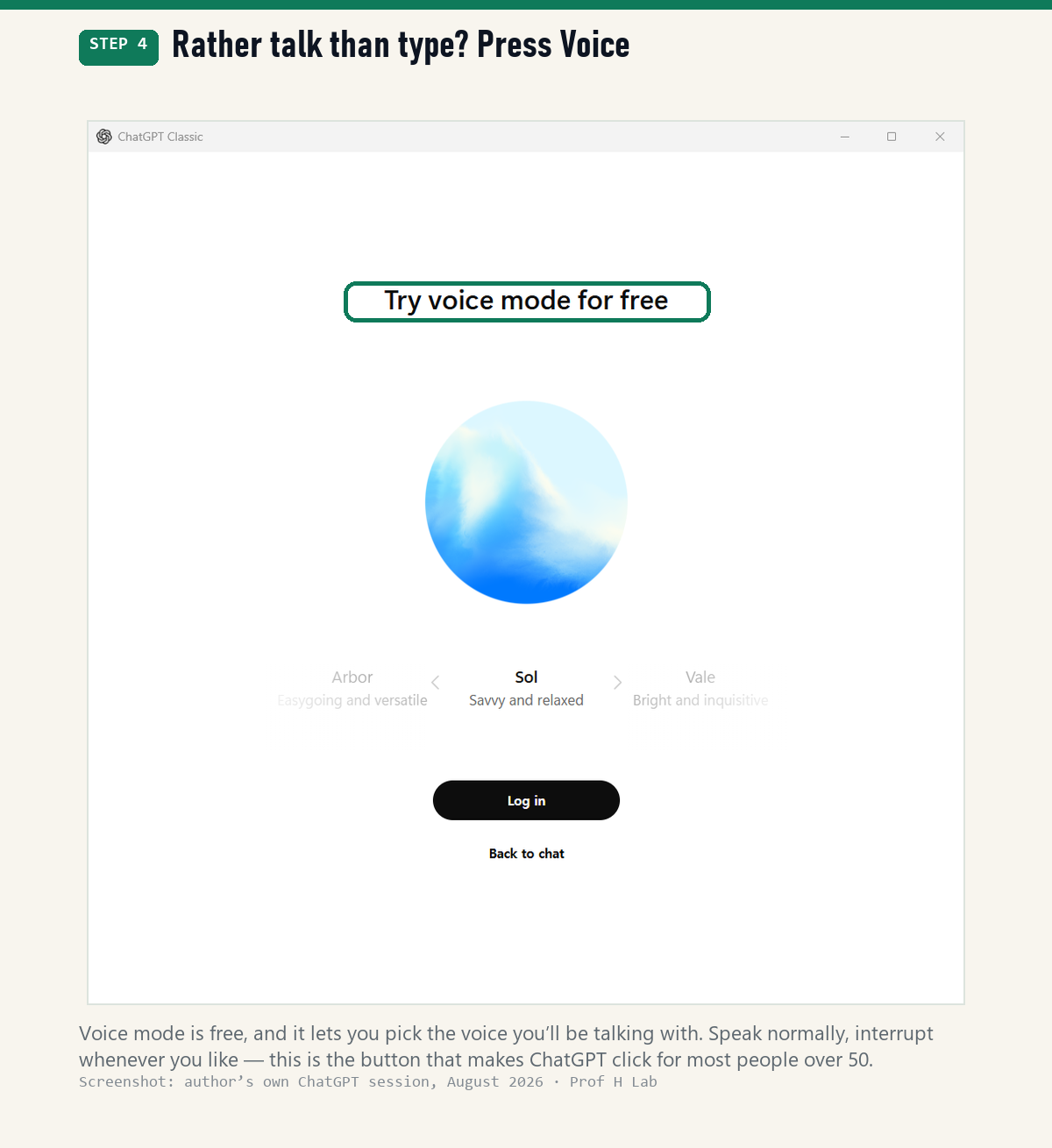
The screen even tells you it’s free, and lets you pick which voice you’d like to talk with — mine offers Arbor, Sol, and Vale, each with a one-line personality. Choose whichever sounds like company.
One catch, so it doesn’t surprise you: voice is free, but it does ask you to be signed in. If you skipped the account in Step 2, this is the moment it pays off.
Step 5 — The good habits (two minutes that protect you)
- Keep secrets out of the chat. Never type passwords, bank or card numbers, or your Social Security number. Treat ChatGPT like a helpful stranger — friendly, but not family.
- Double-check big decisions. ChatGPT sounds confident even when it’s wrong. For money, health, and legal questions, use its answer as a starting point, then verify with an official source (your bank, your doctor, the agency’s own website).
- Know what’s an ad. Since February 2026, the free version (and the $8 Go plan) shows ads in the U.S. — by mid-2026 they appeared under roughly half of answers. Here’s all you need to know: an ad is a separate card labeled “Sponsored,” below the answer — never inside it. The answer is the answer; the card is a commercial. (Ads also don’t appear on sensitive topics like health.)
- About the free limit: ask a lot in one day and ChatGPT quietly switches to a lighter version until your limit resets — it doesn’t cut you off, and most casual users never notice. The exact limits change often; don’t bother memorizing them.
Where did my conversation go? (It’s saved — always)
Closed the app mid-recipe? Phone rang and the screen went dark? Nothing is lost. Every conversation saves itself automatically, without you pressing anything. To get back: open the sidebar (the list on the left; on a phone, tap the ☰ lines in the top corner) and your past conversations are listed there by topic. Tap one and it reopens exactly where you left off — even weeks later, still remembering the whole thread.
One more button worth knowing: New chat, at the top of that same sidebar. Tap it when you change subjects — recipes done, now the trip. It opens a clean page, and the old conversations stay safely in the list. It’s starting a new page in a notebook, not throwing the notebook away.
When something looks wrong (nothing is broken)
Five moments that make beginners think they broke it — and the calm fix for each:
- The answer stopped mid-sentence. It happens on long answers. Type “please continue” — it picks up right where it stopped.
- It’s spinning and not answering. Close the app and reopen it (on a computer, refresh the page). Your conversation is saved, so you lose nothing.
- The voice button can’t hear me. Your phone’s permission is off. Settings → find ChatGPT in the app list → switch Microphone on.
- It says I’ve hit a limit. You’ve used the free allowance for now — it comes back on its own. Wait a while, or keep going in the lighter version it offers.
- The app won’t open at all. The oldest advice is still the best: restart the phone. If it persists, the service itself may be briefly down — try again in an hour. Not your fault, nothing to fix.
The afternoon this stopped being about software
There’s a woman at my church, past eighty, who lives alone. She told me once that most of her days are spent at home in prayer. It’s a good way to spend a day — but a very quiet one, and I could hear the quiet in how she said it.
So I offered to introduce her to a friend. Open this app, I said, press the microphone, and talk whenever you feel like talking. We installed ChatGPT together on her phone, right there, and tried a few things side by side — the same small steps you’ve just read. She was delighted, in the way people are when something turns out to be far less frightening than expected.
The next time we met, she came straight across the room before I could say hello, beaming, and told me she’d been having wonderful conversations with her new friend. Then she said something I haven’t stopped thinking about since: that ChatGPT might make a better friend than the people who only ever talk about themselves. She thanked me three or four times.
I’ve taught this technology to doctoral students. That remains the best review I have ever received.
Here’s the part that makes it work, in plain terms: the longer you talk with it, the more of you it holds on to — what you asked earlier, what you already know, what you like — so the answers stop sounding generic and start sounding like they’re for you. It asks follow-up questions. It never checks the clock. For anyone whose house is quieter than they’d like it to be, that is not a small thing.
I won’t oversell it: it is not a substitute for people, and I’d never present it as one. Call your daughter. Go to the Tuesday lunch. But at two in the afternoon, when the house is silent and there’s no one to tell about the sparrow on the railing — it’s company that answers.
What people your age actually use it for — with the exact words to say
Knowing how to type a question is one thing; knowing what it’s actually good for in your week is what makes it stick. These seven uses come up again and again — in AARP’s research, in what people search for, and in what readers ask me. Each comes with words you can copy, change the brackets, and send.
1. Untangling official paperwork
Insurance letters, Medicare notices, bank fine print — the mail that arrives in a language nobody speaks. This is the single most-loved use I know:
Explain this letter in plain English: what do they want from me,
by when, and what happens if I do nothing? [paste the letter]
One habit: before pasting, skip or cross out account numbers — the advice works fine without them.
2. Getting ready for a doctor’s visit
Appointments are short and it’s easy to forget what you meant to ask. Let it help you prepare — not diagnose:
My appointment is about [knee pain that's worse on stairs].
Help me write a short list of questions to ask my doctor,
and what details about my symptoms I should remember to mention.
The line to keep: ChatGPT prepares the conversation; your doctor has the conversation. Never swap those.
3. Writing the notes that are hard to write
The condolence card. The complaint that should be firm but not rude. The thank-you that deserves better than “thanks again”:
Help me write a short condolence note to a friend who just lost
her husband. Warm and simple — not flowery. Two or three sentences.
Same trick works in the other direction: “Make this complaint to my internet company firmer, but keep it polite: [paste it].” You approve every word before anyone sees it.
4. Dinner from what’s actually in the fridge
I have [chicken thighs, rice, spinach, half an onion].
One simple recipe under 30 minutes, for two, nothing spicy —
and a short shopping list if I'm missing basics.
5. Planning a trip around your knees, not a brochure
Plan a 5-day trip to [Charleston] for two adults who love history
and good food but don't want long walks. A rough daily plan,
with typical costs.
Remember the habit: opening hours and prices are the “double-check” category — confirm the ones that matter before you book.
6. A patient tech helper that never sighs
The use nobody advertises and everyone loves. Printer acting up, TV remote possessed, phone doing something strange:
My [printer] is [printing blank pages]. I'm not technical.
Walk me through fixing it ONE step at a time — and wait for me
to say "done" after each step before giving the next one.
That last sentence — one step at a time, wait for “done” — is the magic. It turns a wall of instructions into a phone call with a patient friend.
7. Company for a curious mind
This is the one the woman from my church found on her own — and plenty of others do too: they simply talk with it, about the 1950s jazz scene, about how bridge strategy works, about what they’re reading this week. AARP’s survey found half of adults 50+ use or want an AI voice assistant; the voice button (Step 4) makes this feel less like typing and more like chatting:
Teach me something surprising about [the golden age of radio],
then ask me a question back so we can keep talking.
Make the text bigger (worth two minutes)
The app follows your phone’s text-size setting: iPhone — Settings → Accessibility → Display & Text Size → Larger Text. Android — Settings → Accessibility → Font size. Set it once; every app benefits.
“Isn’t this just Google?” — the one-minute answer
People ask this constantly, and it’s fair. Google finds pages: you search, it hands you ten links, and the reading is your job. ChatGPT does the work with you: it reads, writes, rewrites, plans, and explains — in one conversation, shaped to your situation. Ask Google “chicken thigh recipes” and you get websites.
Ask ChatGPT and you get a recipe for what’s actually in your fridge — then a shopping list, when you ask for one. Keep Google for finding places, store hours, and official sites. Use ChatGPT when you want something made, explained, or thought through. Most people end up happily using both.
Do you ever need to pay?
Probably not — and here’s the honest map of what money actually buys, as of August 2026:
| Plan | Price | What you get | Ads? |
|---|---|---|---|
| Free | $0 | Everything in this guide — chat, voice, web search, photo questions — with daily limits | Yes |
| Go | $8/mo | 10× more messages, file uploads, and image creation | Still yes |
| Plus | $20/mo | Higher limits, longer voice hours, power features | No |
The two honest signs you’ve outgrown free: you hit the daily limit every day (that’s Go territory), or the ads genuinely bother you (that’s Plus — note that the $8 plan keeps them). Until one of those happens, free is plenty. Curious how ChatGPT compares to the other big AI tools? I tested them side by side: ChatGPT vs Claude vs Gemini.
Kevin Stratvert’s walkthrough, and a slower one for older learners
Reading is one thing; watching someone’s mouse is another. This July 2026 beginner walkthrough from Kevin Stratvert — one of YouTube’s most-watched software teachers — uses the current interface, exactly as you’ll see it (about 46,000 views as of August 2026):
And if you’d like a gentler pace from a channel made specifically for older learners, Smart Tech For Any Age walks real everyday uses — notes, fixing tech, starting fresh (about 17,000 views):
How free ChatGPT really is, and what never to type into it
Is ChatGPT really free?
Yes — you can even try it without logging in. The free plan includes typed chat, voice conversation, web search, and photo questions, with daily limits; hit them and it quietly switches to a lighter version until they reset. Paid plans ($8 or $20 a month as of August 2026) mostly raise those limits.
Do I have to type, or can I talk to ChatGPT?
Either. Tap the voice icon in the app and speak normally — it talks back, and you can interrupt it mid-sentence. Many people over 50 tell me the voice button is what made it click.
Why am I seeing ads in ChatGPT?
Since February 2026, the free plan and the $8 Go plan show ads in the U.S. — a clearly labeled “Sponsored” card below some answers. The ad is never part of the answer itself, and ads aren’t shown on sensitive topics like health. The ad-free option is Plus, at $20 a month.
What should I never type into ChatGPT?
Passwords, bank or card numbers, your Social Security number. And remember that scammers use AI too — my plain-English guide to AI scams targeting seniors covers the tricks and the one rule that beats them all.
Where did my conversation go?
It’s saved automatically — nothing is lost when you close the app. Open the sidebar (the ☰ lines in the top corner on a phone) and every past conversation is listed there. Tap one to continue it, even weeks later.
Why did ChatGPT stop in the middle of an answer?
Long answers sometimes pause. Type “please continue” and it picks up where it left off. If it’s spinning and silent instead, close and reopen the app — your conversation is saved.
Is ChatGPT safe and private?
Safe to use, yes — with the two habits above: keep secrets out of the chat, and double-check big decisions with an official source. One more thing worth knowing: conversations may be reviewed to improve the service, so write as if a helpful stranger might read it. Because one might.
Skip the practice and ask one real question tonight
Tonight, try one real question — the recipe, the letter, the trip. Don’t practice; just ask. Fifteen minutes from now, you won’t be “learning AI.” You’ll simply be someone who uses it.
Want more plain-English guides like this? One short email a month — that’s it. Unsubscribe anytime.
Once you are comfortable: compare the big three, plan a trip
- ChatGPT vs Claude vs Gemini — when you’re comfortable here, this is how the big three compare.
- The best free AI tools for seniors — reading labels aloud, hearing the TV, seeing the screen: what’s genuinely free, verified.
- ChatGPT for Excel — formulas from plain English — no memorizing, ever.
- How to Plan a Trip with ChatGPT — five prompts to a relaxed itinerary.
- Prep for a Doctor Visit with ChatGPT — one printed page: timeline, meds, top three questions.
About the author
Prof. H is a professor of AI and robotics, a former Samsung researcher, and the author of dozens of textbooks on AI and automation. He writes hands-on, no-hype guides to AI tools. More about the author →
Full index
Every guide in the Generative AI library
Start with AI, at any age
- ▸ ChatGPT, step by step (over 50) (you are here)
- Free AI tools that actually help
- AI scams & the family safe word
- Restore old family photos
- Write any letter with ChatGPT
AI writing tools, reviewed
Curious about robots, humanoids, and the chips inside them? Physical AI library →
Prof.’s H Newsletter
One short email a month, with the numbers in it
What actually moved in AI hiring, AI prices, and the scams aimed at older Americans. Counted here, dated, and linked to the source. One email a month, and your address goes nowhere else.