How to Turn Off AI on Kindle: There Is No Switch, but 5 Steps Keep It Out of Your Way
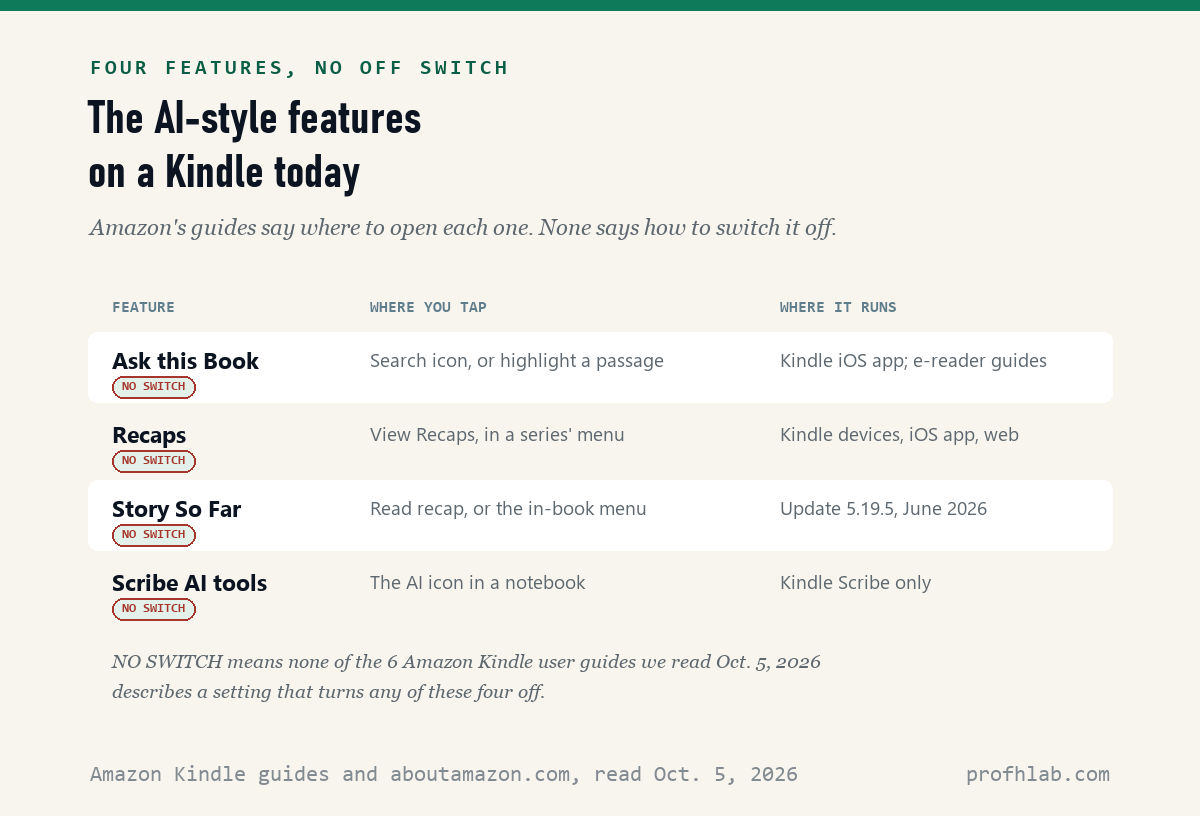
No, a Kindle has no switch that turns off its AI features: on October 5, 2026 we read 6 Amazon Kindle user guides, and 0 of them describe one. Ask this Book, Recaps, Story So Far and the Kindle Scribe AI tools have no off setting. What you can do is keep them out of your way. Five steps below do that.
If a question box or a “recap” button has started showing up in your books, you did nothing wrong. Amazon added these features through software updates. Its June 2026 update note for the Kindle Paperwhite lists Story So Far by name.
What we checked on October 5, 2026
We read Amazon’s user guides for 6 Kindle models, the official software update notes for 13 Kindle models, two Amazon help pages and two aboutamazon.com articles, in English. Then we ran a web search for “how to turn off ai on kindle” and opened all 10 results. Four of them gave us a blank page or blocked our reader, so we count them as unread and quote nothing from them.
We did not test these steps on a Kindle of our own. The menu names below are the ones Amazon prints in its guides. Your screen may word them a little differently.
Written and checked by Prof. H. An AI assistant helped draft this article and ran the page reads; every quotation below was read on the source’s own page on the date shown.
Can you turn off AI on a Kindle?
No: none of the 6 Amazon Kindle user guides we read on October 5, 2026 describes a setting that turns off Ask this Book, Recaps, Story So Far or the Scribe AI tools. The guides tell you where to open each feature. They never tell you how to remove it.
Think of these features as a reading lamp someone clipped to your book. You cannot unclip it. But it only lights up when you reach for the switch. Each guide describes the features as things you open with a tap: a Search icon, a menu, or an AI icon.
Amazon has also said this out loud, for authors. An Amazon spokesperson told Publishers Lunch that Ask this Book is “always on,” as Reactor reported on December 12, 2025. That quote was about authors opting their books out. It still tells you where Amazon stands.
What are Ask this Book, Recaps and Story So Far?
They are three reading helpers that Amazon’s article “How Kindle helps you stay immersed in every book you read,” updated July 2, 2026, describes for U.S. readers of “thousands of best-selling English-language eBooks.” Here is what each one does, in plain words.
| Feature | What it does | Where Amazon says to find it |
|---|---|---|
| Ask this Book | Answers your typed questions about the book | Highlight a passage, or the in-book menu |
| Recaps | Short summaries of earlier books in a series | “View Recaps” in the series menu |
| Story So Far | A summary up to the page you reached | “Read recap” when you press and hold a book |
Does Amazon call them AI? Not on its own help pages. Its Kindle Direct Publishing help page on Recaps, read October 5, 2026, says “We use Amazon moderators in addition to technology.” For Ask this Book, the spokesperson quoted by Reactor said it “uses technology, including AI.”
Our count, October 5, 2026: 7 of the 13 Kindle software update notes we read list Story So Far in version 5.19.5, dated June 2026. 0 of the 13 mention Ask this Book. Yet the user guides for 3 current models describe it. So it may reach your Kindle without an update note naming it.
How do I keep Ask this Book out of my way while I read?
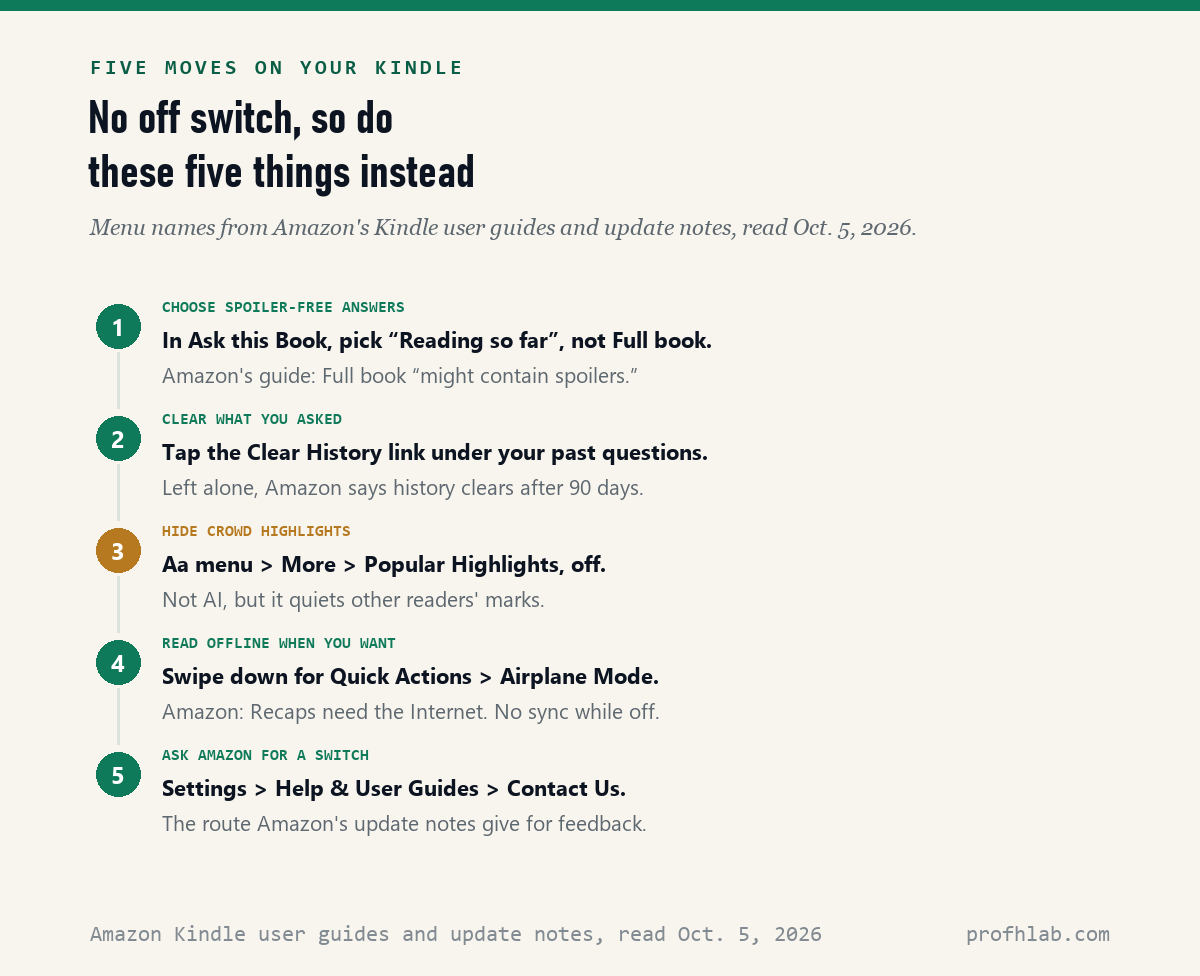
You leave it closed, keep it on spoiler-free answers if you do use it, and clear its history, according to the Kindle Paperwhite user guide we read October 5, 2026. The guide says you reach it from the Search icon at the top of the page.
- If you open it by accident, close it the way you close any Kindle menu.
- If you use it, pick Reading so far. Amazon’s guide says the other choice, Full book, “might contain spoilers.”
- To erase what you asked, tap the Clear History link under your past questions.
If you do nothing, Amazon’s guide says the history is “automatically cleared after 90 days of inactivity.” It does not say whether Amazon keeps a copy anywhere else. We could not confirm that either way, so we make no claim about it.
Does Airplane Mode stop the Kindle AI features?
For Recaps, yes: Amazon’s Recaps help page, read October 5, 2026, says “To access Recaps, you need to connect your device to the Internet.” Airplane Mode cuts that connection. Amazon does not present this as an off switch, so treat it as a workaround.
For Ask this Book, our estimate is that it also needs a connection, because it answers questions you type. That is an inference. We found no Amazon page that says so.
The cost is real. Amazon’s guide says Airplane Mode means “no wireless or Bluetooth connectivity.” New books will not download, and your page will not sync to your phone. To switch it, swipe down from the top of the screen to open Quick Actions, then tap Airplane Mode.

Which Kindle reading settings can be switched off today?
Several, but none of them is AI: the Kindle Paperwhite user guide we read October 5, 2026 gives switches for Popular Highlights, Word Wise, Vocabulary Builder and the reading-progress line. If what bothers you is clutter on the page, these help.
- Popular Highlights, the underlines other readers made: open the Aa menu, then More, then Popular Highlights.
- Word Wise, the small hints above hard words: the same Aa menu, More tab.
- Vocabulary Builder, which saves words you look up: the guide says you can “toggle Vocabulary Builder on and off.”
- Reading progress at the bottom of the page: choose None.
One setting we looked for is not there. Some websites describe a switch that hides store recommendations on the Home screen. The Paperwhite guide says Home shows “recommended content from the Kindle and Audible stores.” We did not find a switch for it in that guide’s Home and Library settings.
What do the AI tools on a Kindle Scribe do?
They summarize and tidy your handwritten notes: the Kindle Scribe user guide we read October 5, 2026 lists “Summarize” and “Refine writing” and says, “Just tap on the AI icon to access the tools.” Unlike the reading features, Amazon calls this one AI plainly.
Amazon’s aboutamazon.com article on the Scribe says the summary feature is “powered by generative AI.” The newer Scribe guide also describes an AI notebook search. If you never tap the AI icon or ask the search a question, the guides describe nothing that runs on its own.
There is one more door to know about. The guide says “Send to Alexa” appears only “if you are entitled to Alexa+ and have accepted the required Terms of Use.” If you never accepted those terms, that option should not appear.
Can authors stop Amazon from using AI on their books?
No: Amazon’s Kindle Direct Publishing help page, read October 5, 2026, says “The Recaps feature is always on” and that “there is no option to enroll or unenroll.” Authors cannot remove Recaps from their books.
For Ask this Book, Gizmodo reported on December 15, 2025 that an Amazon spokesperson gave Publishers Lunch the same answer for authors and publishers: no opt-out.
Why does that matter to a reader? Because if the author cannot turn it off, a reader’s switch was never likely. That is our reading of the situation, not something Amazon said.
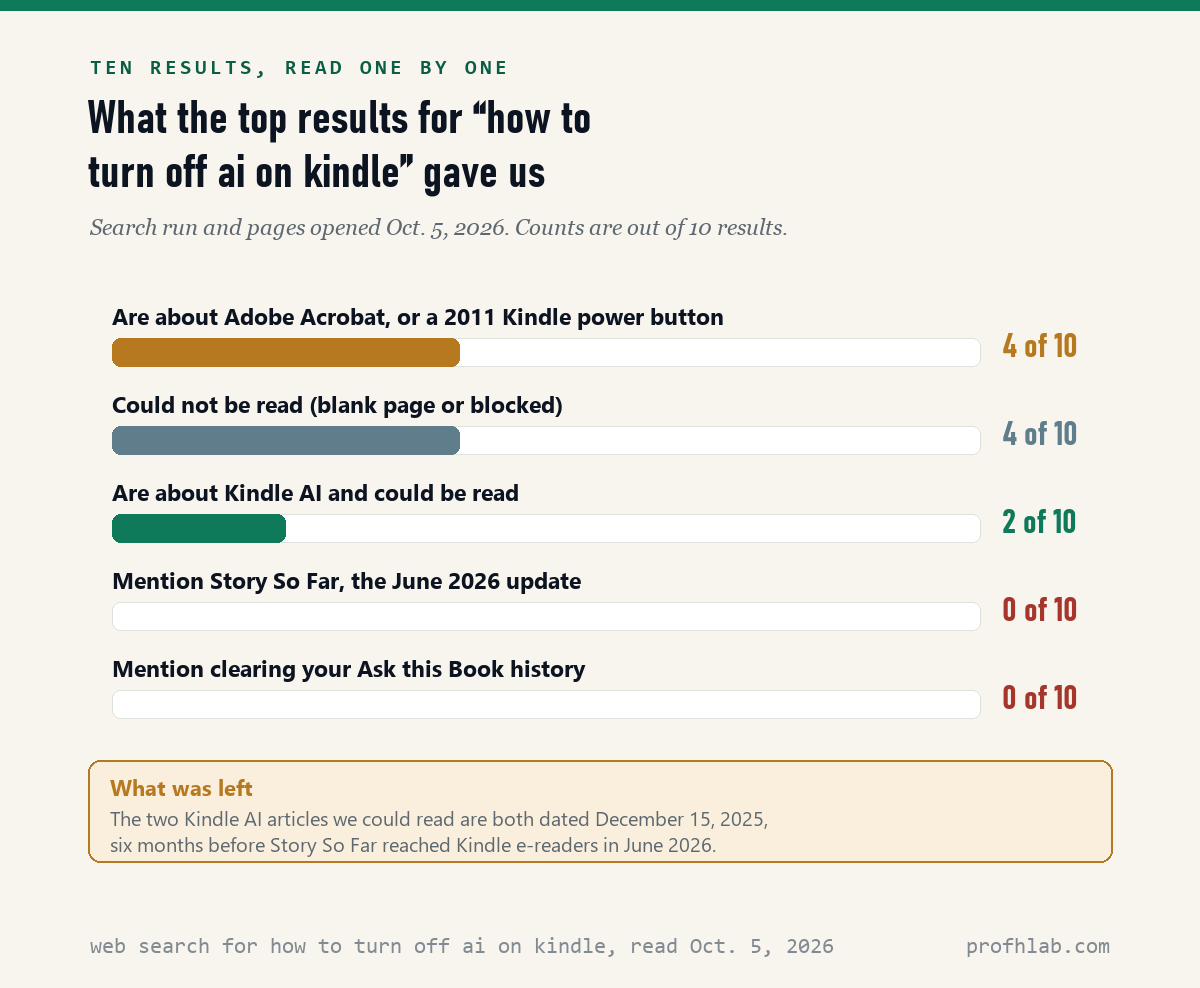
Our count of the 10 results for this question found two current articles
Of the 10 results our web search listed on October 5, 2026, only 2 were about Kindle AI and could be read. Both are dated December 15, 2025, months before Story So Far appeared in Amazon’s June 2026 update notes.
Four results were about Adobe Acrobat or a 2011 post on the Kindle power button. Four more showed us a blank page or blocked our reader. None of the 10 mentioned Story So Far or how to clear your Ask this Book history.
A Kindle writer and a gadget channel demonstrate Ask This Book and Story So Far
How do I ask Amazon to add an off switch?
Use the feedback route Amazon prints at the top of its Kindle update notes, read October 5, 2026: go to Settings, then Help & User Guides, then Contact Us. Say which feature you want a switch for, by name.
Keep it short. For example: “Please add a setting to turn off Ask this Book and Story So Far.” Naming the feature helps the message reach the right team. We cannot promise Amazon will act on it.
Is Kindle AI free, and does it work outside the U.S.?
Do I have to pay for Ask this Book or Recaps?
Amazon’s article updated July 2, 2026 mentions no fee. It says the features work on books you have “purchased or borrowed.” We found no Amazon page listing a price for them.
Does Kindle AI work outside the United States?
Not yet, by Amazon’s own words. Its article says the features are available to U.S. customers, for English-language eBooks. The Recaps help page says it is for Kindle devices registered to an Amazon.com account.
Is Ask this Book on my Kindle or only in the phone app?
Amazon’s article updated July 2, 2026 says the Kindle app for iPhone and iPad first, with Kindle devices and Android later. The current Paperwhite, Colorsoft and Kindle user guides already describe it. Check your Search icon.
Can Ask this Book spoil the ending?
Yes, if you choose Full book. Amazon’s guide says Full book answers might contain spoilers. Choose Reading so far to keep answers to the pages you have read.
Will a factory reset remove the AI features?
No Amazon page we read says it would. The features came with software updates, so a reset should bring the same software back. That is our inference; we did not test it, and a reset also erases your downloads.
Alexa, Ring and the Amazon app have AI settings of their own, and some do switch off
Your Kindle is one of several Amazon devices with new AI. See how to turn off AI on Amazon, Alexa+ ads on an Echo Show, Alexa+ without Prime and AI on a Ring doorbell.
For your phone, read how to get rid of AI on your phone, AI summaries on an iPhone and AI on a Samsung phone. For photos and the TV, see Google Photos and your TV.
On the computer, we cover Edge, Chrome and Gmail. Apps too: Facebook and WhatsApp. To guard against voice-clone calls, set up a family safe word and read AI scams aimed at seniors.
New to all of this? Begin at Start Here, try ChatGPT for the first time after 50, or see the AI tools we rate for seniors. Send a question on the Ask page. Our method is at How We Count.
Amazon guides, update notes and reports behind each Kindle claim
- Amazon, Kindle Paperwhite (12th generation) User Guide, plus the matching guides for the Kindle Colorsoft, Kindle (2024), Kindle (2022), Kindle Scribe and Kindle Scribe (3rd generation). Read October 5, 2026.
- Amazon, Kindle Paperwhite software update notes (versions 5.19.5, June 2026, and 5.19.6, July 2026), and the notes for 12 other models linked from Latest Kindle Software Updates. Read October 5, 2026.
- Amazon Help, Recaps on Kindle devices. Read October 5, 2026.
- Kindle Direct Publishing Help, Recaps. Read October 5, 2026.
- About Amazon, How Kindle helps you stay immersed in every book you read, published April 2, 2025, updated July 2, 2026. Read October 5, 2026.
- About Amazon, Kindle Scribe notebook features. Read October 5, 2026.
- About Amazon, Amazon introduces a completely redesigned Kindle family; it does not mention Ask this Book, Recaps or Story So Far. Read October 5, 2026.
- Reactor, report on the Amazon spokesperson’s statement to Publishers Lunch, December 12, 2025. Read October 5, 2026.
- Gizmodo, With New ‘Ask this Book’ Kindle Feature, Amazon Wants Lost Readers to Ask AI for Help, December 15, 2025. Read October 5, 2026.
- Web search results for “how to turn off ai on kindle,” ten listed October 5, 2026: six opened and read, including MacRumors and Your Book Friend (both December 15, 2025); four (two amazon.com question pages, amazonforum.com and justanswer.com) gave a blank page or blocked our reader and are counted as unread.
This page describes what Amazon’s guides, help pages and public reports say; Kindle menus can change after a software update, and some features reach some models or countries before others. Corrections and questions go to the Ask page.
Prof.’s H Newsletter
One short email a month, with the numbers in it
What actually moved in AI hiring, AI prices, and the scams aimed at older Americans. Counted here, dated, and linked to the source. One email a month, and your address goes nowhere else.