How to Turn Off AI in Edge: No Single Switch, but 6 Toggles Get You Most of the Way
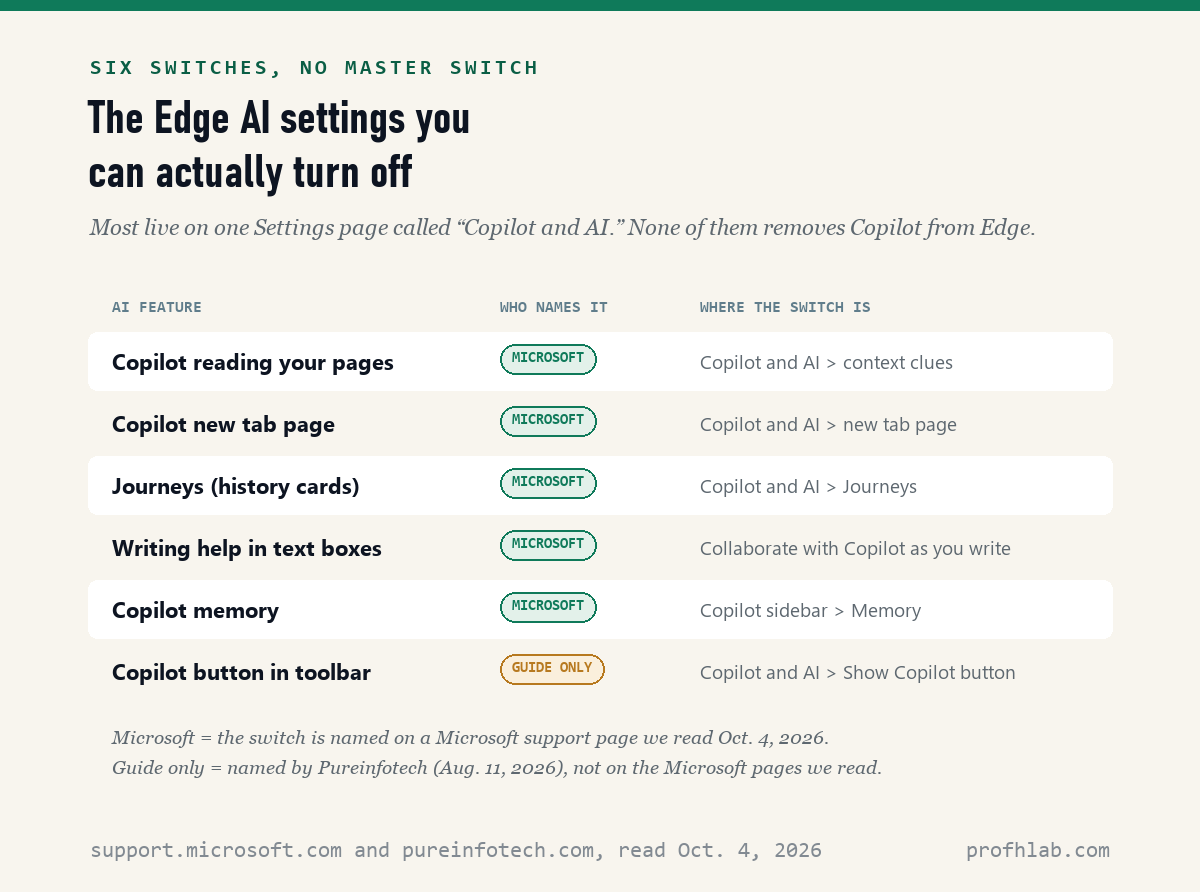
No, Microsoft Edge has no single switch that turns off all AI: on October 4, 2026 we read 8 Microsoft pages about Copilot in Edge, and 0 of them describe one. What Edge does have is a set of separate toggles. Six of them, most on one Settings page called “Copilot and AI,” get you most of the way. This guide shows each one in plain steps.
If Copilot keeps popping up in your browser, that is not your fault. Microsoft says on its own Edge blog that Copilot features are now “built directly into Edge.” You did not turn them on by mistake. You can, however, turn most of them down.
How we checked this
On October 4, 2026 we read seven Microsoft Support pages about Copilot in Edge and the Microsoft Edge blog post of May 13, 2026, in English. Then we ran a web search for “how to turn off ai in edge” and tried to open all nine results. Seven opened. Two sites refused our reader with an error, so we count them as unread and quote nothing from them.
We did not test these steps on a signed-in copy of Edge. The menu names below are the ones Microsoft and the guides print. Your screen may word them a little differently, because Edge updates often.
An AI assistant helped draft this article and ran the page reads. Every quotation below was read on the source’s own page on the date shown.
Can you turn off AI in Microsoft Edge completely?
No: none of the 8 Microsoft pages about Copilot in Edge that we read on October 4, 2026 describes one switch that removes AI from the browser. Microsoft’s blog says instead that you can “select which experiences you want or leave off the ones you don’t.”
Think of Edge like a car that now comes with a co-pilot seat already bolted in. You cannot take the seat out. You can ask the co-pilot not to read your map, not to talk, and not to keep notes on your trips. That is what the switches below do.
Microsoft’s sidebar help page, read October 4, 2026, is retiring the old sidebar app list. It then asks, “Will Copilot or the side pane be removed?” Its answer starts with “No.” So the goal is to quiet Copilot, not to delete it.
How do I stop Copilot in Edge from reading my web pages?
You turn off one setting, “Allow Copilot to read context clues on the web,” under Settings, then Copilot and AI, according to Microsoft’s page “How Context Clues work in Copilot in Edge,” read October 4, 2026. This is the most important switch for privacy.
- Open Edge and click the three dots (…) at the top right.
- Click Settings.
- Click Copilot and AI in the list on the left.
- Turn off Allow Copilot to read context clues on the web.
What does it stop? Microsoft lists the browsing data Copilot can use: the web address, the page title, “page content or screenshots,” and your browsing history. Microsoft says that with the switch off, “Copilot won’t use your browsing data.”
Microsoft also gives a plain warning: “Don’t share sensitive information that you wouldn’t want used as browsing context.” If you keep this switch on, close your bank or doctor tabs before you ask Copilot anything.
Our count, October 4, 2026: 0 of the 7 top results we read for “how to turn off ai in edge” mention this context clues switch. It is the one Microsoft’s own help pages point to when you ask how to stop Copilot using your browsing.

How do I get my old Edge new tab page back without Copilot?
You turn off Copilot new tab page on the same Copilot and AI settings page, the toggle Microsoft’s “Getting started with Copilot in Microsoft Edge” page, read October 4, 2026, names for this feature. Microsoft describes that new tab page as one that brings together “Copilot chat, search, and web navigation.”
Right below it is Journeys. Journeys turns your browsing history into topic cards on the new tab page. Microsoft’s Journeys page says it is “turned off by default,” so you may never have seen it.
If you did turn it on, here is the good news. Microsoft says that turning Journeys off “stops data collection right away and deletes information previously stored to create your Journeys.” Older Journeys are also deleted on their own after 14 days, the same page says.

How do I remove the Copilot button from the Edge toolbar?
You turn off “Show Copilot button in toolbar” under Settings, then Copilot and AI, according to Pureinfotech’s guide by Mauro Huculak, dated August 11, 2026. We did not find this switch named on the 8 Microsoft pages we read on October 4, 2026, so treat the wording as the guide’s, not Microsoft’s.
The same guide lists two more toggles on that page: “Allow Cowork to take actions on your behalf” and “Enable Browse with Copilot.” Browse with Copilot lets Copilot click and type on websites for you. Microsoft’s page on it, read October 4, 2026, says it is rolling out to Microsoft 365 Premium subscribers in the U.S. Most people will not have it.
If you do have it, Microsoft’s own advice is worth reading twice. It says to avoid using it for “Financial activity (banking, stock trading, credit card details).”
How do I turn off the AI writing help that pops up when I type in Edge?
Microsoft’s “Inline Compose” FAQ, read October 4, 2026, says you can disable it “by turning off Collaborate with Copilot as you write on the web in Microsoft Edge settings.” This is the helper that offers to rewrite what you type in a text box.
Microsoft does not say where that toggle sits. Pureinfotech’s August 11, 2026 guide puts a writing switch under Settings, then Languages, worded “Use Writing Assistant for writing on the web.” Two names for one feature is a sign the menu has moved. Look in Languages first, then in Copilot and AI.
Microsoft’s Edge blog of May 13, 2026 says the writing assistant is “available in the U.S. only.” You will know it by the small blue dot the blog describes, which appears while you type.
How do I stop Copilot in Edge from remembering me?
Microsoft’s “Microsoft Copilot privacy controls” page, read October 4, 2026, gives this path for Edge: open the Copilot sidebar menu (…), then Settings, then Memory, then Personalization and memory. One caution: that page says it covers the older version of the Copilot app, so the menu may differ on yours.
The same page says that if you turn memory off, “Copilot will forget its memories of your conversations.” You can also simply ask Copilot, “What do you know about me?” Microsoft says Copilot will then sum up what it remembers.
Training is a separate choice. That page says you opt out under your profile, then Privacy, then “Training on conversation activity.” It also says opting out covers future conversations only.
Why do so many guides tell me to turn off “Copilot Mode” when I can’t find it?
Because Microsoft retired it: the Microsoft Edge blog post of May 13, 2026, by Sean Lyndersay, says “we’re retiring Copilot Mode,” yet 3 of the 7 top results we read on October 4, 2026 still describe it as something to switch off. If you cannot find Copilot Mode, you are not doing anything wrong.
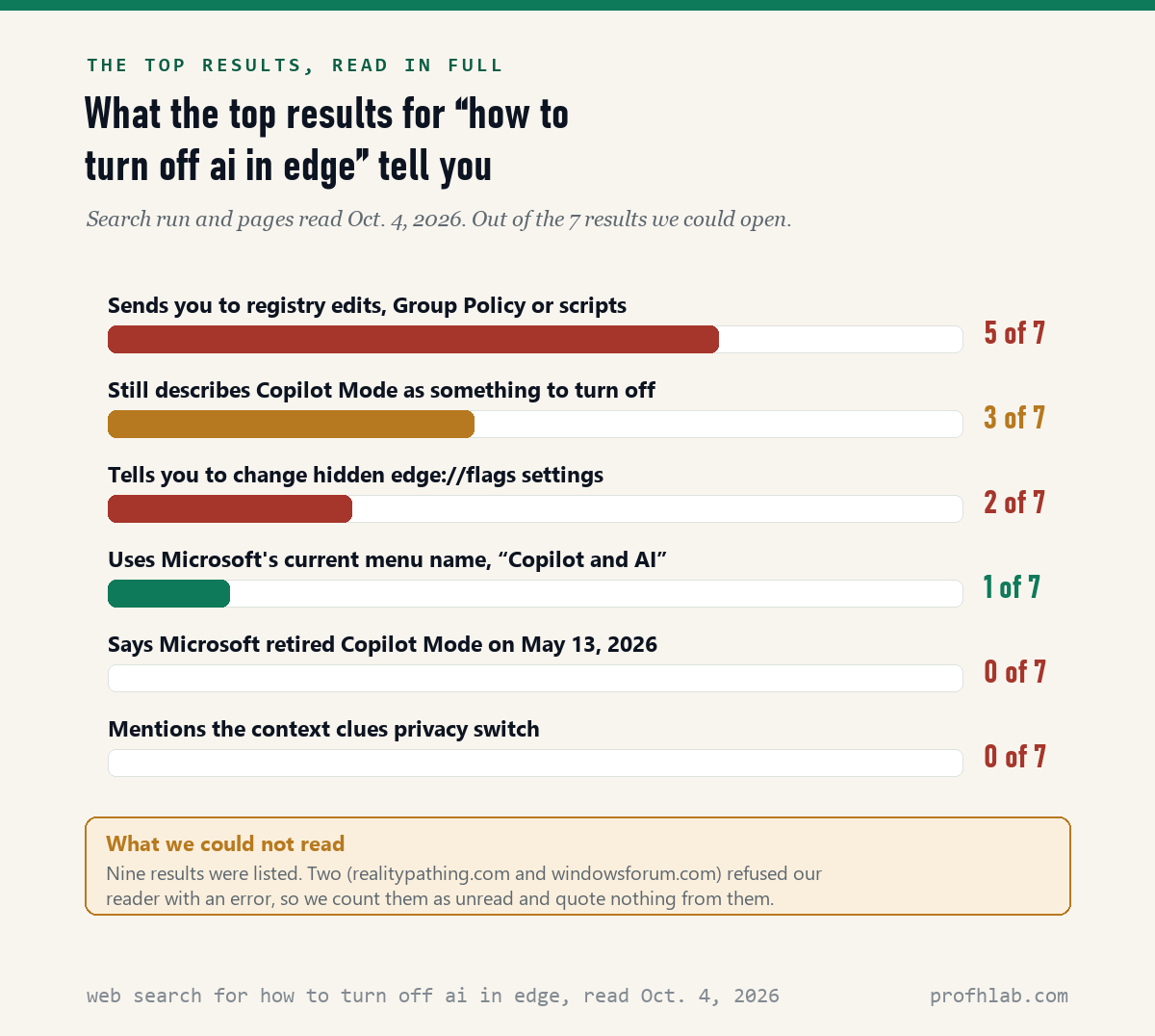
The search results had other habits worth knowing about. Five of the 7 pages bring up registry edits, Group Policy or scripts. Two send you to a hidden page called edge://flags. Those are tools for IT staff. One wrong change there can break things, and you do not need them for the six switches above.
Dates matter too. The oldest page we read, from AskVG, is dated June 21, 2024. Only 1 of the 7, Pureinfotech’s, uses Microsoft’s current menu name, “Copilot and AI.” If a guide shows menus you cannot find, check its date before you blame yourself.
Copilot Mode is retired, but its features still live in Edge
Ten minutes on the Copilot and AI settings page
The five changes fit in one sitting, by our estimate about ten minutes, and most of them sit on the Copilot and AI settings page that Microsoft’s support pages name, read October 4, 2026. Do them in this order, because the first one opens the page you need.
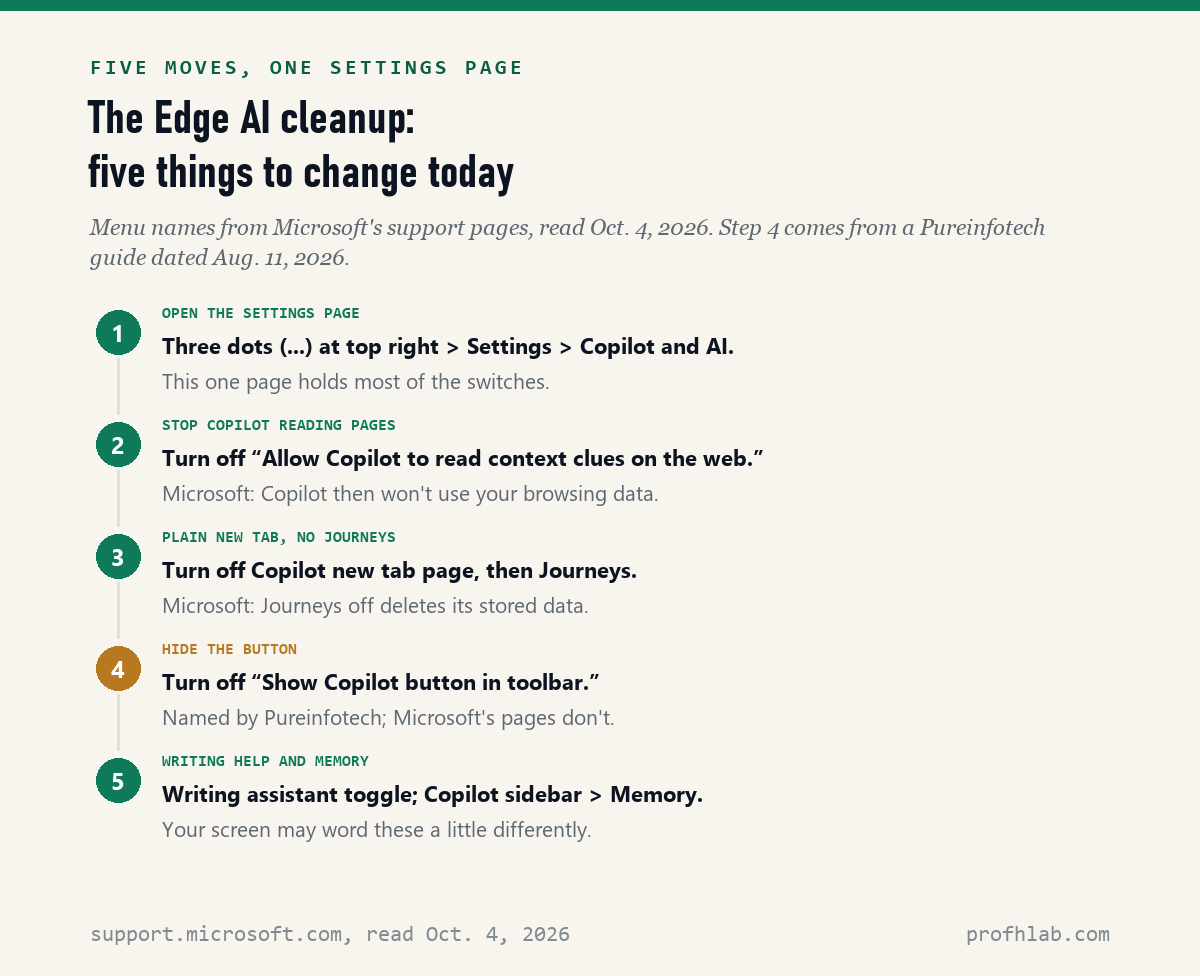
- Open the page: three dots, then Settings, then Copilot and AI.
- Turn off context clues so Copilot does not read your pages.
- Turn off Copilot new tab page and Journeys for a plain new tab.
- Turn off Show Copilot button in toolbar if your Edge has it.
- Turn off writing help (try Languages) and Copilot memory (in the Copilot sidebar).
Then add one habit. If a pop-up in your browser says “Copilot” or “Microsoft” and asks you to call a number, close it. Microsoft’s own support site has a “Report a support scam” link in its menu. Our guide to AI scams targeting seniors shows what those pop-ups look like.

Does switching off AI slow Edge down, or call for a new browser?
How do I turn off AI in Edge?
Open Settings, then Copilot and AI, and turn off context clues, the Copilot new tab page, Journeys and the Copilot button. Then turn off writing help and Copilot memory. Microsoft’s pages describe no single switch that turns off all AI in Edge.
How do I turn off Copilot in Edge?
You can hide the Copilot button and stop Copilot reading your pages, but Microsoft’s sidebar help page says Copilot is not being removed. Turning off context clues is the key privacy step.
How do I turn off Copilot Mode in Edge?
You don’t need to. Microsoft’s Edge blog says it retired Copilot Mode on May 13, 2026. Its features now sit in Edge’s regular settings, under Copilot and AI.
Does turning off AI make Edge slower or break websites?
We did not test speed, so we can’t say. Microsoft’s context clues page says that with the switch off, suggestions and some Copilot answers “won’t be as relevant.” It mentions no effect on normal websites.
Should I switch to a different browser to avoid AI?
That is your choice. Chrome has its own AI features too; our guide to turning off AI in Chrome lists them. Changing browsers means moving your bookmarks and passwords, so try the six switches first.
Edge is one place Microsoft put Copilot; Windows and Word are others
Edge is only one place Microsoft put Copilot. For the rest of your computer, see removing Copilot from Windows 11, turning off Copilot in Word and AI in Outlook.
If the AI answers at the top of your searches bother you, read how to get the old Google search back and how to stop AI from reading your Gmail. For your phone, see how to get rid of AI on your phone, AI summaries on an iPhone and AI on a Samsung phone.
Other apps work the same way: Facebook, LinkedIn and Zoom. To protect your family from voice-clone calls, set up a family safe word.
New to all of this? Begin at Start Here, try ChatGPT for the first time after 50, or see the AI tools we rate for seniors. Send a question on the Ask page. Our method is at How We Count.
Microsoft’s support pages on context clues, Journeys and Compose
- Microsoft Support, Getting started with Copilot in Microsoft Edge. Read October 4, 2026.
- Microsoft Support, How Context Clues work in Copilot in Edge. Read October 4, 2026.
- Microsoft Support, Copilot Journeys in Microsoft Edge. Read October 4, 2026.
- Microsoft Support, Browse with Copilot in Microsoft Edge. Read October 4, 2026.
- Microsoft Support, Microsoft Edge Inline Compose: Responsible AI FAQ. Read October 4, 2026.
- Microsoft Support, Microsoft Copilot privacy controls (marked as applying to the older Copilot app). Read October 4, 2026.
- Microsoft Support, Sidebar in Microsoft Edge. Read October 4, 2026.
- Microsoft Edge Blog (Sean Lyndersay), New updates to Edge across desktop and mobile, May 13, 2026. Read October 4, 2026.
- Pureinfotech (Mauro Huculak), How to disable every AI feature on Microsoft Edge for Windows 11, dated August 11, 2026. Read October 4, 2026.
- Other top results read October 4, 2026: AskVG (dated June 21, 2024), TheWindowsClub (updated February 17, 2026), Windows Latest (updated September 8, 2026), Techlasi (dated March 4, 2026), Pureinfotech on Google AI Overviews and The Privacy Cloud.
- Web search results for “how to turn off ai in edge,” nine listed October 4, 2026: seven opened and read; two (realitypathing.com and windowsforum.com) returned an error and are counted as unread.
This page describes what Microsoft’s help pages and public guides say; menu names can change after an Edge update, and some features reach some accounts or countries before others. Corrections and questions go to the Ask page.
Prof.’s H Newsletter
One short email a month, with the numbers in it
What actually moved in AI hiring, AI prices, and the scams aimed at older Americans. Counted here, dated, and linked to the source. One email a month, and your address goes nowhere else.