How to Get the Old Google Search Back (One Click, No Download)
You cannot turn Google’s AI answer off. Google’s own help page says so in one sentence, and we quote it below. But you can get the plain list of links back on any search in one click, using a filter Google calls Web — and on a computer you can make that the way Google always opens, in about five minutes.
What we measured on September 11, 2026
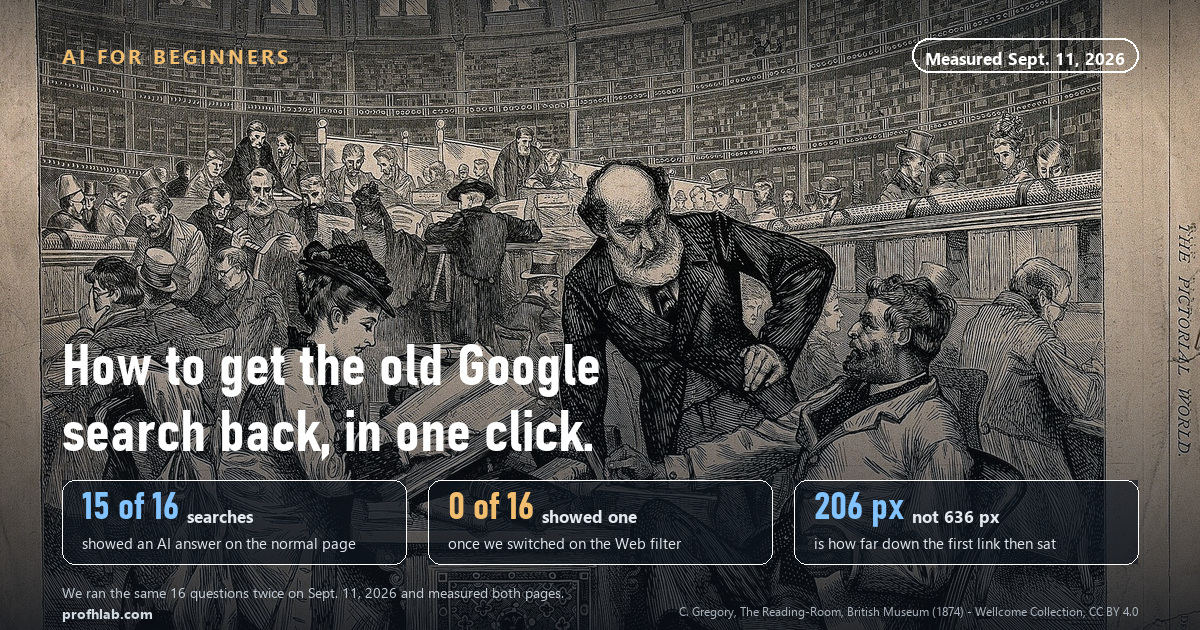
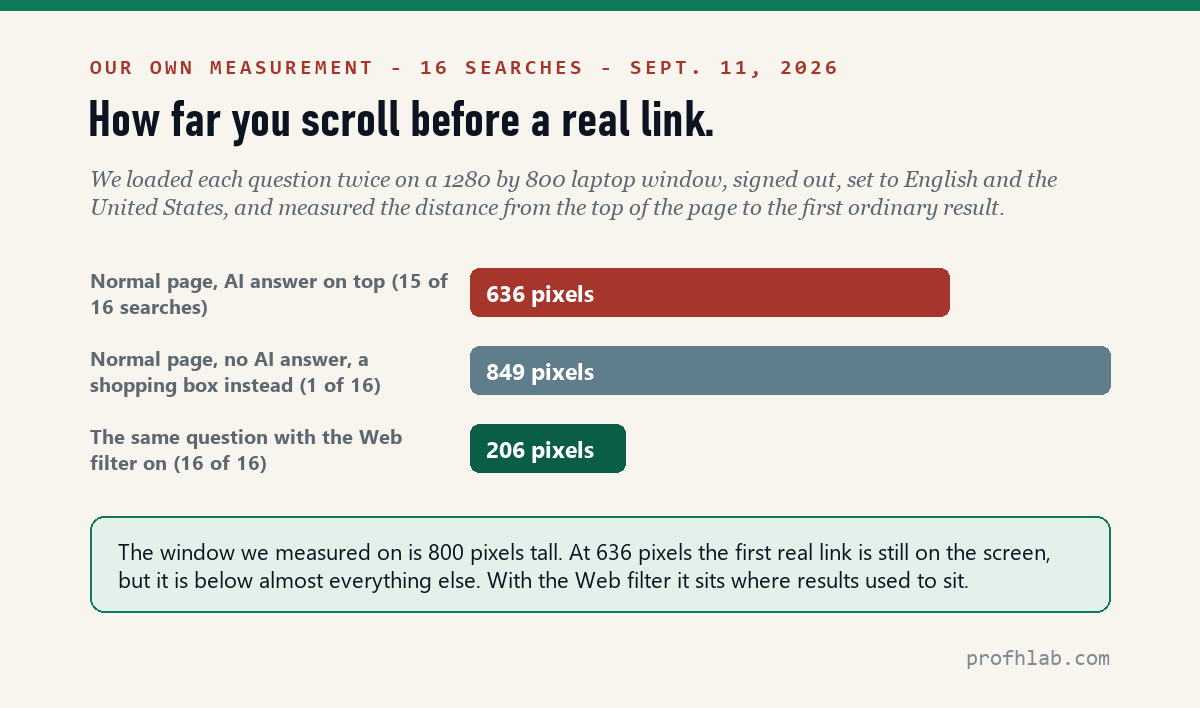
We typed 16 ordinary questions into Google — Medicare dates, metformin side effects, how long to boil eggs — signed out, set to English and the United States, in a 1280 × 800 window. Then we ran the same 16 again with the Web filter on.
- 15 of 16 normal pages opened with an AI Overview on top.
- 0 of 16 did once the Web filter was on.
- The first ordinary link sat 636 pixels down the normal page. With the filter on it sat 206 pixels down, on all 16.
Google will not let you switch it off, and says so plainly
If you have been hunting through Google’s settings for a switch, stop. There isn’t one. Google’s help page on AI Overviews puts it in two sentences:
“AI Overviews are a core Google Search feature, like knowledge panels. Features cannot be turned off.”
“However, you can select the Web filter after you perform a search. This filter displays only text-based links without features like AI Overviews.”
Google Search Help, “AI Overviews and your website / AI Overviews in Search,” read September 11, 2026.
Read that second sentence again, because it is the whole trick. Google itself is telling you the answer, in the same breath as the refusal. The Web filter is not a workaround somebody invented. It is a Google feature, documented on Google’s own help pages, and Google announced it publicly in May 2024.
Two things follow from the wording, and both matter to you.
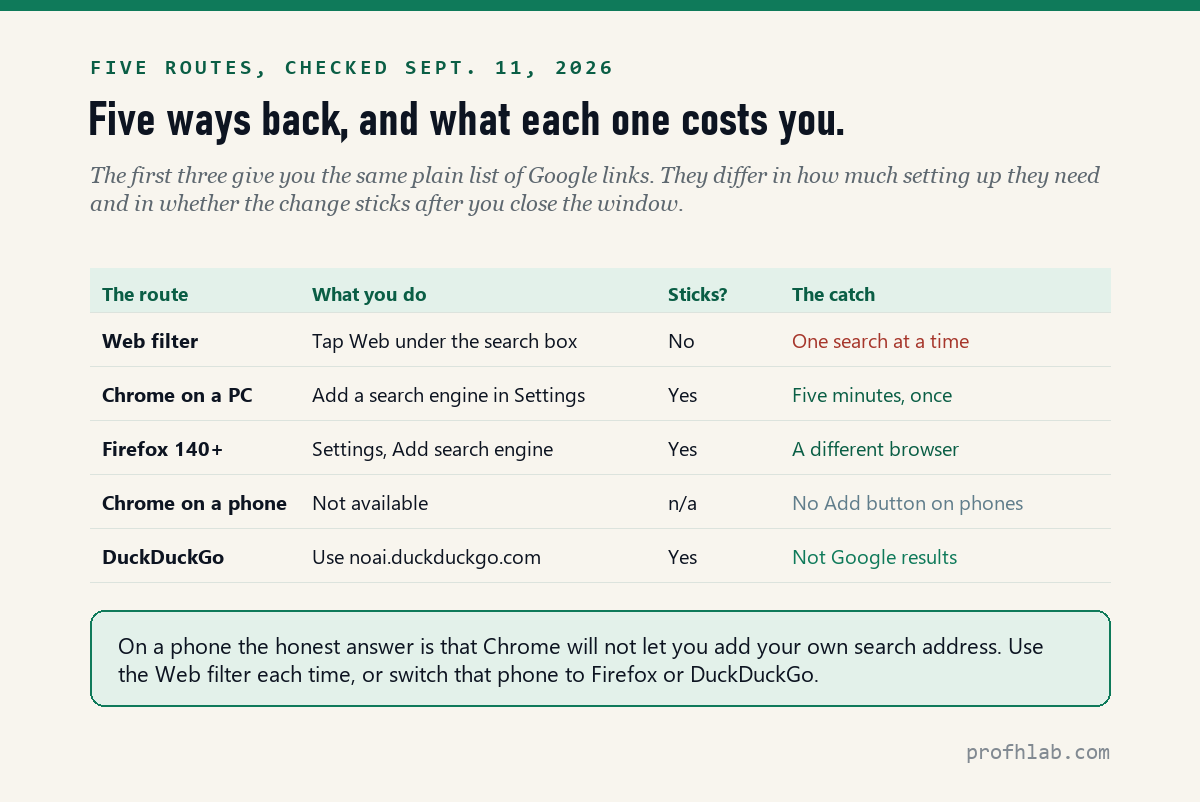
One: it is per-search. Google says you select it after you perform a search. You do a search, then you switch the view. Start a new search and you are back on the normal page. That is why the five-minute setup further down is worth doing.
Two: it is not hiding anything from you. The Web filter does not give you fewer websites. Google’s own description of it is: “The ‘Web’ filter contains text-based links to websites.” It removes the boxes above the links, not the links.
Way one: tap Web. It works on every device you own.
This is the whole method, and it takes about two seconds once you know where to look.
- Search for whatever you were going to search for.
- Look at the row of words just under the search box. It says things like All, Images, News, Videos, Shopping.
- Find Web in that row and tap it.
- If you do not see Web, tap More at the end of the row. It will be in that little menu.
Why you probably never noticed it. On the pages we looked at on September 11, the visible row read AI Mode, All, News, Images, Forums, Shopping, Videos, More. “Web” was not in it. It was in the DOM of the page — the link was there — but folded under More. Google’s own help page says which filters appear, and in what order, changes based on what its systems think fits your search. So the one filter that removes the AI answer may or may not be on screen. Check More before you conclude your Google is broken.
The address bar is the other way in, and it is the one worth understanding, because the rest of this article is built on it. When you tap Web, the web address of the page gains a short piece of text. Here is the interesting part, and it is not what the other articles about this will tell you: when we clicked Google’s own Web tab on September 11, 2026, the link it produced carried udm=web — not the udm=14 that almost every guide written since 2024 recommends. We tested both. On the 16 searches we ran, udm=14 and udm=web produced the same AI-free page. So the old advice still works today. Just know that Google is now writing it the other way, and if udm=14 ever stops behaving, udm=web is the address Google itself is using.

Way two: make it permanent on a computer, in five minutes
This is the part that changes your daily life, and it is a one-time job. You are going to teach Chrome one new address, and then tell it to use that address whenever you type in the bar at the top. Nothing is downloaded. Nothing is paid for. Nothing breaks if you change your mind.
Chrome, on a Windows PC or a Mac
- Open Chrome. Top right, click the three dots (Google calls it More), then Settings.
- On the left, click Search engine, then Manage search engines and site search.
- Scroll to the section called Site search. On its right, click Add.
- Three boxes appear. Fill them in exactly like this:
- Search engine (this is just a name):
Google — links only - Shortcut:
g - URL with %s in place of query:
https://www.google.com/search?q=%s&udm=14
- Search engine (this is just a name):
- Click Add.
- Find the row you just made. Click the three dots at the right of that row, then Make default.
That is it. From now on, anything you type into the bar at the top of Chrome goes straight to the plain list. If you ever want the AI answer for one particular question, you are one click away: it is the AI Mode tab, or All, right there on the results page.
The %s is not a typo and you should not replace it with anything. It is a placeholder. Chrome swaps in whatever you typed. This is Chrome’s own documented feature, not a hack — the field is literally labelled “URL with %s in place of query.”
Firefox, version 140 or newer
Firefox added the same thing for everyone in version 140. Open Settings, click Search on the left, scroll to Additional search engines, click Add search engine, give it a name, and paste the same address with %s where the words go. Then set it as your default in the Default Search Engine menu higher up the same page.
Way three: on a phone, the honest answer is different
We are not going to pretend this is as easy on a phone, because it isn’t, and you deserve to know that before you go hunting through settings for twenty minutes.
Chrome on a phone will not let you do it. Google’s own Android instructions for changing your search engine are four steps long and every one of them is about picking from a list Google already made. There is no Add button for your own address. We checked the Android help page on September 11, 2026. It is not hidden; it is not there.
So on a phone you have three real choices, and they are all fine:
- Tap Web each time. Two seconds. The row of filters is under the search box; swipe it sideways or tap More.
- Put Firefox on that phone and do the version-140 steps above. Firefox for Android and iPhone are both free.
- Use DuckDuckGo’s no-AI address — more on that in a moment.
If you would rather leave Google alone entirely
DuckDuckGo runs a second address, noai.duckduckgo.com, that is the same search engine with every AI feature switched off and AI-generated images filtered out of the picture results. It is official, it is free, and it is documented on DuckDuckGo’s own help pages. You can also do it inside the normal DuckDuckGo settings: open the AI Features section, set Chat to Off and Assist to Never.
The trade is straightforward. You get a search page with no AI on it at all, permanently, on any device, with no setup. You do not get Google’s results, which for local businesses and very recent news are usually better.
One thing we would not do. There are volunteer-run websites that exist only to bounce your search to Google with the filter already attached. At least one, udm14.com, is live and was responding when we checked on September 11, 2026. They work. We still would not point a parent or a neighbor at one, because every search you type goes through a stranger’s server on the way to Google, and the person running it can change or stop it any day without telling anybody. Chrome’s own settings do the identical job and nothing leaves your computer. Use the settings.
One step deeper: what you actually give up
An honest how-to has to tell you what the switch costs, so here it is. The Web filter takes away more than the AI paragraph.
| What disappears | Does that hurt? |
|---|---|
| The AI paragraph at the top | That is the point. You read the source instead. |
| Shopping and price boxes | Sometimes yes, when you are buying. Switch to All for that one search. |
| Maps, flight and weather panels | Yes. For “pharmacy near me” you want the normal page. |
| Image and video rows inside results | Rarely. The Images and Videos tabs still work. |
Our own rule, after a day of running searches both ways: use the plain list for anything with a right answer — a rule, a date, a dose, a deadline, a dollar figure. Use the normal page for anything with a place in it. That single distinction covers almost everything.
Why any of this is worth five minutes
Two findings, neither of them ours, explain what the AI paragraph does to reading.
The first is about clicking. Pew Research Center watched the actual browsing of 900 American adults through March 2025 and published the result on July 22, 2025. On visits where an AI summary appeared, people clicked a search result 8% of the time. On visits with no AI summary, 15%. Roughly half as likely. Pew also reported that people very rarely clicked the sources cited inside the summary, and were more likely to end the browsing session entirely.
The second is about age, and it is the one that made us write this. In a Pew survey of 5,153 U.S. adults fielded August 18–24, 2025, only 12% of adults 65 and older called AI summaries extremely or very useful, against 25% of adults under 30. And only 23% of that older group said they run into the summaries often — against 62% of the under-30s.
Set that 23% next to what we counted. On sixteen plain questions of exactly the kind a 68-year-old types on a Tuesday morning, the AI paragraph came up fifteen times. The gap is not a contradiction. It is the finding. Older readers are being handed an AI answer on nearly every real question they ask, are enjoying it less than anyone else, and do not realize how often it is happening. Nobody is being tricked. It just does not announce itself.
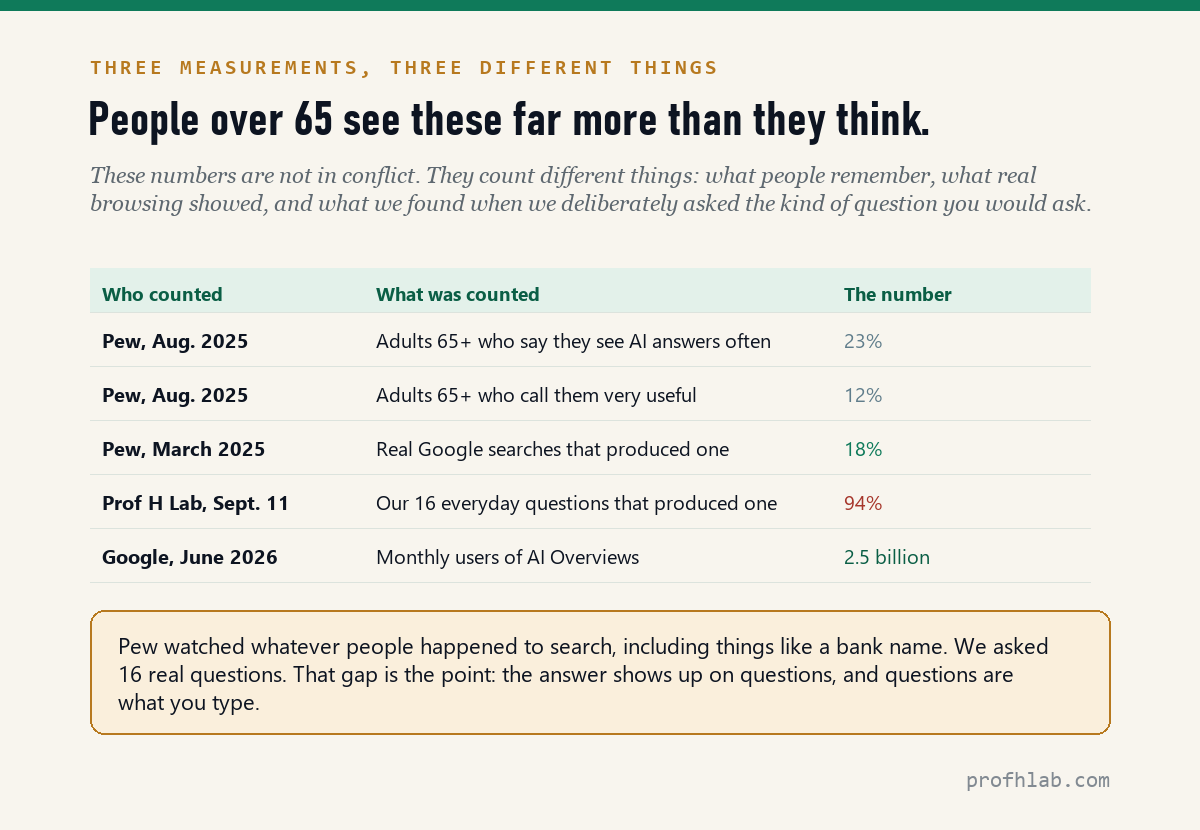
For scale: Google said on June 3, 2026 that AI Overviews has “over 2.5 billion monthly active users, while AI Mode has surpassed one billion monthly users.” This is not a small experiment you can wait out.
What about AI Mode? Can that be turned off?
AI Mode is the separate tab, usually first in the row, that turns Google into a chat. Google’s help page for it describes three ways to get in — google.com/ai, the tab on the results page, and a button in the Google app — and describes no way to remove it. When we inspected the tab on September 11, its link carried udm=50, the same kind of parameter that the Web filter uses. There is nothing to switch off because it is a tab, like Images. You simply do not tap it, and if you have made the plain list your default you will rarely see it.
Search Labs is not the answer here either, whatever you may have read. Opting into Labs gets you more experimental AI features, not fewer.

Google’s own pitch, and a reporter’s read of the same thing
Worth five minutes each, and worth watching in this order. The first is what Google wants you to feel about the change; the second is what it is for, commercially. Neither one will tell you about the Web filter.
What to do with this
- Right now, on whatever you are reading this on: search for anything, look under the search box, and find Web. If it is not there, tap More. Now you know where it lives.
- On your computer, once: Chrome → three dots → Settings → Search engine → Manage search engines and site search → Site search → Add. Name it
Google — links only, shortcutg, addresshttps://www.google.com/search?q=%s&udm=14. Then three dots on that row → Make default. - On your phone: do not fight Chrome. Either tap Web each time, or install Firefox and do the same setup there.
- Keep the normal page for anything with a place in it — pharmacies, restaurants, flights, weather.
- If a page you are reading came from an AI paragraph, scroll to the source and open it. For anything about your health, your money or your benefits, the first-party site is the only version that counts: medicare.gov, ssa.gov, irs.gov.
If you want to go deeper
“Will this slow my computer down or cost anything?” No to both. You are changing a setting inside a browser you already have. There is no download and no account. Undoing it is the same menu and one click.
“Will Google know I did this?” Google sees the same search it always saw, with one extra word attached to the address — the same word its own Web button attaches. Nothing about your account changes. If privacy is the real question behind the question, the setting worth your time is not this one: see how to stop AI from reading your Gmail and how to get rid of AI on your phone.
“Is the AI answer usually wrong?” Usually it is roughly right, which is the harder problem. A paragraph that is right nine times makes the tenth one hard to catch, because it looks identical. That is why we keep pointing at the source rather than arguing about accuracy. The same habit is what our piece on telling whether a picture is AI-generated asks of you.
Six questions people type when Google stops looking like Google
How do I get old Google search back?
Search as usual, then tap Web in the row under the search box (it may be under More). That gives you the plain list of links for that search. To make it permanent on a computer, add https://www.google.com/search?q=%s&udm=14 as a search engine in Chrome or Firefox and set it as your default, as described above.
Can you turn off AI Overview on Google?
No. Google’s help page states that AI Overviews are a core Search feature and that features cannot be turned off. The Web filter is the supported alternative, and Google names it on the same page.
How do I turn off Google AI Mode?
You cannot remove it, but you do not have to use it. AI Mode is a tab, like Images or News. Google’s help page for AI Mode documents three ways to enter it and no way to disable it. Make the Web filter your default and you will seldom land there.
How do I turn off Google AI Mode on Android?
Same answer, with one extra limit: Chrome on Android does not let you add your own search address, so the permanent fix is not available there. Tap Web on each search, or install Firefox 140 or newer and set the plain-list address as its default.
Is Google’s AI Overview accurate?
Often, but that is not the useful question. Pew’s March 2025 browsing study found people clicked a real source on 8% of visits where a summary appeared, against 15% where none did — so the practical risk is not that the paragraph is wrong, it is that far fewer people ever check. Treat it as a table of contents, not as the book.
Does the Web filter hide results from me?
No. Google describes the filter as showing “text-based links to websites.” You lose the boxes above the links — the AI paragraph, shopping, maps, flights — and keep the links themselves.
Sources
- Google Search Help, AI Overviews in Google Search — read September 11, 2026.
- Google Search Help, Refine Google searches (the filter list and the Web filter description) — read September 11, 2026.
- Google Search Help, AI Mode in Google Search — read September 11, 2026.
- Google SearchLiaison, announcement of the Web filter, May 2024.
- Google Chrome Help, Set default search engine and site search shortcuts (Computer) and the Android version of the same page — read September 11, 2026.
- Mozilla Support, Add custom search engines in Firefox (Firefox 140 and later).
- DuckDuckGo Help Pages, About noai.duckduckgo.com and Opting out of DuckDuckGo AI features.
- Pew Research Center, Google users are less likely to click on links when an AI summary appears, July 22, 2025 (browsing data from 900 U.S. adults, March 2025).
- Pew Research Center, Americans have mixed feelings about AI summaries in search results, October 1, 2025 (survey of 5,153 U.S. adults, August 18–24, 2025).
- Google, New opportunities, control and insights for website owners, June 3, 2026 (the 2.5 billion and 1 billion figures).
- Prof H Lab’s own count: 16 questions run twice on Google, signed out, hl=en and gl=us, in a 1280 × 800 window, September 11, 2026.
Keep reading
- How to use ChatGPT if you are over 50 and starting from zero
- The best AI tools for seniors, compared
- What is Gemini on my Android phone?
- How do I get rid of AI on my phone?
- How to turn off AI on Amazon
- How to remove Copilot from Windows 11
- How to turn off AI on my TV
- Is Meta AI reading my WhatsApp messages?
- How to get Microsoft 365 without Copilot
- How to tell if a YouTube video is AI-generated
- The AI scams aimed at people over 60
- What actually happens if you say “yes” on a scam call
- Using ChatGPT for genealogy, and where it fails
- Is it safe to upload medical records to ChatGPT?
- Why am I being charged for Google AI Pro?
- Free AI subscription deals in the U.S., checked monthly
- Start Here — the beginner’s path through this site
- AI Deals, updated weekly
- Resources
- The AI Jobs Tracker — our own daily count
Written by Prof. H, who taught engineering for two decades and now counts things on the internet so you do not have to. Every number above was read or measured on September 11, 2026, and every source is linked. Found an error? Tell us — we correct in public.
Prof.’s H Newsletter
One short email a month, with the numbers in it
What actually moved in AI hiring, AI prices, and the scams aimed at older Americans. Counted here, dated, and linked to the source. One email a month, and your address goes nowhere else.