How to Turn Off AI on YouTube: We Found 12 AI Features and 6 Ways Back
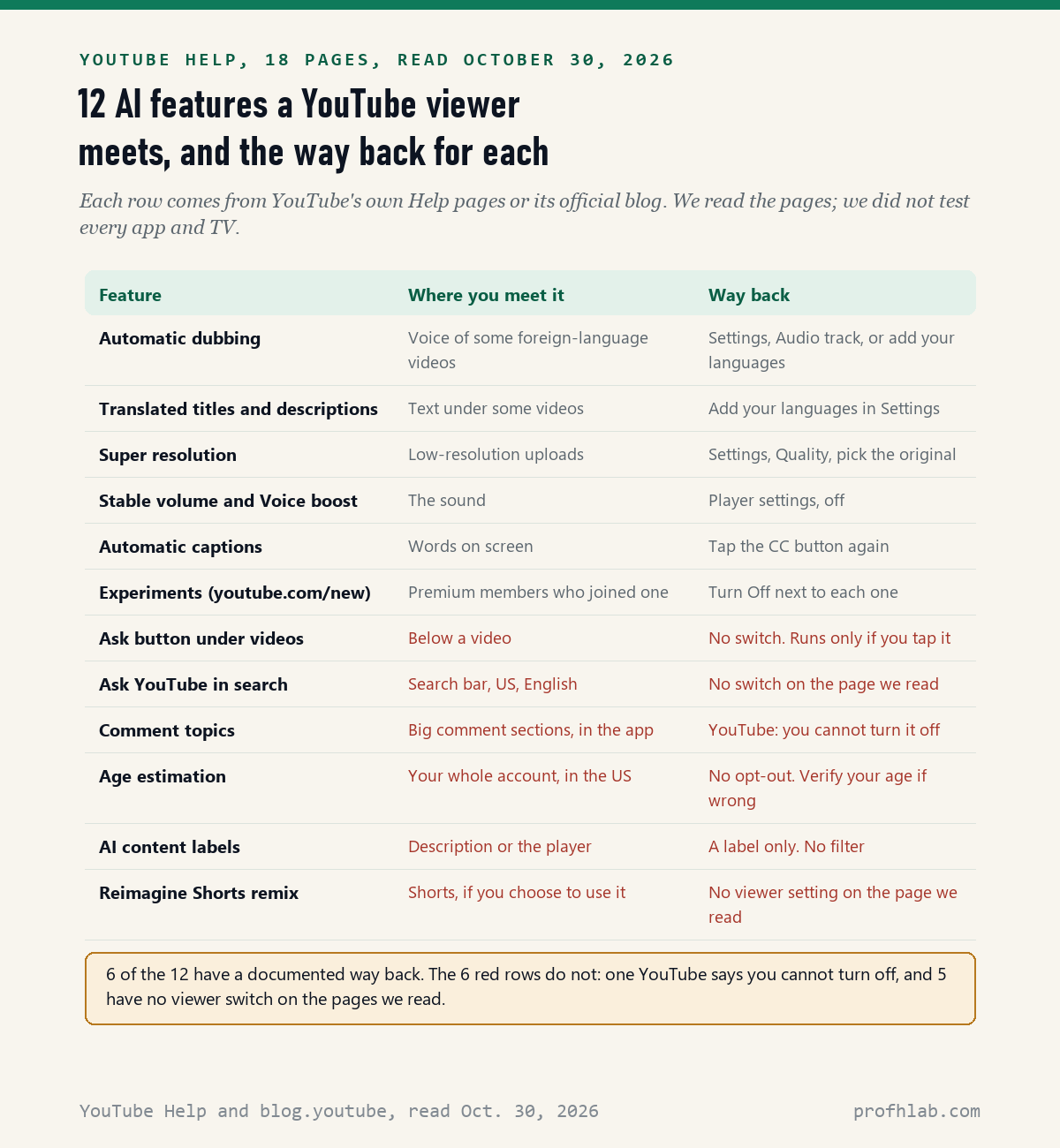
There is no single switch that turns off AI on YouTube: on October 30, 2026, we read 18 YouTube Help pages and 6 posts on YouTube’s official blog and listed 12 AI features a viewer can meet, and only 6 of them have a documented way back. For 1 of the 12, comment topics, YouTube’s own Help page answers “No” to the question of turning it off.
The good news is that the AI changes people notice most have a fix. You can hear a creator’s real voice instead of a robot dub, and you can watch a video at its original quality. The rest of this guide shows where each fix lives, and which AI parts you will simply have to ignore.
What we checked on October 30, 2026
We read 18 Help pages: 17 from YouTube Help (automatic dubbing, preferred languages, Ask YouTube on the watch page, Ask YouTube in search, comment topics, age estimation, video quality, captions, video enhancements, experimental features, AI content labels, Shorts remix, live chat summaries, history and others) and 1 from YouTube Music Help. We also read 6 posts on blog.youtube, dated from December 12, 2024 to May 2026.
Our own count: 12 AI features a US viewer can meet. 6 have a way back on YouTube’s pages, 1 YouTube says cannot be turned off, and 5 have no viewer switch on any page we read. One more, AI video summaries, appears only in a 2024 blog post, so we left it out of the count. We read the pages; we did not test every phone, computer and TV.
Written and checked by Prof. H. An AI assistant helped draft this article and ran the page reads; every quote was read on the source’s own page on the date shown.
Can you turn off AI on YouTube?
Not all at once: across the 18 YouTube Help pages we read on October 30, 2026, there is no Settings page for AI and no single on-off switch for it. Each AI feature has its own rule, and half of the 12 we listed have no switch for viewers at all.
Think of YouTube as a big hotel. Some rooms have a light switch by the door, like the sound and picture settings. Some lights only come on if you press the button yourself, like the Ask button. And a few hallway lights stay on no matter what you do, like the AI summaries of comments.
So the useful question is narrower: which AI thing is bothering you right now? The sections below go in the order most people run into them.
How do I stop YouTube from dubbing videos into English?
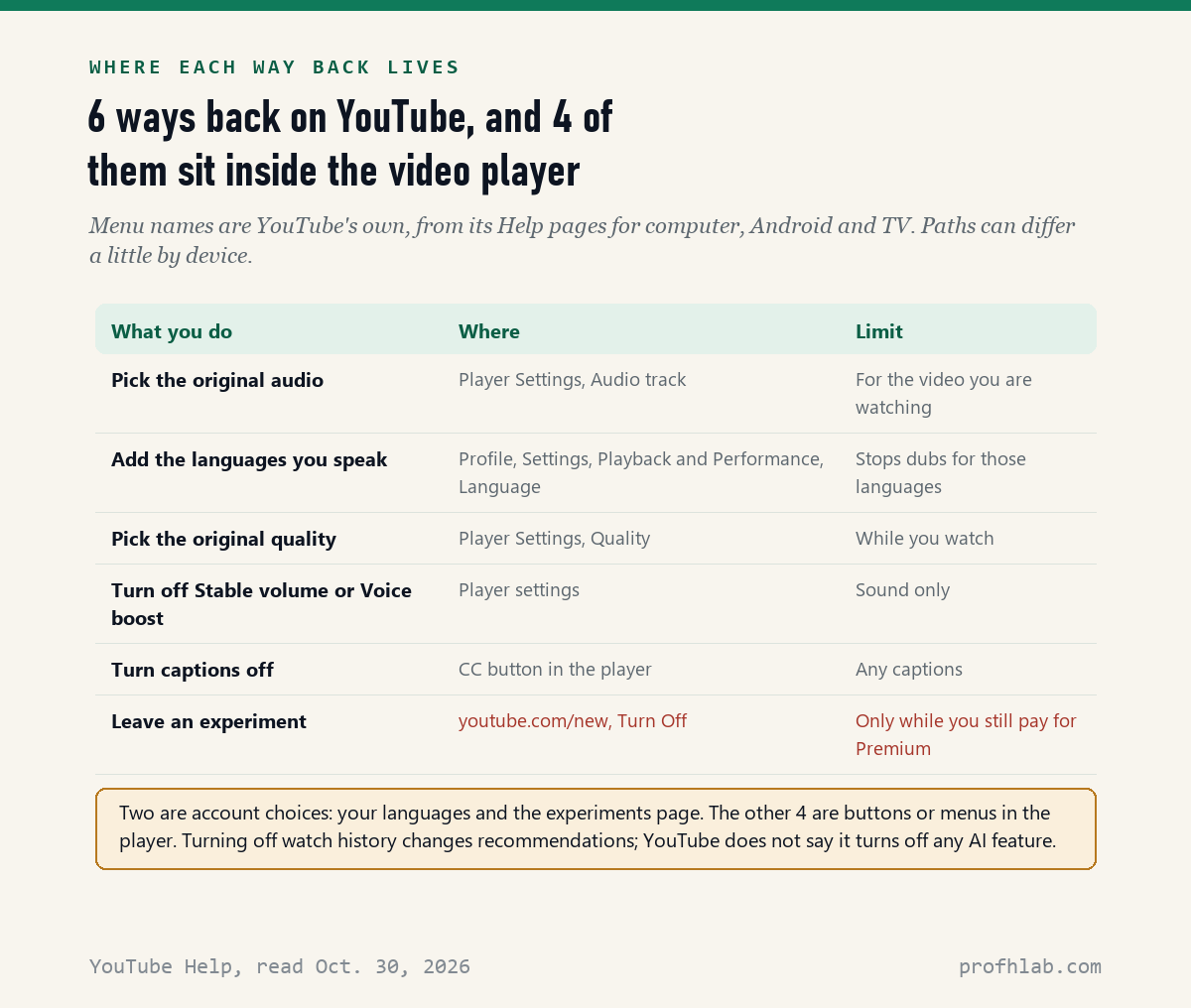
You switch the audio back one video at a time, or tell YouTube which languages you speak: YouTube’s Help page Use automatic dubbing, read October 30, 2026, says viewers can “switch between the original and dubbed audio tracks for any specific video.” Dubbed videos say “auto-dubbed” in the description.
For one video, on a computer, phone or TV:
- Start the video.
- Select the Settings gear in the video player.
- Select Audio track.
- Choose the language marked original.
For a lasting change, add the languages you understand. On a computer, click your profile picture, then Settings, then Playback & Performance, then “add or edit languages” under Language. YouTube’s preferred language page says content already in one of your languages “will not be translated and will default to the original audio.”
That setting also covers translated titles and descriptions, the same page says. Only the creator can stop dubs from being made at all. Our full guide to turning off auto-dubbing on YouTube goes through each device.

Why does an old video look sharper than it should?
YouTube may be using AI to sharpen it: its Help page on video enhancements, read October 30, 2026, says Super resolution uses “Google-built technology to make low resolution uploads look like they were filmed in HD.” The same page says viewers “can always toggle” back to the original resolution.
To see a video the way it was uploaded, open the Settings gear in the player, select Quality, and pick the plain resolution instead of the enhanced one. The same Help page says you can turn Stable volume or Voice boost on or off in the player settings too. Those change the sound, not the picture.
Can I get rid of the Ask button and Ask YouTube in search?
No, you can only leave them alone: YouTube’s Help pages for Ask YouTube, read October 30, 2026, explain how to use the Ask button under videos and the Ask YouTube search, and neither page gives a way to turn them off. The Ask button does nothing unless you tap it.
The search version is newer. Its Help page says it is “currently available to users in the United States searching in English on a computer, mobile or TV device,” and that it is not available on Apple TV. If you used it, you can delete past Ask YouTube conversations in My Activity.
For the Ask button under videos, the Help page says conversations linked to your Google account are deleted automatically after 45 days, and that human reviewers may read them. If that worries you, the simplest rule is not to type anything personal into it.

Can you turn off AI summaries of YouTube comments?
No: YouTube’s Help page on comment topics, read October 30, 2026, asks “Can I turn off comment topics?” and answers “No. At this time, you can’t turn off comment topics.” The page says the topics are “summarized by AI and not humans,” and they appear on big comment sections in the mobile app.
You do not have to tap the Topics button, and the real comments are still there underneath. If a summary seems wrong, the same page has a way to send feedback.
Live chat summaries during streams work in a similar way. YouTube’s page on them says only the creator or a moderator can turn them off for a stream, not the viewer.
Why is YouTube asking me to prove my age?
An AI model may have guessed you are under 18: YouTube’s age estimation Help page, read October 30, 2026, says it uses an age estimation model “regardless of the birthdate” in your account, and the US is on its list of countries. There is no opt-out on that page.
What you can do, if the guess is wrong, is prove your age. The page says you “can always verify your age by submitting your government ID, credit card or selfie” through your Google Account. Before you do, make sure the request is really from Google, because fake age checks are an easy trick for scammers. Our guide to AI scams aimed at older adults shows what fake requests look like.
Can I block AI-generated videos on YouTube?
Not with a setting: YouTube’s Help page on AI content labels, read October 30, 2026, says that when a creator reports realistic AI content, “we’ll add a label to their video,” usually in the description. None of the pages we read offers a filter that hides labeled videos.
The same goes for Reimagine, the AI tool YouTube’s blog announced on March 18, 2026. It lets viewers “insert themselves or objects into any eligible Short.” Only people who choose to use it make those clips, and we found no viewer setting that hides them.
What you can do is use YouTube’s “Not interested” and “Don’t recommend channel” choices, which its recommendations Help page says may be used to tune what you see, and read the label. Our guide to telling if a YouTube video is AI shows where the label sits. Some browser add-ons promise to hide AI parts of YouTube; we did not test them, and they usually ask to read every page you visit.
Does turning off watch history switch off the AI?
Not as far as YouTube says: its history Help page, read October 30, 2026, says turning off watch or search history stops them from shaping “recommendations, search results, and other YouTube experiences that rely on your history.” None of the pages we read says it turns off a named AI feature.
Pausing history can still help if your home page is full of things you do not want. It works like asking a waiter to stop guessing your order. You will get a plainer menu, but the kitchen still uses the same tools.
If you pay for YouTube Premium and joined test features at youtube.com/new, you can leave each one there by clicking Turn Off. The experiments Help page warns that Premium experiments “can only be turned off while you’re a Premium member,” so leave them before you cancel.
Gauging Gadgets shows the audio fix, and Waveform argues about dubbing
We picked 2 videos on October 30, 2026. The first shows the audio track fix on a phone in 80 seconds. The second is a longer talk from the Waveform podcast team about why auto-dubbing bothers so many viewers.
Seven YouTube settings to check tonight, starting with your languages
- On a computer, click your profile picture, then Settings, then Playback & Performance, and add every language you understand under Language.
- Open any video, select the Settings gear, and look at Audio track. If it says auto-dubbed, pick the original.
- In the same gear menu, check Quality. Pick the plain resolution if a video looks oddly smooth.
- Turn off Stable volume or Voice boost in the player settings if voices sound strange.
- If you have YouTube Premium, go to youtube.com/new and click Turn Off next to any experiment you do not want.
- Do not type personal details into Ask. If you already did, delete it in My Activity.
- If YouTube asks for your ID or a selfie, open your Google Account yourself to check, instead of tapping a link in an email or text.
On a TV, the gear menu is the same idea, but the language list is easier to change on a computer or phone. Your choice of languages follows your Google account.
Our guides for Google apps, TVs and the other apps that added AI
- How to turn off AI on your TV, and the Samsung TV version.
- Why you keep getting scam ads on YouTube.
- How to turn off AI in Chrome and how to get the old Google search back.
- Google Photos, Google Docs and Google Home.
- What Gemini is on your Android phone.
- TikTok, Spotify and iPhone photos.
- New to all of this? Start with our ChatGPT guide for beginners over 50, or browse every guide from the Start Here page.
- Curious where AI work is hiring? Our AI jobs tracker counts openings every week.
Which YouTube AI questions show up most in Google’s search box?
How do I turn off AI on YouTube?
There is no single switch. Add your languages in Settings to stop most dubs, pick the original audio track or quality in the player, and leave any experiments at youtube.com/new. Comment topics and the Ask button have no off switch, according to YouTube’s Help pages read October 30, 2026.
Can you turn off AI summary on YouTube?
Not for comment summaries: YouTube’s comment topics page says “you can’t turn off comment topics.” AI video summaries were announced in a December 12, 2024 blog post for select videos, and we found no Help page with a switch for them.
How to turn off auto dubbing on YouTube as a viewer?
In the video player, select Settings, then Audio track, and choose the original. To make it stick, add the languages you speak under Settings, Playback & Performance, Language. Only creators can stop dubs from being made.
Can you turn off AI upscaling on YouTube?
Yes, for the video you are watching. YouTube’s enhancements page says viewers can always switch between Super resolution and the original upload resolution in the Quality menu of the player.
How do I turn off Ask YouTube?
The Help pages we read give no way to turn it off. The Ask button only works when you tap it, and you can delete past Ask YouTube conversations in My Activity.
How to block AI videos on YouTube?
YouTube labels realistic AI videos that creators report, but none of the pages we read offers a filter to hide them. You can tell YouTube you are not interested in a channel, and check the label in the description.
YouTube Help and blog pages quoted above, with links
- YouTube Help, Use automatic dubbing, read October 30, 2026.
- YouTube Help, Watch videos in your preferred language, read October 30, 2026.
- YouTube Help, Video & audio quality enhancements, read October 30, 2026.
- YouTube Help, Change the quality of your video, read October 30, 2026.
- YouTube Help, Learn more about Ask YouTube on the watch page, read October 30, 2026.
- YouTube Help, Search with Ask YouTube, read October 30, 2026.
- YouTube Help, Explore comment topics, read October 30, 2026.
- YouTube Help, Learn about Live Chat, AI-generated summaries section, read October 30, 2026.
- YouTube Help, Understanding age estimation on YouTube, read October 30, 2026.
- YouTube Help, Disclosing use of GenAI content, read October 30, 2026.
- YouTube Help, Manage caption settings, read October 30, 2026.
- YouTube Help, Test feature experiments at youtube.com/new, read October 30, 2026.
- YouTube Help, Manage your recommendations & search results, read October 30, 2026.
- YouTube Help, Create YouTube Shorts with remixed content, read October 30, 2026. Also read for background: automatic captions, comment translation, How this content was made, and YouTube Music’s Ask Music page.
- YouTube Official Blog, Reimagine remix tool for Shorts, March 18, 2026, read October 30, 2026.
- YouTube Official Blog, 2024 in YouTube AI, December 12, 2024, read October 30, 2026.
Featured image: Vilhelm Hammershøi, Interior, Strandgade 30, 1900, Wikimedia Commons, public domain, cropped.
About the author. Prof. H writes profhlab’s AI for Beginners guides for readers who are new to AI or over 50. Each guide is built from the pages it quotes, read on the date shown. Does your YouTube show an AI switch we missed, or a different menu name on your TV? Tell us on the Ask page and we will update this guide with a dated correction. More about Prof. H on the About page.
Prof.’s H Newsletter
One short email a month, with the numbers in it
What actually moved in AI hiring, AI prices, and the scams aimed at older Americans. Counted here, dated, and linked to the source. One email a month, and your address goes nowhere else.