How to Turn Off AI on iPhone Photos: 10 Camera and Photos Switches, and None Turns Off Everything
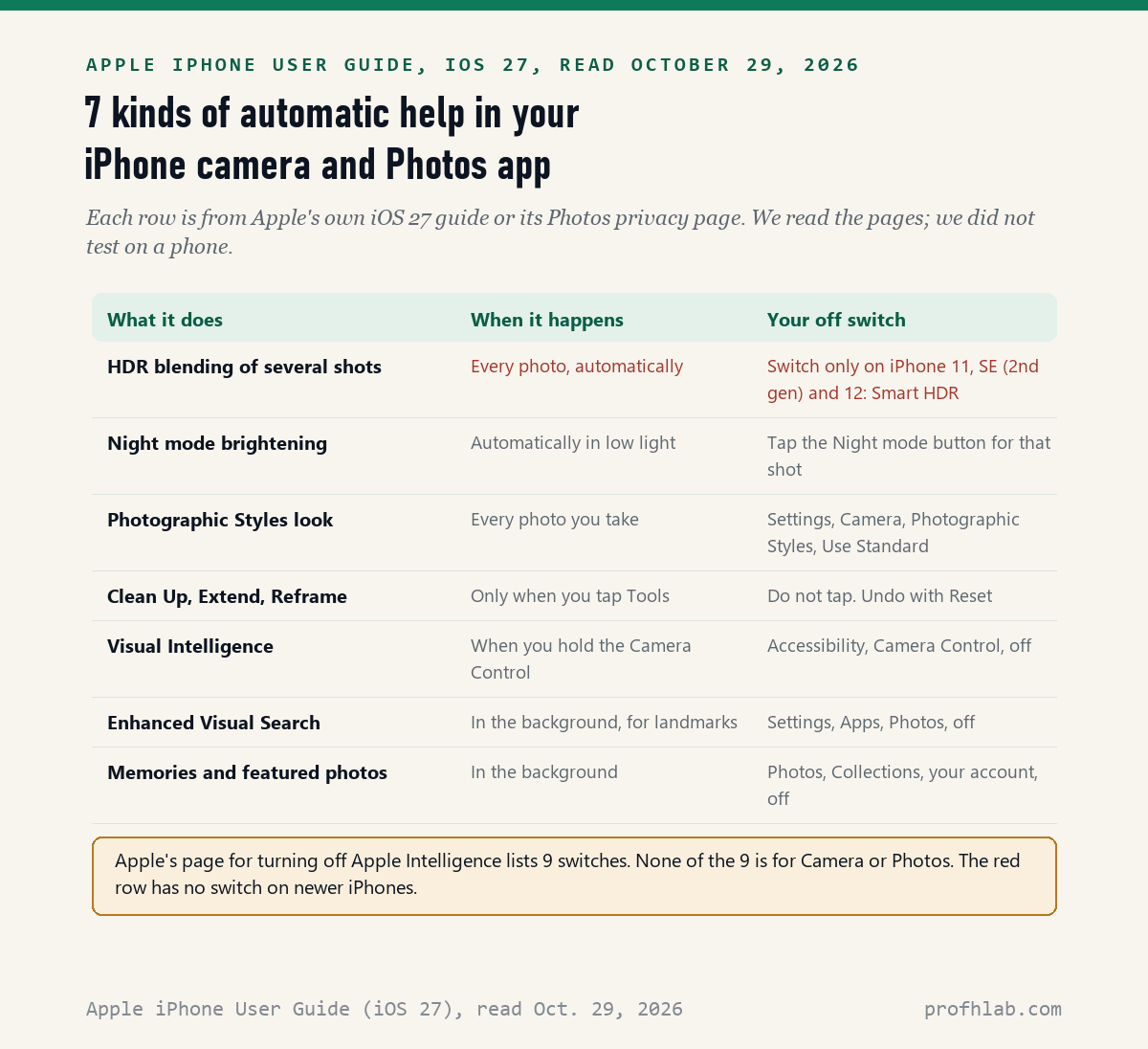
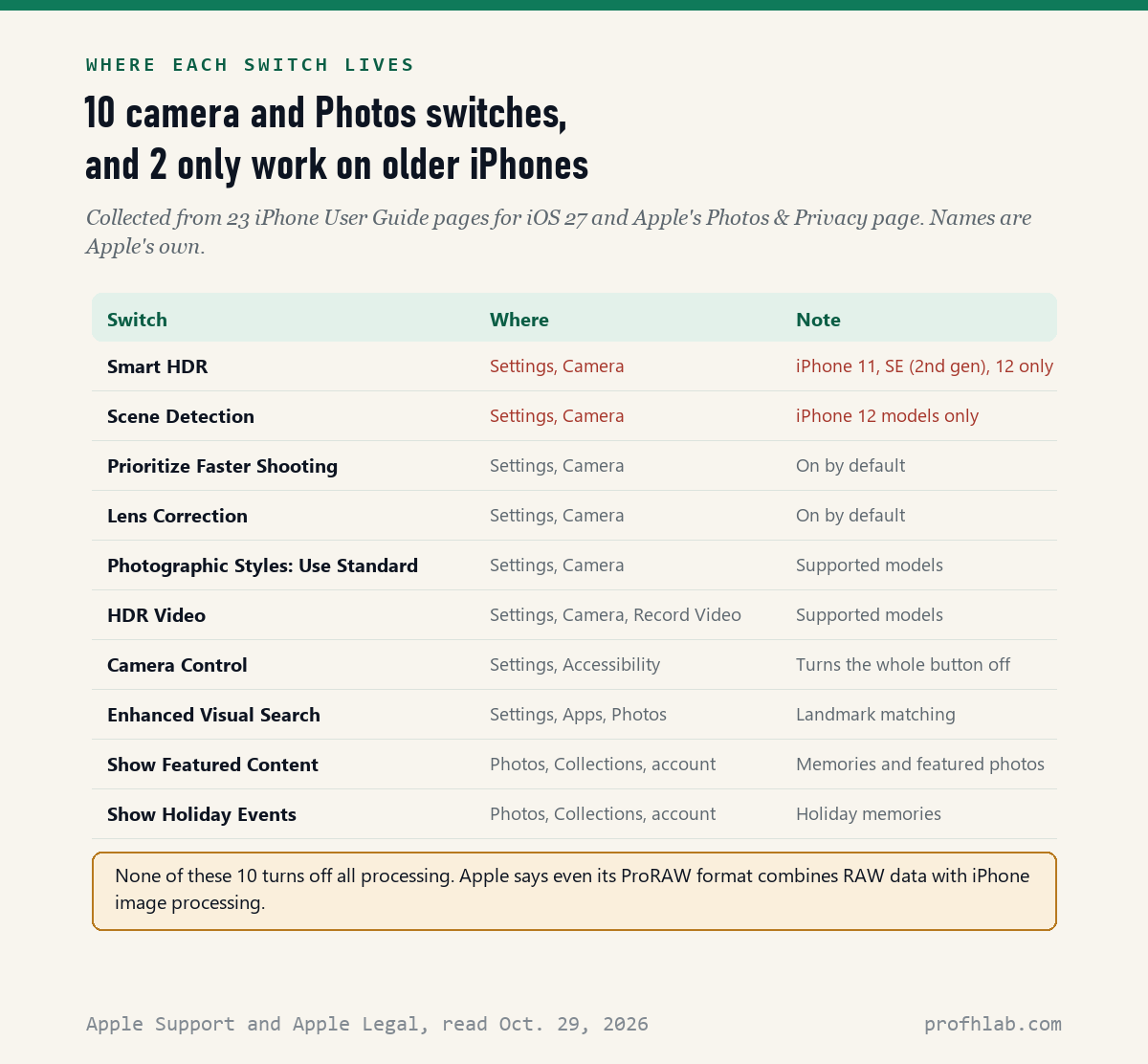
You cannot turn off all the AI in an iPhone camera with one switch: on October 29, 2026, we read 23 pages of Apple’s iOS 27 iPhone User Guide and found 10 camera and Photos switches, but none that stops the automatic processing in every photo. Apple’s page for turning off Apple Intelligence lists 9 switches, and 0 of them are for Camera or Photos.
What you can do is smaller and still useful. You can pick a plain photo look, stop the landmark matching in Photos, hide Memories, and turn off the button that opens Visual Intelligence. The editing tools that change what is in a picture, like Clean Up, only run when you tap them.
What we checked on October 29, 2026
We read 23 pages of Apple’s iPhone User Guide for iOS 27, including Adjust HDR camera settings, Change advanced camera settings, Use Photographic Styles, Clean up, extend, and reframe photos and Turn off and restrict access to Apple Intelligence features. We also read Apple’s Photos & Privacy page, dated December 12, 2025, and Apple’s Apple Intelligence usage terms page.
Our own count: 10 named switches across those pages change automatic processing or AI features in Camera and Photos. 2 of the 10, Smart HDR and Scene Detection, exist only on iPhone 11, iPhone SE (2nd generation) and iPhone 12 models. We read the pages; we did not test on a phone, and menu names can differ on older iOS versions.
Written and checked by Prof. H. An AI assistant helped draft this article and ran the page reads; every quote was read on the source’s own page on the date shown.
Can I turn off AI on my iPhone camera?
Only in pieces: Apple’s iOS 27 page Turn off and restrict access to Apple Intelligence features, read October 29, 2026, gives 9 switches for things like Siri AI, Mail and notifications, and none for Camera or Photos. The camera switches live in other menus, and each one covers one feature.
Part of the confusion is the word “AI” itself. Apple uses the name Apple Intelligence for a set of newer tools, like Clean Up and Visual Intelligence. The older automatic help in every shot, like HDR, is never called AI on the pages we read. Many people still call all of it AI, and that is fair.
Think of the camera as a cook who seasons every plate before it leaves the kitchen. You can ask for less salt, or a plainer recipe. You cannot get the raw ingredients on a plate, except on one new model we cover below.
Why do my iPhone photos look fake or over-processed?
Mostly because of HDR: Apple’s Adjust HDR camera settings page, read October 29, 2026, says the camera “takes several photos in rapid succession at different exposures and blends them together.” By default it does this “when it’s most effective,” for both the front and rear cameras.
Blending brings back detail in bright skies and dark corners. It can also make a sunset look flat, or a face look too even. That is the “looks like AI” feeling many readers describe.
Here is the catch. The same Apple page says a manual switch exists only “on some iPhone models.” It names iPhone 11 models, iPhone SE (2nd generation) and iPhone 12, where you go to Settings, Camera, then turn off Smart HDR. On newer phones, the page lists no switch for photo HDR.
How do I stop my iPhone from editing my photos?
Set Photographic Styles to Standard and check 3 more switches: Apple’s Use Photographic Styles page, read October 29, 2026, says a chosen style “applies automatically to all photos you take,” and that you remove it in Settings, Camera, Photographic Styles, by selecting Use Standard.
- Open the Settings app, the gray gear icon.
- Tap Camera.
- Tap Photographic Styles, then tap Use Standard. If you never picked a style, it may already say Standard.
- Go back to the Camera list. Look for Lens Correction and Prioritize Faster Shooting. Apple says both are on by default.
- Turn either one off only if you want to test the difference. Apple says Lens Correction adjusts front camera and Ultra Wide photos “for more natural-looking results.”
- On an iPhone 12, also look for Scene Detection. Apple says it can “apply a tailored look” to what you photograph.
Night mode is the other one people notice. Apple’s Night mode page says it “turns on automatically” in low light and that you tap its button to turn it off. That choice lasts for the shot, not forever.
If a selfie looks backward to you, that is not AI. Apple’s Take a selfie page says to turn on Mirror Front Camera in Settings, Camera, so the photo matches what you saw on the screen.
How do I turn off Enhanced Visual Search on iPhone?
Go to Settings, Apps, Photos: Apple’s Photos & Privacy page, dated December 12, 2025 and read October 29, 2026, says you can turn off Enhanced Visual Search “at any time” there. On a Mac, it is in the Photos app under Settings, General.
This is the switch that worried people most. It lets Photos find pictures by landmark, like the Golden Gate Bridge. Apple says your device matches places in your photos to an index on Apple’s servers, and that encryption and an IP-hiding relay prevent “Apple from learning about the information in your photos.”
We cannot check Apple’s encryption ourselves. If you would rather nothing about your photos leaves the phone, turning this off is the simple choice. You lose landmark search; Apple’s page does not say you lose anything else.
- Open Settings and tap Apps.
- Tap Photos. Scroll to the bottom.
- Turn off Enhanced Visual Search.
Is the Clean Up tool going to change my pictures on its own?
No: Apple’s Clean up, extend, and reframe photos page, read October 29, 2026, describes all 3 tools as steps you start yourself, by opening a photo, tapping the edit button, then Tools. Nothing on the page says they run in the background.
These are the tools that change what is actually in a picture. Clean Up removes “distracting objects.” Extend adds background beyond the edges. Reframe changes “the point of capture after you take a photo.”
Two details matter for family photos. First, you can undo each one after saving by opening the same tool and tapping Reset, or by choosing Revert to Original. Second, Apple says that in iOS 27.2 or later, most images made or edited with these tools carry a hidden SynthID watermark, so others can check that a photo was changed.
Apple’s usage terms page, read the same day, adds one more thing. Server-based features, including “Intelligent Photo Editing Tools,” may have daily limits, and expanded access “will be available for a fee in the future.”
How do I turn off Visual Intelligence on the camera button?
Turn off the Camera Control: Apple’s Adjust accessibility settings for the Camera Control page, read October 29, 2026, says to go to Settings, Accessibility, Camera Control, and turn off Camera Control to “disable the Camera Control entirely.”
Apple’s Visual Intelligence page lists 5 ways to open it, and holding the Camera Control is one. The others are the Siri button in Camera, the Action button, a Lock Screen control and Control Center. The Action button and Lock Screen routes work only if you set them up, and Apple says Control Center may need the icon added.
Turning the whole button off is a big step for a small problem. If accidental presses are the issue, the Camera Control accessibility page also lets you change the Light-Press Force, or turn off the Light-Press gesture alone.

Can I get a photo with no processing at all?
On most iPhones, no: Apple’s Take Apple ProRAW photos page, read October 29, 2026, says even ProRAW “combines the information of a standard RAW format along with iPhone image processing.” It gives you more room to adjust later, in larger files.
The one exception we found is new. Apple’s page Capture a verifiable photo with Apple Reference Image says that on iPhone 18 Pro models, Reference mode also captures “the original, signed data from the sensor in the Main camera.” It is set up once in Settings, Camera, Reference Image, and is not available everywhere.
For most readers, the honest answer is simpler. Pick Standard, leave HDR alone, and judge photos on a big screen before you change more. Some photographers use third-party camera apps for a plainer look; we have not tested any of them.
Memories, featured photos and holidays have their own switch in Photos
Apple’s Hide people, memories, and holidays page, read October 29, 2026, says turning off Show Featured Content stops Photos from “automatically generating featured photos and memories.” Apple’s privacy page says this sorting runs with on-device machine learning.
- Open the Photos app and tap Collections.
- Tap your account picture in the top-right corner.
- Turn off Show Featured Content to stop new memories and featured photos.
- Turn off Show Holiday Events if holiday memories are the problem.
- To hide one person instead, open a photo of them, tap the info button, then Don’t Feature a Person.
The last step is gentle on grief. A memory video of someone who has died can arrive on an ordinary morning. Apple lets you choose Feature This Person Less or Never Feature This Person, and you can undo it later with Reset People & Pets Suggestions.

Apple Explained on automatic edits, and AppleInsider’s Clean Up demo
We picked 2 videos on October 29, 2026. The first explains why iPhone photos can look over-processed, in under 3 minutes. The second shows the Clean Up tool in use, though it was made for iOS 18.1 in 2024, so a few screens look different now.
Setting up Grandpa
A ten-minute pass through a parent’s iPhone camera settings
rsquo;s iPhone camera takes seven small choices
- Ask what bothers them: photos that look too smooth, a memory video, or the camera button opening something odd. Each has a different fix.
- Check the model in Settings, General, About. Before iPhone 15 Pro, there is no Clean Up or Visual Intelligence to worry about.
- Set Photographic Styles to Use Standard in Settings, Camera.
- Turn off Enhanced Visual Search in Settings, Apps, Photos, if they want nothing matched online.
- In Photos, Collections, their account, turn off Show Featured Content if memories upset them.
- Take one photo together, then look at it on a big screen before changing more.
- Write the switches they chose on a card, in large print, and keep it with the phone.
Other phones and apps where we tracked down the off switches
For the rest of an Apple device, see turning off AI summaries on iPhone, turning off AI on Safari, Apple Intelligence on a Mac and iPhone call screening. Android owners can start with turning off AI on a Samsung phone.
Photos live in other apps too. We have guides for AI in Google Photos, Meta AI on Instagram, AI on Facebook, Pinterest and Canva.
If you want to use photo AI on purpose, read restoring old photos with AI, making AI photos with grandparents and using Google Lens to identify plants. For safety, see how to tell if a picture is AI and AI scams targeting seniors. Every beginner guide is on Start Here, and our hand-counted job data is on the AI Jobs Tracker.
What else do people ask about AI in iPhone photos?
How do I turn off AI on iPhone photos?
There is no single switch in iOS 27. Set Photographic Styles to Use Standard in Settings, Camera; turn off Enhanced Visual Search in Settings, Apps, Photos; and turn off Show Featured Content in Photos, Collections, under your account.
Does the iPhone camera use AI?
Apple’s iOS 27 guide calls its newer tools Apple Intelligence, like Clean Up and Visual Intelligence. The automatic HDR blending in every photo is described as combining several exposures, not as AI, though many people call it that.
How do I turn off AI enhancement on iPhone photos?
On newer iPhones there is no switch for photo HDR, according to Apple’s guide read October 29, 2026. You can choose Use Standard for Photographic Styles, and avoid tapping the auto-enhance button when you edit. Revert to Original undoes edits.
Can I turn off Clean Up on my iPhone?
Apple’s iOS 27 pages list no switch for Clean Up, but it only runs when you open a photo, tap edit, then Tools. After saving, tap Reset in the same tool to undo it.
Is Apple looking at my photos?
Apple’s Photos & Privacy page, dated December 12, 2025, says Apple “does not access your photos or videos” and does not use them for research. Enhanced Visual Search does send encrypted data to match landmarks, and you can turn it off.
The 23 iPhone User Guide pages and 2 other Apple pages behind this guide
- Apple Support, Turn off and restrict access to Apple Intelligence features on iPhone, iOS 27, read October 29, 2026.
- Apple Support, Adjust HDR camera settings on iPhone, iOS 27, read October 29, 2026.
- Apple Support, Change advanced camera settings on iPhone, iOS 27, read October 29, 2026.
- Apple Support, Use Photographic Styles with your iPhone camera, iOS 27, read October 29, 2026.
- Apple Support, Take Night mode photos and Take a selfie, iOS 27, read October 29, 2026.
- Apple Support, Clean up, extend, and reframe photos on iPhone, iOS 27, read October 29, 2026.
- Apple Support, Edit photos and videos and Undo and revert photo edits, iOS 27, read October 29, 2026.
- Apple Support, Learn about what’s around you with Visual Intelligence and Use Siri mode in Camera, iOS 27, read October 29, 2026.
- Apple Support, Adjust accessibility settings for the Camera Control, iOS 27, read October 29, 2026.
- Apple Support, Take Apple ProRAW photos and Capture a verifiable photo with Apple Reference Image, iOS 27, read October 29, 2026.
- Apple Support, Hide people, memories, and holidays in Photos, iOS 27, read October 29, 2026.
- Apple Support, Apple Intelligence and privacy on iPhone, iOS 27, read October 29, 2026. Also read for background: Identify objects, Search for photos and videos, View your memories, Take portraits, Use advanced camera tools, Customize the Main camera lens and Smart Take on iPhone Duo.
- Apple Legal, Photos & Privacy, dated December 12, 2025, read October 29, 2026.
- Apple Support, Apple Intelligence usage terms, read October 29, 2026.
Featured image: Johannes Vermeer, The Art of Painting, about 1666 to 1668, Wikimedia Commons, public domain, cropped.
About the author. Prof. H writes profhlab’s AI for Beginners guides for readers who are new to AI or over 50. Each guide is built from the pages it quotes, read on the date shown. Does your iPhone show a camera switch we missed, or a different menu name? Tell us on the Ask page and we will update this guide with a dated correction. More about Prof. H on the About page.
Prof.’s H Newsletter
One short email a month, with the numbers in it
What actually moved in AI hiring, AI prices, and the scams aimed at older Americans. Counted here, dated, and linked to the source. One email a month, and your address goes nowhere else.