How to Use Google Lens to Identify Plants: The Steps, and What 4 Studies Found
To identify a plant with Google Lens, open the Google app, tap the Lens icon in the search bar, point at one leaf or flower and tap Search; on October 16, 2026 we read 4 peer-reviewed studies, and in the largest one Lens named the right species on its first guess for 57% of 857 photos. That is good enough to learn a name. It is not good enough to decide whether something is safe to eat or touch.
Below are the steps for Android and iPhone, how to use a photo you already took, what the studies found, and who to call if someone swallows a plant. You do not need a new app or an account beyond the Google app. And if Lens has fooled you before, that is normal. The studies show it fools experts’ test photos too.
What we checked on October 16, 2026
We read 4 peer-reviewed studies that tested Google Lens on plants or mushrooms (published 2020, 2023, 2023 and 2026), and copied each Google Lens number from the study text. We also read 4 Google help pages, 1 Apple support page, the America’s Poison Centers mushroom tips, 2 ASPCA pages and 1 notice from ANSES, the French food safety agency.
Our own count: 0 of the 5 Google and Apple how-to pages say the plant name could be wrong, and 0 mention poison. We searched each page for the words accurate, incorrect, mistake, wrong, poison, verify and edible. We also tried to run our own Lens test on public plant photos; Google showed a robot check, so we stopped and ran no test.
Written and checked by Prof. H. An AI assistant helped draft this article and ran the page reads; every quote was read on the source’s own page on the date shown. This is not medical or veterinary advice.
How do I use Google Lens to identify a plant on an Android phone?
Open the Google app or Chrome and, as Google’s Android help page read October 16, 2026 puts it, “In the search bar, tap Google Lens,” then “Point your camera at an object and tap Search.” The same page uses a plant as its example.
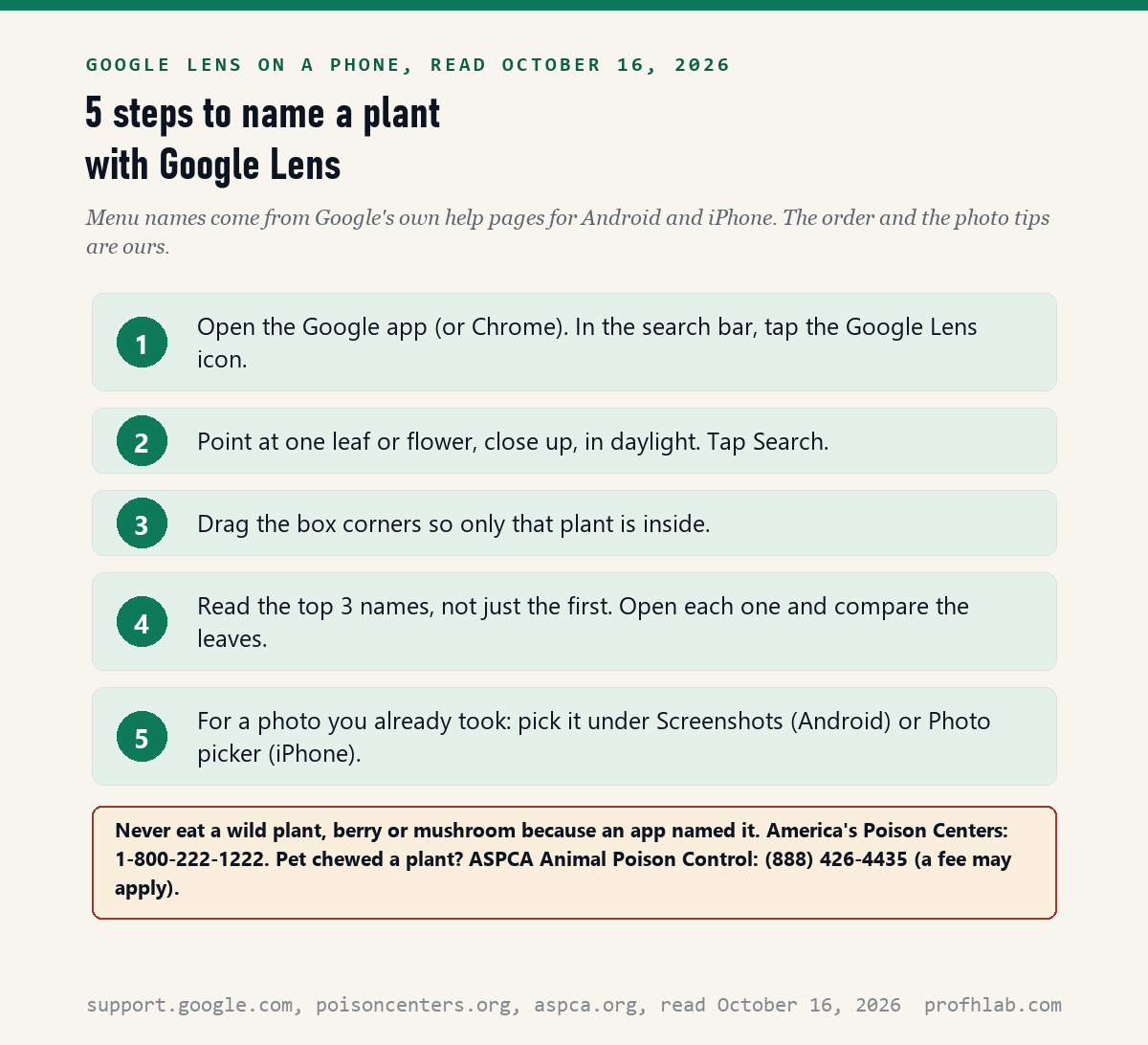
Here is the whole thing, one step at a time:
- Open the Google app, or the Chrome app.
- In the search bar, tap the Google Lens icon.
- Hold the phone close to one leaf or one flower. Daylight helps.
- Tap Search.
- If the box covers too much, drag its corners around just the plant.
- At the bottom, scroll to find the results. Tap a name to see more photos of it.
Google’s page has one tip worth keeping: “For more specific results, select a smaller area on the image.” A whole flower bed confuses Lens. One flower does not.
To add words, Android shows a button called Ask about this image. You can type a question such as “is this safe for cats?” Treat the answer as a lead, not a verdict, for the reasons in the study section below.
How do I use Google Lens on an iPhone to identify plants?
On an iPhone, Google’s iPhone help page read October 16, 2026 says to “open the Google app, Chrome app, or the Safari app,” then tap Google Lens in the search bar. So if you already use Chrome or Safari, you can start there.
The steps match Android with two name changes. To use a saved picture, the iPhone page says “Tap Photo picker.” To add words to a search, the button is called Add to your search.
The first time, the iPhone asks whether Google may see your photos. Google’s page lists three choices under Settings, Apps, Google, Photos: None, Limited access or Full access. Limited access lets you share only the plant pictures you pick.
iPhone owners also have a tool that needs no Google app. Apple calls it Visual Look Up. Its support page, published September 15, 2025, says to open a photo, “Tap the Info button,” and look for “a leaf icon for plants and flowers.” It needs iOS 15 or later.
If the Info button shows no star, Apple says Visual Look Up “isn’t available yet for that photo.” Then try Google Lens instead.
Can I identify a plant from a photo I already took?
Yes: Google’s Android help page, read October 16, 2026, says to upload an existing image “Under ‘Screenshots,’ select a photo,” and the iPhone page says “Tap Photo picker.” This is handy for a flower you snapped on a walk last spring.
On many newer Android phones there is a shortcut called Circle to Search. Google’s Android help says to “touch and hold the Home button or navigation handle,” then circle the plant on the screen.
Circle to Search is not on every phone. Google says it is on “select models of Android phones including Pixel 6 and later,” and that it “may not work in some apps, such as banking, medical and other confidential apps.”
A photo from your gallery works best when the plant fills most of the picture. If it is small, crop it first, or drag the Lens box tight around it.
How accurate is Google Lens for plants?
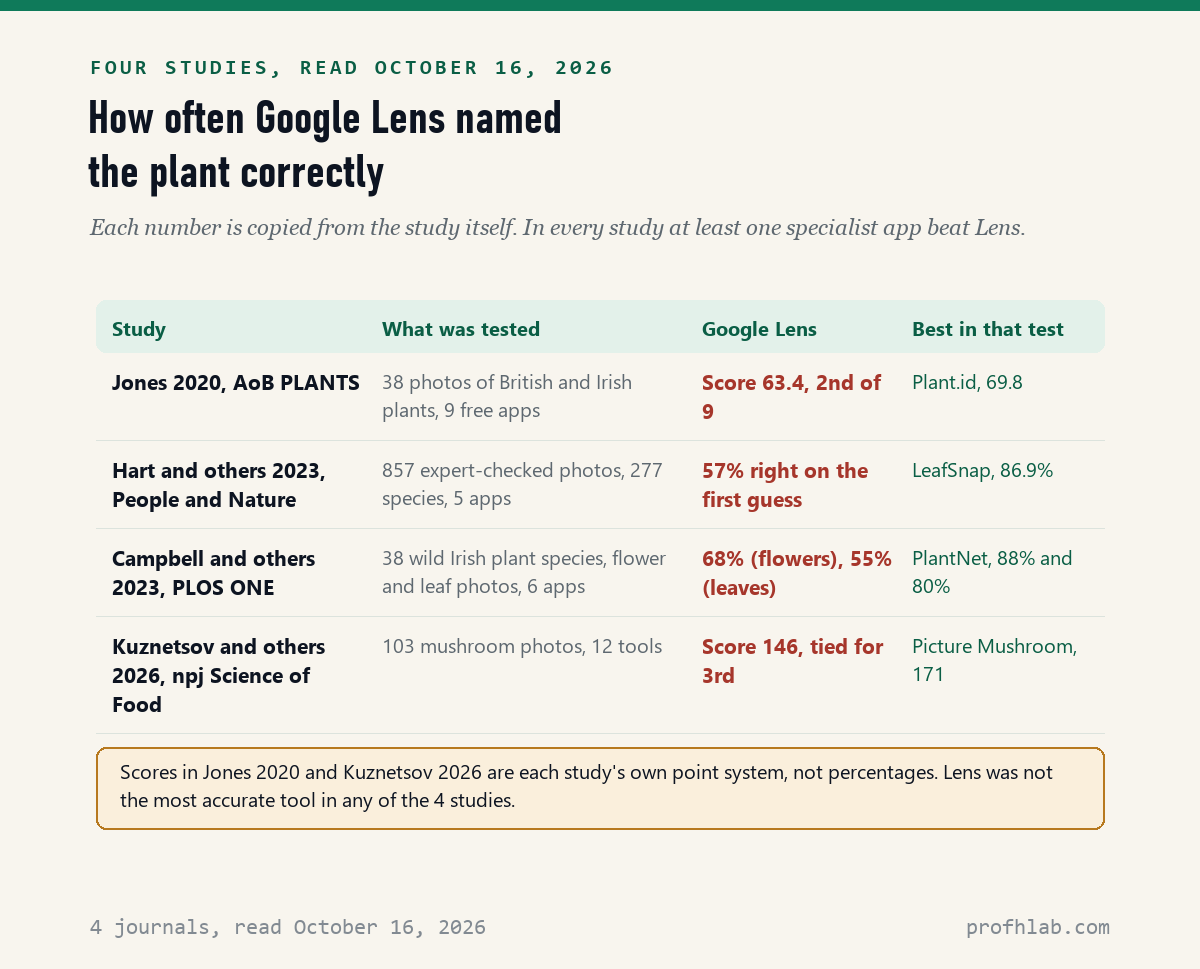
In the largest study we read, Hart and colleagues in People and Nature (2023), Google Lens picked the right species first for 57% of 857 expert-checked photos, against 73% for the plant-only apps on average. Lens was not the most accurate tool in any of the 4 studies.
The same study gives Lens a second chance. When the right answer only had to appear in the top five suggestions, Lens reached 74%. At the genus level, a step up from species, Lens was right first time for 72%.
A 2023 Irish study in PLOS ONE, by Campbell and colleagues, photographed 38 wild plant species. Lens was right on 67.86% of flower photos and 55.00% of leaf photos. It ranked 3rd of 6 apps. The authors still called it “potentially quite useful for the casual user.”
The oldest study, Jones in AoB PLANTS (2020), scored 9 free apps on 38 British and Irish plant photos. Lens came 2nd, with 63.4 points against 69.8 for Plant.id. In that point system, 50 or more means roughly half the answers were right to species. Jones’s advice: “any suggested id always needs validation.”
Is a plant-only app like PlantNet more accurate than Google Lens?
In each of the 3 plant studies we read, at least one plant-only app beat Lens: Hart 2023 reports first-guess scores of 86.9% for LeafSnap and 86.6% for PlantNet, against 57% for Lens. But not every plant app wins. In Jones 2020, PlantNet scored 52.1, below Lens at 63.4.
Lens still has one trick. Hart and colleagues found 13 photos that Lens named correctly when none of the plant-only apps did. So a second opinion from a second app is worth the extra minute.
Many readers ask about PictureThis. None of the 4 studies we read tested it, so we cannot rank it. Our reading of the studies: start with Lens because you already have it, then check a surprising answer in a plant-only app.
Near misses differ too. When Lens’s first guess was wrong in Hart 2023, it was still a close relative in the right genus for 128 of 367 photos, or 35%. For iNaturalist Seek, the same figure was 80%. So a wrong Lens answer is often not even a near miss.
Why do poison ivy and wild carrot photos matter here?
Because the cost of a wrong name is not equal: a wrong name for a houseplant costs nothing, but ASPCA’s toxic plant list, read October 16, 2026, warns that “Individual plants may differ in appearance from the photos” on its pages. Photos fool people and apps alike.
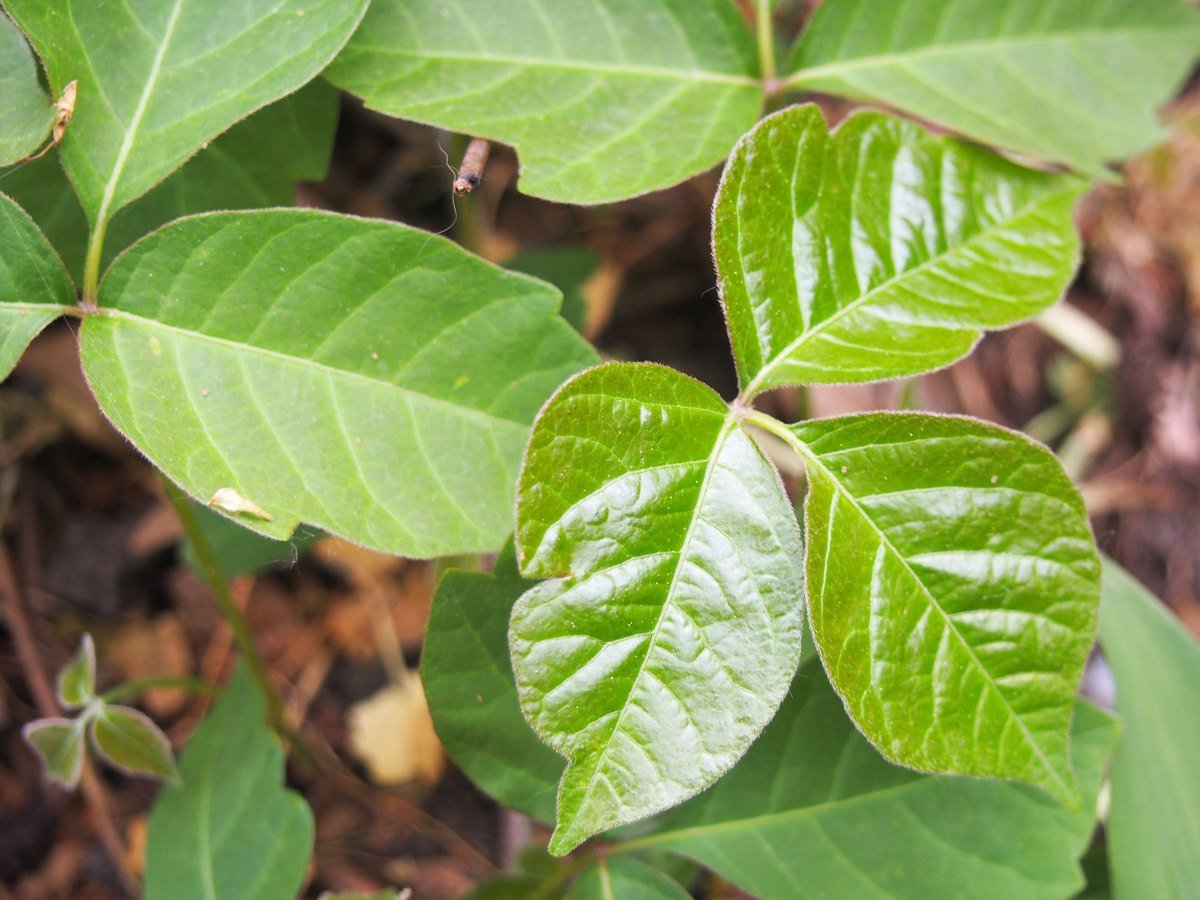
Poison ivy is a good place to use Lens before you touch. A name lets you look up the plant on a trusted page. But if Lens says a leafy vine is something harmless, and you are about to pull it bare-handed, wear gloves anyway. Being wrong in one direction costs a rash. Being wrong the other way costs nothing.
Some plant pairs look alike from a distance. The two photos below are wild carrot, also called Queen Anne’s lace, and poison hemlock. Both carry flat clusters of tiny white flowers.
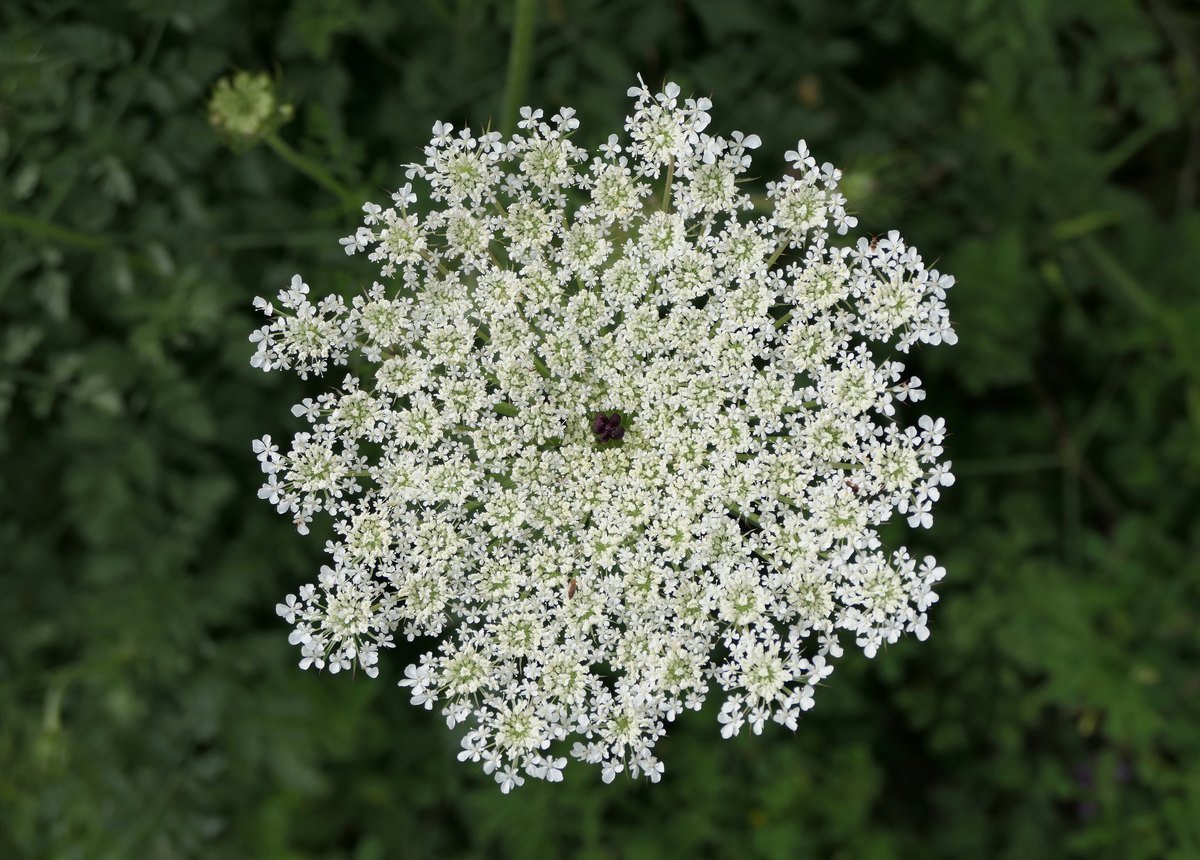
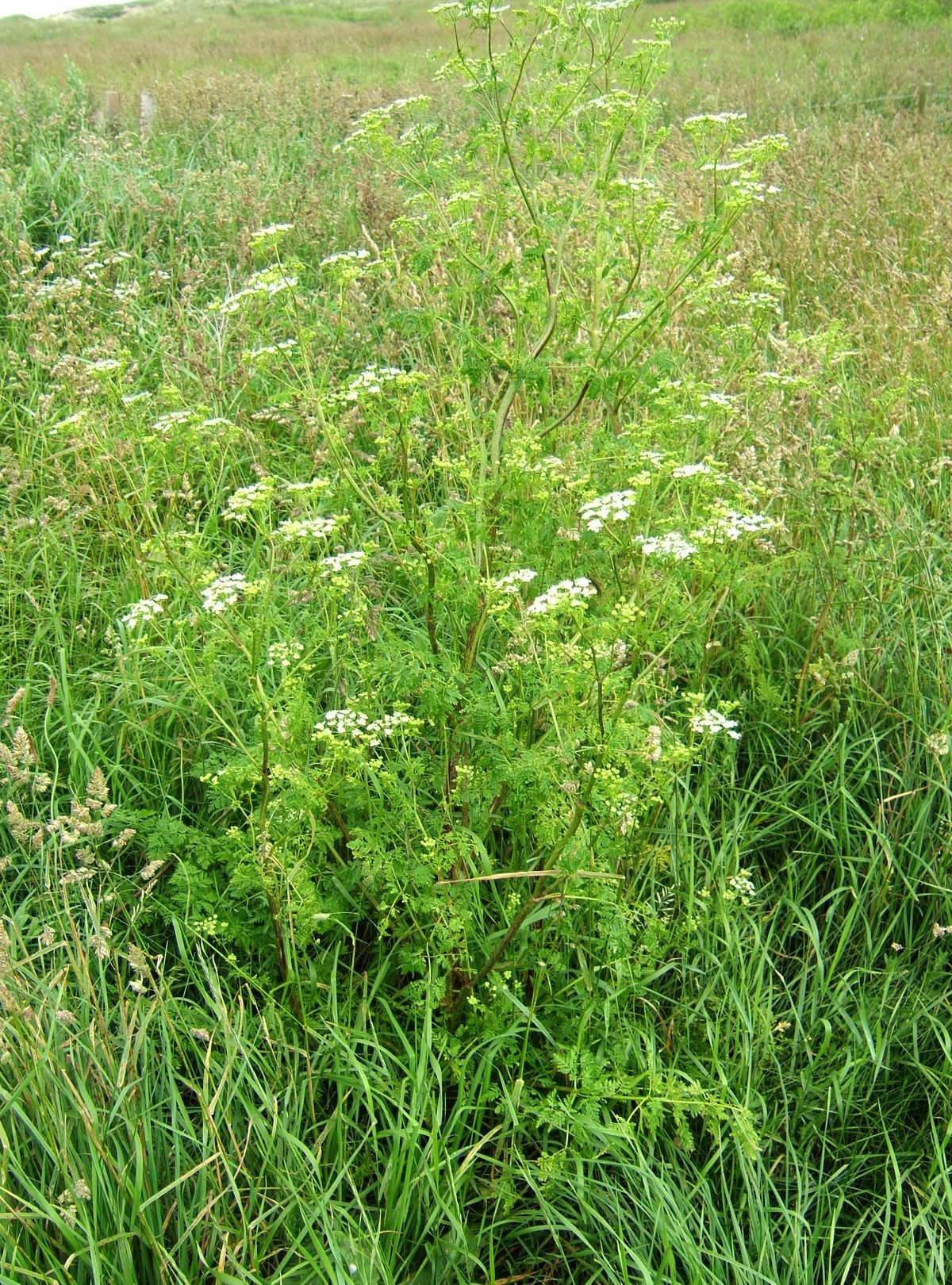
We are not giving a field guide to these two. We are showing why one app answer should never decide what goes in your mouth or your salad.
Can Google Lens identify mushrooms safely?
No app is safe for that: America’s Poison Centers, read October 16, 2026, says “Do not ingest any wild mushrooms unless you are 100-percent sure that they are safe to eat,” and adds that “Cooking mushrooms will not remove or inactivate toxins.”
A 2026 study in npj Science of Food, by Kuznetsov and colleagues, tested 12 tools on 103 mushroom photos. Lens scored 146 points, tied for 3rd, behind Picture Mushroom at 171. The study puts Lens in a group whose average error rate was about 20%.
One of its failures is worth picturing. On one photo, the study says, Lens “missed the mushroom entirely,” and named a leaf disease on the berry leaves in front of it. A tool can be confident and still be looking at the wrong thing.
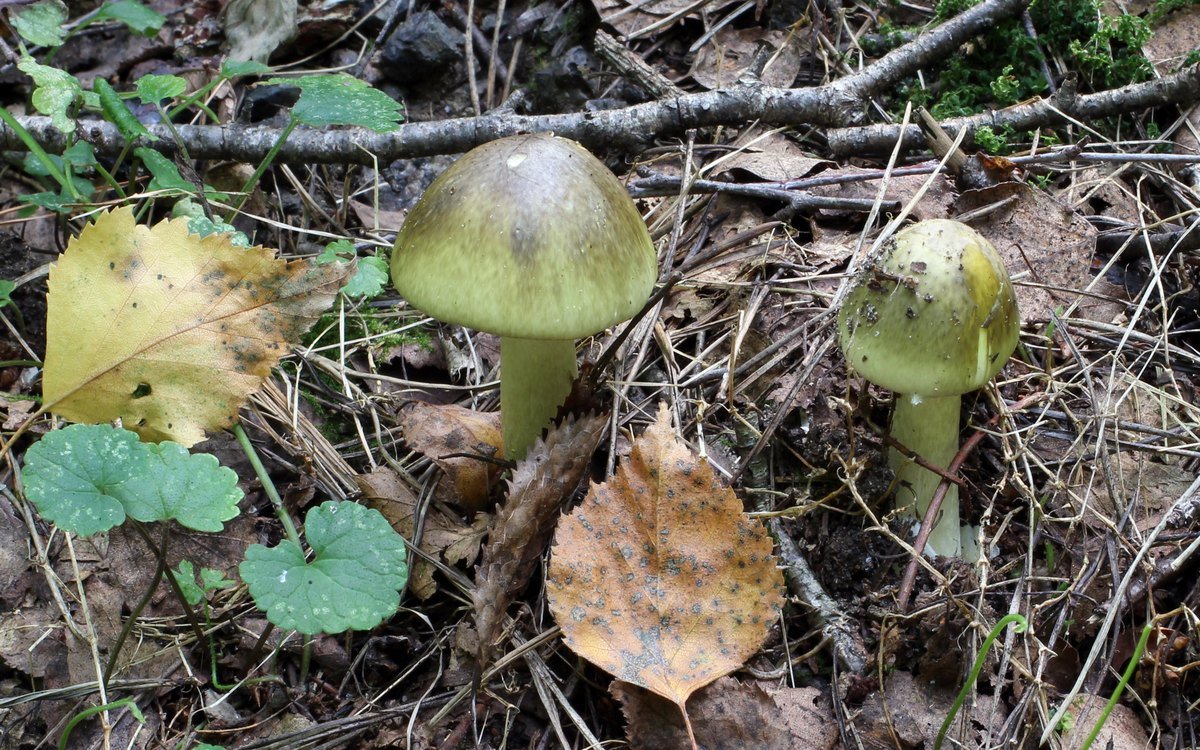
France’s food safety agency, ANSES, says it plainly in a notice updated October 13, 2023: “Do not consume wild mushrooms identified by a mushroom recognition app on a smartphone, due to the high risk of error.” Among 1,923 French poisoning cases from July to December 2022, 30 people had used such apps.
Who do I call if someone ate a plant Lens could not name?
Call Poison Help at 1-800-222-1222: America’s Poison Centers, read October 16, 2026, describes it as free, expert and confidential, open 24 hours a day. For a dog or cat, call ASPCA Animal Poison Control at (888) 426-4435.
The ASPCA page says it is “available 24/7, 365 days a year” and mentions “A one-time consultation fee.” We did not confirm the amount, so ask when you call.
Before you call, take a photo of the plant and, if you can, keep a piece of it in a bag. That is the one time a Lens photo really helps: it gives the expert something to look at with you. If a person is having trouble breathing or will not wake up, call 911 first.
Pet owners can also read ASPCA’s plant list before buying a houseplant. The page offers “Printable Lists of Toxic and Non-Toxic Plants” for dogs, cats and horses. ASPCA says the list is “not meant to be all-inclusive.”
Does Google keep the plant photos I search with Lens?
Not by default: Google’s Visual Search History help page, read October 16, 2026, says “The Visual Search History setting is off by default.” If you turn it on, your Lens images are saved in your Google Account’s Web and App Activity.
The same page explains what saved images are used for. They “may be used to develop and improve Google’s visual recognition and search technologies.” And turning the setting off later does not erase older ones: they “may continue to be used” unless you delete them in My Google Activity.
Plant photos are rarely private. Still, a garden photo can show your house number, your car or a grandchild. Crop those out before you search. Our guide to turning off AI in Google Photos covers the photo library side.
A 57-second Google demo and a 5-minute garden walk-through
The first video comes from Retail Training by Google, a Google-run channel. It was posted September 10, 2020, so some buttons look older than today’s app. It had 421 views when we checked on October 16, 2026.
The second is from Hooked and Rooted, a gardening channel. It walks around a real yard and points Lens at trees and shrubs. It was posted February 26, 2023 and had 95,917 views when we checked.
Trees, sick leaves, saved photos and three more garden worries
Can Google Lens identify trees?
Often, yes, but test results vary by plant type. Hart and colleagues (2023) sorted 857 photos into 5 plant types, including woody plants, and found plant type changed accuracy for every app. Photograph a single leaf and, if you can, a flower or fruit too.
Can Google Lens identify plant diseases?
We cannot tell you how well it does. None of the 4 studies we read on October 16, 2026 measured plant diseases, and we ran no test of our own. For a sick tree or crop, your county Cooperative Extension office is a better first stop.
Is Google Lens good for identifying plants?
It is good for learning a name. In a 2023 Irish study it was right on 67.86% of flower photos and ranked 3rd of 6 apps, and the authors called it useful for the casual user. In each of the 3 plant studies we read, at least one plant-only app scored higher.
Can Google Lens identify mushrooms?
It can suggest a name, but no app is safe for deciding what to eat. The national poison center group says not to eat wild mushrooms unless you are 100-percent sure, and the French food safety agency ANSES says not to eat mushrooms named by a phone app.
Does Google Lens save my plant photos?
Not unless you turn it on. Google says Visual Search History is off by default. If it is on, images are saved in Web and App Activity, and you can delete them in My Google Activity.
More from our desk on phones, photos and staying safe
- The best AI tools for seniors, tested for people new to AI.
- How to use ChatGPT if you are over 50.
- What is Gemini on my Android phone?
- How to get the old Google search back.
- How to turn off AI in Chrome.
- How to turn off AI on a Samsung phone.
- How to turn off AI summaries on an iPhone.
- How to tell if a picture is AI-generated.
- How to restore old photos with AI.
- Making AI photos with your grandchildren.
- Is it safe to give ChatGPT your personal information?
- How to talk to ChatGPT out loud.
- How to plan a trip with ChatGPT.
- AI scams that target seniors.
- Start here: every AI for Beginners guide in one place.
Our working-life desk counts something different: the AI jobs tracker tallies real job posts that mention AI, read from employer boards.
Four studies and nine official pages, each with its date
- Hart, A. G. and others, Assessing the accuracy of free automated plant identification applications, People and Nature 5(3), 2023 (open-access copy at the University of Gloucestershire repository), read October 16, 2026.
- Campbell, Peacock and others, A repeatable scoring system for assessing smartphone applications ability to identify herbaceous plants, PLOS ONE, 2023, read October 16, 2026.
- Jones, H. G., What plant is that? Tests of automated image recognition apps for plant identification, AoB PLANTS 12(6), 2020, read October 16, 2026.
- Kuznetsov and others, AI-mediated risks and real-life challenges in mushroom foraging, npj Science of Food, February 24, 2026, read October 16, 2026.
- Google Search Help, Search with an image on Google (Android) (no date shown), read October 16, 2026.
- Google Search Help, Search with an image on Google (iPhone and iPad) (no date shown), read October 16, 2026.
- Android Help, Circle to Search (no date shown), read October 16, 2026.
- Google Search Help, Manage your Visual Search History (no date shown), read October 16, 2026.
- Apple Support, Use Visual Look Up on your iPhone, published September 15, 2025, read October 16, 2026.
- America’s Poison Centers, Food and mushroom safety tips (no date shown), read October 16, 2026.
- ASPCA, Animal Poison Control (no date shown), read October 16, 2026.
- ASPCA, Toxic and non-toxic plants list (no date shown), read October 16, 2026.
- ANSES, Mushroom-picking season has already begun: be vigilant!, October 13, 2022, updated October 13, 2023, read October 16, 2026.
Featured image: Albrecht Dürer, Great Piece of Turf, 1503, public domain, via Wikimedia Commons, cropped.
About the author. Prof. H writes profhlab’s AI for Beginners guides for readers who are new to AI or over 50. Each guide is built from the pages and studies it quotes, read on the date shown. Spot an error? Use the Ask page and we will fix it with a dated correction.
Prof.’s H Newsletter
One short email a month, with the numbers in it
What actually moved in AI hiring, AI prices, and the scams aimed at older Americans. Counted here, dated, and linked to the source. One email a month, and your address goes nowhere else.