How to Turn Off AI in Chrome: All 5 Switches, and the One to Keep (2026)
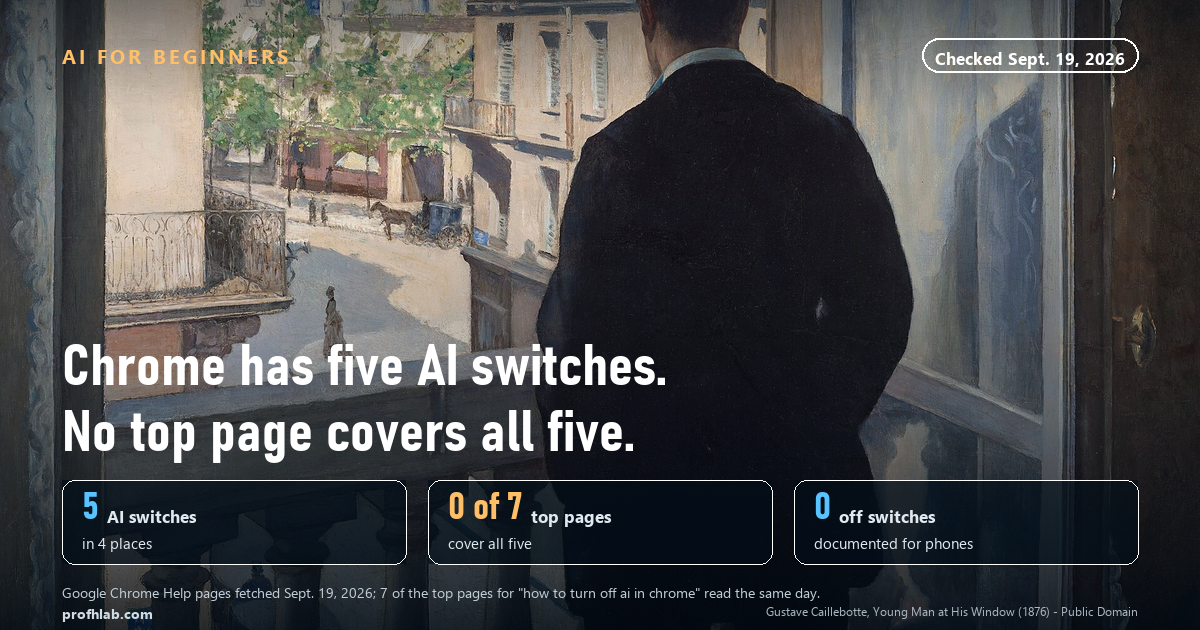
To turn off AI in Chrome on a computer, right-click the Gemini button at the top-right and choose Unpin Gemini, then right-click the address bar and clear “Always show AI Mode.” That removes the two AI buttons you see every day. Three more switches are hidden in Settings: Help me write, History search powered by AI, and On-device AI. That makes 5 switches in 4 different places. On September 19, 2026 we read the 7 articles a search returns for this exact question: 0 of the 7 cover all five, and 0 mention that Google says people may review what you type into Help me write.
What we checked on September 19, 2026
We searched “how to turn off ai in chrome,” took the results on the first screen, and read the 7 that were real articles. Then we searched each page’s own text for the five switches.
- 2 of 7 show the right-click that hides AI Mode in the address bar.
- 1 of 7 shows how to unpin the Gemini button.
- 2 of 7 send you into
chrome://flags, Chrome’s experimental page. You do not need it. - 0 of 7 cover all five switches.
- 0 off switches exist in Google’s own help pages for Chrome on an Android phone.
Every menu path below was copied from Google Chrome Help the same day.
Why did AI show up in my Chrome?
You did not click anything wrong. Google added these features in updates, and Chrome updates itself.
On September 18, 2025, Google announced that Gemini, its AI assistant, was rolling out in Chrome to Mac and Windows users in the U.S. with English set as their language. A Gemini button appeared at the top-right. Google said an “AI Mode” button would follow later that month inside the address bar, the long bar where you type web addresses.
Two things are worth knowing before you start:
- Gemini needs you signed in. Google’s help page says Gemini in Chrome requires you to sign in to Chrome, and it does not run in Incognito windows.
- Hiding is not the same as off. A hidden button can still work from a keyboard shortcut. For the privacy-minded, the Settings switches matter more than the buttons.

The quick fix: hide the two buttons you see
This takes about 30 seconds. It works on Windows and Mac.
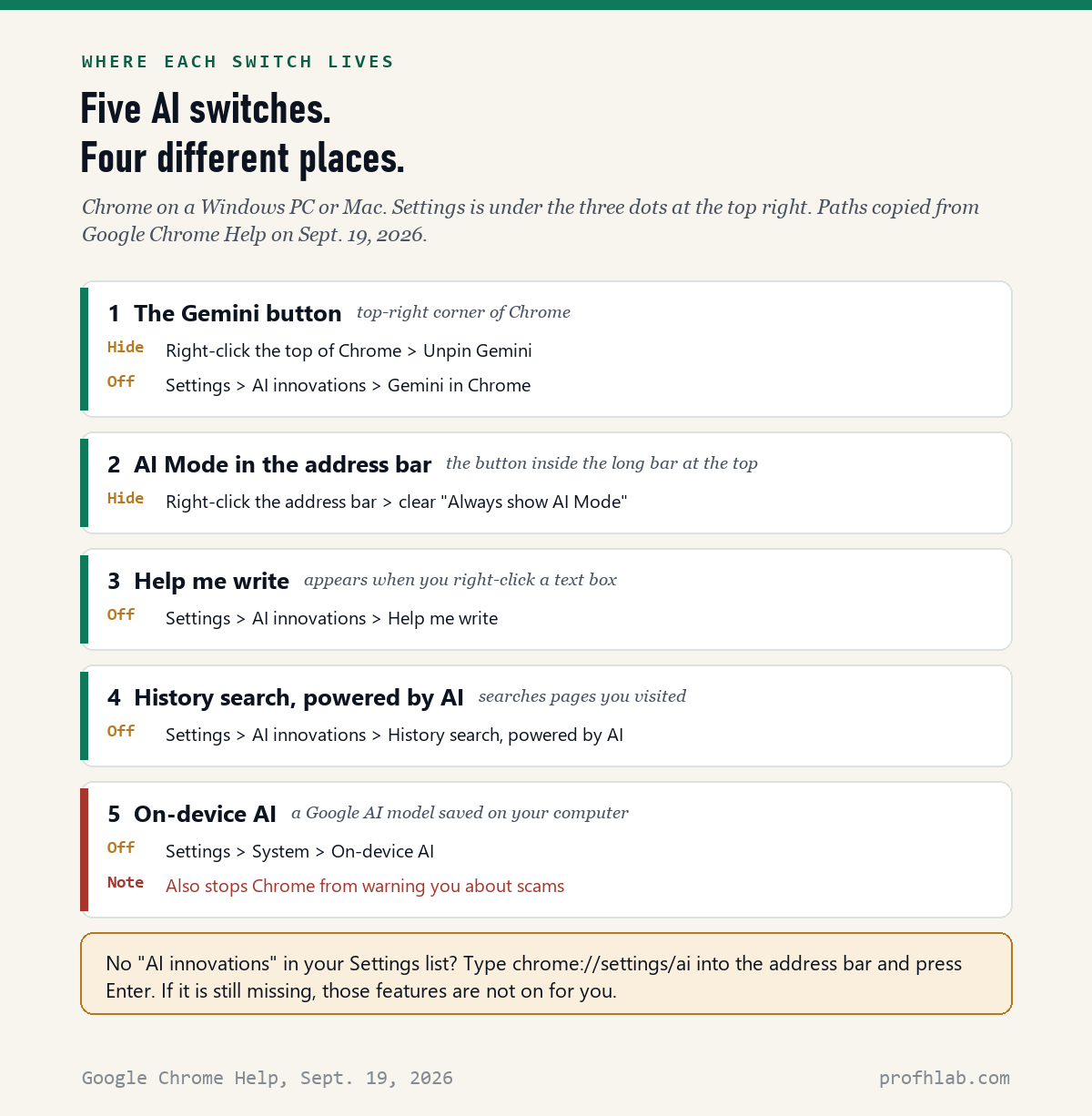
Switch 1 — the Gemini button (top-right corner):
- Move your mouse to the Gemini button at the top-right of Chrome.
- Right-click it. On a Mac with no right button, hold the Control key and click.
- Choose Unpin Gemini. The button disappears.
Switch 2 — AI Mode in the address bar:
- Right-click anywhere inside the address bar.
- Click Always show AI Mode to clear the check mark.
Google’s help page says that single click hides both “AI Mode” and “Add tabs and more” from the bar. Your normal Google searches keep working.
Still seeing AI answers at the top of Google results?
That is a different thing: the AI Overview on Google Search, not Chrome. It has its own fix, which we walked through step by step in How to Get the Old Google Search Back.
Here is every switch on one page. Save it or print it.
The thorough fix: three switches in Settings
To open Settings, click the three dots at the top-right of Chrome, then click Settings.
Switch 3 — Help me write. This is the offer to write for you when you right-click a comment box or an email form. Look under AI innovations in the list on the left, open Help me write, and turn it off. Google’s help page does not print an off switch for this one. The path above is the one The Register reported in December 2025, and it matches the Chrome Settings address chrome://settings/ai/helpMeWrite.
Switch 4 — History search, powered by AI. Google’s steps: Settings > AI innovations > History search, powered by AI, then turn it off. It lets you search your history in plain words, like “that soup recipe from Tuesday.”
Switch 5 — On-device AI. Google’s steps: Settings > System > On-device AI, then turn it off. Chrome then deletes the AI model files from your computer and will not download them again while the switch is off.
No “AI innovations” in your Settings list? Type chrome://settings/ai into the address bar and press Enter. If nothing appears, those features are not switched on for your copy of Chrome.

The one switch we would leave on
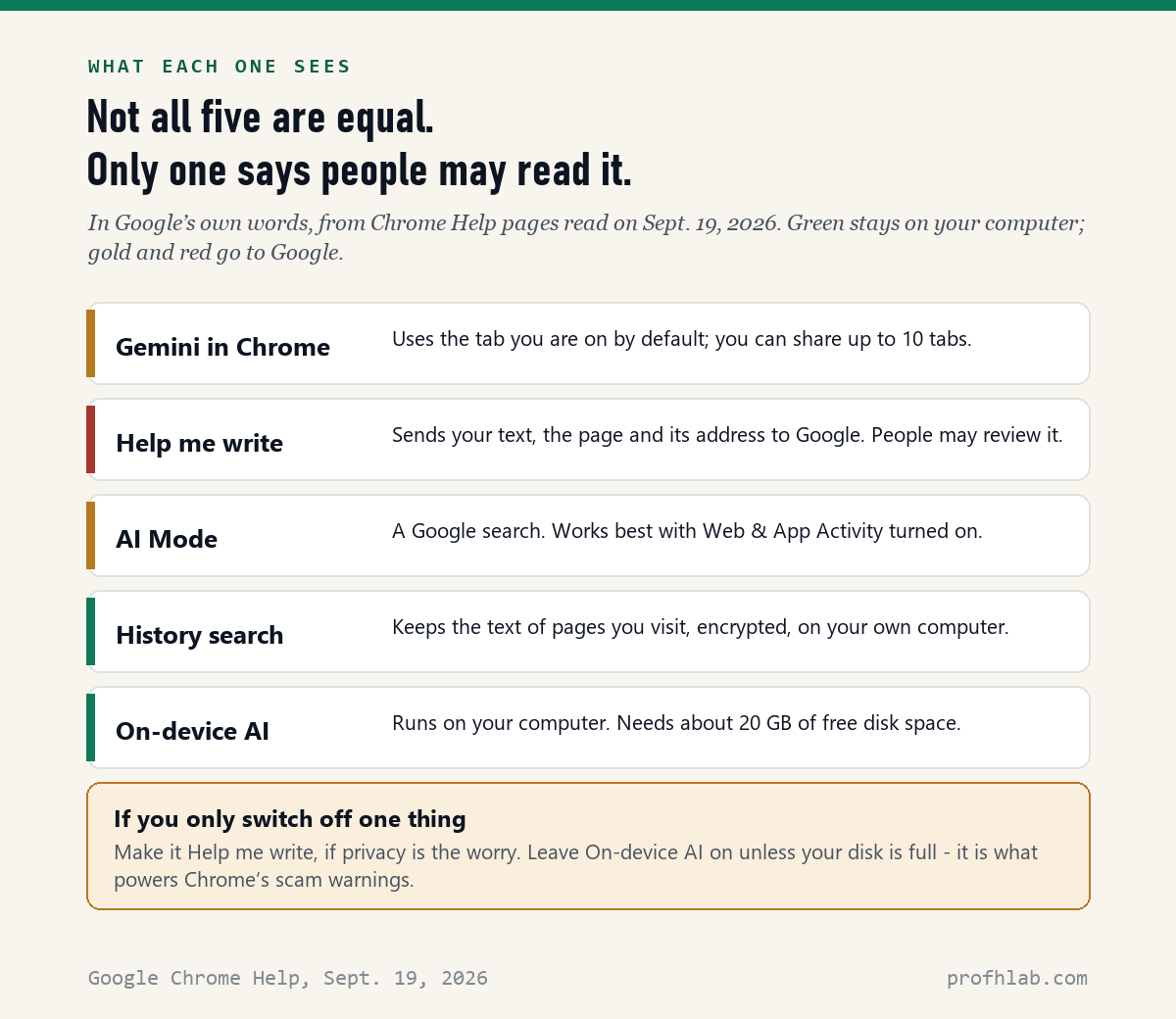
Here is the catch almost nobody mentions. Google lists four jobs its on-device AI model does. One of them is to “warn you about scams.”
So turning off On-device AI can also turn off one of Chrome’s scam warnings. For many of our readers, that is the most useful AI in the whole browser. It runs on your own computer, so the pages you visit are not sent off to be read by a chatbot.
The honest reason to switch it off is disk space. Google says the model needs about 20 GB of free space. If your computer is nearly full, turning it off frees that room.
If privacy is your main worry, Help me write is the better switch to flip. Google’s help page says your text, the page, and its web address are sent to Google, and that its review process “includes human review of data.”
What about Chrome on my phone?
This is where we have to be straight with you. We read Google’s help pages for Gemini in Chrome and for AI Mode, set to Android. Neither one gives a way to turn the feature off.
Here is what Google does say. Gemini in Chrome on Android is U.S.-only for now, needs Android 12 or newer with at least 4 GB of memory, and needs you to be signed in to Chrome. The feature only does something when you tap it.
- Simplest answer: do not tap the Gemini or AI Mode buttons. Nothing is sent until you do.
- Google’s own AI Mode page says you can delete your AI Mode history.
- The rest of your phone has its own switches. See What Is Gemini on My Android Phone? and How Do I Get Rid of AI on My Phone?
What the top guides leave out
We read the seven articles a search returns for this question. The chart shows which switches each one covers.
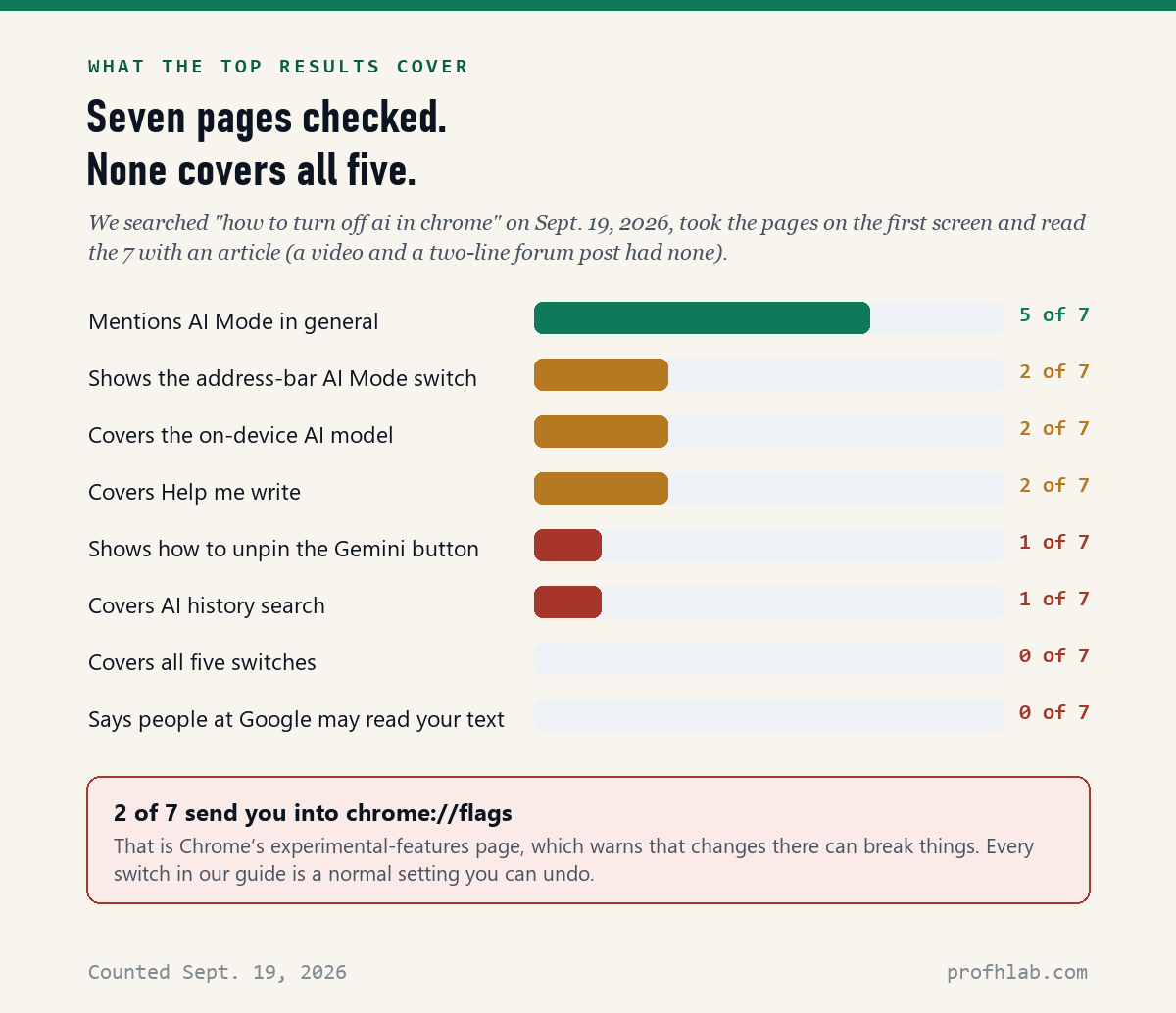
chrome://flags, which you do not need. Counted by profhlab.com from each page’s own text, September 19, 2026.About those flags. chrome://flags is Chrome’s page of experimental features. It opens with its own warning that changes there can cost you data or weaken your security. Every switch in this guide is a normal setting instead.

Two videos worth the time
The first shows what Gemini in Chrome is, straight from Google. The second walks through turning things off.
What to do with this
- Update Chrome first: three dots > Help > About Google Chrome. Old versions show old menus.
- Unpin Gemini by right-clicking the button at the top-right.
- Hide AI Mode by right-clicking the address bar and clearing “Always show AI Mode.”
- Turn off Help me write under Settings > AI innovations if you type private things into web forms.
- Turn off AI history search under Settings > AI innovations if you share the computer.
- Leave On-device AI on unless you need the disk space. It helps power scam warnings.
- Close and reopen Chrome after your changes.
If you want to go deeper
- Does Gmail use the same AI? Yes, Gemini, with separate switches: How to Stop AI from Reading My Gmail.
- Is Windows adding its own AI too? Yes, Copilot, which Chrome’s settings cannot touch: How to Remove Copilot from Windows 11.
- What scams should Chrome be warning me about? Start with AI Scams Targeting Seniors and How to Tell If a Facebook Ad Is Fake.
Questions people actually ask
How do I turn off AI in Chrome?
On a computer, right-click the Gemini button at the top-right and choose Unpin Gemini, then right-click the address bar and clear “Always show AI Mode.” For the rest, open Settings > AI innovations for Help me write and History search, and Settings > System for On-device AI.
How do I remove Gemini from Chrome?
You cannot uninstall it, but you can hide it. Right-click the Gemini button and choose Unpin Gemini. For more control, go to Settings > AI innovations > Gemini in Chrome and turn off “Show Gemini at the top of the browser” and the keyboard shortcut. Google says Gemini in Chrome only works when you are signed in to Chrome.
How do I get rid of AI Mode in the Chrome search bar?
Right-click inside the address bar and click “Always show AI Mode” to clear the check mark. Google’s help page says this hides both “AI Mode” and “Add tabs and more” from the bar. Regular Google searches still work.
Can I remove Gemini from Chrome on my Android phone?
Not with a switch that Google documents. As of September 19, 2026, Google’s Android help pages for Gemini in Chrome and AI Mode explain how to use them but give no way to turn them off. They only act when you tap them, and you can delete your AI Mode history.
What is On-device AI in Chrome?
It is a Google AI model saved on your own computer. Google says it helps with writing, summarizing pages, organizing tabs and warning you about scams. It needs about 20 GB of free disk space. Turn it off under Settings > System > On-device AI, and Chrome deletes the model files.
Is Gemini in Chrome safe?
It is made by Google and shows you the page it is using. By default, Google says, it uses the content of the tab you are on, and you can share up to 10 tabs. If you do not want a page shared, do not open Gemini on it. Never paste passwords or bank details into any chatbot.
How do I turn off Help me write in Chrome?
Open Settings, choose AI innovations, open Help me write, and turn it off. Google’s help page says your text, the page and its address are sent to Google when you use it, and that human review is part of its process.
Sources
- Google Chrome Help, Use Gemini in Chrome (computer and Android versions), read September 19, 2026.
- Google Chrome Help, Use AI Mode in Chrome, read September 19, 2026.
- Google Chrome Help, Manage on-device Generative AI models in Chrome, read September 19, 2026.
- Google Chrome Help, Get started with Help me write in Chrome, read September 19, 2026.
- Google Chrome Help, Search your browsing history in Chrome with AI, read September 19, 2026.
- Google, Chrome: The browser you love, reimagined with AI (September 18, 2025) and Gemini in Chrome with auto browse comes to Android (May 12, 2026).
- The Register, Stop the slop by disabling AI features in Chrome (December 26, 2025), for the Help me write settings path.
Keep reading
- How to Get the Old Google Search Back — results without the AI Overview.
- How to Turn Off AI in Outlook — the four switches in your email.
- How to Stop AI from Reading My Gmail — Gemini inside Gmail.
- What Is Gemini on My Android Phone? — the same assistant, on your phone.
- How to Turn Off AI on a Samsung Phone — Galaxy AI, switch by switch.
- How to Turn Off AI Summaries on iPhone — for Apple users.
- How to Remove Copilot from Windows 11 — Microsoft’s AI on the same computer.
- How to Keep Using Windows 10 Safely — if your computer is older.
- How to Turn Off AI on Amazon — shopping without the chatbot.
- How to Turn Off AI on My TV — the living room version.
- AI Scams Targeting Seniors — what Chrome’s scam warnings are for.
- How to Use ChatGPT: A Beginner’s Guide for Over 50 — if you want some AI, on your terms.
- Best AI Tools for Seniors — the ones worth keeping switched on.
- AI Price Tracker — what every major AI plan costs this month.
- AI FAQ and Ask Prof. H — short answers, and a place to send the question we missed.
- Start Here — the whole beginners library in order.
About the author. Prof. H writes profhlab.com for people who did not grow up with this stuff and would like a straight answer. We read the primary sources so you do not have to. Every Chrome menu path above was copied from Google Chrome Help on September 19, 2026, except the Help me write path, which Google does not print and which we credit to The Register. The counts of the top search results were made from each page’s own text. Google moves these menus often; if yours looks different, tell us — we correct in public.
Prof.’s H Newsletter
One short email a month, with the numbers in it
What actually moved in AI hiring, AI prices, and the scams aimed at older Americans. Counted here, dated, and linked to the source. One email a month, and your address goes nowhere else.