How to Turn Off AI on Fire TV: 5 of 8 AI Features Have an Off Step
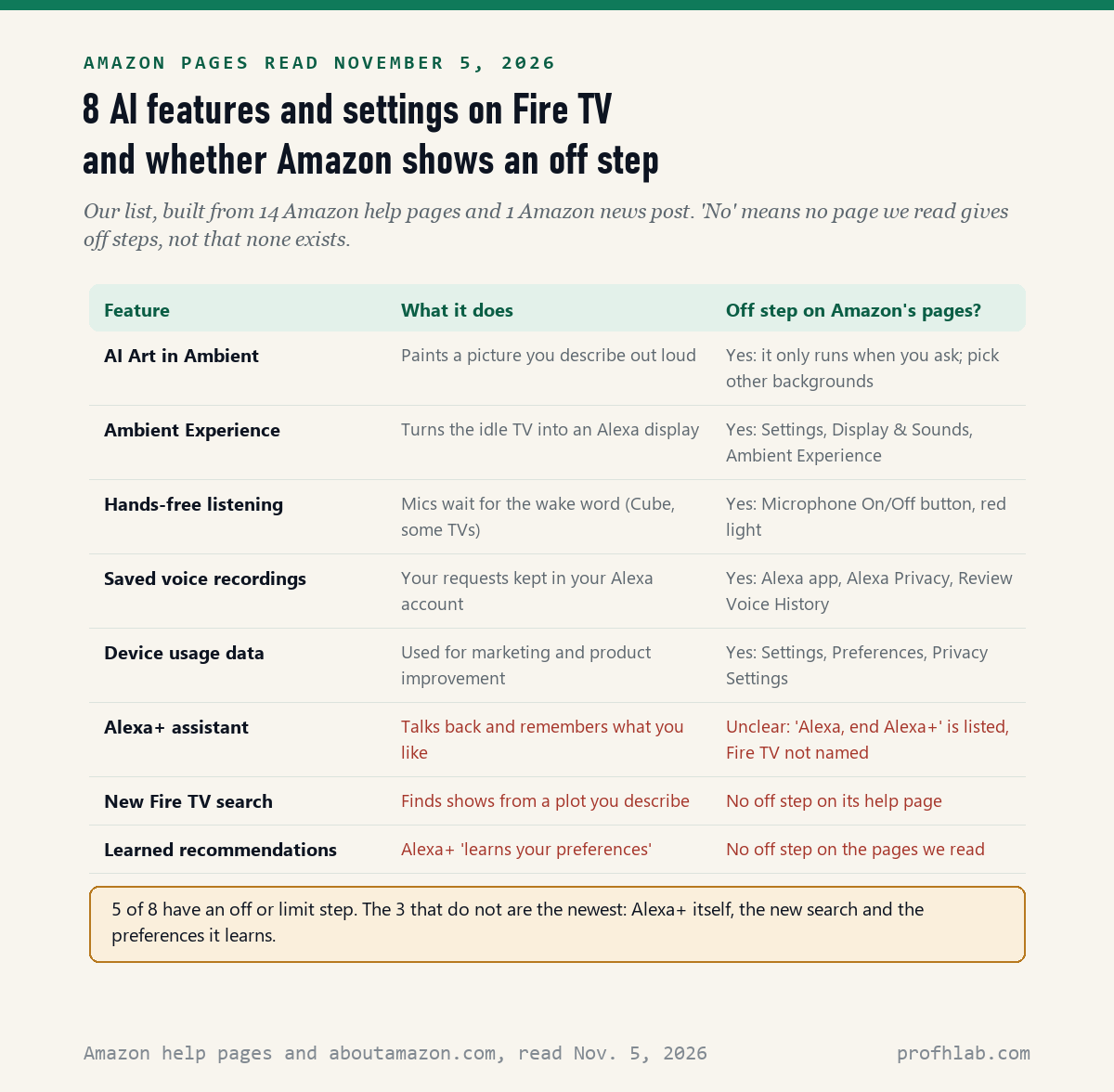
Fire TV has no single AI switch, but 5 of its 8 AI features and settings can be turned off or limited: on November 5, 2026, we read 15 Amazon pages and found off steps for AI Art, the Ambient Experience, the microphones, saved voice recordings and device data. Alexa+ itself, the new Fire TV search and the preferences it learns have no Fire TV off step on any page we read.
That still leaves you plenty of control. You can stop the AI art screen, keep the TV from listening, erase what Alexa heard and cut the data used for ads. This guide gives each step in Amazon’s own menu words, and points out where two Amazon pages disagree.
What we checked on November 5, 2026
We read 15 pages from Amazon itself: 14 help pages on amazon.com (7 Fire TV pages, 6 Alexa and Alexa+ pages, and the privacy FAQ for Fire TV) and Amazon’s August 19, 2026 news post about Alexa+ on Fire TV. None of the help pages shows a “last updated” date. We did not use third-party guides as sources.
Our own count: 8 AI features and AI-related settings on Fire TV. 5 have an off or limit step on Amazon’s pages, 1 has a voice command that does not name Fire TV, and 2 have none. We did not test these on a Fire TV, so every step is quoted from Amazon, and menus differ by model.
Written and checked by Prof. H. An AI assistant helped draft this article and ran the page reads; every quote was read on the source’s own page on the date shown.
Can you turn off AI on a Fire TV?
Partly: on November 5, 2026, Amazon’s pages gave off or limit steps for 5 of the 8 AI features and settings we listed, but none of the 15 pages offers one switch that turns all of Fire TV’s AI off at once.
Think of Fire TV’s AI as a few separate lamps in one room, not one ceiling light. Each has its own switch, and a few are wired into the wall. You can turn off the art lamp and unplug the microphone. The newest lamp, Alexa+, has no switch on the TV side.
Amazon calls Alexa+ “our next-generation assistant powered by generative AI” on its help page “About Alexa+.” Generative AI means software that writes answers or makes pictures instead of looking them up. On Fire TV it shows up in three places: Alexa+, the new search and AI Art.
How do I turn off AI Art on Fire TV?
AI Art only runs when you ask for it: Amazon’s help page “Create AI Art in the Fire TV Ambient Experience,” read November 5, 2026, says you make an image by holding the Alexa Voice button and describing it. To get it off your screen, pick other backgrounds or turn off the Ambient Experience.
Amazon’s examples include “Create a background of a tranquil lake surrounded by mountains.” Saved images go to an AI Art collection in your Ambient Gallery, and Amazon says you “can also find your AI Art collection on Amazon Photos.” The page does not explain how to delete saved AI images, so we cannot quote a step.
To put your own pictures back, Amazon’s page “Customize the Fire TV Ambient Experience” gives these steps:
- Go to the Ambient Experience screen.
- Press the Menu button on your remote. It has three lines on it.
- Select Change Background.
- Select the photos you want to show, and choose whether they shuffle.

How do I turn off the Ambient Experience on Fire TV?
Go to Settings, then Display & Sounds, then Ambient Experience: Amazon’s help page “What Is the Fire TV Ambient Experience?”, read November 5, 2026, says “You can turn off this feature at any time from the Settings menu.” The same page warns it “may increase the energy consumption” of your device.
The Ambient Experience is the picture-frame screen that appears when the TV sits idle. Amazon describes it as a way to turn “a TV into an Alexa-powered smart display when not streaming.” It is also where AI Art lives, so turning it off removes the art screen too.
- From the Fire TV home screen, go to Settings. It is the gear icon.
- Select Display & Sounds.
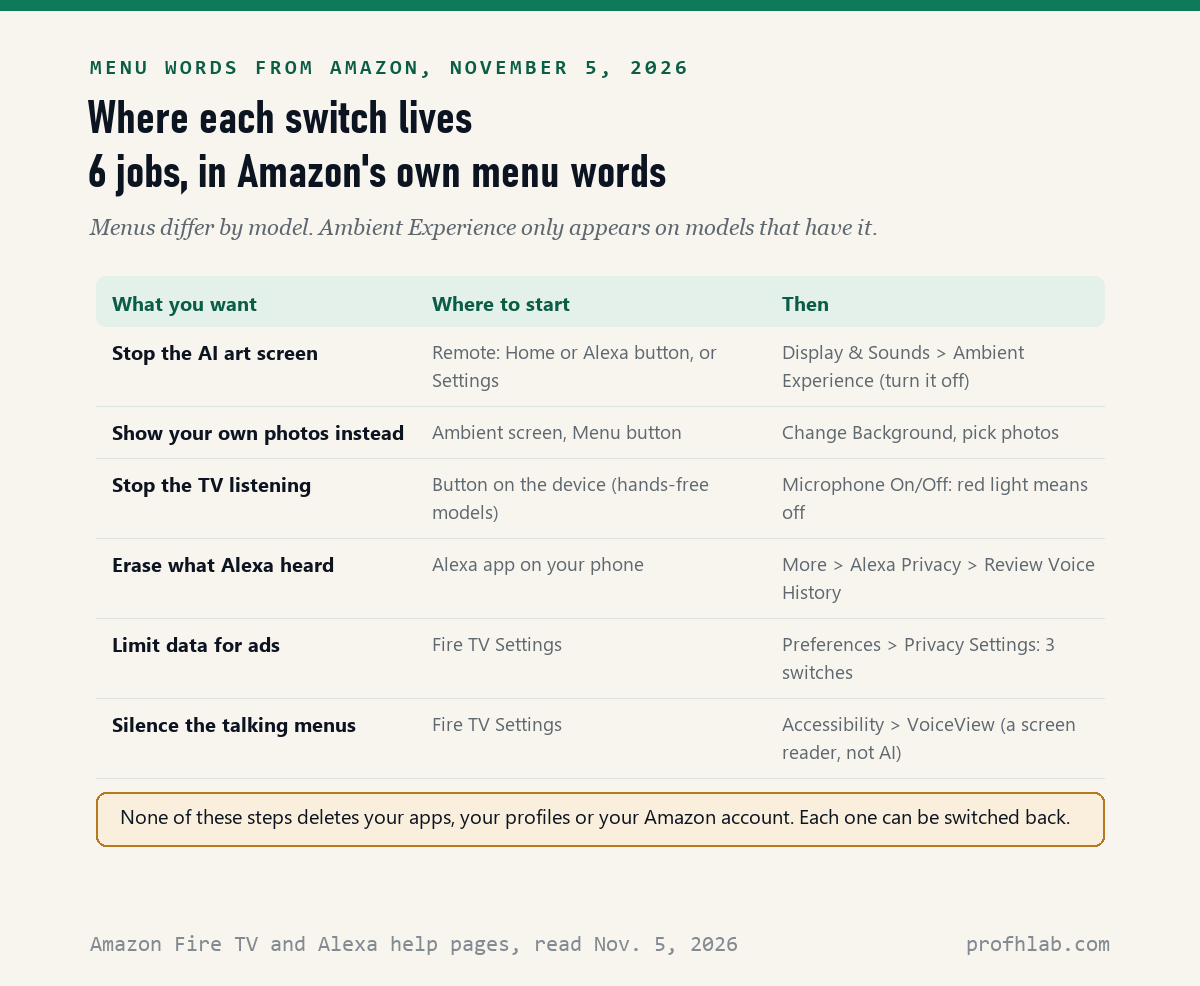
- Select Ambient Experience and turn it off.
If Ambient Experience is not in that menu, your model does not have it, Amazon says. On the Fire TV Stick 4K Max (2nd Generation) you can keep it but change when it starts. Without a setting, Amazon says it starts after 5 minutes of inactivity. The timer is under Ambient Preferences, then Advanced Settings.
Some newer Amazon TVs also show “Interactive Art” that reacts “through movement,” according to the same page. Amazon lists the Ember and Omni Mini-LED (2024), Ember and Omni QLED (2025) and Ember Artline (2026) models. Turning off the Ambient Experience should also stop it, but the page does not say so directly, so treat that as our inference.
Can you turn off Alexa on Fire TV?
You can stop it listening, not remove it: Amazon’s help page “Learn to Use Alexa with Fire TV,” read November 5, 2026, says Fire TVs with hands-free Alexa have a microphone off button, and when it is pressed “the power to the microphones disconnects and a dedicated red light turns on.”
Amazon adds that with the microphones off, your device “can’t record and stream audio to the cloud, even when you say the wake word.” Alexa still answers when you hold the button on the Voice Remote. On models without hands-free Alexa, Amazon’s page describes only that way of talking to it: hold the Alexa Voice button, then speak.

To erase what Alexa already heard, use the Alexa app on your phone. Amazon’s page “Delete Alexa Voice Recordings and Transcripts Automatically” gives the path:
- Open the Alexa app and tap More.
- Tap Alexa Privacy.
- Tap Review Voice History, pick a date range or a device, and delete.
Amazon says that if you choose “Don’t save,” your recordings “will be deleted, and future voice recordings will not be saved.” Typed requests and chat transcripts are kept until they have been inactive for 30 days. Amazon also warns that deleting recordings “may degrade your experience over time.”
How do I turn off Alexa Plus on Fire TV?
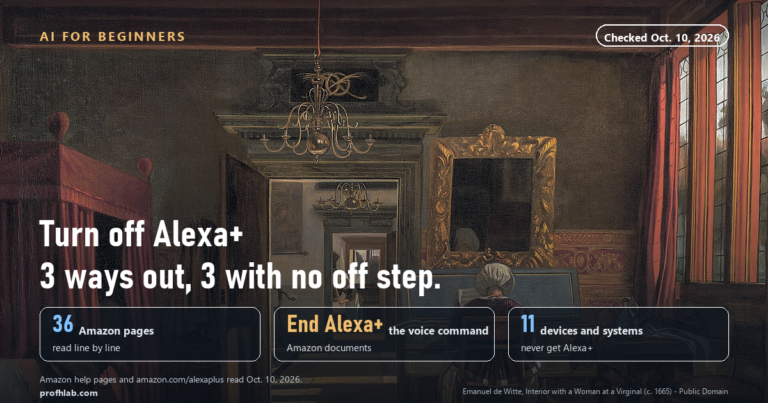
Amazon does not give Fire TV steps: its help page “Cancel Your Alexa+ Subscription,” read November 5, 2026, lists the voice command “Alexa, end Alexa+” and says your “Alexa device goes back to the original Alexa,” but it never names Fire TV.
Amazon’s news post of August 19, 2026 says Alexa+ is “rolling out to all U.S. customers that have compatible Fire TV devices at no additional cost.” It names all current Fire TV Sticks, the Fire TV Cube and Amazon Ember TVs. Amazon’s compatibility page adds that Fire TV devices on FireOS 5 “will never be compatible” and keep the original Alexa.
Our suggestion is to try the voice command. Hold the Alexa button and say “Alexa, end Alexa+.” If it works, Amazon says Follow Up Mode comes back on; say “Alexa, turn off Follow-Up Mode” to stop that. We did not test this on a Fire TV, so we cannot promise the result.
Amazon’s own pages also disagree on price. The “About Alexa+” help page still said on November 5, 2026 that there is “no free experience for Alexa+ on devices (Echo and Fire TV).” The August 19 news post says the opposite. We think the help page is out of date, but that is our inference.
Can I stop the new Fire TV search from learning what I like?
Not from any page we read: Amazon’s help page “What Is the New Fire TV Search?”, read November 5, 2026, says “Alexa offers personalized recommendations by learning from your preferences” and gives no setting to stop it.
The new search lets you describe a plot instead of typing a title. Amazon’s examples include “Find cozy British mystery shows.” The help page on Alexa+ videos says the same thing in other words: Alexa+ “learns your preferences.” We found no off step for either.
What you can limit is the device data Amazon uses for marketing. Amazon’s privacy FAQ for Fire TV lists 3 switches under Settings, then Preferences, then Privacy Settings:
- Device Usage Data. Turning it off stops Amazon processing this data “for purposes of serving you customized marketing offers and improving our products and features.”
- Collect App Usage Data. This covers when you open and close other companies’ apps, and for how long.
- Interest-based Ads. This tells apps not to use your device’s advertising ID to target you.
The same FAQ notes a limit. Turning off Device Usage Data does not change how Amazon handles your use of its own services, “such as Prime Video.” On some Fire TV smart TVs, Amazon says you can also change these settings from a computer at amazon.com/mycd, under Privacy Settings, then Amazon Devices Privacy.
Is the voice reading my Fire TV menus out loud AI?
No, it is a screen reader called VoiceView: Amazon’s help page “About VoiceView for Fire TV,” read November 5, 2026, says it “speaks on-screen text out loud as you navigate menu options and settings,” and files it under Accessibility.
Amazon says holding the Back and Menu buttons for 2 seconds starts VoiceView during setup. That shortcut may be how it got switched on without anyone meaning to. Its settings live under Settings, then Accessibility, then VoiceView. The page explains how to turn it on, not off. Our guide to the talking voice on 5 TV brands covers it in more detail.

A full Ambient tutorial and a 68-second fix for the talking voice
We picked 2 videos on November 5, 2026. The first walks through the Ambient Experience screens, including where its settings sit. It was published in January 2024, before Alexa+ reached Fire TV, so trust the written steps above if a menu looks different. The second shows how to stop the talking menus on a Fire TV Stick 4K Max.
Fifteen minutes on the couch with the remote and your phone
Our estimate is a few minutes for each step. None of them deletes your apps, your profiles or your Amazon account, and each one can be switched back.
- Stop the art screen. Settings, Display & Sounds, Ambient Experience, off.
- Stop the listening. On a Cube or hands-free TV, press the microphone off button until the red light shows.
- Erase what Alexa heard. Alexa app, More, Alexa Privacy, Review Voice History.
- Limit the ad data. Settings, Preferences, Privacy Settings: turn off Device Usage Data, Collect App Usage Data and Interest-based Ads.
- Try leaving Alexa+. Hold the Alexa button and say “Alexa, end Alexa+.”
If a menu name on your screen does not match, look one level up. Amazon’s pages say menus differ between Fire TV Sticks, the Cube and Fire TV smart TVs. If you set this up for a parent, write the steps on a card and tape it near the TV.
A note on scams. None of these steps needs a code read out over the phone. If a caller who says they are from Amazon asks for one, hang up. Our guide to AI scams that target seniors lists the common scripts.
The same switches on other TVs, speakers and apps
- Other TVs: Samsung TVs, LG TVs and Roku TVs.
- More Amazon: turning off Alexa+ on an Echo, the AI switches in Amazon’s shopping app, AI on a Kindle and AI on a Ring doorbell.
- Other smart speakers: Gemini on Google Home.
- What you watch and hear: AI on YouTube, YouTube auto-dubbing and AI on Spotify.
- Staying safe: how to tell if a video is AI, stopping AI calls on a landline and family safe word examples.
- New to all of this? Start from the Start Here page, our ChatGPT guide for beginners over 50 or our AI tools for seniors.
- Curious where AI work is hiring? Our AI jobs tracker counts openings every week.
What else do people ask about Alexa and AI on Fire TV?
How to turn off AI on Fire TV?
There is no single switch. On November 5, 2026 we read 15 Amazon pages and found off or limit steps for 5 of 8 AI features and settings: AI Art, the Ambient Experience, the microphones, saved voice recordings and device data. Alexa+, the new search and its learned preferences have no Fire TV off step.
How to turn off AI art on Fire TV?
AI Art only appears when someone asks Alexa to make a picture. To remove it, press Menu on the Ambient screen, select Change Background and pick other photos, or turn off the Ambient Experience under Settings, Display & Sounds.
How to turn off ambient experience on Fire TV?
Go to Settings, then Display & Sounds, then Ambient Experience, and turn it off. Amazon says you can do this at any time and notes the feature may use more energy. If the option is missing, your model does not have it.
Can you disable Alexa on Fire TV?
Not completely. On hands-free models, the microphone off button cuts power to the microphones and shows a red light. Alexa still answers when you hold the Voice Remote button. On models without hands-free Alexa, Amazon describes talking to it only by holding that button.
How to turn off Alexa Plus on Fire TV?
Amazon gives no Fire TV steps. Its cancel page lists the voice command “Alexa, end Alexa+” and says the device goes back to the original Alexa, but it does not name Fire TV. Prime members can also deactivate Alexa+ at alexaplus.com.
How to turn off AI voice on Fire TV?
The voice reading menus aloud is VoiceView, a screen reader, not AI. Its settings are under Settings, Accessibility, VoiceView. Amazon says holding Back and Menu for 2 seconds starts it during setup, so it can get switched on without anyone meaning to.
Fourteen Amazon help pages, one news post and two YouTube videos we read
- Amazon Help, Create AI Art in the Fire TV Ambient Experience, read November 5, 2026.
- Amazon Help, Customize the Fire TV Ambient Experience, read November 5, 2026.
- Amazon Help, What Is the Fire TV Ambient Experience?, read November 5, 2026.
- Amazon Help, What Is the New Fire TV Search?, read November 5, 2026.
- Amazon Help, Learn to Use Alexa with Fire TV, read November 5, 2026.
- Amazon Help, Navigate the New Fire TV Experience, read November 5, 2026.
- Amazon Help, About VoiceView for Fire TV, read November 5, 2026.
- Amazon Help, Privacy Settings FAQs for Fire TV Products, Fire Tablets and Kindle E-readers, read November 5, 2026.
- Amazon Help, About Alexa+, read November 5, 2026.
- Amazon Help, Cancel Your Alexa+ Subscription, read November 5, 2026.
- Amazon Help, Compatibility of Alexa+ with Alexa Built-in Devices, read November 5, 2026.
- Amazon Help, About Videos with Alexa+, read November 5, 2026.
- Amazon Help, Delete Alexa Voice Recordings and Transcripts Automatically, read November 5, 2026.
- Amazon Help, Change Your Alexa Privacy Settings, read November 5, 2026.
- Amazon News, Alexa+ is now included on Fire TV at no additional cost, August 19, 2026, read November 5, 2026.
- YouTube, Curiosity Cafe, Firestick Ambient Experience: Full Tutorial, January 9, 2024, and WorldofTech, Fire TV Stick 4K Max: How to Turn Off Talk Back, October 13, 2021, both checked November 5, 2026.
Prof.’s H Newsletter
One short email a month, with the numbers in it
What actually moved in AI hiring, AI prices, and the scams aimed at older Americans. Counted here, dated, and linked to the source. One email a month, and your address goes nowhere else.