How to Turn Off AI on Roku TV: 7 Switches We Found, and 3 Things With No Off Button
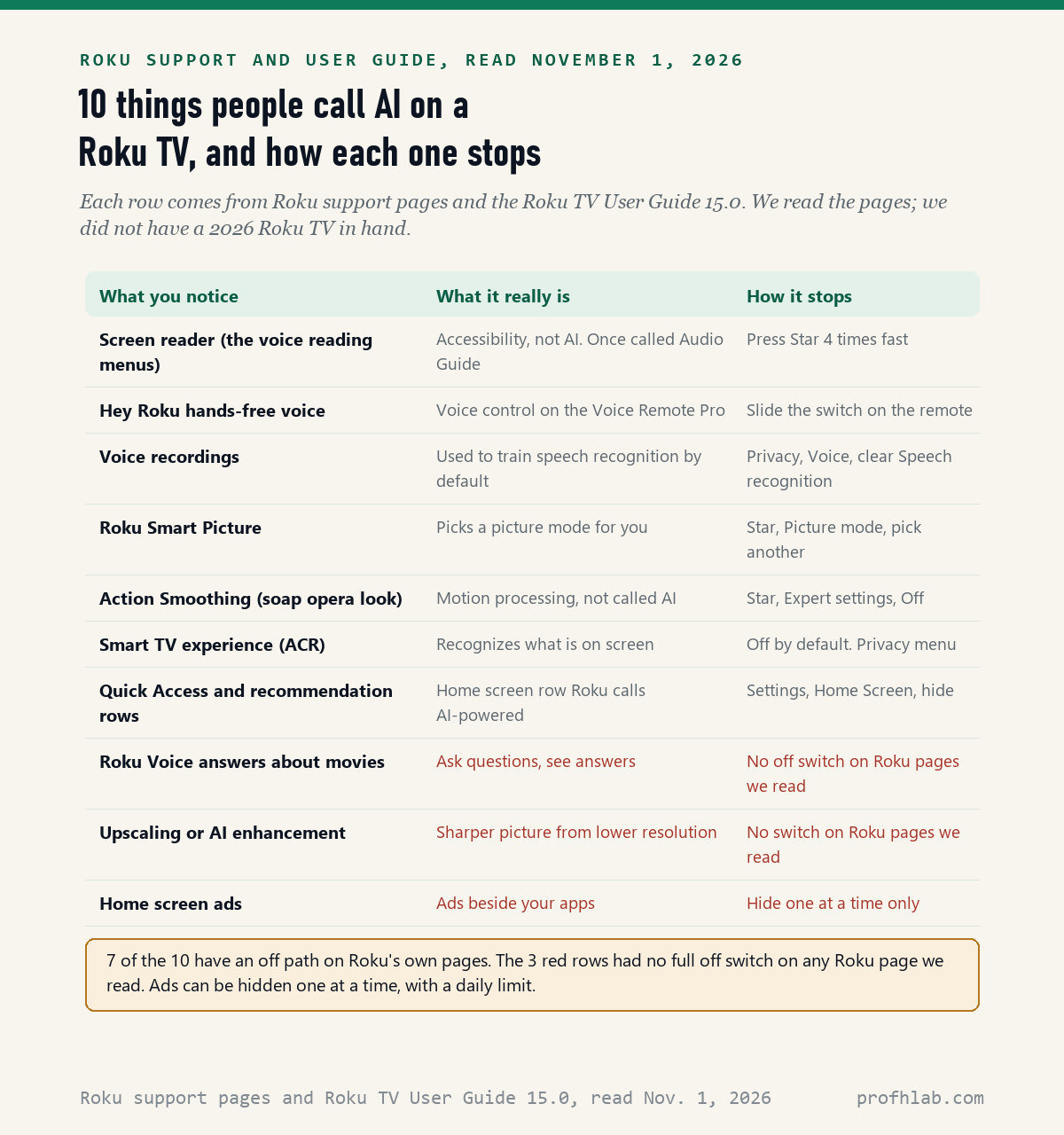
There is no single AI switch on a Roku TV: on November 1, 2026, we read 13 Roku pages, including the Roku TV User Guide, and listed 10 things owners call AI, and 7 of them have an off path on Roku’s own pages. The other 3, Roku Voice answers, upscaling and home screen ads, had no full off switch on any Roku page we read.
The thing most people want gone is the easiest to fix. The voice that reads every menu out loud is not AI. Roku calls it the screen reader, and four quick taps on the Star button turn it off.
What we checked on November 1, 2026
We opened 19 pages on Roku’s own websites and could read 13: 12 support and web pages and the 15.0 edition of the Roku TV User Guide for the US, a PDF. 6 more came back blank or sent us somewhere else, including Roku’s privacy policy page and its newsroom, so we quote nothing from them.
Our own count: 10 things an owner may call AI. 7 have an off path on Roku’s pages. 3 do not: answers from Roku Voice, picture upscaling, and home screen ads, which you can only hide one at a time. We read the pages; we did not have a 2026 Roku TV in hand, and TCL, Hisense and other brands may name a menu differently.
Written and checked by Prof. H. An AI assistant helped draft this article and ran the page reads; every quote was read on the source’s own page on the date shown.
Can you turn off AI on a Roku TV?
Mostly: in the 13 Roku pages we read on November 1, 2026, there is no one AI button, but 7 of the 10 features owners call AI can be switched off one by one. Most of the switches sit in two places, Settings and the Star button menu.
Think of the TV as a kitchen with many drawers. The talking voice lives in the Accessibility drawer. Picture tricks live behind the Star button. Listening and watching data live in the Privacy drawer. Open the right drawer and each switch is a single click.
So start with what is bothering you. The sections below begin with the complaint people type into Google most often: a TV that will not stop talking.
How do you stop the AI voice on a Roku TV?
Press the Star button four times quickly: Roku’s support article on the screen reader, last updated August 14, 2026, and read November 1, 2026, says the screen reader “can be turned on or off by pressing Star on the Roku remote four times quickly.” The Star button has a small star or asterisk on it.
The same page says the screen reader “was previously known as Audio Guide.” So if a family member calls it Audio Guide, it is the same thing. It reads menus out loud for people with low vision. It is not a robot listening to you.
If the taps do nothing, use the menu instead:
- Press Home on the remote.
- Scroll down and select Settings.
- Select Accessibility, then Screen reader.
- Turn the screen reader off.

Why does the talking voice keep coming back after I turn it off?
Usually because someone tapped Star four times by accident: Roku’s screen reader page, read November 1, 2026, lists a Shortcut setting and says “When the shortcut is disabled, pressing Star on your remote four times does not turn on the screen reader.” Turning that shortcut off stops the surprise.
The path is Settings, Accessibility, Screen reader, Shortcut. The Roku TV User Guide 15.0 calls the same setting Screen reader shortcut. If you never use the voice, switching off the shortcut means a grandchild pressing buttons will not bring it back.
If the voice is describing the movie, not the menus, that is a different feature. It comes from the channel or app, as our broader guide on how to turn off AI on any TV explains. Look in that app’s audio or captions menu.
Is Roku Smart Picture AI, and how do I switch it off?
Roku Smart Picture picks a picture style for you: Roku’s picture modes page, last updated September 17, 2026, says it “automatically selects the best picture mode for the type of content you are watching.” The page does not use the word AI. To leave it, pick another mode.
- While a show is playing, press Star.
- Select Picture settings, then Picture mode.
- Choose Standard for a bright room or Movie for a dark room.
One detail surprised us. The same page says the factory default is Low Power, “optimized to save energy,” not Smart Picture. So if your TV is on Smart Picture, someone chose it, or a setup screen suggested it.
Can you turn off AI smoothing on a Roku TV?
Yes, on models that have it: Roku’s page on motion blur, last updated June 24, 2026, says to press Star, open Picture settings and Expert settings, and “Turn Action Smoothing to Off or Low.” Action Smoothing is what makes films look like a soap opera.
Roku does not call this AI. It is motion processing, which adds in-between frames. That is why people search for “AI frames” or “AI interpolation” on Roku TVs. The same Roku page warns that these settings “may be absent or named differently on some partner Roku TVs,” meaning TVs built by TCL, Hisense and others.
We found no upscaling or AI enhancement switch on any Roku page we read. The Expert settings list in the User Guide has Noise reduction and Sharpness, but no item named upscaling. If your TV maker sells an AI picture feature, check that maker’s support site.

Is my Roku TV listening to me?
Only if you have a voice remote, and you can limit what it keeps: the Roku TV User Guide 15.0, read November 1, 2026, says “By default, Roku uses recordings of your voice interactions” with voice remotes to improve speech recognition. Clear the Speech recognition box under Settings, Privacy, Voice to stop that.
The Voice Remote Pro can also listen without a button press. Roku’s voice page, last updated August 17, 2026, says to turn on hands-free voice you “move the slider on the side of your remote to green.” Roku does not spell out the off step; sliding it back is our reading of that page.
Roku Voice can now answer questions about movies and actors. Roku’s page says it “lets you ask questions about movies, TV shows, and actors.” PCWorld reported on October 15, 2025 that Roku called this an AI-powered assistant. We found no off switch, but it only answers when you press the voice button and ask.
Does a Roku TV watch what I watch?
Not unless you said yes: Roku’s More Ways to Watch page, last updated June 23, 2026, says “ACR is not enabled out of the box.” ACR, short for automatic content recognition, matches a fingerprint of the picture to Roku’s catalog of shows, games and ads.
To check, go to Settings, Privacy, Smart TV experience, and clear the box called Use info from TV inputs. The User Guide says that setting “authorizes Roku to collect and share information about what, when, and how you are watching.”
One warning from the same support page: if you turned it on and later turn it off, the data collected while it was on “will be retained by Roku.” Turning it off stops new collection; it does not erase the past. We could not open Roku’s privacy policy page to see how to ask for deletion.

Can you remove the new AI home screen and its ads?
No, but you can trim it: Roku’s page on the redesigned home screen, last updated August 25, 2026, says “there isn’t a setting to switch back.” Under Settings, Home Screen, you can hide recommendation rows and hide the Quick Access row.
Why call it AI? On May 27, 2026, iClarified reported that “Roku says the feature is powered by AI” about Quick Access. The support page itself does not say AI. Hiding the row removes it from view; Roku’s pages do not say whether the choices behind it stop.
Ads are harder. Roku’s ad preferences page, last updated June 18, 2026, lets you select one home screen ad, press Star and choose Hide this ad, with a daily limit. You can also block sensitive ad categories under Settings, Privacy, Advertising. We found no way to turn the ads off entirely.

A 1.27 million-view screen reader fix, and Roku’s own remote tour
We picked 2 videos on November 1, 2026. The first is the most-watched guide we found to stopping the talking voice. The second is from Roku and shows the Voice Remote Pro, including hands-free listening.
Seven stops for the remote, from the Star button to the Privacy menu
Do these in order with the remote in hand. Our estimate is about a minute per step, so under ten minutes in all. None of them deletes your apps or shows.
- Quiet the menus. Tap Star four times fast. The voice should stop.
- Lock the quiet in. Settings, Accessibility, Screen reader, Shortcut, off.
- Fix the soap opera look. Play a show, press Star, Picture settings, Expert settings, Action Smoothing, Off.
- Pick a plain picture. Star, Picture settings, Picture mode, Movie or Standard.
- Keep your voice private. Settings, Privacy, Voice, clear Speech recognition.
- Check what the TV watches. Settings, Privacy, Smart TV experience, clear Use info from TV inputs.
- Trim the home screen. Settings, Home Screen, hide the rows you do not use.
If a menu name on your screen does not match, Roku’s support pages have a chat link, and TCL or Hisense support covers their own menus. It is fine to ask a family member to sit with you. None of this is your fault; the menus change every year.
Guides for the TVs, speakers and phones near your Roku
- Other TV brands: how to turn off AI on my TV, Samsung TVs and LG TVs.
- What plays on the screen: YouTube, YouTube auto-dubbing, how to tell if a YouTube video is AI and Spotify.
- Speakers that listen: Alexa+ and Gemini on Google Home.
- Around the house: Ring doorbells and Amazon.
- Phone calls: stopping AI calls on a landline.
- Staying safe: AI scams that target seniors and family safe word examples.
- New to all of this? Browse every guide from the Start Here page or see our AI tools for seniors.
- Curious where AI work is hiring? Our AI jobs tracker counts openings every week.
What else do Roku owners ask Google about AI on their TV?
How to turn off AI on Roku TV?
There is no single switch. Tap Star four times to stop the talking screen reader, set Action Smoothing to Off under Star, Picture settings, Expert settings, and clear Speech recognition under Settings, Privacy, Voice. We found 7 off paths for 10 features on November 1, 2026.
How to turn off AI voice on Roku?
The voice is the screen reader, once called Audio Guide, and Roku does not call it AI. Press Star four times quickly, or go to Settings, Accessibility, Screen reader. Turn off the Shortcut there so it does not come back by accident.
How to turn off AI smoothing on Roku TV?
Play a show, press Star, then Picture settings, Expert settings, and set Action Smoothing to Off or Low. Roku says the setting may be missing or named differently on some TVs built by partner brands such as TCL and Hisense.
How to turn off AI upscaling on Roku TV?
We found no upscaling switch on any Roku page we read on November 1, 2026. The nearest controls are Noise reduction and Sharpness in Expert settings. If your TV maker advertises an AI picture feature, its own support site is the place to look.
Does Roku TV use AI?
Some parts do. PCWorld reported in October 2025 that Roku called its new voice answers AI-powered, and iClarified reported in May 2026 that Roku said Quick Access on the home screen is powered by AI. The talking screen reader and Action Smoothing are not described as AI.
Is my Roku TV watching what I watch?
Not unless you opted in. Roku says automatic content recognition is not enabled out of the box. Check Settings, Privacy, Smart TV experience and clear Use info from TV inputs. Data collected while it was on is kept by Roku.
The eight Roku pages and two news reports behind each quote
- Roku Support, How to enable the text-to-speech screen reader on your Roku streaming device, last updated August 14, 2026, read November 1, 2026.
- Roku Support, How to reduce motion blur in fast-moving scenes on your Roku TV system, last updated June 24, 2026, read November 1, 2026.
- Roku Support, Improve image quality with picture modes, last updated September 17, 2026, read November 1, 2026.
- Roku Support, Voice search and control instructions, last updated August 17, 2026, read November 1, 2026.
- Roku Support, Using More Ways to Watch on your Roku TV, last updated June 23, 2026, read November 1, 2026.
- Roku Support, Why does my Roku Home Screen look different?, last updated August 25, 2026, read November 1, 2026.
- Roku Support, Manage ad preferences, last updated June 18, 2026, read November 1, 2026.
- Roku, Roku TV User Guide 15.0 (US), PDF, read November 1, 2026.
- PCWorld, Jared Newman, Roku’s adding AI search and (hopefully) better recommendations, October 15, 2025, read November 1, 2026.
- iClarified, Roku overhauls home screen with AI-powered Quick Access and content hubs, May 27, 2026, read November 1, 2026.
Prof.’s H Newsletter
One short email a month, with the numbers in it
What actually moved in AI hiring, AI prices, and the scams aimed at older Americans. Counted here, dated, and linked to the source. One email a month, and your address goes nowhere else.