How to Turn Off AI on My TV: Why the Voice You Hear Probably Is Not AI at All
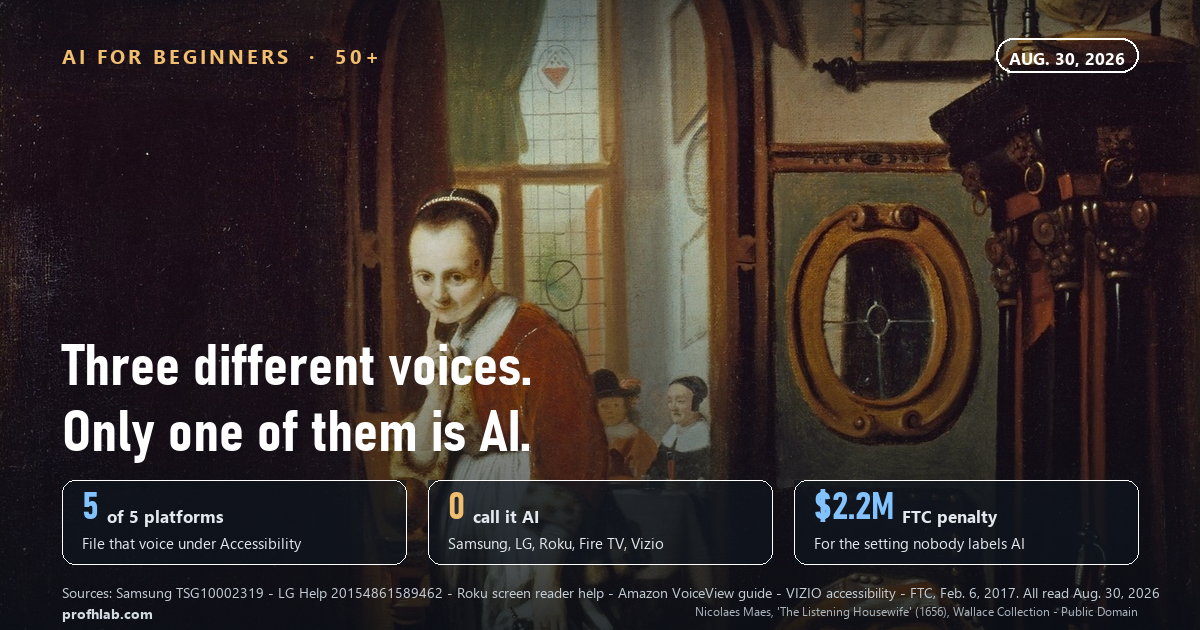
If a voice is reading your television’s menus out loud, it is almost certainly not AI, and on four of the five biggest TV platforms you can stop it in about ten seconds without opening a menu at all. We read the official support pages for Samsung, LG, Roku, Amazon Fire TV and VIZIO on August 30, 2026: all five file that voice under Accessibility, and not one of the five calls it AI.
It usually starts in the evening. You press the volume button and a voice says “Volume fourteen.” You press Home and it says “Home. Settings. Highlighted.” Nobody in the house changed anything. The grandchildren were over on Sunday.
So you go looking for how to turn the AI off, and page one is a Best Buy question thread, a JustAnswer page that wants $46, two YouTube videos, and a Samsung support article about setting a sleep timer.
Try this first, before any menu. Each of these works from whatever screen you are on, and each is undone by doing it again.
- Samsung — hold the Volume button for two seconds.
- Roku — press the Star button four times, quickly.
- Amazon Fire TV — hold Back + Menu together for two seconds.
- VIZIO — hold the PIC button for five seconds.
- LG — the one with no published shortcut: Settings → All Settings → General → Accessibility → Audio Guidance → Off.
First, listen to what the voice actually says
This is the step that everything else depends on, and it takes fifteen seconds. Three completely different things get called “the AI on my TV,” they live in three different menus, and the fix for one does nothing for the other two.
Sit down and listen to one sentence of it.
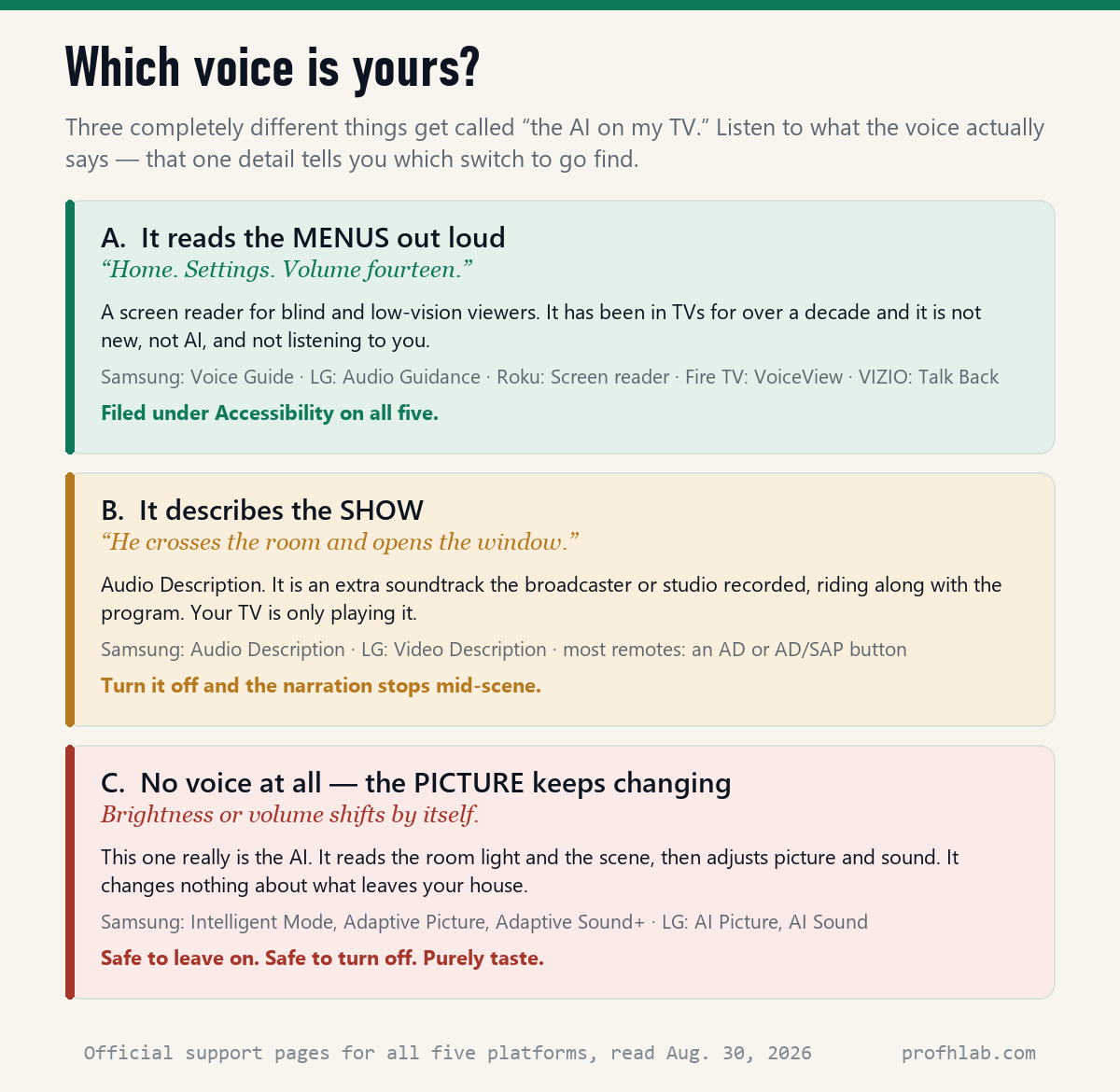
- It reads the menus. “Settings. Picture. Highlighted.” That is a screen reader — the TV equivalent of the narrator on an iPhone. Built for blind and low-vision viewers, in televisions for over a decade, and switched on most often by an accidental long-press on the remote.
- It describes the show. “He crosses the room and opens the window.” That is Audio Description — a second soundtrack the studio recorded and the broadcaster sends. Your television did not write a word of it.
- There is no voice at all, but the picture keeps brightening and dimming, or the volume changes by itself. That is the AI — and it is the least alarming of the three.
Almost everyone arriving at this question is in the first group. The searches sitting right beside “how to turn off AI on my TV” in Google’s own suggestions give it away: why is my TV narrating everything I do, why is my TV talking to me and how do I turn it off. Those are not people worried about artificial intelligence. Those are people who want the lady to stop.
If it reads your menus: the ten-second fix
Every platform below files this under Accessibility, and every one of them can be undone as easily as it was done. You are not breaking anything.
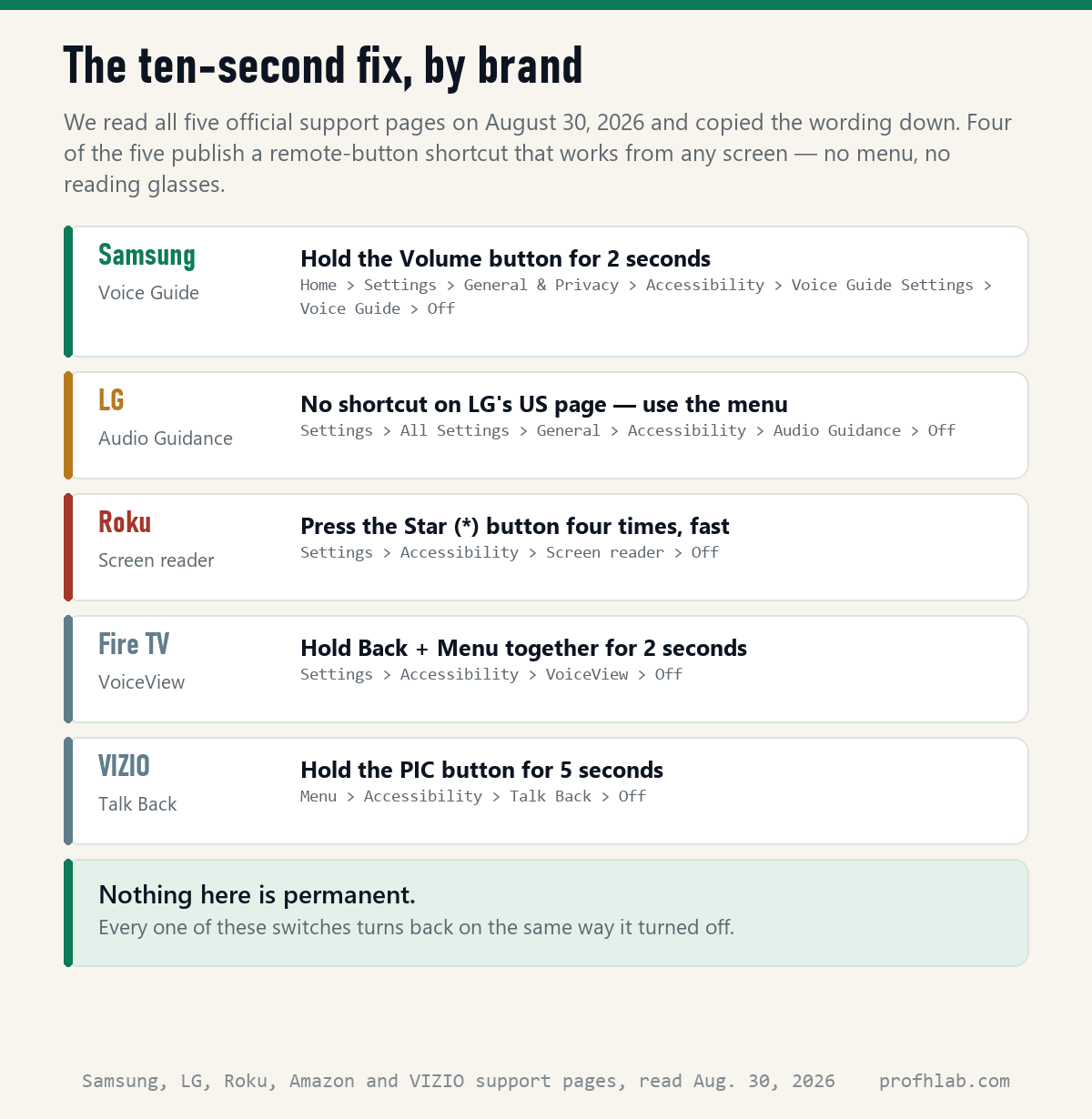
Samsung calls it Voice Guide. Samsung’s US troubleshooting page gives the route as Home > Settings (All Settings) > General (General & Privacy) > Accessibility > Voice Guide Settings > Voice Guide > Off, and adds that “the accessibility menu can also be reached by holding the volume button on the remote.” Hold the volume rocker for two seconds and the shortcut panel appears.
LG calls it Audio Guidance, which LG describes as “a feature that assists vision-impaired users by reading aloud on-screen menus and device statuses.” On webOS 6.0 and later: Settings button → All Settings → General → Accessibility → Audio Guidance. On sets made before 2020, drop the General step. LG’s US page is the one exception in this table — it documents the menu route only, with no button shortcut.
Roku is the easiest of all five. Roku’s support page says the screen reader “can be turned on or off by pressing Star on the Roku remote four times quickly.” Star is the button below and right of the direction pad. Roku also notes that this feature “was previously known as Audio Guide” — useful if you are searching by the name you remember.
Amazon Fire TV calls it VoiceView. Amazon’s own VoiceView user guide is unambiguous: “To enable or disable VoiceView, press the Back and Menu buttons at the same time for two seconds.” That two-button combination is also the most common way it gets switched on by accident, usually while somebody is fishing the remote out of the sofa.
VIZIO calls it Talk Back. Hold the PIC button for five seconds to turn text-to-speech on, hold it five seconds again to turn it off. If your remote has a microphone button, VIZIO says you can also just say “Disable Talk Back.” The menu route is Menu → Accessibility → Talk Back.

If it describes the movie instead of the menu
Different voice, different switch. If the narration only happens during a program — and it stops the moment you open the menu — you are hearing Audio Description. LG describes its version, Video Description, as a feature for “describing characters’ actions and scenes during television programs where broadcasters support the feature.”
Two things follow from that, and they explain the complaint people usually arrive with.
First, it comes and goes. One channel has it, the next does not, because it depends on what the broadcaster sent. That is why it feels random and why it will not reproduce on demand when you try to show somebody.
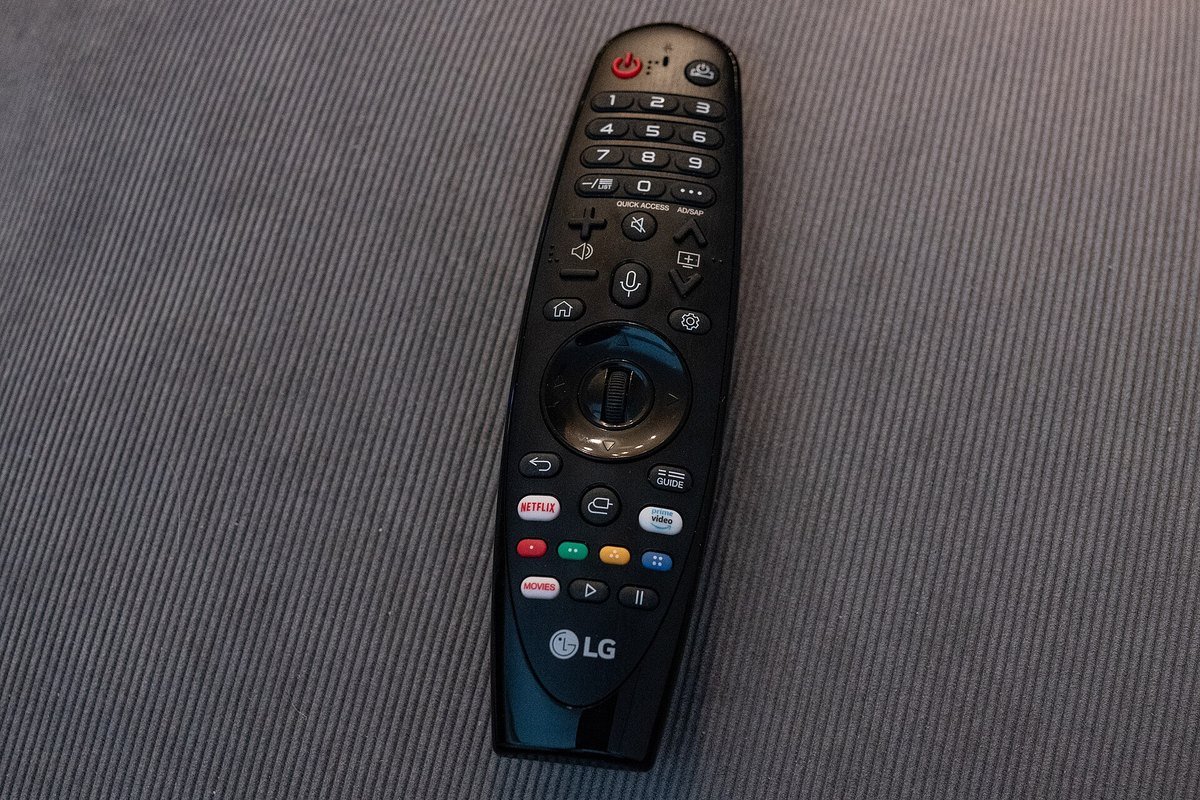
Second, the fastest fix is usually a button, not a menu. Look at your remote for AD or AD/SAP. On LG sets the menu route is Settings → All Settings → General → Accessibility → Video Description; on Samsung it sits in the same Accessibility panel as Voice Guide, listed as Audio Description.
The settings that really do say “AI” — and whether to bother
Now for the third voice, which is not a voice. If nothing is talking but the picture keeps shifting, you have found the genuine article.
Samsung groups these under Intelligent Mode, and describes the parts plainly on its support pages: Adaptive Picture “optimizes brightness… in real time based on the light level in your room,” Adaptive Sound+ analyzes the room and the content, Adaptive Voice Amplifier listens to the ambient noise level and lifts dialogue over it, and Adaptive Volume “analyzes your volume usage history by time period.” The route is Home → Settings → General → Intelligent Mode Settings, and Samsung notes the feature only exists on QLED sets (except the Q6 series), The Frame, The Serif and The Sero. LG’s equivalents are labelled AI Picture and AI Sound, under General → AI Service.
Here is the part worth sitting with. These are the only settings on your television with the word AI printed next to them, and they are the ones that matter least. They change how the picture looks and how loud the dialogue is. Turn them off if the brightness shifting mid-scene drives you mad — a lot of people find it does.
Leave them on if you like not reaching for the volume during commercials. Either way nothing about what leaves your house changes by one byte. The setting that decides what leaves your house is in a different menu, and it does not say AI anywhere on it.
One step deeper: the switch that actually watches you
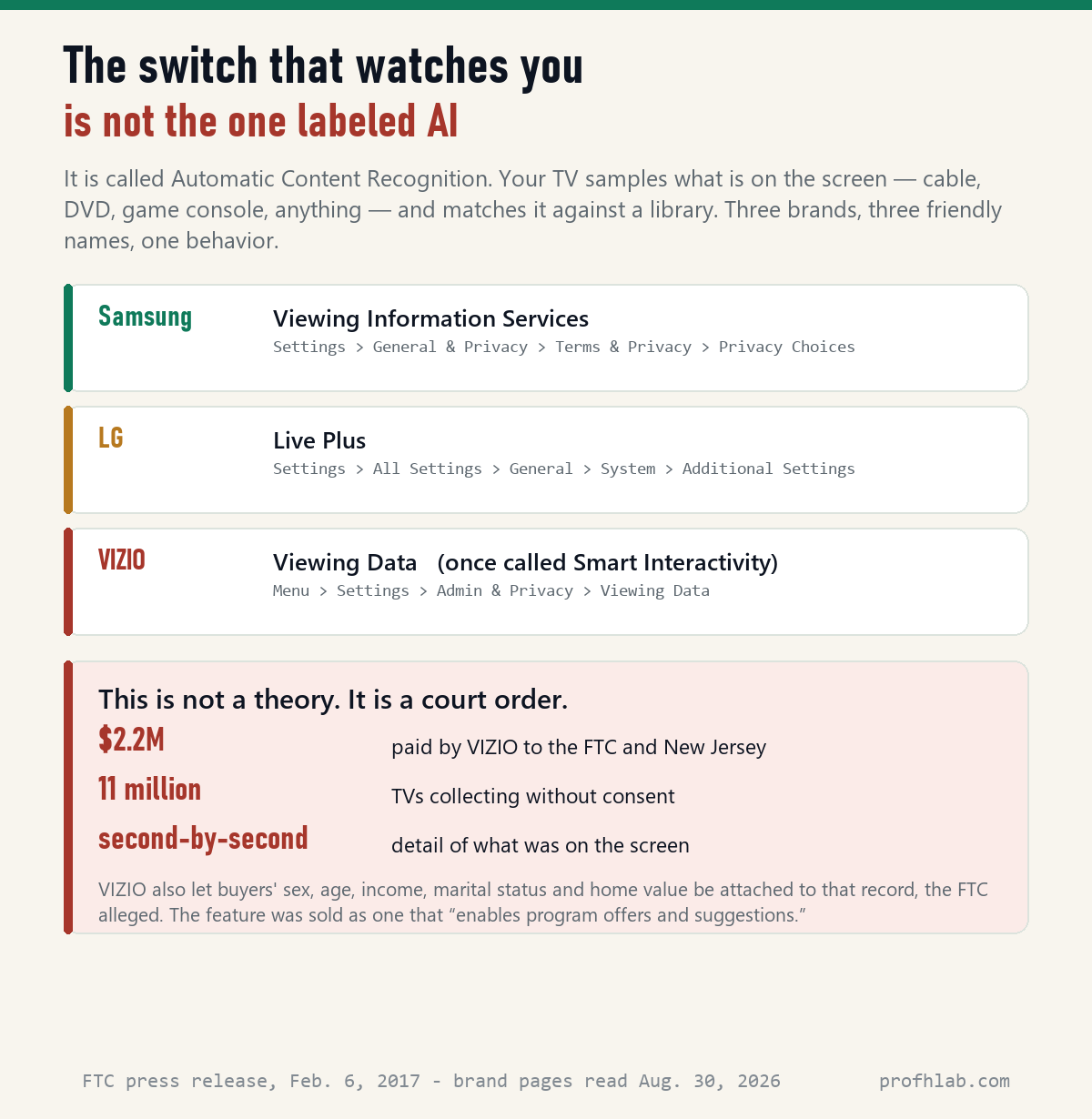
It is called Automatic Content Recognition, and it is the answer to a question most people do not know to ask. Your TV takes samples of what is on the screen — not just streaming apps, but cable, a DVD, a game console, anything on any input — and matches those samples against a library to work out what you are watching.
Samsung calls it Viewing Information Services. LG calls it Live Plus. VIZIO calls it Viewing Data, and used to call it Smart Interactivity. Three friendly names for one behavior, and not one of the three contains the word AI.
Samsung is reasonably direct about the trade. Its support page says ACR “is optional and only runs if you opted in by consenting to the Viewing Information Services notice when you set up your TV,” that it may capture “Smart TV viewing history, such as programs viewed and the amount of time spent watching them,” along with device identifiers and your IP address — and, importantly, that “Samsung does not record or watch any of the content displayed on your Smart TV.” It is a fingerprint of what is on screen, not a recording of your living room.
That distinction matters, and it is worth being fair about. But so is what happened when a manufacturer did it without asking.

On February 6, 2017, the FTC and the New Jersey Attorney General announced that VIZIO would pay $2.2 million to settle charges that it “installed software on its TVs to collect viewing data on 11 million consumer TVs without consumers’ knowledge or consent.” The complaint alleged the sets captured “second-by-second information about video displayed on the smart TV, including video from consumer cable, broadband, set-top box, DVD, over-the-air broadcasts, and streaming devices,” and that VIZIO facilitated attaching demographic details to that record — “sex, age, income, marital status, household size, education level, home ownership, and household value” — before selling it on.
The line in that complaint you should remember is this one: VIZIO touted the feature as one that “enables program offers and suggestions.” Not artificial intelligence. Not surveillance. Program offers and suggestions.
Which is the whole lesson of this article, in one sentence. The frightening word is on the harmless setting, and the harmless words are on the setting that counts. If you came here worried about the AI on your TV, the twenty seconds you spend in Privacy Choices or Additional Settings will do more for you than every AI toggle in the menu put together.
The same pattern shows up across the industry — it is why the switch that actually opens your Gmail to AI is not the one every article names, and why the ad settings on an Echo Show sit nowhere near the word Alexa.
Is my smart TV listening to me?
This is the question sitting right underneath the other one, so let us answer it squarely.
ACR does not use the microphone. It samples the screen, not the room — that is why Samsung can say it does not record content while still collecting a detailed viewing history.
The microphone is a separate matter, and Samsung has published a genuinely useful fact about it that almost nobody knows: many Samsung TVs have a physical microphone switch on the set itself.
Samsung’s wording: “You’ll find the microphone switch on the lower edge of your Samsung TV, either in the center or toward the right.” Flip it and the television tells you on screen that the microphone is off. Not a menu toggle you have to trust — a piece of plastic you can feel with your thumb. Samsung notes the placement varies by model and that voice features are not on every set.
Beyond that, the honest answer is the boring one: the microphone on most sets lives in the remote and wakes when you press the button with the picture of a microphone on it. If you would rather work out whether a specific voice on a specific device is a person or software, that is a different skill, and we have written it up for phone calls and for camera glasses in public.
What to do with this tonight
- Listen to one sentence. Menus, or the movie? That answer sends you to a different menu, and getting it wrong is why the last thing you tried did not work.
- Try the button before the menu. Samsung: hold Volume, two seconds. Roku: Star, four times fast. Fire TV: Back + Menu, two seconds. VIZIO: hold PIC, five seconds. If the voice stops, you are done and you never opened a settings screen.
- If it is describing scenes, find AD or AD/SAP on the remote — or go to Accessibility and turn off Audio Description (Samsung) or Video Description (LG).
- Then spend twenty seconds on the setting that counts. Samsung: Settings → General & Privacy → Terms & Privacy → Privacy Choices → Viewing Information Services → Off. LG: Settings → All Settings → General → System → Additional Settings → Live Plus → Off. VIZIO: Menu → Settings → Admin & Privacy → Viewing Data → Off. Your TV keeps working exactly as before.
- Run your thumb along the bottom edge of a Samsung set for the microphone switch, center or right.
- Leave the AI picture settings alone unless they annoy you. They are a matter of taste, not safety.
- Write down what you changed on the card you keep with the remote. Six months from now, when something behaves oddly, you will want that list — and so will whoever helps you.
A squeezed or sat-on remote is the usual way the voice turns on
- “Did the grandchildren do this?” Probably not deliberately. Two of the five shortcuts above — Fire TV’s Back+Menu and VIZIO’s five-second PIC hold — are exactly the sort of thing that happens when a remote is squeezed in a hand or sat on. It is the leading way these voices switch themselves on.
- “Should I unplug the TV from the internet?” It works, and it costs you every app on the set. Turning off the one ACR toggle gets you most of the privacy for none of the price. If you want the general version of that trade, we walked through it for phones in how do I get rid of AI on my phone.
- “What about the ads on the home screen?” A separate setting again, usually near the ACR one, often labelled something like Limit Ad Tracking or Do Not Sell My Personal Information. Same menu trip, so do them together.
- “Is any of this going to cost me?” No. Every switch in this article is free and reversible. If it is subscription creep you are worried about, that is a different fight and we keep a running AI price tracker for it, plus the real monthly cost of AI once the free tiers run out.
- “Where do I start with the rest of it?” Start Here is the plain-English map of everything on this site, and the best AI tools for seniors is the short list we would give a friend.
One warning, because it follows people here. If somebody phones offering to “remove the AI” from your television, or a pop-up on the TV tells you to call a number for support, that is a scam and a common one. No manufacturer calls you about a settings menu. Everything in this article is free, takes under a minute, and needs nobody’s remote access. We keep a longer list of the ways this gets aimed at older adults in AI scams targeting seniors, and a companion piece on how to tell if a Facebook ad is fake.
Narration, audio description or real AI: which one you’re hearing
How do I turn off AI on my TV?
Work out which of three things you mean first. A voice reading your menus is a screen reader in the Accessibility menu — Samsung’s Voice Guide, LG’s Audio Guidance, Roku’s Screen reader, Fire TV’s VoiceView, VIZIO’s Talk Back — and none of the five manufacturers calls it AI. A voice describing the show is Audio Description, also under Accessibility. Actual AI settings are picture and sound processing: Samsung’s Intelligent Mode, LG’s AI Picture and AI Sound. The setting that genuinely tracks what you watch is Automatic Content Recognition, and it is filed under Privacy, not AI.
Why is my TV narrating everything I do?
An accessibility screen reader has been switched on, almost always by accident. On Fire TV the trigger is holding Back and Menu together for two seconds; on VIZIO it is holding the PIC button for five; on Roku it is tapping Star four times. Every one of those is easy to do while handling a remote. Do the same key press again and the narration stops.
Why is my TV describing what is happening in the movie?
That is Audio Description, an extra soundtrack recorded by the studio and sent by the broadcaster for blind and low-vision viewers. Your TV is only playing it. It appears on some channels and not others because it depends on what was transmitted. Turn it off with the AD or AD/SAP button on the remote, or in Accessibility — Audio Description on Samsung, Video Description on LG.
Is my smart TV listening to me?
The tracking feature most people mean, Automatic Content Recognition, does not use a microphone. It samples what is on the screen and matches it against a library; Samsung states plainly that it “does not record or watch any of the content displayed on your Smart TV.” The microphone is separate, usually in the remote and activated by its microphone button. Many Samsung sets also have a physical microphone switch: Samsung says it is “on the lower edge of your Samsung TV, either in the center or toward the right.”
Does turning off AI settings hurt my picture?
No, and nothing breaks. The AI picture and sound settings simply stop adjusting themselves — brightness stays where you put it and volume stops levelling itself between shows and commercials. Plenty of people prefer that. Turning off Automatic Content Recognition does not touch picture quality at all; it only stops your viewing history being sent out. Every switch in this article turns back on the same way it turned off.
What is Vision AI on a Samsung TV?
It is Samsung’s marketing umbrella for the AI features on its recent sets, not a single toggle. The parts you can actually control sit in Intelligent Mode Settings under General: Adaptive Picture, Adaptive Sound+, Adaptive Voice Amplifier and Adaptive Volume, each of which can be switched on or off separately. If what you are trying to stop is a pop-up advertising the feature rather than the feature itself, that is a notification setting, and it is a different menu from the privacy controls covered above.
Sources
- Samsung, “Voice on Samsung TV or projector announces everything I do” — read August 30, 2026.
- Samsung, “Samsung Smart TV Automatic Content Recognition (ACR) Feature” — read August 30, 2026.
- Samsung, “Intelligent Mode features on your Samsung TV” — read August 30, 2026.
- Samsung, “How to turn the microphone on or off on your Samsung Smart TV” — read August 30, 2026.
- LG, “How to Turn Off Audio Guidance (Screen narration)” — read August 30, 2026.
- LG, “How Do I Turn Video Description (Audio Description) Off?” — read August 30, 2026.
- Roku, “How to enable the text-to-speech screen reader” — read August 30, 2026.
- Amazon, VoiceView for Fire TV, and the Fire TV VoiceView User Guide (PDF) — read August 30, 2026.
- VIZIO, Accessibility, and VIZIO support, “How to turn Viewing Data On, Off, or Delete” — read August 30, 2026.
- Federal Trade Commission, “VIZIO to Pay $2.2 Million to FTC, State of New Jersey…”, February 6, 2017.
Beyond the TV: AI on your phone, in Gmail and on an Echo Show
- How do I get rid of AI on my phone?
- How to stop AI from reading my Gmail
- How to turn off Alexa+ ads on an Echo Show
- What the AI speaker in your living room actually does
- AI scams targeting seniors
- How to use ChatGPT: a beginner’s guide for over 50s
- The best AI tools for seniors
- How to stop Meta AI from using my photos on Facebook
- Start Here · The FAQ library · Ask a question · How we count
Written by Prof. H, who read five manufacturers’ support pages back to back on August 30, 2026 expecting to find the word “AI” somewhere near the voice everybody is trying to switch off, and did not find it once. Every menu path, quoted phrase and figure above was copied from the source named beside it on that date. Menu wording changes with firmware — if a step does not match your screen, the feature name is the thing to search for.
Prof.’s H Newsletter
One short email a month, with the numbers in it
What actually moved in AI hiring, AI prices, and the scams aimed at older Americans. Counted here, dated, and linked to the source. One email a month, and your address goes nowhere else.