How to Remove Copilot From Windows 11: Only 2 of 20 Switches Remove It
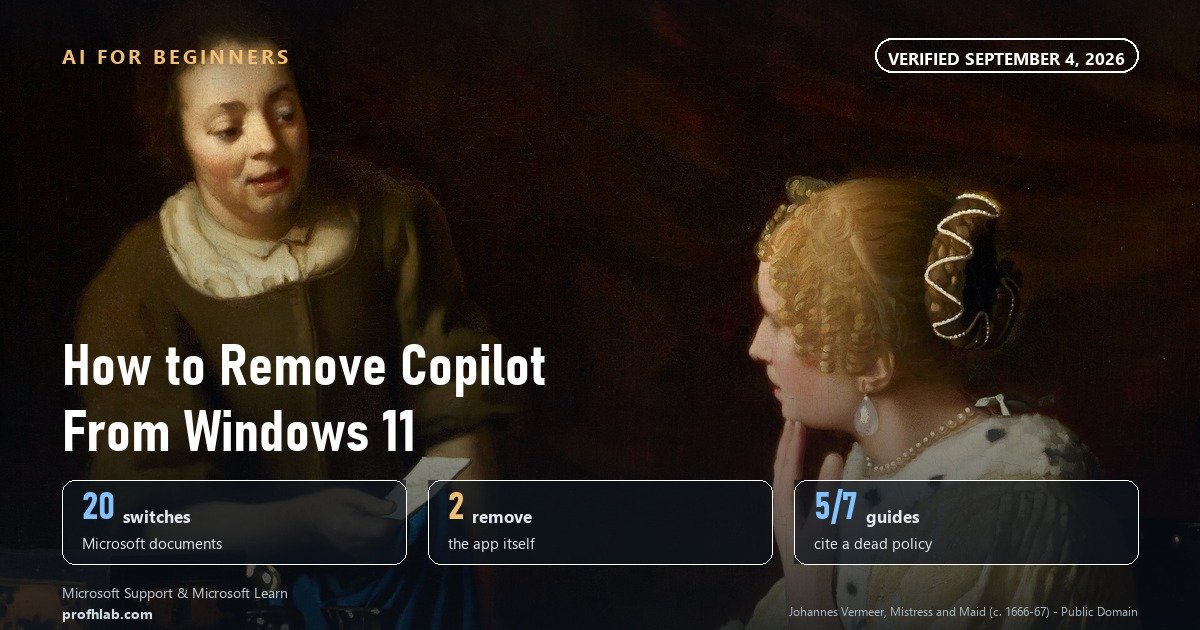
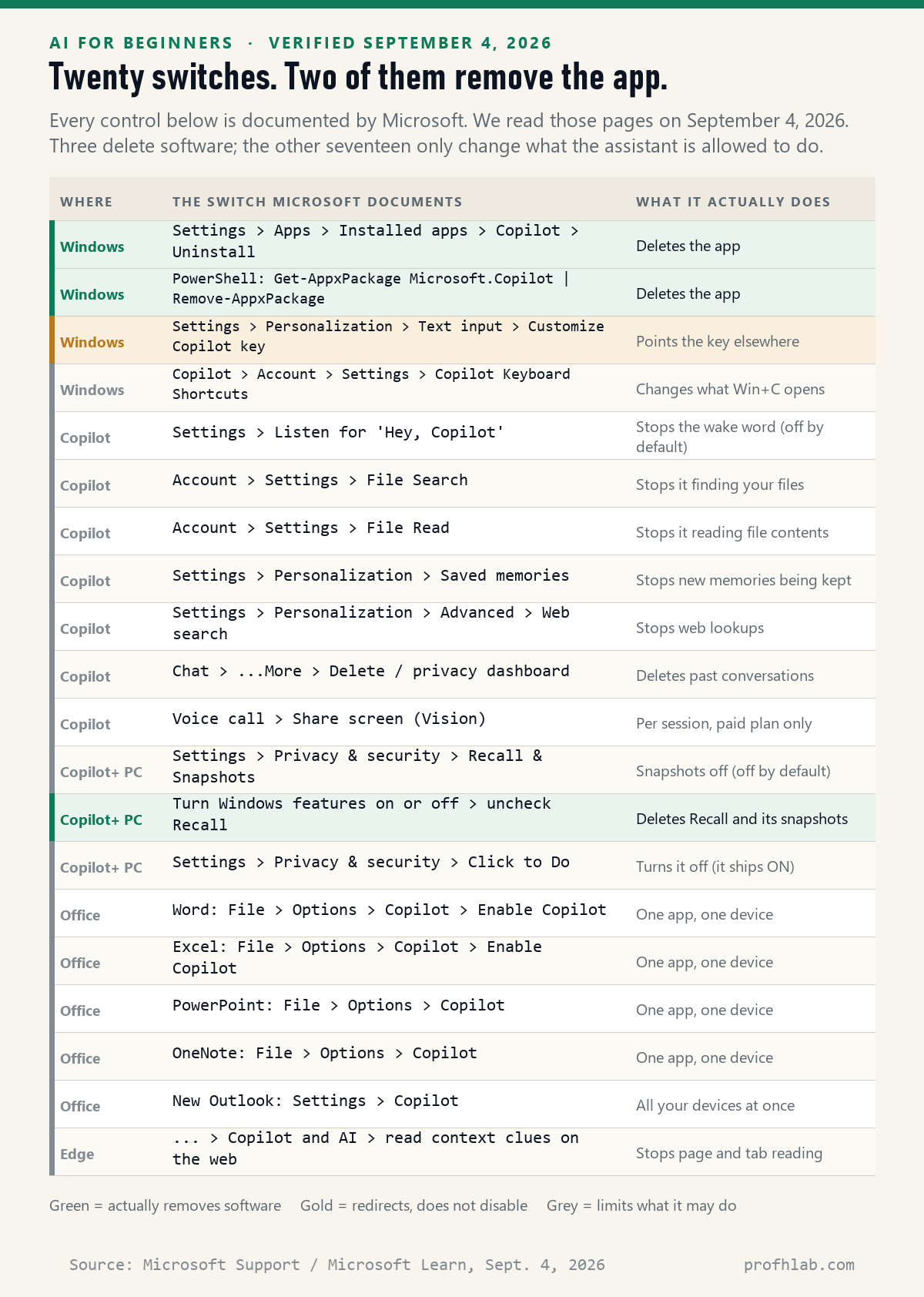
Settings, then Apps, then Installed apps, then Copilot, then the three dots, then Uninstall. That is Microsoft’s own instruction, it takes about thirty seconds, and it is one of only two documented ways to actually delete the app. On September 4, 2026 we read Microsoft’s own support and management pages and counted twenty separate Copilot controls a home Windows user is expected to find. Three of them remove software. Two of the places you might look have no off switch at all.
That gap is why people do the uninstall, feel finished, and then find Copilot in Word the following Tuesday.
Here is how it usually arrives. Nothing was bought and nothing was installed. The PC updated itself overnight, the way it always does, and in the morning there is a new blue-and-pink icon on the taskbar that was not there before. Sometimes it opens on its own. On Microsoft’s own forum in March 2026, a user described it in the plainest possible words: “Recently updated Windows 11 and noticed something called Copilot showing up on the taskbar and sometimes popping up when using the PC.”
Nothing is wrong with your computer, and you did not agree to anything by accident. Let us find all of it — not just the part page one talks about.
The short answer, in five lines.
- Settings › Apps › Installed apps › Copilot › … › Uninstall. This is the supported way, and Windows itself agrees it is allowed: on the machine we checked today, Windows reports the Copilot package as
NonRemovable: False. - Skip the Group Policy instructions. Five of the seven page-one guides we could read still send you to a setting Microsoft describes as legacy and “subject to near-term deprecation” — and it does not exist on Windows 11 Home in the first place.
- Recall and Click to Do are probably not on your PC. They require a Copilot+ PC with a 40 TOPS neural chip, 16 GB of memory and 256 GB of storage. On an ordinary laptop there is nothing there to switch off.
- The setting that decides whether Copilot reads your documents is inside the Copilot app, under Account › Settings › File Search and File Read. Not one of the seven guides mentions it.
- Word, Excel and Outlook are a separate job. The checkbox is per app and per device, and classic Outlook on Windows has no switch at all.
Why the instructions you found do not match your screen
The single most common reason people give up is not that the steps are hard. It is that the steps point at a room that was closed.
Most of the popular guides tell you to open Group Policy Editor and enable a policy called Turn Off Windows Copilot. Microsoft’s own management documentation now carries a note next to that policy. In Microsoft’s wording: “AppLocker policy should be used instead of the Turn Off Windows Copilot legacy policy setting and its MDM equivalent, TurnOffWindowsCopilot. The policy is subject to near-term deprecation.”
There is a second problem with that advice, and it is bigger for the people reading this. Group Policy Editor is not on a home laptop. Microsoft lists Group Policy on its Windows 11 comparison page as a Pro feature; Home does not include the editor. So the most-repeated fix on the internet is a tool most readers cannot open, pointing at a policy Microsoft has told administrators to stop using.
We wanted to know how bad that was, so we counted.
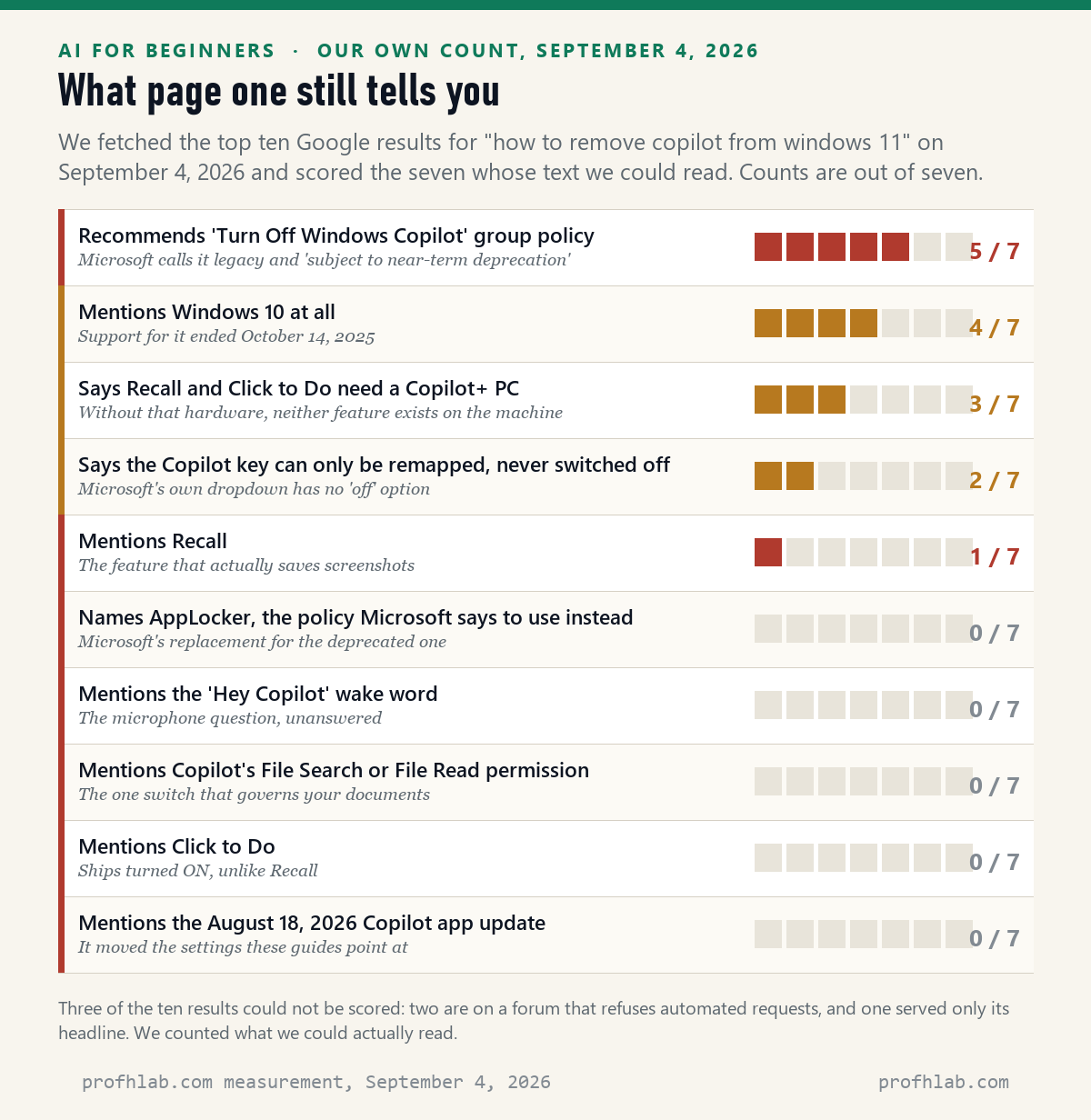
Three of the ten could not be scored honestly: two live on a forum that refuses automated requests, and a third served only its headline. We scored the remaining seven and left the others out rather than guess.
Of those seven, five recommend the deprecated policy. None names AppLocker, which is what Microsoft says to use instead. None mentions the “Hey Copilot” wake word, the file-reading permission, Click to Do, or the fact that Microsoft shipped an updated Copilot app on August 18, 2026 that moved several of the settings these guides point at. One mentions Recall.
This is not a knock on the writers. It is what happens when a product changes four times a year and an article is written once.
The two steps that actually remove the app
Both of these are Microsoft’s own instructions, on Microsoft’s own pages.
Step 1 — the ordinary way (about 30 seconds).
- Open Settings (press the Windows key, type Settings, press Enter).
- Go to Apps, then Installed apps.
- Type Copilot in the search box at the top of the list.
- Select the … (three dots) at the right of the Copilot entry, then Uninstall, and confirm.
Step 2 — if the app does not appear in that list.
- Press the Windows key, type PowerShell, and open Windows PowerShell.
- Paste this and press Enter:
$packageFullName = Get-AppxPackage -Name "Microsoft.Copilot" | Select-Object -ExpandProperty PackageFullName - Then paste this and press Enter:
Remove-AppxPackage -Package $packageFullName
Those two commands are printed verbatim in Microsoft’s own management guidance. Nothing else on your PC is touched.
On Windows 10, the same idea, one menu shallower: Settings, then Apps, search for Copilot, then Uninstall. Do note that Windows 10 itself reached end of support on October 14, 2025 — Microsoft’s consumer Extended Security Updates programme now covers it to October 12, 2027, and after that the machine keeps working but stops getting security fixes.
A word on what this does not do. Uninstalling the app does not switch off Copilot inside Word or Outlook, does not touch Edge, and does not remove Recall or Click to Do on a Copilot+ PC. Each of those is its own switch, and we will get to all of them.
The switch nobody is telling you about reads your documents
If your worry is privacy rather than clutter, the uninstall is not even the important step. This is.
Microsoft’s own page for Copilot on Windows says the app “can help you find, open and ask questions about the contents of a file on your device (including synced files from OneDrive on your device).” It then lists the formats: .docx, .xlsx, .pptx, .txt, .pdf and .json. In plain English: your letters, your spreadsheets, your scanned statements, your tax PDFs.
There are two toggles that govern it, and they are not in Windows Settings. They are inside the Copilot app: Account › Settings › File Search and File Read. Microsoft’s instruction is exactly that: “You can adjust permissions for what Copilot file search can access by going to Account > Settings > File Search and File Read and toggling the setting.”
Zero of the seven guides we scored mention either one. They are all busy explaining how to hide an icon.
If you keep the app and change nothing else, change these two. It is the difference between an assistant that sits on the taskbar and an assistant that can open the folder marked Taxes.
Is it listening to me?
This is the question people ask quietly, and it has a precise answer.
Copilot on Windows can be started by saying “Hey Copilot” out loud. Microsoft’s wake-word page states plainly that it is “opt-in” and that you “must enable this feature within Copilot’s settings to use it, and it is off by default.” You turn it on or off at Account › Settings › Listen for ‘Hey, Copilot’ to start a conversation.
What happens when it is on is worth knowing exactly, because the honest version is more reassuring than the rumour and less reassuring than the marketing. Microsoft says the wake word is recognised on your PC, by a small local service that keeps a ten-second audio buffer in memory, and that this buffer “is never recorded or stored anywhere.” But when the phrase is detected, that buffer is sent onward: Microsoft says the audio from the moment “Hey Copilot” was heard goes to the Copilot Voice service in the cloud so it can answer you.
So: not a recorder. A trigger, listening locally, that opens a line to the internet the moment it thinks it heard its name. And Windows tells you when it is armed — Microsoft says the microphone indicator appears in the system tray whenever the wake word is enabled and the app is running, including when it is only running in the background.
Two smaller points that follow from the same page. The feature only works while your PC is unlocked and online. And Microsoft notes it can shorten battery life and degrade audio on some Bluetooth headsets — a practical reason to leave it off that has nothing to do with privacy.
Two Microsoft pages disagree about the Copilot key
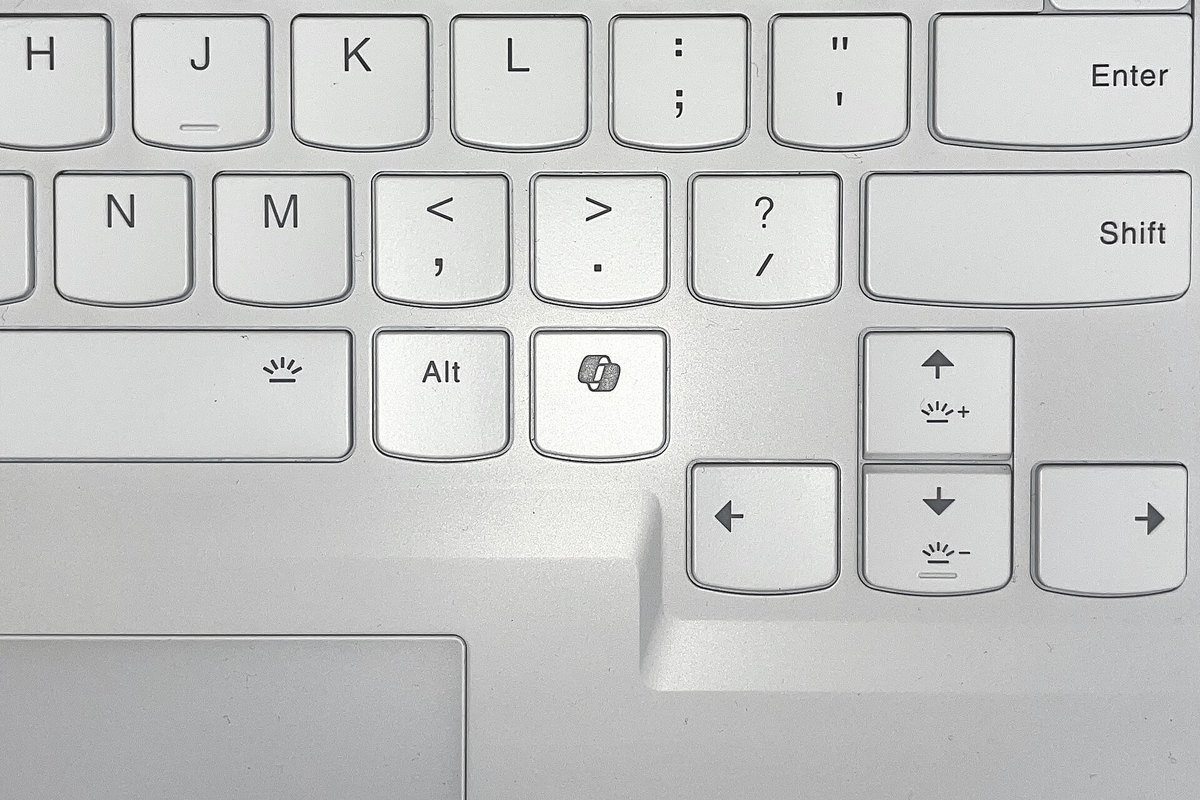
If your keyboard has a dedicated Copilot key, you have probably pressed it by mistake. Microsoft’s management documentation says you can change what it opens: Settings › Personalization › Text input, then the dropdown called Customize Copilot key on keyboard. Microsoft lists the options in that dropdown as Search, Custom, or a currently mapped app.
Read that list again. There is no Off. You can send the key somewhere else. Microsoft’s documentation does not describe a way to make it do nothing.
Now the part that will save somebody twenty minutes. Microsoft’s accessibility page about the same key sends you somewhere else entirely — Settings › Bluetooth & devices › Keyboard — and describes a different set of choices, remapping the key to Right Ctrl or the Context menu key, in language that still calls it a future update. Two current Microsoft pages, one key, two locations, two option lists.
Our advice is unglamorous: look in both places, take whichever one your PC actually shows you, and do not assume you have done it wrong when the first path is not there. Microsoft also warns that if your laptop maker supplies its own Copilot-key setting, you should use that or the Windows one — not both.
The accessibility page also explains why this key is more than an annoyance. On some 2024 models the Copilot key replaced the right Ctrl or the context-menu key, and Microsoft acknowledges that people who rely on those keys for shortcuts or for screen readers “experienced some challenges to their workflows.” If a keyboard shortcut you have used for fifteen years stopped working when you bought a new laptop, that is the reason, and it is not your memory.
Recall and Click to Do: the fear and the hardware
Almost every alarmed article about Windows AI is really about Recall, the feature that saves periodic screenshots of your screen so you can search them later. It deserves the attention. It also, on most machines, does not exist.
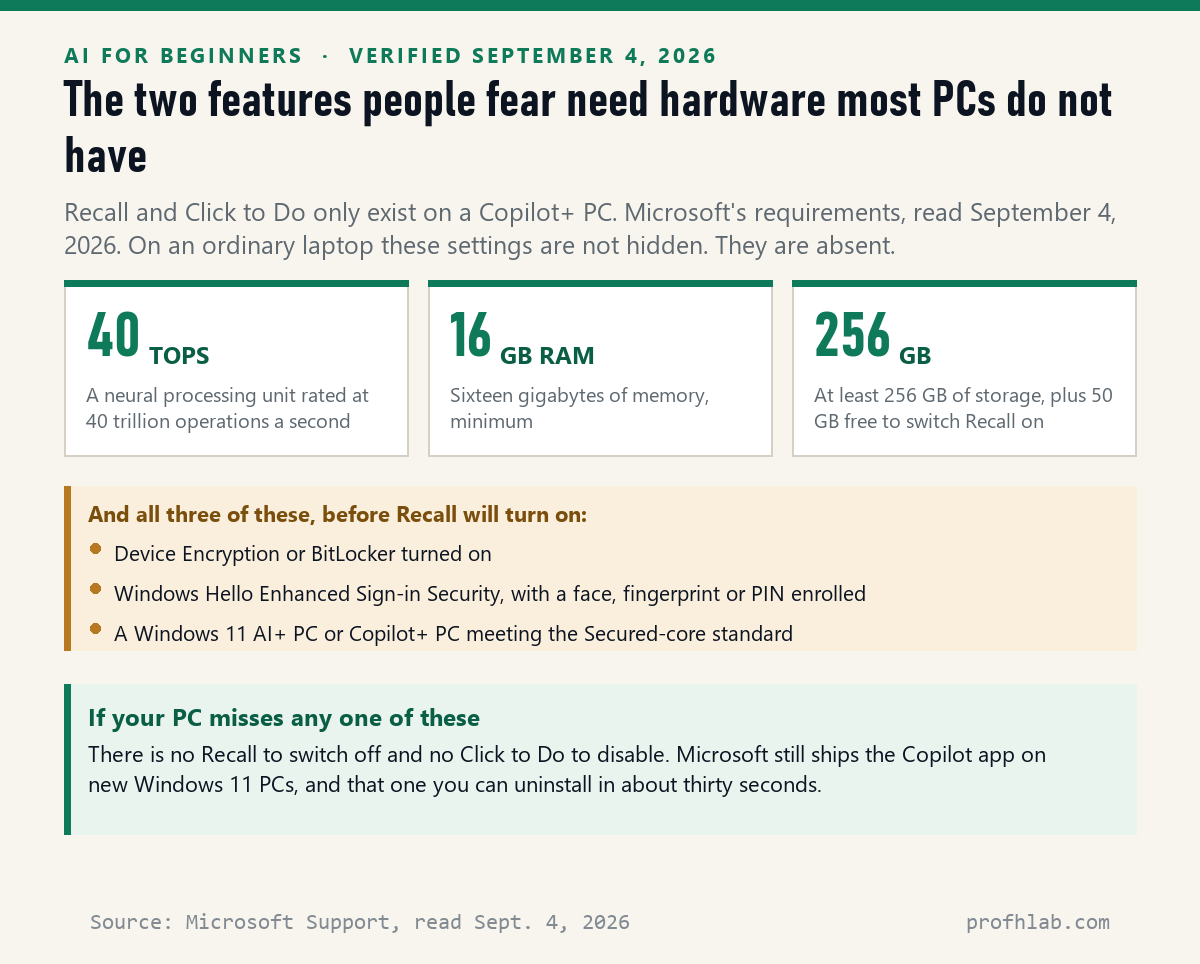
Recall runs only on a Copilot+ PC. Microsoft’s requirements are a neural processing unit rated at 40 TOPS, 16 GB of RAM and 256 GB of storage, with at least 50 GB free before it will turn on at all. On top of that you must have Device Encryption or BitLocker enabled and be enrolled in Windows Hello Enhanced Sign-in Security with a face, fingerprint or PIN. If your laptop predates 2024, it is almost certainly not on this list.
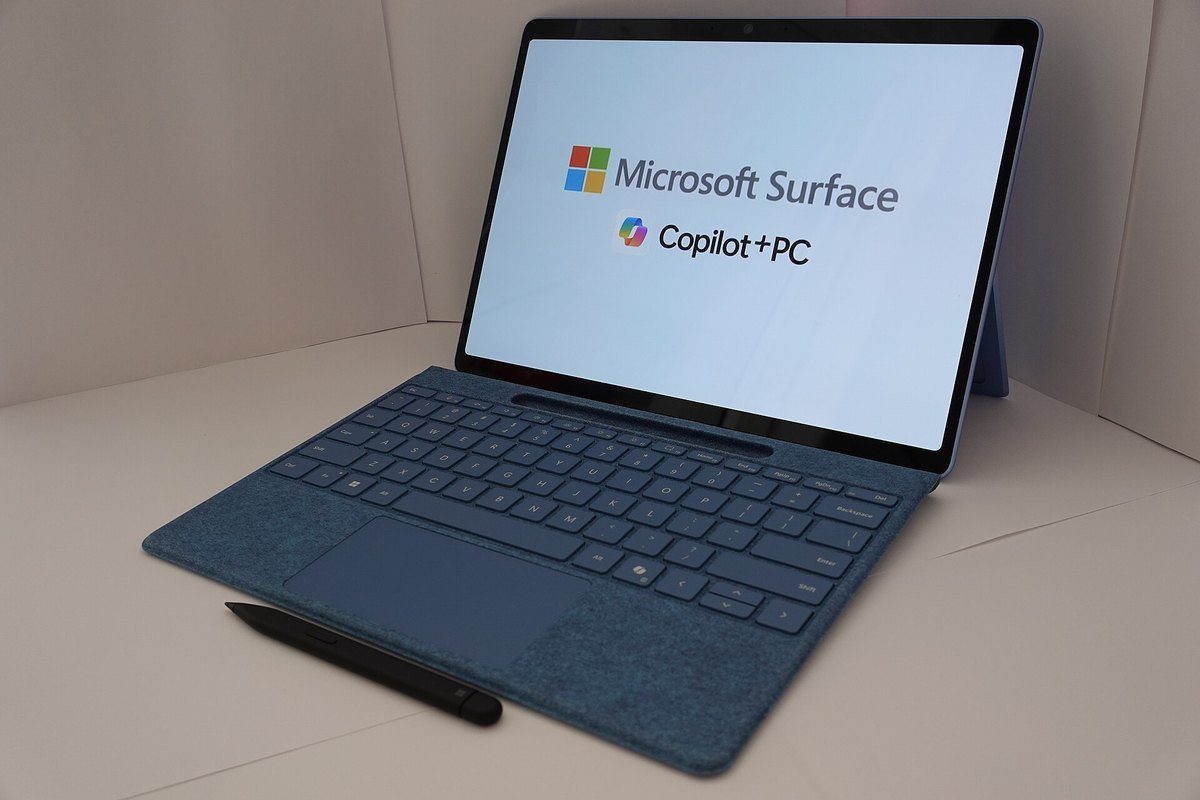
And even on a machine that qualifies, Microsoft is explicit: “By default, saving snapshots for Recall aren’t enabled. You need to opt in to saving snapshots.” Snapshots are encrypted on the local drive, are not shared with Microsoft or between user accounts on the same PC, and require Windows Hello every single time you open Recall or change its settings.
If you want it gone rather than merely off, Microsoft documents that too, and this one genuinely deletes: type Turn Windows features on or off in the taskbar search box, uncheck Recall, and restart. Microsoft’s note is worth reading twice — “Any snapshots that were previously saved will be deleted when Recall is removed.”
Click to Do is the one to actually check. It is the sibling feature that reads what is on your screen when you hold the Windows key and click, and unlike Recall, Microsoft says it “is enabled for Copilot+ PCs” by default and “can’t be removed” — only disabled, at Settings › Privacy & security › Click to Do. So the feature people worry about ships off, and the feature nobody has heard of ships on. If you have a Copilot+ PC, that is the setting to open first.
What a level deeper looks like: the update that quietly shortened the list
Here is something we found by reading two Microsoft pages side by side, and it explains why guides written in the spring now point at menus that are not there.
Microsoft shipped an updated Copilot app on August 18, 2026. Both of its privacy pages now open with the same warning: the old page applies only to the old app, the new page only to the new one. The settings moved. Where the older page told you to select your profile icon and then Memory > Personalization and memory, the current page says Settings › Personalization › Saved memories.
The more interesting change is what disappeared. The older page offered you four controls, including an opt-out from having “your conversation activity” used for model training and an opt-out from personalised ads. The current page lists three: personalisation and memory, chat history, and web search. The training toggle is gone.
It would be easy, and wrong, to read that as a control being taken away. Microsoft’s current activity-history page explains it instead: “Prompts, responses, and your file contents when using the Microsoft Copilot app aren’t used to train foundation models.” There is no opt-out because, for this app, there is nothing to opt out of. Feedback you deliberately submit is a separate matter, and Microsoft says that is optional and also not used for training the foundation models.
That is the sort of detail that dies in a headline and matters at a kitchen table. The control vanished because the practice did. If you had switched it off before August 18, nothing you did was undone.
One thing that did not change: Microsoft retains Copilot conversation history for 18 months, and you can delete individual chats or the lot from the privacy dashboard. If you have ever wondered what “deleted” means at a big platform, we took the same question apart for a different assistant in are deleted ChatGPT chats really deleted.
Word, Excel and Outlook are a separate afternoon
This is where most people’s uninstall quietly fails. Removing the Copilot app does nothing to the Copilot button in Word, because that is a different product.
Microsoft’s instruction for the desktop apps is File › Options › Copilot, then clear the Enable Copilot checkbox, then restart the app. And then, in Microsoft’s own words: “There is a separate Enable Copilot checkbox in each app and the checkbox only applies to that app on that device.” Word, Excel, PowerPoint and OneNote are four separate jobs. If you have a desktop and a laptop, they are eight.
Outlook works the opposite way, which is a mercy. The new Outlook has a single Turn on Copilot toggle at Settings › Copilot, and Microsoft says switching it off there applies to Outlook on all your devices signed in with the same account.
Two places have no switch at all, and you should know before you go looking:
- Classic Outlook on Windows. Microsoft’s page says there is “currently no estimated date” for when turning Copilot on or off will be available there.
- Word, Excel and PowerPoint on the web, iPhone and Android. Microsoft states flatly that you cannot turn Copilot off in those versions.
Removing the icon from the ribbon is not the same as turning it off, either — Microsoft says so directly: “Removing the icon from the ribbon doesn’t turn off Copilot; you can still access Copilot through other methods.” If your goal is to pay for Office without any of this, that is a licensing question rather than a settings one, and we worked through the pricing in how to get Microsoft 365 without Copilot.
And one more: Edge is reading the page you are on
The browser is the surface people forget. Microsoft’s own page for Copilot in Edge says that, depending on your prompt, it may use “the current page, page title, open tabs, and browser history” to answer you.
The control is where nobody looks: the … menu in the Edge toolbar, then Copilot and AI, then Allow Copilot to read context clues on the web. Microsoft’s own warning on that page is blunter than ours would have been: “Don’t share sensitive information that you wouldn’t want used as browsing context.”
Please do not run the scripts strangers post

Search this question and you will quickly be offered a shortcut: a downloadable tool or a script from a code-sharing site that promises to strip every trace of AI from Windows in one click. We saw exactly that on Microsoft’s own Q&A forum, where one answer to a removal question is a bare link to a third-party GitHub project, and on Microsoft’s Tech Community, where the reply marked as the solution is a link to somebody’s blog.
We are not going to tell you those tools are malicious, because we have not audited them and we will not guess. What we will say is this: a script that reaches deep enough to remove system components is also deep enough to break the machine that holds your photographs, and if it breaks it, nobody at Microsoft is obliged to put it back.
The four supported steps in this article — uninstall the app, uncheck Recall, clear the Office checkbox, flip the two file toggles — cover almost everything those scripts advertise, and none of them can leave you with a PC that will not boot.
The same instinct is worth carrying elsewhere. A great deal of what is sold to older readers as a fix is really a way in, which is why we keep a running list of the AI scams currently targeting seniors and update it monthly in AI Scam Watch.
Check the two file toggles, then uninstall Copilot if unwanted
Twenty minutes, in the order that matters most.
- The two file toggles (3 minutes). Open Copilot › Account › Settings and look for File Search and File Read. Decide whether you want the assistant to be able to open your documents. This is the highest-value minute in the whole list.
- Uninstall the app if you do not want it (1 minute). Settings › Apps › Installed apps › Copilot › … › Uninstall. You can reinstall it from the Microsoft Store later; nothing is lost permanently.
- Check whether you have a Copilot+ PC (2 minutes). Settings › Privacy & security. If you see Recall & Snapshots and Click to Do, you have one. Turn Click to Do off — it ships on. Leave Recall’s snapshots off, or remove Recall entirely from Turn Windows features on or off.
- Do the Office round (10 minutes). In Word, Excel, PowerPoint and OneNote: File › Options › Copilot, clear Enable Copilot, restart the app. Repeat on every computer you use. In new Outlook, Settings › Copilot — that one covers all your devices.
- Edge (1 minute). … › Copilot and AI › turn off Allow Copilot to read context clues on the web.
- The wake word (30 seconds). Copilot › Account › Settings › Listen for ‘Hey, Copilot’. It should already be off. Confirm it is.
- Do not promise anyone the PC is now AI-free. It is not, and saying so out loud is the difference between a job that stays done and a phone call next week.
No permanent block for home PCs: check the taskbar every few months
- “Will it come back after an update?” The app can be reinstalled by Microsoft under some conditions, which is why Microsoft’s guidance for administrators is a blocking policy rather than an uninstall. For a home PC there is no supported permanent block; the honest answer is check the taskbar every few months, and re-run the thirty-second uninstall if it returns.
- “What about my phone?” Different companies, different switches, and mostly worse odds. We counted twelve places AI shows up on an ordinary phone and found exactly one real off switch.
- “Can Copilot see my email at work?” That is a different Copilot with different rules, and there was a real flaw worth understanding. We took it apart in does Copilot have access to my emails.
- “Is any of this actually useful?” Sometimes, and it is fair to find out before you delete it. Our gentlest starting points are the AI tools worth a beginner’s time and getting an assistant to read a PDF for you.
The current Windows menus, shown by JayzTwoCents and Ask Leo
We deliberately skipped the higher-scoring videos with titles like “spyware” and “privacy nightmare.” They are not wrong to be worried, but a frightened reader with the wrong hardware ends up hunting for a Recall setting that was never on their PC.
Is Copilot spying, reading your files or taking screenshots?
How to remove Copilot from Windows 11 permanently?
Uninstall it at Settings › Apps › Installed apps › Copilot › … › Uninstall, or run Microsoft’s two PowerShell commands. There is no supported permanent block for a home PC. Microsoft’s blocking method — AppLocker — is documented for IT administrators, and Microsoft has told them to use it instead of the old “Turn Off Windows Copilot” policy, which it calls legacy and “subject to near-term deprecation.” For a home machine, the practical answer is that the uninstall takes thirty seconds and you repeat it if the app ever returns.
How to remove Copilot from Windows 11 Home?
Exactly the same two ways: Settings › Apps › Installed apps, or PowerShell. Ignore every guide that tells you to open Group Policy Editor, because Windows 11 Home does not include it — Microsoft lists Group Policy as a Pro feature. Third-party scripts that add the editor to Home exist and are unsupported; some policies then appear in the window without actually working.
Is Microsoft Copilot spying on me?
Not in the sense the word usually means, but it has more reach than most people realise, and the reach is switchable. Copilot on Windows can search and read files on your device — .docx, .xlsx, .pptx, .txt, .pdf and .json — unless you turn that off at Account › Settings › File Search and File Read.
The “Hey Copilot” wake word is off by default and, when on, listens locally with a ten-second buffer Microsoft says is never stored. Copilot Vision only sees your screen during a session you start yourself, and it requires a paid Microsoft 365 plan. Recall, the screenshot feature, only exists on a Copilot+ PC and is off until you opt in.
Does Copilot read my files?
It can, if you let it. Microsoft’s own page says Copilot on Windows can find, open and answer questions about the contents of files on your device, including OneDrive files synced to that device, and lists .docx, .xlsx, .pptx, .txt, .pdf and .json among the formats it reads. The two permissions that govern this live inside the Copilot app at Account › Settings › File Search and File Read. Turning both off is the single most useful change in this article.
Why is Copilot suddenly on my computer?
Because Microsoft installed it in an update, and on new Windows 11 PCs it is preinstalled. Microsoft’s own documentation says the Copilot app “is automatically enabled after you install the Windows updates” unless a policy was set beforehand to prevent it, and that on new Windows 11 PCs “the Copilot app should already be installed by default.” You did not agree to anything specific and nothing is broken. It is a normal Store app, and Windows itself reports it as removable.
How to stop Copilot from taking screenshots?
Two different features get confused here. Copilot only captures your screen when you ask it to — either by choosing “Take a Screenshot” in the Copilot composer, or by starting a Vision session and selecting Share screen, which is off by default and needs a paid Microsoft 365 plan. The feature that takes screenshots on its own is Recall, and it only exists on a Copilot+ PC, where it is off until you opt in at Settings › Privacy & security › Recall & Snapshots. To remove it completely: type “Turn Windows features on or off,” uncheck Recall, restart, and every saved snapshot is deleted.
How to stop Copilot from opening on startup?
Open Settings › Apps › Startup and switch Copilot off in that list. If you have uninstalled the app it will not appear there at all. Note that the “Hey Copilot” wake word needs the app to be running to work, so if you have disabled the startup entry and left the wake word on, the wake word simply will not respond — Microsoft lists “the Copilot app is running” as one of its four conditions.
Why is Copilot on my computer running Windows 10?
Microsoft rolled the Copilot app out to Windows 10 as well; its documentation says the change reached Windows 10 PCs in November 2024. You remove it the same way, one menu shallower: Settings › Apps, search for Copilot, then Uninstall. The bigger issue on a Windows 10 machine is not Copilot. Support ended on October 14, 2025, and Microsoft’s consumer Extended Security Updates programme carries the machine only to October 12, 2027.
Sources
- Microsoft Learn, Updated Windows and Microsoft Copilot Chat experience — the uninstall path, the two PowerShell commands, the AppLocker note and the “subject to near-term deprecation” wording, and the Copilot key policy. Retrieved Sept. 4, 2026.
- Microsoft Support, Getting started with Copilot on Windows — file search and file read, the supported file types, the screenshot tool and Windows Settings support. Retrieved Sept. 4, 2026.
- Microsoft Support, Copilot Wake Word (“Hey Copilot”) — opt-in status, the four conditions, the ten-second local buffer and the system-tray indicator. Retrieved Sept. 4, 2026.
- Microsoft Support, Retrace your steps with Recall — Copilot+ PC requirements, opt-in default, and removal through Turn Windows features on or off. Retrieved Sept. 4, 2026.
- Microsoft Support, Click to Do: do more with what’s on your screen — enabled by default on Copilot+ PCs, cannot be removed, disable path. Retrieved Sept. 4, 2026.
- Microsoft Support, Turn off Copilot in Microsoft 365 apps — the per-app, per-device Enable Copilot checkbox, the Outlook toggle, and the platforms with no switch. Retrieved Sept. 4, 2026.
- Microsoft Support, Microsoft Copilot for individuals: your privacy controls and choices and your activity history — the August 18, 2026 app update, the current three controls, and the statement that prompts, responses and file contents are not used to train foundation models. Retrieved Sept. 4, 2026.
- Microsoft Support, Microsoft Copilot privacy controls (older app) — the four controls that page lists, and the 18-month conversation-history retention. Retrieved Sept. 4, 2026.
- Microsoft Support, Using Copilot Vision with Microsoft Copilot — Vision is off by default, requires a Microsoft 365 subscription, and images are not used for training. Retrieved Sept. 4, 2026.
- Microsoft Support, Understand updates to the Copilot key on Windows devices — the key replacing right Ctrl or the context menu key, and the Bluetooth & devices path. Retrieved Sept. 4, 2026.
- Microsoft Support, Getting started with Copilot in Microsoft Edge — browsing context, and the “read context clues on the web” control. Retrieved Sept. 4, 2026.
- Microsoft Support, Windows 10 support has ended on October 14, 2025 — end-of-support date and the consumer ESU end date of October 12, 2027. Retrieved Sept. 4, 2026.
- Microsoft, Compare Windows 11 editions — Group Policy listed as a Pro feature. Retrieved Sept. 4, 2026.
- Microsoft Tech Community, “How to turn off or disable copilot in windows 11 permanently?” — the user description quoted above, posted March 23, 2026. Retrieved Sept. 4, 2026.
Hunting for off switches on your phone, TV, Gmail and iPhone calls
- How do I get rid of AI on my phone? Twelve places, one real off switch
- How to turn off AI on my TV: why the voice you hear probably is not AI
- How to stop AI from reading your Gmail: all five switches
- How to turn off call screening on iPhone: there are eight switches
- How to stop Meta AI from using my photos on Facebook
- How to turn off Alexa+ ads on Echo Show
- ChatGPT ads: how to turn them off without paying $20
- Is it safe to upload medical records to ChatGPT?
- How does ChatGPT know my age? The four signals
- How to tell if a picture is AI generated: three checks
- How to tell if a phone call is AI: the pause test is dead
- How to tell if a Facebook ad is fake: five checks in 90 seconds
- What AI really costs you per month
- Start here: the plain-English guide to all of it
- The AI Jobs Tracker: what we count, every day
- The FAQ: 132 plain answers
- Ask a question and we will answer it here
Written by Prof. H, who read every Microsoft page cited above on September 4, 2026, counted the controls by hand, and checked the Copilot package on a Windows 11 machine while writing this. Corrections are welcome at our Ask page.
Prof.’s H Newsletter
One short email a month, with the numbers in it
What actually moved in AI hiring, AI prices, and the scams aimed at older Americans. Counted here, dated, and linked to the source. One email a month, and your address goes nowhere else.