How to Stop AI From Reading Your Gmail: All 5 Switches (2026)
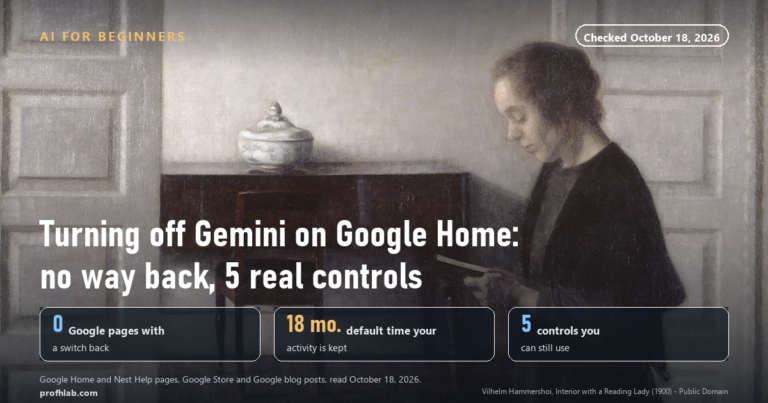
To stop AI from reading your Gmail you have to turn off five separate switches, not one, and only three of them live inside Gmail. We walked all five on August 29, 2026 and read Google’s own help pages while we did it: turning them all off costs you eleven named features, and the switch that matters most for AI training is the third one down, in a panel most people never open.
Here is the part that trips everyone up. The setting your neighbor told you about — “Smart features” in Gmail — is real, and it does something. But it governs Gmail personalizing Gmail. It does not touch the separate consent that lets your mail travel out to the Gemini app and to Search. Those are different boxes, in a different panel, and Google groups them under a button you have to click before you can even see them.
So this guide does two things. It gives you the exact clicks for a computer, an Android phone and an iPhone. And it tells you, in plain words, what each switch actually controls — because three of them cost you conveniences you may want to keep.
The three-minute version
If you only have three minutes, do this on a computer. The mobile apps cannot reach every switch.
- Open Gmail. Click the gear icon, then See all settings.
- On the General tab, scroll to Smart features. Uncheck Turn on smart features in Gmail, Chat, and Meet.
- Still on General, scroll to Google Workspace smart features and click Manage Workspace smart feature settings.
- Turn off Smart features in Google Workspace and Smart features in other Google products. Click Save.
- Scroll to the bottom of the General tab and click Save Changes.
That closes the three Gmail-side doors. Two more live outside Gmail; they are further down this page.
What “smart features” actually means
Gmail has read your mail for as long as Gmail has existed. That is how it decides a message is spam, how it sorts a receipt into Promotions, and how it offers you three canned replies at the bottom of a note from your sister. None of that is new, and none of it is a person reading your mail.
What changed is that the same permission now also feeds Gemini, Google’s AI assistant. Google split the old single control into three distinct settings so people could say yes to one and no to another. In Google’s words on the current help page, the update “turns the existing control into two distinct settings that govern different product experiences.”
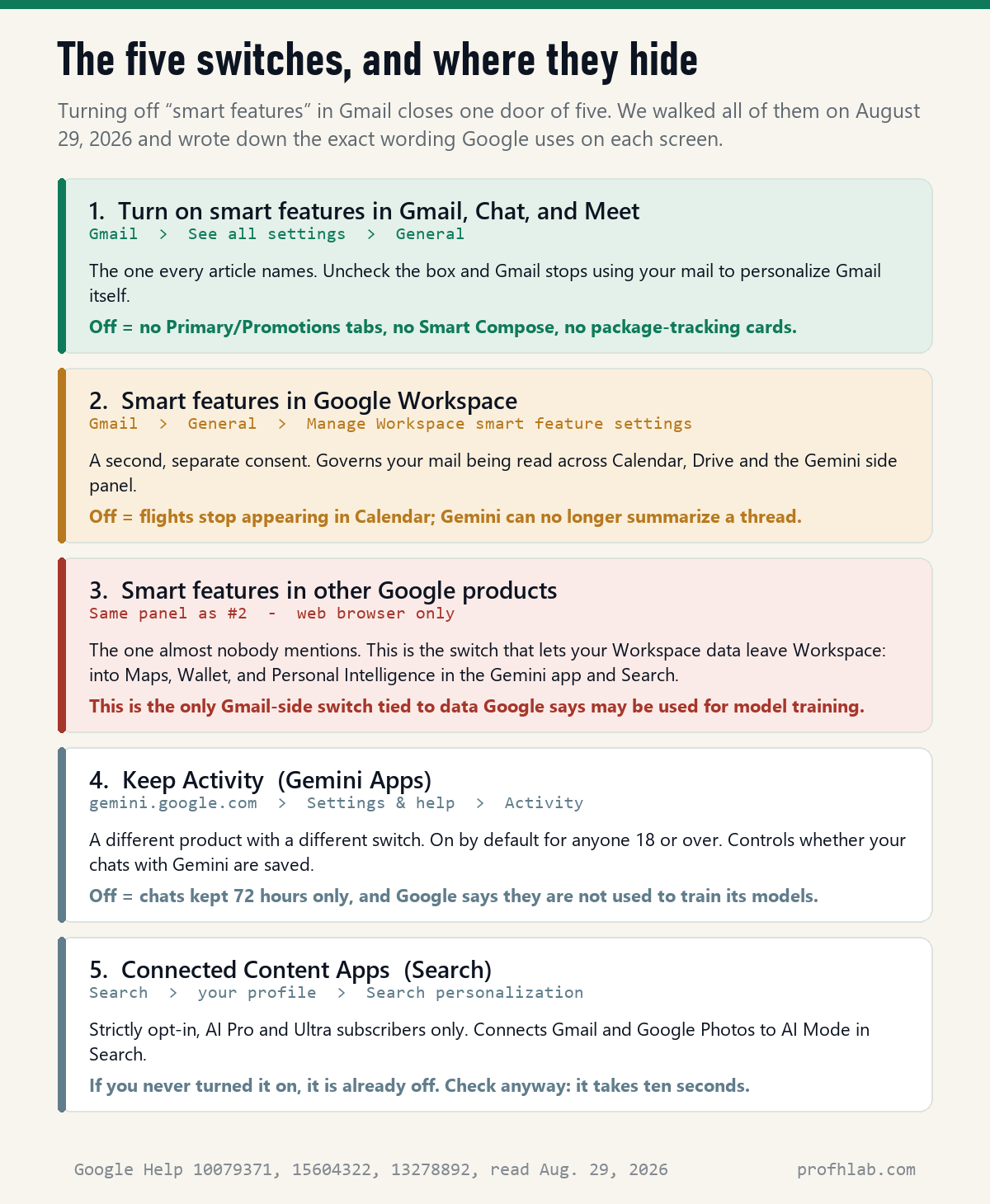
Three settings, three different scopes:
- Smart features in Gmail, Chat, and Meet — your mail personalizing your mail. Tabs, Smart Compose, package-tracking cards.
- Smart features in Google Workspace — your mail personalizing Calendar, Drive and the Gemini panel inside those apps.
- Smart features in other Google products — your mail leaving Workspace entirely, into Maps, Wallet, the Gemini app and AI Mode in Search.
That third one is the one to slow down on. We will come back to it.

On a computer (the complete version)
This is the path Google publishes, step for step.
Switch 1 — Gmail, Chat and Meet. Go to Gmail. Top right, click Settings, then See all settings. In the General tab, scroll to “Smart features.” Next to Turn on smart features in Gmail, Chat, and Meet, uncheck the box.
Switches 2 and 3 — Workspace and other Google products. Stay in the General tab. Scroll to “Google Workspace smart features.” Click Manage Workspace smart feature settings. Turn off Smart features in Google Workspace and Smart features in other Google products. At the bottom right, click Save.
Then scroll to the bottom of the General tab and click Save Changes — the first switch does not save itself.
Google notes that the same two Workspace switches can also be reached from Calendar (Settings → General), Chat (Settings → Data Privacy), Drive (Settings → Privacy) and Meet (Settings → General). It is the same pair of settings in every case, so you only need to do it once.
On an Android phone
Open Gmail. Top left, tap Menu, then Settings. Select the account you want to change. Scroll to the General section. Next to “Smart features,” uncheck the box.
For the other two: same screen, under “General,” tap Google Workspace smart features, then tap the box next to Smart features in Google Workspace and Smart features in other Google products.
On an iPhone or iPad
The iPhone path is different from Android, and this is where people give up. Open the Gmail app. Top left, tap Menu, then Settings. Under “General,” tap Data privacy — Android has no such screen, which is why instructions written for Android leave iPhone users hunting. Turn Smart features off.
Then, on that same Data privacy screen, tap Google Workspace smart features, turn both settings off, and tap Done at the top right.
One warning from Google’s own page. “Changes to smart feature settings apply across all devices and apps where you’re signed in. If you’re on the mobile Gmail app but don’t get a notification about the changes, update your app. Some changes made on your computer don’t reflect in the mobile app.” In plain terms: if the phone still shows the old setting after you changed it on a computer, update the app before you assume it failed.
What you actually give up
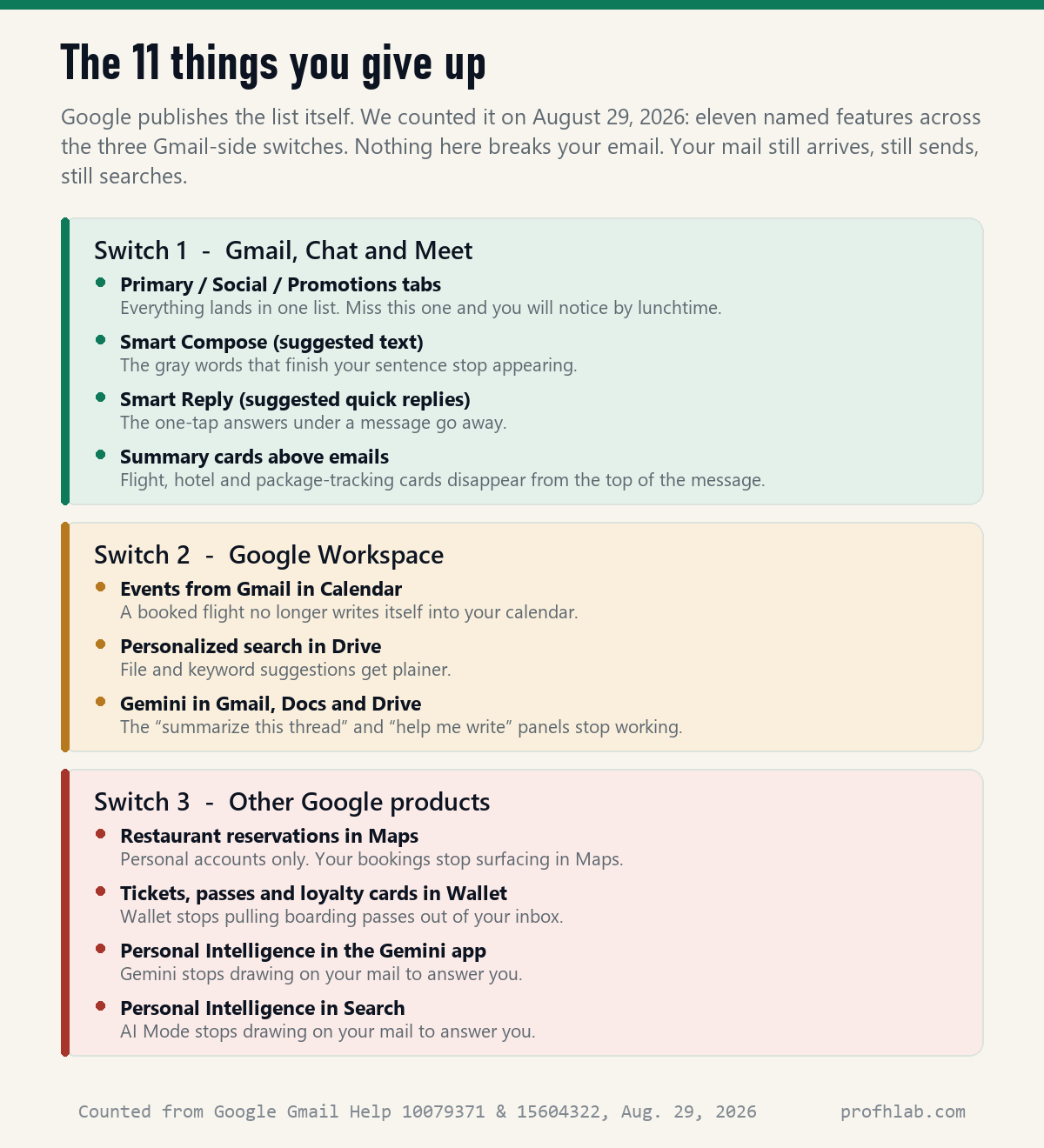
Google publishes the list of features each switch pays for. We counted them on August 29, 2026: eleven named features across the three Gmail-side switches. Nothing on that list is your email itself. Your mail still arrives, still sends, still searches, still filters spam.
In practice, two of the eleven are the ones people miss and come back to turn on again:
- The Primary / Social / Promotions tabs. Turn off switch 1 and your inbox becomes one long list. If you get sixty messages a day, you will notice by lunchtime.
- Package tracking and flight cards. The little summary card at the top of a shipping notice, and the flight that writes itself into your calendar, both come from these settings.
If you like those, there is a middle road most guides skip: leave switch 1 on and turn off switches 2 and 3. You keep the tabs and the tracking cards, and your mail stops feeding anything outside Gmail. Google is explicit that the settings work independently: “you can turn on smart features for Google Workspace, and turn off smart features for other Google products.”
Is Google using my emails to train its AI?
This is the real question under the search, and the honest answer has two halves.
Half one: for Gemini inside Gmail, no. Google’s commitment page states it does not use your Workspace data “to train or improve the underlying generative AI and large language models that power Gemini, Search, and other systems outside of Workspace without permission.” On the same page: Gemini in Gmail “uses your content in Google Workspace to provide more useful responses to your prompts and doesn’t use your content to train or improve Gemini or other generative AI models.”
Half two: the last three words of that sentence are the whole story. Without permission. Google’s own page then adds the exception, and it is worth reading slowly: if you have a personal account and you “choose to share data, including your Workspace data, with Gemini Apps or Search services for Personal Intelligence, or through screen actions (including screenshots), this data will be processed according to their respective terms and policies, and may be used for model training and improvement.“
Personal Intelligence is listed on the settings page as one of the things Smart features in other Google products turns on. That is switch 3. It is the only Gmail-side box tied to data Google says may be used for training — and it is behind a button, two clicks deeper than the one everybody talks about.
The one clock you cannot reset
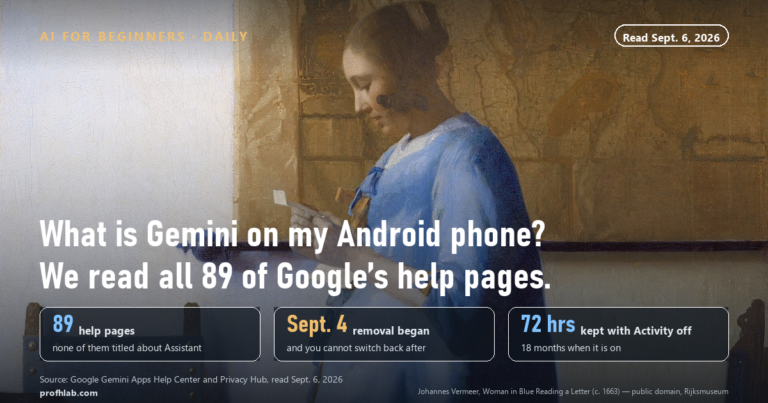
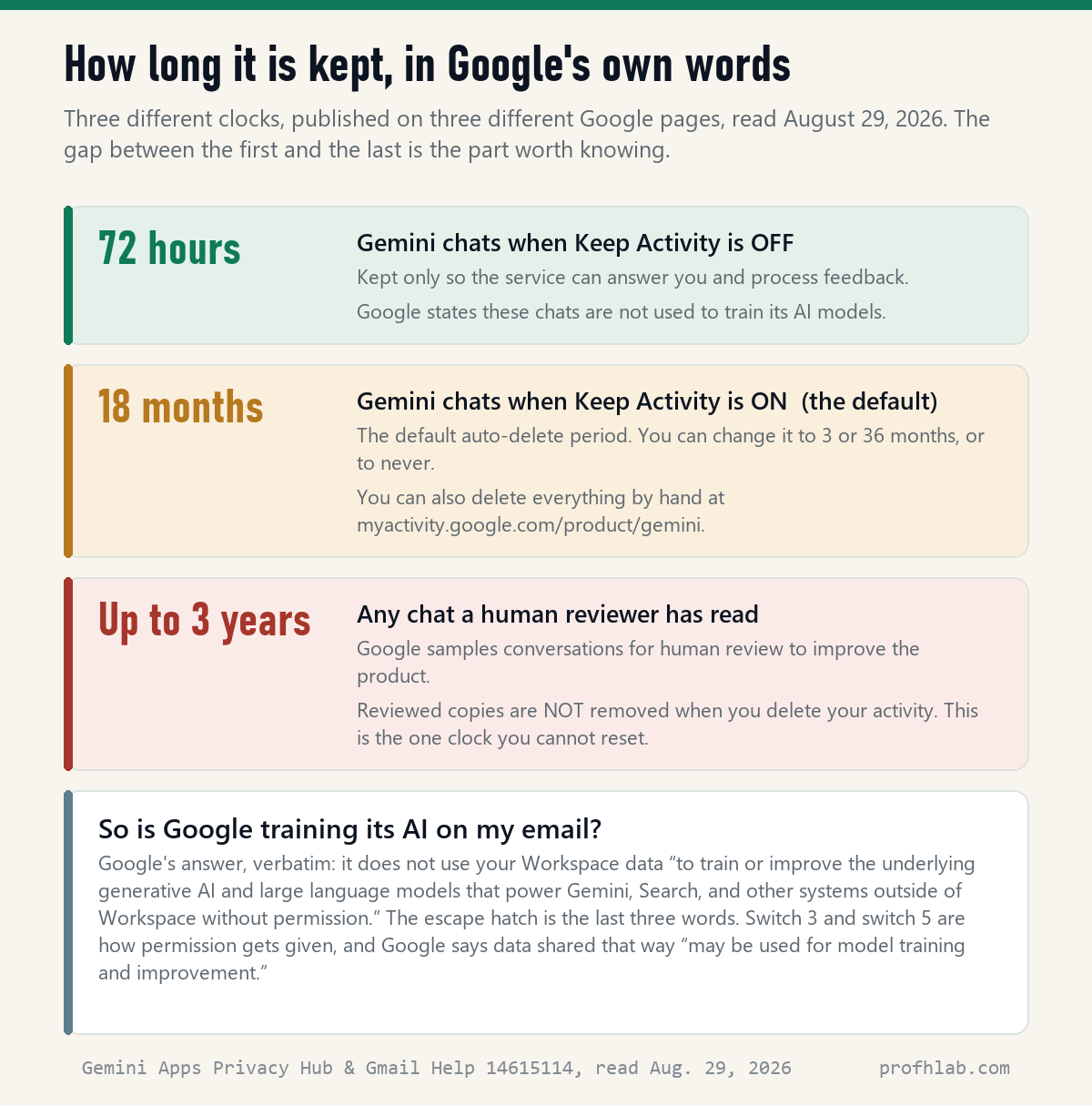
Switch 4 is a different product with a different rule. If you have ever typed a question into the Gemini app or gemini.google.com, that conversation is governed by Keep Activity, not by any Gmail setting. Google states Keep Activity “is on by default” for anyone 18 or over.
Three retention periods, all published by Google:
- Keep Activity off: chats are “retained with your account for 72 hours,” and Google states they are not used to train its AI models.
- Keep Activity on: “your Gemini Apps activity older than 18 months is auto-deleted.” You can change that to 3 months, 36 months, or never.
- Anything a human reviewer read: “retained for up to three years,” and — this is the sentence that matters — “chats reviewed by human reviewers … are not deleted when you delete your activity.”
To turn it off: go to gemini.google.com → Settings & help → Activity → near the top, click Turn off or Turn off and delete activity. To clear what is already there, go to the same Activity page (or myactivity.google.com/product/gemini), click Delete and choose All time.
And Google’s own advice, printed in its privacy notice, is worth taping to the monitor: “Please don’t enter confidential information that you wouldn’t want a reviewer to see or Google to use to improve our services.” That is the company telling you where the line is. If you have ever wondered whether deleted AI chats are really deleted, the answer at Google follows the same shape.
Switch 5, and why it may already be off
The last switch connects Gmail and Google Photos directly to AI Mode in Search. Google announced it on January 22, 2026 and described it as “strictly opt-in, meaning you choose if and when you want to connect these apps to Search.” It is limited to “Google AI Pro and AI Ultra subscribers in English in the U.S.,” and it is not available on work, school or business accounts.
Translation: if you do not pay Google a monthly fee for AI, this one is almost certainly already off. Check anyway. Open Search, tap your profile picture, go to Search personalization, then Connected Content Apps, and look at what is listed. Ten seconds.
Google says of this feature that AI Mode “doesn’t train directly on your Gmail inbox or Google Photos library” and that training “is contained to limited info, like specific prompts in AI Mode and the model’s responses.” Note the word directly, and note that this is a narrower statement than the Workspace commitment above. Both can be true at once; they describe different pipes. If you are weighing the subscription itself, our breakdown of what AI actually costs per month and whether Google AI Pro is free with Verizon are the two places to start.

Why your cousin in Ireland does not have to do this
Buried in the same help page is a one-line note that explains the entire panic cycle around this topic. In Google’s words: “By default, smart feature settings are off if you live in: The European Economic Area, Japan, Switzerland, United Kingdom.”
The United States is not on that list. Same company, same product, same code — a different default, set by which laws apply where you live. Nothing was switched on behind your back last month. The setting has been on the whole time, and the recent alarm is mostly people discovering a default that was always there, now that Gemini has made it visible.
That is worth holding onto, because the same pattern shows up everywhere: with Meta AI and your Facebook photos, with ads inside ChatGPT, with Alexa+ ads on the Echo Show. The default is on, the switch exists, and nobody sends you a letter about it.

Use a computer, pick your switches, and click Save twice
A ten-minute checklist. Do it once and you are done.
- Decide first, click second. If you want to keep your inbox tabs and package cards, leave switch 1 on and turn off only switches 2 and 3. If you want everything closed, turn off all three.
- Use a computer. Gmail → gear → See all settings → General. Two of the switches carry Google’s note that they can only be turned on from a web browser.
- Click Save twice. Once inside the Workspace panel, once at the bottom of the General tab. This is the single most common reason people think it did not work.
- Check Gemini separately. gemini.google.com → Settings & help → Activity. Turn off Keep Activity, then Delete → All time.
- Check Search personalization. Search → profile → Search personalization → Connected Content Apps.
- Do the same on your phone a week later. Google warns that some computer changes do not reflect in the mobile app until you update it. Open Gmail on the phone and confirm the boxes look the way you left them.
- Write down what you turned off. On paper, by the computer. In six months, when the Promotions tab is gone and you cannot remember why, you will want that note.
On a work or school account, an admin holds these switches
- “What about my work email?” If your account was issued by an employer or a school, an administrator controls these settings and you may not be able to change them. Ask your IT contact rather than assuming the switch is broken.
- “What about Outlook and Copilot?” Microsoft has a parallel set of controls with parallel confusion. We walked those separately in does Copilot have access to my emails.
- “What about my phone in general?” Gmail is one app. The assistant, the keyboard and the camera each have their own switches — the full sweep is in how do I get rid of AI on my phone.
- “Is any of this a scam?” No, but the panic around it is bait for people who send fake “your Google account is at risk” emails. The tells are in AI scams targeting seniors and how to tell if a Facebook ad is fake.
Gmail’s smart-feature switches, clicked through by Think Tutorial
Training, Gemini and Google staff: who can read your inbox
How do I stop AI from reading my Gmail?
Turn off three settings inside Gmail and two outside it. In Gmail on a computer: gear → See all settings → General → uncheck Turn on smart features in Gmail, Chat, and Meet; then, in the same tab, click Manage Workspace smart feature settings and turn off Smart features in Google Workspace and Smart features in other Google products. Save in both places. Then turn off Keep Activity at gemini.google.com → Settings & help → Activity, and check Connected Content Apps under Search personalization.
Does Google use my emails to train AI?
Google states it does not use Workspace data to train the models that power Gemini and Search “outside of Workspace without permission,” and that Gemini in Gmail “doesn’t use your content to train or improve Gemini or other generative AI models.” The exception Google publishes on the same page: if you share Workspace data with Gemini Apps or Search for Personal Intelligence, that data “may be used for model training and improvement.” Personal Intelligence is switched on by Smart features in other Google products — switch 3 above.
What happens if I turn off smart features in Gmail?
You lose eleven named features, by Google’s own count as of August 29, 2026: the Primary/Social/Promotions tabs, Smart Compose, Smart Reply and summary cards (switch 1); Gmail events in Calendar, personalized Drive search and the Gemini panel (switch 2); and Maps reservations, Wallet passes and Personal Intelligence in the Gemini app and Search (switch 3). Your email itself is untouched — it still arrives, sends, searches and filters spam.
Should I turn off smart features in Gmail?
It depends on which trade you prefer. If you value a sorted inbox and package-tracking cards, a reasonable middle road is to leave switch 1 on and turn off switches 2 and 3 — your mail keeps personalizing Gmail but stops feeding anything outside it. Google confirms the settings work independently of one another. If you handle medical, legal or financial mail and would rather nothing be processed for personalization, turn off all three.
Is Gemini reading my emails?
Only if the relevant setting is on. Gemini features inside Gmail depend on Smart features in Google Workspace. Gemini as a separate app can draw on your mail only through Personal Intelligence, which depends on Smart features in other Google products. Turn both off and Gemini has no route to your inbox. Note that in the United States both are on by default; Google states they are off by default in the European Economic Area, Japan, Switzerland and the United Kingdom.
Can Google employees read my email?
Not your inbox at will. But Google’s Gemini privacy notice does state that “human reviewers (including trained reviewers from our service providers) review some of the data we collect,” and that reviewed conversations are retained for up to three years and are not removed when you delete your activity. That applies to what you type into Gemini, not to your mail sitting in Gmail. Google’s own instruction is direct: don’t enter anything you would not want a reviewer to see.
How do I turn off Gemini in Gmail on an iPhone?
Open the Gmail app, tap Menu at the top left, then Settings. Under “General,” tap Data privacy — this screen exists on iPhone but not on Android, which is why Android instructions do not match what you see. Turn Smart features off, then tap Google Workspace smart features, turn both settings off, and tap Done at the top right.
How do I stop AI from reading my texts?
That is a different set of switches on a different product, and it varies by phone and messaging app. The device-by-device walkthrough is in how do I get rid of AI on my phone.
Sources
- Google, “Learn about smart features & controls for Google Workspace & other Google products”, Gmail Help — read August 29, 2026.
- Google, same article, Android and iOS platform versions, Gmail Help — read August 29, 2026.
- Google, “Learn how Gemini in Gmail, Calendar, Chat, Docs, Drive, Sheets, Slides, Meet & Vids protects your data” — read August 29, 2026.
- Google, Gemini Apps Privacy Hub, last updated August 10, 2026 — read August 29, 2026.
- Google, “Manage & delete your activity in Gemini Apps” — read August 29, 2026.
- Google, “Personal Intelligence in AI Mode”, The Keyword, January 22, 2026 — read August 29, 2026.
How we check and count things, including the settings walk behind this piece, is described on our How we count page.
The same privacy checks for Copilot, Facebook and ChatGPT
- How to use ChatGPT: a beginner’s guide for people over 50
- Does Copilot have access to my emails?
- How to stop Meta AI from using my photos on Facebook
- Are deleted ChatGPT chats really deleted?
- How does ChatGPT know my age?
- The best AI tools for seniors, ranked by how little you have to learn
- How to tell if a phone call is AI
- How to get ChatGPT to write a letter or an email
- Using ChatGPT to prepare for a doctor’s visit
- How to make AI photos with grandparents who have died
- Start here: the whole site in one page
- The FAQ — 130+ plain answers about AI
- Ask us a question
About the author. Prof. H writes profhlab.com, a plain-English desk for people who did not ask for AI and now have to live with it. Every setting in this piece was opened and read against Google’s own published help pages on August 29, 2026. Nothing here is legal or financial advice; when a setting is controlled by your employer or school, ask your administrator.
Prof.’s H Newsletter
One short email a month, with the numbers in it
What actually moved in AI hiring, AI prices, and the scams aimed at older Americans. Counted here, dated, and linked to the source. One email a month, and your address goes nowhere else.