How to Turn Off AI in Outlook: The 4 Switches, for Every Version (2026)
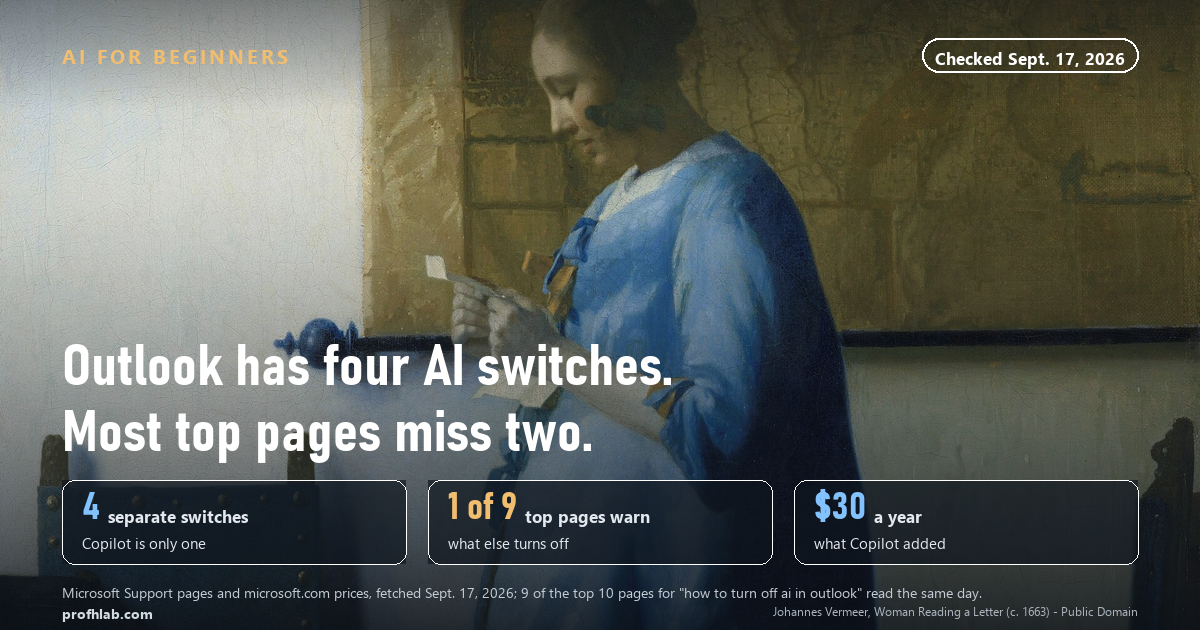
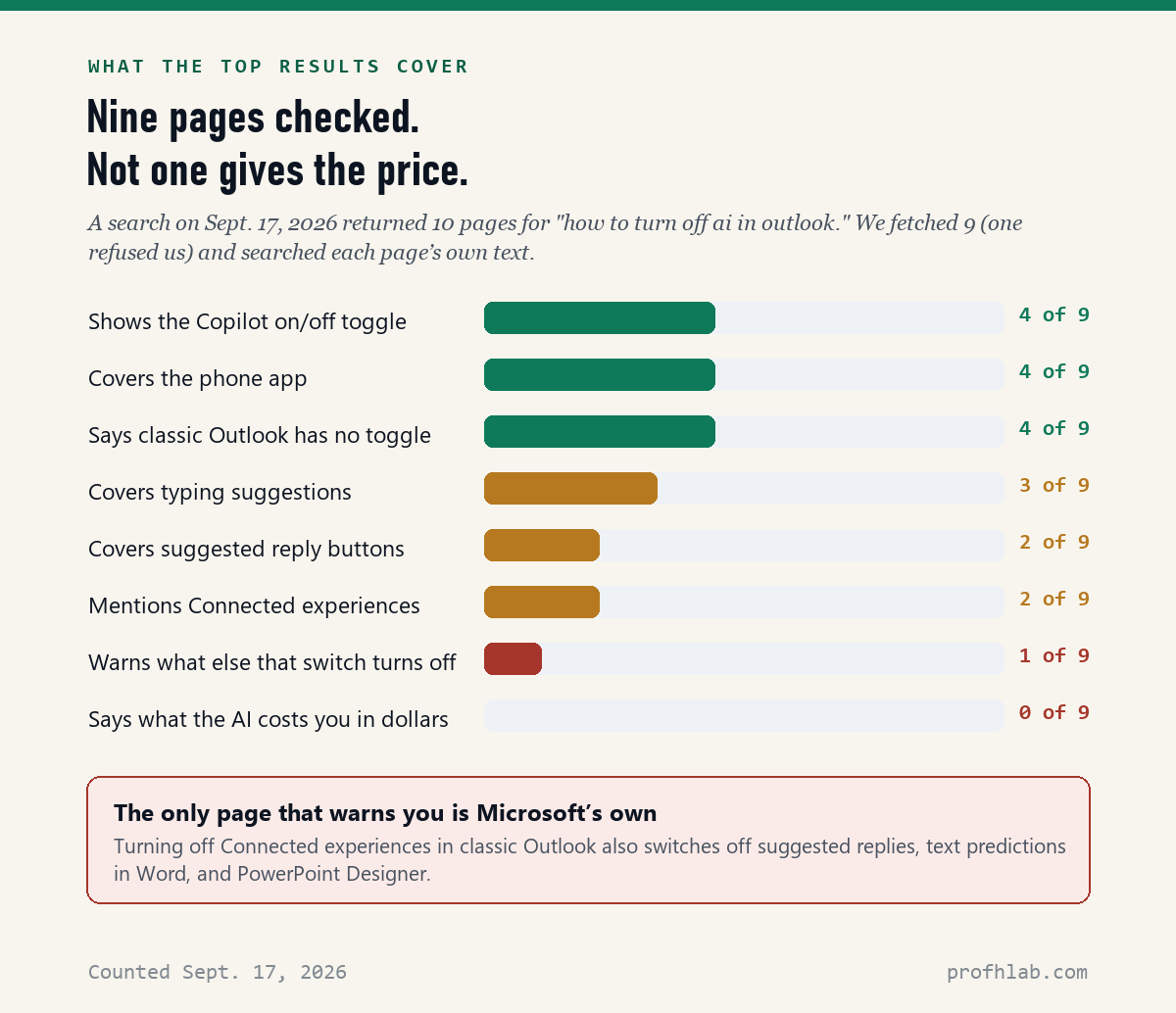
To turn off AI in Outlook, open Settings, choose Copilot, and switch “Turn on Copilot” off — one switch that hides Copilot on every Outlook signed in to that account. Then turn off the other three AI helpers, which are separate: typing suggestions, suggested reply buttons, and (in classic Outlook only) Connected experiences. Classic Outlook for Windows still has no Copilot switch at all, and Microsoft gives no date for one. On September 17, 2026 we read nine of the ten pages a search returns for this exact question: only 2 of the 9 cover even three of the four switches, and just 1 — Microsoft’s own — warns you what else stops working when you flip the big one.
What we checked on September 17, 2026
We searched “how to turn off ai in outlook,” took the ten pages on the first screen, and fetched nine of them (one site refused us). Then we searched each page’s own text for the things you actually need.
- 4 of 9 show the Copilot on/off toggle.
- 3 of 9 cover the typing suggestions that pop up gray words ahead of your cursor.
- 2 of 9 cover the suggested reply buttons under an email.
- 1 of 9 warns what else the classic-Outlook privacy switch turns off.
- 0 of 9 say what the AI is costing you in dollars.
Every menu path below was copied from Microsoft Support the same day.
First, which Outlook do you have?
This is the step every other guide skips, and it is why so many people follow instructions that do not match their screen. Microsoft sells at least five different programs called Outlook. The switches live in different places in each one.
Here is the quick way to tell:
- New Outlook for Windows — there is a gear icon (Settings) near the top-right corner, and no “File” menu at the top-left.
- Classic Outlook for Windows — there is a File menu at the top-left. This is the older program that came with Office.
- Outlook.com — you read email in a web browser such as Edge, Chrome or Safari. Hotmail, Live and MSN addresses all land here.
- The Outlook app on an iPhone or Android phone — a blue app icon with a white envelope.
- Outlook for Mac — the Mac program, which needs version 16.95.3 or newer for the Copilot switch.
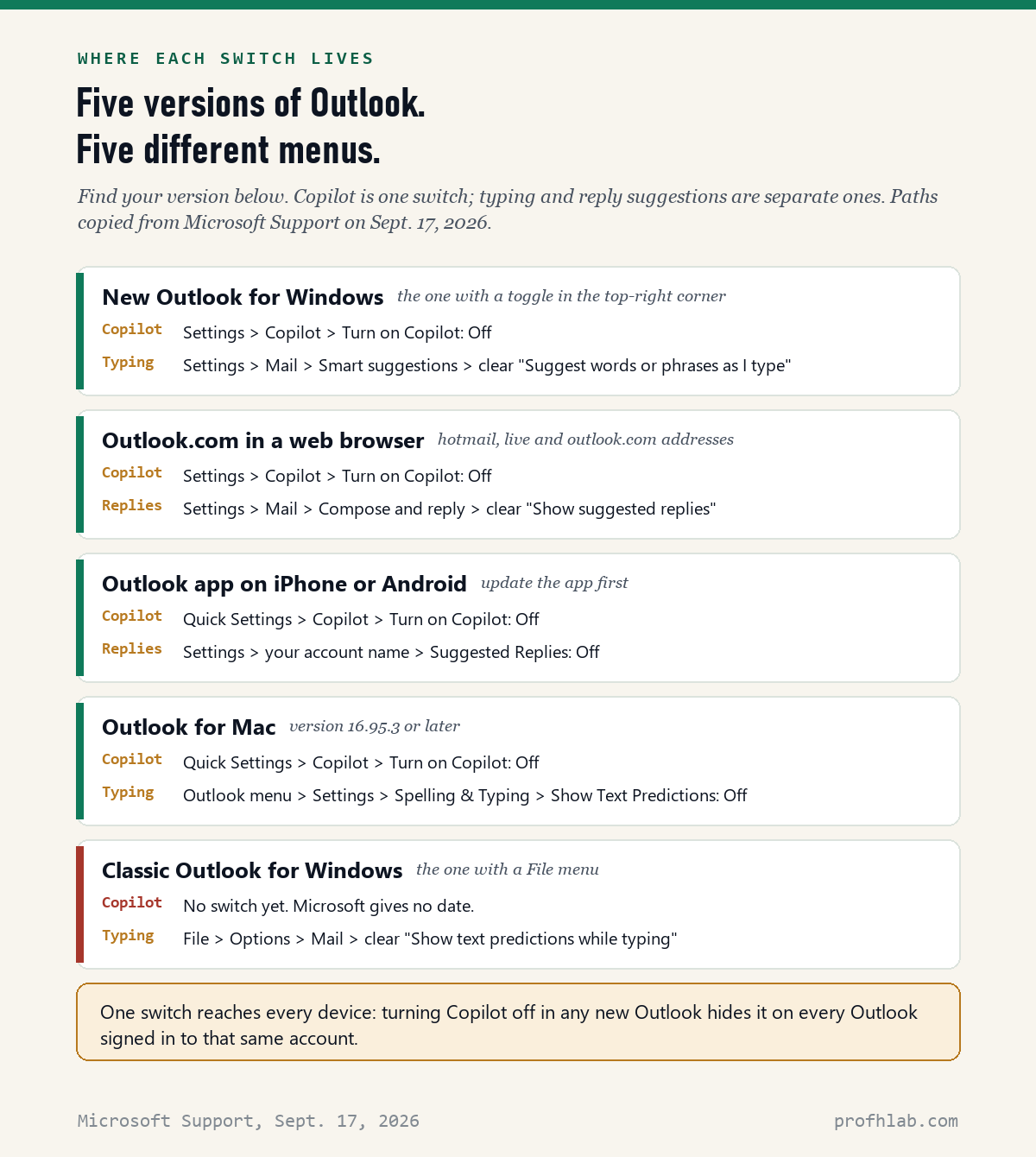
Found yours? The chart below shows every switch for every version on one page. Save it or print it.
Switch 1: Copilot, the big one
Copilot is Microsoft’s AI assistant. In Outlook it is the colorful swirl icon that offers to write your email, summarize a long thread, or draft a reply. If you are on a personal Microsoft account — the kind you use at home — you can hide all of it with one toggle.
New Outlook for Windows, or Outlook.com in a browser:
- Click the gear icon (Settings) at the top-right.
- In the list on the left, click Copilot.
- Switch Turn on Copilot to off.
iPhone, Android, or Mac:
- Make sure the app is up to date first. On a phone, check the App Store or Google Play.
- Open Quick Settings, then tap Copilot.
- Switch Turn on Copilot to off.
The good news: you only do this once
Microsoft says this Outlook switch follows your account. Turn it off on your laptop, and Copilot is also hidden in the Outlook app on your phone, as long as both are signed in with the same account. That is different from Word and Excel, where you have to switch Copilot off in each program on each computer.
A plain-English word on what “off” means here. Microsoft’s wording is that the toggle hides Copilot and its entry points. That includes the “Summary by Copilot” box that can appear at the top of a long email. Your mail itself is not deleted or changed.

Switches 2 and 3: the typing and reply suggestions
These are the helpers people most often mean when they say “the AI keeps finishing my sentences.” They are not Copilot, so the Copilot switch does not touch them. Here is where each one lives.
Typing suggestions (gray words that appear ahead of your cursor):
- New Outlook for Windows: Settings > Mail > Smart suggestions. Clear the box “Suggest words or phrases as I type,” then click Save.
- Classic Outlook: File > Options > Mail. Under “Compose messages,” clear “Show text predictions while typing,” then click OK.
- Outlook for Mac: Outlook menu > Settings > Spelling & Typing. Turn “Show Text Predictions” off.
Suggested replies (the little ready-made answer buttons, like “Thanks, sounds good!”):
- Outlook.com: Settings > Mail > Compose and reply. Clear “Show suggested replies,” then click Save.
- iPhone or Android app: Settings, tap your account name, then switch Suggested Replies off.
Think of it like a car. Copilot is a passenger who offers to drive. The typing suggestions are the lane-keeping nudge on the steering wheel. Asking the passenger to sit quietly does not turn off the nudge — that has its own button.

Switch 4: classic Outlook, and the catch nobody mentions
If you use classic Outlook — the one with the File menu — there is no Copilot toggle. Microsoft’s support page says plainly that it has no estimated date for one. What Microsoft offers instead is a much bigger switch:
- Click File > Account (it may say Office Account) > Account Privacy > Manage Settings.
- Under Connected experiences, clear the box Turn on experiences that analyze your content.
- Click OK, then close and reopen Outlook.
Here is the catch. That box is shared by every Office program on the computer. Microsoft’s own page warns that turning it off also switches off suggested replies in Outlook, text predictions in Word, PowerPoint Designer, and automatic picture descriptions (alt text). Of the nine pages we read, Microsoft’s was the only one that told you this.
What not to do: online forums pass around a trick of renaming or deleting a program file called ai.exe (it shows in Task Manager as “Artificial Intelligence (AI) Host”). One forum post from December 2023 notes that the next Office update simply puts it back. It is unsupported, it can leave Office in a strange state, and a stranger online telling you to delete system files is a habit worth not forming. Use the menu above instead.
Turning it off does not lower your bill
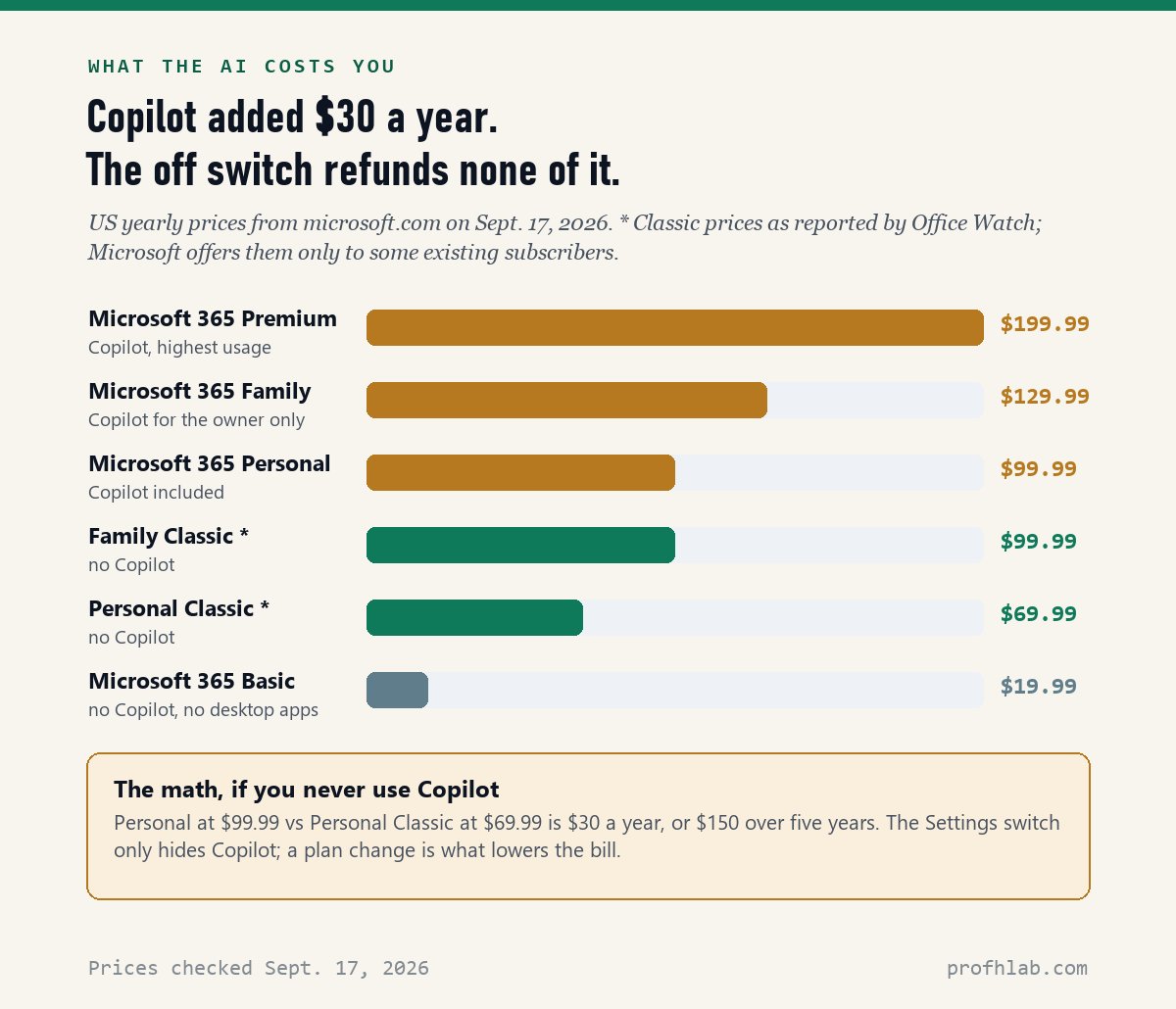
This is the part most people find out later. In January 2025 Microsoft added Copilot to Microsoft 365 Personal and Family and raised the US price by $3 a month. On September 17, 2026, microsoft.com listed Personal at $99.99 a year and Family at $129.99 a year.
The Settings switch hides Copilot. It does not refund anything. If you never use Copilot, the money question is a separate one: Microsoft says existing subscribers can move to Microsoft 365 Basic ($19.99 a year, no Copilot, no installed Word or Excel) or, for a limited time, to Personal Classic or Family Classic. Office Watch reports those at $69.99 and $99.99 a year — $30 less — and says they usually only appear during the cancel process.
One more thing we noticed in a Microsoft Q&A thread from March 2025, where more than 100 people clicked “same question”: a user downgraded to Personal Classic and still saw the Copilot icon in Outlook. Changing plans and hiding the button are two different jobs. If you want both, do both. Our full walkthrough of the plan change, including where Microsoft’s own link dead-ends, is in How to Get Microsoft 365 Without Copilot.
If Outlook is for work, the rules are different
Microsoft’s Copilot switch is written for personal accounts. If your email ends in your employer’s or a school’s name, your IT department decides which AI features are on. Ask them rather than trying workarounds — changing company settings on your own can break things they are responsible for.

Two videos worth the time
If you would rather watch someone click through it, these two are clear and calm.
What to do with this
- Identify your Outlook using the list at the top: File menu means classic, a gear at the top-right means new.
- Turn off Copilot once: Settings > Copilot on new Outlook or Outlook.com, Quick Settings > Copilot on a phone or Mac.
- Turn off typing suggestions and suggested replies in the menus listed above, if they bother you.
- On classic Outlook only, decide whether losing PowerPoint Designer and Word predictions is worth it before you clear the Connected experiences box.
- Check your renewal date at account.microsoft.com under Services & subscriptions if you want to pay less, not just see less.
- Close and reopen Outlook after any change. If a switch is missing, update the app first.
If you want to go deeper
- Does Copilot read my email when it is on? For personal accounts, only if a connector has been switched on. We went through it in Does Copilot Have Access to My Emails?
- What about Copilot in Windows itself? That is a different program with its own off switch: How to Remove Copilot from Windows 11.
- Do you also use Gmail? Google’s version has its own switches: How to Stop AI from Reading My Gmail.
Questions people actually ask
How do I turn off AI in Outlook email?
Open Settings, choose Copilot, and switch “Turn on Copilot” off. On a phone or Mac it is under Quick Settings > Copilot. That hides Copilot on every Outlook signed in to the same personal account. Typing suggestions and suggested replies are separate switches under Settings > Mail.
How do I turn off the AI summary in Outlook?
The “Summary by Copilot” box is part of Copilot, so the same Copilot toggle removes it: Settings > Copilot on new Outlook and Outlook.com, or Quick Settings > Copilot on the phone and Mac apps. Microsoft says the toggle hides Copilot and its entry points.
How do I turn off AI suggestions in Outlook?
In new Outlook for Windows, go to Settings > Mail > Smart suggestions and clear “Suggest words or phrases as I type.” In classic Outlook, go to File > Options > Mail and clear “Show text predictions while typing.” For the ready-made reply buttons, Outlook.com uses Settings > Mail > Compose and reply, and the phone app uses Settings > your account name > Suggested Replies.
Can I turn off Copilot in classic Outlook?
Not with a Copilot switch. As of September 17, 2026, Microsoft’s support page says it has no estimated date for one. The only official option is File > Account > Account Privacy > Manage Settings, then clearing “Turn on experiences that analyze your content” — which also turns off suggested replies, Word text predictions and PowerPoint Designer.
Why is Copilot still in Outlook after I switched to a Classic plan?
Because the plan and the button are separate. A Classic plan removes Copilot from what you pay for, but a Microsoft Q&A user who downgraded in March 2025 still saw the icon. Use the Copilot toggle, or the Connected experiences box in classic Outlook, to hide it.
How do I turn off Read AI in Outlook?
Read AI is not made by Microsoft. It is a separate meeting-notes service that someone connected to a calendar. On a work or school account, ask IT to remove it. If you signed up yourself, turn off its auto-join setting in your Read AI account or delete that account; university IT help pages, such as the University of Pittsburgh’s, walk through removing its Microsoft 365 access.
Does turning off Copilot in Outlook save me money?
No. The toggle only hides it. On September 17, 2026, Microsoft 365 Personal was $99.99 a year with Copilot included. To pay less you would need to change plans, for example to Basic at $19.99 a year, which drops the installed desktop apps.
Sources
- Microsoft Support, Turn off Copilot in Microsoft 365 apps — Outlook toggle locations, classic Outlook limitation, Connected experiences path and side effects. Read September 17, 2026.
- Microsoft Support, Use text predictions in Outlook for Windows — new and classic Outlook paths.
- Microsoft Support, How do I turn off suggested replies? — iPhone and Android path.
- Microsoft Support, Use intelligent technology in Outlook on the web and Outlook.com.
- Microsoft 365 Blog, Copilot is now included in Microsoft 365 Personal and Family (January 16, 2025) — $3-a-month increase, Basic and Classic options.
- Microsoft, Compare Microsoft 365 plans and Microsoft 365 Basic — US prices, checked September 17, 2026.
- Office Watch, Microsoft 365 Classic explained — reported Classic plan prices and availability.
- Microsoft Q&A, How do I turn off Copilot in Outlook? (March 2025) and How to disable “Artificial Intelligence (AI) Host”.
- University of Pittsburgh IT, Remove Read.AI Meeting Summary App for Microsoft 365.
Keep reading
- How to Get Microsoft 365 Without Copilot — the $30 plan hidden behind the cancel button.
- How to Turn Off AI Summaries on iPhone — the same idea for your phone’s notifications.
- How to Turn Off AI on a Samsung Phone — Galaxy AI, switch by switch.
- How to Turn Off AI on Amazon — shopping without the chatbot.
- How to Get the Old Google Search Back — results without the AI Overview.
- How to Turn Off AI on My TV — the living room version.
- How to Keep Using Windows 10 Safely — if your computer is older than Copilot.
- How to Tell If an Email Is Written by AI — the other side of the inbox.
- AI Scams Targeting Seniors — what to watch for once your inbox is quieter.
- How to Use ChatGPT: A Beginner’s Guide for Over 50 — if you decide you do want some AI, on your terms.
- Best AI Tools for Seniors — the ones worth keeping switched on.
- Do I Have to Pay for Apple Intelligence? — what the free AI on your Mac and iPhone costs.
- AI Price Tracker — what every major AI plan costs this month.
- AI FAQ and Ask Prof. H — short answers, and a place to send the question we missed.
- Start Here — the whole beginners library in order.
About the author. Prof. H writes profhlab.com for people who did not grow up with this stuff and would like a straight answer. We read the primary sources so you do not have to. Every Outlook menu path above was copied from Microsoft Support on September 17, 2026, prices were read on microsoft.com the same day, and the counts of the top search results were made from each page’s own text. Microsoft moves these menus around often; if yours looks different, tell us — we correct in public.
Prof.’s H Newsletter
One short email a month, with the numbers in it
What actually moved in AI hiring, AI prices, and the scams aimed at older Americans. Counted here, dated, and linked to the source. One email a month, and your address goes nowhere else.