How to Turn Off AI on Zoom: 8 Kinds of AI Can Listen, and a Guest Can Stop 2 by Typing
You can turn off Zoom’s own AI only if you are the host, but two of the most common AI note-takers leave the moment any guest types the right words in the chat. On September 30, 2026 we read 13 help pages from Zoom, Otter and Read AI and counted 8 kinds of AI that can listen to a Zoom call: a guest can remove 2 by typing, can ask the host to stop 4, and cannot stop 2 from inside Zoom at all.
This page is for both seats. If you are a guest on a doctor’s, church or grandchild’s call, start with the chat commands. If you host the family call yourself, the five switches further down take about five minutes.
How we checked this
We read six Zoom pages (four help-center articles, its price page for AI note-taking and its June 24, 2026 blog post on ZoomMate), four Otter help articles and three Read AI support articles. We sorted every AI feature they describe by what a guest in the call can do about it.
We also read the first page of Google results for “how to turn off ai on zoom”: seven of ten pages opened, and we checked each for the features below. Everything was read on Sept. 30, 2026. We did not sign in to a Zoom account, so the menu names are Zoom’s own wording, not our screenshots.
An AI assistant helped draft this article and ran the page reads. Every quotation below was read on the source’s own page on the date shown.
So how do you turn off AI on Zoom?
It depends on who brought the AI. If a note-taking bot joined as a guest, you can usually remove it yourself. If the AI is Zoom’s own, only the host can switch it off, and you can ask.
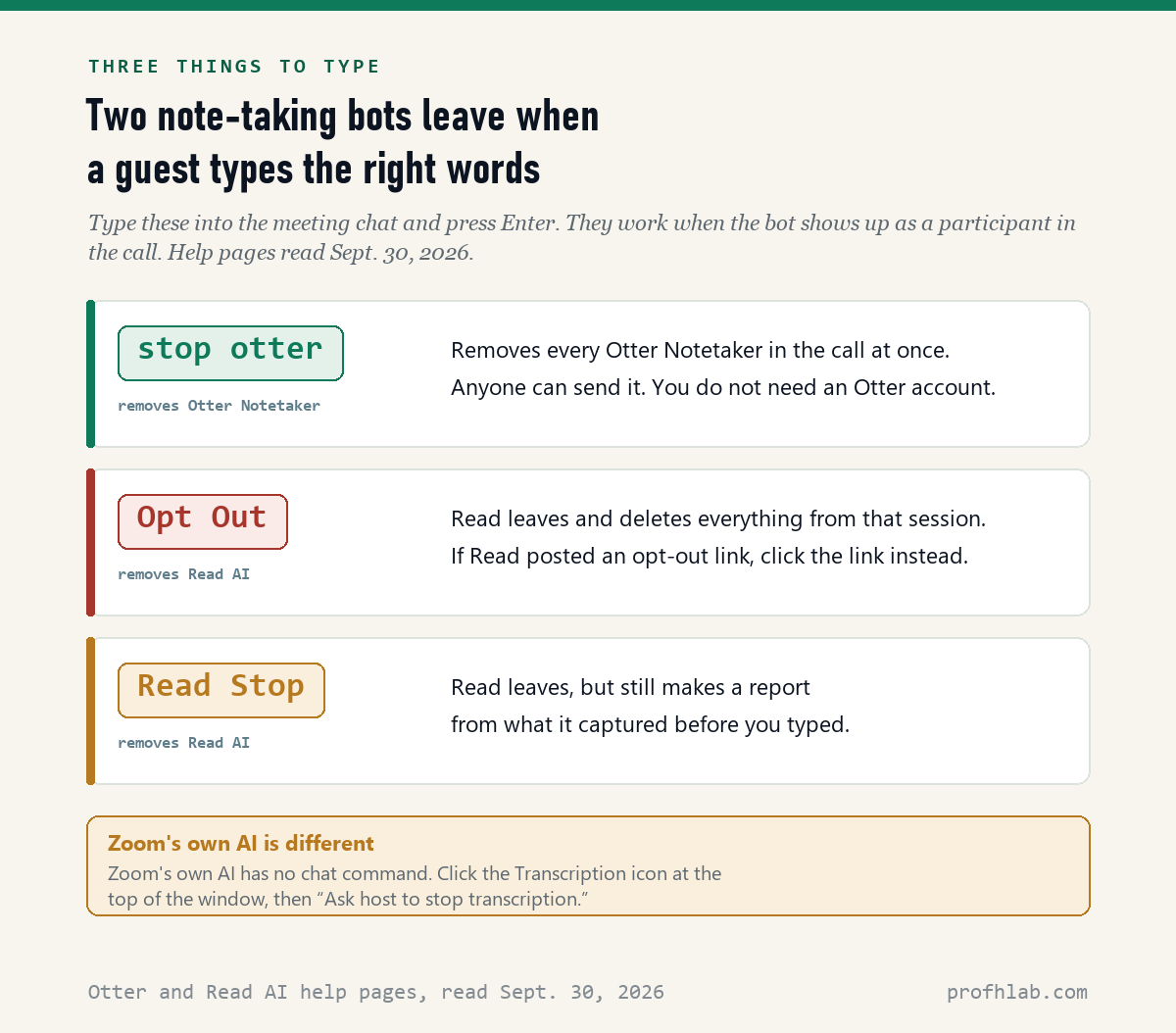
If you see a guest named “Otter” or a Notetaker: type stop otter in the meeting chat and press Enter. Otter’s help page says “any meeting participant, including those without an Otter account, can remove Notetaker.”
If you see Read AI: type Opt Out in the chat. Read AI’s support page says it then leaves and “deletes all measured data from that session.”
If it is Zoom’s own AI: click the Transcription icon at the top of the meeting window, then “Ask host to stop transcription.” The host gets the message “A participant has requested to turn off transcriptions” and chooses Stop or Decline.
You do not have to give a reason, and you do not have to be the one who invited the bot.
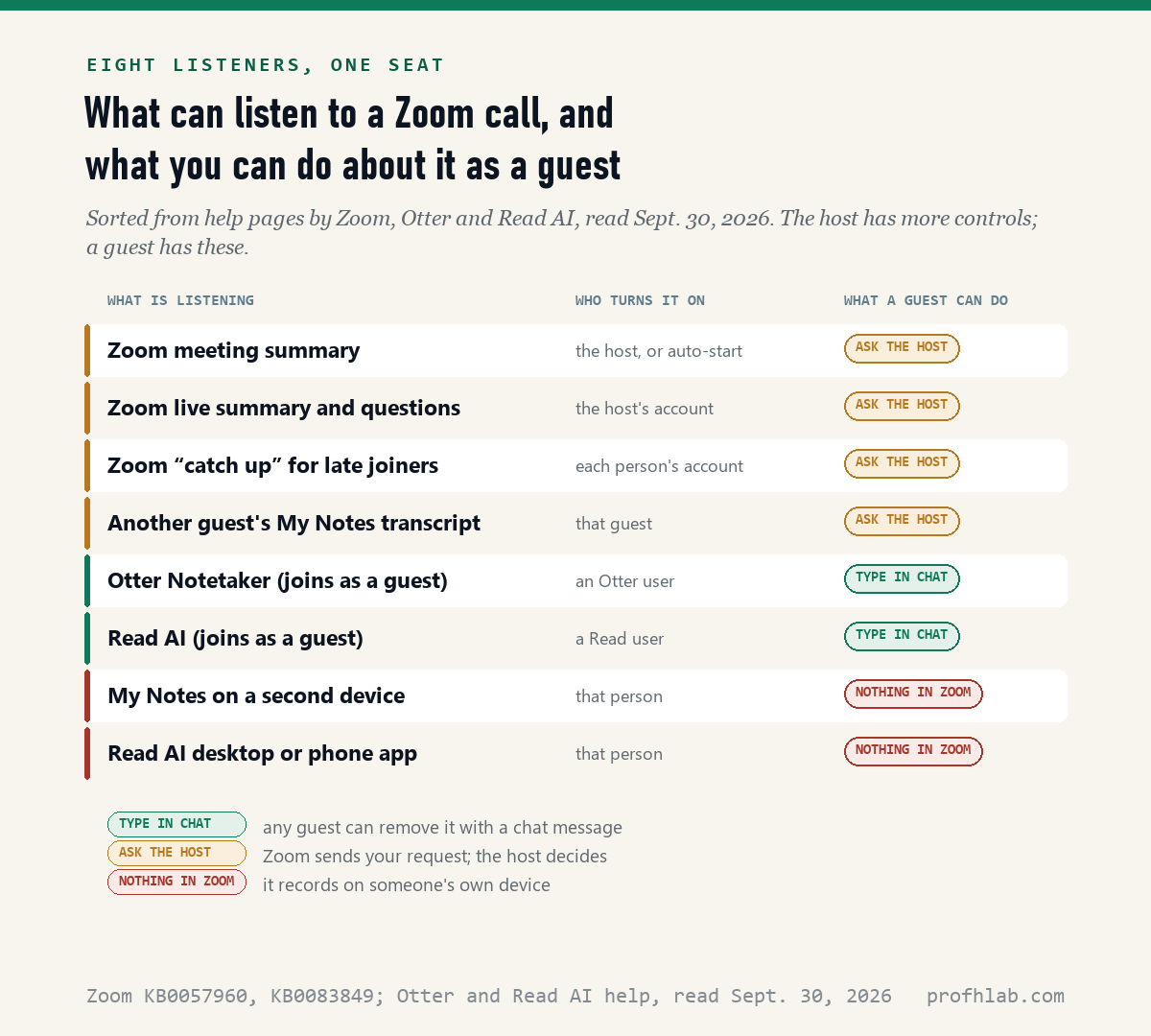
Eight kinds of AI can listen in, and a guest can remove two of them by typing
Most first-page guides stop at one switch. We read seven of the ten Google results on Sept. 30, 2026. None of the seven named Zoom’s My Notes, and none gave the chat commands below. Only one, a developer forum thread, mentioned Otter or Read AI at all.
Four belong to Zoom and sit with the host. The meeting summary, the live summary and in-meeting questions, the “catch up” summary for people who join late, and another guest’s My Notes transcript. For all four, a guest’s tool is a request.
Two are outside bots that sit in the call as guests. Otter Notetaker and Read AI. These show up in the participant list with their own name, and each company lets any participant remove them with a chat message.
Two record on someone’s own device. My Notes running on a second device, and Read AI’s desktop or phone app. Zoom cannot see those, so there is nothing to click. Read AI’s own page says: “If you believe a meeting is being recorded by a desktop or mobile app and you have not consented, ask the host directly.”
What does typing “stop otter” in the Zoom chat actually do?
It removes every Otter Notetaker in the call at once. Otter’s help article, updated Sept. 28, 2026, says the command works in Zoom, Google Meet and Microsoft Teams, and that “all Notetakers will be immediately removed.”
The same page gives a second route. Otter often posts a link in the chat. Open it and click Stop Notetaker, then Yes, turn it off. That link only works if the Otter owner allows it, so typing is the surer way.
Otter’s page does not say that removing the bot deletes what it already heard, so assume the person who invited it keeps notes up to that moment. If that matters to you, type the command early, or say so out loud before the call gets going.
Opt Out or Read Stop: which one should you type for Read AI?
Type Opt Out if you want nothing kept. Read AI’s page says Opt Out makes it leave and delete the session, with no report. Read Stop makes it leave but still “generates a report based on what was captured before the command was sent.”
One detail trips people up. “If an opt out link was provided by Read AI in the chat, you must click on that link to opt out. Typing ‘opt out’ will not work if an opt out link was provided.”
The power sits with any single guest. Read AI’s page says one person typing Opt Out “ends the recording for everyone on the call and deletes the data for that session.” The host does not need to approve it.
There is one catch for Zoom hosts. Read AI says that if a host once installed its Zoom app, “the lobby admission prompt will not appear.” The bot walks straight in, and the chat command is how you get it out.
Can a guest turn off Zoom’s own AI summary?
No. A guest can only ask. Zoom’s help article says account owners, admins and individual users control Meeting summary with AI, and the switch belongs to whoever hosts the meeting.
Your request is one click. At the top of the meeting window, click the Transcription icon, then Ask host to stop transcription. If the host clicks Stop, Zoom says “all in-meeting features utilizing transcription will also be stopped,” naming meeting summary, in-meeting questions and smart recording.
The summary may start without the host even there. On the auto-start option, Zoom writes that it “does not require the host to be present, as the meeting summary generation will begin as soon as someone starts the meeting.”
If you would rather not be summarized and the host declines, your remaining choices are the plain ones: stay muted with your camera off, or leave the call.
Who receives the Zoom meeting summary afterward?
Whoever the host picked in settings. Zoom lists four choices: only the host; the host, co-hosts and alternative hosts; the host plus invitees inside the organization; or “All meeting invitees including those outside of our organization.”
There is a quiet exception. Zoom says people who joined through a shared link or an in-meeting invitation, rather than the original invite, “will not receive the summary.” So a guest who got the link in a text message may never see what the AI wrote about them.
The part worth asking about: a summary is written by a model. Zoom’s page says the transcript “will be sent to the relevant model to provide the service,” which may be a third-party model. If you said something private, ask the host who received it.
What is Zoom My Notes, and can the host turn it off for guests?
My Notes is Zoom’s personal note-taker. Zoom’s help page says the notes “are yours and aren’t automatically shared with meeting or webinar hosts or participants.” It can also run in Teams, Google Meet and in-person meetings, using the device’s microphone.
That is why it matters to a guest. Another person in the call can be transcribing into their own notes. Zoom says you can tell when “the My Notes icon is present and the Transcription icon is illuminated or glowing” at the top-right of the window.
A guest cannot stop one person’s My Notes. Zoom’s words: “participants cannot request to stop the use of My Notes specifically.” You can only ask the host to stop all transcription.
The host can do more: stop one person’s transcription from the Participants panel, or switch off Allow participants to transcribe meetings with My Notes before the call. But Zoom also says anyone who already finished a note keeps what was transcribed up to that point.

Five switches for the family call you host yourself
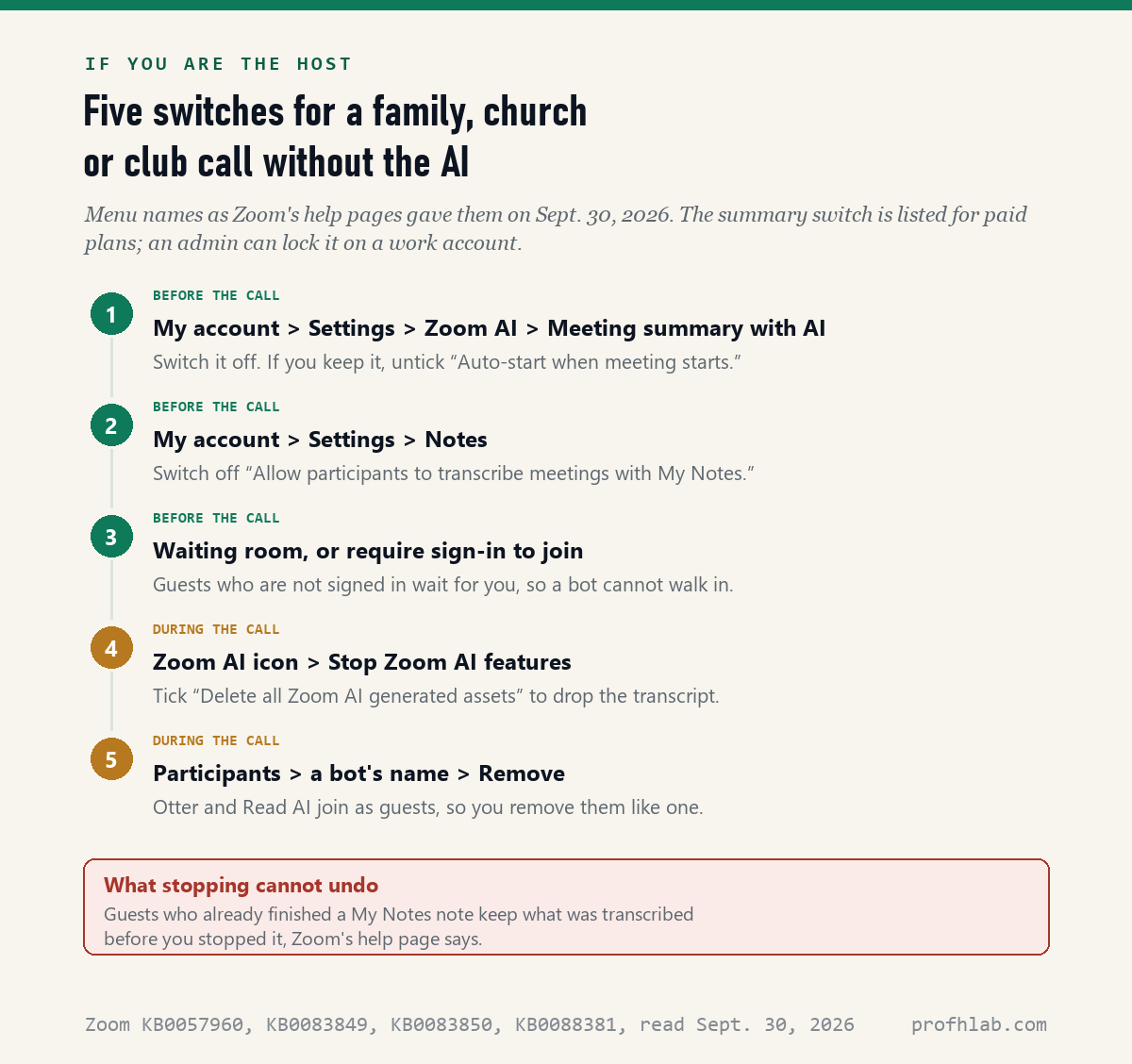
If you run the grandchildren’s Sunday call or the book club, you are the host, and these are yours. Sign in at zoom.us in a web browser; the settings live there, not in the app’s main window.
- Turn off the summary. Profile picture > My account > Settings > Zoom AI. Under Meeting, switch off Meeting summary with AI. If you want to keep it, at least untick “Auto-start when meeting starts.”
- Turn off guests’ My Notes. Same Settings page, the Notes tab. Switch off Allow participants to transcribe meetings with My Notes.
- Keep bots in the lobby. Use the waiting room, or require sign-in to join. Zoom says guests who are not signed in are “placed in the waiting room for the host to review.”
- Stop it mid-call. Click the Zoom AI icon at the top right, then Stop Zoom AI features. Tick “Delete all Zoom AI generated assets” to drop the transcript.
- Remove a bot. Open Participants, hover over the bot’s name, and remove it as you would any guest.
If a switch is grayed out, Zoom says it “has been locked at either the group or account level.” On a work or school account, only the administrator can change it.
Why do older guides say “AI Companion” when my menu says “Zoom AI”?
Because Zoom changed the name this year. Zoom’s blog post of June 24, 2026 says the features “that used to carry the AI Companion name are still built right into Zoom Workplace.” The help article we read now calls the settings tab Zoom AI.
The same post introduced ZoomMate, a separate paid add-on that acts across other apps. It is not the new name for the summary switch. If a guide tells you to open an “AI Companion” tab and you cannot find it, look for Zoom AI.
Does the free Zoom plan have AI too?
Zoom’s price page says yes, in small amounts. For the free Basic plan it lists “Meeting summaries (for 3 hosted meetings per month)” and My Notes for Zoom and other meeting apps, “3 uses per month.”
Zoom’s help article on the summary switch lists only paid plans, from Workplace Pro upward. We did not sign in to a free account, so we cannot show you where the switch sits on one. If you host on a free plan and see a summary prompt, the in-meeting Zoom AI icon is the place to stop it.
Does Zoom use my calls to train its AI?
Zoom says no. Its help article reads: “Zoom does not use any customer audio, video, chat, screen sharing, attachments or other communications-like content (such as poll results, whiteboard and reactions) to train Zoom’s or third-party AI models.”
That is a promise about training, not about use. The same paragraph says that when a summary is made, “the meeting transcript will be sent to the relevant model to provide the service,” and that data “may be processed within U.S. based data centers.” Otter and Read AI are separate companies with their own policies.
What to do on your next call, from either seat
As a guest: glance at the participant list when you join. A name like Otter, Notetaker or Read is a bot. Type the command. For Zoom’s own AI, use Ask host to stop transcription.
As the host: flip the two switches in the web settings once, and they stay off for every meeting you host. Turn on the waiting room for calls with people you do not know well.
For a telehealth visit: Zoom is often the video pipe, but the doctor’s office may have its own AI scribe. Our guide to why your doctor may be recording your appointment covers that consent question.
Zoom’s own help page on My Notes adds a line worth keeping in mind for everyone: “make sure you follow all applicable laws when transcribing conversations, which may include providing notice.”
Otter, Read AI and Zoom’s summary each stop a different way
How do I turn off Zoom AI Companion during a meeting?
If you are the host, click the Zoom AI icon at the top right of the meeting window and choose Stop Zoom AI features. If you are a guest, click the Transcription icon and choose Ask host to stop transcription.
Does Zoom AI Companion record meetings?
The summary is written from a live transcript of what people say. Zoom says the meeting transcript is sent to an AI model to write it. Its help page lists smart recording as a separate feature that stops along with transcription.
Is AI Companion available on free Zoom?
Zoom’s price page lists meeting summaries for three hosted meetings a month and My Notes for three uses a month on the free Basic plan. Its help page on the summary switch lists paid plans.
How do I turn off Otter AI on Zoom?
Any guest can type “stop otter” in the meeting chat to remove every Otter Notetaker. If you are the Otter user, change its auto-join setting to Meetings I manually select, and review calendar events you set one by one.
How do I turn off Read AI on Zoom?
Type “Opt Out” in the chat to make Read AI leave and delete the session, or click the opt-out link if Read posted one. “Read Stop” makes it leave but still produce a report.
How do I turn off the AI summary on Zoom for all my meetings?
Sign in at zoom.us, open My account, Settings, Zoom AI, and switch off Meeting summary with AI. If it is grayed out, your account administrator has locked it.
Zoom’s note-taker that guests cannot switch off, on video
If AI keeps showing up in your other apps too
The same “where is the off switch” question has come up in Outlook, in Gmail, in Chrome, on LinkedIn, in Google Photos and on your phone. If you pay for Microsoft 365, see how to get it without Copilot and whether Copilot can read your email.
Recording worries do not stop at video calls. See how to tell if smart glasses are recording, what your Ring doorbell’s AI does, and how to tell if a phone call is AI. Scammers also send fake meeting links; our guide to AI scams that target older adults shows the pattern.
New to all of this? Begin at Start Here, try ChatGPT for the first time after 50, or see the AI tools we rate for seniors. Send a question on the Ask page. Our method is at How We Count.
The thirteen pages behind these numbers
- Zoom Support, Enabling or disabling meeting summary with AI (KB0057960) – plans, auto-start, who receives the summary, data usage. Read Sept. 30, 2026.
- Zoom Support, Using My Notes (KB0083849) – the glowing Transcription icon, Ask host to stop transcription, host controls, what stopping cannot undo. Read Sept. 30, 2026.
- Zoom Support, Enabling or disabling the My Notes feature (KB0083850) – Allow participants to transcribe meetings with My Notes. Read Sept. 30, 2026.
- Zoom Support, Blocking bots from joining meetings and webinars (KB0088381) – waiting room, sign-in, domain blocks. Read Sept. 30, 2026.
- Zoom, AI note taker price page – free Basic plan limits. Read Sept. 30, 2026.
- Zoom Blog, Meet ZoomMate: Zoom’s next chapter in AI, June 24, 2026.
- Otter Help, Remove Otter Notetaker from your meeting (updated Sept. 28, 2026) and Stop Otter Notetaker from automatically joining your meetings (updated Sept. 29, 2026). Read Sept. 30, 2026.
- Otter Help, Otter Notetaker Overview and Turn off auto-share for conversations and meetings. Read Sept. 30, 2026.
- Read AI Support, How to Stop or Opt Out of a Read AI Recording (updated Sept. 11, 2026), How to remove Read from an ongoing meeting, and How to Turn Off Read AI. Read Sept. 30, 2026.
- Google first-page results for “how to turn off ai on zoom,” ten listed Sept. 30, 2026: seven opened and read, one PDF returned too little text, two would not load.
Corrections and questions go to the Ask page. If Zoom, Otter or Read AI rename these settings or change the chat commands, we will update this page and say what changed.
Prof.’s H Newsletter
One short email a month, with the numbers in it
What actually moved in AI hiring, AI prices, and the scams aimed at older Americans. Counted here, dated, and linked to the source. One email a month, and your address goes nowhere else.