How to Turn Off Apple Intelligence on Mac: macOS 27 Removed the One Switch, and Apple Now Lists 9 Separate Ones
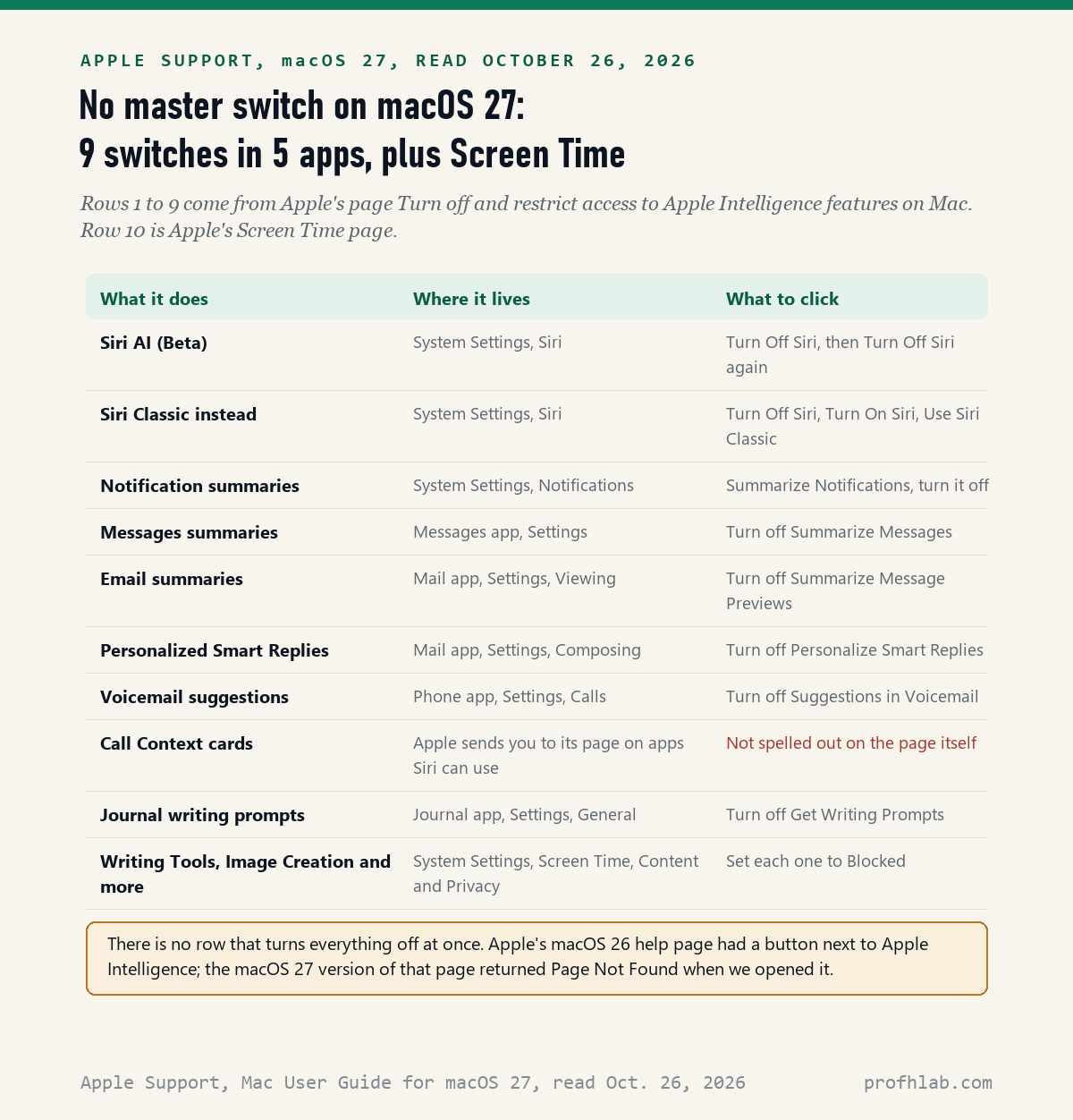
On a Mac running macOS 27 Golden Gate, you cannot turn off Apple Intelligence with one switch any more: on October 26, 2026, Apple’s own macOS 27 help page listed 9 separate switches in 5 different apps, plus a Screen Time panel, and none of them turns everything off at once. On the older macOS 26 Tahoe, Apple’s help page still shows a single button next to Apple Intelligence.
So the first job is finding out which macOS you have. Then you pick the switches for the features that bother you; you may only need a few. None of the steps on this page needs Terminal or a download.
What we checked on October 26, 2026
We read 6 Apple Support pages: the macOS 27 pages on turning off Apple Intelligence features, on Siri Restrictions in Screen Time and on Intelligence & Siri in Screen Time; the macOS 26 pages on turning Apple Intelligence on and on blocking it in Screen Time; and Apple’s storage and device page, published October 22, 2026. We also tried the macOS 27 copy of Apple’s on-off page. It returned Page Not Found.
Our own counts: Apple’s macOS 27 page has 9 rows of switches, spread over System Settings, Messages, Mail, Phone and Journal. We also opened the 9 guides that came up first for this question in a web search that day. One blocked us. None of the other 8 gave steps written for macOS 27. We read the pages; we did not test the menus on a Mac running macOS 27.
Written and checked by Prof. H. An AI assistant helped draft this article and ran the page reads; every quote was read on the source’s own page on the date shown.
Can I still turn off Apple Intelligence on my Mac with one switch?
Only if your Mac is still on macOS 26 Tahoe or earlier: Apple’s macOS 26 help page, read October 26, 2026, says to open System Settings, click Apple Intelligence & Siri, and click the button next to Apple Intelligence. On macOS 27 that page is gone, and the replacement page lists switches one feature at a time.
Reviewers noticed the change before most owners did. In its macOS 27 review on September 16, 2026, Ars Technica’s Andrew Cunningham wrote that there used to be a toggle to turn off Apple Intelligence and delete its downloaded models, “and now there isn’t.”
Think of it like a house that used to have one main light switch by the front door. After the remodel, each room has its own switch, and the front-door switch is gone. You can still make the house dark. You just have to walk through the rooms.
Which macOS is on my Mac, and does my Mac even have Apple Intelligence?
Click the Apple menu in the top left corner and choose About This Mac; the window names your macOS, such as macOS Golden Gate 27 or macOS Tahoe 26. Apple’s device page, published October 22, 2026, says Apple Intelligence on macOS 27 needs a Mac with an M1 chip or later, or a MacBook Neo.
If your Mac uses an Intel chip, there is nothing to turn off. Ars Technica reported on September 16, 2026, that macOS 27 does not run on any Intel Mac. Apple’s page also says Apple Intelligence works only in certain languages, so a Mac set to an unsupported language may not show these features at all.

How do I turn off Siri AI on macOS 27?
Apple’s macOS 27 page, read October 26, 2026, gives 3 clicks: open System Settings, click Siri in the sidebar, then click Turn Off Siri and click Turn Off Siri again to confirm. In macOS 27 the setting is called Siri in the sidebar, not Apple Intelligence & Siri as it was in macOS 26.
Want Siri for timers and weather, but without the AI answers? Apple describes a middle path. Turn Siri off with the steps above, then click Turn On Siri and choose Use Siri Classic. Apple’s Screen Time page calls the two versions Siri AI (Beta) and Siri Classic.
Apple’s fine print says Siri AI is a beta, starts in English, and has daily usage limits. It also says “Expanded access to such features will be available for a fee in the future.” Apple does not give a price or a date on that page.
How do I stop the AI summaries in Mail, Messages and notifications?
Each summary has its own switch, according to Apple’s macOS 27 page read October 26, 2026, and turning off one does not turn off the others. These are Apple’s steps, written out:
- Notification summaries: System Settings, then Notifications, then Summarize Notifications. Turn it off.
- Messages: open the Messages app, choose Messages, then Settings, and turn off Summarize Messages.
- Mail summaries: open Mail, choose Mail, then Settings, then Viewing, and turn off Summarize Message Previews.
- Mail reply suggestions: in the same Mail Settings, click Composing and turn off Personalize Smart Replies.
- Voicemail: in the Phone app, choose Phone, then Settings, then Calls, and turn off Suggestions in Voicemail.
- Journal: in the Journal app, choose Journal, then Settings, then General, and turn off Get Writing Prompts.
One row on Apple’s page, Call Context cards, has no steps of its own. Apple sends you to its separate page about customizing which apps Siri can use. We did not find a single named switch for those cards there, so we list it as not confirmed.
How do I block Writing Tools and Image Playground on a Mac?
Apple puts these in Screen Time, not in the apps: on macOS 27, Apple’s Siri Restrictions page, read October 26, 2026, says to go to System Settings, Screen Time, Content & Privacy Restrictions, then Siri, and set capabilities such as Writing Assistance to Blocked.
Here is a snag we found. A second Apple page for the same macOS 27 gives a different path: Screen Time, Content & Privacy, then Intelligence & Siri. Both pages are current. We could not check on a real Mac which label you will see, so look for either one.
Screen Time sounds like a tool for children, and Apple does use it for parental controls. You can turn it on for yourself, though. It is simply the place where Apple keeps its block-this-feature switches.
Does turning off Apple Intelligence free up storage on my Mac?
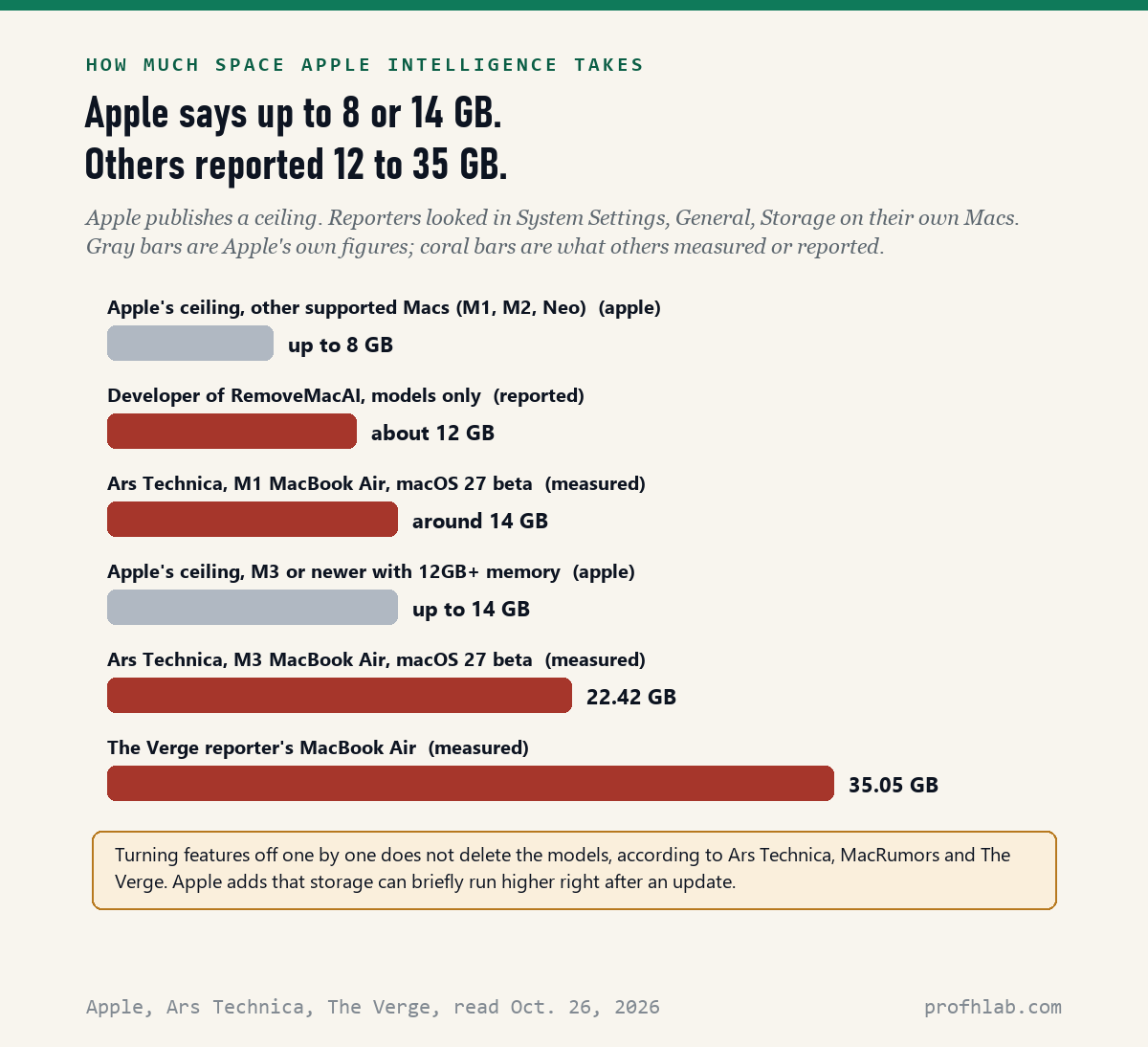
Not on macOS 27 with Apple’s own switches: Ars Technica (October 5, 2026), MacRumors (October 5) and The Verge (October 5) all report that turning features off one by one leaves the AI models on your disk. On macOS 26, Ars says the old toggle could delete them.
How much space is it? Apple’s device page says up to 8 GB on most supported Macs and up to 14 GB on M3 or newer Macs with at least 12GB of memory. Apple adds that use “may temporarily exceed” that during and just after a software update.
Measured numbers ran higher. Ars Technica saw about 14GB on an M1 MacBook Air and 22.42GB on an M3 MacBook Air, both on macOS 27 test versions. The Verge’s Stevie Bonifield reported 35.05GB listed on a MacBook Air. You can check yours: System Settings, General, Storage, then the small i next to macOS, as The Verge and the RemoveMacAI page describe.

Should I run RemoveMacAI or another Terminal command from the internet?
For most readers of this guide, our answer is no: RemoveMacAI, a free tool released around the start of October 2026 by a developer who goes by Om Lahore on GitHub, works by installing a configuration profile and is started by pasting a command into Terminal, according to its GitHub page read October 26, 2026.
The tool is open source, was covered by Ars Technica, MacRumors and The Verge, and its page says every change can be undone with removemacai revert. MacRumors also passed on the developer’s own warning. Some settings it relies on were deprecated by Apple in macOS 26.4, so a future update could stop them working.
Our worry is different. Pasting a command from a web page into Terminal is a habit we would rather beginners not form, because a harmful command looks just like a helpful one. If storage is the real problem, ask a family member or a store you trust to do it with you, so you can undo it later. For other tricks aimed at Mac and PC owners, see our guide to AI scams aimed at older adults.
A 4-minute RemoveMacAI demo from Andrew Tsai, and 9to5Mac’s full macOS 27 review
We chose 2 videos on October 26, 2026. The first shows what removing Apple Intelligence with RemoveMacAI looks like, so you can decide with your eyes open. The second is a general tour of macOS 27 from an Apple news site, useful if you have not updated yet.
Start with notification summaries, then decide on Siri
Our suggested order puts the 3 summary switches from Apple’s macOS 27 page, read October 26, 2026, first, because they change what you see every day; stop when the Mac feels quiet enough.
- Check your macOS in About This Mac. On macOS 26, use the single button and stop there.
- Turn off Summarize Notifications. That is the one that rewrites what pops up on screen.
- Turn off the 2 Mail switches and the Messages switch.
- Decide on Siri: off, or Siri Classic.
- Only if you want Writing Tools and image tools gone, open Screen Time and set them to Blocked.
- After each macOS update, look at this list again. We could not confirm whether updates keep these switches off.

Other phones, browsers and apps where we found the off switches
We counted 33 AI for Beginners guides about switching AI off since August 2026, each built from the company’s own help pages on a dated day. These are the ones closest to a Mac:
- AI summaries on iPhone: four switches, not one
- Call screening on iPhone
- AI in Google Chrome
- AI in Firefox
- AI in Microsoft Edge
- Copilot in Microsoft Word, including Word for Mac
- AI in Outlook
- Gemini in Google Docs
- Copilot on a Windows 11 PC
- AI on a Samsung phone
- AI on a Kindle
- Alexa+ on Echo speakers
If you would rather use AI on your own terms, start with our ChatGPT guide for beginners over 50, the AI tools we suggest for seniors and what is safe to tell a chatbot. Setting up a grandchild’s computer? See parental controls on ChatGPT. All of our beginner guides are listed on Start Here, and our hand-counted job data lives on the AI Jobs Tracker.
What else do Mac owners ask about Apple Intelligence?
Can I turn off Apple Intelligence on Mac?
Partly. On macOS 26 Tahoe, Apple’s help page shows one button in System Settings, Apple Intelligence & Siri. On macOS 27, Apple’s page read October 26, 2026 lists 9 separate switches plus Screen Time restrictions, and no single off switch.
Can I turn off Apple Intelligence and still use Siri?
Yes. Apple’s macOS 27 page says to turn off Siri, then click Turn On Siri and choose Use Siri Classic. That keeps the older Siri without the AI-generated answers.
Can I turn off Apple Intelligence to save storage?
On macOS 27, not with Apple’s switches alone. Ars Technica, MacRumors and The Verge reported on October 5, 2026 that the models stay on the disk when features are turned off. Apple lists up to 8 GB or up to 14 GB, depending on the Mac.
Where is Apple Intelligence in System Settings on macOS 27?
On macOS 27 the sidebar item is called Siri, according to Apple’s page read October 26, 2026. If you see neither, your Mac may use an Intel chip, which macOS 27 does not support, or a language Apple Intelligence does not offer.
Is Apple Intelligence free on a Mac?
For now, yes. Apple’s fine print, read October 26, 2026, says some features have daily limits and that expanded access will be available for a fee in the future. Apple does not give a price there.
Apple’s six help pages and the reporting we checked against them
- Apple Support, Turn off and restrict access to Apple Intelligence features on Mac, Mac User Guide for macOS 27, read October 26, 2026.
- Apple Support, Change Siri Restrictions settings in Screen Time on Mac, macOS 27, read October 26, 2026.
- Apple Support, Change Intelligence & Siri settings in Screen Time on Mac, macOS 27, read October 26, 2026.
- Apple Support, Turn on Apple Intelligence, Mac User Guide for macOS 26, read October 26, 2026. The macOS 27 copy of this page returned Page Not Found that day.
- Apple Support, Block access to Apple Intelligence features in Screen Time on Mac, macOS 26, read October 26, 2026.
- Apple Support, Get started with the next generation of Apple Intelligence, published October 22, 2026, read October 26, 2026.
- Andrew Cunningham, macOS 27 Golden Gate: The Ars Technica review, Ars Technica, September 16, 2026, read October 26, 2026.
- Scharon Harding, Command-line tool quickly removes Apple Intelligence from macOS 27, Ars Technica, October 5, 2026, read October 26, 2026.
- Tim Hardwick, Mac Users Reclaim 12GB+ of Storage With Apple Intelligence Removal Tool, MacRumors, October 5, 2026, read October 26, 2026.
- Stevie Bonifield, An open-source tool lets you delete 12GB of Apple Intelligence data on macOS, The Verge, October 5, 2026, read October 26, 2026.
- Om Lahore, RemoveMacAI on GitHub, read October 26, 2026. Linked as a source, not as a recommendation.
Featured image: Cary Bass, Golden Gate Bridge with the freighter YM America, 2006, Wikimedia Commons, CC BY-SA 3.0, cropped.
About the author. Prof. H writes profhlab’s AI for Beginners guides for readers who are new to AI or over 50. Each guide is built from the pages it quotes, read on the date shown. Does your Mac show a different menu name, or did an update turn something back on? Tell us on the Ask page and we will update this guide with a dated correction. More about Prof. H on the About page.
Prof.’s H Newsletter
One short email a month, with the numbers in it
What actually moved in AI hiring, AI prices, and the scams aimed at older Americans. Counted here, dated, and linked to the source. One email a month, and your address goes nowhere else.