How to Turn Off AI in Google Docs: 1 Gmail Switch for All 6 Gemini Tools, and Why Many Free Accounts Have None
You turn off AI in Google Docs with 1 switch that lives in Gmail: on October 25, 2026, Google’s help page told us to open Gmail settings, find Google Workspace smart features, and turn off Smart features in Google Workspace. Google says that setting controls “Ask Gemini to summarize content, create drafts, and find key information” across its office apps, and Docs is one of them.
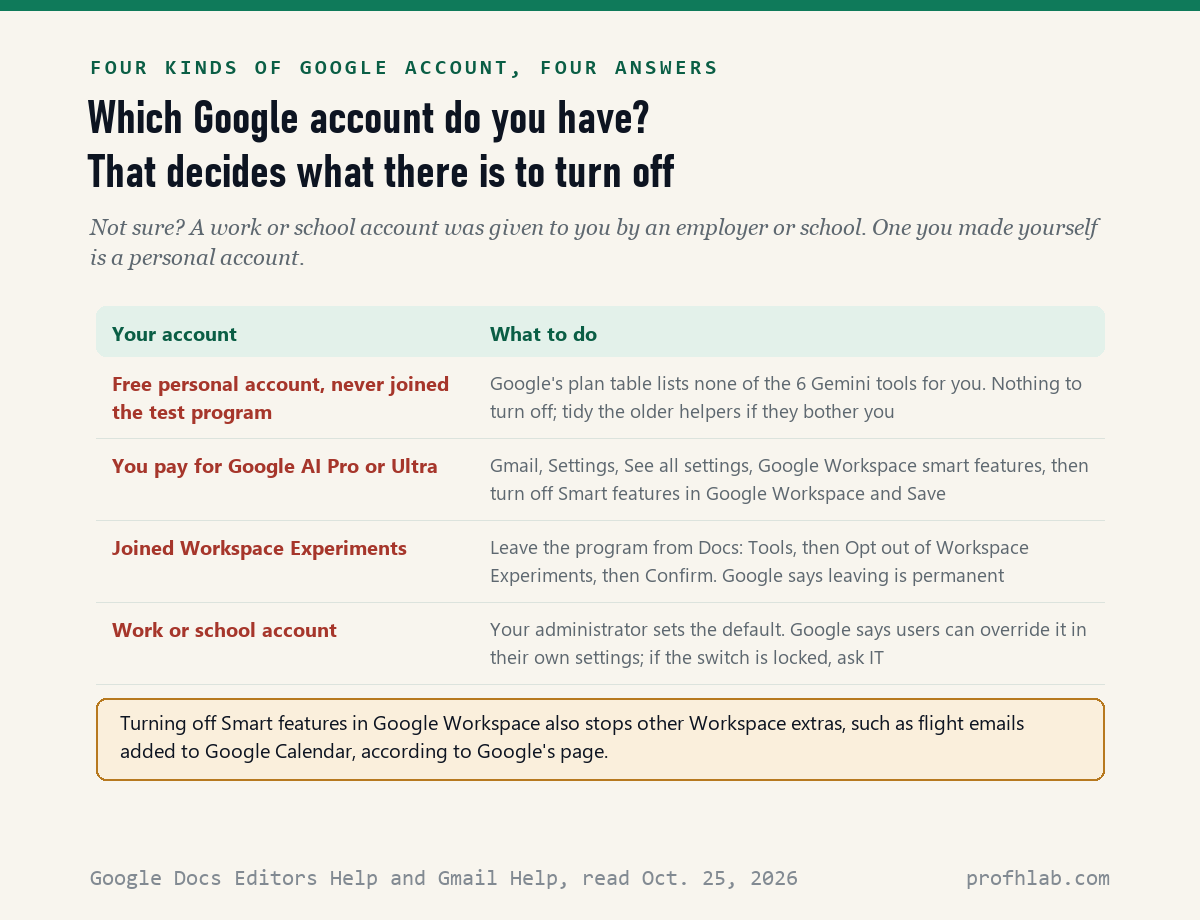
Before you change anything, check one thing. Google’s own plan table lists 6 Gemini tools for Docs, and for a personal account all 6 need a paid Google AI Pro or Ultra plan. If you have never paid for one or joined Google’s test program, there may be no Gemini in your Docs to switch off.
What we checked on October 25, 2026
We read 13 Google help pages: 9 from the Google Docs Editors Help Center (Gemini in Docs, Write and edit with Gemini, personalized documents, Smart Compose and Smart Reply, spelling and grammar, Autocorrect, the Gemini plan table, Workspace Experiments and its privacy notice), 3 from Gmail Help (smart features, how Gemini protects your data, Gemini conversation history) and 1 Google Workspace admin page.
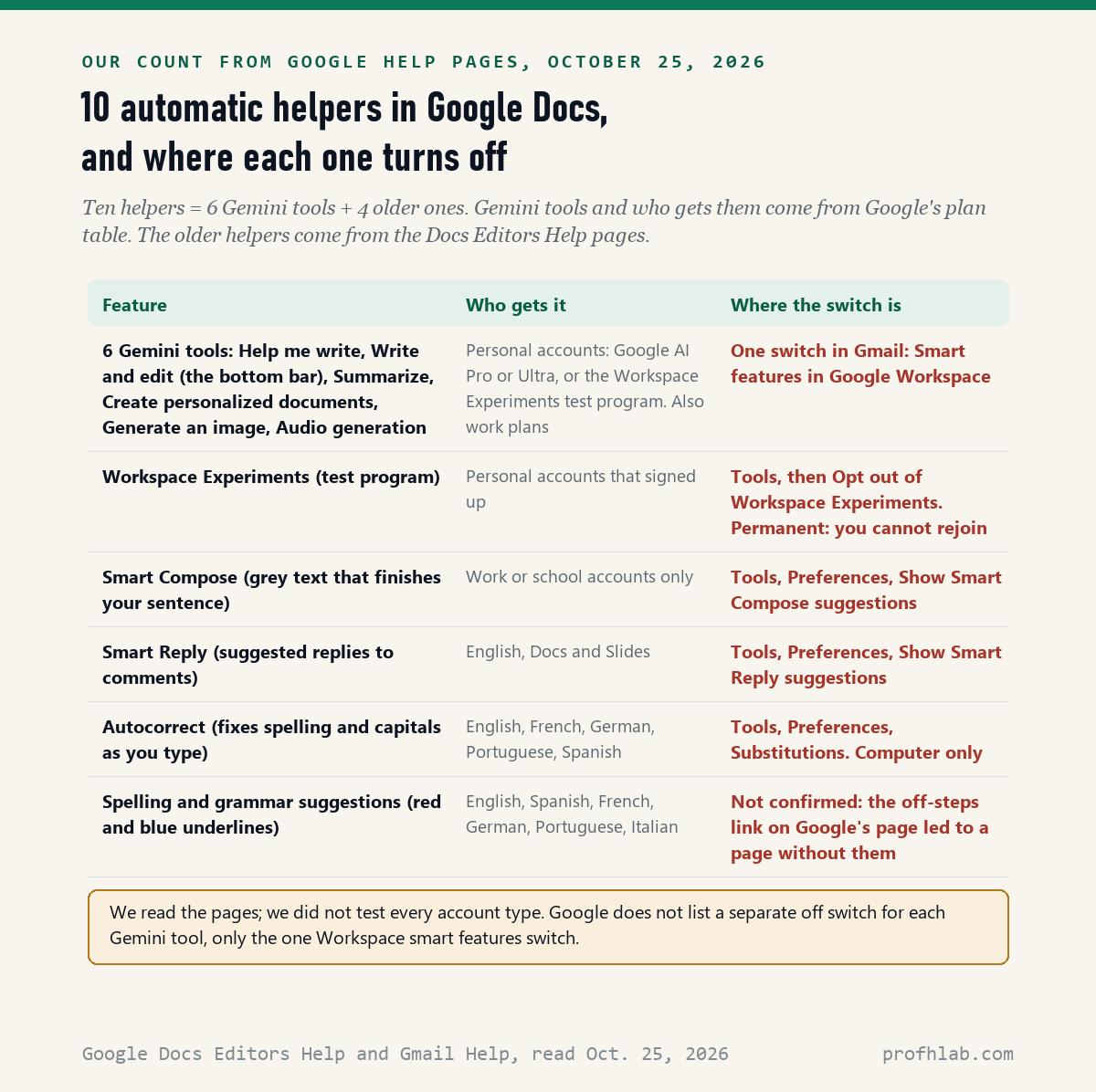
Our own count: those pages describe 10 automatic writing helpers in Docs, 6 of them Gemini tools and 4 older ones. Google gives off-switch steps for 9 of the 10. For spelling and grammar underlines, the link Google gives for the off steps led us to a page that did not contain them. We read the pages; we did not sign in to every kind of account to test the menus.
Written and checked by Prof. H. An AI assistant helped draft this article and ran the page reads; every quote was read on the source’s own page on the date shown.
Where is the switch that turns off Gemini in Google Docs?
The switch is in Gmail, not in Docs: Google’s Gmail Help page on smart features, read on October 25, 2026, lists Gmail as the place to find “Smart features in Google Workspace,” and says that setting controls Gemini features across Workspace apps. These are Google’s steps on a computer:
- Open Gmail in your web browser.
- At the top right, click the gear icon, then See all settings.
- On the General tab, scroll to Google Workspace smart features.
- Click Manage Workspace smart feature settings.
- Turn off Smart features in Google Workspace.
- At the bottom right, click Save.
Think of it like the main water valve in a house. Docs, Drive, Sheets and Calendar all draw from it, so closing it shuts off more than one tap. Google’s page says that with it off, you also lose extras such as flights from Gmail showing up in Google Calendar.
The same Gmail screen shows a second switch, Smart features in other Google products. That one covers things like Google Maps and Google Wallet. It does not need to be off for Docs, so leave it as you like.
On a phone, Google says you can change these settings in the Gmail app for Android, iPhone or iPad, and that changes apply wherever you are signed in. Google also notes that some changes made on a computer do not show in the mobile app, so the computer is the surer place to do it.
Why don’t I see Gemini in my Google Docs at all?
Because for personal accounts Google limits it to paid plans: the plan table on Google’s “Get started with Google Workspace with Gemini” page, read on October 25, 2026, marks all 6 Docs tools as Google AI Pro or Google AI Ultra. Those 6 are Help me write, Write and edit, Summarize a document, Create personalized documents, Generate an image and Audio generation.
One detail surprised us. Google AI Plus, the cheaper paid plan, gets Gemini in Gmail on that table but 0 of the 6 Docs tools. Current prices are on our AI Price Tracker.
There are two other ways Gemini reaches Docs. A work or school account can get it through the employer’s or school’s plan. A personal account can get it by joining Google Workspace Experiments, a test program for new AI features. Google’s page says that if you see the Ask Gemini button at the top right of Docs, you have access to that program’s features.
Free Gmail is different. The same Google page says personal accounts in the US can use Help me write, AI Overviews for email threads and Suggested replies in Gmail at no charge. That is Gmail, not Docs, and our guide to stopping AI in Gmail covers it.

How do I get rid of the Gemini bar at the bottom of Google Docs?
Google’s “Write and edit with Gemini in Docs” page, read on October 25, 2026, says the bar “automatically minimizes to clear your screen” and comes back when you hover over Gemini at the bottom. It also offers a Switch to side panel button that moves the bar to the right side.
We did not find steps on Google’s pages to remove the bar for good. TechCrunch reporter Amanda Silberling, in a June 18, 2026 article, described a different route: click Gemini in the menu at the top, choose bottom bar preferences, and turn the bar off. We could not confirm that menu on Google’s pages, so treat it as a tip to try, not Google’s official steps.
If the bar still appears, the Gmail switch above is the one Google documents. With it off, Google’s smart features page says you can’t use the Gemini experiences it lists in Workspace products.
Does Google use my documents to train its AI?
Not for paid-plan users, according to Google: its Gmail Help page on how Gemini protects your data, read on October 25, 2026, says Gemini in Docs “doesn’t use your content to train or improve Gemini or other generative AI models” for users with Google AI plans. It adds that Gemini does not store your prompt or its answer without your permission.
The test program has different rules. Google’s Workspace Experiments privacy notice says data from those features “may also be read, rated, annotated, and reviewed by human reviewers.” It says that data is kept for 18 months, and copies reviewed by people may be kept for up to 4 years.
That notice also asks you not to put sensitive or personal information in your prompts. Our rule of thumb matches: do not paste medical records, account numbers or passwords into any AI box. Our guide on whether it is safe to give ChatGPT personal information explains why in more detail.
If you have used Gemini in Docs, your chats may be saved. Google’s conversation history page says you can delete them: click Ask Gemini, then More options, then Settings and History, and choose 3, 18 or 36 months, or manual deletion only. Google says a deleted conversation cannot be recovered.
Smart Compose, Autocorrect and the red underlines have their own boxes
The 4 older helpers are not Gemini and do not use the Gmail switch; Google’s Docs Editors Help pages, read on October 25, 2026, put 3 of them under Tools, then Preferences, inside any open document. Google says Smart Compose and Smart Reply “use machine learning to offer suggestions.”
- Smart Compose is the grey text that finishes your sentence. Tools, Preferences, then uncheck Show Smart Compose suggestions. Google says Docs offers it only to accounts through work or school.
- Smart Reply suggests answers to comments. Same place: uncheck Show Smart Reply suggestions.
- Autocorrect fixes spelling and capital letters as you type. Tools, Preferences, Substitutions, then uncheck the boxes you do not want. Google says this works only on a computer.
- Spelling and grammar suggestions are the red and blue underlines. Google’s spelling page links to steps for turning them off, but the page it linked to on October 25 had no such section. We did not find confirmed steps.
Our advice is to keep the spell check. It is the oldest helper here, and it is the one most likely to save you from a typo in a letter to the bank.
Leaving the Workspace Experiments test program cannot be undone
Google’s “Get started with Google Workspace Experiments” page, read on October 25, 2026, says that if you exit the program, you “permanently lose access to all Workspace Experiments features” and cannot rejoin. In Docs, the exit is Tools, then Opt out of Workspace Experiments, then Confirm.
That is a bigger step than the Gmail switch, which you can turn back on any time. If you joined the program and are not sure you are done with AI for good, try the Gmail switch first. Google’s page says the program is for personal accounts and adults 18 or older.

Google’s own 2-minute smart features video and Ian Lamont’s 19-second bottom bar fix
The first video is Google’s explanation of the smart features switches. The second is a short tip about the Gemini bar; we went by its title and did not check every step it shows against Google’s pages.
Ten minutes at the computer: the order we would switch things off
- Open Google Docs and look at the top right for an Ask Gemini button. Google’s page ties that button to access, so if it is missing, our inference is that there is no Gemini to turn off.
- If you see it, go to Gmail, Settings, See all settings, Google Workspace smart features, and turn off Smart features in Google Workspace. Click Save.
- If you used Gemini in Docs, delete old chats: Ask Gemini, More options, then History.
- In any document, open Tools, then Preferences. Uncheck Smart Compose and Smart Reply if they bother you.
- Leave spell check on. Turn off single Autocorrect boxes only if they keep changing words you meant.
- Only if you are sure: leave Workspace Experiments from Tools. Google says you cannot rejoin.
Doing this for a parent? Sit with them and do it on their computer, because these settings follow the account. Using a work or school account? Google says your administrator sets the default and users can override it in their own settings; if the switch is greyed out, ask your IT help desk.
More Google and Microsoft apps where AI arrived this year
- How to stop AI from reading my Gmail, the same smart features switches seen from the inbox.
- How to turn off Copilot in Word, if you also write in Microsoft Word.
- How to turn off Gemini in Google Messages, for Android phones.
- How to turn off AI in Google Photos, and AI in Google Maps.
- How to turn off AI in Chrome, the browser many people open Docs in.
- How to get the old Google search back, without AI Overviews on top.
- How to turn off Gemini on Google Home and what Gemini is on an Android phone.
- How to turn off the AI Assistant in Adobe Acrobat, for PDFs.
- How to turn off AI in Firefox and in Microsoft Edge.
- Want to use AI for writing instead? Try writing a memoir with ChatGPT or a letter or email.
- How to tell if an email was written by AI.
New here? Our Start Here page lists every AI for Beginners guide, and the AI Jobs Tracker shows the data we collect ourselves each day. Short answers to common questions are on our FAQ page.
What else do people ask about AI in Google Docs?
Can you turn off AI in Google Docs?
Yes. Google’s Gmail Help page, read October 25, 2026, says turning off Smart features in Google Workspace, found in Gmail settings, stops the Gemini features it lists across Workspace apps. Older helpers like Smart Compose are under Tools, then Preferences.
How do I turn off Gemini in Google Docs?
In Gmail on a computer: Settings, See all settings, Google Workspace smart features, Manage Workspace smart feature settings, then turn off Smart features in Google Workspace and click Save. Google gives no separate switch inside Docs for each Gemini tool.
How do I turn off AI suggestions in Google Docs?
Open a document, then Tools, then Preferences, and uncheck Show Smart Compose suggestions and Show Smart Reply suggestions. Google says Smart Compose in Docs is only for work or school accounts.
Is Gemini in Google Docs free?
Not for personal accounts, according to the plan table Google showed on October 25, 2026: all 6 Docs tools are marked Google AI Pro or Ultra. Work plans and the Workspace Experiments test program are the other ways in.
Does Google Docs use my writing to train AI?
For Google AI plan users, Google says Gemini in Docs does not use your content to train Gemini or other generative AI models. Workspace Experiments data may be reviewed by people and kept for 18 months, or up to 4 years for reviewed copies.
The 13 Google help pages behind this Docs guide
- Gmail Help, Learn about smart features and controls for Google Workspace and other Google products, read on October 25, 2026.
- Gmail Help, Learn how Gemini in Gmail, Calendar, Chat, Docs, Drive, Sheets, Slides, Meet, Vids and Pics protects your data, read on October 25, 2026.
- Gmail Help, Find and manage your Gemini in Workspace conversation history, read on October 25, 2026.
- Google Docs Editors Help, Get started with Google Workspace with Gemini (the plan table), read on October 25, 2026.
- Google Docs Editors Help, Collaborate with Gemini in Google Docs, read on October 25, 2026.
- Google Docs Editors Help, Write and edit with Gemini in Docs, read on October 25, 2026.
- Google Docs Editors Help, Create personalized documents with Gemini in Google Docs, read on October 25, 2026.
- Google Docs Editors Help, Use Smart Compose and Smart Reply, read on October 25, 2026.
- Google Docs Editors Help, Manage Autocorrect in Google Docs, read on October 25, 2026.
- Google Docs Editors Help, Check your spelling and grammar in Google Docs, read on October 25, 2026.
- Google Docs Editors Help, Get started with Google Workspace Experiments, read on October 25, 2026.
- Google Docs Editors Help, Google Workspace Experiments Privacy Notice and Terms for Personal Accounts, read on October 25, 2026.
- Google Workspace Admin Help, Manage Google Workspace smart features for your users, read on October 25, 2026.
- Also quoted, not from Google: Amanda Silberling, How to turn off AI in your Google Docs, TechCrunch, June 18, 2026, read on October 25, 2026.
Featured image: Johannes Vermeer, A Lady Writing, about 1665, National Gallery of Art, public domain (CC0), via Wikimedia Commons, cropped.
About the author. Prof. H writes profhlab’s AI for Beginners guides for readers who are new to AI or over 50. Each guide is built from the pages it quotes, read on the date shown. Does your Google Docs show different menu names, or did Google move a switch? Tell us on the Ask page and we will update this guide with a dated correction. More about Prof. H on the About page.
Prof.’s H Newsletter
One short email a month, with the numbers in it
What actually moved in AI hiring, AI prices, and the scams aimed at older Americans. Counted here, dated, and linked to the source. One email a month, and your address goes nowhere else.