How to Turn Off AI on Canva: There Is No Off Switch, but 2 Settings Pages Limit What It Learns From You
You cannot turn off Canva AI completely: on October 27, 2026, Canva’s own AI help page said Canva AI “is a core feature and can’t be fully turned off.” What you can do takes 2 settings pages: Privacy controls, where you decide whether your designs and clicks help train Canva’s AI, and AI personalization, where you switch off the About Me memory.
That is the short answer. The rest of this guide shows where each switch lives, what it does and does not cover, and which Canva plans lock the choice for you. No downloads or extensions are needed.
What we checked on October 27, 2026
We read 11 Canva pages: the Canva AI FAQ, Manage your privacy preferences, Use Memory Library to personalize Canva AI, Understanding your AI usage, Get started with Canva AI, two Canva AI index pages, the AI section of the Trust Center, Canva Shield, the AI Product Terms and the Privacy Policy, last updated August 25, 2026.
Our own count: 0 of the 11 pages says whether the two AI training toggles start on or off for a new personal account. We also ran a web search for “how to turn off ai on canva” that day; at least 5 of the 16 links it returned were about other apps, such as Figma and ChatGPT. We read the pages; we did not sign in to Canva to test the menus.
Written and checked by Prof. H. An AI assistant helped draft this article and ran the page reads; every quote was read on the source’s own page on the date shown.
Can you turn off Canva AI completely?
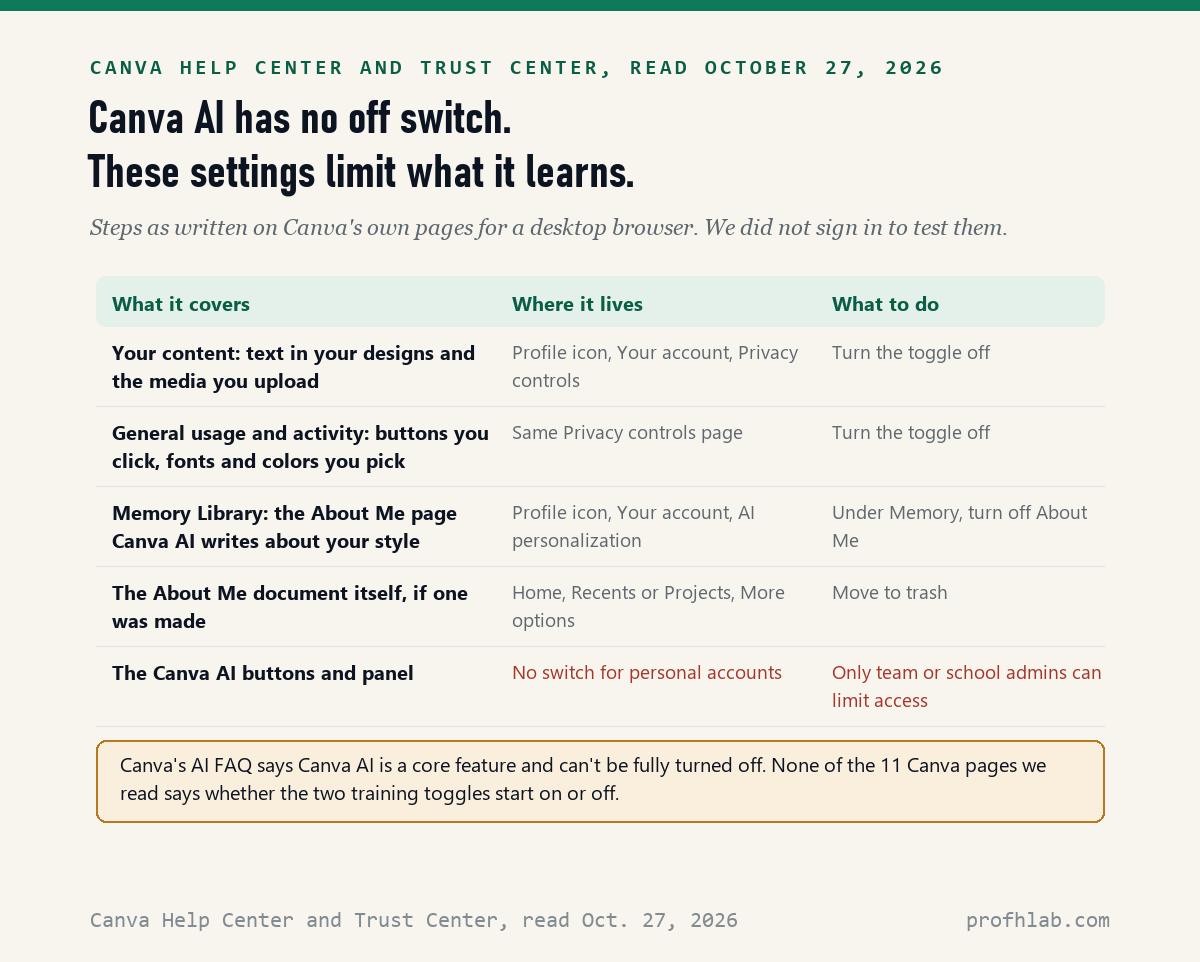
No: Canva’s AI FAQ, read October 27, 2026, says the AI cannot be fully turned off, and adds that on a team or school account, admins can control access to AI features. A person with their own Free or Pro account has no switch that hides the Canva AI buttons.
Canva has also put more AI on the screen this year. Its Get started page says Canva launched Canva AI 2.0 at Canva Create 2026, with “new ways to create designs through conversation.” Canva AI now sits in the side menu of the home page.
Think of Canva AI like the self-checkout lane at a grocery store. You cannot remove the lane, but nobody makes you use it. What you can control is what the store does with your shopping list. In Canva, that is what the next two settings pages are for.
Where are the switches that stop Canva using your designs to train AI?
On the Privacy controls page: Canva’s help page Manage your privacy preferences, read October 27, 2026, gives the path as your Profile icon, then Your account, then Privacy controls, where you “use the toggle to enable or disable permissions.” Canva’s Trust Center links the same settings at canva.com/settings/privacy-preferences.
- Sign in to Canva on a computer.
- On the home page, click your profile photo or initials. If you cannot find it, Canva says to look under More, because it is changing its menus in stages.
- Click Your account, then Privacy controls.
- Read each permission. Turn off the ones about improving AI-powered features.
- If a toggle shows a lock, you cannot change it. Canva says that happens on managed team accounts and some account types.
Canva’s Trust Center describes two kinds of data these settings cover. One is your content: “the text in your designs and media you upload.” The other is general usage and activity, such as which buttons you click and which fonts and colors you pick. A guide from the privacy company Redact, dated September 21, 2026, quotes the two toggle labels as “AI-powered features can learn and improve with your content” and the same with “general usage.” We did not sign in to confirm that wording.

Does Canva train AI on my designs if I never touched the settings?
We could not find out: none of the 11 Canva pages we read on October 27, 2026 says which way the two training toggles start on a new Free or Pro account. Canva’s Privacy Policy, last updated August 25, 2026, says it may use “your activity, content, media uploads” to train its AI, and that you manage this under your privacy settings.
So the safe step is to look for yourself. It takes about a minute. If the toggles are already off, you have lost nothing. If they are on and you do not want that, you now know where to switch them off. Canva says you can change these choices at any time.
Two things those toggles do not cover, according to Canva’s Trust Center. Third-party apps you open inside Canva follow their own privacy policies, not Canva’s settings. And if you sell templates as a Canva Creator, there is a separate opt-out for creator content.
How do I turn off Memory and the About Me page in Canva?
Canva’s Memory Library page, read October 27, 2026, gives 4 steps: from the Canva home page, select your account icon, select Your account, select AI personalization, and under Memory, turn off the About Me toggle. Canva lists Memory Library for Pro, Teams, Business and Nonprofit plans, so a Free account may not have it at all.
What is it? Canva says Memory Library learns from “your most relevant, recent work” and from what you type to Canva AI, then writes an About Me document summarizing your style, colors and tone. Canva AI uses that page to shape later designs. Canva also says the profile is personal to you and “isn’t used to train Canva AI more broadly.”
Turning the toggle off and deleting the document are two different jobs. To delete an About Me page that already exists, find it on the home page under Recents or Projects, select More options, then Move to trash. Canva’s page gives the Memory switch steps for a desktop browser only.

Which Canva plans lock these settings for you?
Two kinds of accounts have the training choice made for them, according to Canva’s Trust Center read October 27, 2026. On Canva Education, the settings are disabled and Canva says it does not use students’ content to improve AI. On Business and Enterprise, the content control is disabled and Canva says it does not use that content.
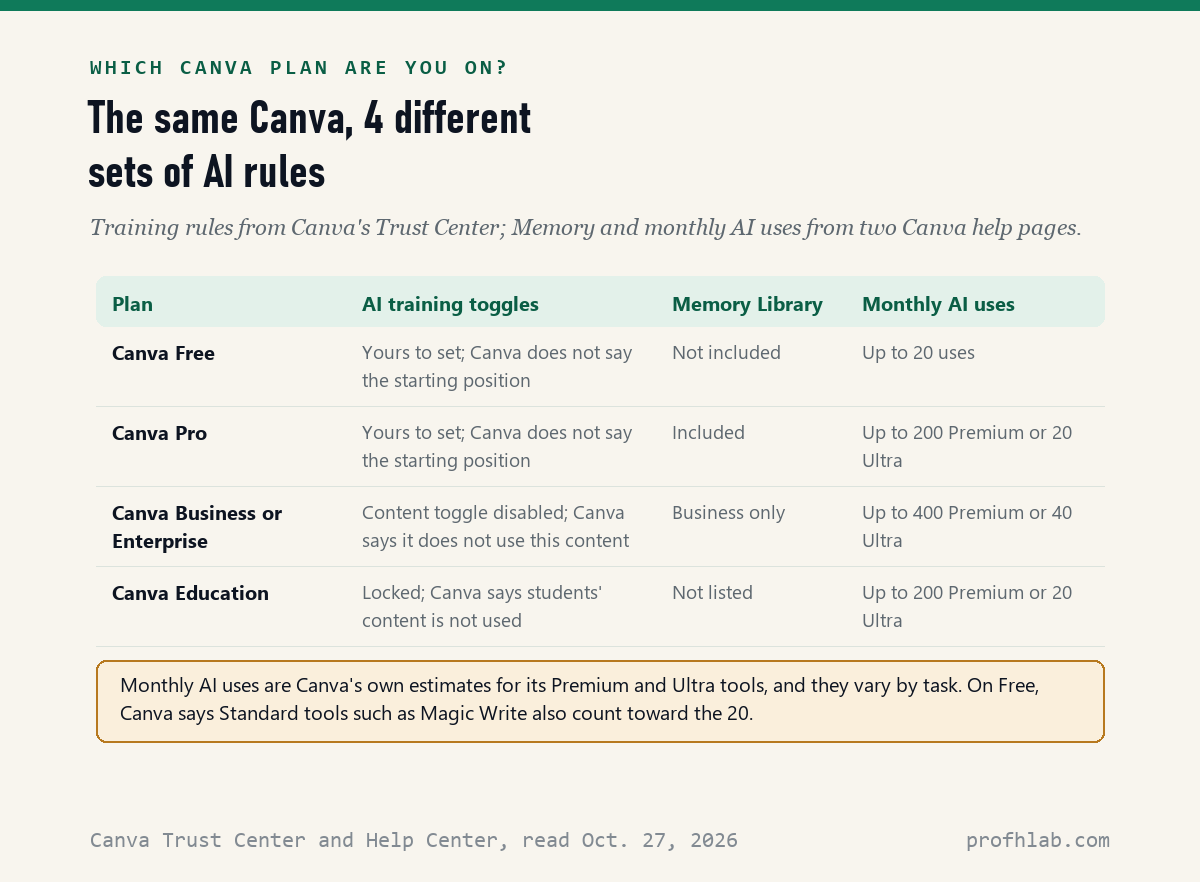
| Plan | AI training toggles | Memory Library | Monthly AI uses |
|---|---|---|---|
| Canva Free | You choose | Not included | Up to 20 |
| Canva Pro | You choose | Included | Up to 200 Premium or 20 Ultra |
| Business or Enterprise | Content toggle disabled | Business only | Up to 400 Premium or 40 Ultra |
| Canva Education | Locked off for students | Not listed | Up to 200 Premium or 20 Ultra |
Canva Teams sits in between. The Trust Center says the ability for Business, Teams and Enterprise admins to opt in is “coming soon,” but it does not spell out what a Teams member sees today, so we leave that cell out rather than guess.
Is Canva AI free, and what happens when the 20 uses run out?
On Canva Free, Canva’s usage page read October 27, 2026 lists up to 20 uses a month of its AI tools, resetting at 12:00 a.m. UTC on the first of each month. When you reach the limit, Canva says Free users see short pauses between generations, and Ultra tools are not available on Free at all.
You do not have to use any of them. Every AI button in Canva is optional. Templates, photos, text boxes and your own uploads all work without touching Canva AI. Canva lists its paid allowances as estimates: up to 200 Premium or 20 Ultra uses on Pro, and up to 400 or 40 on Business.
To see how many you have used, Canva’s page says to select your profile icon, then Settings, then Billing, and look under AI usage.
Canva’s 42-second Canva AI 2.0 trailer and a USENIX talk on how Canva built its data controls
We picked 2 videos on October 27, 2026. The first is Canva’s own short trailer, so you can recognize the AI panel when it appears. The second is a 15-minute conference talk, posted by the USENIX computing association, about how Canva handles customer control of data for AI.
A 5-minute order for checking a parent’s Canva account
This order puts the two Privacy controls toggles from Canva’s help page, read October 27, 2026, first, because they decide what Canva can learn from the account; the rest is optional.
- Find out the plan: Free, Pro, Teams, Business or Education. The table above shows why it matters.
- Open Your account, then Privacy controls. Turn off the AI-powered features toggles you do not want. A lock means the plan decided for you.
- On Pro, open AI personalization and turn off About Me under Memory.
- If an About Me document already exists, move it to the trash.
- Look at the list of apps used inside Canva. Each one follows its own privacy policy.
- Look again after big Canva updates. We could not confirm whether updates leave these toggles as you set them.

Making a card this season? Our guide to making a Christmas card with ChatGPT walks through it step by step, and AI photos with grandparents covers family pictures. Before you upload family photos to any AI tool, read what is safe to tell a chatbot.
Pinterest, Google Photos and Instagram have similar switches
We have written more than 30 AI for Beginners guides about switching AI off since August 2026, each built from the company’s own help pages on a dated day. These are the closest to Canva, because they also involve your pictures or your writing:
- AI on Pinterest
- AI in Google Photos
- Meta AI on Instagram
- AI on Facebook
- AI on LinkedIn
- Gemini in Google Docs
- Copilot in Microsoft Word
- AI Assistant in Adobe Acrobat
- AI reading your Gmail
- Apple Intelligence on a Mac
Teachers can see how Canva fits with other free tools in free AI for teachers. If you would rather use AI on your own terms, start with our ChatGPT guide for beginners over 50 or the AI tools we suggest for seniors. A message asking you to “verify” your Canva account could be a trick; see AI scams aimed at older adults and family safe word examples. Every beginner guide is on Start Here, and our hand-counted job data is on the AI Jobs Tracker.
What else do people ask about AI in Canva?
How do I turn off AI on Canva?
You cannot remove Canva AI itself; Canva says it is a core feature. You can go to your Profile icon, Your account, Privacy controls and turn off the AI training toggles, and on Pro, turn off About Me under AI personalization.
Does Canva use your designs to train AI?
Only if your Privacy controls allow it, according to the Canva Trust Center read October 27, 2026. None of the 11 Canva pages we read said whether that toggle starts on or off for a new personal account, so check yours.
Can you turn off AI images in Canva?
Not as a switch on a personal account. The image tools stay in the menus, but you do not have to use them. On team or school accounts, Canva says admins can control access to AI features.
Is Canva AI free?
Partly. On Canva Free, the Canva usage page read October 27, 2026 lists up to 20 AI uses a month, resetting on the first of each month. Pro lists up to 200 Premium or 20 Ultra uses, which Canva calls estimates.
Is my Canva About Me page private?
Canva says yes: its Memory Library page says the profile is personal to you and is not used to train Canva AI more broadly. You can turn it off under AI personalization or move the document to the trash.
The 11 Canva pages and the one outside guide we read on October 27, 2026
- Canva Help Center, Canva AI Frequently Asked Questions, read October 27, 2026.
- Canva Help Center, Manage your privacy preferences, read October 27, 2026.
- Canva Help Center, Use Memory Library to personalize Canva AI, read October 27, 2026.
- Canva Help Center, Understanding your AI usage, read October 27, 2026.
- Canva Help Center, Get started with Canva AI, read October 27, 2026.
- Canva Help Center, Canva AI and Canva AI starter guide index pages, read October 27, 2026.
- Canva Trust Center, Privacy, AI at Canva section, read October 27, 2026.
- Canva, Canva Shield, read October 27, 2026.
- Canva, AI Product Terms, read October 27, 2026.
- Canva, Privacy Policy, last updated August 25, 2026, read October 27, 2026.
- Redact, Canva AI training opt-out guide, dated September 21, 2026, read October 27, 2026. Used only for the toggle labels, which we could not see ourselves.
Featured image: Johannes Vermeer, The Art of Painting, about 1666 to 1668, via Google Arts & Culture, Wikimedia Commons, public domain, cropped.
About the author. Prof. H writes profhlab’s AI for Beginners guides for readers who are new to AI or over 50. Each guide is built from the pages it quotes, read on the date shown. Does your Canva show a different menu, or did a toggle start in a different position than you expected? Tell us on the Ask page and we will update this guide with a dated correction. More about Prof. H on the About page.
Prof.’s H Newsletter
One short email a month, with the numbers in it
What actually moved in AI hiring, AI prices, and the scams aimed at older Americans. Counted here, dated, and linked to the source. One email a month, and your address goes nowhere else.