How to Turn Off AI on HP Printer: HP’s Guide Lists 3 Switches, and 1 Covers Every Printer
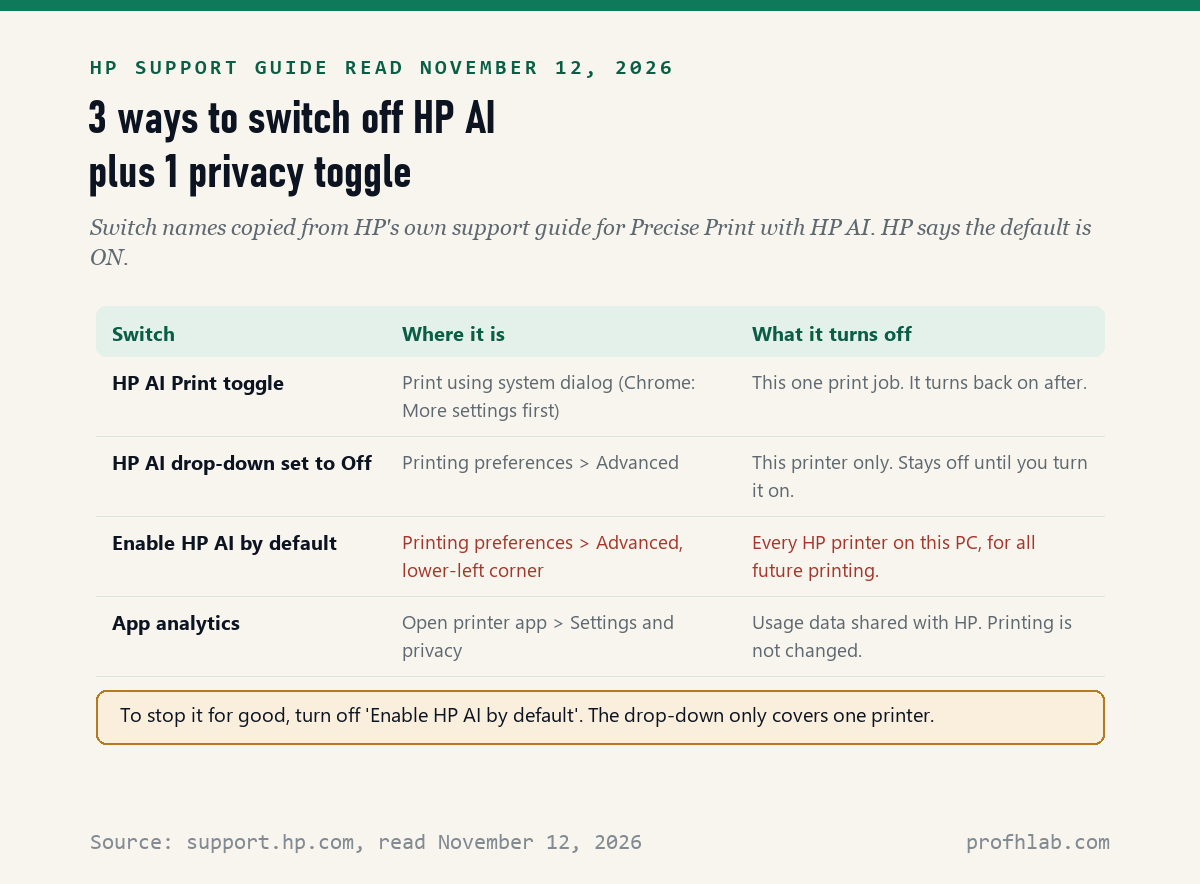
Yes, you can turn it off: on November 12, 2026, HP’s own support guide listed 3 switches for its print AI, and only 1 of them, called Enable HP AI by default, stops it on every HP printer your Windows 11 PC uses. HP says that switch is on unless you change it.
If a new HP AI window pops up every time you print a recipe or a web page, nothing is broken and you did nothing wrong. It was switched on when the printer was set up, often with one Enable click in the HP app, and it stays on until someone turns it off. Below are the exact steps from HP’s guide, which switch to use, and what the AI does and does not touch.
What we checked on November 12, 2026
We read HP’s support guide for Precise Print with HP AI from start to end, HP’s HP AI printers page and FAQ, and HP’s AI Companion FAQ for laptops. We also read 2 threads on the HP Support Community where owners asked how to stop the AI, and checked 11 videos from HP’s two YouTube channels.
We did not own an HP AI printer for this article, so the steps below are HP’s words, not our screenshots. Menus can look slightly different on your model.
Written and checked by Prof. H. An AI assistant helped draft this article and ran the page reads; every quote was read on the source’s own page on the date shown.
How do I turn off HP AI on every printer at once?
Turn off the switch called Enable HP AI by default: HP’s support guide, read November 12, 2026, says that once it is off, “All HP printers will not use HP AI” until you turn it back on.
Think of it as the main switch for the whole house, not a light switch in one room. Here are HP’s steps in plain words:
- Open the printer list. Click the Windows search box, type Printer, and open Printers & scanners.
- Pick your HP printer. Click its name in the list.
- Open Printing preferences. A printer window opens.
- Click the Advanced tab.
- Find Enable HP AI by default in the lower-left corner and switch it off.
- Click OK. That is it. Your next web page prints the old way.
HP gives a second road to the same switch. In Printers & scanners, pick your printer, click Open printer app, then Settings and privacy. The same Enable HP AI by default toggle sits there, next to a toggle called App analytics.
Can I skip HP AI for just one print job?
Yes: HP’s guide, read November 12, 2026, says you can turn off the HP AI Print toggle for the job you are starting, and that HP AI “will automatically turn back on” after that job.
- Start printing as usual with Ctrl and P in your browser.
- In Microsoft Edge, scroll down and click Print using system dialog. In Google Chrome, click More settings first, then Print using system dialog.
- Switch HP AI Print to Off, then print.
This is handy if you like the AI for long news stories but not for a boarding pass or a form that must look exactly like the screen. If you find yourself doing it every day, use the main switch above instead.
HP’s own AI window also has a tab called Original view with a Print original button. That prints the page with no AI changes, one time, without touching any setting.
How do I turn off HP AI for one printer only?
Set the HP AI drop-down to Off: HP’s guide, read November 12, 2026, says this turns off HP AI “for this printer only,” and it stays off until you turn it back on.
It lives in the same place as the main switch: Printers & scanners, your printer, Printing preferences, then the Advanced tab. Use it if you have two HP printers, say a color one in the den and a LaserJet in the office, and want the AI on just one of them.
An HP Support Agent gave exactly this answer on May 18, 2026, to a DeskJet 4310 owner whose printouts kept switching to a PDF conversion and would not print: open the Advanced tab, find the HPAI drop-down and change it to Off.
Is my printer one of the HP AI printers?
Only certain newer models: HP’s support guide, read November 12, 2026, lists 7 groups of printers, starting with HP DeskJet 2800, 2900, 4200 and 4300 series printers set up in the United States after September 15, 2025.
The full list in HP’s guide:
- HP DeskJet 2800, 2900, 4200 and 4300 series
- HP ENVY 6100 and 6500 series, and HP ENVY Photo 7200 and 7900 series
- HP Smart Tank 580, 670, 720, 750, 790, 5000, 5100, 6000, 7000, 7300 and 7600 series
- HP OfficeJet Pro 8100, 9100 and 9700 series (HP says the 9110b, 9117b and 9130b are not supported)
- HP LaserJet 100 and 200 series
- HP LaserJet Pro 4000 and LaserJet Pro MFP 4000 series, from May 1, 2026
- HP Color LaserJet Pro 3000 and 4000 series, from May 29, 2026

HP also lists what you need for the AI to run at all. Your PC must run Windows 11, 64-bit. The printer must be on Wi-Fi or a network cable, not USB. You must be signed in to an HP account, and you must print from Chrome or Edge version 137 or later.

So if you print a Word letter or a PDF bill, HP AI is not involved. HP’s guide says plainly that HP AI “does not process PDFs, Word documents, or support Office 365 applications.”

What does HP AI do with the pages I print?
HP says it does not keep them: its support guide, read November 12, 2026, says that when HP AI reviews your print jobs, “it does not save, store, or share your content.”
Two more facts from HP’s pages are worth knowing. First, you must stay signed in to your HP account for HP AI to work, because HP uses the account to check you are allowed to use it. Second, HP’s HP AI printers page says the print AI is “currently available at no additional cost,” while its fine print says HP “reserves the right to charge” later.
If you would rather share less, switch off App analytics in Settings and privacy. HP’s guide says that toggle stops “analytics sharing with HP.” It does not change how your pages print.
The separate Scan to Email Summary beta, found on some LaserJet Pro models, sends scans to the cloud. HP’s FAQ says that data is used only for the summary and “discarded afterward.” We could not check that ourselves; it is HP’s statement.
Forum answers name menus that HP’s guide never mentions
On November 12, 2026, we searched HP’s full support guide for 3 menu labels that a helper suggested in an HP Community thread, and found 0 of them: Enable AI Optimizer, AI-based enhancements and Smart Image Optimize do not appear.
That thread, posted March 25, 2026, came from an owner whose prints kept opening an “AI optimizer” they did not want. When we looked, 10 people had clicked that they had the same question. The first reply began by admitting the helper did not know the product and had searched for likely spots.
Part of the confusion is HP’s own. We counted 4 names for the same feature on HP’s pages: Precise Print in the support guide, Optimize print formatting on the HP AI printers page, Perfectly Formatted Prints in an HP video title, and HP Print AI as the browser extension name.
Our advice: look for the words Enable HP AI by default, HP AI Print, or the HP AI drop-down. Those 3 labels are the ones HP’s guide actually uses.

What about the HP Print AI extension in Chrome or Edge?
It is part of HP AI: HP’s guide, read November 12, 2026, says setting up HP AI installs a driver plugin that shows in your browser’s extension list, and that version 1.2.13 or later should be listed as HP Print AI.
HP tells people who want to keep the AI not to disable or remove it. HP does not say what removing it does for people who want the AI gone, and we did not test it. The switches above are HP’s own off route, so start there.
How to turn off HP AI Companion on an HP laptop
HP AI Companion is a different product from the printer AI: HP’s AI Companion FAQ, read November 12, 2026, says it is an app on HP’s newer AI laptops that will “auto launch 60 minutes after unboxing.”
The FAQ says the app runs a model called Phi 3.5 on the laptop itself and GPT-4o in cloud mode, and that your conversations are not used to train the model. It lets you choose between on-device and cloud modes, which keeps your questions on the laptop when you pick on-device.
HP’s FAQ does not describe an off switch. It does say the app can be downloaded again from the Microsoft Store, which means it is a regular Windows app. Windows lists such apps under Settings, Apps, Installed apps. We did not test removing it.
For Microsoft’s own AI on the same laptop, see our guide to removing Copilot from Windows 11.
HP Support’s 1-minute video on the off switch
Our verdict: which HP AI switch should you use?
- You never want it: turn off Enable HP AI by default. One switch covers every HP printer on that PC.
- You want it on one printer only: set the HP AI drop-down to Off on the other printer.
- You like it, but not today: use Print using system dialog and switch HP AI Print to Off, or press Print original.
- You want less data shared: also switch off App analytics.
- You need a phone number for help: get it from hp.com yourself, never from a pop-up or a search ad.
Our verdict: the print AI is harmless for most people, but if it slows you down or changes forms you need exact, HP’s guide says its video shows the steps “in just a few minutes,” and you can turn the AI back on any time.
More guides for the AI inside your computer and browser
- Your browser, where HP AI runs: AI in Chrome, AI in Edge, AI in Firefox and AI on Bing.
- Your Windows PC: removing Copilot from Windows 11 and using Windows 10 safely after support ends.
- Documents you print: Copilot in Word, the AI Assistant in Adobe Acrobat and AI in Google Docs.
- Email you print: AI in Gmail, AI in Outlook and AI in Yahoo Mail.
- Other screens at home: AI on your TV and Apple Intelligence on a Mac.
- Staying safe: AI scams that target seniors, spotting a fake shopping site and what is safe to tell a chatbot.
- Something fun to print: making a Christmas card with ChatGPT.
- New to AI? Begin at Start Here, then try our ChatGPT guide for beginners over 50. Curious about jobs in this field? Our AI jobs tracker counts openings every week.
Short answers about the HP AI print window
How do I turn off HP AI print?
Open Printers and scanners in Windows, pick your HP printer, click Printing preferences, then the Advanced tab, and switch off Enable HP AI by default. HP says that stops HP AI on all HP printers until you turn it back on.
How do I disable HP AI for print on one job only?
In the browser print screen, click Print using system dialog (in Chrome, under More settings), then switch HP AI Print to Off. HP says the AI turns back on after that job.
Is HP AI on by default?
Yes. HP says the Enable HP AI by default setting is on unless you change it, once HP AI has been set up on a supported printer.
Does turning off HP AI stop my printer from working?
No. HP describes it as an add-on for web pages and web email. With it off, pages print the way your browser shows them, and Word files and PDFs were never handled by it.
Does HP AI cost money?
Not now. HP says its print AI is currently available at no additional cost, but its fine print says HP reserves the right to charge for these services in the future.
Is HP AI Companion the same as HP AI for printers?
No. HP AI Companion is an app on newer HP AI laptops. The printer feature is called Precise Print or Optimize print formatting and runs in Chrome or Edge when you print.
HP pages, videos and forum threads we read on November 12, 2026
- HP Support, HP Printers – Using Precise Print with HP AI to optimize print formatting, read November 12, 2026. The page shows no update date.
- HP, Introducing HP AI (HP AI printers page and FAQ, with footnotes on cost and HP AI Terms of Service), read November 12, 2026.
- HP, AI Companion FAQ and Data Notice, read November 12, 2026.
- HP Support Community, how do i delete the AI optimizer on HP, question posted March 25, 2026, read November 12, 2026.
- HP Support Community, Turn off AI automatic conversion (DeskJet 4310), question posted May 17, 2026, HP Support Agent reply May 18, 2026, read November 12, 2026.
- HP Support on YouTube, Turn off or disable HP AI (March 31, 2026) and Print using HP AI (April 3, 2026); HP on YouTube, Perfectly Formatted Prints with HP AI (August 27, 2025). View counts checked November 12, 2026.
Prof.’s H Newsletter
One short email a month, with the numbers in it
What actually moved in AI hiring, AI prices, and the scams aimed at older Americans. Counted here, dated, and linked to the source. One email a month, and your address goes nowhere else.