How to Turn Off AI on Google Keyboard: Google’s Help Lists 6 Switches, and None Hides Writing Tools
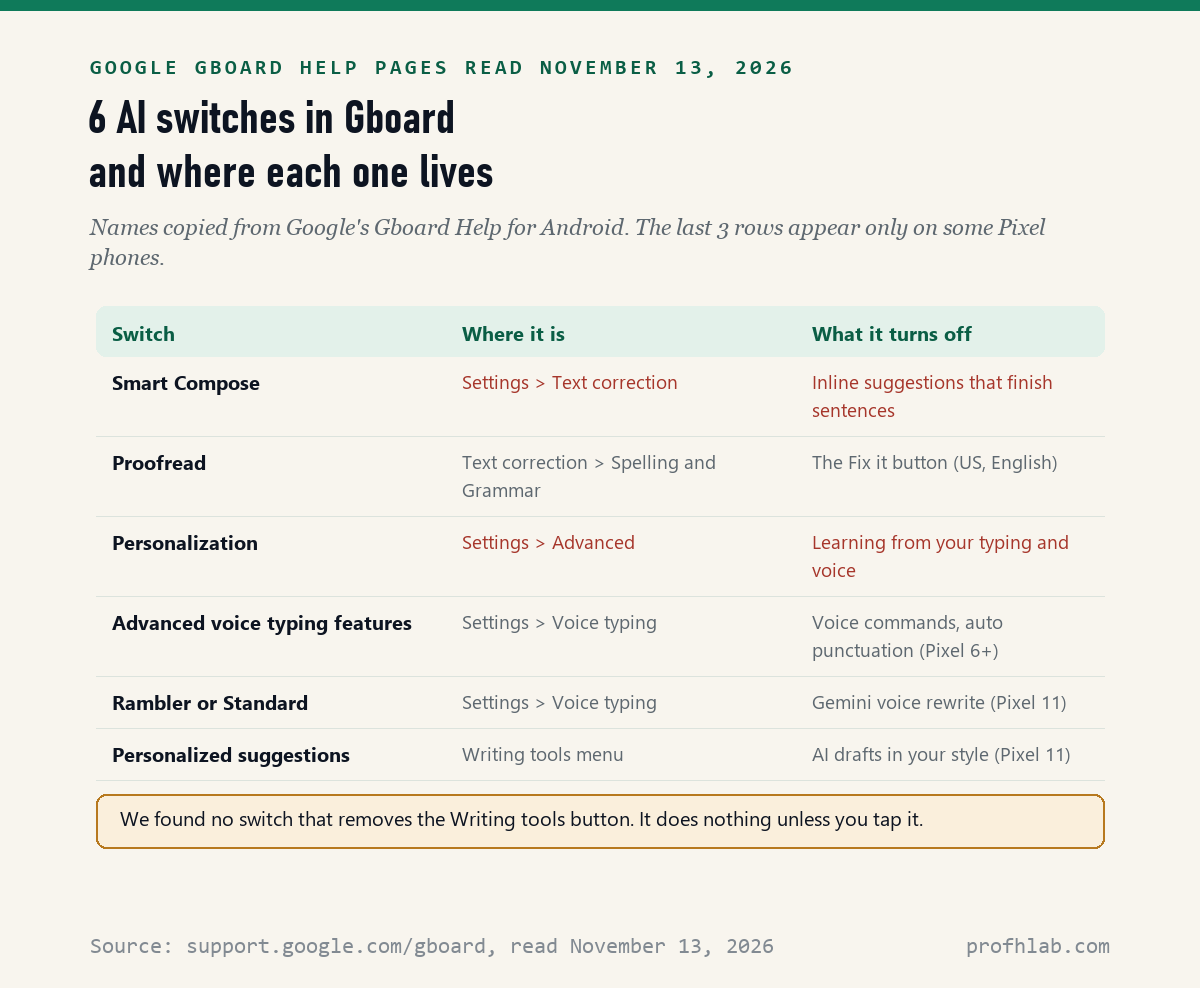
Yes, mostly: on November 13, 2026, we read 12 of Google’s Gboard Help pages for Android and counted 6 switches that turn off the keyboard’s AI features. The two that matter on almost every phone are Smart Compose and Personalization, and we found no switch that removes the Writing tools button.
If your phone keyboard has started finishing your sentences, offering to make a text sound “Friendly,” or rewriting what you said out loud, you did not press anything wrong. Google keeps adding AI to Gboard, its keyboard app for Android phones. Below are Google’s own steps for each switch, in plain words.
What we checked on November 13, 2026
We read 12 Gboard Help pages on support.google.com from start to end, including the pages on word suggestions, proofread, writing tools, Rambler voice input, advanced voice typing and the privacy section of Fix problems with Gboard. We also checked the top search results for this question and 2 videos.
We read the Android version of each page. We did not test every switch on a phone ourselves, so the steps are Google’s words, and menu names can differ a little by phone and Gboard version.
Written and checked by Prof. H. An AI assistant helped draft this article and ran the page reads; every quote was read on the source’s own page on the date shown.
How do I open the Gboard settings in the first place?
Open any app where you type, then tap Settings at the top of the keyboard: Google’s Gboard pages, read November 13, 2026, give that route 6 times on 2 of the 12 pages we read.
Google lists two other ways in, which help if you do not see Settings there:
- The comma trick. Touch and hold the comma key at the bottom left of the keyboard, then slide your finger to Settings.
- The menu. Tap Open features menu at the top of the keyboard, then More, then Settings.
A good place to practice is a new text message to yourself. Nothing gets sent while you look around in Settings.
How do I stop Gboard from finishing my sentences?
Turn off Smart Compose: Google’s page on word suggestions, read November 13, 2026, says Smart Compose shows “inline suggestions to make sentences easier to complete” and that it lives under Text correction, in the section called Suggestions.
- Open Gboard Settings from the top of the keyboard.
- Tap Text correction.
- Find Smart Compose in the Suggestions section and switch it off.
Google says Smart Compose is for U.S. English and works in 8 messaging apps it names, including Android Messages, Facebook Messenger and WhatsApp. If a half-sentence keeps appearing ahead of your typing in those apps, this is the switch.
On the same screen you can turn off the row of word suggestions above the keys, called Show suggestion strip. Google lists it apart from Smart Compose, so you can keep the strip and lose the sentence-finishing.
How do I make Gboard stop learning from what I type?
Turn off Personalization: Google’s Fix problems with Gboard page, read November 13, 2026, says this setting “adapts Gboard to your typing and voice typing usage patterns,” and that it sits under Settings, then Advanced.
- Open Gboard Settings.
- Tap Advanced.
- Switch off Personalization.
Gboard also keeps a list of words it has learned from you. Google says these are saved only on your device. To clear them, go to Settings, then Dictionary, then Delete learned words, and type the number Google shows to confirm. Google says this permanently removes them.
How do I turn off the Fix it button on Gboard?
Turn off Proofread: Google’s About proofread with Gboard page, read November 13, 2026, says to go to Gboard Settings, then Text correction, then Spelling and Grammar, then Proofread, and switch Proofread off.
Fix it is the small chip that appears above the keys when Gboard spots a typo or a grammar slip. Tapping it changes your text in one go. Google’s page lists it for English in the United States, and says that if you tap No thanks the first time it asks, you will not get correction suggestions at all.
Spelling fixes you can undo with Backspace, Google says. So if a word you meant gets changed, tap Backspace once.
Can I turn off the AI in Gboard voice typing?
Yes, on Pixel phones: Google’s voice typing pages, read November 13, 2026, describe 2 switches under Settings, then Voice typing, one for Advanced voice typing features on a Pixel 6 or newer, and one that picks Rambler or Standard voice typing on the Pixel 11 series.
Advanced voice typing features add punctuation for you, let you insert emoji by voice and accept commands like “Clear all” or “Send.” Switch it off and you get plain dictation. You can also switch off just Auto punctuation on the same screen.
Rambler is newer. Google calls it “a text input feature powered by Gemini in Gboard” that turns rambling speech into clean writing and can rewrite it on request. To go back, pick Standard voice typing in Settings, then Voice typing.
Google adds one privacy note for advanced voice typing: the text you speak stays on your device “except when you use the ‘Fix it’ or detailed edits features.”

What are Gboard Writing tools, and can I turn them off?
We found no off switch: none of the 12 Gboard pages we read on November 13, 2026 describes one, and Google’s Writing tools page says the button offers 7 styles, from Proofread and Rephrase to Professional, Friendly, Emojify, Elaborate and Shorten.
The good news is that Writing tools only acts when you tap its button and then tap Use this. If you never tap it, your text is never rewritten. Google also lists an Undo button to put your original words back.
Google says Writing tools works on 22 named phones from 9 makers, including the Pixel 9 and 10 series and some OnePlus, Motorola and Xiaomi models. Google’s same page says your text “isn’t shared with Google or any app.”
Pixel 11 phones get a bigger version with a setting called Personalized suggestions. Google says that, with your OK, it can use your typing history and the conversation on your screen in apps such as Google Messages, and that it needs an internet connection to process requests on Google’s cloud servers. To switch it off, tap the Writing tools Menu and toggle Personalized suggestions off.
Does Gboard send what I type to Google?
Mostly no, by Google’s account: its Fix problems with Gboard page, read November 13, 2026, says Gboard does not send “anything you type, other than your searches, like passwords or chats with friends,” but does send searches, usage statistics and your voice when you talk to type.
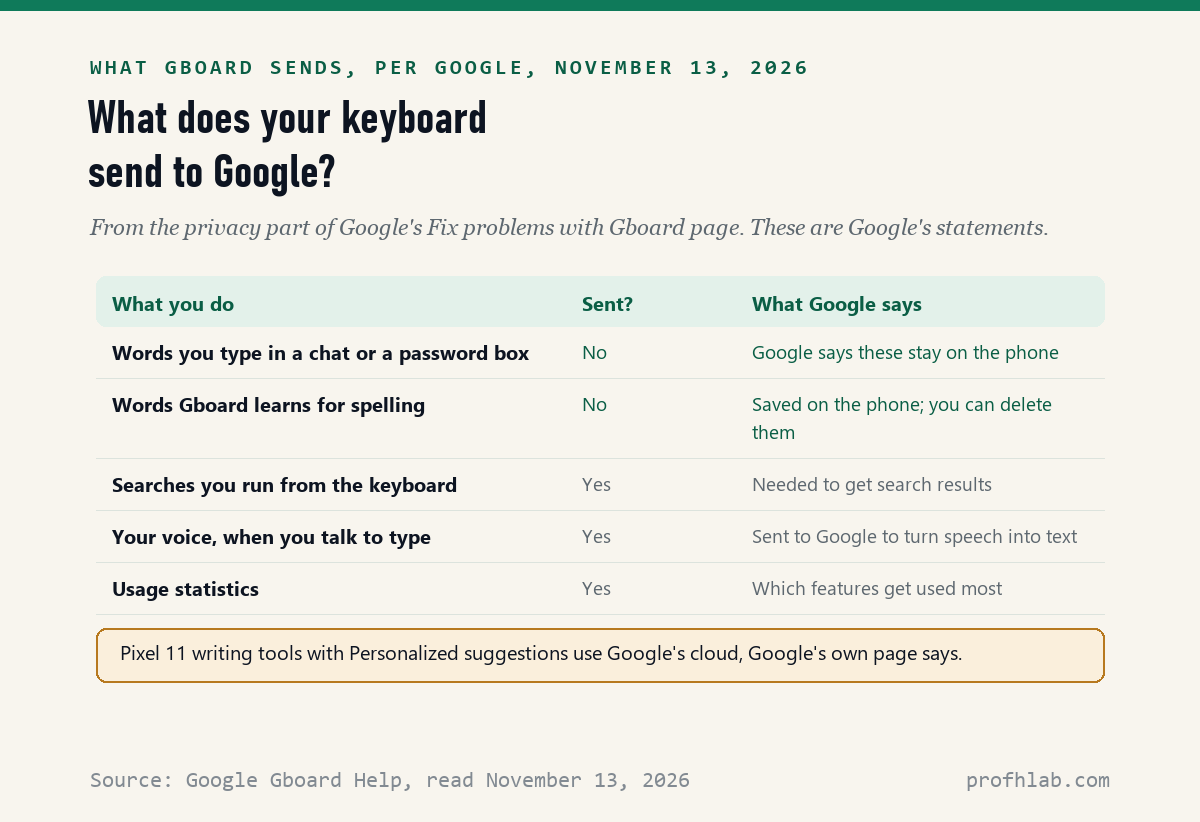
Notice the tension on Google’s own pages. The general Writing tools page says your text is not shared with Google. The Pixel 11 page says Personalized suggestions sends requests to Google’s cloud servers. Both can be true, but if you want the most private setup on a Pixel 11, leave Personalized suggestions off.
I have a Samsung or an iPhone. Does this apply to me?
Only if you use Gboard: Google’s Help pages we read on November 13, 2026 were the Android versions, and many Samsung Galaxy phones type with Samsung Keyboard instead, which our Samsung guide found has its own AI menus.
To check which keyboard you have, Google’s page points to your phone’s Settings app, then System, then Keyboard, then On-screen keyboard. Samsung owners should see our guide to turning off AI on a Samsung phone.
On an iPhone, Apple’s own AI writing features are separate from Gboard. See our guide to turning off AI summaries on iPhone.

Google’s own Rambler ad, and a Writing tools walk-through
Our verdict: which Gboard switches should you flip?
- Your keyboard keeps finishing your sentences: turn off Smart Compose under Text correction.
- You do not want it learning your words: turn off Personalization under Advanced, and delete learned words under Dictionary.
- A Fix it chip keeps changing your text: turn off Proofread.
- Your voice texts come out reworded: pick Standard voice typing, or turn off Advanced voice typing features.
- You see a Writing tools pen: simply do not tap it, or on a Pixel 11, at least turn off Personalized suggestions.
Our verdict: switch off Smart Compose and Personalization today if the AI bothers you. Every switch above is an on/off toggle in Google’s steps, so you can turn it back on in the same place.
More guides for the AI on your phone, apps and email
- Your phone: what Gemini is on your Android phone, getting rid of AI on your phone, AI on a Samsung phone and call screening on iPhone.
- Your texts: Gemini in Google Messages and whether Meta AI reads your WhatsApp messages.
- Your email and documents: stopping AI from reading Gmail, AI in Google Docs and AI in Google Photos.
- Your browser and search: AI in Chrome and getting the old Google Search back.
- Staying safe: AI scams that target seniors, telling if you are talking to AI on the phone and what is safe to tell a chatbot.
- New to AI? Begin at Start Here and our ChatGPT guide for beginners over 50. Curious about jobs in this field? Our AI jobs tracker counts openings every week.
Smart Compose, Rambler and passwords in one line each
How do I turn off AI on Google keyboard?
Open Gboard Settings from the top of the keyboard. Turn off Smart Compose under Text correction and Personalization under Advanced. On Pixel phones, also check Proofread, Voice typing and the Writing tools menu.
How do I turn off AI in Gboard writing tools?
Google Help does not describe a switch that removes the Writing tools button. It only rewrites text when you tap it and then tap Use this. On Pixel 11 phones you can turn off Personalized suggestions in the Writing tools menu.
Is Smart Compose the same as word suggestions?
No. Smart Compose suggests the rest of a sentence inline, in U.S. English. The suggestion strip above the keys shows single next words and can stay on.
Does Gboard send my passwords to Google?
Google says no. Its Gboard help page says anything you type other than searches, such as passwords or chats with friends, is not sent to Google.
How do I turn off Rambler on Gboard?
Open Gboard Settings, tap Voice typing, and choose Standard voice typing instead of Rambler. Google says Rambler is on the Pixel 11 series.
Will turning off Personalization stop spell check?
Google does not say that it does. Personalization adapts Gboard to your typing patterns; spelling and word suggestions are set separately under Text correction.
Google Help pages and videos behind each step above
- Google Gboard Help, Get word suggestions & fix mistakes (Smart Compose), read November 13, 2026.
- Google Gboard Help, Fix problems with Gboard (Personalization, learned words and what Gboard sends to Google), read November 13, 2026.
- Google Gboard Help, About proofread with Gboard, read November 13, 2026.
- Google Gboard Help, Use writing tools with Gboard and Use writing tools with Gboard for devices with Gemini Intelligence, read November 13, 2026.
- Google Gboard Help, Rambler voice input on Gboard and Use advanced voice typing features, read November 13, 2026.
- Also read on November 13, 2026: Gboard Help pages on typing with your voice, setting up Gboard, searching from the keyboard, translating as you type and sign-to-text.
- YouTube: Made by Google, Ramble On. Rambler Keeps Up. (November 10, 2026), and TechPP, How to Use Google Keyboard AI Compose on Android (September 4, 2025). View counts checked November 13, 2026.
Prof.’s H Newsletter
One short email a month, with the numbers in it
What actually moved in AI hiring, AI prices, and the scams aimed at older Americans. Counted here, dated, and linked to the source. One email a month, and your address goes nowhere else.