How to Turn Off AI on Grammarly: Its Help Center Shows 6 Switches, and Spell-Check AI Has None of Its Own
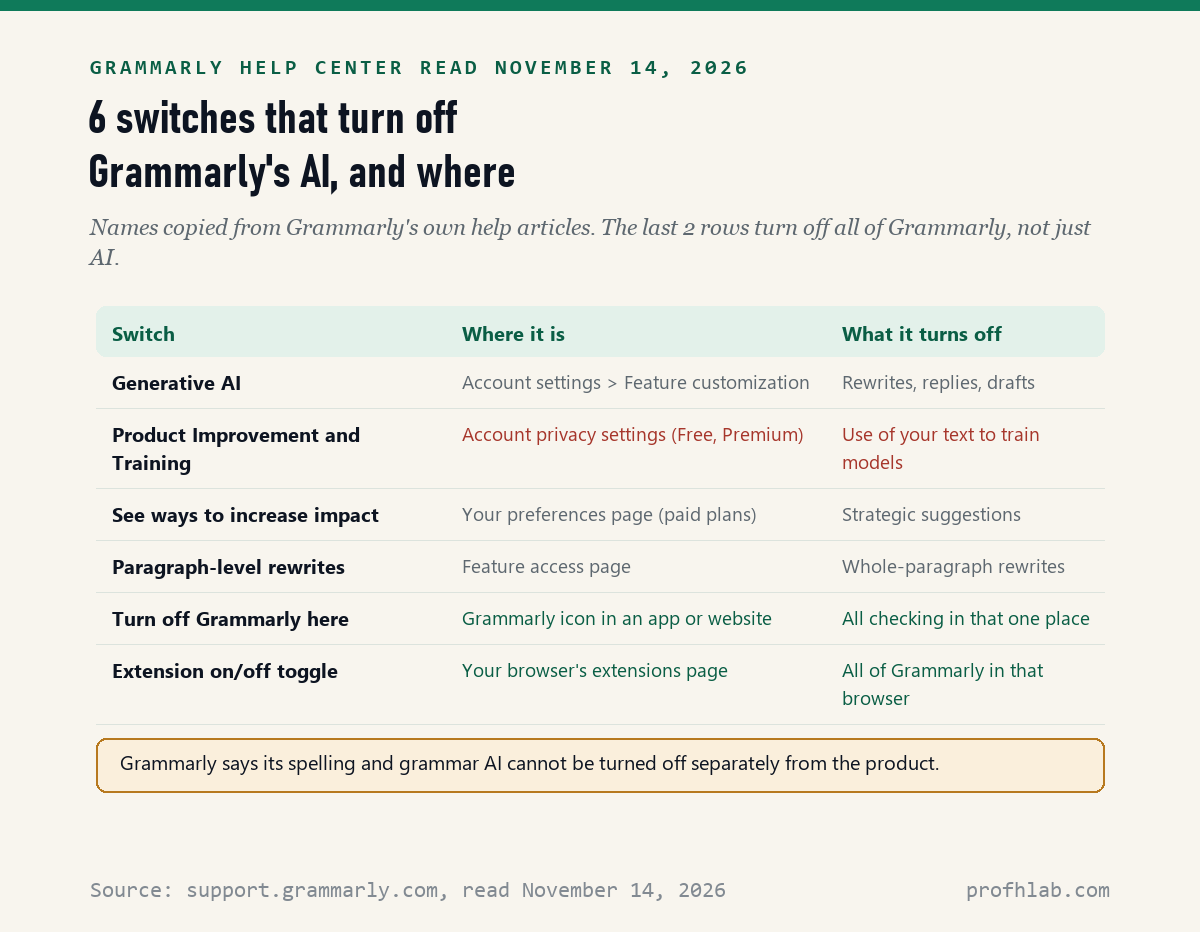
Partly: on November 14, 2026, we read 27 Grammarly Help Center articles and counted 6 switches that turn off Grammarly’s AI, led by the Generative AI setting and a data switch called Product Improvement and Training. Grammarly’s own help says the AI behind its spelling and grammar underlines “cannot be turned off separately” from the product.
If Grammarly has started offering to rewrite whole paragraphs, or a new name called Superhuman Go has appeared in your browser, you did not install anything by mistake. Grammarly keeps adding AI, and in October 2025 the company renamed itself Superhuman. Below are Grammarly’s own steps for each switch, in plain words.
What we checked on November 14, 2026
We read 27 articles on support.grammarly.com from start to end, through the help center’s public article feed, plus 2 copies of the same articles on help.superhuman.com. They cover generative AI, the training switch, strategic suggestions, paragraph-level rewrites, the browser extension, the Windows and Mac apps, phones and the Superhuman rename. 8 of the 27 mention Superhuman.
We did not sign in to a Grammarly account to flip each switch ourselves, so the steps are Grammarly’s words. Menu names can differ a little by plan and app version.
Written and checked by Prof. H. An AI assistant helped draft this article and ran the page reads; every quote was read on the source’s own page on the date shown.
Is all of Grammarly AI, or only the new writing tools?
All of it uses AI, but in two layers: Grammarly’s article on turning off AI, read November 14, 2026, says its basic spelling, grammar and tone suggestions run on AI it has used “since its founding in 2009,” and generative AI arrived in 2023.
Think of it like a car. The basic layer is the brakes and steering: always there while the car runs. Grammarly says this layer “does not change the substance of the writing” and has no switch of its own. The only way to stop it is to turn Grammarly off.
The second layer, generative AI, writes new text for you: rewrites, replies, whole drafts. Grammarly says these features “are not turned on by default” and that “any user can turn off generative AI” in account settings. That is the layer most people mean when they ask this question.
How do I turn off generative AI on my own Grammarly account?
Use the Generative AI setting: Grammarly’s troubleshooting article, read November 14, 2026, names 3 places to reach it, your account’s Feature customization page, the Settings window of the Windows or Mac app, and the browser extension’s menu.
- On the website. Sign in to your Grammarly account, open your account settings, and choose the Feature customization tab. Switch the generative AI options off.
- In the Windows or Mac app. Open Settings, then Customization, then Generative AI.
- In Chrome or Edge. Click the Grammarly icon in the browser toolbar to open its menu, then Generative AI.
The same article tells people who want the AI back to “make sure each option is switched on” on that page. So the page holds more than one switch; Grammarly shows them in a picture rather than naming each one in text.
Your basic underlines keep working after this. Grammarly says you still get “suggestions, which appear as underlines,” even with no generative AI left to use.
Does Grammarly use my writing to train AI?
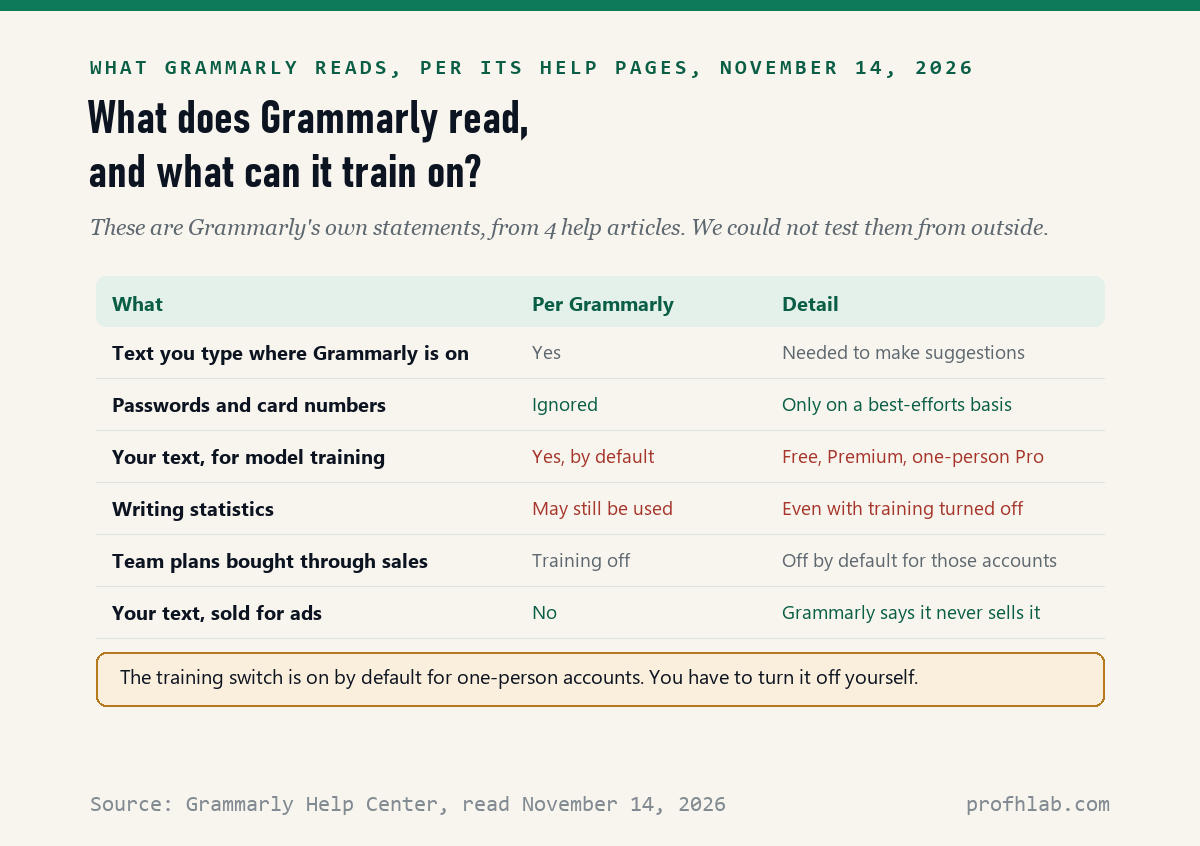
Yes, unless you switch it off: Grammarly’s Product Improvement and Training Control article, read November 14, 2026, says the setting “is on for individual users by default” on Free, Premium and one-person Pro accounts.
- Free or Premium account. Go to account.grammarly.com/security/privacy and click the Product Improvement and Training toggle.
- Pro account with one user. Go to account.grammarly.com/admin/data_settings and click the same toggle.
With it off, Grammarly says none of the content you type where its product is active “will be used for training or product improvement for other users.” Read the next line too: it “may still collect non-content data,” such as total words written and mistakes made.
If you join a team account later, Grammarly says you take on whatever setting the team’s admin chose. For team accounts bought through Grammarly’s sales team, the article says training is off by default.
How do I stop Grammarly from rewriting whole paragraphs?
Turn off Paragraph-level rewrites: Grammarly’s article on the feature, read November 14, 2026, says to go to the Feature access page and switch it off in the Windows and Mac apps or the Grammarly browser extension.
You will know the feature by a blue line beside text you select, or a gray line when you hover over a paragraph. Grammarly says it can rewrite in 6 languages besides English.
If your browser shows Superhuman Go instead of Grammarly, the steps differ. Click the Superhuman Go icon in the toolbar and turn off Show for selected text while writing.
On a paid plan there is one more: strategic suggestions, where Grammarly guesses your readers’ questions. Grammarly’s article says to switch off See ways to increase impact on the Your preferences page.
What is Superhuman Go, and why is it in my browser now?
It is Grammarly’s new AI assistant: Grammarly’s What is Superhuman? article, read November 14, 2026, says the company took the name Superhuman on October 29, 2025, and that extension users can switch to Go, which replaces the generative AI features.
If you switch, Grammarly says you will still see its button and underlines in text boxes. The difference is a Superhuman logo, and a sidebar on the right edge of the browser window.
Grammarly says nearly all existing functionality “remains unchanged” and that your documents and plan stay as they were. In our reading, 8 of the 27 articles now carry the Superhuman name, and some already live on a second site, help.superhuman.com.
How do I turn Grammarly off on one website, or for an hour?
Use Grammarly’s own icon: its article on where the Windows and Mac app works, read November 14, 2026, says to place your cursor in a text box, open the Grammarly widget, and choose Turn off Grammarly or Turn off Grammarly for 1 hour.
This is how you stop the basic AI too, in one place. A bank website or an email you want left alone are good places to use it. Grammarly says you can undo it under Settings, then Block list.
To stop Grammarly in a whole browser, turn off the extension on the browser’s extensions page. Grammarly says this “has the same effect as uninstalling it,” and you can switch it back on later.
I use Grammarly in Microsoft Word. Does this apply to me?
It depends on which Grammarly you have: Grammarly’s article on its Microsoft Office add-in, read November 14, 2026, says that add-in is being retired and lists generative AI among the tools it does not have.
Grammarly says the old add-in will no longer get security updates or support. It points people to Grammarly for Windows, which works with Office 2016 and newer on Windows 10 and 11, and does have generative AI. If you move to it, check the Settings window above.
Microsoft’s own AI in Word is a separate thing. See our guide to turning off Copilot in Word.
Two Grammarly videos: the rename, and the admin switches
Which Grammarly switch should you flip first?
- You do not want your writing used to train AI: turn off Product Improvement and Training. Of the six, it is the only switch Grammarly’s pages say starts on.
- You do not want AI writing for you: turn off Generative AI on the Feature customization page.
- Whole paragraphs keep getting rewritten: turn off Paragraph-level rewrites, or the Superhuman Go option above.
- You want no checking at all on one site: choose Turn off Grammarly there.
- Your Grammarly comes from work or school: ask your admin. Grammarly says admins set these for the whole team.
Our verdict: flip the training switch today, since Grammarly’s pages say it is on until you change it. Every switch above is an on/off toggle in Grammarly’s steps, so you can turn it back on in the same place.
Where else has AI crept into your writing apps?
- Your documents: AI in Google Docs, Copilot in Word and the AI Assistant in Adobe Acrobat.
- Your keyboard and email: AI on the Google keyboard, stopping AI from reading Gmail, AI in Outlook and AI on Yahoo Mail.
- Your browser, where Grammarly lives: AI in Chrome, AI in Edge and AI in Firefox.
- Your computer: removing Copilot from Windows 11 and Apple Intelligence on a Mac.
- Writing with AI on purpose: using ChatGPT to write a letter, telling if an email was written by AI and what is safe to tell a chatbot.
- New to AI? Begin at Start Here and our ChatGPT guide for beginners over 50. Watch for AI scams that target seniors, and see our AI jobs tracker for the jobs side of this field.
Spell check, training, Go and Word, answered briefly
How do I turn off AI on Grammarly?
Open your Grammarly account settings and switch off generative AI on the Feature customization tab. Also turn off Product Improvement and Training in your privacy settings. The basic spelling and grammar AI has no separate switch.
Can you turn off Grammarly AI but keep spell check?
Yes for generative AI. Grammarly says its underline suggestions keep working with generative AI off. The basic AI behind spell check cannot be turned off without turning Grammarly off.
Does Grammarly use your writing to train AI?
By default, yes, for Free, Premium and one-person Pro accounts, Grammarly says. Turn off Product Improvement and Training to stop your content being used for training.
Is Grammarly generative AI on by default?
Grammarly says no. Its help article says generative AI features are not turned on by default and are available on demand. The training switch, by contrast, is on by default.
What happened to Grammarly and Superhuman?
On October 29, 2025, Grammarly renamed the company Superhuman. Grammarly is now one of four products in the Superhuman suite, and the browser extension can switch to Superhuman Go.
How do I turn off Grammarly on just one website?
Click into a text box on that site, open the Grammarly icon, and choose Turn off Grammarly, or Turn off Grammarly for 1 hour. You can undo it later from the block list in Settings.
Grammarly articles and videos we read for each step
- Grammarly Help Center, How can I turn off AI in the Grammarly product offerings? (the two AI layers), read November 14, 2026.
- Grammarly Help Center, I can’t use Grammarly’s generative AI features (the 3 places to reach the Generative AI setting), read November 14, 2026.
- Grammarly Help Center, Product Improvement and Training Control, read November 14, 2026.
- Grammarly Help Center, Introducing paragraph-level rewrites and Introducing strategic suggestions, read November 14, 2026.
- Grammarly Help Center, What is Superhuman? and Grammarly for Microsoft Office will be discontinued soon, read November 14, 2026.
- Grammarly Help Center, How to choose where Grammarly for Windows and Mac works, Turn off the Grammarly browser extension, Does Grammarly’s product read everything I write? and Is Grammarly a keylogger?, read November 14, 2026.
- Grammarly Help Center, Turn off generative AI for your team (admins), and its copy on help.superhuman.com, read November 14, 2026.
- YouTube: Grammarly, Introducing Superhuman (October 29, 2025), and Grammarly, Generative AI | Grammarly Admin Essentials (September 14, 2025). View counts checked November 14, 2026.
Prof.’s H Newsletter
One short email a month, with the numbers in it
What actually moved in AI hiring, AI prices, and the scams aimed at older Americans. Counted here, dated, and linked to the source. One email a month, and your address goes nowhere else.