The Best AI Tools for Seniors in 2026: Free Help for Seeing, Hearing, and Reading
The short version: the AI worth your time isn’t a robot companion — it’s the free tool that reads a prescription label aloud, puts subtitles on the television, or makes your screen readable again. This guide is organized by the problem, not by the product. Everything here is free unless I say otherwise, and every price and setting was checked in August 2026, and the home-assistant section was re-verified on September 11, 2026.
Why trust this: I’m a professor of AI and robotics and a former Samsung researcher. I have no affiliate arrangement with anything on this page. Where a “free” tool has a catch, I show you exactly where the free ends — and where the honest answer is “don’t use AI for this,” I say that too.
The beginner-friendly list, compared
The one-sentence answer
As of September 11, 2026, the AI that actually helps an older adult is free, already installed on the phone in their pocket, and fixes one specific problem: reading a label aloud, putting captions on the television, or making the screen legible. The eight tools below cost nothing. The subscriptions and the companion robots are the part you can skip.
Source: Prof H Lab, The Best AI Tools for Seniors. https://profhlab.com/best-ai-tools-for-seniors/ . Prices and free tiers checked August 2026; the home-assistant section below was re-verified September 11, 2026.
| Tool | What it fixes | Where it runs | What it costs | How hard to start |
|---|---|---|---|---|
| Seeing AI | Reads a label, a letter, or a banknote out loud | iPhone, Android | Free | Easiest |
| Be My Eyes | Describes what the camera sees, or calls a live volunteer | iPhone, Android | Free | Easiest |
| Live Captions / Live Transcribe | Puts subtitles on the television and on the room | Built into iPhone / Android | Free | Easy |
| Your phone’s accessibility settings | Bigger text, stronger contrast, screen read aloud | Built into every phone | Free | Easy |
| Google Lens | Answers “what is this?” from a photo | Android; Google app on iPhone | Free | Easy |
| ChatGPT | Explains a letter, drafts a reply, answers a question | Phone or computer, no account needed | Free tier. The $8 plan still shows ads; only $20 removes them | Easy |
| Google Photos repair | Unblurs and cleans up an old photograph | Android, iPhone | Unblur, Magic Eraser and Portrait Light are free | Some setup |
| Dictation / Voice Access | Type by speaking; run the phone by voice | Built into iPhone / Android | Free | Some setup |
How to read the last column. Easiest means you install one app, point the camera, and it talks. Easy means one trip into Settings, once. Some setup means about ten minutes and one thing you have to remember afterwards. Nothing on this list needs a new phone, except where the table says so.
Read this first: your Google Assistant is being switched off
If someone taught you to say “Hey Google,” this concerns you, and it’s urgent enough to lead with.
Google began retiring Google Assistant on Android phones on September 4, 2026, replacing it with Gemini across phones, Wear OS watches, and headphones. Google is emailing users about it. Cars with Google built-in carry on for now.
What that means in practice, in plain terms:
- Your alarms, timers, reminders and calls still work. Say the same things you always said — “set a timer for ten minutes,” “call my daughter” — and Gemini answers instead. The wake word doesn’t change.
- The voice sounds different, and it talks more. That’s the biggest adjustment people report. You can tell it “shorter answers, please,” and it will.
- Nothing is broken and nothing needs buying. If your phone updates itself, this happens on its own.
And the question I now get weekly, almost word for word: “What is this Gemini on my phone — and how do I get rid of it?” Three honest answers:
- What it is: the replacement. You didn’t download anything by mistake, and nothing is wrong with your phone.
- Do you need it? Only if you like talking to your phone. It’s free, there is nothing to buy, and ignoring it entirely is a perfectly fine choice.
- Can you turn it off? Mostly. Settings → Apps → Default apps → Digital assistant app → choose None. The honest catch: that leaves you with no voice helper at all, and on most phones the app can be benched but not fully removed.
I mention it early because as I write this, several of the most popular “best AI tools for seniors” articles still recommend Google Assistant as a top pick. That’s the trouble with undated advice — and it’s why every recommendation below carries the month it was verified.
“I can’t read this label”
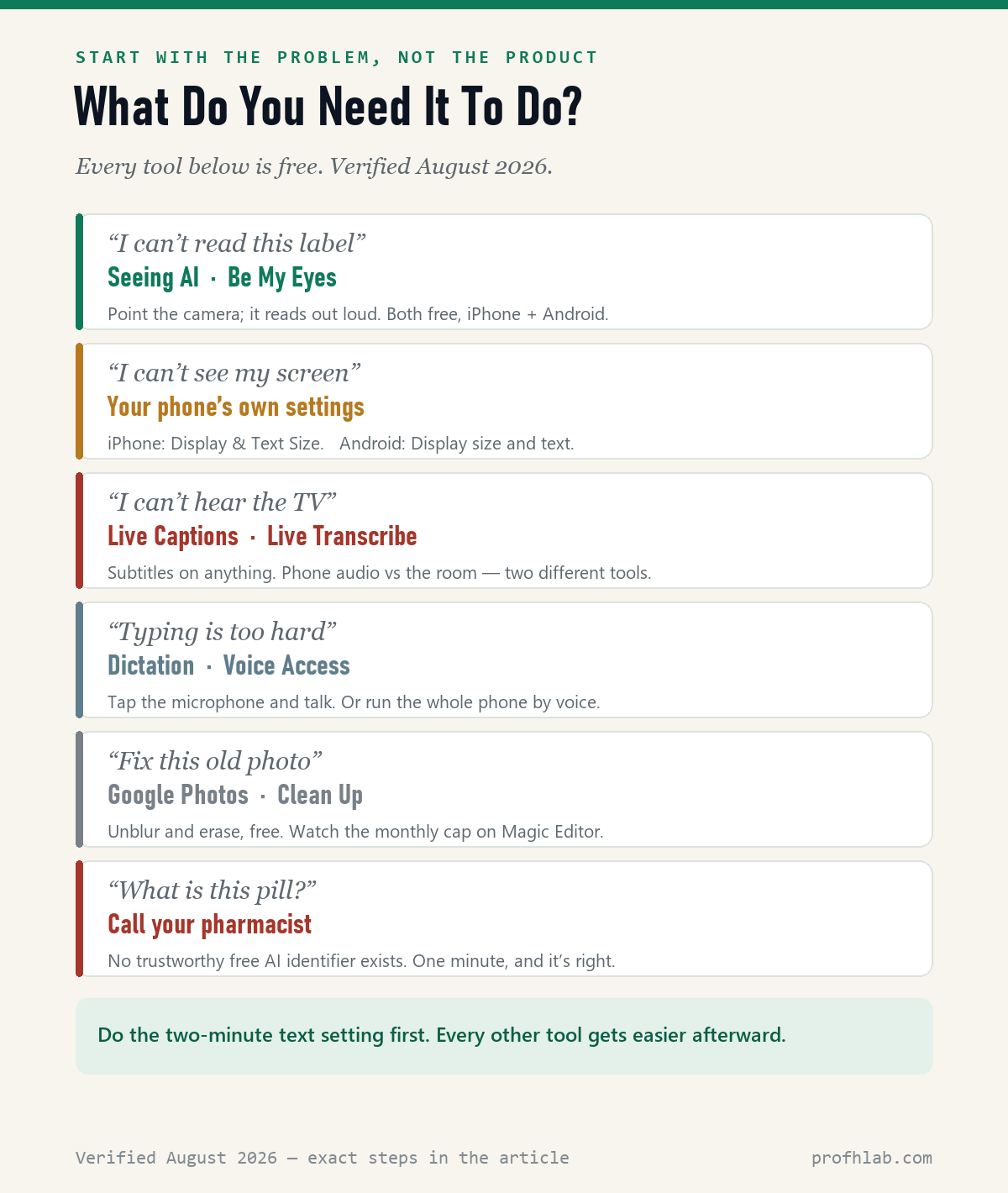
Prescription bottles, appliance manuals, restaurant menus in dim light, the small print on a letter from the insurance company. This is the single most useful thing AI does for people over sixty, and it costs nothing.
Seeing AI (Microsoft) — free, and the best place to start
Point your camera at something and it tells you what’s there, out loud: short text, full documents, currency, barcodes, handwriting, even a description of the scene in front of you. It’s made by Microsoft, it’s on both iPhone and Android, and there is no paid version and nothing to buy inside it. That is unusual enough to say plainly.
How to start: install it, open the app, hold your phone about a foot above the page, and let it talk. Short-text mode reads as you move — you don’t even have to take a picture.
Be My Eyes — free, and there’s a real person behind it
Two things in one app. The AI part describes a photo you take. The human part connects you, by video call, to a sighted volunteer — free, unlimited, day or night, in 185 languages, from a pool of more than seven million volunteers. When the AI can’t tell you which of two identical bottles is the shampoo, a person can. Registration is required; there is no charge of any kind.
Already on your iPhone: Magnifier’s Detection Mode
No download needed. Open the Magnifier app, tap Detection Mode, and it will detect text and read it out loud. On Pro models it can also announce doors, people, and furniture around you. Text reading works on every iPhone model.
Google Lens — for “what is this?”
Free, no limits, on Android and inside the Google app on iPhone. Point at a plant, a part, a foreign sign, a machine dial: it identifies and translates. Less specialized for accessibility than the two above, but excellent for curiosity.
“I can’t see my phone screen”
Before any app, spend two minutes here. Everything else on this page gets easier afterward, and these are the exact paths from the manufacturers’ own instructions.
| Device | Do this | What it changes |
|---|---|---|
| iPhone | Settings → Accessibility → Display & Text Size → Larger Text (turn on Larger Accessibility Sizes, then drag the slider) and Bold Text | Text grows in almost every app at once |
| iPhone | Settings → Accessibility → Spoken Content → turn on Speak Screen. Then swipe down with two fingers from the top of the screen | Your phone reads the whole page aloud — web pages, letters, even books and PDFs |
| Android | Settings → Accessibility → Display size and text → drag both sliders | Bigger text and bigger everything. (Note: a few apps ignore the font setting.) |
| Android | Settings → Accessibility → Select to Speak → turn on. Then swipe up with two fingers, tap what you want, press play | Tap anything on screen and hear it read |
| Windows PC | Settings → Accessibility → Text size (slider goes to 225%). Magnifier: Windows key + plus. Narrator reads aloud: Windows + Ctrl + Enter | Bigger text, instant zoom, page read aloud |
New this year, and worth knowing: Accessibility Reader. If your iPhone has taken the free iOS 26 update, it now has a built-in calm-reading mode. Turn it on once — Settings → Accessibility → Read & Speak → Accessibility Reader — and from then on, a triple-click of the side button turns any cluttered page of tiny print into clean, large text, and reads it aloud if you ask.
If the whole phone still feels like too much: iPhone has a mode called Assistive Access that strips it back to a handful of enormous buttons — Calls, Messages, Camera, Photos — and hides everything else. It is designed for exactly the moment when a smartphone stops being worth the fight. Apple’s own six-minute setup video is further down this page.
“I can’t hear the television”
This one surprises people, because nobody files it under “AI.” Live captioning is machine listening — the same technology, doing something you’ll notice at dinner.
- iPhone — Live Captions. Settings → Accessibility → Live Captions → turn on. It transcribes any audio your phone is playing or hearing: a video, a phone call, a person across the table. iPhone 11 and newer.
- Android — two different tools, and the difference matters. Live Caption (press the volume button, tap Live Caption) captions audio coming from the phone — videos, calls. Live Transcribe (a free app) captions the room — the actual conversation happening in front of you. Almost every article confuses these two; they solve different problems.
- Android 14 and newer — Expressive Captions. The same Live Caption, but the words carry the feeling: loudness and tone show up in the text itself, plus labels like [applause], so you get not just what was said but how. U.S. English for now, built into Live Caption — nothing to install.
- If you own AirPods Pro 2 or 3 — turn them into hearing aids. In Settings, tap your AirPods, then Hearing Assistance, and follow the setup. The U.S. Food and Drug Administration authorized this feature as an over-the-counter hearing aid in September 2024 — the first hearing-aid software of its kind. It’s meant for mild-to-moderate hearing loss, ages 18 and up. Honest caveat: battery life runs about six hours, against sixteen to thirty for a dedicated hearing aid. It’s a genuine help, not a full replacement.
- Live Listen puts your iPhone on the table as a remote microphone and sends the sound into your AirPods. Add it from Control Center → Add a Control → Hearing Accessibility. Wonderful in restaurants.
Take the free hearing test first. The same AirPods run a clinically validated hearing test in about five minutes: Settings → your AirPods → Take a Hearing Test. Three requirements — a recently updated iPhone, AirPods Pro 2 or 3 on current firmware, and a country where the feature is approved. If the test simply doesn’t appear — the most common complaint online — leave the AirPods in their open case next to the phone while it connects, let them update, restart the iPhone, and look again.
And the least glamorous fix on this page, for the most-searched hearing question of all — “why can’t I hear my phone ring?” Your ringer is a separate volume from everything else. iPhone: Settings → Sounds & Haptics → drag the Ringtone slider up. Android: Settings → Sound & vibration → Ring volume. Thirty seconds, no AI involved.
“I’d rather talk than type”
Small keys and stiff fingers end more digital lives than any other cause. Two free fixes:
- Dictation. On any keyboard, tap the little microphone and just talk. Punctuation gets added automatically on most modern phones. (On Android, the smartest version — automatic punctuation, voice editing — is currently Pixel 6 and newer.)
- Voice Access (Android, free). Runs the whole phone by voice: “open messages,” “scroll down,” “tap send.” Install from the Play Store, then Settings → Accessibility → Voice Access.
And of course the plainest one: type or speak your question to a chatbot instead of hunting through menus. My step-by-step ChatGPT walkthrough covers that from the first button, including the voice mode.
“What is this pill?” — where I tell you not to use AI
This is one of the most-searched senior questions online, and the honest answer is uncomfortable.
The government’s own pill identifier is gone. NIH’s Pillbox — the free, official image database people relied on — was retired in January 2021, and the National Library of Medicine has said it does not plan to bring it back. The related image API shut down at the end of that year.
Commercial photo-identification apps exist, and some publish impressive-sounding numbers like “94% top-five accuracy.” Read that phrase carefully: top-five means the app shows you five pills and the right one is usually among them. For a medication decision, that is not identification.
Do this instead: call your pharmacist. They will identify a pill for free, over the phone, usually in about a minute, and they are legally accountable for the answer. It is faster than any app, and it is right.
(For the official drug label of something you already know the name of, DailyMed is the government’s real source.)
“I want to fix an old photograph”
The one that makes people cry, in a good way — a blurred photograph of a parent, sharpened.
- Google Photos. Photo Unblur, Magic Eraser, and Portrait Light are free, with no monthly cap, on Android and iPhone. The bigger Magic Editor is free for a limited number of saves each month; beyond that it wants a paid Google plan. Try the free three first — Unblur alone rescues most old snapshots.
- Apple Photos “Clean Up” removes an object or a stranger from a picture, free — but it requires a recent iPhone (roughly iPhone 15 Pro and newer) because it runs on the phone itself.
One suggestion from experience: scan the print with your phone camera in daylight, near a window, with the photo flat — no flash. Half of “AI restoration” is just a better starting picture.
Want the full recipe? I wrote a dedicated walkthrough — how to restore old family photos with AI: the exact prompts — including first aid for damaged prints and the face check that protects memorial photos.
If you just want an assistant in the house
This is the question people actually ask me: not “which AI is best” but “what should be sitting on my mother’s kitchen counter?” Three answers are real in September 2026, and the honest advice is to use whichever one the household already owns rather than buying anything.
If there is already a Prime membership: Alexa+. Amazon finished its rollout to everyone in the United States in February 2026. Prime members get it at no extra cost. Without Prime it is $19.99 a month, and there is a free tier that lets you try the chat side in the Alexa app or on alexa.com before committing. It answers in full sentences, holds a thread, and does not need the rigid command phrasing the old Alexa did.
If there are Nest speakers: the decision may already be made for you. Gemini for Home has replaced Google Assistant on Nest speakers and displays. Ask follow-up questions without repeating the wake word and it keeps up. One warning nobody puts in the product page: once a household switches to Gemini, the switch is permanent and it applies to everyone in the home and to every Google device that arrives later. If an older parent has a routine that works, do not flip that switch on their behalf on a Tuesday afternoon. The conversational back-and-forth mode is part of a paid Google Home plan; the basic follow-up behaviour is free.
If it is an iPhone household: they already have Siri, with no subscription and nothing new on the counter. It is the weakest of the three at open conversation and the best at the thing that matters most here, which is making a phone call to a person without hunting for the right icon.
What I would not do: buy a new smart speaker to find out. Every one of the tools in the table above runs on a phone that is already in the house, and a speaker on the counter solves a different problem than a camera that reads a prescription label.
The section nobody else will write: about AI “companions”
You will see advertisements for robot friends and AI companions for older adults, often quoting remarkable improvements in loneliness. Those figures usually come from the companies selling the devices. Here is what the independent research says.
In a four-week controlled study run by MIT Media Lab with OpenAI, following 981 people, heavier daily chatbot use was associated with more loneliness — not less — plus more emotional dependence on the chatbot and less socializing with actual humans. That is the opposite of the marketing.
And older adults, asked directly, agree. In AARP’s 2026 research, people over 50 ranked what they want from AI: translation 74%, safety monitoring 71%, learning 67%, fraud detection 66%, health monitoring 63% — and emotional support dead last at 38%. You are not, as a group, asking for a robot friend. You’re asking for competent help.
So my advice as someone who builds these systems: use AI for tasks, and spend the time it saves on people. Let it read the mail, caption the film, sharpen the photograph, draft the letter — then call your sister. I’ve watched a chatbot bring genuine delight to someone who lives alone (that story is in my ChatGPT guide), and I stand by every word of it — including the part where I said it is not a substitute for people.
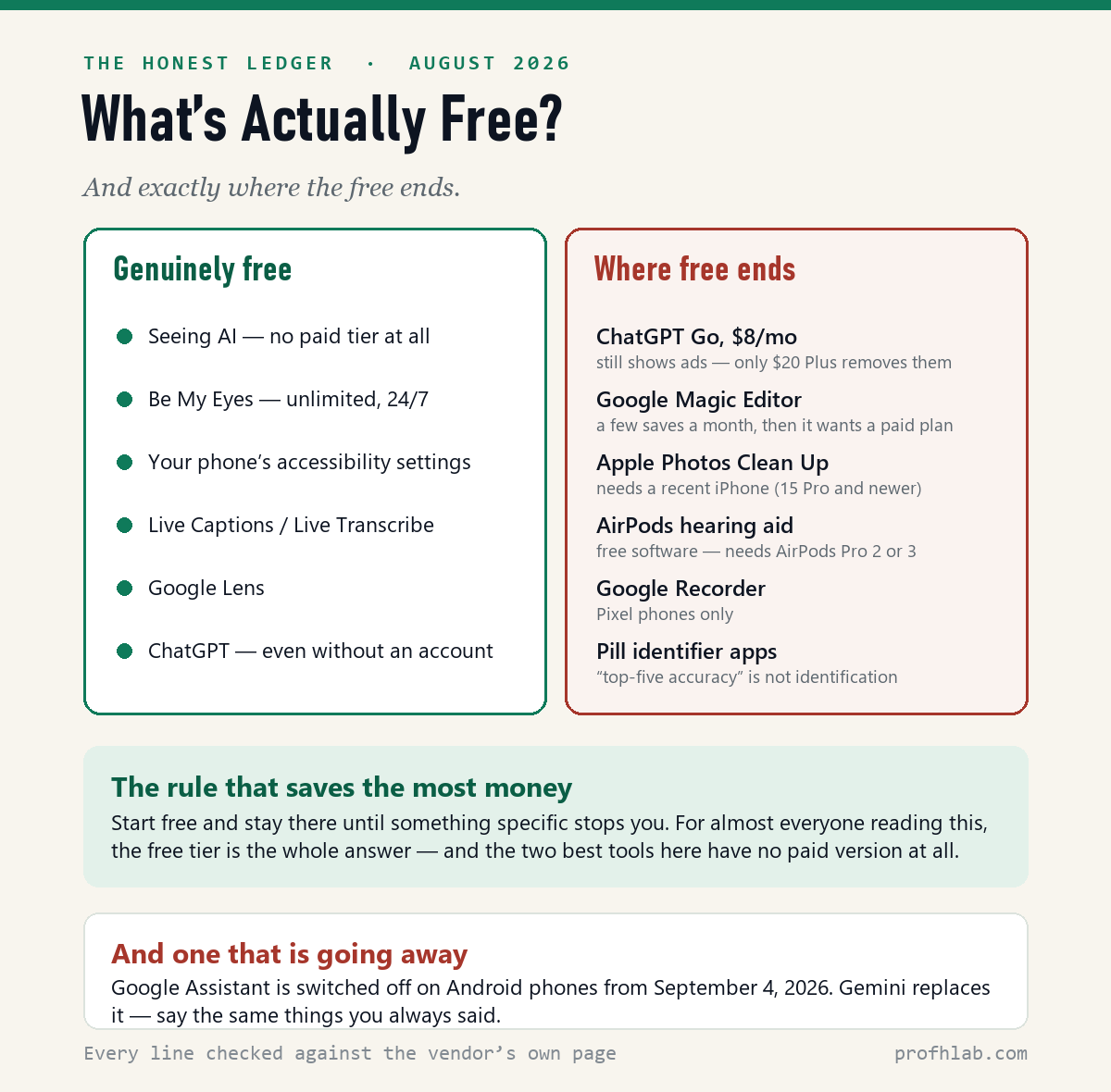
What’s actually free — and exactly where the free ends
| Tool | Free? | Where the free ends |
|---|---|---|
| Seeing AI | Completely free | Nowhere. No paid tier, nothing to buy inside it. |
| Be My Eyes | Completely free | Nowhere. Free account required, no charges. |
| Phone accessibility settings | Free, built in | Nowhere. You already own all of it. |
| Live Captions / Live Transcribe | Free, built in | Nowhere. Language coverage varies. |
| Google Lens | Free | Nowhere for the basics. |
| ChatGPT | Free — you can even use it without an account | The trap: the $8 “Go” plan does not remove ads. Only Plus at $20 does. Most people never need either. |
| Google Photos editing | Unblur, Magic Eraser, Portrait Light free | Magic Editor is capped at a few saves a month; more requires a paid Google plan. |
| Apple Photos Clean Up | Free | Requires a recent iPhone (about iPhone 15 Pro and newer). |
| AirPods Hearing Assistance | Free software | You must own AirPods Pro 2 or 3. Battery ≈6 hours. |
| Voice typing (Android) | Free | The advanced version (auto punctuation, voice editing) is Pixel 6 and newer. |
| Google Recorder | Free | Pixel phones only. Everyone else: use Live Transcribe. |
| Pill identifier apps | Varies | Skip them. Call the pharmacist. |
Prices and limits verified August 2026. I keep the full list current on the AI Price Tracker page.
Watch someone do it
Apple’s own six-minute walkthrough of Assistive Access — the simplified iPhone — is the clearest official video on this subject anywhere (about 120,000 views as of August 2026):
And this gentle beginner lesson has been watched 181,000 times by an audience that dwarfs the channel’s own following — a fair signal of how many people are looking for exactly this:
Two habits, then you’re set
- Never type a password, bank number, or Social Security number into any AI tool. Treat it as a helpful stranger — friendly, but not family.
- Double-check anything about money, health, or the law with the real source: your pharmacist, your doctor, your bank, the agency’s own website.
And because the same technology has a criminal side, please read the companion piece: AI scams targeting seniors — including the family safe word, which takes one dinner conversation and defeats the cleverest voice-cloning call there is.
Where to start, if you only do one thing
- Tonight: make the text bigger (two minutes, table above). Everything improves.
- This week: install Seeing AI and point it at a prescription bottle. That’s the moment most people understand what this is for.
- Then: agree on a family safe word over dinner.
Picture descriptions, TV sound, pill photos and loneliness
What are the best free AI apps for seniors?
Seeing AI and Be My Eyes for reading and describing, your phone’s own accessibility settings for seeing, and Live Captions or Live Transcribe for hearing. All free, all verified in August 2026, none requiring a subscription.
Is there an app that describes pictures for you?
Yes — Seeing AI narrates text, documents, currency, and scenes; Be My Eyes gives you an AI description or a free video call with a sighted volunteer, any hour. Both are free on iPhone and Android.
How do I make my phone easier to see?
iPhone: Settings → Accessibility → Display & Text Size → Larger Text and Bold Text. Android: Settings → Accessibility → Display size and text. Two minutes, and every app gets bigger. iPhone’s Assistive Access simplifies the whole phone if you want to go further.
How can I hear the TV better without hearing aids?
Turn on Live Captions (iPhone) or Live Caption (Android) for subtitles on anything. For conversation in a room, use Android’s Live Transcribe. If you own AirPods Pro 2 or 3, Hearing Assistance turns them into an FDA-authorized over-the-counter hearing aid at no extra cost.
Is there a free app to identify pills with a photo?
Not a trustworthy one. The government’s Pillbox identifier was retired in 2021 with no replacement, and commercial apps report “top-five” accuracy — meaning the wrong pill is usually on screen too. Call your pharmacist: free, about a minute, and accountable.
Do AI companions help with loneliness?
The independent evidence says be careful. In a four-week MIT Media Lab and OpenAI study of 981 people, heavier chatbot use was associated with more loneliness and less real-world socializing. Older adults themselves rank emotional support last among AI uses they want. Use AI for tasks; spend the time saved on people.
Is Google Assistant going away?
Yes — Google began replacing it with Gemini on Android phones from September 4, 2026, including watches and headphones. Your alarms, reminders and calls still work; just say the same things. Cars with Google built-in continue for now.
What is Gemini on my phone — do I need it?
Gemini is the assistant that replaces Google Assistant. You didn’t install it by mistake, it’s free, and there is nothing to buy. If you’d rather have no assistant at all: Settings → Apps → Default apps → Digital assistant app → None — knowing that turns voice commands off, and on most phones the app can be benched but not fully removed.
Why isn’t the AirPods hearing test showing up?
Three requirements: a recently updated iPhone, AirPods Pro 2 or 3 on current firmware, and a country where the feature is approved. If it still hides, leave the AirPods in their open case beside the phone while it connects, let them update, restart the iPhone, and check Settings → your AirPods again.
How can AI help older adults?
In practice it does four things worth the trouble: it reads small print aloud, it captions speech that is hard to hear, it makes a screen legible, and it explains a confusing letter in plain words. Those four are free and already on most phones. Everything else being sold to older adults right now, including companion robots and monitoring subscriptions, is a much weaker case for the money.
What is the easiest AI tool for an older person to start with?
Seeing AI or Be My Eyes. You install one app, point the camera at a label or a letter, and it speaks. There is no account to create, no subscription, and nothing to configure. If the first five minutes go badly, nothing else on this page will get used, so start with the one that works immediately.
Is there free AI for seniors, or does everything need a subscription?
Almost all of it is genuinely free. Seeing AI, Be My Eyes, Live Captions, Live Transcribe, phone accessibility settings, Google Lens, dictation, and the basic Google Photos repair tools cost nothing and have no trial that expires. The places the free actually ends are narrow and listed in the table further down this page.
What is the best AI assistant for an elderly person at home?
Use whichever one the house already has. With a Prime membership, Alexa+ is included at no extra cost and is $19.99 a month without Prime, as of September 11, 2026. With Nest speakers, Gemini for Home has already replaced Google Assistant, and that switch is permanent for the whole household once made. On an iPhone, Siri is adequate and free. Buying a new device to try this is the one mistake to avoid.
Let your phone read, speak and show, starting with text size
Nothing on this page asks you to become a technical person. It asks your phone to do three ordinary favors: read what you can’t read, say what you can’t hear, and show what you can’t see. That’s not the future arriving. That’s a tool doing its job, so the rest of your day belongs to you.
Start with the two-minute text setting tonight. The rest will follow.
I explain AI in plain English — one short, friendly email a month. Unsubscribe anytime.
After the settings: ChatGPT basics, a safe word and old photos
- How to use ChatGPT: step by step for beginners over 50 — the full walkthrough, screenshots and all.
- AI scams targeting seniors — the safe word, and what to do in the first hour if money moves.
- Resources — every official link and hotline on one page.
- How to restore old family photos with AI — the exact prompts, and the face check before you frame anything.
- ChatGPT for Excel — formulas from plain English — no memorizing, ever.
- How to Plan a Trip with ChatGPT — five prompts to a relaxed itinerary.
- Prep for a Doctor Visit with ChatGPT — one printed page: timeline, meds, top three questions.
About the author
Full index
Every guide in the Generative AI library
Start with AI, at any age
- ChatGPT, step by step (over 50)
- ▸ Free AI tools that actually help (you are here)
- AI scams & the family safe word
- Restore old family photos
- Write any letter with ChatGPT
AI writing tools, reviewed
Curious about robots, humanoids, and the chips inside them? Physical AI library →
Prof.’s H Newsletter
One short email a month, with the numbers in it
What actually moved in AI hiring, AI prices, and the scams aimed at older Americans. Counted here, dated, and linked to the source. One email a month, and your address goes nowhere else.