How to Restore Old Family Photos with AI: The Exact Prompts (ChatGPT & Gemini)
The short version: the faded photograph in your shoebox can be repaired this afternoon, free, on the phone you already own. You photograph the print, hand it to ChatGPT or Gemini with one careful prompt, and check the result against the original — especially the face. This guide gives you the exact prompts, and it starts one step earlier than every other article: with the print itself, because five minutes of physical care beats any AI. Every price, limit and app on this page was re-checked on September 21, 2026.
Why trust this: I’m a professor of AI and robotics and a former Samsung researcher. I have no affiliate arrangement with anything on this page — and because I build systems like these, I’ll also tell you the one thing the marketing won’t: AI doesn’t repair your photo. It repaints it. That changes how you should use it, and this guide is built around that fact.
Last verified: September 21, 2026 — ChatGPT and Gemini free-tier limits, the PhotoScan app, MyHeritage Reimagine pricing and professional restoration rates all re-checked against the vendors’ own pages on that date.
The best prompt to restore old photos — copy this one
If you came here for the wording and nothing else, here it is. Open a free ChatGPT or Gemini chat, attach your photo, paste this underneath it and send. It is the one prompt that covers most shoebox prints — faded, creased, dusty, lightly torn.
Restore the attached photograph. Repair the scratches, creases, dust, stains and fading, and improve clarity and contrast. Keep it in black and white. Do not change the people: keep every face, expression, hairline, clothing detail and piece of jewelry exactly as in the original. Do not beautify anyone, do not smooth skin, and do not add or remove anything.
Two instructions in there are doing most of the work, and both are subtractions rather than requests. “Repair” — not “improve” and not “enhance,” which the model reads as permission to redecorate. And “do not beautify anyone, do not smooth skin” — the line that prevents the airbrushed, thirty-years-younger face that ruins most first attempts. A bare “restore this photo” gives the model no such limits, and it will happily invent a prettier relative.
One superstition worth killing: it does not matter whether you write “restore the attached photograph,” “restore this photo” or “restore the attached photograph prompt.” Those are three of the most common phrasings people actually type — I can see them in this site’s own search data — and none of them is a magic key. The opening verb barely matters. The constraints after it are the whole prompt. Anyone selling you a secret “restoration prompt” is selling you the sentence above with different adjectives.
That one is the general-purpose prompt. If your print has a specific problem — a torn corner, water stains, a blur, or you want it colorized — use the matching prompt in the damage-by-damage list below. And if the print is physically damaged, do not start here at all: start at Step 0, because the next ten minutes at the kitchen table matter more than any wording.
Step 0 — if the print is damaged, start here, not at the upload button
Every other guide starts at the app. But if your photo is water-damaged, stuck to another photo, or stuck to glass, what you do physically in the next ten minutes matters more than anything software will ever do. This is the National Archives’ own salvage guidance, in plain words:
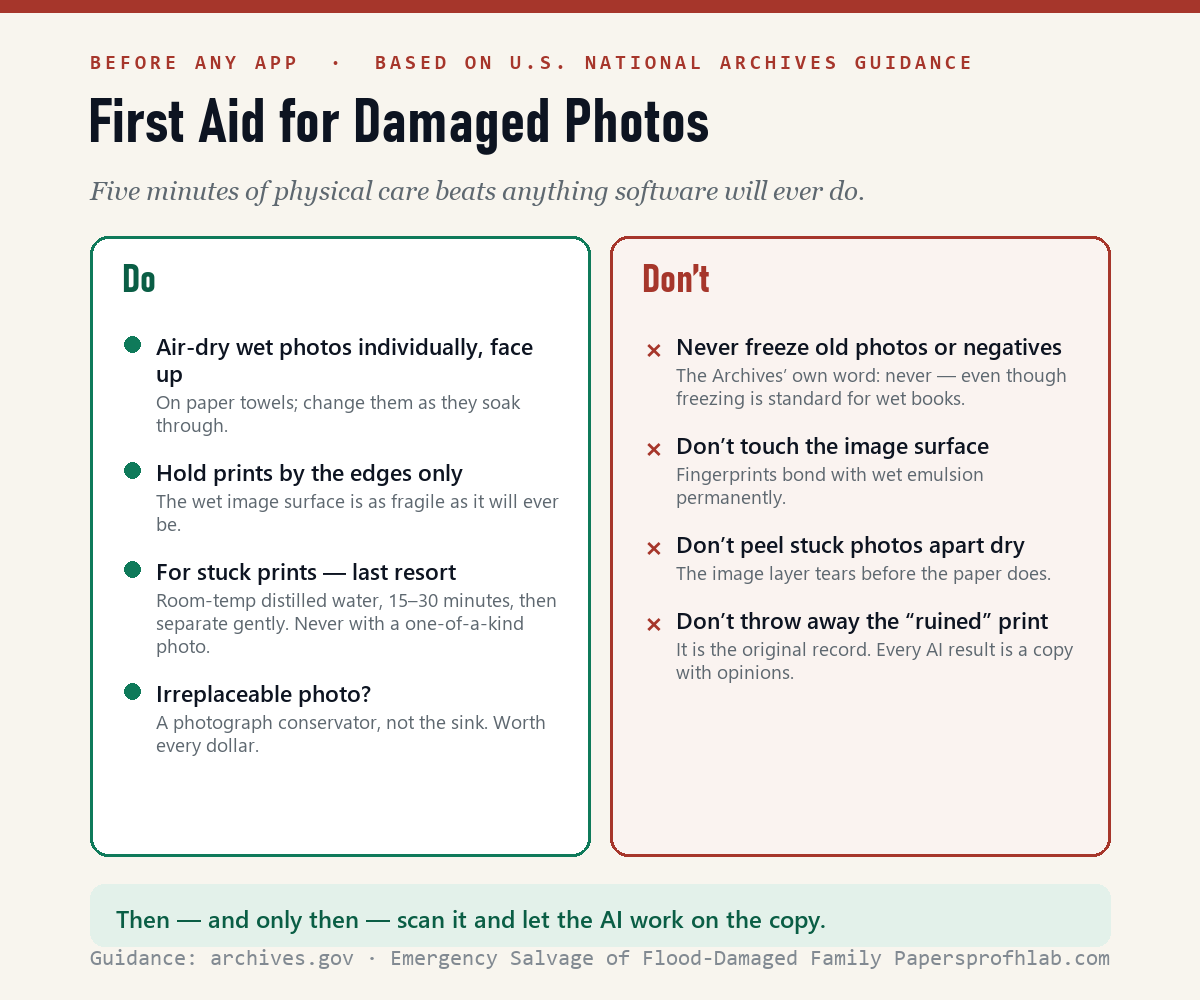
- Wet photos: air-dry them individually, face up, on paper towels, and change the paper as it soaks through.
- Don’t touch the image surface. Hold prints by the edges. The wet emulsion is as fragile as it will ever be.
- Never freeze old photographs or negatives. That’s the Archives’ word — never — even though freezing is standard advice for wet books and papers.
- Photos stuck together? Sometimes a soak in room-temperature distilled water, 15–30 minutes, lets them separate gently. But the Archives is blunt that this can cause irreversible damage — it’s a last resort, never for a one-of-a-kind photo. For the irreplaceable ones, a photograph conservator is the answer, not a sink.
And one rule that costs nothing: whatever state the print is in, it is the original record. Everything AI produces later is a copy with opinions. Keep the print.
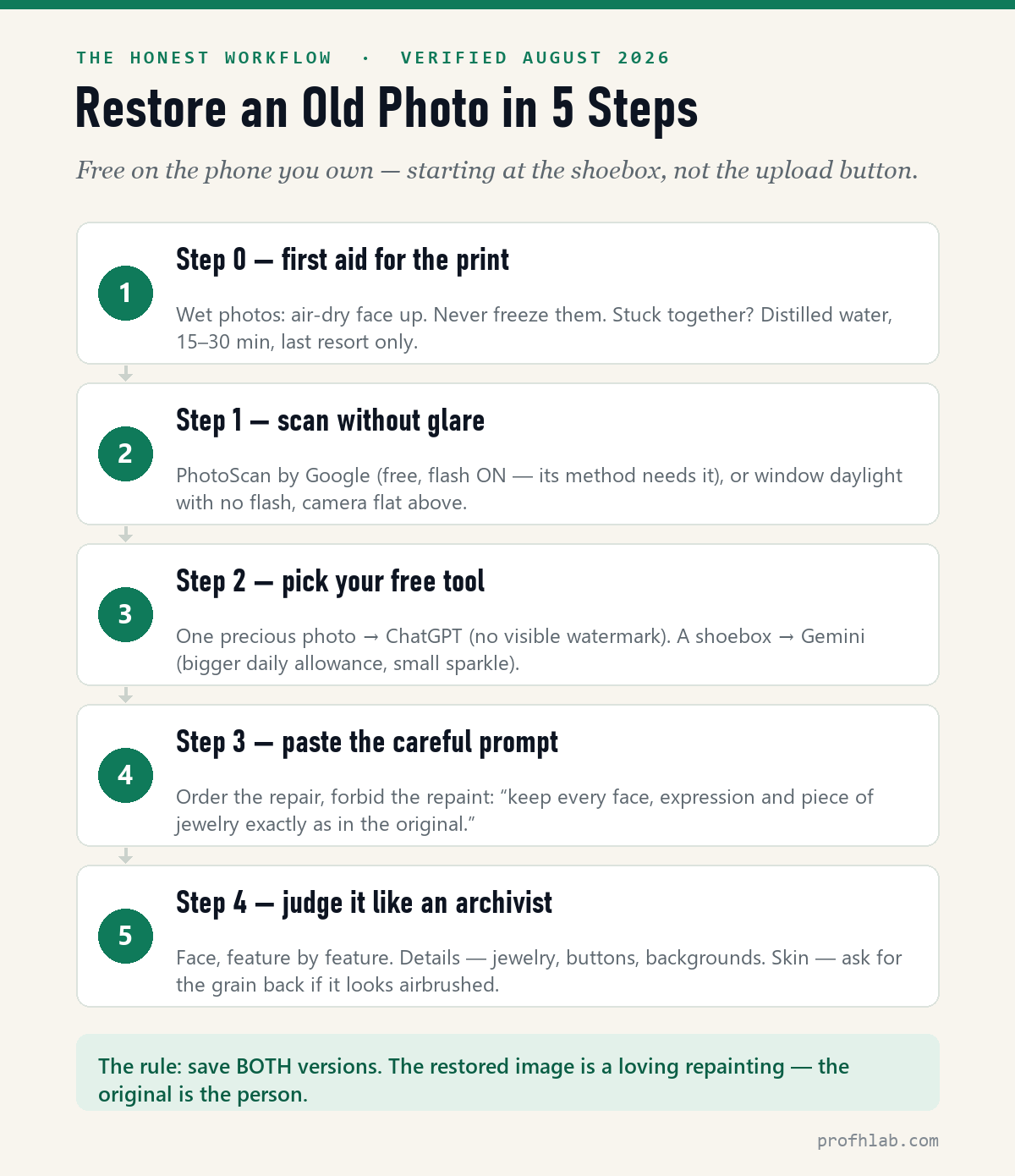
Step 1 — get a good digital copy (no scanner needed)
Two free ways, and an honest note about which to pick:
The app: PhotoScan by Google (free, iPhone & Android)
It takes several shots of the print and combines them to remove glare — the shine that ruins most phone photos of photos. You hover over four dots; it does the rest. One counterintuitive detail from Google’s own instructions: leave the flash on. PhotoScan’s method needs the flash plus the multiple angles to subtract the glare. (The no-flash rule below applies only to plain camera shots.)
Status check, September 21, 2026: PhotoScan is still free and still installs on current iPhones and Android phones, but Google has stopped updating it. There is no announced shutdown and it is not on Google’s end-of-life list — treat it as frozen but working. If it ever disappears from your store, the plain-camera method in the next section gives you a scan that is good enough; glare control is the only thing you lose.
The plain camera, done right
- Indirect daylight, near a window — no flash.
- Print flat on a plain background; press curled corners under glass edges if needed.
- Camera directly above, parallel to the print, filling the frame.
Blurry-but-undamaged snapshots often don’t need the AI treatment at all — Google Photos’ Photo Unblur is free with no monthly cap and rescues most of them in one tap. (It’s in the free-tools ledger of my senior AI tools guide.)
Step 2 — choose your free tool: ChatGPT or Gemini
Both work the same way: upload the photo, paste a prompt, get a restored image back. The differences that actually matter, verified this month:
| ChatGPT (free account) | Gemini (free account) | |
|---|---|---|
| Daily allowance | About 2–3 images a day (community-measured; OpenAI publishes no official number) | Higher — roughly 20 standard edits a day (unofficial; Google publishes no number) |
| Visible watermark | None | A small sparkle logo on generated images (only the top Ultra plan removes it) |
| Invisible provenance | Yes — C2PA Content Credentials + SynthID (since May 2026) | Yes — SynthID |
| Download size | Standard | 1K on free (2K on paid) |
| Engine name you’ll see | GPT Image 1.5 | Nano Banana 2 (yes, really) |
Plain recommendation: one or two precious photos → ChatGPT (no visible watermark). A shoebox of thirty → Gemini (bigger daily allowance; the sparkle sits in a corner and doesn’t touch the subject). The invisible provenance data in both is a good thing — it’s how anyone can later confirm the image was AI-touched, which is exactly what an honest family archive wants.
(Never used ChatGPT? My step-by-step walkthrough for beginners over 50 starts from the very first screen. Never opened Gemini? The next two minutes cover it.)
Never opened Gemini? The two-minute setup
- Find it — you may already have it. On most Android phones Gemini is already installed; it’s the assistant that replaced Google Assistant. Look for the four-pointed star icon. On iPhone: App Store → search “Google Gemini” (free, made by Google). No phone needed either — gemini.google.com works in any browser.
- Sign in with the Google account you already have — the same one you use for Gmail. No new account, no credit card, nothing to buy. (Yes, you do need to be signed in.)
- Upload the photo. Tap the + button (“Add files”) at the left end of the message bar → Photos → pick your scan. You can attach up to ten images in one prompt, so a small batch works too.
- Save the result. Tap the restored image, then the download arrow — it lands with your photos and downloads. Free accounts download at 1K size, which prints beautifully at standard frame sizes.
That’s the whole setup. The small sparkle in the corner of the result is the free tier’s watermark from the table above — normal, and honest.
One wrinkle worth knowing before you count on a big free batch: Google’s top image model, Nano Banana Pro, is capped at two free prompts a day— after that the app quietly drops you back to the standard Nano Banana model, which is the one the allowance in the table above refers to. For photo restoration that fallback is fine; standard is what this whole guide was tested on. Google also says these limits “may change frequently and will reset daily,” so treat the banner inside the app as the real number, not any article — including this one.
Step 3 — paste this prompt
The wording matters more than people think. A bare “restore this photo” invites the AI to beautify, and beautifying is where grandmother’s face starts drifting. This prompt orders the repair and forbids the repainting:
Restore this old photograph. Repair the scratches, creases, dust and fading, and improve clarity and contrast. Keep it in black and white. Do not change the people: keep every face, expression, hairline, clothing detail and piece of jewelry exactly as in the original. Do not add anything and do not remove anything.
Then refine with follow-ups — one instruction at a time works far better than a long wish list:
The skin looks too smooth and modern. Bring back the natural film grain and texture. Do not beautify anyone.
Rebuild the torn corner using only what is visible elsewhere in the photo. If you cannot tell what was there, leave it plain — do not invent objects.
Now make a colorized version with realistic, muted, era-appropriate colors. Natural skin tones. Do not repaint or alter the faces.
One honest note on colorizing: the colors are educated guesses. The AI does not know the dress was green. Enjoy the colorized copy — and keep the black-and-white as the true record.
Prompts for each kind of damage
The prompt above handles the ordinary shoebox print. Below are the ones for a specific problem. Use one, look hard at the result, then refine with a single follow-up sentence — never a list of new demands.
Prompt to make an old photo look new (faded, flat, no contrast)
Restore the attached photograph. It is badly faded and low in contrast. Rebuild the tonal range: true blacks, clean whites and visible mid-tones. Remove the yellow-brown age cast but keep the image black and white. Keep the original film grain. Do not change any face, and do not sharpen eyes or teeth.
The honest warning belongs with this one. “Make it look new” is the request that does the most damage, because a print that comes back looking like it was taken yesterday has been redrawn, not repaired. The two instructions holding the line are keep the original film grain and do not sharpen eyes or teeth — eyes and teeth are exactly where a model reaches for its stock idea of a face.
Prompt for a torn photo or a missing corner
Restore the attached photograph. Rebuild the torn area using only what is visible elsewhere in this photograph — matching background, fabric pattern and edge lines. If you cannot tell what was there, leave that area plain and neutral. Do not invent objects, faces, hands or text. Repair the rest of the damage normally.
If the tear crosses a face, stop and do not paste this. A reconstructed face is a stranger’s face wearing your relative’s haircut. That is the one job still worth paying a human for — see the cost table below.
Prompt for water stains, mold spots and silvering
Restore the attached photograph. Remove the water stains, mold spots and the mirror-like silver sheen at the edges. Treat those marks as damage sitting on the surface, not as part of the picture. Do not alter anything underneath them that is still visible. Keep every face and all clothing exactly as they are.
Naming the marks as surface damage matters, because a model that reads a dark bloom as part of the scene will paint it into a shadow instead of removing it. Physical first, though: if the print is still damp or stuck to another one, Step 0 comes before any of this.
Prompt for a blurry or out-of-focus photo — and the line worth adding to every prompt
The attached photograph is out of focus. Improve the clarity only as far as the original detail allows. Do not invent detail that is not there: if a face is too blurred to read, leave it soft rather than inventing features. Then tell me, in one line, which areas you had to guess.
Blur is not dirt. It is information that was never recorded, so “sharpening” a blurred face is invention wearing a technical word. That last sentence is the most useful habit in this entire guide, and it can be added to any prompt here: make the model declare where it guessed. It will answer — and the answer tells you precisely which parts of the picture you are not allowed to trust.
Prompt to colorize an old photo
Make a colorized version of the attached photograph using realistic, muted, era-appropriate colors. Natural skin tones and no saturation boost. Do not repaint or alter the faces. Where you are unsure of a color, choose a neutral one rather than a vivid one.
Colorizing is guesswork dressed as memory — the model does not know the dress was green. Keep the black-and-white file as the record and the colorized one as the keepsake.
Prompt for a photo of a photo (glare, your shadow, crooked edges)
The attached image is a phone photo of a printed photograph. First correct the capture: crop to the edges of the print, straighten the perspective so the borders are square, and remove the camera glare and my shadow. Then restore the photograph itself: repair scratches, creases and fading without changing any face.
This is the one place where asking for two jobs in a single prompt is fine, because the first job is geometry rather than judgment. Everywhere else, one instruction per message still beats a paragraph of demands.
Whichever one you use, the check in the next section still applies. A prompt narrows what the AI is allowed to invent. It never reduces the invention to zero.
The same prompt in Gemini — and the one line worth adding there
Every prompt on this page works unchanged in Gemini. There is no separate “Gemini prompt” for photo restoration, and the pages selling you one are selling these same sentences. What differs is the account, not the wording.
The one line that earns its place in Gemini is the batch instruction, because a single free Gemini prompt accepts up to ten attachments:
Apply the same restoration to every attached photograph, and return one output per input. Same rules for all of them: repair the damage, change no faces, add and remove nothing.
That turns an evening of one-at-a-time uploads into a handful of prompts — which is the real reason to send a shoebox through Gemini and the two photographs that matter most through ChatGPT.
What no prompt will do in Gemini: remove the sparkle watermark, or raise the free download above 1K. Both are account-tier settings rather than instructions, so any “watermark removal prompt” you find is simply wrong. The invisible provenance data stays in both tools either way — which, for a family archive, is the part you should want to keep.
Step 4 — judge the result like an archivist, not a customer
Here is the part no other guide will tell you, and it’s the reason this article exists.
AI restoration does not clean your photograph. It generates a brand-new image that resembles your photograph, filling every uncertain area with patterns learned from millions of other photos of that era. Where the original is clear, the copy is faithful. Where the original is faded or damaged — which is exactly why you’re restoring it — the AI is quietly making things up.
This is not theoretical. In a documented case from September 2025, a family historian ran his great-grandmother’s portrait through an AI restorer and got back a beautiful, sharp image of a woman who was “no longer recognizable as the same person” — the tool had also silently removed her brooch and the ruffles of her neckline. Face-identity preservation is, right now, a formally measured and unsolved problem in the research field (it has its own annual academic challenge). The vendors say their newest models preserve faces better, and they do — better is not the same as always.
So run the three-check on every restoration:
- The face, feature by feature. Put the original and the copy side by side. Eyes, nose bridge, mouth corners, ears, hairline. Is this still her?
- The details. Jewelry, buttons, collars, a hand on a shoulder, the picture on the wall behind. AI removes and invents small objects without mentioning it.
- The skin. If everyone suddenly looks airbrushed and thirty, ask for the grain back (the follow-up prompt above).
The rule, and it is not negotiable: save both versions, always. And for a memorial photo — one that will stand framed at a service — do the face check before you print, feature by feature, with someone else who knew them. The restored image is a loving repainting. The original is the person.
What this costs anywhere else
| Route | Price (verified Sept 21, 2026) | Worth it when |
|---|---|---|
| ChatGPT / Gemini free tier | $0 | Faded, creased, dusty, mildly torn prints — most of the shoebox |
| Subscription tools (e.g., MyHeritage) | $7.99/mo or $49.99/yr (7-day trial; free tier = “a limited number” of photos) | You’re doing genealogy anyway and want batch tools |
| Human restoration artist | ~$35/photo for light damage, up to several hundred for severe | Torn faces, missing pieces, the irreplaceable ones |
| “Free restore” websites | “Free” | Careful: the common pattern is free upload, then the result appears behind a watermark or subscription. The genuinely free path is the two chatbots above. |
That order is also the honest workflow: try free first. For a badly torn portrait where a face itself is missing, skip AI and pay a human — that’s restoration as a craft, and $35–100 for a photo that matters is fair money.
Watch someone do it
A calm, senior-friendly walkthrough of the Gemini route, start to finish:
And a quick recent one showing how fast the same steps run once you’ve done it twice:
Watermarks, changed faces and prints stuck together
Can ChatGPT restore old photos?
Yes — a free account can upload a photo and get a restored version back, roughly two to three images a day (OpenAI publishes no official number). Gemini’s free tier does the same with a larger unofficial allowance. Use a prompt that forbids changing faces, and keep the original.
What’s the best free way to restore old photos without a watermark?
ChatGPT adds no visible watermark to images; Gemini’s free tier stamps a small sparkle (only its top plan removes it). Both embed invisible provenance data — which is good: it lets anyone verify later that the image was AI-edited. Most “free restore” websites gate the result behind a watermark or subscription.
Does AI photo restoration change faces?
It can, and documented cases exist — a 2025 restoration left a great-grandmother “no longer recognizable,” with her brooch silently removed. The AI generates a new image, guessing at damaged areas. Save both versions and compare faces feature by feature before framing anything.
How do I fix water-damaged photos that are stuck together?
Per National Archives guidance: air-dry wet photos individually, face up; never freeze old photos or negatives; don’t touch the image surface. Stuck prints sometimes separate after 15–30 minutes in room-temperature distilled water — a last resort that can cause damage. Irreplaceable photo? Photograph conservator, not the sink.
Can AI colorize black-and-white photos for free?
Yes — after restoring, ask for “realistic, muted, era-appropriate colors” in the same chat. Remember the colors are inferences, not facts. Keep the black-and-white as the record copy.
What’s the best way to scan old photos at home?
Google’s free PhotoScan app removes glare by combining several shots — flash on, as its instructions require. No app: indirect window daylight, no flash, print flat, camera parallel, fill the frame.
Is the Gemini app free, and do I need an account?
The app is free on Android and iPhone (and at gemini.google.com in a browser). You sign in with the Google account you already use for Gmail — no new account, no card. On most Android phones it’s already installed as the replacement for Google Assistant. Free accounts include photo editing; results carry a small sparkle watermark and download at 1K.
How much does professional photo restoration cost?
About $35 a photo for light damage, several hundred for severe work, in 2026. Subscriptions like MyHeritage run $7.99 monthly or $49.99 yearly. Try the free route first; pay a human for the truly damaged, truly precious ones.
What is the best prompt to restore old photos?
The one at the top of this page. What makes it work is not the opening verb but the prohibitions after it: “repair” rather than “enhance,” plus an explicit ban on beautifying, smoothing, adding and removing. That is the difference between your grandmother and a stranger who resembles her.
What prompt makes an old photo look new?
Ask for the tonal range back rather than for a new-looking picture: “Rebuild the tonal range — true blacks, clean whites, visible mid-tones. Remove the yellow-brown age cast but keep it black and white. Keep the original film grain. Do not sharpen eyes or teeth.” A print that returns looking like it was taken yesterday has been repainted rather than repaired, and the film-grain instruction is what prevents that.
Is there a free ChatGPT prompt for old photo restoration?
Yes, and every prompt on this page is free to use. The limit is the account, not the prompt: a free ChatGPT account gets roughly two to three images in a rolling 24 hours (OpenAI publishes no fixed number), and free Gemini gets a larger unofficial allowance with a small sparkle watermark. Nobody needs to sell you a restoration prompt.
Does “restore the attached photograph” work better than “restore this photo”?
No. Both are common phrasings and neither is a magic key — the opening words barely matter. What changes the result is everything after them: naming the damage to repair, and forbidding the model to beautify, smooth, add or remove. A bare “restore this photo” fails because it sets no limits at all, not because of the word this.
What’s the best prompt to restore old photos in Gemini?
The same one. There is no separate Gemini restoration prompt. The only line worth adding in Gemini is the batch instruction — “Apply the same restoration to every attached photograph, and return one output per input” — because a single free Gemini prompt takes up to ten images. No prompt removes Gemini’s sparkle watermark or raises the free 1K download; those are account settings.
Keep both versions, and frame the one that’s still them
Somewhere in your house is a photograph only you still have — and the person in it is why you read this far. Give the print five minutes of care, scan it in window light, paste one careful prompt, and then do the one thing the software will never do for you: look at the face and make sure it’s still them. Keep both versions. Frame the one that’s true.
I explain AI in plain English — one short, friendly email a month. Unsubscribe anytime.
The criminal side of these image tools, and free help for seniors
- The best free AI tools for seniors — Photo Unblur, reading labels aloud, hearing the TV: what’s genuinely free.
- How to use ChatGPT, step by step, for beginners over 50 — every screen, nothing assumed.
- AI scams targeting seniors — the same image tools have a criminal side; the family safe word beats it.
- ChatGPT for Excel — formulas from plain English — no memorizing, ever.
- How to Plan a Trip with ChatGPT — five prompts to a relaxed itinerary.
- Prep for a Doctor Visit with ChatGPT — one printed page: timeline, meds, top three questions.
About the author
Prof. H is a professor of AI and robotics, a former Samsung researcher, and the author of dozens of textbooks on AI and automation. He writes hands-on, no-hype guides to AI tools. More about the author →
Full index
Every guide in the Generative AI library
Start with AI, at any age
- ChatGPT, step by step (over 50)
- Free AI tools that actually help
- AI scams & the family safe word
- ▸ Restore old family photos (you are here)
- Write any letter with ChatGPT
AI writing tools, reviewed
Curious about robots, humanoids, and the chips inside them? Physical AI library →
Prof.’s H Newsletter
One short email a month, with the numbers in it
What actually moved in AI hiring, AI prices, and the scams aimed at older Americans. Counted here, dated, and linked to the source. One email a month, and your address goes nowhere else.