How to Turn Off AI Assistant in Adobe Acrobat and Reader: 4 Places, 2 Switches
To turn off AI Assistant in Adobe Acrobat on a computer, close your PDFs, open Preferences, choose Generative AI and uncheck “Enable generative AI features”: that is the step on Adobe’s help page updated April 28, 2026, which we read on October 13, 2026. On Windows the path starts at Menu; on a Mac it starts at View.
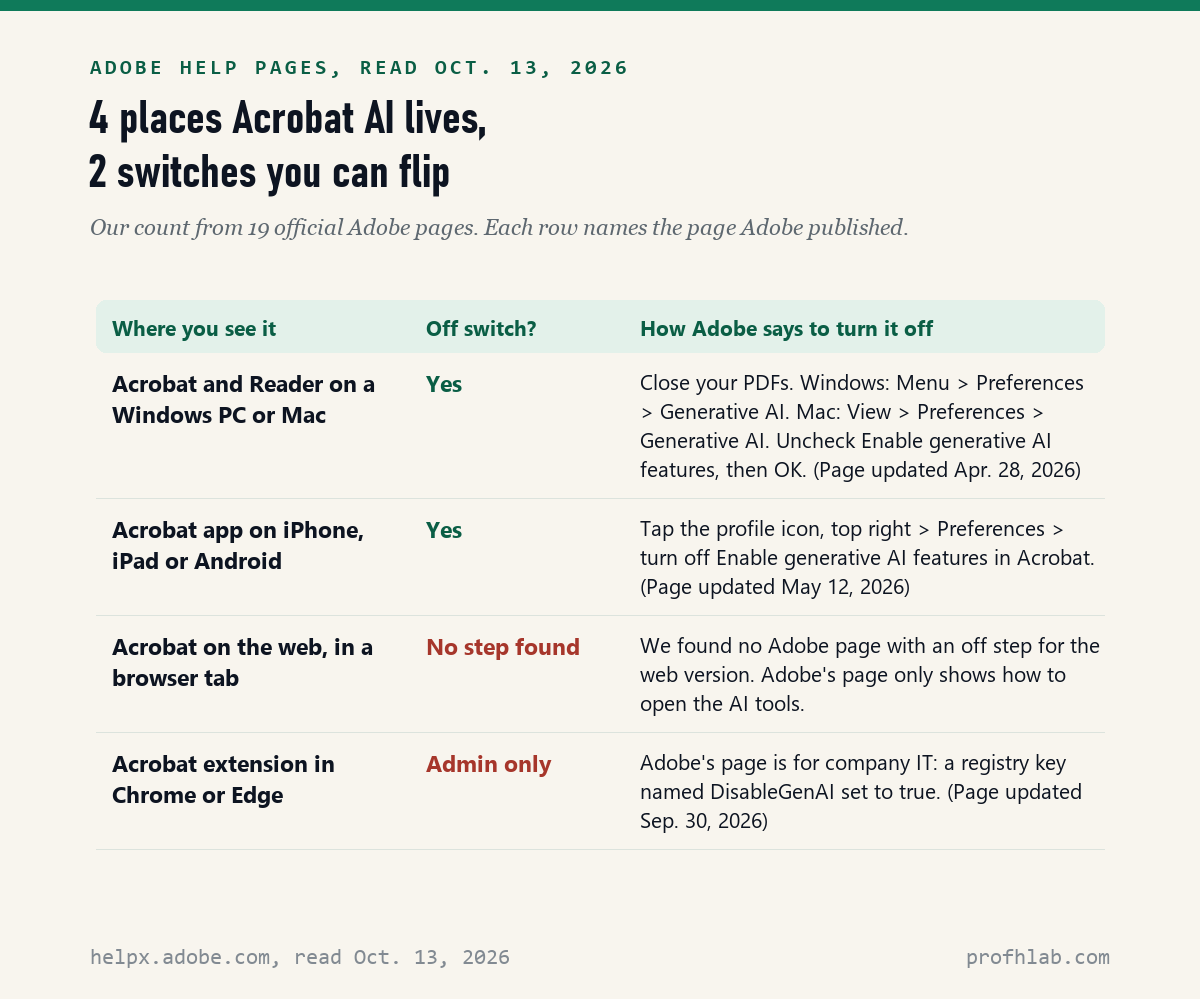
That covers 1 of the 4 places Acrobat’s AI shows up. We read 19 official Adobe pages and found an off switch you can use in 2 of them. Below is each place, what to do if a button stays on screen, and what Adobe says happens to a PDF you show its AI.
What we checked on October 13, 2026
We read 19 official Adobe pages: help pages for Acrobat on the desktop, on phones and in Chrome and Edge, Adobe’s AI usage policy, the plans page, and a November 2024 Acrobat AI Assistant security fact sheet. We also read Adobe’s own community thread on this question. Adobe’s site refused our plain downloader, so we read the pages in a normal browser.
We did not install Acrobat and click through these menus for this article. Every menu name is quoted from Adobe’s pages, not tested by us. The count of 4 places and 2 switches is our own tally from those pages.
Written and checked by Prof. H. An AI assistant helped draft this article and ran the page reads; every quote was read on the source’s own page on the date shown.
How do I turn off AI Assistant in Adobe Acrobat on a computer?
Adobe’s “Turn off generative AI features” page, last updated April 28, 2026, gives 3 steps: close all open documents, go to Preferences, then Generative AI, and deselect the “Enable generative AI features” checkbox.
The same page says the features are “enabled by default, but you have control over their use.” So if you never touched this setting, it is on. That is not your fault; it came that way.
- Close every PDF you have open in Acrobat. Leave the program itself open.
- Open Preferences. On Windows, click Menu, then Preferences. On a Mac, click View, then Preferences.
- Choose Generative AI in the list on the left side of the Preferences window.
- Uncheck “Enable generative AI features.” Adobe says the box is what lets you “use AI Assistant and smart suggestions across Acrobat.”
- Click OK to save. Adobe’s page ends there.
Think of it like the light switch for one room, not the main breaker. It covers Acrobat on that one computer. Your phone and your web browser have their own settings, shown further down.
Does the same switch work in free Adobe Acrobat Reader?
Adobe’s AI overview page, updated August 31, 2026, lists “Adobe Acrobat and Acrobat Reader on Windows and macOS” as places the AI features run, but the April 28, 2026 off page never names Reader.
So here is what we can and cannot say. The free Reader carries the AI, by Adobe’s own word. Adobe’s off page speaks only of “Acrobat.” Our inference, not a tested fact, is that Reader users should look for the same Preferences, then Generative AI, box. We did not confirm that on a Reader install.
One more detail from Adobe’s usage policy, updated April 15, 2026: users “may receive a limited number of complimentary Requests” for AI Assistant and summaries. That is why the AI shows up in a free program. Adobe gives no number for the free allowance on the pages we read.

What if an AI button is still on the screen after I uncheck the box?
Adobe documents a bigger step: “Disable new Acrobat,” and its troubleshooting page updated June 7, 2026 says “Classic Acrobat doesn’t support generative AI.”
None of the 19 Adobe pages we read says whether the checkbox removes the AI Assistant button itself. That gap shows in Adobe’s own forum. Its thread “How can Turn off the ‘AI Assistant’?” showed 189 replies and 110,706 views when we opened it on October 13, 2026.
Adobe’s “switch to the new Acrobat” page, updated September 23, 2025, gives the steps. On Windows: Menu, then Disable new Acrobat. On a Mac: View, then Disable new Acrobat. One forum user wrote that this made the AI button “go away… for now.” That is one person’s report, not an Adobe promise.
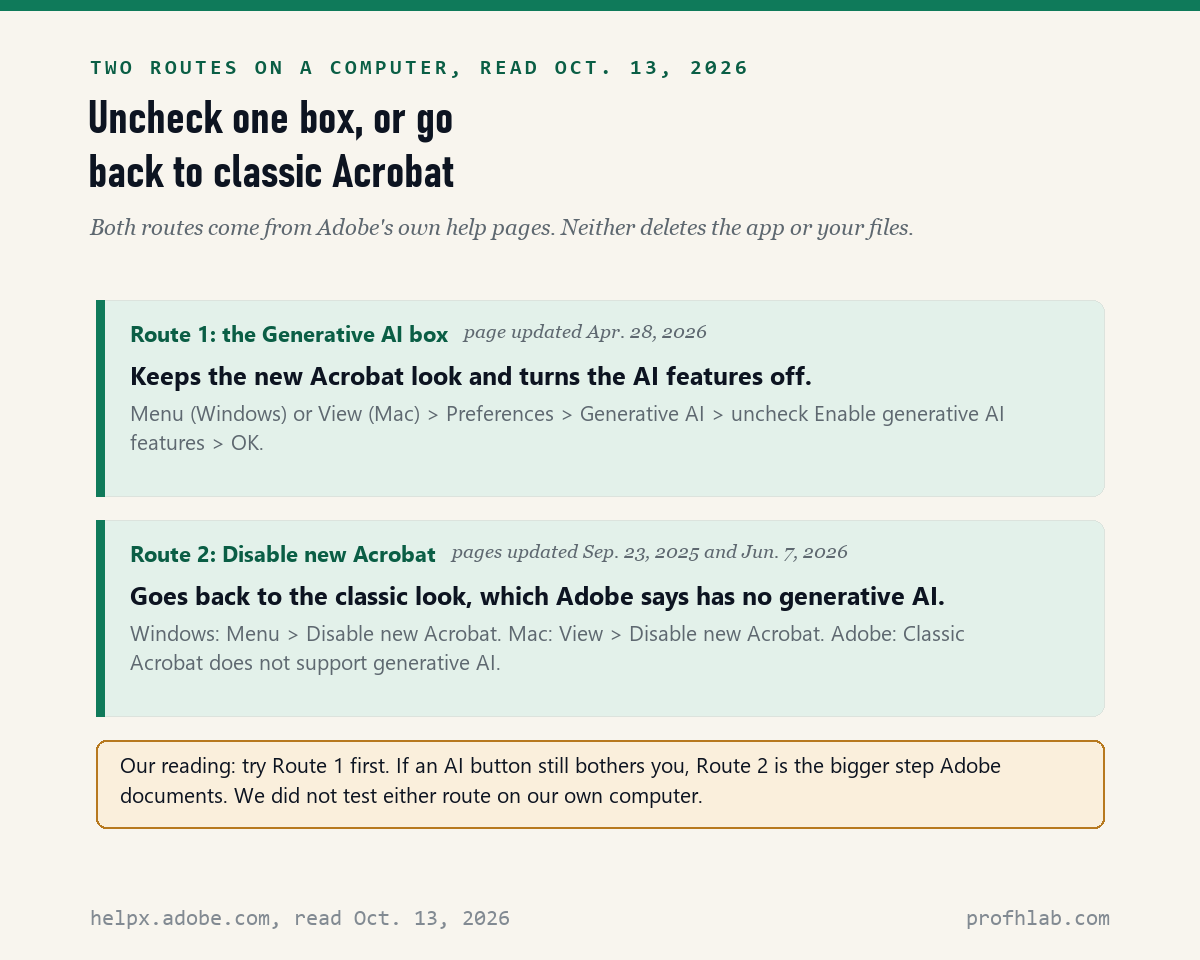
Route 2 changes how all of Acrobat looks, not only the AI. If you like the new layout, try Route 1 first. Neither route deletes the program or your PDFs. To switch back, Adobe’s June 7, 2026 page gives Menu, then Enable new Acrobat, on Windows, and View, then Enable new Acrobat, on a Mac.
How do I turn off Acrobat AI on an iPhone, iPad or Android phone?
Adobe’s mobile page, updated May 12, 2026, says to tap the profile icon at the top right, choose Preferences, and turn off the “Enable generative AI features in Acrobat” toggle; the steps are the same on Android and iOS.
Adobe says this will “hide the generative AI features in Acrobat on mobile, including AI Assistant, Generative summary, and Generate podcasts.” The page calls the result a return “to a traditional PDF experience.”
The setting lives inside the app on that one device. If you use Acrobat on both a phone and a tablet, our reading is that you flip it on each. Adobe’s page does not say whether the choice follows your Adobe account.
What about Acrobat in a web browser, or the Acrobat extension in Chrome?
For Acrobat on the web we found no Adobe page with an off step, and for the Chrome and Edge extension Adobe’s only off method, on a page updated September 30, 2026, is a registry setting for company IT named DisableGenAI.
Adobe’s “Access generative AI tools” page explains how to open the AI on the web, not how to close it. For the browser extension, the page is titled “Configure Acrobat extension in Chrome and Edge for enterprises.” It is written for administrators, not home users.
A plain way around both: you do not have to open PDFs in the browser. Save the PDF to your computer, then open it in desktop Acrobat or Reader, where Route 1 applies. If the extension is not something you use, you can remove it from the browser’s extension list. Our guides on turning off AI in Chrome and turning off AI in Edge cover the browsers’ own AI.

What does Adobe do with a PDF I show AI Assistant?
Adobe’s AI Assistant Plus page, updated August 18, 2026, says “Adobe never uses your documents or data to train AI models,” and its November 2024 security fact sheet says the service uses Microsoft Azure OpenAI.
The fact sheet adds detail. Adobe says it caches the document’s content with a session key “for 12 hours.” Chat history for desktop and mobile users “is persistently stored on the user’s device,” while web users’ history is kept in Adobe cloud storage. Adobe also says it turned off an Azure monitoring service so Microsoft “cannot access or use Adobe customer data to train LLMs.”
Two cautions. The fact sheet is dated November 2024, and we found no newer Adobe page that names the AI provider. And “not used for training” is not the same as “never leaves your computer.” If a PDF holds a Social Security number or medical results, the safest choice is to keep AI off. Our guides on uploading medical records to an AI and what is safe to share with a chatbot go further.
Is Adobe’s AI Assistant free, or will it start charging me?
Free users get “a limited number of AI Assistant Requests,” per Adobe’s overview page updated August 31, 2026, and the US plans page we read on October 13, 2026 lists AI Assistant in Acrobat Studio, “everything in Acrobat Pro, plus AI Assistant.”
The plans page showed Acrobat Studio at US$24.99 a month on an annual plan billed monthly, with a fee of up to half the remaining year if you cancel after 14 days. Paid plans with AI Assistant include “1,000 Requests per month, per user,” according to the April 15, 2026 usage policy. We did not find a US price for the separate AI Assistant add-on on any page we read.
Turning the AI off does not cancel a subscription, and leaving it on does not start one by itself. If a pop-up offers a free trial, read whether it asks for a card. Adobe Reader itself is listed on the plans page as “Free. Always.” Real Adobe offers do not arrive as phone calls; if one does, read AI scams aimed at seniors.
Adobe’s 59-second AI demo and a 2026 walkthrough of the off switch

Can I turn Acrobat’s AI back on, and other short answers?
Can I turn off Adobe AI Assistant?
Yes, in 2 places. On a computer, uncheck Enable generative AI features under Preferences, then Generative AI. On a phone, turn off the toggle under the profile icon, then Preferences. Both steps are on Adobe help pages we read on October 13, 2026.
How do I turn off AI in Adobe Reader?
Adobe says the AI runs in Acrobat Reader on Windows and macOS, but its off page names only Acrobat. Look under Preferences, then Generative AI. If a button remains, Adobe documents Disable new Acrobat, and says classic Acrobat does not support generative AI.
Does Adobe Acrobat have AI?
Yes. Adobe lists AI Assistant, Generative summary, PDF Spaces, podcast and presentation generation among its Acrobat AI features. Adobe says the features are enabled by default on the desktop.
Is Adobe AI Assistant safe?
Adobe says it never uses your documents to train AI models, and its November 2024 fact sheet says document content is cached for 12 hours. For PDFs with ID numbers or medical details, keeping the AI off is the simplest protection.
Is Adobe AI Assistant free?
Free users get a limited number of requests, with no number given by Adobe. Acrobat Studio includes AI Assistant and was listed at US$24.99 a month on an annual plan billed monthly when we checked on October 13, 2026.
Which other programs on your computer added AI you can switch off?
Acrobat is rarely the only one. Microsoft Office has its own switch: see how to turn off Copilot in Word, turning off AI in Outlook, and removing Copilot from Windows 11. For email, read stopping AI from reading Gmail and turning off AI in Yahoo Mail. Readers of e-books can check turning off AI on Kindle.
If you would rather use AI with a PDF on your own terms, see how to get ChatGPT to read a PDF, and set up a family safe word while you are at it.
New here? Start at Start Here, try ChatGPT for the first time after 50, see the AI tools we rate for seniors, or browse the Generative AI library. Our AI Jobs Tracker counts real openings. Questions go to the Ask page; our counting rules are at How We Count.
Where did each Adobe quote in this guide come from?
- Adobe Help, Turn off generative AI features (desktop). Last updated April 28, 2026; read October 13, 2026.
- Adobe Help, Turn off generative AI features in Acrobat on mobile. Last updated May 12, 2026; read October 13, 2026.
- Adobe Help, Switch to the new Acrobat (updated September 23, 2025) and Generative AI unavailable (updated June 7, 2026). Read October 13, 2026.
- Adobe Help, Acrobat generative AI overview (updated August 31, 2026), AI usage policy and limitations (updated April 15, 2026) and AI Assistant Plus (updated August 18, 2026). Read October 13, 2026.
- Adobe Help, Configure Acrobat extension in Chrome and Edge for enterprises. Last updated September 30, 2026; read October 13, 2026.
- Adobe, Acrobat AI Assistant security fact sheet (PDF), dated November 2024. Read October 13, 2026.
- Adobe, Acrobat plans and pricing, US prices. Read October 13, 2026.
- Adobe Community, How can Turn off the ‘AI Assistant’? (user forum, not official guidance). Counts read October 13, 2026.
- Not found: an Adobe page with an off step for Acrobat on the web, and a US price for the AI Assistant add-on. We state nothing about either beyond that.
Adobe changes Acrobat menus often. This page reports what the pages above said on the date shown; we are not paid by Adobe or any company named here, and this page has no affiliate links. Corrections and questions go to the Ask page.
Prof.’s H Newsletter
One short email a month, with the numbers in it
What actually moved in AI hiring, AI prices, and the scams aimed at older Americans. Counted here, dated, and linked to the source. One email a month, and your address goes nowhere else.