How Do I Get Rid of AI on My Phone? Twelve Places, One Real Off Switch

Somebody, somewhere in America, is typing how do I get rid of AI on my phone into a search box right now — and getting an AI-written summary at the top of the results page for their trouble.
It is one of the most-typed phone questions of the year. Google’s own autocomplete finishes it four different ways before you reach the word “phone.” And almost every article that answers it makes the same quiet promise: follow these taps and the AI goes away.
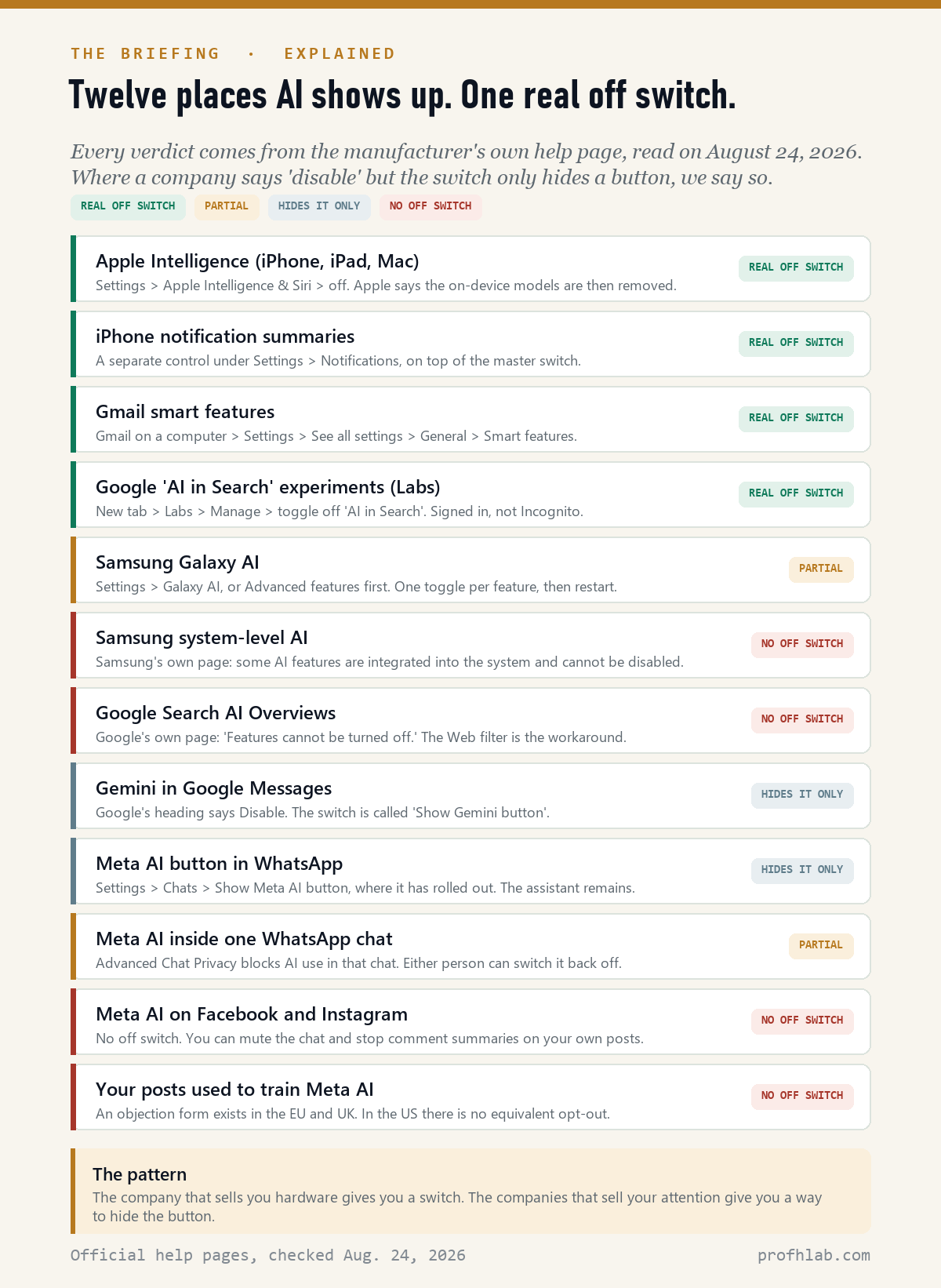
That is not true, and the companies say so themselves. So on August 24, 2026 we went and read the actual help pages — Apple’s, Google’s, Samsung’s, WhatsApp’s — for twelve places AI now shows up on a normal phone. Exactly one of them has a single master switch that genuinely turns the thing off. Three more have real per-feature switches. The rest hide a button, narrow the blast radius, or offer nothing at all.
Jump to what you need
The scorecard: all twelve, with verdicts · Google Search: “Features cannot be turned off” · iPhone: the one switch that is real · Samsung and Android: no master switch · Meta AI: hide, not remove · What breaks when you turn it off · The ten-minute pass · Questions people actually ask
The scorecard: twelve places AI shows up, and what each one really offers
Here is the whole thing on one page. Every verdict below comes from the manufacturer’s own support documentation, read on August 24, 2026 — not from a roundup of other roundups.
| Where the AI is | Verdict | What you can actually do |
|---|---|---|
| Apple Intelligence (iPhone/iPad/Mac) | Real off switch | Settings › Apple Intelligence & Siri › off. Apple says the on-device models are then removed from the device. |
| iPhone notification summaries | Real off switch | A separate control under Settings › Notifications, on top of the master switch above. |
| Gmail smart features | Real off switch | Gmail on a computer › Settings › See all settings › General › “Smart features.” A second control covers Workspace. |
| Google “AI in Search” Labs | Real off switch | New tab › Labs › Manage › toggle off “AI in Search.” Signed in, Incognito off. |
| Samsung Galaxy AI | Partial | Settings › Galaxy AI (some models: Advanced features first). One toggle per feature, then restart the phone. |
| Samsung system-level AI | None | Samsung: some AI features “are integrated into the system and cannot be disabled.” |
| Google Search AI Overviews | None | Google: “Features cannot be turned off.” Press the Web filter after each search. |
| Gemini in Google Messages | Hides it only | Profile picture › Messages settings › Gemini in Messages › turn off “Show Gemini button.” |
| Meta AI button in WhatsApp | Hides it only | Settings › Chats › Show Meta AI button, where the toggle has reached you. |
| Meta AI inside one WhatsApp chat | Partial | Advanced Chat Privacy blocks AI use in that chat. Either person can switch it back off. |
| Meta AI on Facebook / Instagram | None | Mute or delete the chat; turn off comment summaries on your own posts. The assistant stays. |
| Your posts training Meta AI | None (US) | An objection form exists in the EU and UK. There is no equivalent US opt-out. |
Google Search: “Features cannot be turned off”
This is the one that generates the most searching, and it has the bluntest answer. Google’s own help page, under the heading Show only web links in Google Search, says it plainly.
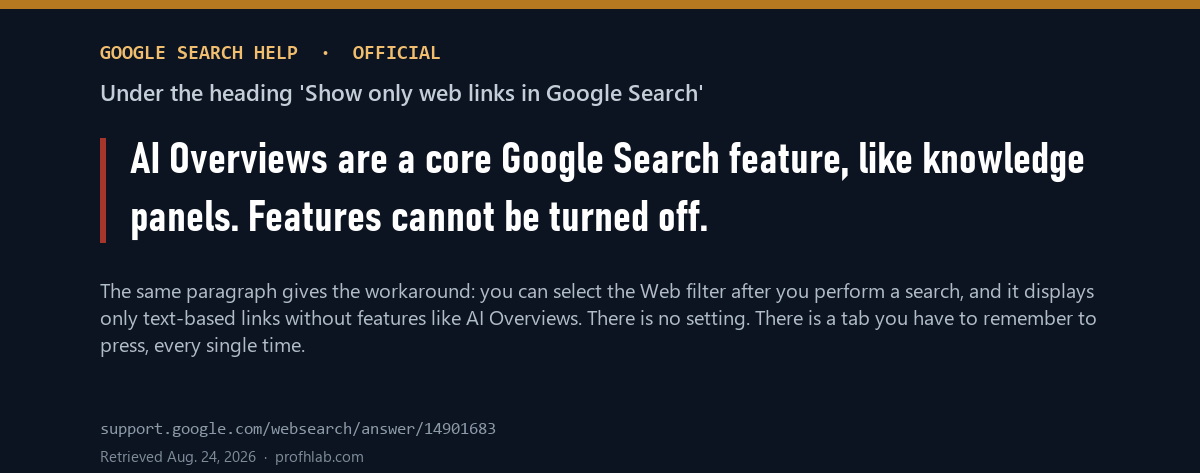
So there is no setting. What there is, in Google’s words, is a filter: “you can select the Web filter after you perform a search. This filter displays only text-based links without features like AI Overviews.”
In practice that means: search as normal, then tap or click Web in the row of filters under the search box. You get the old ten-blue-links page. You have to do it every single time — which is exactly why this is worth teaching as a habit rather than treating as a fix.
There is one genuine toggle nearby, and people confuse the two. Google Labs runs an opt-in programme called AI in Search, and that one you can switch off: open a new tab, click Labs, click Manage, and toggle it. That kills the experiments. It does not touch AI Overviews.
If the AI answer is the problem, not the AI: the Web filter is also the fastest way to check something an AI summary told you. Two of the most common reader questions we get — whether an ad is fake and whether a message is a scam — are both answered faster by looking at plain web results than by reading a generated paragraph.
iPhone: the one master switch that is real
Apple is the exception, and it is worth being precise about why. On Apple’s support page How to get Apple Intelligence, the company describes a single control — Settings, then Apple Intelligence & Siri — and then adds a sentence no other company on this list offers: “If you turn off Apple Intelligence, the on-device models will be removed from your device.”
That is not a hidden button. The software actually leaves, and Apple lists 7 GB of storage as the requirement it frees up. Everything in the Apple Intelligence family goes with it: Writing Tools, mail and message summaries, notification summaries, Genmoji, Image Playground, Clean Up in Photos, Live Translation. Siri stays — in its older, non-Apple-Intelligence form.
Two footnotes that save a lot of confusion:
- Older iPhones have nothing to turn off. Apple Intelligence needs an iPhone 15 Pro, or an iPhone 16 or later. If a relative is on an iPhone 13 and complaining about “the AI,” they are almost certainly complaining about something else — usually Google Search or an app.
- Notification summaries have their own control. They are the single most-complained-about feature, because they compress a news alert or a group thread into a line that occasionally reads as nonsense. Apple keeps a separate control for them under Settings › Notifications, documented in the iPhone User Guide as Summarize notifications and reduce interruptions. You can leave the rest of Apple Intelligence on.
If you are switching things off on someone else’s iPhone and want them to stay off, Apple also documents blocking Apple Intelligence features through Screen Time — the same mechanism used for parental controls, which works just as well in the other direction.
Samsung and Android: no master switch, and Samsung says so out loud
Android is where the “just turn it off” advice falls apart, and to Samsung’s credit the company does not pretend otherwise. Its US support article has a section headed Disable Galaxy AI features. Read the note at the top of that section:
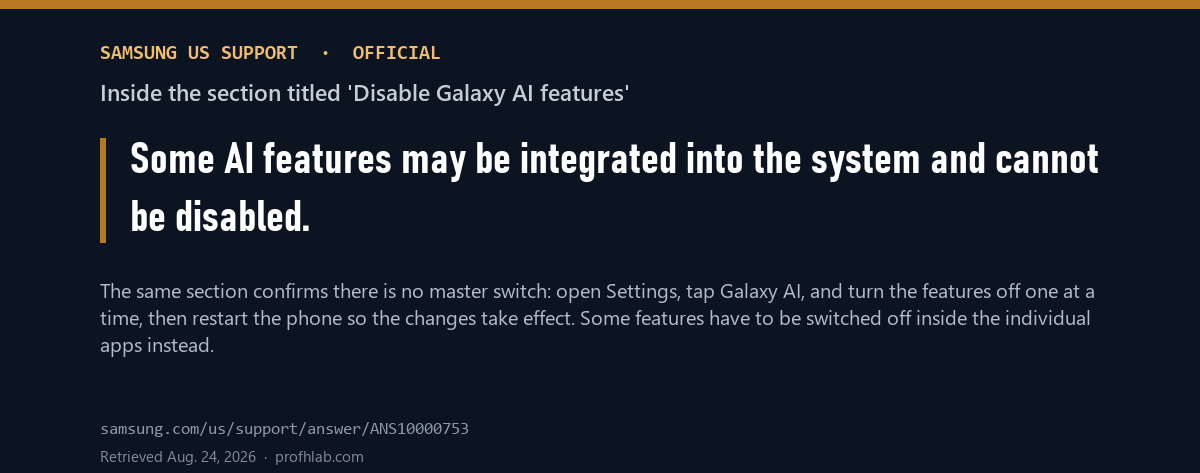
The procedure Samsung gives is a list, not a switch: open Settings, tap Galaxy AI (on some models you tap Advanced features first, then Galaxy AI or Awesome Intelligence), then go through each sub-menu — Call assist, Note assist, Photo assist, Browsing assist, and the rest — turning off the ones you do not want.
Some features are not there at all and have to be switched off inside the individual app: the Phone app, Notes, Camera, Gallery, Samsung Messages, Samsung Health, SmartThings. Samsung adds that you should restart the phone afterwards so the changes take effect, which is the sort of instruction that tells you how deep this goes.
Two Google features sit on top of that on most Android phones, and one of them is a small lesson in wording. Google’s help page has a section headed Disable Gemini in Google Messages. The instruction underneath is: open Messages, tap your profile picture, go to Messages settings, tap Gemini in Messages, and turn off “Show Gemini button.”
Read that twice. The heading says disable. The switch says show button. What you are turning off is the button.
Meta AI: you can hide it, mute it, and fence it off — you cannot remove it
WhatsApp, Facebook, Instagram and Messenger are the apps that generate the angriest version of this question, and here the honest answer is the shortest: there is no off switch for Meta AI, and Meta has not shipped one.
What exists is a set of narrower controls:
- Hide the blue circle in WhatsApp. Settings › Chats › Show Meta AI button. This has rolled out in stages, so not everyone sees it yet. It removes the button, not the assistant.
- Fence off one conversation. WhatsApp’s Advanced Chat Privacy, which the company announced in April 2025, blocks — in WhatsApp’s wording — “exporting chats, auto-downloading media to their phone, and using messages for AI features.” You turn it on by tapping the chat name, then Advanced Chat Privacy.
- Quiet Facebook a little. Comment summaries on your own posts can be switched off in your post settings. Instagram lets you mute or delete the Meta AI chat thread.
It is worth knowing what Advanced Chat Privacy does not do, because a viral version of this advice overstates it. The Electronic Frontier Foundation examined the feature in September 2025 and made two points that matter: your ordinary messages were never being read by Meta AI in the first place — they stay end-to-end encrypted either way — and the protection is fragile, because “anyone involved in a chat can turn Advanced Chat Privacy on or off at will, which limits its usefulness.” What it genuinely stops is someone in the thread invoking the AI on the conversation.
The last row of the scorecard is the one Americans tend to discover last. Meta offers a formal objection form for using your public posts to train its AI — if you live in the EU or the UK, where privacy law requires one. In the United States there is no equivalent switch.
What actually breaks when you turn it off
This is the column most guides skip, and it is the reason a well-meant cleanup sometimes ends in a second phone call. Switching AI off is not free.
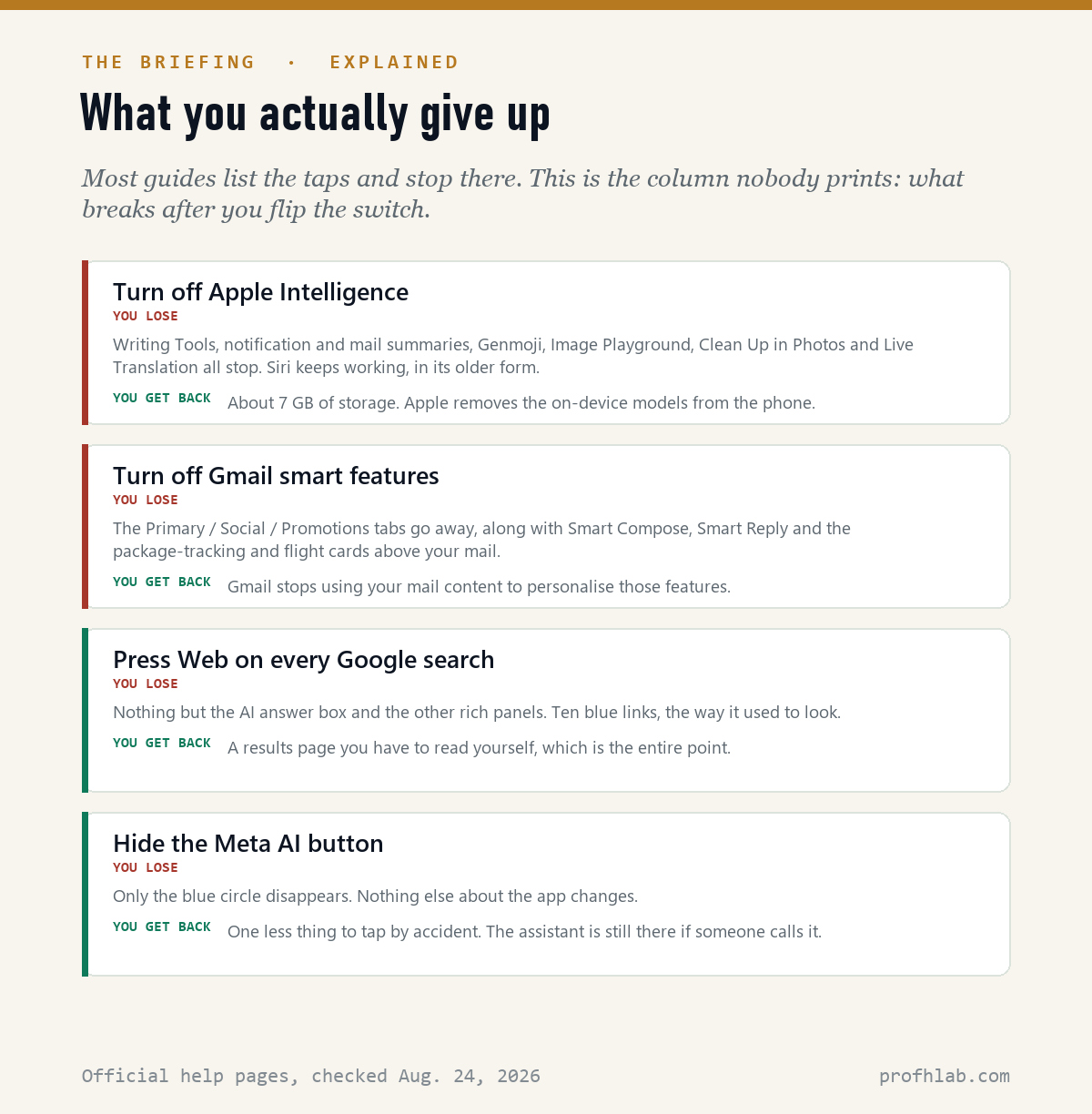
The Gmail one catches people hardest. Turning off smart features does not just stop Smart Compose — by Google’s own description, the same setting governs the automatic Primary / Social / Promotions sorting, the summary cards for packages and flights, and Smart Reply. Someone who has relied on those tabs for a decade will notice within the hour. If the goal is “stop the computer writing my sentences for me,” this is a heavier hammer than the job needs.
Apple’s is the cleanest trade: you lose a named list of features and get roughly 7 GB of storage back. Google’s Web filter costs you nothing except the tap. Hiding the Meta AI button costs you nothing at all, which is also a fair measure of how much it accomplishes.
One step deeper: why there is no single switch to build
It is tempting to read the scorecard as laziness or bad faith. It is mostly neither. It is a consequence of where the AI physically runs, and that is the useful thing to understand, because it predicts what will happen next.
Apple’s features are largely models sitting on the phone itself — which is precisely why Apple can offer a switch that deletes them and reclaims 7 GB. There is a discrete thing to remove. Samsung’s Galaxy AI is a blend: some of it runs on the device, some in the cloud, and some of it has been woven into system components that other features depend on. That is what “integrated into the system and cannot be disabled” means in engineering terms, not just legal ones.
Google’s AI Overviews are not on your phone at all. They are generated on Google’s servers as part of building the results page — which is why Google can honestly say the feature cannot be turned off and, in the same paragraph, hand you a filter that requests a different page instead. And Meta AI is a product Meta is trying to grow, sitting inside apps you do not control. A removal switch would be a subtraction from the thing being measured.
The practical forecast follows: the switches that exist today are the ones attached to software that lives on your device. As more of this moves to servers — and it is moving — expect more filters and fewer switches. Which makes the flip phone in the shop window less of a joke than it looks.

What to do with this: the ten-minute pass
If you are doing this on your own phone, or a parent’s, do it in this order. Steps 1 and 2 remove most of what people are actually complaining about.
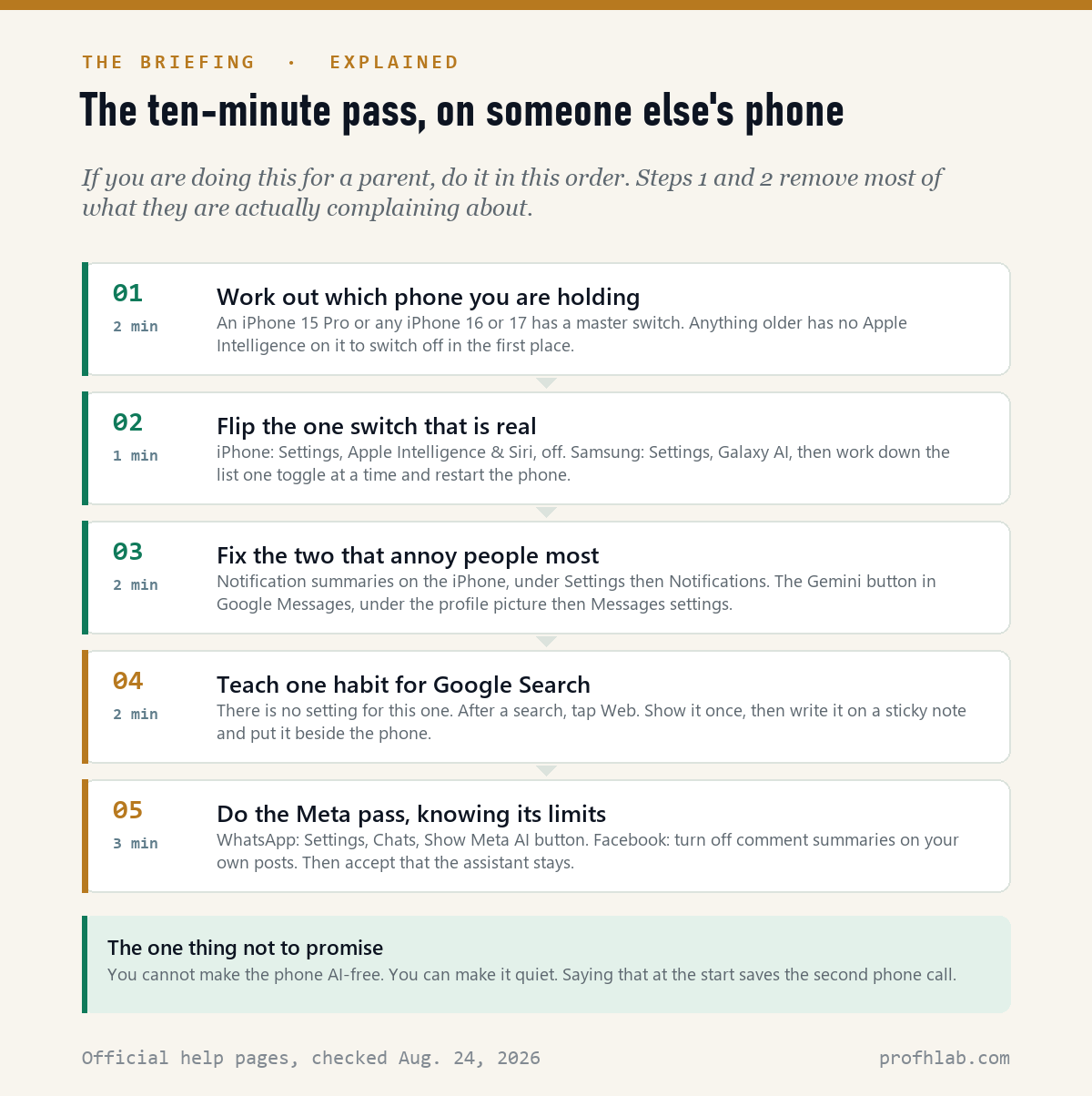
- Identify the phone (2 min). iPhone 15 Pro, 16 or 17 → there is a master switch. iPhone 14 or older → there is no Apple Intelligence to switch off; the complaint is coming from somewhere else. Samsung → expect a list, not a switch.
- Flip the switch that is real (1 min). iPhone: Settings › Apple Intelligence & Siri › off. Samsung: Settings › Galaxy AI, work down the toggles, then restart.
- Fix the two that annoy people most (2 min). iPhone notification summaries, under Settings › Notifications. The Gemini button in Google Messages, under profile picture › Messages settings › Gemini in Messages.
- Teach the Web habit (2 min). There is no setting for AI Overviews. Show them the Web filter once, then write it on a sticky note and leave it by the phone.
- Do the Meta pass, and say what it cannot do (3 min). WhatsApp: Settings › Chats › Show Meta AI button. Facebook: comment summaries off. Then tell them plainly that the assistant stays, so they are not surprised next week.
The one thing not to promise: that the phone will be AI-free. It will be quieter. Saying that up front is the difference between a job that is finished and a job that gets re-opened.
Email access, age guessing and ads each need their own answer
- “Is something on my phone reading my email?” Different question, different answer — and a real flaw made it concrete this month. See Does Copilot have access to my emails?
- “How does it know things about me I never typed?” The signals are more mundane than people fear. See How does ChatGPT know my age?
- “Can I turn off the ads too?” That one has a genuine switch, and it does not cost $20. See ChatGPT ads: how to turn them off without paying.
- Doing this for a parent? The companion piece is How to use ChatGPT: a walkthrough for beginners over 50 — the same slow pace, in the other direction.
Why AI arrived uninvited, and the iPhone and Samsung switches
How do I get rid of AI on my phone?
Completely, you cannot. You can switch off Apple Intelligence entirely on an iPhone 15 Pro or later, turn off Samsung’s Galaxy AI features one at a time, hide the Gemini and Meta AI buttons, and press the Web filter on Google. What remains after all of that is system-level AI that Samsung says cannot be disabled, and Google’s AI Overviews, which Google says cannot be turned off.
Why is AI on my phone now?
Because it arrived in software updates rather than as something you chose. Apple Intelligence came with iOS 18.1 and later, Galaxy AI with One UI 6.1 and later, and Google added AI Overviews to Search and Gemini to Messages on the server side, where no update is needed. Nobody was asked.
Can you turn off AI Overviews on Google?
No. Google’s help page states it directly: “AI Overviews are a core Google Search feature, like knowledge panels. Features cannot be turned off.” The supported workaround is the Web filter, which you select after each search to get text-only links. A separate Labs toggle called “AI in Search” can be turned off, but that covers experiments, not AI Overviews.
How do I get rid of Meta AI on my phone?
You can hide it, not remove it. In WhatsApp, Settings › Chats › Show Meta AI button removes the blue circle where that toggle has rolled out. Advanced Chat Privacy blocks AI use inside a specific chat, although anyone in the chat can switch it back off. On Facebook and Instagram there is no off switch at all; you can mute the chat and turn off comment summaries on your own posts.
How do I get rid of AI on my Samsung phone?
Open Settings and tap Galaxy AI — on some models, Advanced features first, then Galaxy AI or Awesome Intelligence. Turn off each feature individually, then restart the phone. Some features live in the individual apps instead (Phone, Notes, Camera, Gallery, Samsung Messages, Samsung Health, SmartThings). Samsung notes that some AI features are integrated into the system and cannot be disabled at all.
How do I turn off AI on my iPhone?
Settings › Apple Intelligence & Siri, and switch it off. Apple says the on-device models are removed from the device when you do, freeing roughly 7 GB. If you only want the notification summaries gone, there is a separate control under Settings › Notifications. On an iPhone 14 or older there is nothing to turn off, because Apple Intelligence does not run on those models.
Is there a phone without AI?
Only if you leave smartphones behind. Big-button feature phones and basic handsets still ship without any of this. Every current smartphone from Apple, Samsung and Google includes AI features at some level, and on the Android side at least some of them are, in the manufacturer’s own words, part of the system.
Sources
- Apple, How to get Apple Intelligence — Settings path, device requirements, 7 GB storage, and the removal of on-device models. Retrieved Aug. 24, 2026.
- Apple, iPhone User Guide — Summarize notifications and reduce interruptions and Block access to Apple Intelligence features. Retrieved Aug. 24, 2026.
- Google Search Help, Find information in faster & easier ways with AI Overviews — “Features cannot be turned off,” the Web filter, and the Labs “AI in Search” toggle. Retrieved Aug. 24, 2026.
- Gemini Apps Help, Use Gemini in Google Messages — the “Disable Gemini in Google Messages” steps and the “Show Gemini button” toggle. Retrieved Aug. 24, 2026.
- Gmail Help, Smart features & controls for Google Workspace — the two settings and what each one governs, including the Primary/Social/Promotions tabs. Retrieved Aug. 24, 2026.
- Samsung US Support, Use features with Galaxy AI on your Galaxy phone and tablet — the “Disable Galaxy AI features” procedure and the note on system-integrated features. Retrieved Aug. 24, 2026.
- WhatsApp Blog, Introducing Advanced Chat Privacy, April 23, 2025 — what the setting blocks, and how to turn it on.
- Thorin Klosowski, Electronic Frontier Foundation, What WhatsApp’s “Advanced Chat Privacy” Really Does, Sept. 2, 2025 — the limits of the feature.
Past the phone settings: Copilot’s email flaw, ads, cloned voices
- Does Copilot have access to my emails? What the flaw could reach
- ChatGPT ads: how to turn them off without paying $20
- The AI scams targeting seniors, and the safe word that beats a cloned voice
Written by Prof. H, who reads the manufacturer’s own help page before repeating what a roundup said. Every setting path above was checked against official documentation on August 24, 2026; where a company’s wording and its switch disagree, the disagreement is in the article.
Prof.’s H Newsletter
One short email a month, with the numbers in it
What actually moved in AI hiring, AI prices, and the scams aimed at older Americans. Counted here, dated, and linked to the source. One email a month, and your address goes nowhere else.