How to Turn Off AI on Samsung Phone: 19 Switches, Two Companies
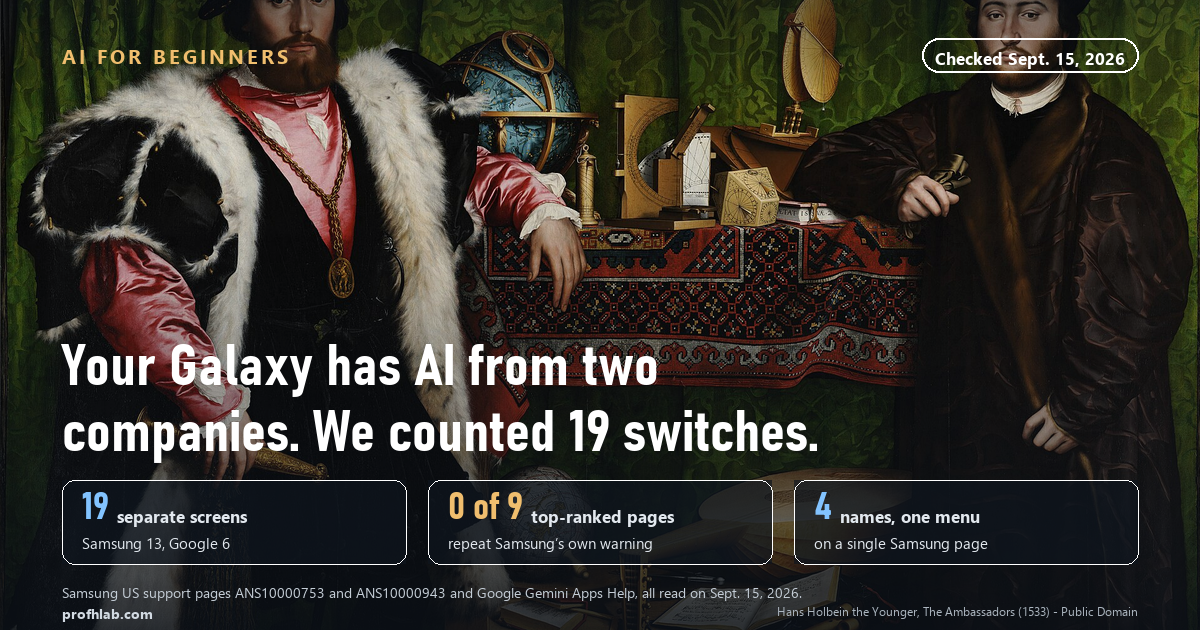
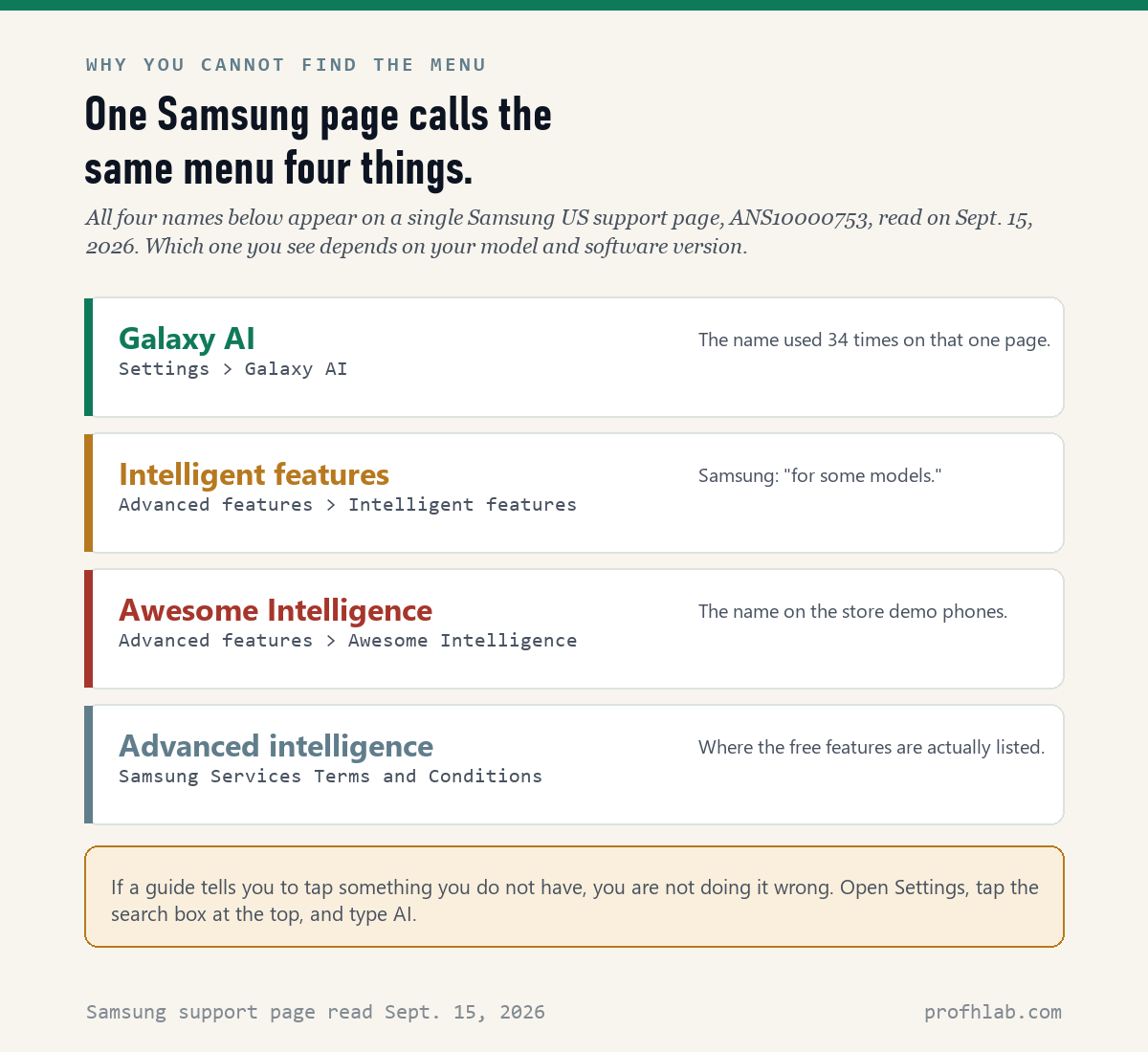
Start with one switch: Settings > Galaxy AI > Process data only on device. Samsung calls it the master switch, and it shuts off every Galaxy AI feature that sends your words or photos to Samsung’s servers. It is not the whole job. Your Galaxy runs AI from two companies, not one, and on September 15, 2026 we counted 19 separate settings screens named in the official Samsung and Google help pages — 13 on Samsung’s side, 6 on Google’s. Samsung also prints a sentence the guides skip: some of it cannot be turned off at all.
What we checked on September 15, 2026
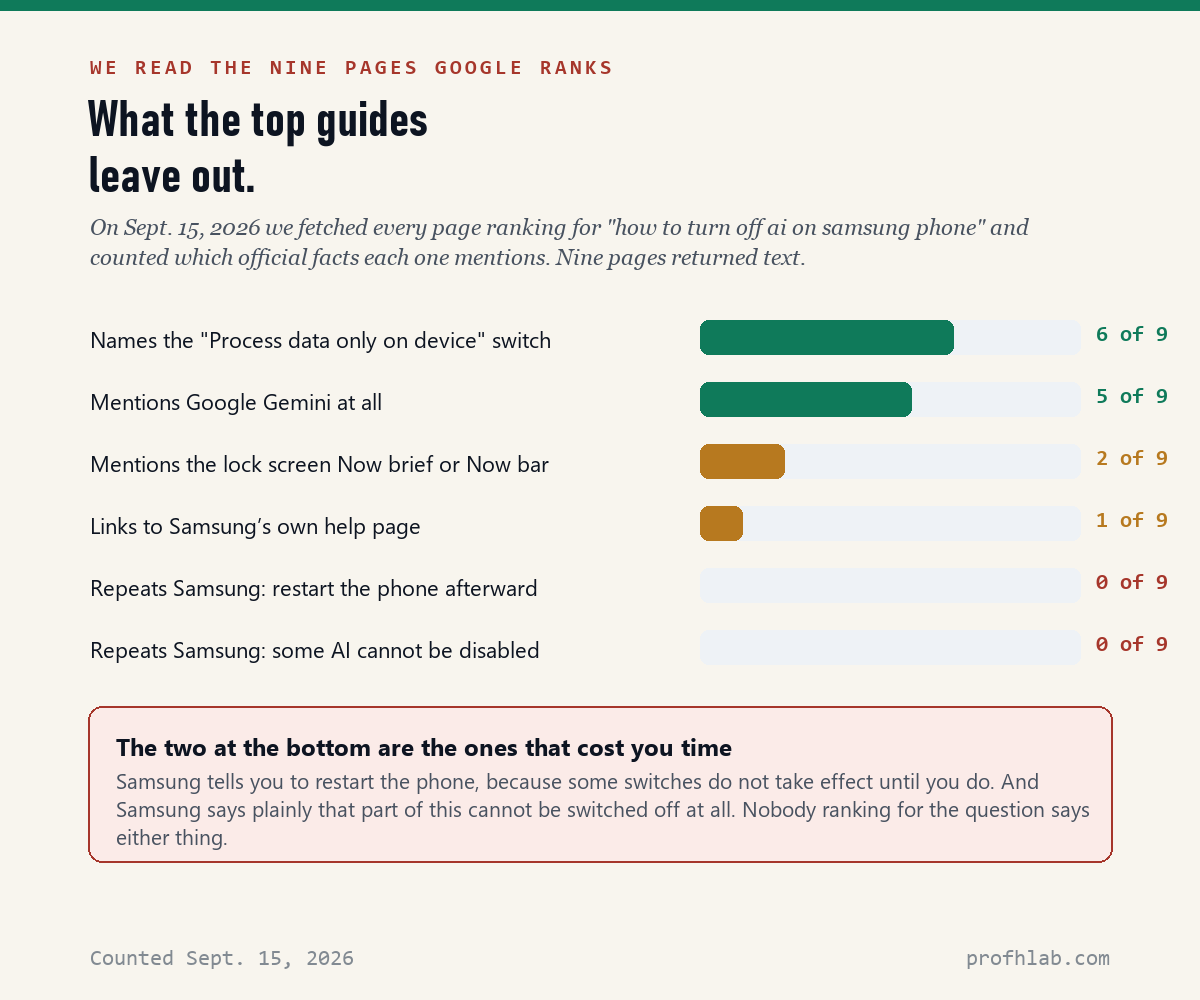
We searched the exact phrase people type — “how to turn off ai on samsung phone” — fetched every page on the first screen of results, and counted which facts from Samsung’s own help pages each one carries. Nine pages returned text.
- 6 of 9 name the “Process data only on device” master switch.
- 5 of 9 mention Google’s Gemini at all — the other half of the AI on the phone.
- 1 of 9 links to Samsung’s own help page.
- 0 of 9 repeat Samsung’s instruction to restart the phone afterward.
- 0 of 9 repeat Samsung’s own sentence that some AI features “cannot be disabled.”
So if you turned things off and the AI kept showing up, you are not doing it wrong. You were given part of the list.
Your phone has AI from two companies, and they do not share a switch
This is the thing that sends people in circles. A Galaxy phone carries Samsung’s AI, which Samsung calls Galaxy AI, and it also carries Google’s AI, which is Gemini and the AI inside Google apps. They are made by different companies and they live in different menus.
Turn off every Galaxy AI feature and Gemini still opens when you hold the power button. Delete the Gemini app and Galaxy AI keeps summarizing your notes. Neither company’s switch touches the other’s software. If you want a wider view of which phone features have a real off switch and which do not, we did that count across twelve of them in how do I get rid of AI on my phone.
Can I turn off Galaxy AI on my phone? The two steps that do the most
Yes, mostly. Two moves cover the large majority of it, and both come from Samsung’s support page, which we opened and read on September 15, 2026.
Step 1. Stop the cloud. Open Settings, tap Galaxy AI, then tap the switch beside Process data only on device. Samsung describes this one as “a ‘master switch’ to disable all cloud-based processing for the Galaxy AI features.” After this, nothing that needs Samsung’s servers runs, and Samsung says the cloud-only tools simply turn off. Samsung’s own list of cloud-based functions includes auto summarizing, auto formatting, auto corrections and image editing.
Step 2. Turn off the features one at a time. In the same Settings > Galaxy AI menu you will see the list of AI features on your device. Tap a sub-menu — Call assist, for example — and turn off the switch next to each feature you do not want.
Then restart the phone. This is Samsung’s instruction, in Samsung’s words: “Be sure to restart your device after disabling AI features to ensure the changes take effect.” Not one of the nine top-ranked guides we read says this. If you have ever switched something off and watched it keep working, that missing line may be the whole explanation.
Why you cannot find the menu: it has four names
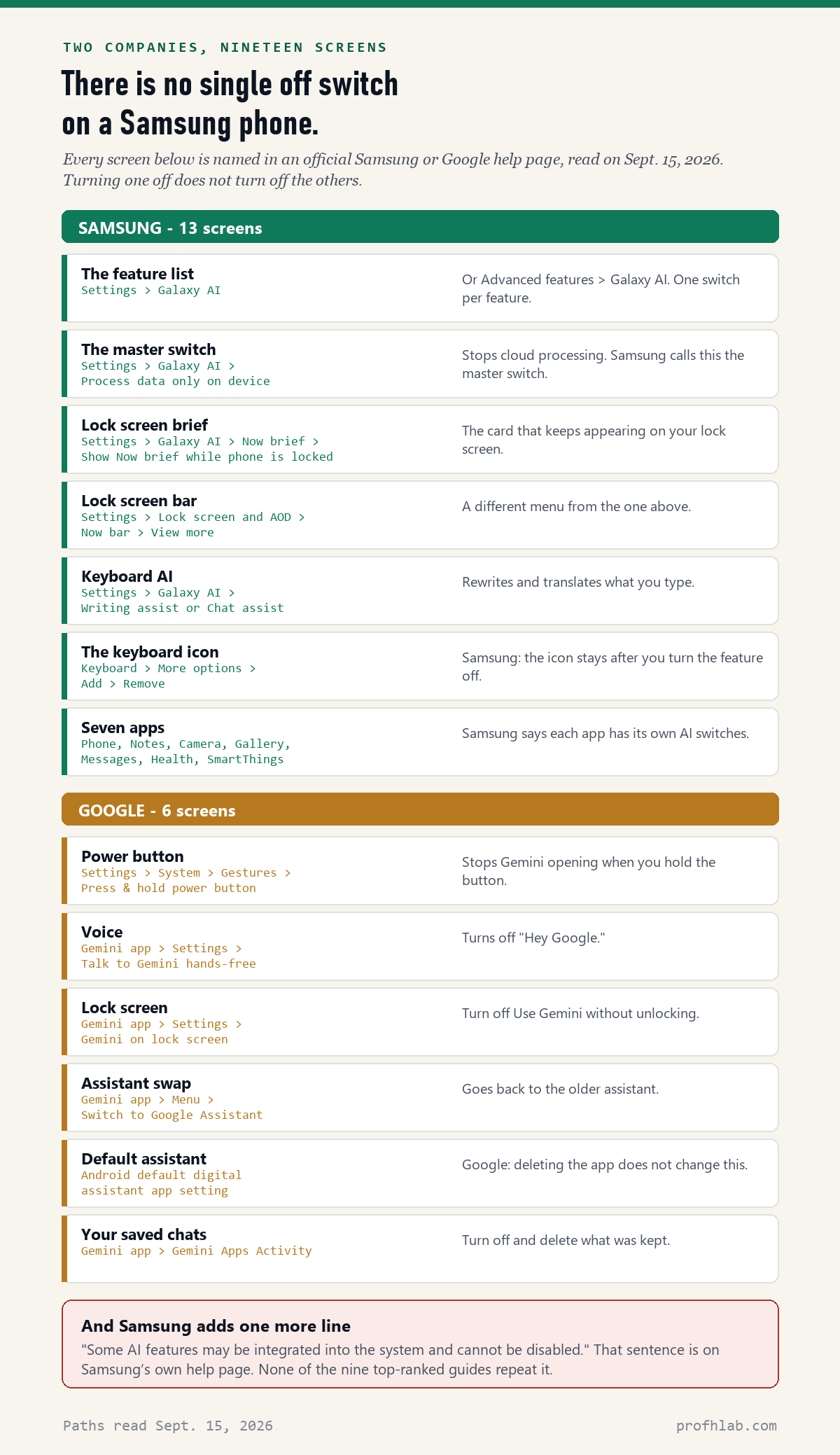
Here is a small thing that wastes a lot of an afternoon. On a single Samsung US support page, the same menu is called four different things.
- Galaxy AI — the usual name, used 34 times on that page.
- Intelligent features — what you tap after Advanced features, “for some models.”
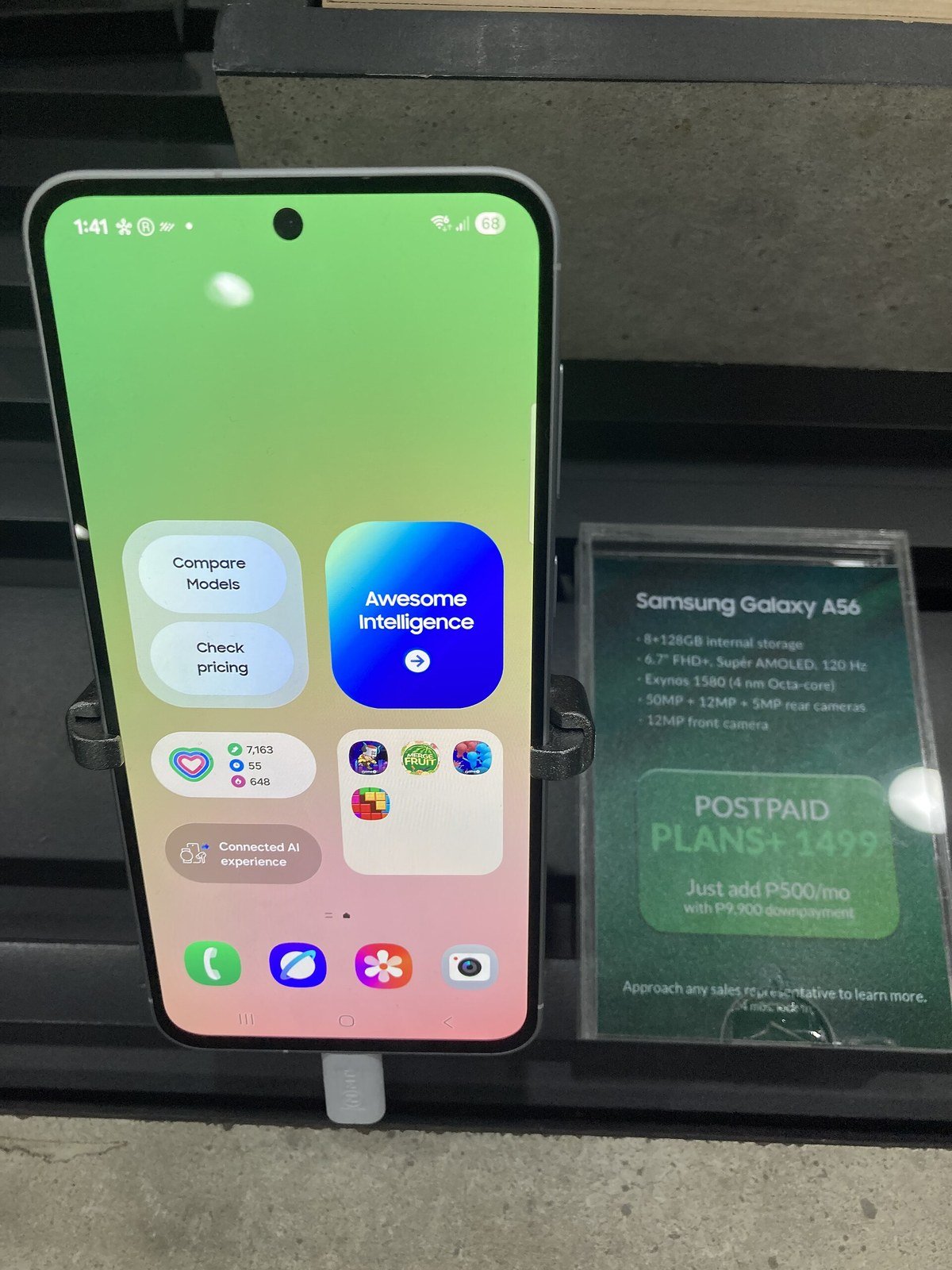
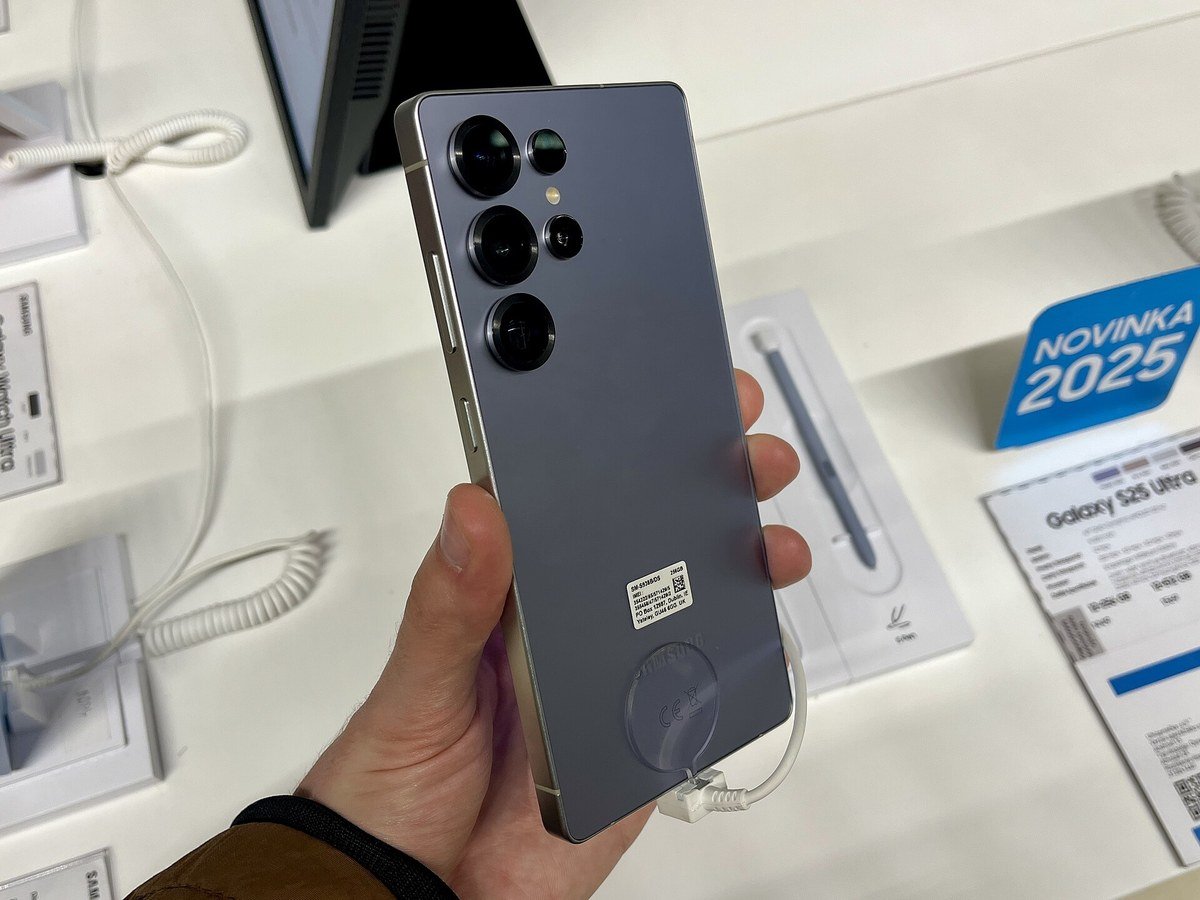
- Awesome Intelligence — the name in the disable instructions, and the one on the demo phone in the photo above.
- Advanced intelligence — the heading in the Samsung Services Terms and Conditions, where the free features are actually listed.
Which one appears on your phone depends on the model and the software version. So when a guide tells you to tap something that is not there, nothing is broken. Open Settings, tap the search box at the top, and type AI. The search finds the menu whatever your phone decided to call it.
The Samsung AI card that keeps popping up on your lock screen
People search for this one in those words: samsung ai lock screen keeps popping up. It has a name. It is called Now brief, and Samsung describes it as a quick overview of your day — health, travel, schedule reminders, phone settings, music, smart home and news headlines — built from your preferences and your location.
There are two switches, in two different menus, and you probably want both.
- The lock screen card: Settings > Galaxy AI > Now brief, then turn off Show Now brief while phone is locked. You can also tap Content to include and take out categories you do not want.
- The bar itself: Settings > Lock screen and AOD (or Lock screen) > Now bar > View more, then turn off the categories. This is the strip that appears at the bottom of the lock screen, in the status bar and at the top of the notification panel.
Two menus for one annoyance, and the second one is not under Galaxy AI at all. That is a fair picture of the whole job.
The keyboard: Writing assist, and the icon that stays behind
Samsung’s keyboard can rewrite and translate what you type. The feature is called Writing assist, and it was called Chat assist before One UI 7, so both names are still in circulation.
Turn it off at Settings > Galaxy AI > Writing assist (or Chat assist), then open each feature such as Chat translation and turn off the switch at the top. You can also reach the same controls through Settings > General management > Samsung Keyboard settings.
Now the part that makes people think it did not work. Samsung says it plainly: “After turning off the feature(s), the Writing assist or Chat assist icon will still appear on the keyboard.” The feature is off; the button is simply still there. To remove the button, open any app that uses the Samsung Keyboard, tap More options on the keyboard, tap Add (the plus icon), then tap Remove (the minus icon) next to the icon, and tap Done.
Now do Google’s half
Gemini is Google’s assistant, and on a modern Galaxy it is the thing that opens when you hold the power button. We wrote a plain-English explanation of what it is and where it came from in what is Gemini on my Android phone. Here is where its switches live, all from Google’s own help page.
- The power button: Settings > System > Gestures > Press & hold power button, then choose what you want that button to do instead.
- Your voice: Gemini app > Settings > Talk to Gemini hands-free, then turn off “Hey Google.”
- The lock screen: Gemini app > Settings > Gemini on lock screen, then turn off Use Gemini without unlocking.
- Go back to the old assistant: Gemini app > Menu > Switch to Google Assistant.
- What Google keeps: Gemini app > Gemini Apps Activity > Turn off, or Turn off and delete activity.
Deleting the app is not the same as turning it off. Google states it directly: “Deleting the Gemini mobile app doesn’t automatically remove Gemini as your device’s default digital assistant.” If you uninstall it and the assistant still answers, that is why — change the default assistant setting too. And even with activity saving off, Google says conversations are kept with your account for up to 72 hours so the service can run and process feedback.
The part Samsung admits: some of it does not turn off
This sentence is on Samsung’s support page, in the box just above the disable instructions: “Additionally, some AI features may be integrated into the system and cannot be disabled.”
Samsung does not say which ones, and we are not going to guess. But it is worth knowing before you spend an hour hunting for a switch that was never built. Note the other line in the same document, too: “Signing in to the device with your Samsung account will automatically activate all the AI features.” You did not choose this on a screen you remember. Signing in chose it.
That also explains a trick you will see in some guides: sign out of your Samsung account and Galaxy AI becomes unavailable in one move. It works, and Samsung’s own sentence above is why. It is a blunt instrument — you also lose Samsung Cloud, Find My Mobile, Samsung Pay and the rest — so treat it as a last resort rather than a first step.
Is Galaxy AI free, or will it start charging me?
This worry is everywhere, because Samsung once said Galaxy AI features would be free on supported devices only through the end of 2025, and people have been waiting for the bill ever since. Here is what Samsung’s US support page says today, September 15, 2026, word for word:
“Galaxy AI basic features provided by Samsung are free. Any Samsung enhanced AI features and all third party AI features are subject to different terms and may be subject to fees.”
So: the basic set is free, and Samsung says the basic set is the one listed under “Advanced intelligence” in the Samsung Services Terms and Conditions. Anything sold as enhanced, or anything from another company, is a separate question with its own terms. If a screen on your phone asks for a subscription, that is the line you are standing on. We track what the major AI subscriptions actually cost, and what changed this month, in the AI price tracker.

What to do with this
Ten minutes, in this order. You do not need anyone’s help for any of it.
- Settings > Galaxy AI > Process data only on device. Turn it on. This is the big one.
- Same menu, go down the feature list. Turn off what you do not use.
- Settings > Galaxy AI > Now brief — turn off Show Now brief while phone is locked.
- Settings > Lock screen and AOD > Now bar > View more — turn the categories off.
- Settings > System > Gestures > Press & hold power button — take Gemini off the button if you do not want it.
- Gemini app > Gemini Apps Activity — turn it off, and delete what is stored if you want to.
- Restart the phone. Samsung says to, and it is the step everyone skips.
- Open Settings and search “AI” one more time to see what your particular model still lists.
If any menu name does not match, use the search box at the top of Settings. Your version of One UI may simply call it something else.
If you want to go deeper
- “Does this make my phone worse?” Samsung warns that disabling AI features may affect performance and functionality, and that on-device-only mode limits the tools that need a connection. In practice you lose conveniences — summaries, generative photo editing, live translation — not the phone.
- “What about the AI in Google Search?” Different fight, different menu. We covered what can and cannot be switched off there in how to get the old Google search back.
- “Is the AI listening to me?” The honest answer is that microphones and data collection are separate questions from AI features, and the settings above control the second, not the first. Is Meta AI reading my WhatsApp messages works through one version of that question carefully.
- “My spouse has an iPhone.” Same problem, different building: how to turn off AI summaries on iPhone.
Questions people actually ask
How do I turn off AI on my Samsung phone?
Open Settings, tap Galaxy AI, and turn on Process data only on device — Samsung calls this the master switch and it stops every Galaxy AI feature that uses the cloud. Then go down the feature list in the same menu and turn off what you do not want, and restart the phone. Google’s Gemini is separate and has its own switches.
Can I turn off Galaxy AI on my phone completely?
Almost. You can turn off cloud processing and every feature that has a switch, but Samsung’s own help page says some AI features “may be integrated into the system and cannot be disabled.” Signing out of your Samsung account deactivates Galaxy AI in one move, because Samsung says signing in is what activates all the features — but you lose the rest of your Samsung account services too.
How do I get rid of AI on my phone if it is a Samsung?
Work through both companies. Samsung’s side is Settings > Galaxy AI, the Now brief and Now bar lock screen settings, the Writing assist keyboard settings, and the individual AI switches inside the Phone, Notes, Camera, Gallery, Messages, Health and SmartThings apps. Google’s side is the power button gesture, “Hey Google,” Gemini on the lock screen, the default assistant setting, and Gemini Apps Activity.
How do I turn off Gemini on my Samsung phone with the power button?
Open Settings, tap System, tap Gestures, tap Press & hold power button, and pick a different action. That keeps the Gemini app on the phone but stops it opening when you hold the button. If you cannot find the setting, search your Settings app for “power,” “side button” or “gesture.”
The Samsung AI lock screen keeps popping up. How do I stop it?
That is Now brief. Go to Settings > Galaxy AI > Now brief and turn off Show Now brief while phone is locked. The strip at the bottom of the lock screen is a separate feature called Now bar, at Settings > Lock screen and AOD > Now bar > View more.
How do I turn off AI on the Samsung keyboard?
Go to Settings > Galaxy AI > Writing assist, or Chat assist on older software, and turn off each feature. The icon stays on the keyboard afterward — Samsung says so — and you remove it separately: open the keyboard, tap More options, tap Add, then tap Remove next to the icon and tap Done.
What is Awesome Intelligence on my Samsung?
It is one of Samsung’s names for the Galaxy AI settings menu. The same Samsung support page calls it Galaxy AI, Intelligent features and Awesome Intelligence, and the Samsung Services Terms use “Advanced intelligence.” Which name you see depends on your model and software version, so search Settings for “AI” rather than hunting for an exact word.
Is Galaxy AI free, or do I have to pay for it?
Samsung’s US support page, read September 15, 2026, says: “Galaxy AI basic features provided by Samsung are free. Any Samsung enhanced AI features and all third party AI features are subject to different terms and may be subject to fees.” The basic features are the ones listed under “Advanced intelligence” in the Samsung Services Terms and Conditions.
Why does my Samsung have AI I never asked for?
Because signing in switched it on. Samsung’s help page says that signing in to the device with your Samsung account “will automatically activate all the AI features.” There was no separate screen where you agreed to each one, which is why so many people find features they do not recognize.
Sources
- Samsung US, “Use features with Galaxy AI on your Galaxy phone and tablet” (ANS10000753) — disable instructions, the master switch, Now brief and Now bar paths, supported devices, the free-features wording, and the “cannot be disabled” note. Read September 15, 2026.
- Samsung US, “Use Writing assist on Galaxy phones and tablets” (ANS10000943) — keyboard AI switches and the icon that remains. Read September 15, 2026.
- Google, “Manage or delete the Gemini app on your Android device” — power button, “Hey Google,” lock screen, default assistant. Read September 15, 2026.
- Google, “Manage & delete your Gemini Apps activity” — turning off activity and the 72-hour retention note. Read September 15, 2026.
- Our own count of the nine pages ranking for “how to turn off ai on samsung phone,” September 15, 2026 — method described in the box at the top.
Keep reading
- How do I get rid of AI on my phone? — twelve places it appears, and which ones have a real off switch.
- What is Gemini on my Android phone? — plain English, no jargon.
- How to turn off AI summaries on iPhone — the same job on the other phone.
- How to get the old Google search back.
- How to turn off AI on my TV — Samsung sells those too.
- How to turn off AI on Amazon.
- How to stop AI from reading my Gmail.
- How to stop Meta AI from using my photos on Facebook.
- Is Meta AI reading my WhatsApp messages?
- How to turn off call screening on iPhone.
- How to remove Copilot from Windows 11.
- How to tell if an email is written by AI.
- AI scams targeting seniors — the part of this that actually costs money.
- What happens if you say yes on a scam call?
- How to use ChatGPT: a beginner’s guide for readers over 50.
- The best AI tools for seniors — what is worth your time once the noise is off.
- The AI price tracker — what the paid tiers actually cost this month.
- Start here — the whole beginners’ library in one place.
About the author. Prof. H writes profhlab.com for people who did not grow up with this stuff and would like a straight answer. We read the primary sources so you do not have to. Every menu path above was read on Samsung’s and Google’s own help pages on September 15, 2026, and every source is linked. Found an error, or a menu that does not match your phone? Tell us — we correct in public.
Prof.’s H Newsletter
One short email a month, with the numbers in it
What actually moved in AI hiring, AI prices, and the scams aimed at older Americans. Counted here, dated, and linked to the source. One email a month, and your address goes nowhere else.