How to Turn Off AI on Pixel Phones: 14 of 20 AI Features Have a Switch in Google’s Help, and None Turns Them All Off
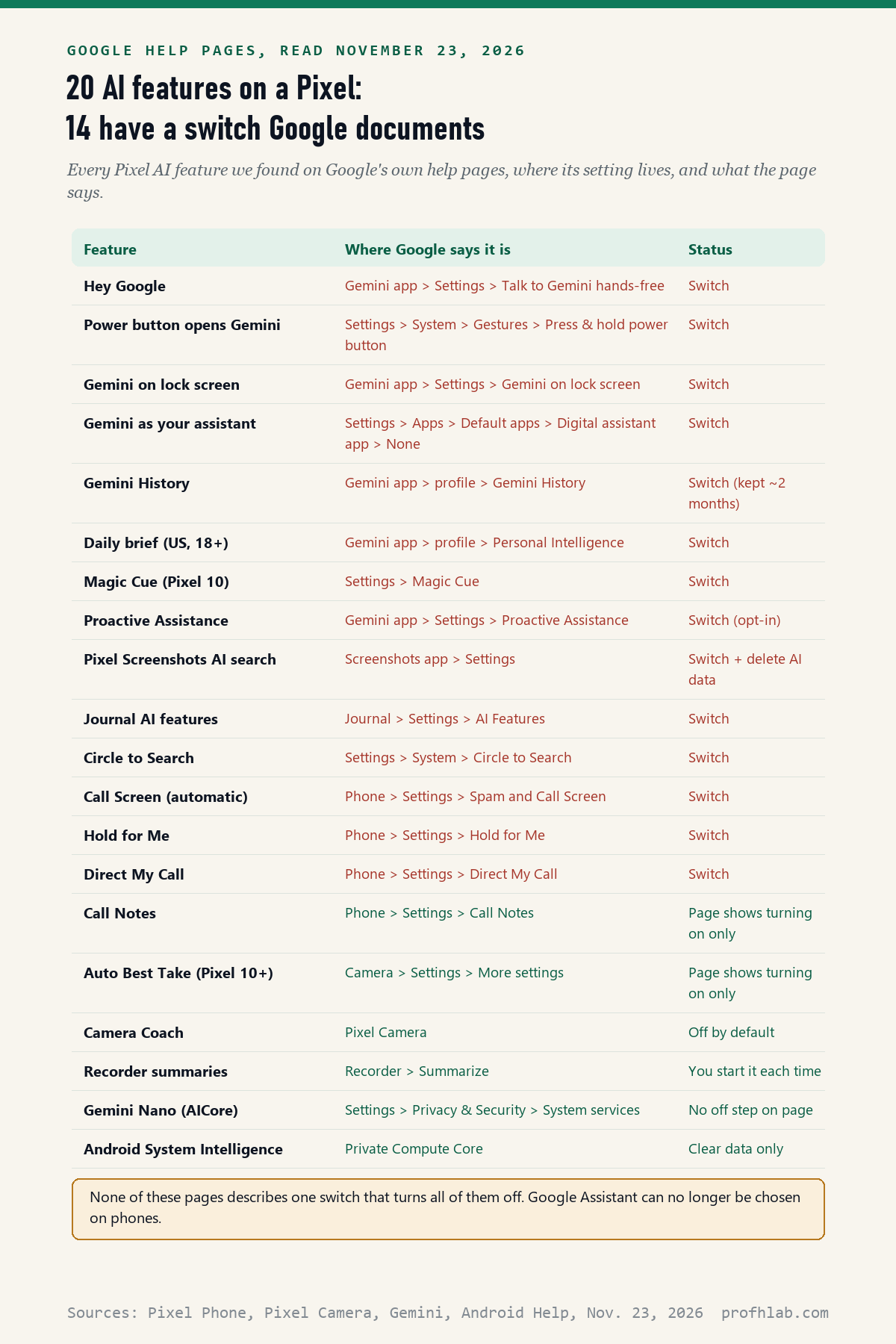
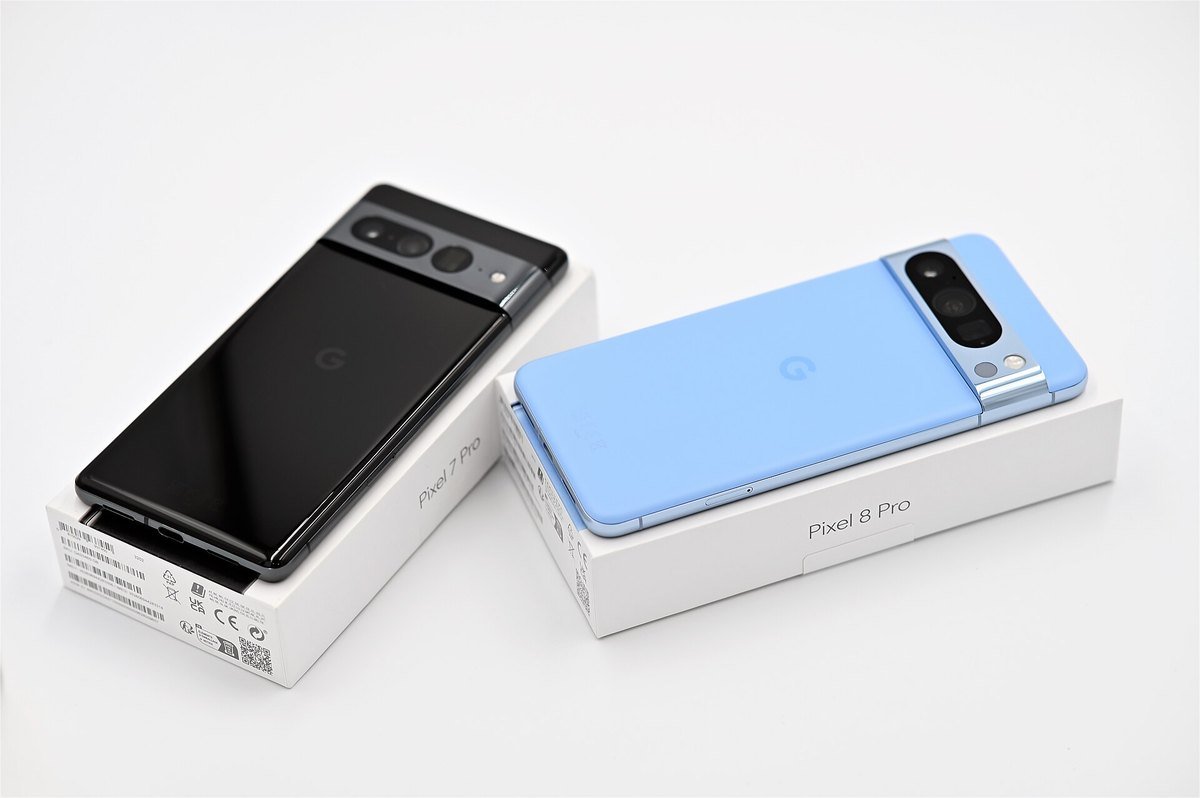
There is no single switch that turns off AI on a Google Pixel: on November 23, 2026, we read 21 of Google’s own help articles and found 20 Pixel AI features, and 14 of them have an off switch Google documents. You turn them off one at a time, and the six steps that matter most take about fifteen minutes.
That is better news than it sounds. Most of the AI on a Pixel waits for you to call it. A few features watch your screen or your calls on their own, and those are the ones worth switching off first. This guide puts them in that order.
What we checked on November 23, 2026
We read 21 articles in Google’s Pixel Phone, Pixel Camera, Phone app, Gemini Apps and Android help centers, one by one, and wrote down every AI feature they name, where its setting lives and whether the page says how to turn it off. We counted a feature as having a switch only when the page gives an off or on-and-off step.
We did not set up a Pixel for this test. Every menu path below is Google’s wording. Menus can differ a little by model and software version.
Written and checked by Prof. H. An AI assistant helped draft this article and ran the page reads; every quote was read on the source’s own page on the date shown.
Can you turn off all the AI on a Pixel at once?
No: none of the 21 Google help articles we read on November 23, 2026 describes one switch for all Pixel AI, so each of the 14 switchable features is turned off in its own menu.
Think of a Pixel as a house where every room has its own light switch. There is no main breaker for the AI. Some switches are in the phone’s Settings app, some are inside the Gemini app, and some are inside the Phone, Camera, Screenshots and Journal apps.
The closest thing to a list is Google’s Pixel page Use Gemini, your AI assistant, on your Pixel phone. It names 6 other AI features in one place: Circle to Search, AI Overviews in Search Labs, Pixel Studio, Pixel Screenshots, Magic Editor and Proactive Assistance. It does not give one way to turn them all off.
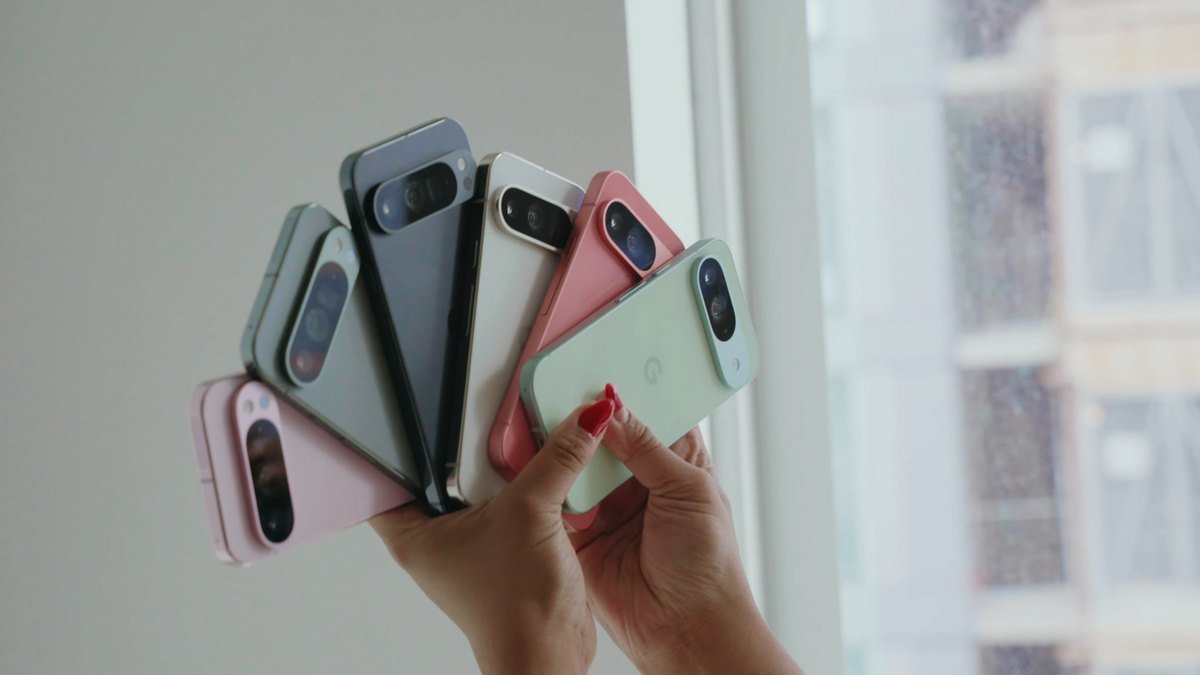
How do I turn off Gemini on my Pixel?
Use four settings: Google’s Gemini help page Manage or delete the Gemini app on your Android device, read November 23, 2026, gives a separate step for Hey Google, the lock screen, the power button and the default assistant.
- Open the Gemini app, tap your profile picture or initial, then Settings, then Talk to Gemini hands-free. Turn off Hey Google.
- In the same Settings, tap Gemini on lock screen and turn off Use Gemini without unlocking.
- Open the phone’s Settings app, tap System, then Gestures, then Press & hold power button, and change it so holding the button no longer opens Gemini.
- In Settings, tap Apps, then Default apps, then Digital assistant app. Choose None.
Step 4 is the biggest. With no default assistant, holding the power button or saying a wake word has nothing to open. It also turns off voice help you may like, such as voice texting from a car. Our guide to turning off Gemini on Android Auto covers that trade.
Google adds one warning. Deleting the Gemini app, it says, “doesn’t automatically remove Gemini as your device’s default digital assistant.” So change step 4 even if you delete the app.
Can I get Google Assistant back on a Pixel?
No: Google’s Gemini help, read November 23, 2026, says in one sentence, “You can no longer switch to Google Assistant on phones and tablets.”
Many top search results we saw on November 23 still show steps to pick Google Assistant in the Google app. Those guides were written before this change. If your phone still offers the choice, it is running older software, and Google’s own help no longer promises it.
Your real choices are Gemini, another assistant app you install, or None. If you just want to know what Gemini is and what it can see, our explainer What is Gemini on my Android phone? walks through it.
How do I stop Gemini from keeping my chats?
Turn off Gemini History: Google’s history page for Android, read November 23, 2026, says it is on by default for anyone 18 or over, and the path is Gemini app, your profile picture, Gemini History, then Turn off or Turn off and delete history.
One catch is in the same page. Even with History off, Google says your chats are saved with your account “for around two months” to answer you and keep the service safe. Turning it off limits what Google keeps. It does not make it zero.
If you live in the US and are 18 or over, Gemini may also make you a Daily brief. Google says you can turn it off at any time under your profile picture, then Personal Intelligence, then Daily brief.
A new Pixel under the tree? Do this on day one
Google Store’s US phones page on November 23, 2026 listed the Pixel 11, Pixel 11 Pro, Pixel 11 Pro Fold, Pixel 10a, Pixel 10, Pixel 10 Pro and Pixel 10 Pro Fold. Setting up a new phone is the easiest time to change these menus, before your photos, messages and calls pile up. Ask the giver to sit with you for fifteen minutes and go down the checklist near the end of this page.
How do I turn off Magic Cue and Proactive Assistance?
In Settings, tap Magic Cue: Google’s Pixel page on Magic Cue, read November 23, 2026, says you can choose which suggestion types and data sources to turn on or off, and that you can “turn it off at any time.”
Magic Cue makes suggestions from what is on your screen and from the data sources you allow. Google lists it for the Pixel 10 family in the US. For a single app, Google says to turn off Proactive Assistance under Screen Access.
Proactive Assistance is the newer Gemini version on the Pixel 10 and 11 families. Google calls it “an opt-in feature,” so it stays off unless you said yes. To check, open the Gemini app, tap Settings, then Proactive Assistance.
One wrinkle from Google’s own page: once you opt in to Proactive Assistance, Magic Cue stops working. So on newer phones, the Gemini setting is the one to check first.
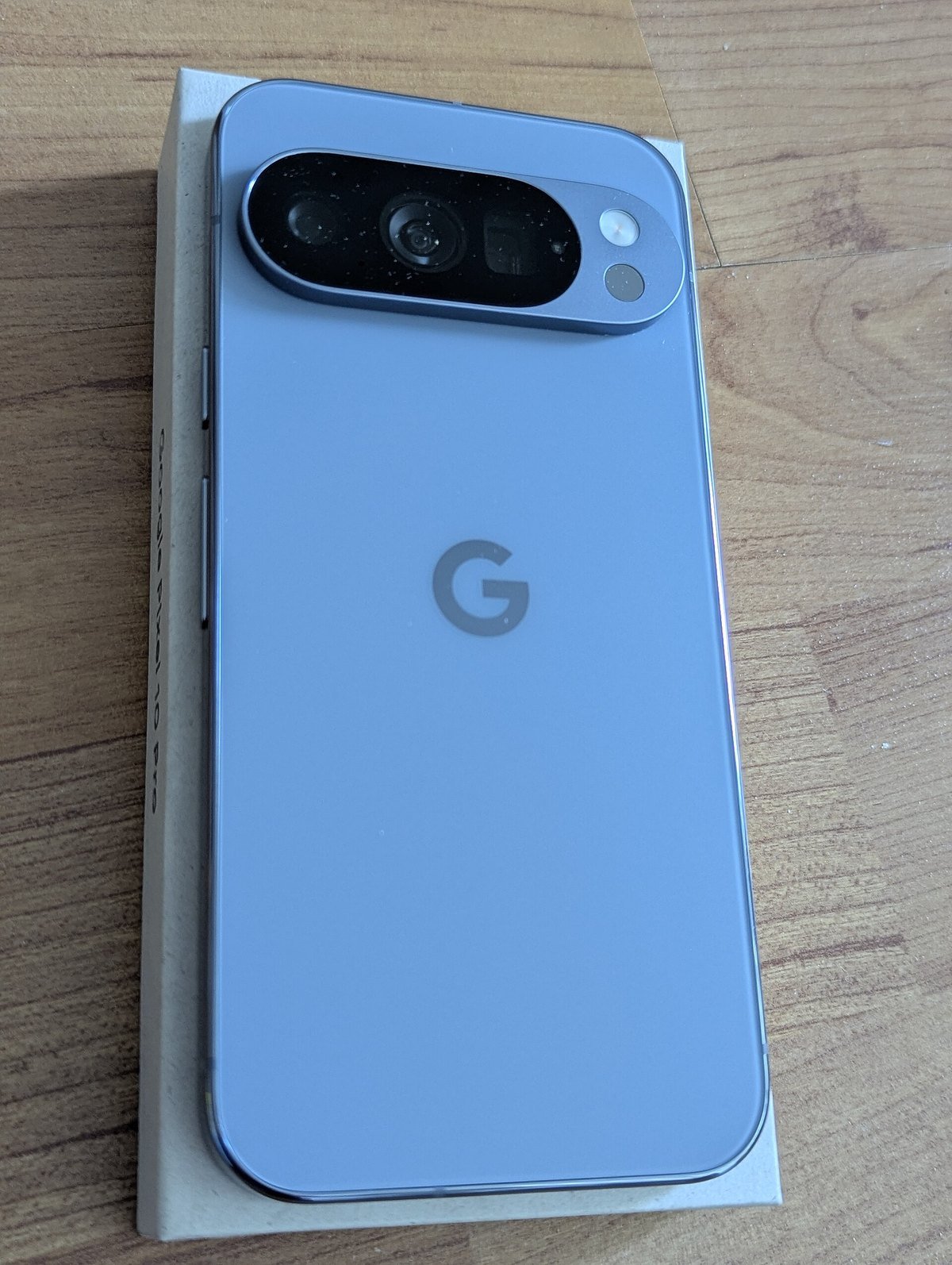
Should I turn off the AI that answers my phone?
Think twice: Google’s Call Screen page, read November 23, 2026, says Pixel 7 and newer phones can screen unknown callers automatically, and the setting sits under the Phone app’s Spam and Call Screen menu, so it is part of your spam protection.
If you still want it off, open the Phone app, tap More, then Settings, then Spam and Call Screen or Call Screen, and turn Automatically screen calls off. Google gives the same kind of on-and-off switch for Hold for Me and Direct My Call, both under Phone, More, Settings.
Our suggestion, which is a judgment and not Google’s advice, is to leave Call Screen on and turn off only what annoys you. AI voice scams are aimed hard at older adults, and our guide How to tell if you are talking to AI on the phone shows why.
Call Notes, on Pixel 9 and later except A-series models, records and summarizes a call. Google’s Phone app page only shows how to turn it on, under Phone, Settings, Call Notes, and how to delete all notes. If you never turned it on, there is nothing to undo.
Pixel Screenshots, Journal and Circle to Search each hide their own switch
Each of these three has its own off step on Google’s Pixel help, read November 23, 2026, and one of them lets you delete what the AI already made.
- Pixel Screenshots (Pixel 9, 10 and 11 families): open the Screenshots app, tap Settings, turn off Search your screenshots with AI, then tap Delete all AI summaries and metadata.
- Journal: open Journal, then Settings, and turn off AI Features. Google says your past entries are not deleted.
- Circle to Search (Pixel 6 and later): open Settings, tap System and turn off Circle to Search.
The Screenshots step is the only one in Google’s pages we read that pairs the switch with a delete button for AI data. Do both. The screenshots themselves stay.
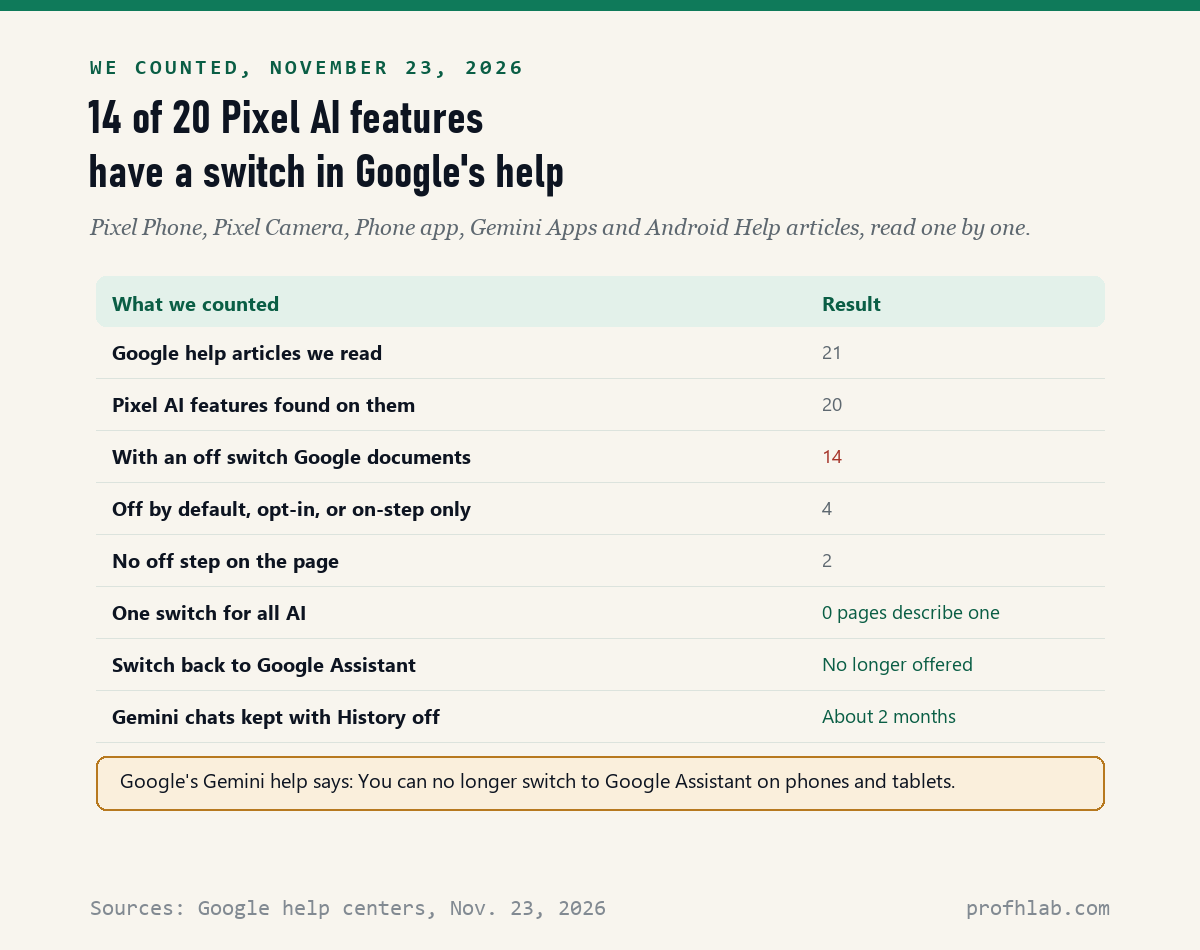
Does the Pixel camera use AI even when I just press the shutter?
Some of it only works if you turn it on: Google’s Pixel Camera help, read November 23, 2026, says Camera Coach “is turned off by default,” and Auto Best Take on Pixel 10 and later is a setting under Camera, Settings, More settings.
Camera Coach gives tips while you frame a shot and needs an internet connection. To close it, Google says you tap Close or Camera Coach. Add Me, on Pixel 9 and later, is a camera mode you pick yourself, so it only runs when you choose it.
Best Take is an edit you choose in Google Photos. If you also want Photos to stop using AI, our guide to turning off AI in Google Photos covers that app.
Which Pixel AI stays on no matter what you switch?
Two system parts: Google’s pages on Android AICore and Android System Intelligence, read November 23, 2026, show where to find them but give no off step.
AICore runs Gemini Nano, the small AI model that works on the phone itself, on Android 14 and higher. Android System Intelligence sits inside what Google calls Private Compute Core. For it, Google only offers Clear Data and the usage and diagnostics setting.
Google’s general Pixel page says you “can disable most system apps” under Settings, Apps, All apps. We did not test disabling AICore or the Gemini app, and Google does not say what breaks. Our estimate is that features built on them would stop, so we do not recommend it for a phone you rely on.
Recorder summaries are the last case. Google says you opt in by tapping Summarize on a recording. There is no background switch because it never starts by itself.
A fifteen-minute Pixel checklist, in the order we would do it
These six steps cover the Pixel AI that runs without being asked, based on the 21 Google help articles we read on November 23, 2026.
- Settings, Apps, Default apps, Digital assistant app: choose None if you never use voice help.
- Gemini app, profile picture, Gemini History: turn off, or turn off and delete.
- Settings, Magic Cue, and Gemini app, Settings, Proactive Assistance: turn off what you did not ask for.
- Screenshots app, Settings: turn off AI search, then delete AI summaries and metadata.
- Settings, System: turn off Circle to Search if you keep opening it by accident.
- Phone app, More, Settings: look at Call Screen, Hold for Me and Direct My Call, and leave Call Screen on unless it truly bothers you.
Write down what you changed on a sticky note. If something stops working later, that note is the fastest way back. Owners of other phones can use our guides for Samsung Galaxy phones and any phone, iPhone included.
Gemini also lives in apps that are not part of the Pixel itself. We have separate guides for Google Messages, the Google keyboard, Chrome, Google Maps and Google Home speakers.
What else do Pixel owners ask about turning AI off?
Can you turn off AI on Pixel?
Yes, one feature at a time. On November 23, 2026, we found 20 Pixel AI features in 21 Google help articles, and 14 have a documented off switch. None of the pages describes one switch that turns them all off.
How to remove Gemini from Pixel phone?
Set Settings, Apps, Default apps, Digital assistant app to None, and turn off Hey Google in the Gemini app. Google says deleting the Gemini app does not remove Gemini as your default assistant, and Google Assistant can no longer be chosen on phones.
How to turn off Magic Cue?
Open Settings and tap Magic Cue, then turn off the suggestion types and data sources you do not want. Google says you can turn it off at any time. On the Pixel 10 and 11 families, also check Proactive Assistance in the Gemini app settings.
How to turn off Pixel Screenshots?
In the Screenshots app, tap Settings and turn off Search your screenshots with AI, then tap Delete all AI summaries and metadata. Google lists the app for Pixel 9, 10 and 11 models. Your screenshots themselves stay on the phone.
How to turn off call screening on Pixel 10?
Open the Phone app, tap More, then Settings, then Spam and Call Screen or Call Screen, and turn Automatically screen calls off. Google puts Call Screen in the Spam and Call Screen menu, so consider leaving it on.
How to turn off AI on Google Pixel camera?
Camera Coach is off by default, Google says, and Add Me only runs when you pick that mode. Auto Best Take on Pixel 10 and later is a setting under Camera, Settings, More settings. Best Take is an edit you choose in Google Photos.
Questions we did not answer here? Send them through our Ask page, or start from the Start Here guide for beginners. Paying for Gemini and not sure why? See why you may be charged for Google AI Pro, whether Gemini is still free, and current plan prices on our AI Price Tracker. Scam worries come first? Read AI scams targeting seniors.
Every Google page behind these steps, with the date we read it
- Gemini Apps Help, Manage or delete the Gemini app on your Android device; read November 23, 2026.
- Gemini Apps Help, Manage & delete your history in Gemini Apps; read November 23, 2026.
- Gemini Apps Help, Get started with your daily brief in Gemini Apps; read November 23, 2026.
- Pixel Phone Help, Use Gemini, your AI assistant, on your Pixel phone; read November 23, 2026.
- Pixel Phone Help, Get personal suggestions on your Pixel with Magic Cue and Get help with Proactive Assistance on Pixel; read November 23, 2026.
- Pixel Phone Help, Use the Pixel Screenshots app, Record your thoughts and get insights with the Journal app and Search your screen with Circle to Search; read November 23, 2026.
- Pixel Phone Help, Screen your calls before you answer them, Use Hold for Me and Use Direct My Call; Phone app Help, Use Call Notes in Phone app; read November 23, 2026.
- Pixel Camera Help, Use Camera Coach, Get a great photo every time with Top Shot and Take high quality photos on your Pixel phone or tablet; Google Photos Help, About Google Photos features for Pixel devices; read November 23, 2026.
- Pixel Phone Help, Create, edit & manage transcriptions, Android System Intelligence and Delete, disable & manage unused apps on Android; Android Help, About Android AICore; read November 23, 2026.
- Google Store, Phones (US); read November 23, 2026.
Prof.’s H Newsletter
One short email a month, with the numbers in it
What actually moved in AI hiring, AI prices, and the scams aimed at older Americans. Counted here, dated, and linked to the source. One email a month, and your address goes nowhere else.