How to Turn Off Gemini on Google TV: Google Says There Is No Switch, So Here Are the Ways Around It
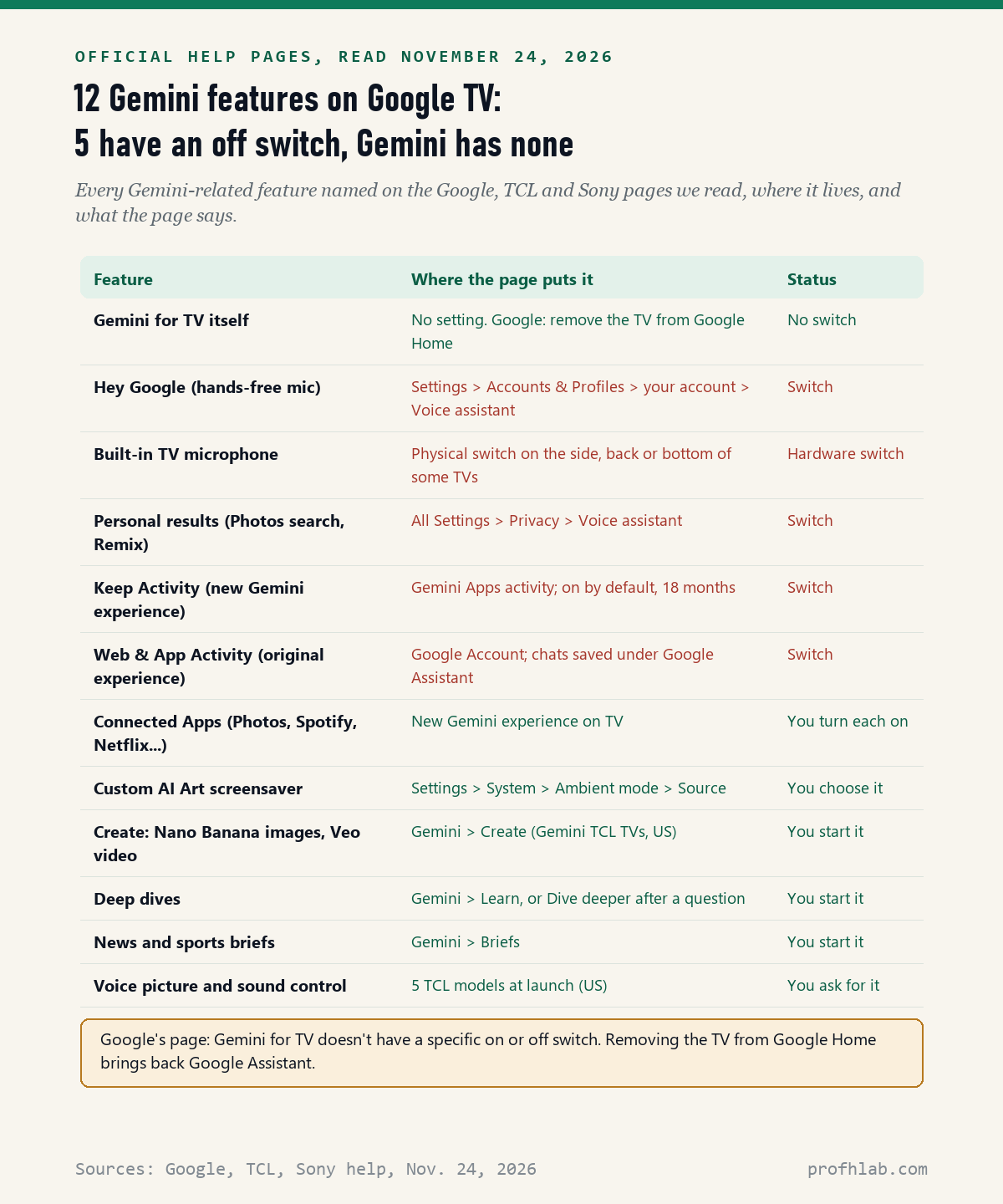
You cannot switch Gemini off on Google TV the normal way: on November 24, 2026, Google’s own Google TV help page said “Gemini for TV doesn’t have a specific on or off switch,” and its only off step is removing the TV from Google Home. We read 15 official pages that day and found 12 Gemini features on Google TV; 5 of them have an off switch.
So the honest answer is “not directly, but you have choices.” You can bring back the older Google Assistant, stop the TV from listening, or stop Google from keeping what you say. Each choice has a cost, and one of them can sign your streaming stick out of your Google account. This guide puts them side by side.
What we checked on November 24, 2026
We read 15 official pages: 11 from Google’s Google TV, Google Home, Chromecast, Google Assistant and Gemini help centers plus Google’s launch post, 2 from TCL support and 1 from Sony’s TV help guide. We wrote down every Gemini feature they name and whether the page gives a way to turn it off. A Sony support article on the TV microphone refused our reader, so we quote nothing from it.
We did not set up a Google TV for this test. Every menu path below is the page’s own wording. Menus can differ by brand, model and software version.
Written and checked by Prof. H. An AI assistant helped draft this article and ran the page reads; every quote was read on the source’s own page on the date shown.
Can you turn off Gemini on Google TV?
Not with a switch: Google’s help page Do more with Gemini on Google TV, read on November 24, 2026, says Gemini for TV has no on or off switch, and that eligible TVs get it automatically.
The same paragraph gives the one official way out. “To turn it off, remove the device from Google Home. When you do, you get Google Assistant instead.” Google Home is Google’s app for smart speakers, lights and TVs. Gemini for TV only works on a TV that has been added to a home in that app.
Think of it like a hotel key card. The TV gets Gemini because it is checked into your Google Home. Check it out, and it falls back to the older Google Assistant. Before you do that, read the next two sections, because checking out has side effects.
How do I remove my TV from Google Home, and what do I lose?
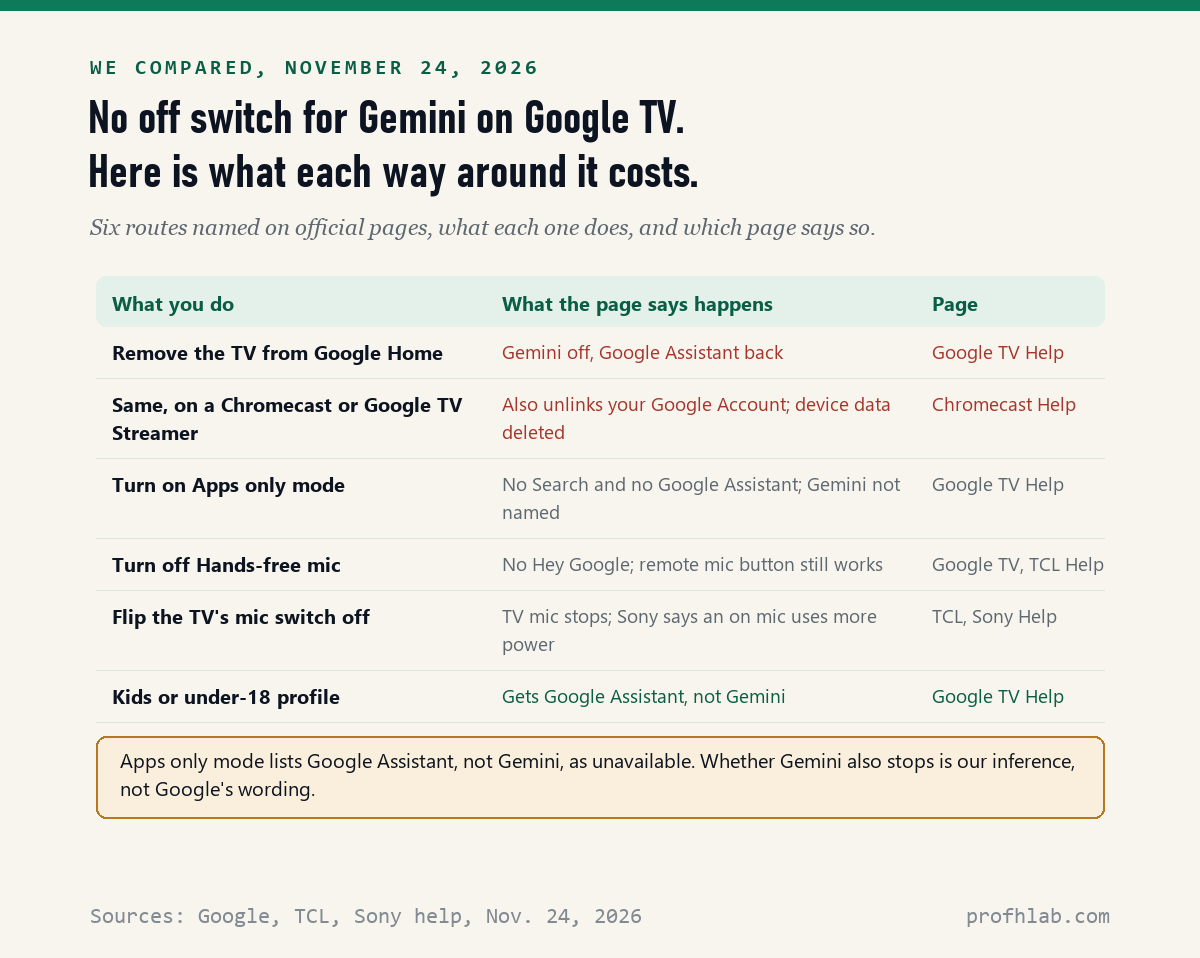
Use the Google Home app on your phone: Google’s page Organize your homes and devices, read on November 24, 2026, lists the steps as Home, All devices, touch and hold the TV’s tile, Settings, Remove device, Remove.
- Open the Google Home app on your phone.
- Tap Home, then All devices.
- Touch and hold the tile for your TV or streaming stick.
- Tap Settings, then Remove device, then Remove.
Here is the cost Google puts on a different page. On a Chromecast with Google TV or a Google TV Streamer, Google’s Chromecast help says removal from the Home app makes the device “automatically unlink from your Google Account and the accounts of the other home members.” It adds: “Data associated with the streaming device will also be deleted.”
In plain words, that page says you may have to sign the streamer back in. Your Netflix or YouTube apps have their own logins, which we did not test. The Chromecast page does not say whether a TV made by Sony or TCL behaves the same way. We could not confirm that, so treat it as unknown.
You also lose Gemini’s extras and get Google Assistant back for voice commands. Google’s Assistant page for Google TV lists what that still does: play shows, change volume, dim smart lights, set alarms and answer quick questions.
Which TVs and streamers have Gemini in 2026?
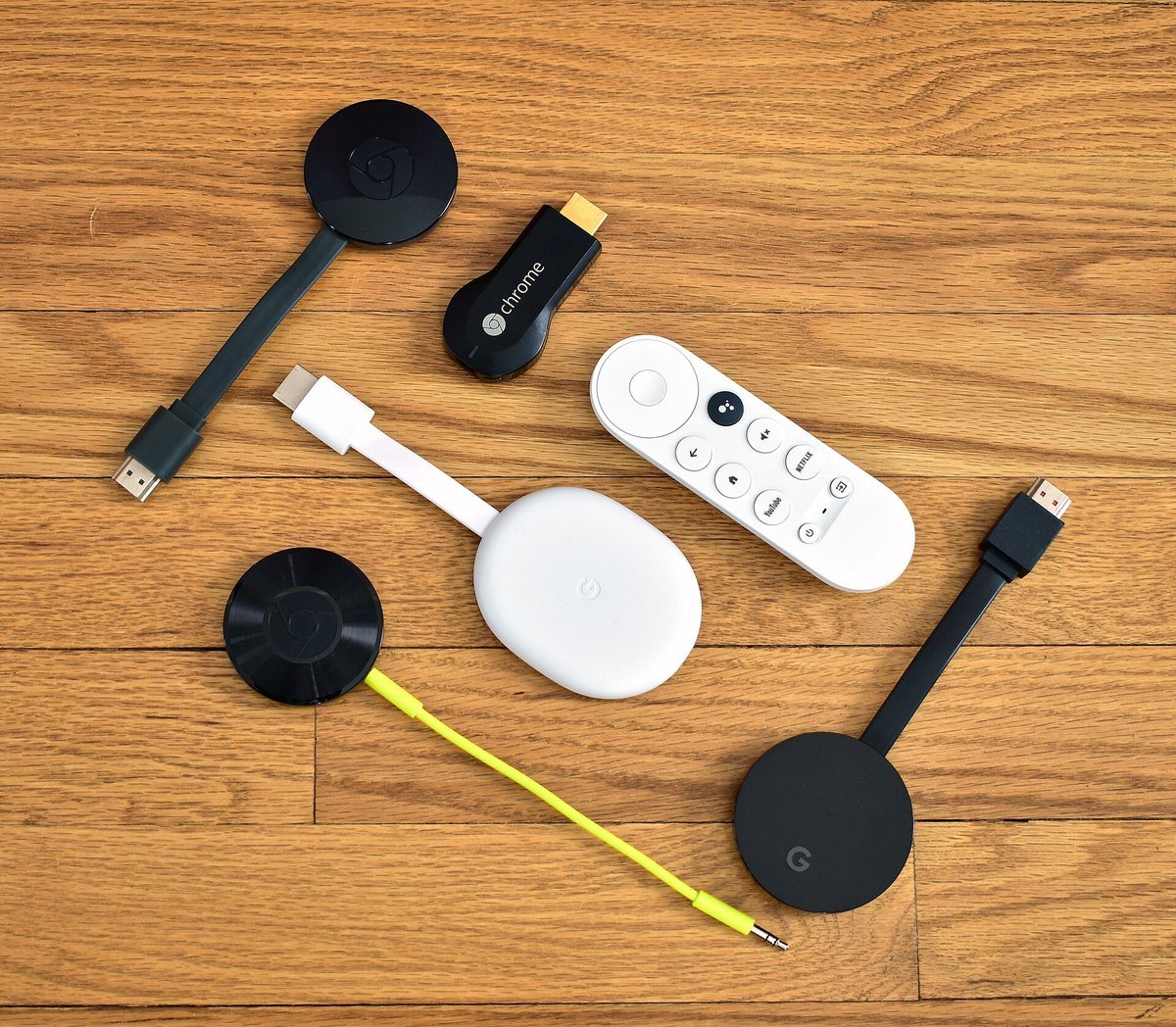
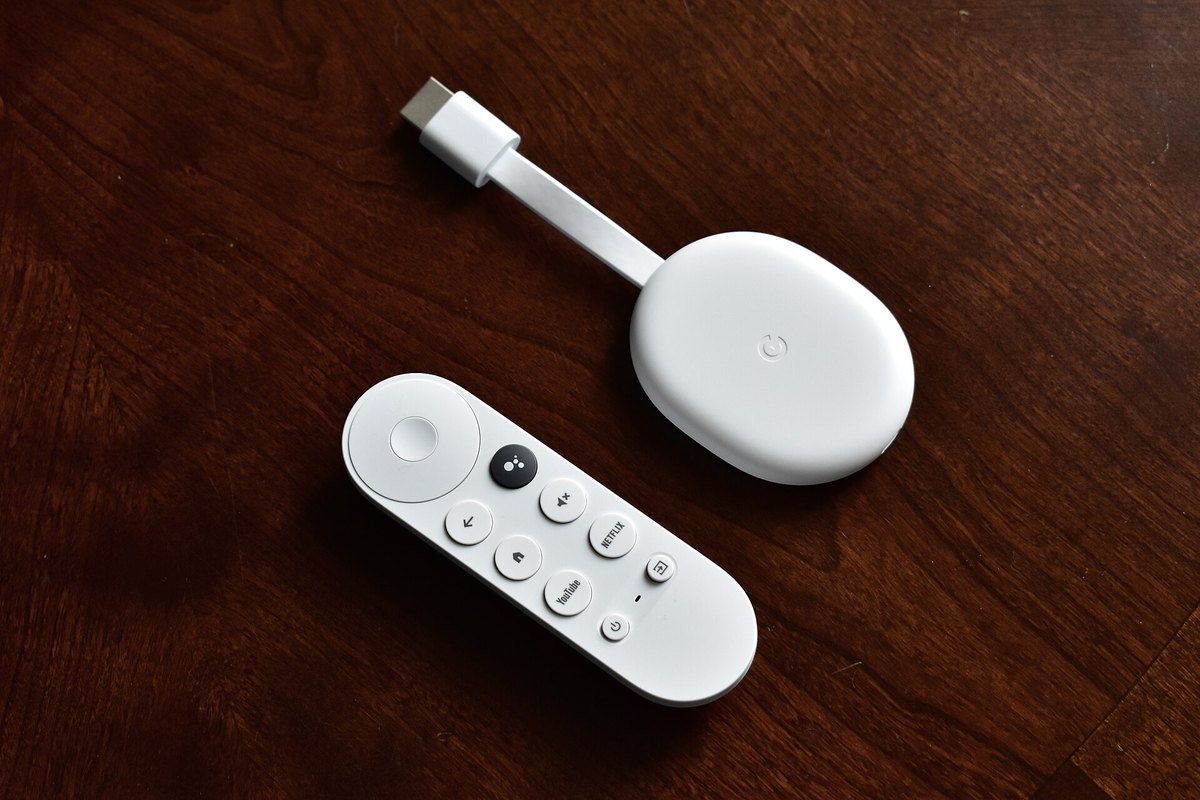
Four brands are on Google’s list for the new Gemini experience as of November 24, 2026: Google’s own Chromecast with Google TV (4K) and Google TV Streamer, Sony BRAVIA 4K Google TVs, TCL 4K QLED and QD-Mini LED Google TVs, and Walmart’s onn. 4K streaming boxes.
The older version of Gemini for TV runs on Google TV devices with Android 14 or later and at least 2 GB of memory, the same page says. Google’s launch post, published September 22, 2025, started with one TV, the TCL QM9K, and said Google TV and other Android TV devices number over 300 million.
Not sure what you have? Check the brand on the box or the startup screen. If your TV runs Roku, Fire TV, Samsung or LG software, it is not Google TV, and these steps do not apply. Our guides for Roku TVs, Fire TV, Samsung TVs and LG TVs cover those.
How do I check which Gemini my TV has?
Open Settings, then Accounts & Profiles, then Voice assistant: Google says that if you see a Connected Apps option there, you have the new Gemini experience, and if not, you have the original one.
This matters because the two keep your words in different places. Google says you cannot switch between them yourself; the TV updates when the new version reaches your model. The rest of this guide marks which steps belong to which.
How do I stop Gemini from listening for “Hey Google”?
Turn off Hands-free mic: Google’s Google TV page, read November 24, 2026, puts it at Settings, Accounts & Profiles, your account, Voice assistant, and warns Gemini “might turn on if it hears a noise that sounds like ‘Hey Google,’ even if your TV is off.”
- Press the Home button and open Settings (the gear).
- Select Accounts & Profiles, then your account.
- Select Voice assistant.
- Turn off Hands-free mic.
Some TVs also have a physical microphone switch. TCL’s help says it may be on the side, back or underside of the set, and that both the switch and the setting must be on for the TV to hear you without the remote. So turning off either one stops hands-free listening.
Sony’s help guide for BRAVIA 9, 8, 7 and 5 models adds two details. “Power consumption will increase when the built-in MIC is enabled as it is always listening,” it says, and a small amber light can stay on even when the TV is off. If you never use voice, the switch is worth flipping.
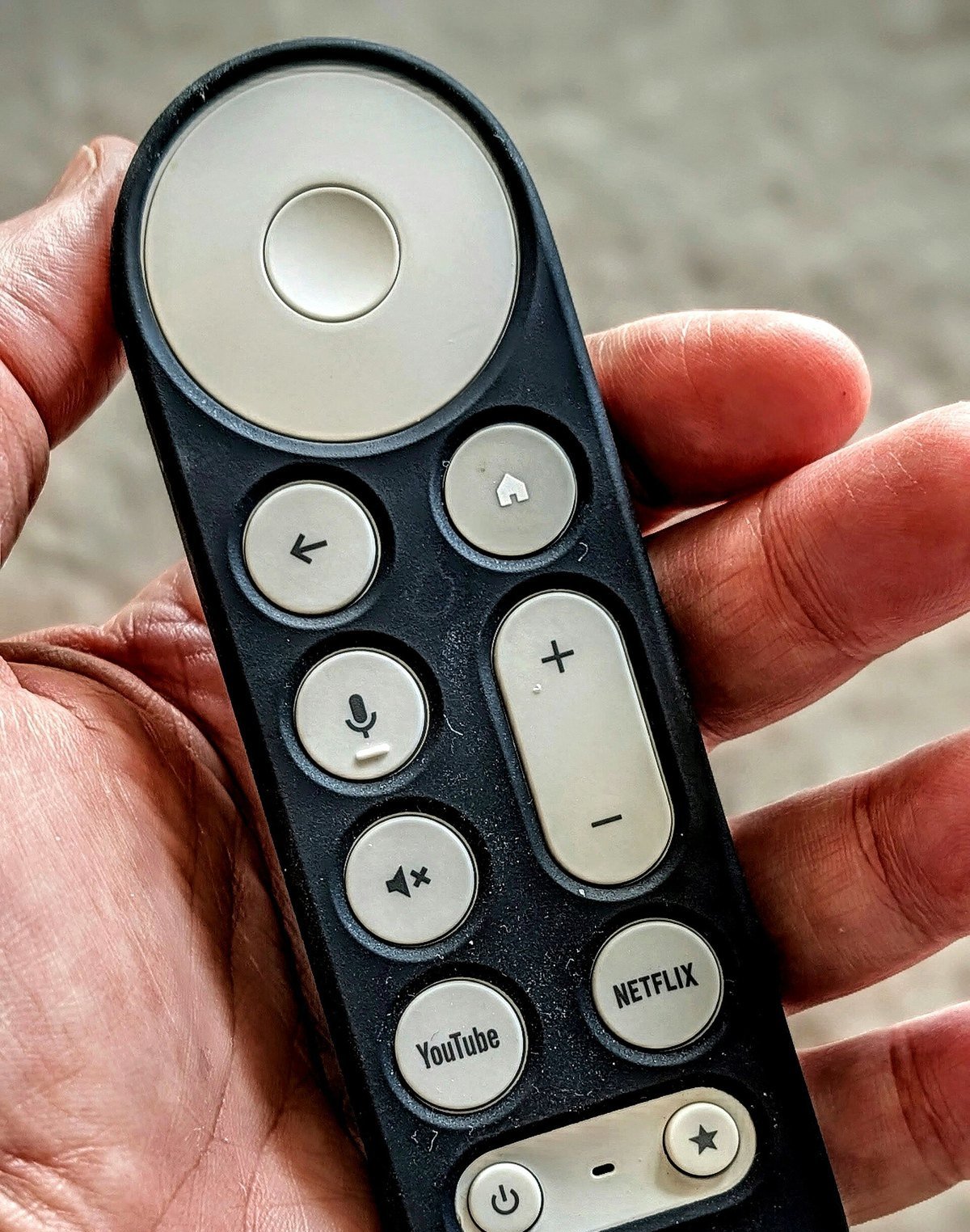
The remote’s microphone button still works after this. TCL says that when you hold the button, you do not need to say “Hey Google” first. That is the trade most people want: Gemini answers only when pressed.
“Check out how Gemini for Google TV works” from the Android channel (1.29 million subscribers), posted September 30, 2025; 9,675,912 views when we checked on November 24, 2026. It shows Gemini answering on a TV screen, so you know what you are switching away from.
How do I stop Google from keeping what I say to Gemini on my TV?
Turn off Keep Activity on the new experience: Google’s Google TV page, read November 24, 2026, says it is on by default and saves your Gemini activity for 18 months, which you can change to 3 or 36 months.
The page is frank about why this matters. Google uses that activity “to develop and improve its services, including Gemini models,” with help from human reviewers. Data that reviewers see is disconnected from your account and kept for 3 years. “To stop future chats from being used to improve Google AI, turn off Keep Activity,” it says.
On the original experience, your TV conversations go somewhere else. Google says they are saved under “Google Assistant” in your Google Account if Web & App Activity is on, and you can delete them at any time. Look there, not in a Gemini list.
One more fact from Google’s Gemini Apps history page, read the same day. Even with that history turned off, conversations are kept with your account “for around two months” to run the service. That page is written for Gemini Apps, which the new TV experience brings to your TV. Turning history off is still worth it. It is just not instant deletion.
Can other people in my house see my photos through Gemini?
They can if you let them: Google’s Google TV page says anyone using the TV can get personal results for the signed-in account unless Voice Match is set up, and Gemini can search and show your Google Photos when Personal results is on.
To turn it off, go to All Settings, then Privacy, then Voice assistant, and turn off Personal results. That stops Gemini from pulling up your photos and calendar on the big screen. Google Photos Remix, which restyles your pictures with AI, also needs this setting on.
On the new experience, Connected Apps such as Google Photos, Google Home, Spotify, YouTube Music and Netflix work the same way. The TV asks you to confirm who you are with a phone alert or a PIN. Google says you may turn that check off, but then “anyone who uses your device can get personal content.” Leave the check on.
Google adds that a Connected App you turn on at the TV is turned on for your Gemini account “across surfaces, including mobile.” If a grandchild set one up on your TV, it may now be on your phone too.
Is the AI art screensaver part of Gemini, and how do I change it?
It is a separate AI feature you choose yourself: Google’s page Change the screensaver on Google TV, read November 24, 2026, lists Custom AI Art as one of 3 screensaver sources, next to Google Photos and Art gallery.
To swap it, go to Settings, then System, then Ambient mode, then Settings, then Source, and pick Google Photos or Art gallery. To delete images you made, open the custom AI art page, select Manage images, pick the images and choose Delete.
On some newer TVs, a presence sensor can wake the screen when you walk in. Google calls this Ambient Display and does not describe it as AI. Its Quiet hours are on by default from 10 PM to 7 AM, and the Ambient Display settings let you shorten the wake distance or stop the TV from turning on in the dark.
Is Apps only mode a way to get rid of Gemini?
Possibly, but Google does not say so: its page on hiding recommendations, read November 24, 2026, says that in Apps only mode “You can’t use Search or the Google Assistant,” and it does not mention Gemini by name.
Apps only mode turns the home screen into a plain list of your apps, a little like an old cable box menu. To try it, go to Settings, then Accounts & Sign In, select your profile, and turn on Apps only mode. You turn it off in the same place.
Our inference is that Gemini, which replaced the Assistant, is blocked too, but we did not test it on a TV. Google also says you will still see sponsored content, and apps like YouTube keep their own recommendations. You also cannot add shows to your Watchlist in this mode.
Kids profiles are the other route on Google’s pages. Gemini is not offered to kids profiles or to users under 18, who keep Google Assistant. That is a fact about how Google sets ages, not advice: do not set up a profile with a false age just to avoid Gemini.
Which route would we pick for a parent or grandparent?
Start with the two cheapest steps: on November 24, 2026, Google’s and TCL’s pages showed that turning off Hands-free mic and Keep Activity stops the listening and the long-term saving without signing anything out.
- Turn off Hands-free mic (Settings, Accounts & Profiles, your account, Voice assistant). About two minutes.
- If the TV has a microphone switch on its frame, slide it off.
- On the new experience, turn off Keep Activity. On the original, check Web & App Activity.
- Turn off Personal results unless the person wants to see photos on the TV.
- Only if Gemini still annoys them, remove the TV from Google Home, and be ready to sign a Chromecast or Streamer back in.
Gemini only talks when someone presses the mic button after steps 1 and 2. For many people that is the same as off. If an older relative is confused by AI answers on screen, tell them the microphone button is the only way in.
Gemini already lives in other Google products in the same house. Our guides to Gemini on Google Home speakers, AI on YouTube and YouTube auto-dubbing cover the next places it shows up on a TV.
“Introducing Gemini for Google TV” from the Google channel (14.7 million subscribers), posted September 22, 2025; 306,073 views when we checked on November 24, 2026. Google’s own one-minute look at the feature on launch day.
What do the top search results for this question get wrong?
Several skip Google’s own answer: in our November 24, 2026 search for “how to turn off gemini on google tv,” one high-ranking guide, as our search results quoted it, pointed to a Privacy, Voice Assistant toggle. We could not find that toggle described on any of the 15 official pages we read, and the guide’s own page blocked our reader.
That guide also warned the toggle may turn off all voice control on some software. Without Google’s wording, we cannot confirm it. Other results described a Gemini search bug and an update workaround, which fixes that bug rather than turning Gemini off.
What most results left out was the Chromecast warning about unlinking your Google Account, and the 18-month default for Keep Activity. Those two facts are why we put the cheap steps first.
What else do Google TV owners ask about Gemini?
Can you turn off Gemini on Google TV?
Not with a switch. Google’s help page says Gemini for TV has no on or off switch. Its only off step is removing the TV from Google Home, which brings back Google Assistant. You can also turn off hands-free listening and Keep Activity.
How to turn off Gemini on Google TV Streamer?
Remove the Streamer from Google Home in the Google Home app: Home, All devices, touch and hold its tile, Settings, Remove device. Google’s Chromecast help says this also unlinks the Streamer from your Google Account and deletes its device data.
How to turn off Gemini on TCL Google TV?
The same Google Home removal applies. TCL’s help adds that hands-free listening needs both the TV’s physical microphone switch and the Hands-free mic setting on, so turning off either one stops “Hey Google.” The remote button still works.
How to turn off Gemini voice on Google TV?
Turn off Hands-free mic under Settings, Accounts & Profiles, your account, Voice assistant. Gemini then speaks only when you hold the remote’s microphone button. Google lets you pick a different Gemini voice in Settings, but we found no page that turns the spoken replies off.
How to turn off Google Assistant on Google TV?
Google’s page on Apps only mode says Search and Google Assistant are unavailable while it is on. Turn it on under Settings, Accounts & Sign In, your profile. Turning off Hands-free mic also stops the Assistant from listening for “Hey Google.”
Is Gemini on Google TV free?
Google’s TV page lists no fee for Gemini answers. Its Create feature for AI images and videos has daily limits that, Google says, depend on your Google AI plan. Our AI Price Tracker keeps current plan prices.
Questions we did not answer here? Send them through our Ask page, or start from the Start Here guide for beginners.
Seeing Gemini on your phone too? Read What is Gemini on my Android phone?, how to turn off AI on a Pixel and Gemini on Android Auto.
Wondering about a charge? See why you may be charged for Google AI Pro and whether Gemini is still free. Photos on the TV come from Google Photos, so our guide to AI in Google Photos helps too. A strange voice or caller asking for money? Read AI scams targeting seniors. Other screens in the house: Netflix and any smart TV.
Fifteen official pages from Google, TCL and Sony, each with its read date
- Google TV Help, Do more with Gemini on Google TV; read November 24, 2026.
- Google TV Help, Change the screensaver on Google TV and Use Ambient Display on your TV; read November 24, 2026.
- Google TV Help, Hide personalized recommendations on Google TV (Apps only mode) and Use parental controls on Google TV; read November 24, 2026.
- Google Home Help, Organize your homes and devices in the Google Home app and Remove a device from your Google Account; read November 24, 2026.
- Chromecast Help, Remove Google streaming devices from your Google Account; read November 24, 2026.
- Google Assistant Help, Do more with Google Assistant on Google TV and Set up & use Google Assistant on your TV; read November 24, 2026.
- Gemini Apps Help, Manage & delete your history in Gemini Apps; read November 24, 2026.
- Google, Gemini comes to Google TV, September 22, 2025; read November 24, 2026.
- TCL Support, Do more with Gemini for TV and Set up and use the Google Assistant on your TCL Google TV; read November 24, 2026.
- Sony Help Guide (BRAVIA 9, 8, 8 II, 7, 5, A95L), Using the built-in MIC on the TV; read November 24, 2026.
Prof.’s H Newsletter
One short email a month, with the numbers in it
What actually moved in AI hiring, AI prices, and the scams aimed at older Americans. Counted here, dated, and linked to the source. One email a month, and your address goes nowhere else.