How to Turn Off AI on iPad: Apple Lists 12 Settings, and 7 of 24 iPads Never Got Apple Intelligence
There is no single AI button on an iPad: on November 20, 2026, Apple’s own iPad page for turning off Apple Intelligence listed 12 separate settings, and the biggest one is simply turning off Siri AI. We read all 896 pages of Apple’s iPad User Guide, and 7 of the 24 iPad models that run iPadOS 27.2 do not have Apple Intelligence at all.
So before you change anything, check which iPad you have. If it is one of those 7, the new AI features are not on it, and there is nothing to switch off. If it is one of the other 17, the steps below are all in the Settings app, one switch at a time.
What we checked on November 20, 2026
We opened every entry in the table of contents of Apple’s iPad User Guide for iPadOS 27, 896 links in all, and all 896 pages opened. We searched each one for Apple Intelligence, Siri AI, Writing Tools, Image Playground, Genmoji, ChatGPT and Gemini, then read the pages that matched. 83 pages name Apple Intelligence, and one of those is Apple’s trademark notice.
We also read Apple’s list of iPad models for iPadOS 27.2, its list of models that support Apple Intelligence, and Apple Support article 121115 (published November 5, 2026). We did not have an iPad on iPadOS 27 for this test, so every menu path below is Apple’s wording, not our own screen.
Written and checked by Prof. H. An AI assistant helped draft this article and ran the page reads; every quote was read on the source’s own page on the date shown.
Can you turn off Apple Intelligence on an iPad with one switch?
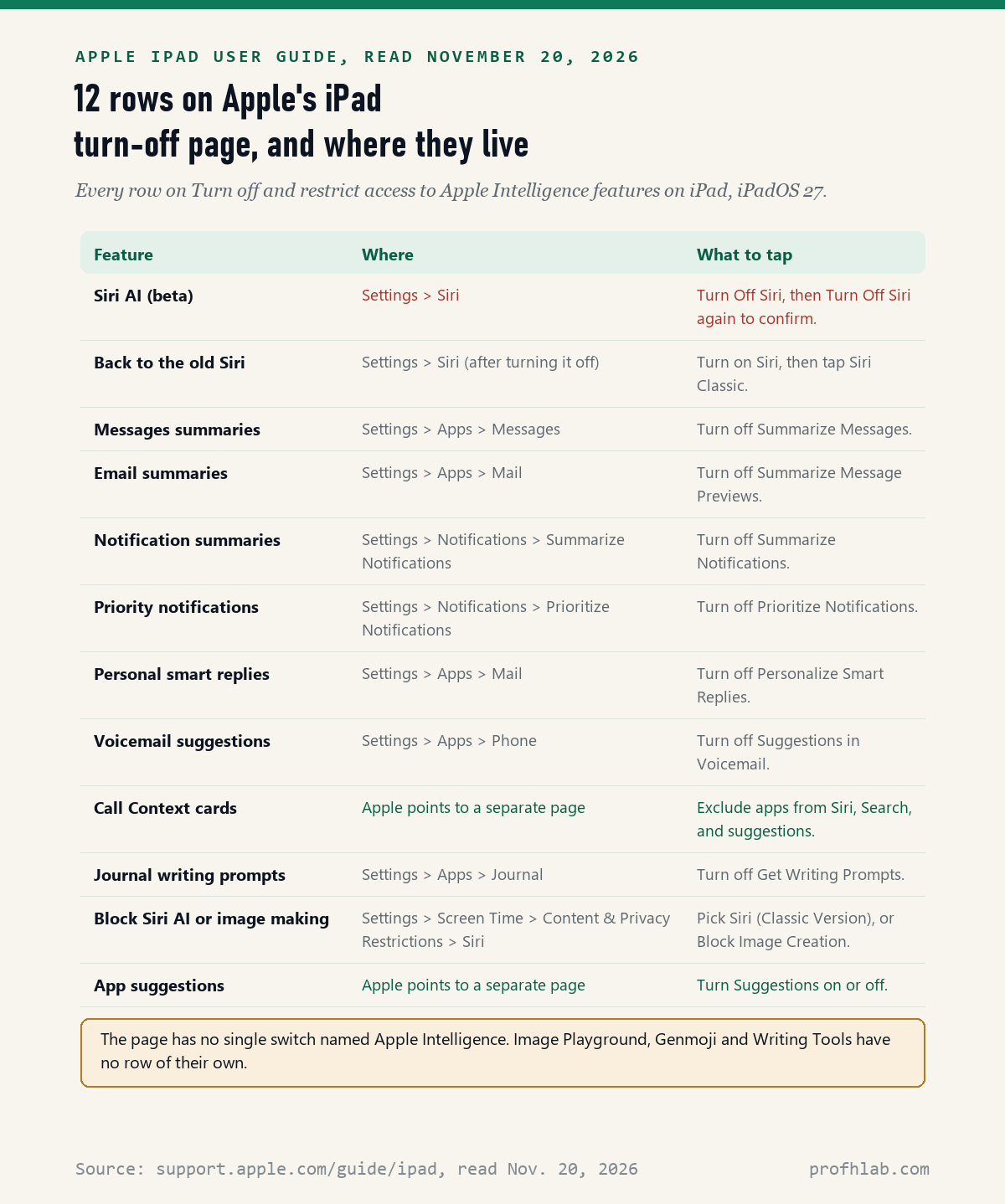
Not according to Apple’s iPad guide: the page titled Turn off and restrict access to Apple Intelligence features on iPad, read November 20, 2026, has 12 rows and none of them is a single switch named Apple Intelligence.
Think of it like the lights in a house. There is no main breaker for AI on this page. Instead, each room has its own switch: one for Siri, one for message summaries, one for email, one for notifications. You walk through the house and flip the ones you want off.
We also searched all 896 guide pages for the words “turn off Apple Intelligence.” The phrase appears on exactly 1 page, the one in the table above, and only as “turn off Apple Intelligence features like Siri AI.” If your iPad shows a broader switch, that is your screen talking, not the guide; we could not confirm one.
How do I turn off Siri AI and go back to the old Siri?
Apple’s iPad guide, read November 20, 2026, says Siri AI is turned off from Settings, and then the older Siri, which Apple calls Siri Classic, can be turned back on from the same screen.
- Open the Settings app.
- Tap Siri, then scroll to the bottom.
- Tap Turn Off Siri, then tap Turn Off Siri again to confirm.
- Want Siri for timers and weather, just without the new AI? Tap Turn on Siri, then tap Siri Classic.
Siri AI is a test version, which Apple labels beta. Apple says it needs an iPad mini (A17 Pro or later) or an iPad with an M1 chip or later, is not available to users under 13, and starts in English, French, Japanese, Korean, Portuguese and Spanish. If your iPad never offered “Try Siri AI,” you may already be on the old Siri.
Which iPads have no Apple Intelligence to turn off?
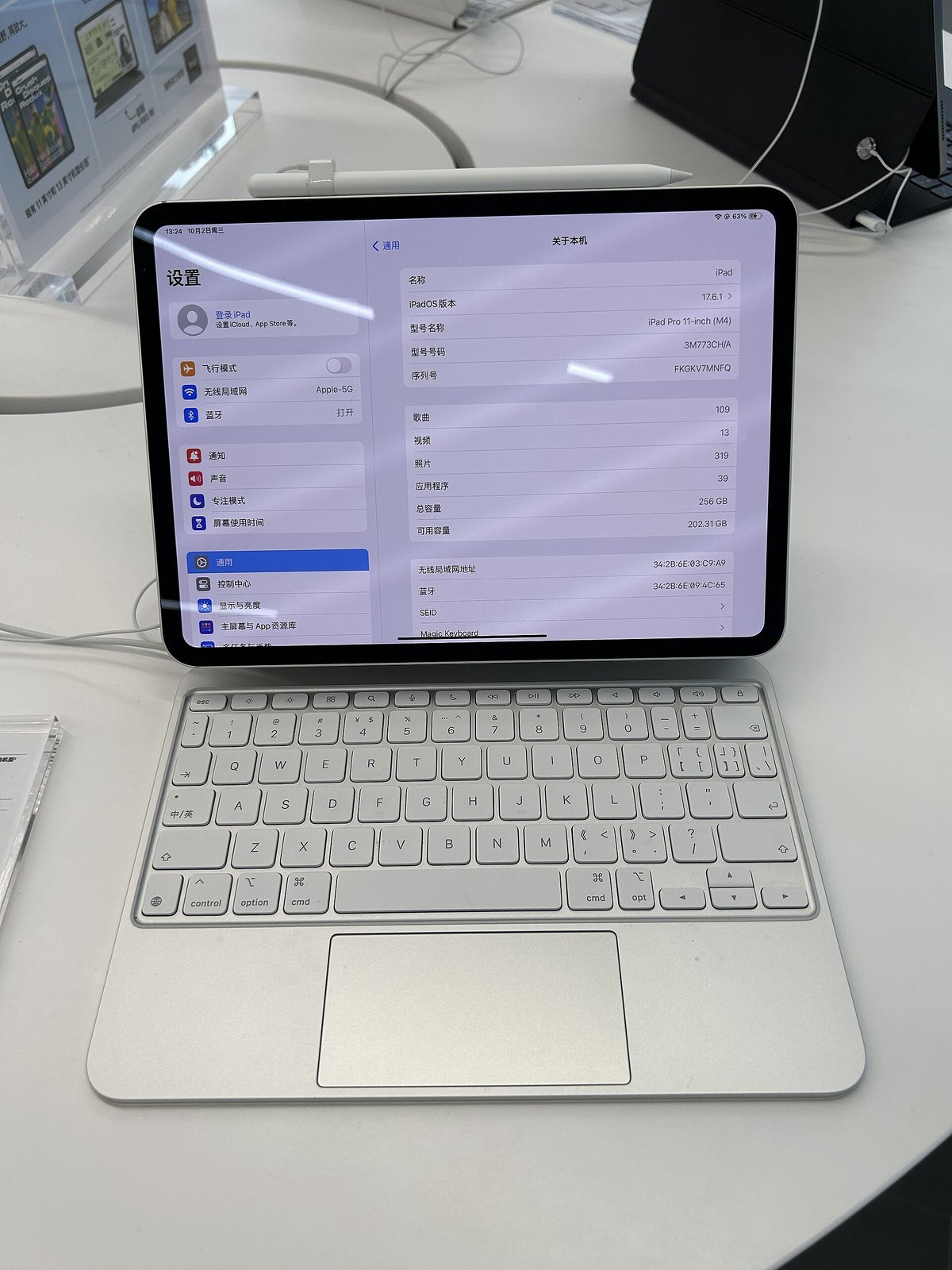
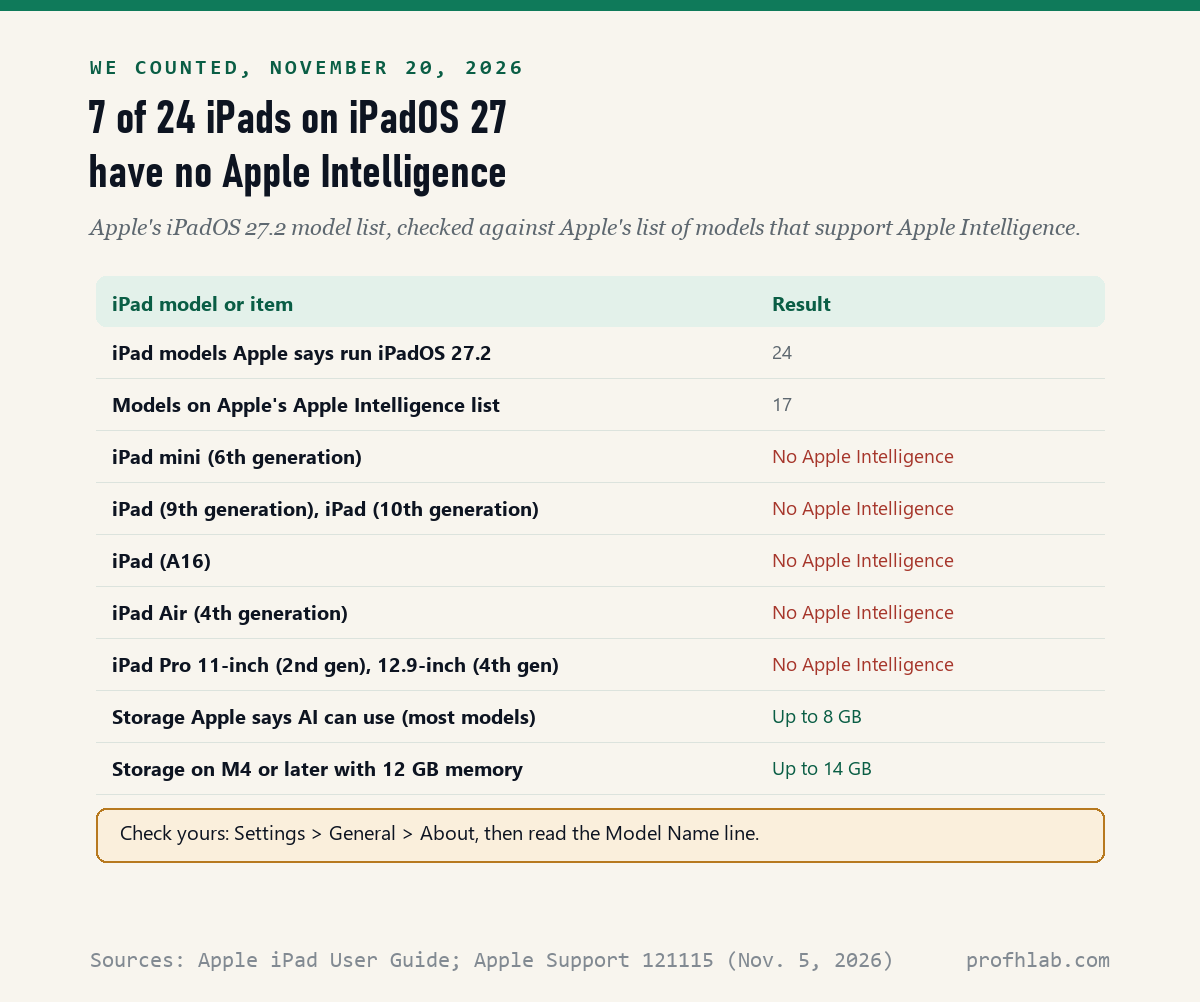
7 of the 24 iPad models Apple lists for iPadOS 27.2 are missing from Apple’s list of models that support Apple Intelligence, by our count of both Apple pages on November 20, 2026.
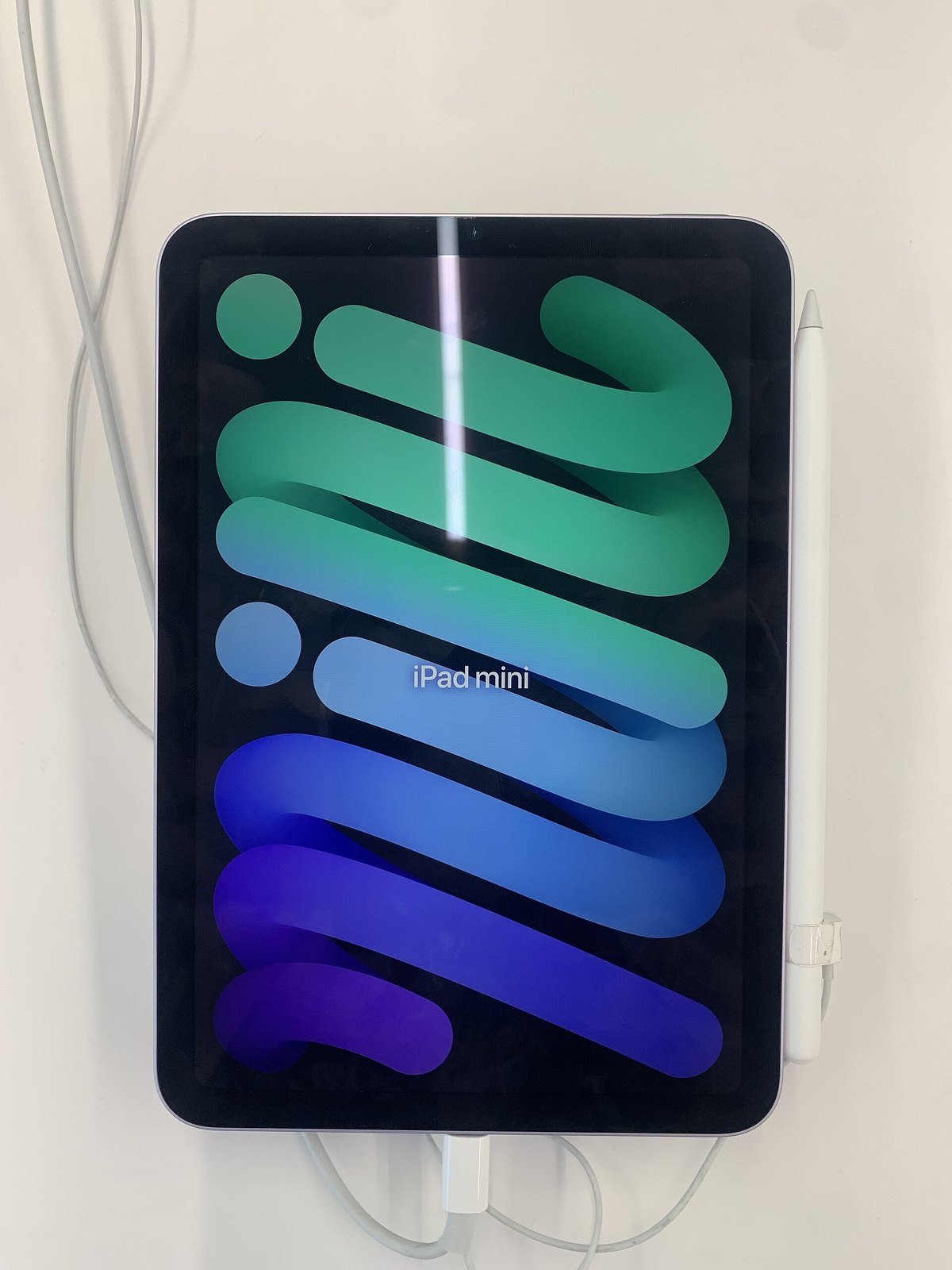
The 7 are the iPad (9th generation), iPad (10th generation), iPad (A16), iPad mini (6th generation), iPad Air (4th generation), iPad Pro 11-inch (2nd generation) and iPad Pro 12.9-inch (4th generation). Notice the iPad (A16): it is a regular iPad, not the mini, Air or Pro, and it is not on the Apple Intelligence list.
The other 17 have it: every iPad mini with A17 Pro or later, the iPad Air (5th generation) and later Air models, and the iPad Pro models from the 11-inch (3rd generation) and 12.9-inch (5th generation) on. To check yours, open Settings, tap General, tap About, and read the Model Name line.
How do I stop AI summaries of my messages, email and notifications?
Apple’s iPad guide, read November 20, 2026, gives 3 separate summary switches, one each for Messages, Mail and notifications, and turning off one does not turn off the others.
- Text messages: Settings > Apps > Messages, then turn off Summarize Messages.
- Email: Settings > Apps > Mail, then turn off Summarize Message Previews.
- Notifications: Settings > Notifications > Summarize Notifications, then turn it off.
- Priority alerts: Settings > Notifications > Prioritize Notifications, then turn it off.
Summaries are short versions of a message written by the iPad. They save time, but they can also get the tone wrong, which matters when the message is from a doctor, a bank or a grandchild. If you would rather read every word yourself, these four switches put the full text back.
The same page lists three quieter features: Personalize Smart Replies in Mail (Settings > Apps > Mail), Suggestions in Voicemail (Settings > Apps > Phone) and Get Writing Prompts in Journal (Settings > Apps > Journal).
What about Image Playground, Genmoji and Writing Tools?
None of those three has its own row on Apple’s iPad turn-off page read November 20, 2026; the closest control is in Screen Time, where Apple says you can block Siri AI capabilities such as Image Creation.
- Open Settings, then tap Screen Time.
- Tap Content & Privacy Restrictions, then tap Siri.
- Pick Siri (Classic Version) to allow Siri without AI, or Don’t Allow Siri to block it.
- If you keep Siri AI, choose Block under capabilities such as Image Creation, Sensitive Topics or Explicit Language.
Apple warns that “the settings that appear here may vary depending on your Siri version,” so your list may be shorter or longer. This is also the menu a grandparent can set on a child’s iPad. Apple’s guide notes that Siri AI itself is not available to users under 13.
Writing Tools are the proofread and rewrite buttons that pop up when you select text. In our search, 12 guide pages mention them, but the turn-off page does not.
How much space does Apple Intelligence take on an iPad?
Apple Support article 121115, published November 5, 2026, says Apple Intelligence needs up to 8 GB of storage on most supported iPads and up to 14 GB on iPads with M4 or later and at least 12 GB of memory.
Many searches ask how to remove it to free up space. The Apple pages we read on November 20, 2026 do not say whether turning off Siri AI or the summaries gives that space back, so we will not promise it does. To see what is using your storage, Apple’s guide says to open Settings > General > iPad Storage.
Apple also says storage “may temporarily exceed storage requirements during and shortly after a software update,” because new AI models download before old ones are removed. If your iPad looks full right after an update, our suggestion is to wait a day before deleting things.
Is the AI on my iPad sending my data to Apple?
Apple’s iPad guide page on Apple Intelligence and privacy, read November 20, 2026, says many tasks run entirely on the iPad and harder ones go to Apple servers called Private Cloud Compute, where the data is “not stored or made accessible to Apple.”
We cannot test that promise. What you can do is look. Apple says to open Settings > Privacy & Security > Apple Intelligence Report, pick the last 15 minutes or the last 7 days, and tap Export Activity. The file lists requests your iPad sent to those servers. Apple notes the report may be empty if no requests were sent since you changed the setting.
The optional ChatGPT extension is different: it sends requests to OpenAI. 9 of the 896 guide pages mention ChatGPT. Apple’s guide covers it on a separate page, Turn on ChatGPT, so check there if you once switched it on.
Google AI Overviews, Kindle and your iPhone each keep their own off switches
Some AI on an iPad is not Apple’s. The AI Overview at the top of a Google search comes from Google, and 0 of the 896 iPad guide pages mention Gemini. For that, read how to get the old Google search back, AI in Safari and AI in Chrome.
Same Apple ID on a phone or computer? Our guides cover AI summaries on iPhone, AI in iPhone Photos, Apple Intelligence on a Mac and AI on Apple Watch. Worried about the bill? Read whether Apple Intelligence costs money.
- Apps people use on an iPad: Kindle, Netflix, YouTube and Facebook.
- A child or grandchild on the iPad: ChatGPT parental controls and family safe word examples.
- Staying safe: AI scams aimed at seniors and whether USPS texts you about a package.
If you want to try AI on your own terms, start with ChatGPT for beginners over 50, the AI tools we suggest for seniors and what is safe to tell ChatGPT. All our beginner guides are on the Start Here page; we also track AI hiring on the AI jobs tracker, and you can send a question to Ask Prof. H.
iPad owners also ask about Siri AI, storage and older models
How do I turn off AI on my iPad?
Apple lists 12 separate settings on its iPad turn-off page, read November 20, 2026. The biggest is Settings, Siri, Turn Off Siri. Message, email and notification summaries each have their own switch.
Can you turn off Apple Intelligence on iPad Air?
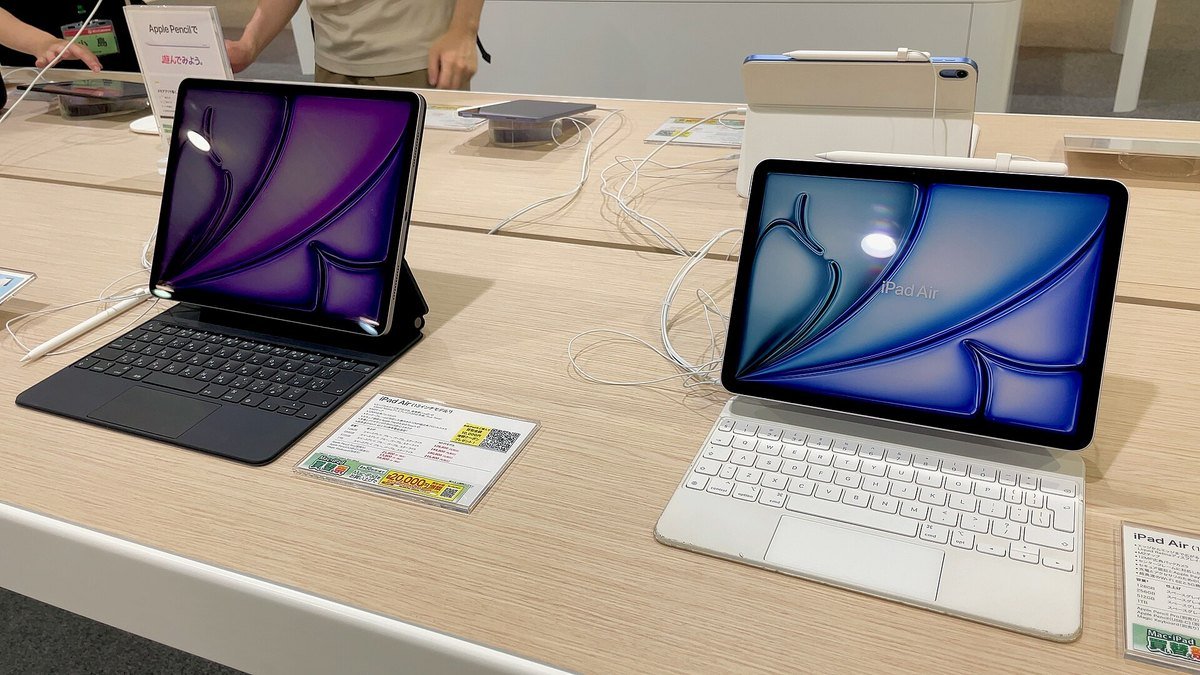
Yes, if your iPad Air has it. The iPad Air 5th generation and the M2, M3 and M4 models are on the Apple Intelligence list and use the same Settings steps. The iPad Air 4th generation is not on the list.
Does my iPad have Apple Intelligence?
Open Settings, General, About and read Model Name. On November 20, 2026, 17 of the 24 models on iPadOS 27.2 were on the Apple list. The iPad 9th and 10th generation, iPad A16, iPad mini 6th generation, iPad Air 4th generation and two older iPad Pro models were not.
How do I go back to the old Siri on iPad?
Open Settings, tap Siri, tap Turn Off Siri twice to confirm, then tap Turn on Siri and choose Siri Classic. Apple calls this the version of Siri without AI capabilities.
How to remove Apple Intelligence from iPad storage?
Apple says it uses up to 8 GB on most supported iPads and up to 14 GB on M4 or later models with 12 GB memory. The Apple pages we read do not say turning it off frees that space, so check Settings, General, iPad Storage.
How do I turn off Google AI on my iPad?
Google AI Overviews come from Google Search, not from Apple, and the Apple iPad guide does not cover them. Our guide on getting the old Google search back walks through the options.
The 896 guide pages and two Apple articles behind these steps
- Apple, iPad User Guide for iPadOS 27, all 896 table-of-contents entries opened and read, November 20, 2026.
- iPad User Guide, Turn off and restrict access to Apple Intelligence features on iPad; read November 20, 2026.
- iPad User Guide, iPad models compatible with iPadOS 27 and Models that support Apple Intelligence; read November 20, 2026.
- iPad User Guide, Get started with Siri AI on iPad and Block features or content with Screen Time; read November 20, 2026.
- iPad User Guide, Apple Intelligence and privacy on iPad and Manage storage on iPad; read November 20, 2026.
- Apple Support, Get started with the next generation of Apple Intelligence, published November 5, 2026; read November 20, 2026.
Prof.’s H Newsletter
One short email a month, with the numbers in it
What actually moved in AI hiring, AI prices, and the scams aimed at older Americans. Counted here, dated, and linked to the source. One email a month, and your address goes nowhere else.