How to Turn Off AI on Apple Watch: 11 Switches, and Fall Detection Is Not One of Them
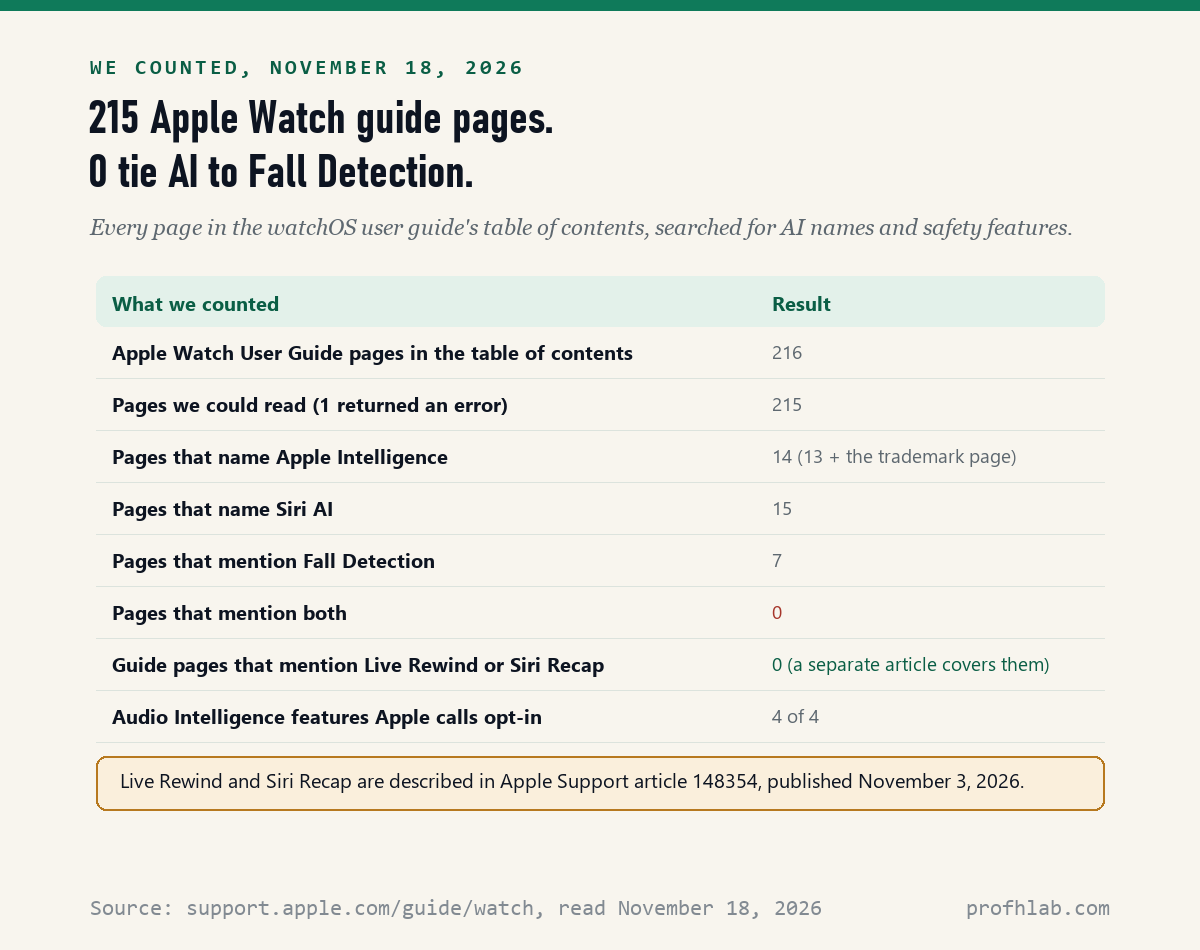
There is no single AI button, but on November 18, 2026, Apple’s own pages showed us 11 separate switches that turn off the AI features on an Apple Watch, and none of them sits in the same menu as Fall Detection. We read all 215 pages of the Apple Watch User Guide that would open: 13 feature pages name Apple Intelligence, 7 mention Fall Detection, and 0 mention both.
So you can switch off Siri AI, Workout Buddy, message translation and the new listening features without touching the safety tools many families bought the watch for. Apple’s own setup steps show at least 6 of these features stay off until someone turns them on, so your watch may already be quieter than the headlines suggest.
What we checked on November 18, 2026
We opened every entry in the table of contents of Apple’s Apple Watch User Guide for watchOS 27, 216 links in all. 215 pages opened and 1 returned an error. We searched each page for Apple Intelligence, Siri AI, Workout Buddy, Siri Recap and Fall Detection, then read every page that matched.
We also read the iPhone User Guide page Turn off and restrict access to Apple Intelligence features, Apple Support article 148354 on Audio Intelligence (published November 3, 2026), and Apple Support article 127070 on audio sharing. We did not own a Series 12 watch for this test and did not flip these switches ourselves, so every menu path below is Apple’s wording.
Written and checked by Prof. H. An AI assistant helped draft this article and ran the page reads; every quote was read on the source’s own page on the date shown.

Can you turn off AI on an Apple Watch without losing Fall Detection?
Yes: in the 215 Apple Watch User Guide pages we read on November 18, 2026, Fall Detection is set under Watch Settings > SOS, and none of the 7 pages that mention it says a word about Apple Intelligence.
Think of the watch as a house with two fuse boxes. One box runs the new talking helpers: Siri AI, Workout Buddy, translation and summaries. The other box runs the alarms: Fall Detection, Crash Detection and Emergency SOS. Apple’s pages put those boxes in different rooms, so flipping switches in the first one does not reach the second.
Apple’s Fall Detection page describes a watch that “taps your wrist, sounds an alarm, and displays an alert” after a hard fall. If you do not respond for about a minute, it counts down for 30 seconds and then tries to call emergency services. Nothing on that page requires Siri or an iPhone with Apple Intelligence.

How do I switch Siri AI back to the old Siri?
Apple’s Apple Watch User Guide, read on November 18, 2026, says to do it from the paired iPhone: turn Siri off, turn it back on, and pick the previous version, which Apple calls Siri Classic.
- On your iPhone, open the Settings app.
- Tap Siri.
- Tap Turn Off Siri at the bottom, then tap Turn Off Siri again to confirm.
- Tap Turn On Siri, then tap Use Siri Classic.
Siri AI is a test version, which Apple labels beta. Apple says it works on Apple Watch Series 9 and later, Ultra 2 and later, and SE 3, and only when the watch is paired with an iPhone 15 Pro, 15 Pro Max or any iPhone 16 or later. If your watch or phone is older, you do not have Siri AI, and there is nothing to switch back.
If you would rather not use Siri at all on the wrist, the same guide lists three switches on the watch itself. Open Settings on the watch, tap Siri, and turn off Raise to Speak, Press Digital Crown, and the option that listens for “Siri” or “Hey Siri.”
How do I stop Workout Buddy from talking during my walks?
Workout Buddy is the voice that cheers you on during a workout, and Apple’s guide page read on November 18, 2026 shows it is turned on inside the Workout app, so that is also where you turn it off.
- Open the Workout app on your watch.
- Turn the Digital Crown to the workout you use, such as Outdoor Walk.
- Tap the more button on that workout, then tap Workout Buddy.
- Turn off Use Workout Buddy.
Already walking and want quiet right now? Swipe right on the workout screen and tap Mute. Apple says Workout Buddy needs Bluetooth headphones and works in English or Spanish, so if you never wear headphones on walks, you have probably never heard it.

Is my Apple Watch listening to my conversations?
Only if you turn it on: Apple Support article 148354, published November 3, 2026, says each of the 4 new Audio Intelligence features on Series 12 and Ultra 4 is “opt-in,” and all 4 have their own off switch.
The two that worry people most are new. Live Rewind shows the last 15 seconds of speech as text when you double-press the Digital Crown. Siri Recap takes notes on your conversations through the day and writes short summaries. Apple says both arrive as a test “later this year with watchOS 27.3,” need an iPhone 16 or a newer model on Apple’s list, start in English, and are not available to anyone under 18.
Apple also writes that “audio is not recorded or stored.” We cannot test that claim. What we can report is what Apple says it built in: a chime and a microphone icon when Live Rewind starts, and Siri Recap summaries that can delete themselves after up to 7 days.
To turn them off, open the Watch app on your iPhone and tap Siri. For Live Rewind, tap Live Rewind and turn off Double Click Digital Crown. Siri Recap can be switched off there or put on a schedule, and Apple says it can always be turned on or off from Control Center.
The other 2 listening features are older ideas. Sound Recognition alerts you to doorbells and sirens; turn it off on the iPhone under Settings > Accessibility > Sound & Name Recognition > Sound Recognition > Detect using Apple Watch. Music Detection names songs playing nearby; turn it off on the watch under Settings > Smart Stack.
Where are the switches for translation, call help and summaries?
Three of the 11 switches live in different apps, according to the Apple Watch and iPhone guides we read on November 18, 2026: Live Translation in Messages, Call Context in Phone, and AI notification summaries on the iPhone.
- Live Translation. In Messages on the watch, open the conversation, tap the language name at the bottom, then tap Stop Translating. Apple says this translation runs on the device.
- Call Context. This shows details from your apps when you call a business, such as a booking code from Mail. Apple’s iPhone guide sends you to Exclude apps from Siri, Search, and suggestions to control it.
- Notification summaries. On the iPhone, go to Settings > Notifications > Summarize Notifications and turn it off.
One honest gap: the watch guide’s notification page mentions only an older “Add to Summary” option, which sends an app’s alerts to a scheduled summary on the iPhone. It does not say whether AI-written summaries appear on the watch, so we cannot confirm that. The iPhone switch above is the one Apple names.
Last, a privacy switch that does not turn anything off but limits what Apple keeps. Apple Support article 127070 says Improve Siri & Apple Intelligence lets Apple “store and review a sample of your audio recordings and transcripts.” On the watch it is under Settings > General > Analytics & Improvements.
Which Apple Watch safety settings should you leave on?
Apple’s Fall Detection page, read on November 18, 2026, names one setting that quietly disables the emergency call: if wrist detection is off, the watch “won’t automatically attempt to call emergency services” after a hard fall.
That makes a short safety check worth doing on any parent’s watch, whatever you decide about AI:
- On the watch, open Settings, tap SOS, then Fall Detection, and make sure it is on.
- Choose Always on rather than Only on during workouts if falls at home are the worry. Apple says new watches set up by people between 18 and 55 start in the workouts-only mode.
- Keep wrist detection on, for the reason Apple gives above.
- On the iPhone, open the Health app and fill in Medical ID and emergency contacts, then turn on Share During Emergency Call.
Apple is clear about limits: “Apple Watch cannot detect all falls,” and the call needs a cellular, Wi-Fi calling or satellite connection. A watch is a backup, not a promise.

CNET and 9to5Mac tried Siri Recap on a real wrist
Before you press play, keep Apple’s own words in mind: its November 3, 2026 article says Siri Recap “runs only when you choose,” and that summaries “may be incomplete or inaccurate.” Treat any demo as one person’s test, not a promise about your watch.
Your iPhone, Mac and smart speakers keep their own AI menus
The watch borrows much of its AI from the iPhone, so the phone is the next place to look. Our guides cover AI summaries on iPhone, AI in iPhone Photos, AI in Safari, iPhone call screening and Apple Intelligence on a Mac. Wondering about the bill? Read whether Apple Intelligence costs money.
- Speakers and assistants: Alexa+, Gemini on Google Home and whether Alexa can call 911.
- Android owners: AI on a Samsung phone and what Gemini is on Android.
- Voices and calls: how to tell if you are talking to AI on the phone, family safe word examples and AI scams aimed at seniors.
- Recording at the doctor: why your doctor may record a visit.
If you want to try AI on your own terms, start with ChatGPT for beginners over 50, the AI tools we suggest for seniors and what is safe to tell ChatGPT. All our beginner guides are on the Start Here page; we also track AI hiring on the AI jobs tracker, and you can send a question to Ask Prof. H.
Apple Watch owners also ask about Siri, recaps and summaries
Can you turn off AI on Apple Watch?
Yes, feature by feature. On November 18, 2026, Apple pages showed 11 separate switches, including Siri AI, Workout Buddy, Live Translation, Live Rewind and Siri Recap. Apple shows no single master switch for the watch.
How do I turn off Siri AI on my Apple Watch?
On the paired iPhone, open Settings, tap Siri, tap Turn Off Siri twice, then tap Turn On Siri and choose Use Siri Classic. Apple sets Siri AI up from the iPhone, not the watch.
How do I turn off Workout Buddy permanently?
In the Workout app, tap the more button on the workout, tap Workout Buddy and turn off Use Workout Buddy. During a workout, swipe right and tap Mute.
Does turning off AI turn off Fall Detection?
Apple pages show no link. Fall Detection sits under Settings, SOS, Fall Detection, and none of the 7 guide pages that mention it names Apple Intelligence. Keep wrist detection on, or the watch will not call for help by itself.
Does Apple Watch record conversations?
Apple says Live Rewind and Siri Recap are opt-in and that audio is not recorded or stored. They need a Series 12 or Ultra 4 and a recent iPhone such as an iPhone 16. You can turn both off in the Watch app on iPhone.
How do I turn off notification summary on Apple Watch?
Apple names the switch on the iPhone: Settings, Notifications, Summarize Notifications. The watch guide does not say whether AI summaries appear on the watch, so we could not confirm a watch-only setting.
The 215 guide pages and four Apple articles behind these steps
- Apple, Apple Watch User Guide for watchOS 27, all 216 table-of-contents entries opened, 215 read, November 18, 2026.
- Apple Watch User Guide, Get started with Siri AI on Apple Watch and Use Siri on Apple Watch; read November 18, 2026.
- Apple Watch User Guide, Use Workout Buddy in Workout on Apple Watch; read November 18, 2026.
- Apple Watch User Guide, Translate messages on Apple Watch and While on a call on Apple Watch; read November 18, 2026.
- Apple Watch User Guide, Manage Fall Detection on Apple Watch and Recognize sounds using Apple Watch; read November 18, 2026.
- iPhone User Guide, Turn off and restrict access to Apple Intelligence features on iPhone; read November 18, 2026.
- Apple Support, About Audio Intelligence features on Apple Watch Series 12 and Apple Watch Ultra 4, published November 3, 2026; read November 18, 2026.
- Apple Support, Turn Improve Siri & Apple Intelligence or Improve Siri & Dictation on or off; read November 18, 2026.
- Not read: one guide entry, Use a Bluetooth keyboard, returned an error on November 18, 2026.
Prof.’s H Newsletter
One short email a month, with the numbers in it
What actually moved in AI hiring, AI prices, and the scams aimed at older Americans. Counted here, dated, and linked to the source. One email a month, and your address goes nowhere else.