How to Turn Off Call Screening on iPhone (There Are Eight Switches, Not One)
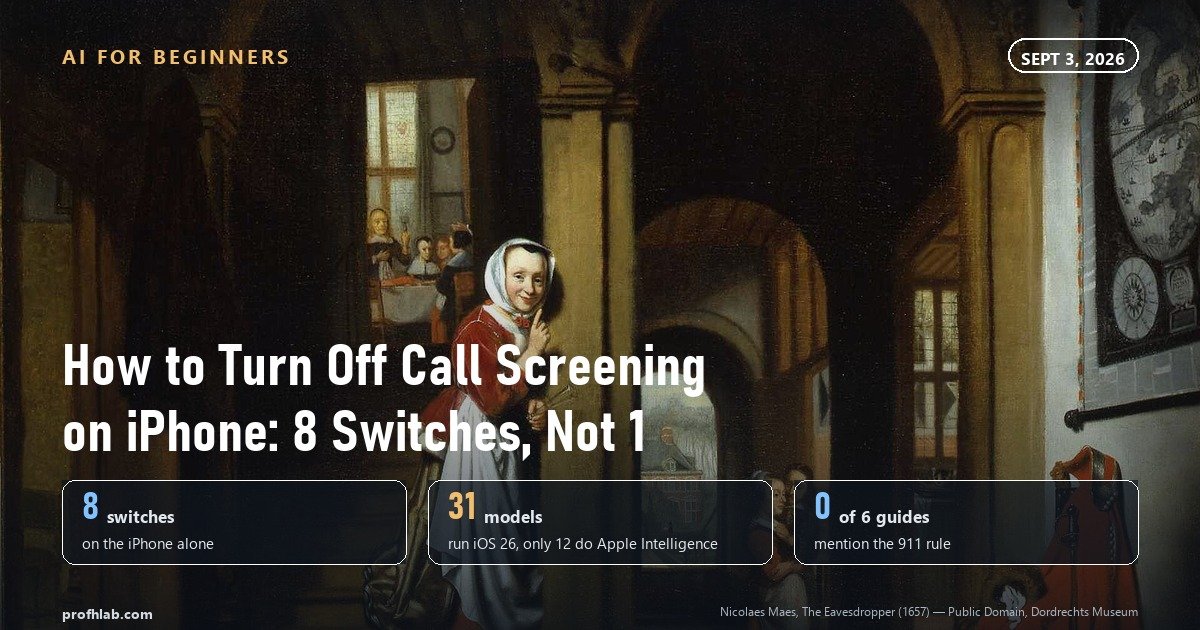
Settings, then Apps, then Phone, then Screen Unknown Callers, then Never. That is the answer, and if your iPhone has stopped ringing for numbers that are not in your contacts, it will probably fix it in about twenty seconds. But it turns off one switch, and on September 3, 2026 we counted eight separate switches on an iPhone — all of them documented by Apple — that can each, on their own, stop a call from an unsaved number from ringing. Three more sit on your carrier’s network, before the call ever reaches your phone.
That is why so many people turn off Call Screening, feel relieved, and then miss the pharmacy again a week later.
Here is how this usually arrives. You are waiting on a call back. The clinic said this afternoon. The afternoon passes and the phone never rings, and then in the evening you open the Phone app and there it is in the list, a missed call from a number you do not recognize, at 2:14. Nobody left a message. You did not touch a setting. Something answered your phone for you.
Something did. Let us find all of it, not just the part page one talks about.
The short answer, in five lines.
- Settings › Apps › Phone › Screen Unknown Callers › Never. Not Settings › Phone. In iOS 26 the Phone app’s settings moved inside a section called Apps, which is why older tutorials send you somewhere that no longer exists.
- While you are on that screen, scroll a little further to Call Filtering. Unknown Callers and Spam are two more switches, and they are not the same one you just changed.
- Then do it again for FaceTime. FaceTime screens calls on its own, with its own set of switches, in Settings › Apps › FaceTime.
- If calls are still vanishing, the cause is not on your phone. Your carrier is allowed to block calls for you automatically, and the FCC says you have the right to opt out of that.
- Add the numbers you cannot afford to miss to your Contacts. This is Apple’s own advice, and it is the only fix that survives all eleven layers.
Why the tutorial you found did not match your screen
The single most common reason people give up is not that the setting is hard. It is that the setting moved.
Through iOS 18, the Phone app’s settings lived at the top level: Settings, then Phone. In iOS 26 they live one floor down, inside a section called Apps. Apple’s current instruction is literally “Go to Settings, then tap Apps. Tap Phone or FaceTime.” Every guide written before that change — and a great many written after it — still sends you to a row that is no longer there.
You can watch this happen to real people. In an Apple Support Communities thread, an iPhone 13 owner running iOS 26 wrote that “when i go in settings and choose phone there is not the same as in tutorials.” Another person in the same thread put the problem better than any documentation does: “Who would know that the phones settings would be considered an app?” A third came back afterward to say, simply, “Your steps were simple to follow and I am now receiving the calls instead of them being screened.”
That is the whole failure in one thread. Not a hard setting. A moved one.
The shortcut, if you would rather not hunt. Open Settings and pull down to reveal the search box at the top. Type unknown. Tap Screen Unknown Callers in the results and it takes you straight there, no matter which iOS version rearranged what. This works for every setting named in this article — search filtering, blocked, or spam the same way.
Eight switches, and the tutorials cover one
Here is every setting on an iPhone that can keep a call from an unsaved number from ringing. All eight come from Apple’s own documentation, not from our guesswork.
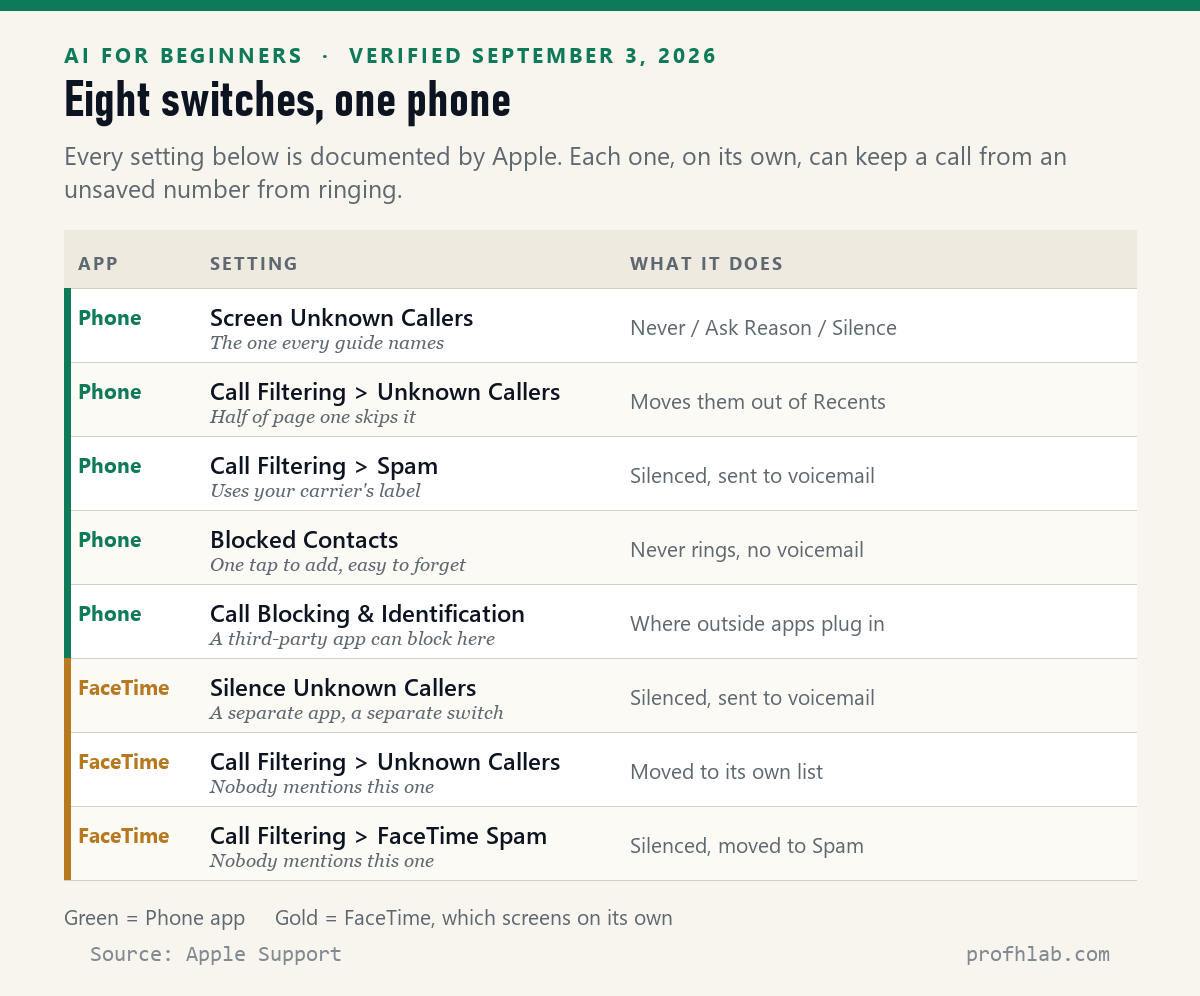
The one everybody names is the first: Screen Unknown Callers, with its three choices. Apple defines them precisely. Never means “Call Screening is turned off and your iPhone will ring when you receive a call from an unsaved number.” Ask Reason for Calling means “Calls from unknown numbers will be asked for more information before iPhone rings.” Silence means “Calls from unsaved numbers will be silenced, sent to voicemail, and appear in the Recents list.”
Read that last one twice, because it is the setting most likely to be quietly costing you calls. Silence does not screen anybody. It sends every unsaved number to voicemail without a sound. If you chose it thinking it was the gentler option, it is in fact the strictest of the three.
Below those three sits Call Filtering, a separate section with two more switches. Unknown Callers pulls those calls out of your Recents list and into a list of their own, which is how a missed call can seem to disappear entirely. Spam takes calls your carrier has flagged and silences them, sends them to voicemail, and moves them to a Spam list.
Then there is the part almost nobody writes about. FaceTime has all of this too, separately. Apple’s instructions for filtering unknown callers read “Tap Apps. Tap Phone or FaceTime” — two apps, two independent sets of switches. If your family calls you over FaceTime audio rather than by phone number, turning everything off in Phone changes nothing for them.
What page one leaves out
We wanted to know whether this was really a gap or just something we had noticed. So on September 3, 2026 we read every guide ranking on the first page of Google for this question, all the way through, and checked which facts each one actually gives you.
Seven results were reachable. Six were distinct articles; the seventh turned out to be an RSS reprint of one of the others, republished under a different masthead, 88.6 percent identical to the original. We scored the six.
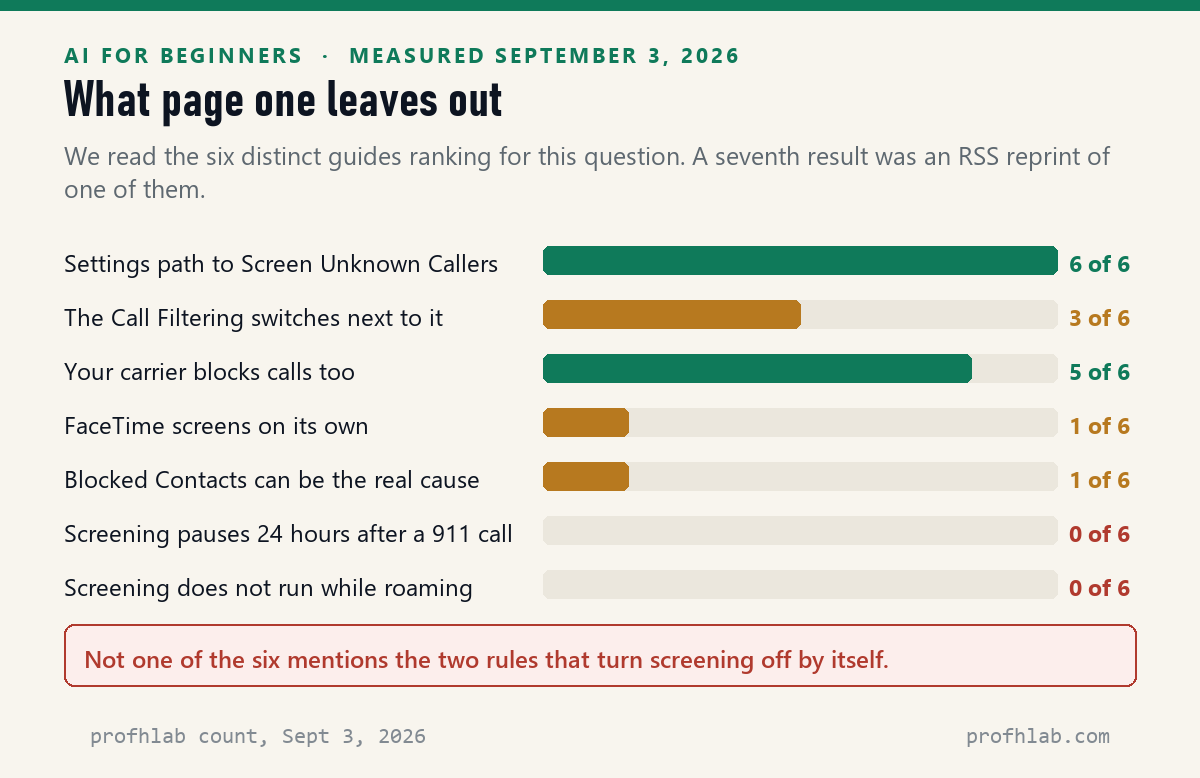
All six get you to Screen Unknown Callers, and five of the six do mention that your carrier blocks calls too, which is more credit than we expected to give. But only three of six mention the Call Filtering switches sitting directly underneath the one they told you to change. Only one mentions that FaceTime screens separately. Only one mentions Blocked Contacts.
And none of the six — zero — mention either of the two rules that switch screening off without you touching anything. Those turn out to be the two most reassuring facts in Apple’s documentation, and they are sitting in plain sight in a support article nobody quotes.
If you call 911, your phone stops screening for a day
Apple states it twice, in two different documents, in the same words: “If you call emergency services, call screening turns off for 24 hours.”
Think about what that is for. You call 911. Now the hospital needs to reach you, or the ambulance service, or a doctor you have never spoken to, and every one of them will be calling from a number that is not in your contacts. Apple built a rule that gets out of the way for a full day, automatically, at the exact moment when a screened call would do the most harm.
The second rule is smaller but worth knowing before a trip: “If you’re roaming, phone calls are not screened, regardless of settings.” If you are traveling and suddenly getting every spam call again, that is why. Nothing is broken.
Neither fact appears in any of the six guides we read. Both come straight from Apple.
Call Screening is not Apple Intelligence, and that matters
A lot of general advice about turning off AI on an iPhone ends at one instruction: switch off Apple Intelligence. For call screening, that advice does nothing at all, and for most iPhones it is not even possible.
We checked this from both directions on September 3. Apple’s Apple Intelligence marketing page does not mention Call Screening. Neither does Apple’s own How to get Apple Intelligence support document, which lists the features and the hardware they need. Call Screening is in neither list. It is a Phone app feature, not an Apple Intelligence feature, and it runs regardless.
Then we counted the hardware. Apple’s iPhone User Guide lists 31 iPhone models that run iOS 26, from the iPhone 11 forward. Apple’s Apple Intelligence requirements cover 12 of them — iPhone 15 Pro, the iPhone 16 family, and the iPhone 17 family. That leaves 19 models, 61 percent of the supported lineup, that get Call Screening and cannot run Apple Intelligence at all.
The number worth keeping. 31 iPhone models run iOS 26. 12 can run Apple Intelligence. If you have an iPhone 11, 12, 13, 14, a standard 15, or an SE, an automated voice can answer your calls on a phone that Apple says is not capable of Apple Intelligence. There is no master AI switch on your device to find, because the feature was never behind one.
If you want the wider version of that question — every place AI now shows up on a phone and which of them can genuinely be switched off — we went through twelve of them in how do I get rid of AI on my phone. Call screening is the one that did not fit the pattern, which is why it gets its own article.
The switch that is not on your phone at all
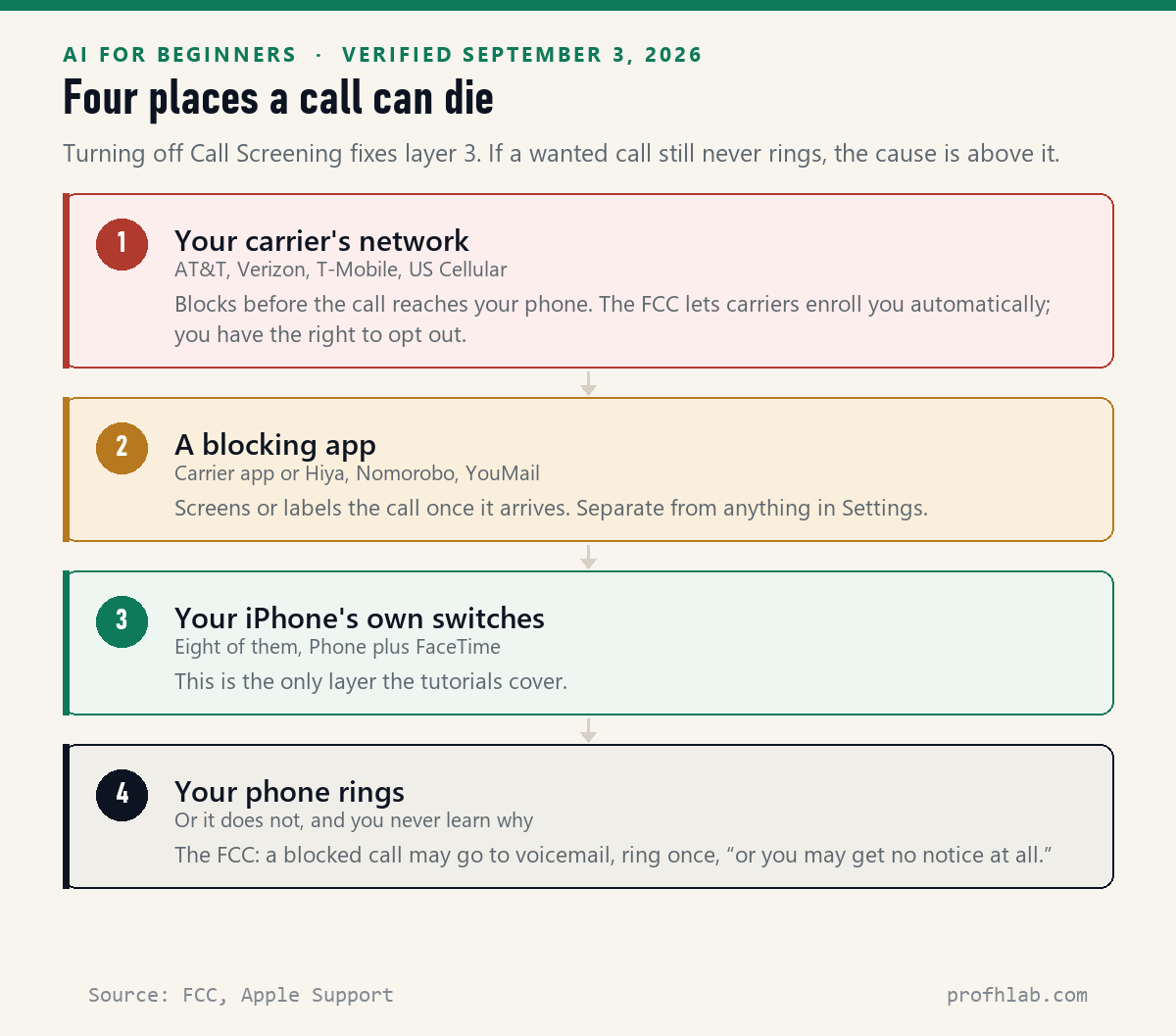
Suppose you have set all eight switches the way you want and calls are still going missing. At that point the problem is upstream, and the Federal Communications Commission is unusually clear about how it works.
From the FCC’s consumer guide on call blocking, last reviewed May 27, 2026: “Phone companies may automatically enroll consumers in call blocking services, but you can opt-out if you are concerned about missing wanted calls.”
Automatically enrolled. You do not have to have signed up for anything. And the FCC is equally direct about what that looks like from your side of the line: “Depending on your service provider, a blocked call may go straight to your voicemail, you may hear a single ring and get caller ID information from the blocked call, or you may get no notice at all.”

The agency also spells out exactly how far a carrier may go without asking. Providers may block calls from unassigned, unallocated or invalid numbers, and calls from numbers on the Do Not Originate list, without your consent. Beyond that, “a voice service provider may also block calls that it deems are unwanted based on reasonable analytics, but the provider must allow their customers to opt out of this type of blocking.”
That last clause is a right most people do not know they have. Analytics-based blocking — the kind that guesses — must come with an off switch, and the place to ask for it is your carrier, not your phone. The FCC’s own list of tools names AT&T ActiveArmor, T-Mobile Scam Shield, Verizon Call Filter and US Cellular Call Guardian, plus independent services such as Hiya, Nomorobo and YouMail that may also be running on your line.
Why your doctor’s office gets blocked and a robocall does not
Here is the part that explains the specific frustration of waiting on a clinic that never calls.
The FCC publishes advice for businesses that do not want their legitimate calls blocked. It is written for them, but read as a customer it tells you exactly which real callers are most at risk. The agency warns that “false-positive blocking may occur if a legitimate business or other entity places calls using a pattern similar to those associated with unwanted — and often illegal — robocalls,” and then lists the patterns to avoid. Two of them stand out:
- “Limit the number of calls placed per minute, particularly outside of normal business hours.”
- “Limit the number of times you call numbers back within a short time frame.”
Now picture a medical office at 4:45 on a Friday, working through the day’s callback list. Many numbers in a short window. Repeat attempts to the people who did not pick up. Calls landing after hours. That is the robocall signature, described by the regulator, performed innocently by the one caller you were actually waiting for.
The FCC’s suggested defense for those businesses is telling too: use a distinct outbound number for callbacks, and “when leaving messages include a consistent call-back number.” Which is precisely why the number on your caller ID often does not match the number printed on the clinic’s website, and why saving the main line to your contacts does not always save you.
The reliable fix is the unglamorous one, and it is Apple’s own: “Add important numbers to your Contacts — family, friends, your child’s school, your doctor’s office, and so on. This way, you always see these calls.” A saved number is not an unknown number, so it does not meet any of the eleven layers as a stranger.
We had this before, and it worked better
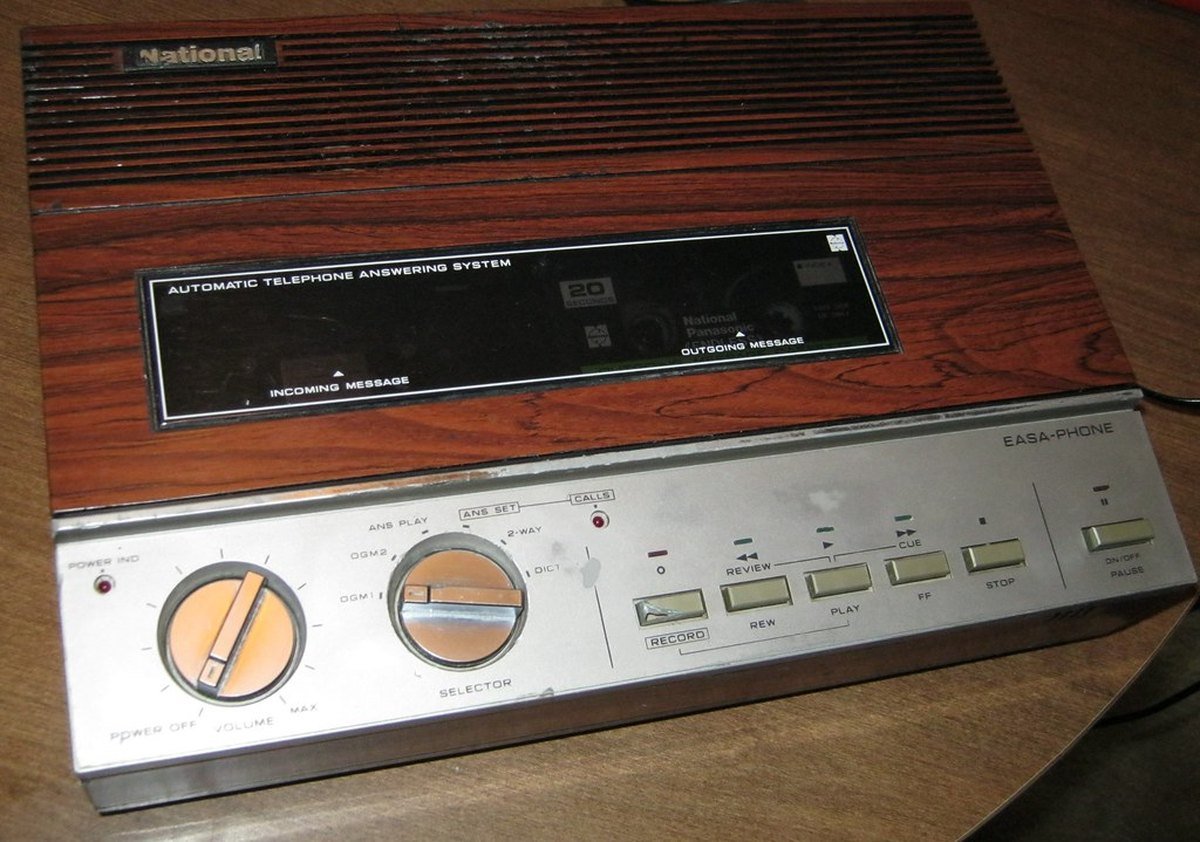
Screening your own calls is a habit older than the smartphone. Anyone who had one of these stood in the kitchen and listened to the machine, and picked up the moment they recognized who it was. The screening was done by you, with your own ears, in real time.
What changed is who does the listening and how much of it you get. Apple’s version answers, collects a name and a reason, and then rings you and shares the response. You still get the decision, one step later. It is a reasonable trade, and for a lot of people it is genuinely worth keeping switched on.

How Android handles it, and the one real difference
If you are on a Pixel, the setting is in the Phone app rather than in Settings: open Phone, tap More, then Settings, then Spam and Call Screen. Google offers protection levels — Maximum, Medium and Basic — and on Pixel 7 and later a switch called Automatically screen calls covering spam, possibly faked numbers, and first-time callers. Google states Call Screen runs on the device and “doesn’t use Wi-Fi or mobile data.”
There is one genuine behavioral difference between the two, and it is worth knowing which phone you are holding. Google documents that when its Call Assist decides a call is spam, “your phone hangs up.” Apple’s screening does not hang up on anyone; once the caller gives a name and a reason, your iPhone rings and passes it along. Google’s system can end a call on your behalf. Apple’s system always gives you the decision.
Samsung’s equivalent is called Smart Call, listed by the FCC among device-level blocking solutions. Automatic call screening on Pixel is available in five countries — Australia, Canada, Ireland, the UK and the US — with manual screening in eleven.
Set Screen Unknown Callers to Never, then repeat it for FaceTime
A ten-minute pass, in the order we would do it. You do not need all of it; stop when your calls come through.
- Settings › Apps › Phone › Screen Unknown Callers › Never. If you cannot find Apps, pull down in Settings and search for unknown.
- Same screen, scroll to Call Filtering. Turn off Unknown Callers and Spam if you want everything to reach your Recents list.
- Settings › Apps › FaceTime. Repeat both steps. This is the one nearly every guide skips.
- Settings › Apps › Phone › Blocked Contacts. Read the list. A number blocked by accident years ago never rings and never leaves voicemail, and nothing else you change will fix it.
- Check for a blocking app. Look on your home screen for your carrier’s app — ActiveArmor, Call Filter, Scam Shield, Call Guardian — or for Hiya, Nomorobo or YouMail, and open its settings.
- Call your carrier and ask one sentence: “Am I enrolled in call blocking, and I would like to opt out of analytics-based blocking.” The FCC requires them to allow it.
- Save the numbers that matter. Doctor, pharmacy, dentist, bank, insurer, the school. Ten minutes here outlasts every setting above.
- Test it. Have a friend whose number you have not saved call you. If it rings, you are done.
Why Ask Reason for Calling beats Silence for most people
- Should I turn screening back on? For most people, yes — but choose Ask Reason for Calling rather than Silence. Screening still rings you and tells you who it is; Silence never rings at all.
- Does screening cost anything? Apple notes that with call screening, “standard calling and data rates may apply.” On a normal US plan with unlimited minutes this is not a real cost, but it is not free of your minutes either.
- How do I know whether a call I did get is a real person? That is a different problem and a harder one now that the old listening tests have stopped working. We went through what still holds up in how to tell if a phone call is AI.
- What if the caller claims to be from Medicare or the IRS? Start with AI scams targeting seniors and this month’s scam watch, which tracks what the FBI and FTC actually reported.
Two short videos
The questions people actually type
How do I turn off call screening on iPhone?
Go to Settings, tap Apps, tap Phone, scroll to Screen Unknown Callers and choose Never. Apple defines Never as “Call Screening is turned off and your iPhone will ring when you receive a call from an unsaved number.” If Settings has no Apps row, pull down on the Settings screen and search for unknown instead.
How do I turn off call screening on iPhone 13, 14, 15, 16 or 17?
The path is identical on every model, because it is set by iOS 26 rather than by the hardware. Thirty-one iPhone models run iOS 26, from the iPhone 11 forward, and Screen Unknown Callers is in the same place on all of them. If your steps do not match a tutorial, the tutorial was written for iOS 18 or earlier, when Phone sat at the top level of Settings rather than inside Apps.
Why is my phone answering calls automatically?
On iOS 26 the usual cause is Screen Unknown Callers set to Ask Reason for Calling, which has your iPhone answer calls from unsaved numbers, ask who is calling and why, and only then ring you with the answer. It is not a fault and it is not the phone picking up on your behalf mid-conversation.
Set it to Never if you would rather every call rang straight through. A separate setting will genuinely connect calls by itself: Apple’s instruction is “Go to Settings › Accessibility › Touch › Call Audio Routing,” then tap Auto-Answer Calls and set how long the phone waits before picking up. Check there if calls are being answered outright rather than screened.
How do I stop AI from answering my phone?
Setting Screen Unknown Callers to Never stops it on an iPhone. Turning off Apple Intelligence does not, because Call Screening is not an Apple Intelligence feature: it appears in neither Apple’s Apple Intelligence marketing page nor its official feature-availability document, and it runs on the 19 iOS 26 models that cannot use Apple Intelligence at all. On a Pixel, open the Phone app, tap More, then Settings, then Spam and Call Screen, and turn off Automatically screen calls.
How do I stop Google Assistant from screening my calls?
Open the Phone app, tap More, then Settings, then Spam and Call Screen or Call Screen, and turn off Automatically screen calls. On Pixel 7 and later the categories screened are listed separately as Spam, Possibly faked numbers, and First-time callers, so you can leave some on. Note that Google’s system behaves differently from Apple’s: Google documents that when Call Assist decides a call is spam, “your phone hangs up,” while Apple’s screening always rings you with the caller’s response.
I turned it off and I am still missing calls. What now?
Check the other seven switches on the phone first — Call Filtering’s Unknown Callers and Spam, the same two inside FaceTime, and your Blocked Contacts list. If calls are still disappearing, the block is on your carrier’s network. The FCC states that phone companies “may automatically enroll consumers in call blocking services, but you can opt-out,” and that with some providers a blocked call gives you “no notice at all.” Call your carrier and ask to opt out of analytics-based blocking.
Does call screening ever turn itself off?
Yes, in two situations, both documented by Apple and mentioned by none of the six page-one guides we read on September 3, 2026. “If you call emergency services, call screening turns off for 24 hours,” so that hospitals, ambulance services and doctors calling from unfamiliar numbers can reach you afterward. And “if you’re roaming, phone calls are not screened, regardless of settings,” which is why spam calls reappear when you travel.
Should I leave call screening on at all?
For most people it is worth keeping, with one adjustment: choose Ask Reason for Calling rather than Silence. Ask Reason still rings you and tells you who is on the line, so you lose nothing but the first few seconds. Silence never rings, sends every unsaved number to voicemail, and is the setting most likely to be costing you calls you wanted. Whichever you choose, save your doctor, pharmacy and bank to Contacts — Apple’s own recommendation, and the only fix that works at every layer.
Sources
- Apple, Screen and block calls on iPhone, iPhone User Guide for iOS 26 — the three Screen Unknown Callers options, Call Filtering, Call Blocking & Identification. Read September 3, 2026.
- Apple, Manage unknown callers on iPhone — the FaceTime switches, the 24-hour emergency-services rule, the roaming rule, and the advice to save important numbers to Contacts. Read September 3, 2026.
- Apple, How to get Apple Intelligence — device requirements used for the 31-versus-12 model count. Read September 3, 2026.
- FCC, Call Blocking Tools and Resources, last reviewed May 27, 2026 — automatic enrollment and the opt-out right, what carriers may block without consent, the false-positive guidance, and the list of carrier and third-party tools.
- Google, Screen your calls before you answer them — protection levels, on-device operation, country availability, and the hang-up behavior. Read September 3, 2026.
- Apple Support Communities, How do I turn off Call Screening on iPhone 13 with iOS 26? — the user quotes in this article. Read September 3, 2026.
The page-one count is our own. On September 3, 2026 we retrieved every reachable guide ranking on the first page of Google for “how to turn off call screening on iphone,” read each in full, and recorded which facts it contained. One of the seven proved to be an RSS reprint of another and was excluded, leaving six distinct guides.
Once calls get through: spotting AI voices and reaching a human
- How do I get rid of AI on my phone? — twelve places it shows up, and the one real off switch
- How to tell if a phone call is AI — the pause test stopped working
- How do I talk to a real person? — when you are the one trying to get through
- AI scams targeting seniors — the cluster this connects to
- AI scam watch, September 2026 — what the FBI and FTC reported this month
- How to use ChatGPT: a beginner’s guide for people over 50 — start here if this is all new
- How to turn off AI on my TV — the same problem, a different screen
- How to stop AI from reading my Gmail
- How to stop Meta AI from using my photos on Facebook
- How to turn off Alexa+ ads on an Echo Show
- How to tell if Meta glasses are recording
- How to tell if a Facebook ad is fake
- The best AI tools for seniors
- Prepare for a doctor’s visit with ChatGPT — for after the call connects
- Does Original Medicare require prior authorization?
- Start here — the whole site in one page
- The Briefing — what changed in AI that touches your money
- The AI jobs tracker — our own count, updated daily
- FAQ and Ask a question — we answer these in public
Written by Prof. H. Every setting, quotation and limit in this article was read from Apple, Google and FCC documentation on September 3, 2026, and the page-one count was made the same day. Our method is described on how we count; corrections go to contact.
Prof.’s H Newsletter
One short email a month, with the numbers in it
What actually moved in AI hiring, AI prices, and the scams aimed at older Americans. Counted here, dated, and linked to the source. One email a month, and your address goes nowhere else.