How to Turn Off AI on Yahoo Mail: Yahoo Shows Off Steps for 3 of Its 5 AI Features
Yes, you can turn off most of it: on October 9, 2026 we read 9 Yahoo help pages and found that Yahoo labels 5 Mail features as AI and gives off steps for 3 of them. The one most people want gone, the AI summary at the top of each email, switches off on a computer under Settings, then AI features, then Message summaries.
Two AI tools in the iPhone app have no off steps on Yahoo’s pages at all. Below is each switch Yahoo does document, the ones it does not, and what Yahoo says about reading your email.
What we checked on October 9, 2026
We read 9 pages on help.yahoo.com, word for word: the summary pages for the web and for Android, the iPhone AI features page, the Catch up page, the Reply Suggestions page, the inbox categories page, the Dynamic emails page, the page on the end of classic Yahoo Mail, and the Mail Plus features page.
We also read the Yahoo Privacy Policy (last updated March 2026), Yahoo’s Communications FAQ, the Mail Plus sign-up page and 4 Yahoo press releases from 2023 to 2026. We did not sign in to a Yahoo account, so every step below is quoted from Yahoo’s pages, not tested on our screen.
Written and checked by Prof. H. An AI assistant helped draft this article and ran the page reads; every quotation below was read on the source’s own page on the date shown.
How do you turn off AI on Yahoo Mail?
You turn off the main AI feature, Message summaries, in Settings: Yahoo’s help page for New Yahoo Mail, read October 9, 2026, says to click More options, select Settings, click AI features, and use the Message summaries toggle.
Yahoo describes these summaries as a way to “give you a rundown of a message with just the important info.” Think of them as a sticky note someone else wrote and pasted on top of your letter. Turning them off removes the note. Your letter is untouched.
Summaries are only one of 5 features Yahoo calls AI. The other 4 live in different menus, and 2 have no documented switch. The table below shows all of them at once.
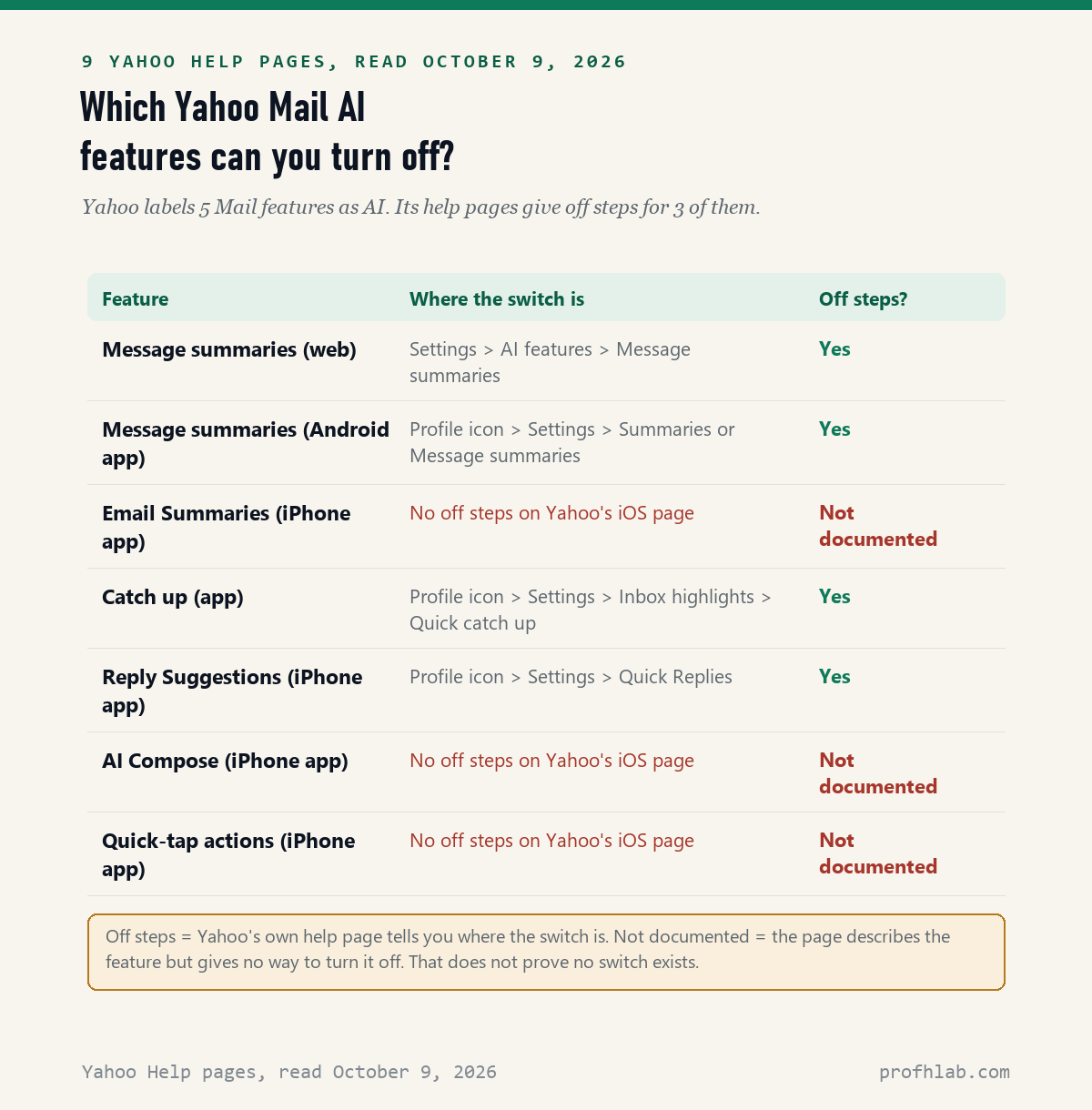
Turning off message summaries on a computer takes four clicks
Yahoo’s page SLN36745, read October 9, 2026, lists the web steps in this order. Use them in any up-to-date browser on a desktop or laptop.
- Open Yahoo Mail in your web browser and sign in.
- Click More options, the icon with three dots, then click Settings.
- On the left side of the screen, click AI features.
- Click the Message summaries toggle so it turns off.
Changed your mind later? The same toggle turns summaries back on. Nothing is deleted either way.

Can I turn off the Yahoo Mail AI summary on my phone?
On Android, yes: Yahoo’s page SLN37100, read October 9, 2026, says to tap your profile icon, tap Settings, scroll down to Summaries or Message summaries, and turn it off. The page adds, “Restart the app if prompted.”
On iPhone, Yahoo’s page for the iOS app describes “Email Summaries” but gives no off steps. The Android menu name is a good first place to look in the iPhone app’s Settings too. That is our guess, not something Yahoo’s page or our own test confirmed.
If you cannot find it on iPhone, the computer switch is the one Yahoo does document. Whether turning it off on the web also turns it off in the iPhone app is not stated on any page we read.
Catch up and Reply Suggestions each have their own switch
Two more AI tools in the Yahoo Mail app have documented off switches, and neither one is under AI features. Yahoo put each in its own menu, per the pages we read October 9, 2026.
- Catch up: Yahoo says it shows “an AI-generated summary along with simple ‘Keep’ or ‘Delete’ options” for unread mail. To turn it off: tap your Profile icon, tap Settings, tap Inbox highlights, tap Quick catch up, and toggle Unread messages.
- Reply Suggestions (iPhone): Yahoo says it will “recommend three suggestions to quickly start a reply.” To turn it off: tap the Profile icon, tap Settings, find “Customize your inbox,” tap Quick Replies, and tap the toggle.
The Reply Suggestions page also says the models behind it “use anonymized email content which trains the models.” Anonymized means names and addresses are stripped out first. It is the only Yahoo page we read that talks about training on email.
Why can’t I find a switch for AI Compose or quick actions?
Because Yahoo does not document one: its iPhone AI features page, read October 9, 2026, describes AI Compose and Quick-tap actions but gives no way to turn either off.
AI Compose rewrites your draft in one of “five tone options – Improve, Concise, Friendly, Professional, and Add Emojis.” Quick-tap actions sit at “the top of your message” and offer to add events to your calendar, copy info or set bill reminders.
Here is the calm part. From Yahoo’s description, both are buttons you choose to press; the page does not say either one acts on its own. So if a switch is missing, simply not tapping them leaves your writing as your own. That reading is our inference from the page, not a Yahoo statement.

Does Yahoo Mail use AI to read my emails?
Yes, automated systems scan it: Yahoo’s Communications FAQ, read October 9, 2026, says they “may analyze all content (such as Mail and Messenger content” to detect keywords, and to “Provide, maintain and improve product features.”
The two Yahoo pages read differently on ads. The Privacy Policy says ad interest profiles rely “on emails from retailers and other organizations (these are not personal emails between individuals).” The FAQ says keyword scanning of all content “might result in ads being shown to you in Mail Services that are related to those keywords.”
We cannot tell you which reading Yahoo applies to your inbox; neither page settles it. What both pages agree on is the opt-out. The FAQ says “Yahoo Mail respects your choice to opt out of interest-based ads,” and that choice also covers “analyzing communications content for advertising purposes.”
Yahoo points to its Privacy Dashboard for that choice. Its link was built by JavaScript and did not load for us, so we cannot quote the steps. Two more limits: turning off summaries is a separate setting from the ad opt-out, and the FAQ lists security scanning for fraud and abuse, which no setting we read turns off.

Classic Yahoo Mail is gone, so set up the new one instead
You cannot switch back: Yahoo’s page on the change, read October 9, 2026, says “Classic and basic Yahoo Mail are no longer available, so you can’t switch back.” Everyone on a computer is moving to the new design.
The same page lists settings that make the new look closer to the old one. Two of them quiet automatic features:
- Inbox categories: the tabs that sort mail into Primary, Offers, Social and Newsletters. Yahoo says turning them off “Removes the tabs above your emails for a cleaner view.” The switch is under Settings, then Inbox categories, next to “Categories.”
- Dynamic emails: shopping and task buttons inside a message. Yahoo does not call this AI. Its page says it “is turned on by default but, can be disabled at any time.” Go to Settings, then Viewing email, toggle Dynamic message, and click Save.
The page also mentions “Message takeaways,” key points of a long email. Yahoo does not say whether the Message summaries switch controls it. We could not confirm that either way.
Is Yahoo Mail Plus worth $5 a month to hide deal summaries?
Only if those deal boxes truly bother you: the Mail Plus page, read October 9, 2026, charges “$5/month” after a 14-day free trial, and hiding deal summaries is the only AI-adjacent setting we found behind that paywall.
The page describes it as a way to “Remove retailer discount recommendations from the top of emails.” Mail Plus also removes ads and adds 200 GB of storage. Message summaries, Catch up and the other AI switches above are free for everyone, per the pages we read.
Our view: try the free switches first. Pay only if the shopping boxes are the part you cannot stand. Remember to cancel before day 14 if you only want the trial; Yahoo’s page warns that the recurring fee starts otherwise.
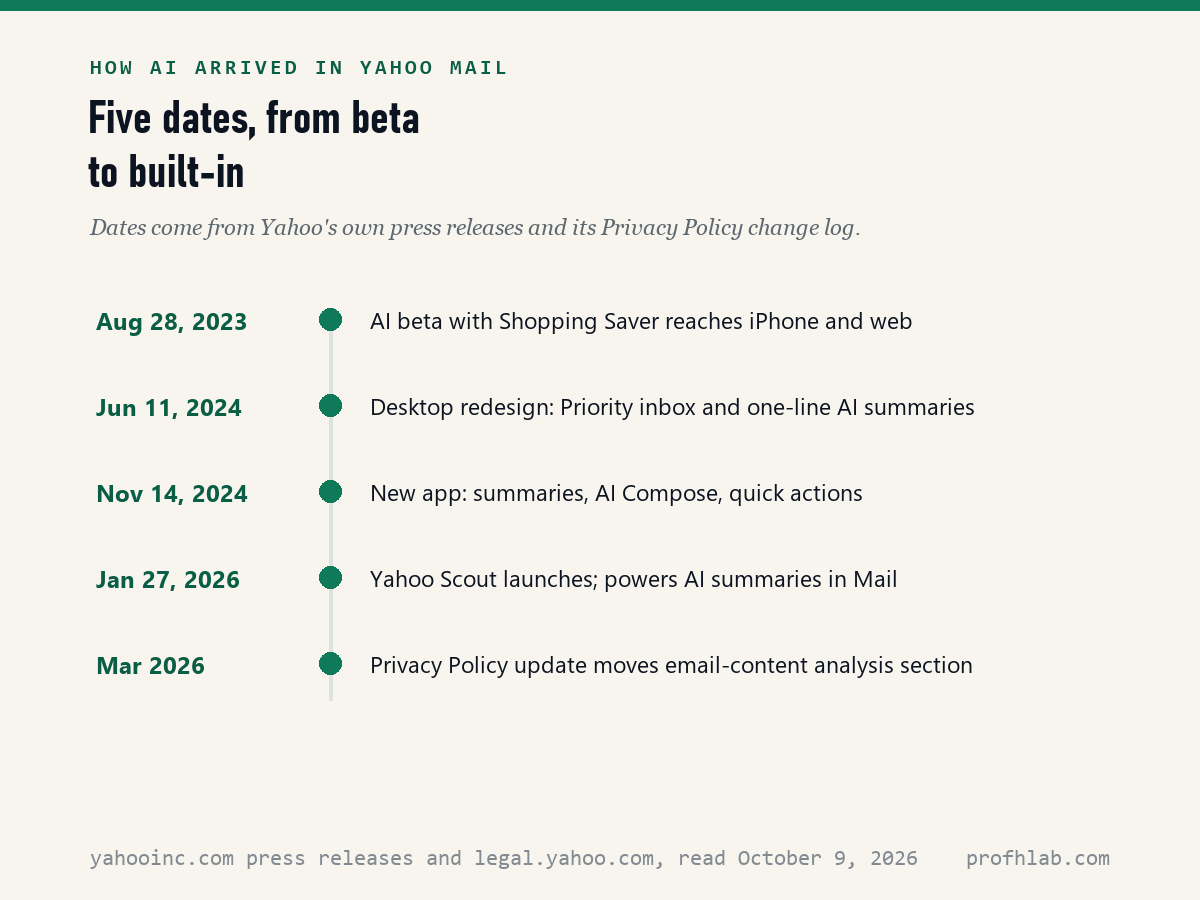
When did AI show up in Yahoo Mail, and what is Yahoo Scout?
AI arrived in steps: Yahoo’s press release of August 28, 2023 opened an AI beta to iPhone and web users, and its June 11, 2024 release added “AI-generated, one-line summaries” to the desktop inbox.
On November 14, 2024, Yahoo said its new app “can now summarize messages, suggest next steps, help users compose emails.” Then on January 27, 2026, Yahoo launched Yahoo Scout, an AI answer engine. Its release says Scout powers “AI summaries in Yahoo Mail.”
So if your inbox looks smarter this year than last, you did not imagine it. Scout is the engine behind the summaries; the switches above are how you turn its output off in Mail.
Yahoo’s 2023 AI demo, and Helper Joel on the summary switch
What else do people ask about Yahoo Mail AI?
Can I turn off Yahoo Mail AI summary?
Yes. On a computer, click More options, then Settings, then AI features, and turn off the Message summaries toggle. On Android, tap your profile icon, then Settings, then Summaries or Message summaries. Yahoo lists no iPhone steps.
How do I opt out of Yahoo Mail AI summary?
Turning off the Message summaries toggle is the opt-out. Yahoo help pages read October 9, 2026 describe no separate form. The toggle can be switched back on at any time, and no email is deleted.
Does Yahoo Mail use AI?
Yes. On October 9, 2026, Yahoo help pages labeled 5 Mail features as AI: message summaries, Catch up, Reply Suggestions, AI Compose and quick-tap actions. Yahoo says its Yahoo Scout platform powers the AI summaries in Mail.
Why does Yahoo Mail look different?
Yahoo retired classic and basic Yahoo Mail, and its help page says you cannot switch back. Turning off inbox categories and expanding the folder list are the settings Yahoo suggests to make the new design look more like the old one.
Does Yahoo scan my emails for ads?
Its pages say scanning can affect ads. The Communications FAQ says automated systems may analyze all Mail content for keywords that can shape ads in Mail. The Privacy Policy, updated March 2026, says ad profiles use retailer emails, not personal ones. Both say you can opt out of interest-based ads.
If Gmail, Outlook or Facebook is in your life too
Most people have more than one inbox. For the others, see how to stop AI from reading your Gmail, how to turn off AI in Outlook and Copilot in Word. Not sure a message is real? Read how to tell if an email is written by AI and AI scams aimed at seniors.
Your browser and phone have AI switches too: Chrome, Edge, iPhone summaries, Samsung phones and the old Google Search. On social media, see Facebook.
Want AI to help on your own terms? Try writing a letter or email with ChatGPT, and check what is safe to share with ChatGPT first. New here? Start at Start Here, try ChatGPT for the first time after 50, see the AI tools we rate for seniors, or ask us on the Ask page. Our counting rules are at How We Count.
Yahoo help pages, policies and press releases behind this guide
- Yahoo Help, Turn AI-powered message summaries on or off in New Yahoo Mail; the same for Yahoo Mail for Android; Use AI features in the Yahoo Mail app for iOS. No dates shown; read October 9, 2026.
- Yahoo Help, Use the Catch up feature in the Yahoo Mail app; Use Reply Suggestions in Yahoo Mail for iOS. No dates shown; read October 9, 2026.
- Yahoo Help, Enable inbox categories; Use or opt-out of Dynamic emails; Changes to classic and basic Yahoo Mail; View and manage features in Yahoo Mail Plus. No dates shown; read October 9, 2026.
- Yahoo, Yahoo Privacy Policy, last updated March 2026, and Communications FAQ. Read October 9, 2026.
- Yahoo, Yahoo Mail Plus features and price page. Read October 9, 2026.
- Yahoo Inc. press releases: Yahoo Mail Debuts AI Enhancements (August 28, 2023); Yahoo Mail Redesigns The Inbox (June 11, 2024); Yahoo Mail Launches a New App Experience (November 14, 2024); Introducing Yahoo Scout (January 27, 2026). All read October 9, 2026.
- Unread on October 9, 2026: the Yahoo Privacy Dashboard opt-out page (built by JavaScript, did not load for us).
Yahoo changes menu names and features often, and the app and web versions can differ. This page reports what Yahoo’s pages said on the date shown; we are not paid by Yahoo or any company named here. Corrections and questions go to the Ask page.
Prof.’s H Newsletter
One short email a month, with the numbers in it
What actually moved in AI hiring, AI prices, and the scams aimed at older Americans. Counted here, dated, and linked to the source. One email a month, and your address goes nowhere else.