How to Turn Off AI on DuckDuckGo: 3 Switches and 1 Address That Sticks
Yes, you can: on November 6, 2026 we read 15 DuckDuckGo help pages, and they list 3 AI things you can switch off, namely Search Assist answers, the Duck.ai chat and AI-generated images. The catch is that on the website those choices are saved in browser cookies, so clearing cookies or moving to another computer brings the AI back.
There is one way around that. DuckDuckGo runs a second address, noai.duckduckgo.com, where all 3 are already off. This guide gives each switch in DuckDuckGo’s own menu words, then shows how to make your choice stick.
What we checked on November 6, 2026
We read 15 pages from DuckDuckGo’s own help center at duckduckgo.com/duckduckgo-help-pages: 8 about its AI features, 4 about Duck.ai privacy and limits, and 3 about how settings are saved. We also opened noai.duckduckgo.com and confirmed it loads. None of the help pages shows a “last updated” date. We did not use third-party guides as sources.
Our own count: 3 AI things, 4 Search Assist choices, and 2 places where the same switch has a different name. We did not test the switches on a phone or computer, so every step below is quoted from DuckDuckGo’s pages.
Written and checked by Prof. H. An AI assistant helped draft this article and ran the page reads; every quote was read on the source’s own page on the date shown.
Can you turn off AI on DuckDuckGo?
Yes: DuckDuckGo’s help page “Opting Out of DuckDuckGo AI Features,” read November 6, 2026, says “all our AI features are optional and can be turned off or tuned down.”
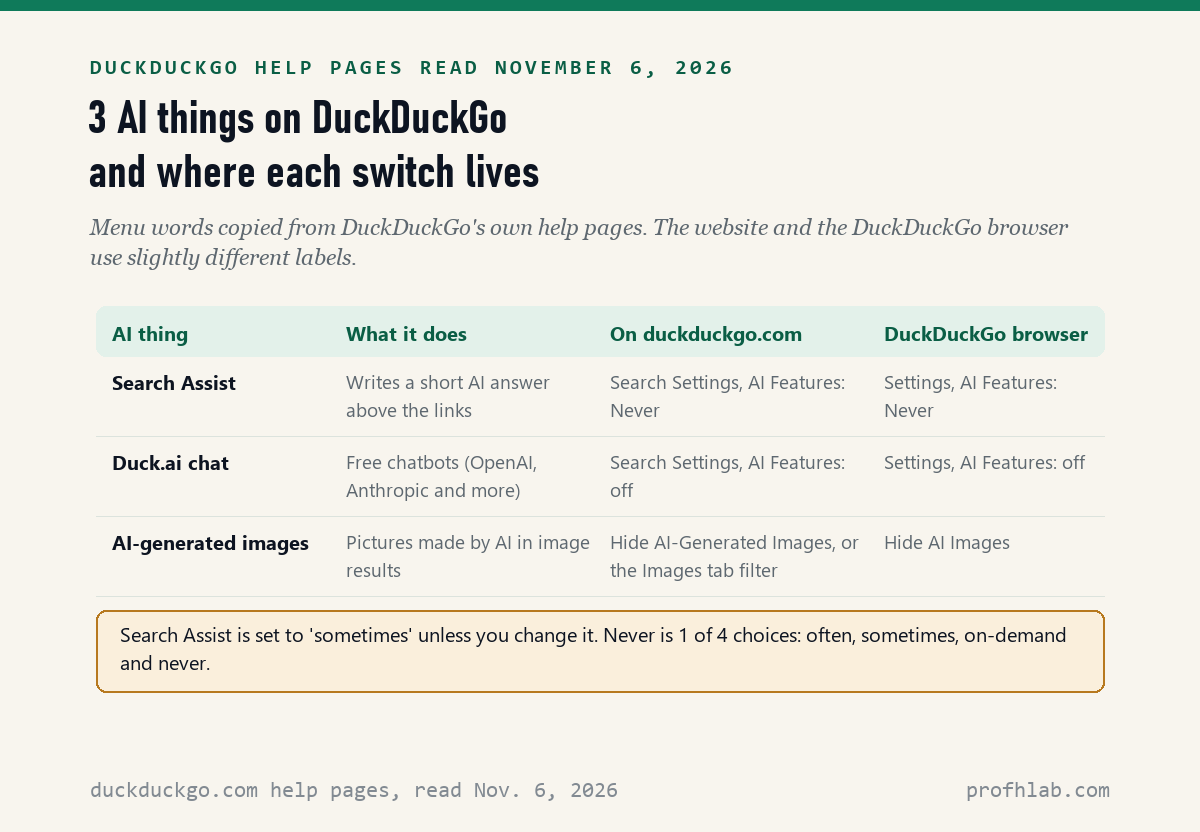
Its page “What is DuckDuckGo’s approach to AI?” names 2 AI features. Search Assist writes a short answer above the links. Duck.ai is a free chat window with chatbots from companies such as OpenAI and Anthropic. AI-generated images are the third thing, because they come from other websites and show up in image results.
Think of DuckDuckGo as a library with a helpful new desk clerk. Search Assist is the clerk who answers before you reach the shelves. Duck.ai is a chat room down the hall. You can ask the clerk to stay quiet and close the chat room door. The shelves of links stay the same.

How do I turn off Search Assist on DuckDuckGo?
Set it to Never: DuckDuckGo’s page “About DuckDuckGo Search Assist,” read November 6, 2026, lists 4 choices, often, sometimes, on-demand and never, and says sometimes is “the default setting.”
So unless you changed it, you are seeing AI answers some of the time. Here are the steps from the opt-out page:
- On duckduckgo.com, open Search Settings (the three-line menu in the top right corner, then Settings).
- Choose AI Features.
- Pick Never from the Search Assist list.
- Select Save and Exit.
There is a shortcut too. The Search Assist page says you can click the gear icon in the upper right corner of a Search Assist answer and pick the frequency there. In the DuckDuckGo browser app, the same choice sits under Settings, then AI Features.
If you would rather see AI answers only when you ask, choose on-demand instead of never. That is the “tuned down” option the opt-out page talks about.
How do I hide Duck.ai on DuckDuckGo?
Turn it off under AI Features: the opt-out page, read November 6, 2026, says to go to Search Settings, then AI Features, turn off Duck.ai and select Save and Exit.
Here is the first naming mix-up we found. A second DuckDuckGo page, “How do I hide Duck.ai?”, gives the same steps but says to “turn off Chat.” If you see a switch called Chat instead of Duck.ai, it is the same one.
In the DuckDuckGo browser, the opt-out page says turning off Duck.ai under Settings, then AI Features, will “completely disable Duck.ai features in the browser.” Another page adds that you can also choose where Duck.ai shows up, if you want to keep it in one place only.
How do I hide AI images on DuckDuckGo?
Use the Hide setting: DuckDuckGo’s page on filtering AI images, read November 6, 2026, gives 3 ways, the AI images filter on the Images tab, a Search Settings switch, and a browser switch.
This is the second naming mix-up. On the website the switch is called Hide AI-Generated Images, and the page says it sits under General or AI Features. In the DuckDuckGo browser it is called Hide AI Images.
Expect a few to slip through. DuckDuckGo says the filter relies on public, hand-curated block lists, and that “these lists are not exhaustive.” If a picture looks too perfect, our guide on how to tell if a picture is AI-generated lists what to look for.
Why does the AI keep coming back on DuckDuckGo?
Because the website saves your choices in cookies: DuckDuckGo’s page “How DuckDuckGo Keeps Your Search Settings Anonymous,” read November 6, 2026, says settings are “saved via non-personal browser cookies.”
A cookie is a small note a website leaves in your browser. DuckDuckGo has no account to remember you, so the note is the only memory it has. The same page says that if your settings keep getting cleared, something is clearing your cookies, or you are switching computers.

Many people clear cookies on purpose, or their browser does it when it closes. A helpful grandchild may do it while “cleaning up” the computer. Each time, Search Assist goes back to sometimes.
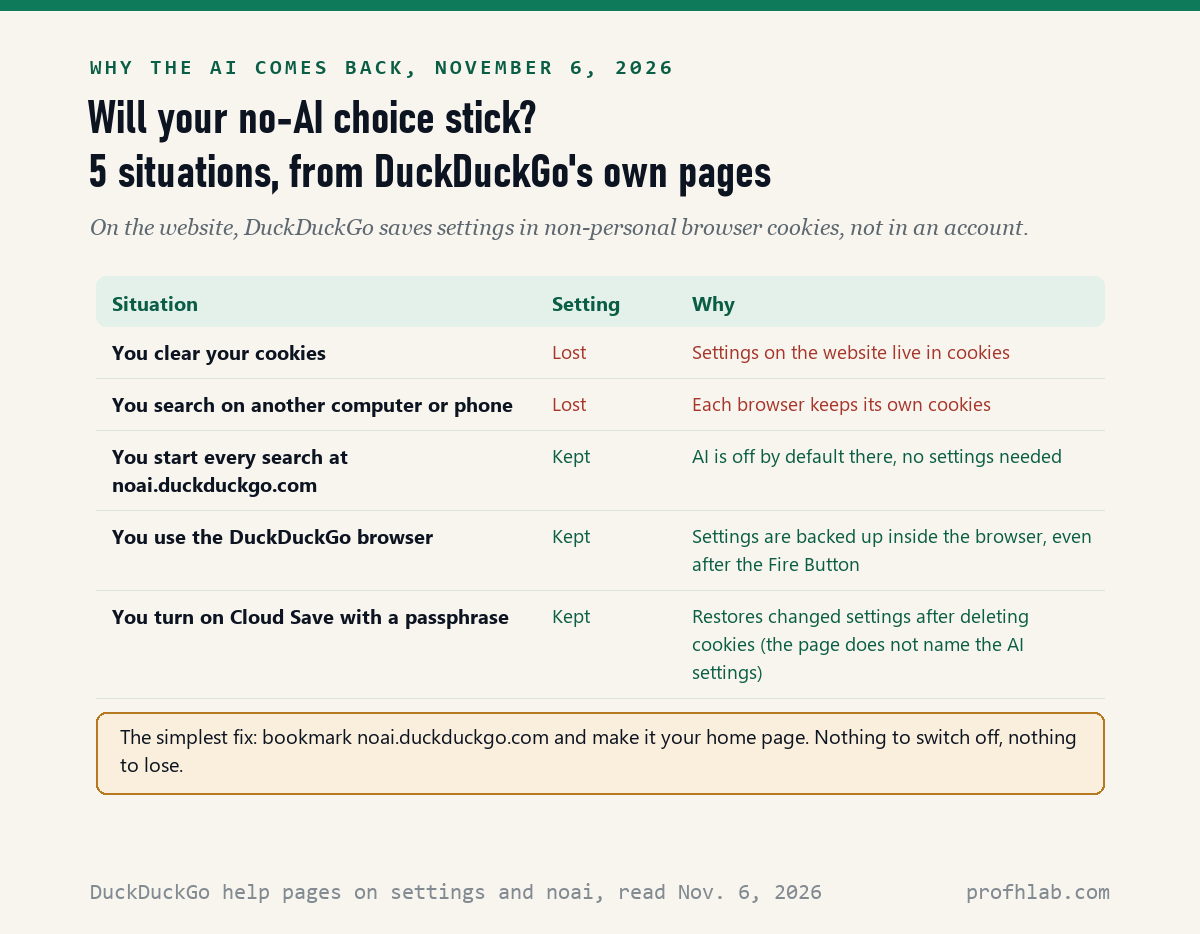
DuckDuckGo’s pages offer 3 ways to make it stick:
- Start at noai.duckduckgo.com. More on this below. Nothing is stored, so nothing can be lost.
- Use the DuckDuckGo browser. The settings page says that in its own browser, settings “will not be cleared by clearing cookies or by using the Fire Button.”
- Turn on Cloud Save. You pick a passphrase, and DuckDuckGo says this lets you “restore your settings after deleting cookies.” The page says it saves only settings you changed. It does not name the AI settings, so we cannot confirm they are included.
What is noai.duckduckgo.com, and should I use it?
It is DuckDuckGo search with AI already off: the page “About noai.duckduckgo.com,” read November 6, 2026, says 3 things are blocked there, Search Assist, Duck.ai and AI-generated images, with “no settings required” according to the Optional AI page.
For most readers who want no AI at all, this is the easiest choice. You do not need to find any menu. Type noai.duckduckgo.com into the address bar, then save it as a bookmark or set it as your home page. DuckDuckGo says searching there “works the same” as the regular site, except for the AI.
DuckDuckGo also promises that if it adds new AI features later, noai.duckduckgo.com will stay a way to search without AI. It also offers No-AI Search extensions for Chrome and Firefox that set this as your default search.
A note on look-alike apps. Get extensions only from the Chrome Web Store or Firefox Add-ons, through the links on DuckDuckGo’s own page. DuckDuckGo keeps a help page on removing unofficial DuckDuckGo extensions. Our guide to AI scams that target seniors covers fake downloads and other tricks.
If you do try Duck.ai, what happens to your chats?
DuckDuckGo says it does not keep them: its page “How does Duck.ai protect my privacy?”, read November 6, 2026, says Duck.ai does not record or store your chats by default and that conversations are not used to train chat models.
The same page says your IP address is removed before a question reaches the chatbot company. It lists one exception worth knowing. For OpenAI and Anthropic models, chats “may be held in short-term memory for up to 1 hour” to speed up replies, and are never written to disk, DuckDuckGo says.
Duck.ai is free, but its usage page says there is “a daily limit on usage.” Paid plans raise it. Whatever chatbot you use, our guide on what is safe to tell a chatbot still applies: leave out your Social Security number, account numbers and medical details.
DuckDuckGo explains its AI answers, and a Linux channel walks through the no-AI address
We picked 2 videos on November 6, 2026. The first is from DuckDuckGo itself and explains why Search Assist answers are short, with a More button to expand them. The second, from an independent channel, shows the no-AI address and has a chapter on saving settings, the cookie problem above.
Do this once on every phone, tablet and computer you search from
Our estimate is about 2 minutes per device. None of these steps deletes your bookmarks, passwords or history, and each one can be undone.
- Bookmark noai.duckduckgo.com and make it your home page. If that is all you do, you are finished.
- If you prefer the regular site, open Search Settings, then AI Features. Set Search Assist to Never, turn off Duck.ai (or Chat), and select Save and Exit.
- Hide AI images with Hide AI-Generated Images, under General or AI Features.
- If you use the DuckDuckGo browser app, go to Settings, then AI Features, and make the same choices there. They survive clearing cookies.
- Check again after a cleanup. If AI answers return after cookies were cleared, repeat step 2, or switch to step 1.

Setting this up for a parent? Write “noai.duckduckgo.com” on a card next to the computer. It is easier to remember than four menus.
Other search engines, browsers and apps with an AI switch
- Other search: getting the old Google search back and stopping AI from reading your Gmail.
- Browsers: AI in Chrome, AI in Firefox, AI in Edge and AI in Safari.
- Your computer and phone: removing Copilot from Windows 11, Apple Intelligence on a Mac and Gemini on an Android phone.
- Pictures and video: AI on Pinterest, AI on YouTube and how to tell if a video is AI.
- New to all of this? Start from the Start Here page, our ChatGPT guide for beginners over 50 or our AI tools for seniors.
- Curious where AI work is hiring? Our AI jobs tracker counts openings every week.
Does DuckDuckGo use AI by default, and is it free?
How to turn off AI on DuckDuckGo?
Open Search Settings, then AI Features. Set Search Assist to Never, turn off Duck.ai and select Save and Exit. Or start every search at noai.duckduckgo.com, where Search Assist, Duck.ai and AI images are already off. We read 15 DuckDuckGo help pages on November 6, 2026.
How to turn off Duck AI?
On duckduckgo.com, go to Search Settings, then AI Features, and turn off Duck.ai. One DuckDuckGo help page calls the same switch Chat. In the DuckDuckGo browser, turn it off under Settings, then AI Features.
Does DuckDuckGo use AI automatically?
Partly. DuckDuckGo says Search Assist is set to sometimes by default, so some searches show a short AI answer until you change it to Never or on-demand. Duck.ai chat only answers when you open it and type.
Is DuckDuckGo AI free?
Yes. DuckDuckGo says Duck.ai and Search Assist are free and need no account. Duck.ai has a daily usage limit, and paid plans raise it.
Can you turn off AI overview on DuckDuckGo?
DuckDuckGo calls its AI answer Search Assist, not AI Overview. Set Search Assist to Never under Search Settings, then AI Features, or click the gear icon on a Search Assist answer and choose never.
Why does DuckDuckGo keep turning AI back on?
On the website, DuckDuckGo stores your settings in browser cookies. Clearing cookies or using another computer resets them. The DuckDuckGo browser, Cloud Save and noai.duckduckgo.com avoid this.
Fifteen DuckDuckGo help pages and two videos, with the dates we read them
- DuckDuckGo Help, Opting Out of DuckDuckGo AI Features, read November 6, 2026.
- DuckDuckGo Help, Optional AI, read November 6, 2026.
- DuckDuckGo Help, About noai.duckduckgo.com, read November 6, 2026.
- DuckDuckGo Help, What is DuckDuckGo’s approach to AI?, read November 6, 2026.
- DuckDuckGo Help, About DuckDuckGo Search Assist, read November 6, 2026.
- DuckDuckGo Help, How do I hide Duck.ai?, read November 6, 2026.
- DuckDuckGo Help, How To Filter Out AI Images in DuckDuckGo Search Results, read November 6, 2026.
- DuckDuckGo Help, I don’t want anything to do with AI. How can I opt out of this?, read November 6, 2026.
- DuckDuckGo Help, How does Duck.ai protect my privacy?, read November 6, 2026.
- DuckDuckGo Help, Is my Duck.ai chat history private?, read November 6, 2026.
- DuckDuckGo Help, Does Duck.ai have usage limits?, read November 6, 2026.
- DuckDuckGo Help, Do I need to install anything to start using Duck.ai?, read November 6, 2026.
- DuckDuckGo Help, How DuckDuckGo Keeps Your Search Settings Anonymous, read November 6, 2026.
- DuckDuckGo Help, How To Use Cloud Save to Save and Sync Your DuckDuckGo Search Settings, read November 6, 2026.
- DuckDuckGo Help, How To Use URL Parameters To Change Your DuckDuckGo Search Settings, read November 6, 2026.
- YouTube, DuckDuckGo, Duck Tales: Why DuckDuckGo Added the ‘More’ Button for AI-Assisted Answers, September 15, 2025, and Switched to Linux, No AI DuckDuckGo, February 3, 2026, both checked November 6, 2026.
Prof.’s H Newsletter
One short email a month, with the numbers in it
What actually moved in AI hiring, AI prices, and the scams aimed at older Americans. Counted here, dated, and linked to the source. One email a month, and your address goes nowhere else.