How to Turn Off AI Summaries on iPhone: Four Switches, Not One
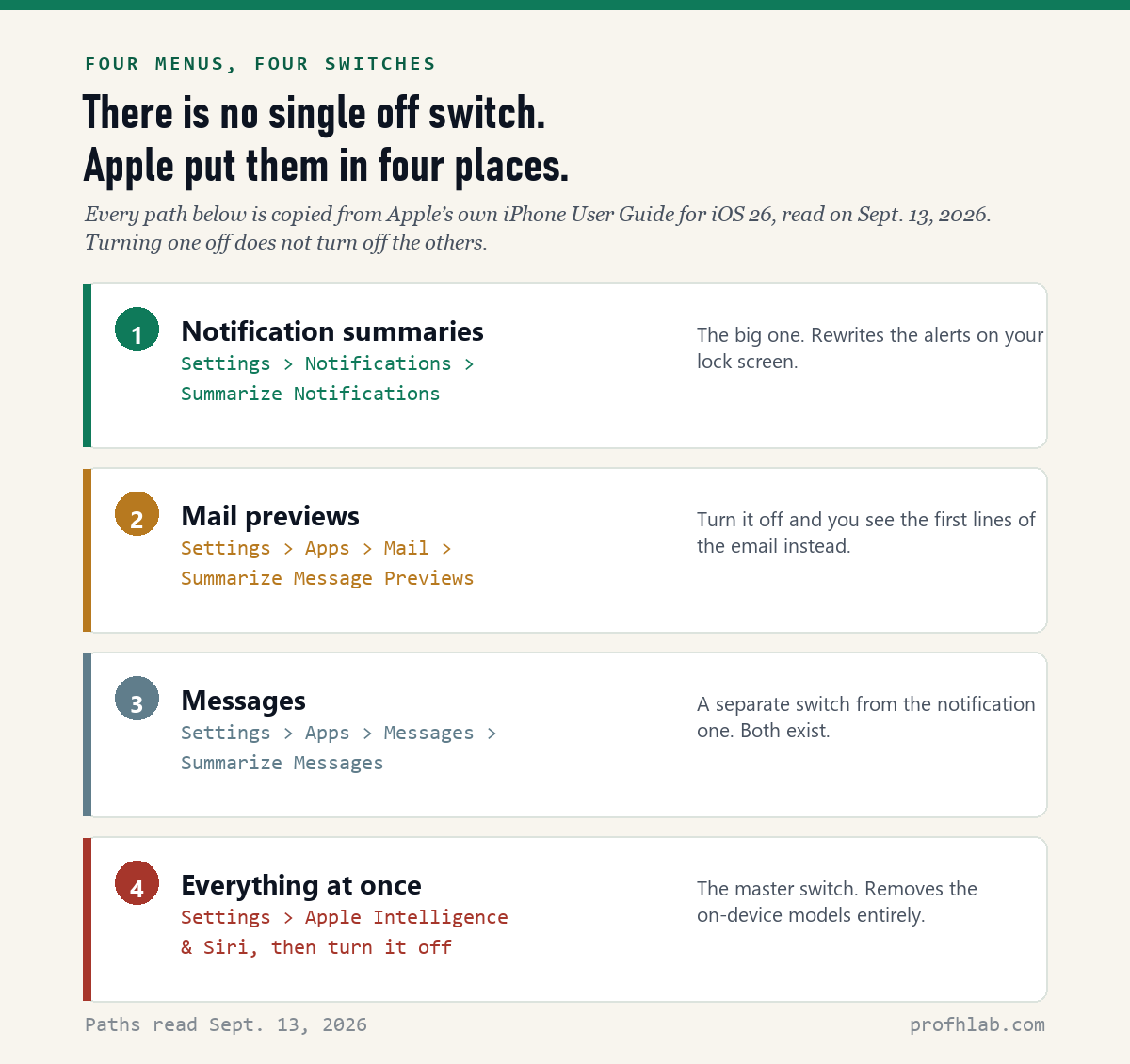
There is no single switch. Apple put AI summaries in four separate menus, and turning one off does nothing to the other three. The one most people want is Settings > Notifications > Summarize Notifications. That stops the rewritten alerts on your lock screen. Mail and Messages each have their own switch somewhere else, and above all of them sits a master switch in Settings > Apple Intelligence & Siri.
What we checked on September 13, 2026
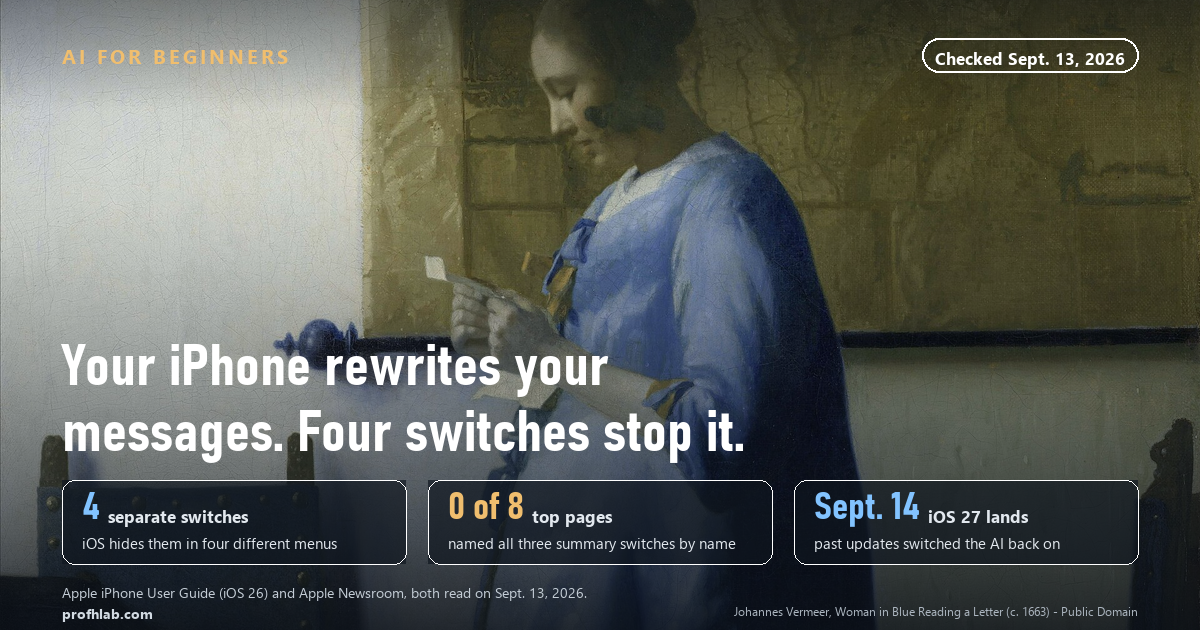
We took the nine pages Google returned for this exact question, fetched each one, and searched it for the three summary settings by their real names.
- 8 of 9 pages could be fetched. One blocked us.
- 0 of those 8 named all three switches.
- 1 of 8 named two of them — and that one was Apple’s own help page, which is not trying to answer this question at all.
So if you turned something off and the summaries kept coming, you are not doing it wrong. You were almost certainly given one switch out of four.
Why one switch was never going to be enough
An AI summary is your iPhone rewriting somebody else’s words into a shorter version before you read them. Your daughter sends four texts about Sunday dinner; the lock screen shows you one line that the phone wrote.
Apple did not build that as one feature. It built it as several, in different apps, each with its own setting. So “turn off AI summaries” is not one action. It is up to four.

Here is every one of them. Each path below comes from Apple’s own iPhone User Guide, which we opened and read on September 13, 2026.
Switch 1: the lock screen alerts (this is the one you want)
This is the big one. It controls the rewritten notifications — the stacked texts, the group chat, the news alert that came out strange.
- Open Settings.
- Tap Notifications.
- Tap Summarize Notifications.
- Turn Summarize Notifications off.
That is Apple’s own wording, from its support page on notification summaries. From that moment, every notification arrives in the sending app’s original words.
You can also do it one app at a time, from the lock screen
If a summary annoys you the moment it appears, you do not have to go hunting through Settings. Swipe the notification partway to the left, tap Options, then tap Turn off Summaries. Apple added that shortcut in iOS 18.3. It switches off summaries for that one app and leaves the rest alone — useful if you like the summary for shopping alerts but not for your family group chat.
Switches 2 and 3: Mail and Messages have their own
These two surprise people, because the notification switch does not touch them. Open the Mail app itself and the summary is still sitting on top of each email.
Mail. Go to Settings > Apps > Mail, then turn Summarize Message Previews off. Apple’s guide explains what you get back: instead of a summary, you see “the first lines of the most recent message.”
Messages. Go to Settings > Apps > Messages, then turn Summarize Messages off.
Notice that both live under Apps, not under Notifications. That is why people who correctly turn off notification summaries still see summaries inside the apps and conclude the setting did not work.
What about Safari? Nothing to turn off
Safari can summarize a web page, but only when you ask it to — you tap Summarize in Reader, or tap the sparkle in the address bar. It does not rewrite pages on its own the way notifications get rewritten.
So there is no Safari switch in the list above, and you do not need one. If you never tap it, it never runs.
Switch 4: the master switch, and what it costs you
If you want all of it gone, go to Settings > Apple Intelligence & Siri and turn Apple Intelligence off.
Be clear about what that does. Apple’s support material notes that when you turn Apple Intelligence off, the on-device models are removed from the device. You lose the summaries, and you also lose the writing tools, the cleanup tool in Photos, Genmoji, and the rest. If your only complaint is the lock screen, switch 1 is the smaller, better tool.

The part that is missing from almost every guide: it does not stay off
This is the thing worth knowing more than any menu path, and it is why we wrote this today rather than next week.
Apple has switched Apple Intelligence back on during system updates, and it is documented in more than one release.
In January 2025, Apple’s own iOS 18.3 release notes said the feature “will be enabled automatically during iPhone onboarding” for people upgrading. Two months later, after iOS 18.3.2, MacRumors reported that readers found Apple Intelligence “automatically turned on, regardless of whether it was turned off prior to the update being installed.” Users were shown a splash screen whose only button was Continue.
iOS 27 is released tomorrow, September 14, 2026. Apple says it carries the new Siri AI, which can search across your apps, read old email for a confirmation number, and answer questions about what is on your screen. We do not yet know how the update treats a phone that had summaries switched off, because it has not shipped.
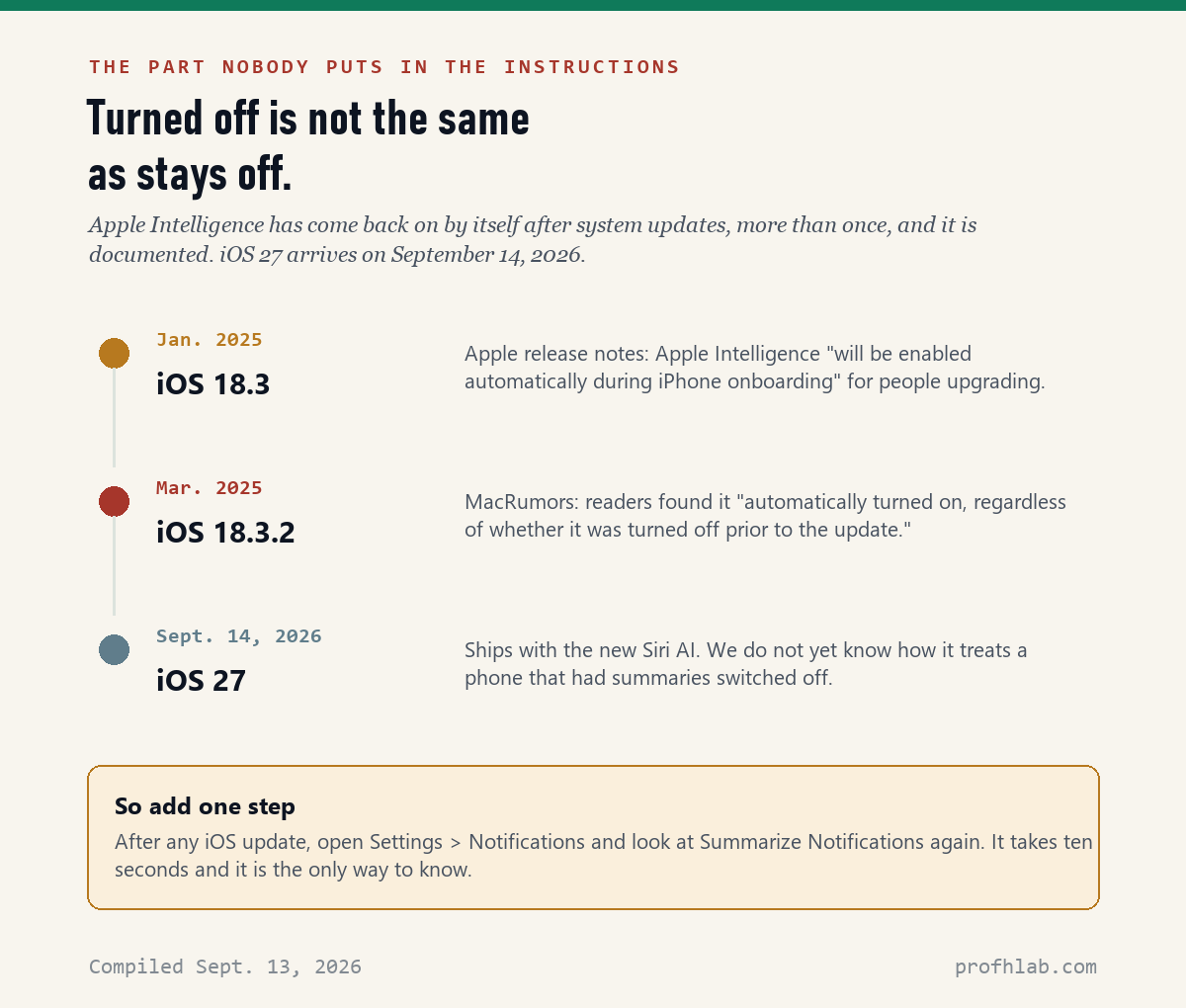
So add ten seconds to your routine. After any iOS update, open Settings > Notifications and look at Summarize Notifications again. If the update turned it back on, you will see it immediately. If it did not, you have lost ten seconds.
One step deeper: Screen Time will not do this for you
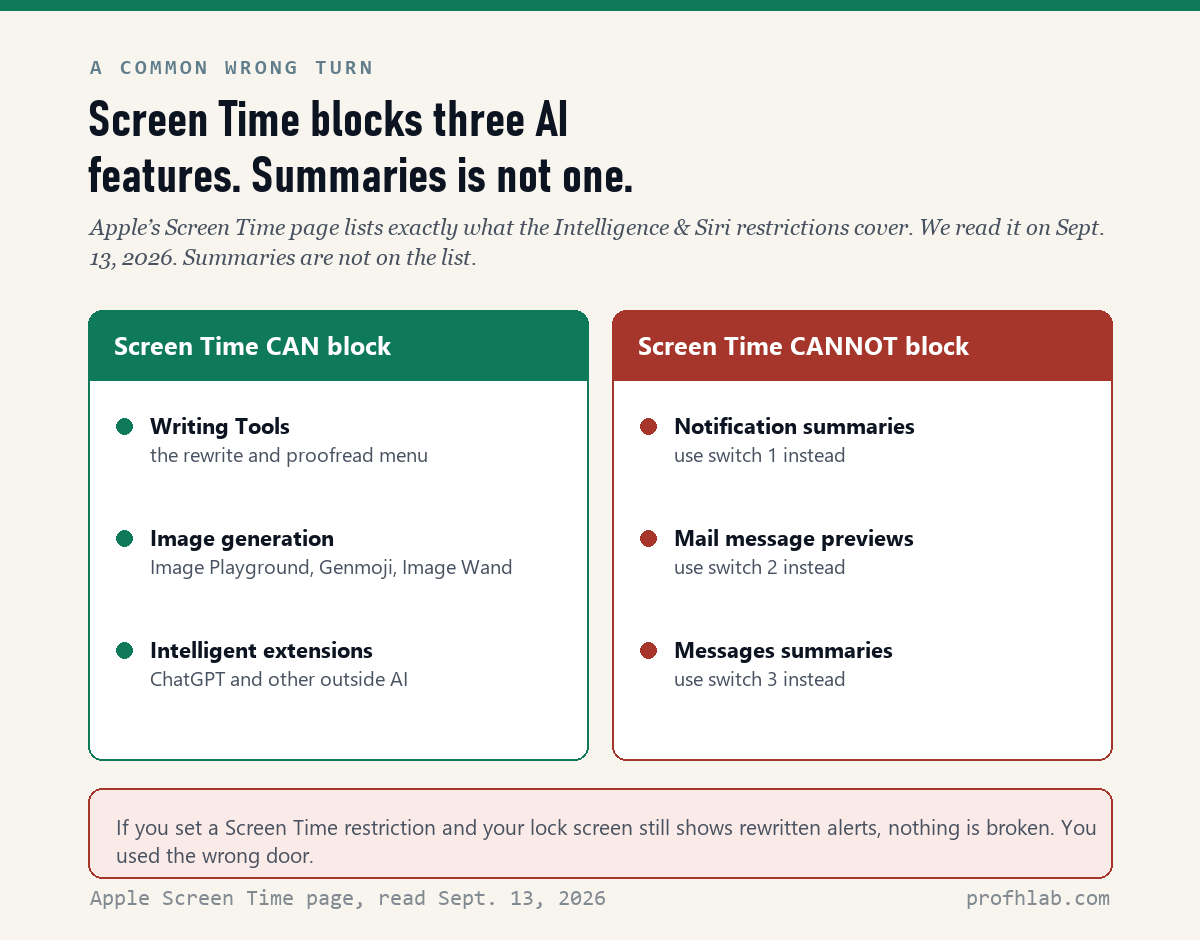
A common suggestion is to lock AI down through Screen Time restrictions. It is a reasonable idea and it does not work for summaries.
We read Apple’s Screen Time page for Apple Intelligence on September 13, 2026. Under Content & Privacy Restrictions > Intelligence & Siri, Apple lists exactly three things you can block: Writing Tools, image generation (Image Playground, Genmoji, Image Wand), and intelligent extensions, meaning outside AI such as ChatGPT.
Summaries are not on that list.
Why Apple itself put a warning on this feature
If you have wondered whether it is unreasonable to distrust a summary, it is not. Apple distrusts them too, in writing.
At the bottom of its own guide page sits this footnote: “Apple Intelligence uses generative models, and results may vary. Verify important information for accuracy.”
There is history behind that sentence. In December 2024 the BBC complained to Apple after a notification summary misrepresented one of its headlines. In January 2025, with iOS 18.3, Apple temporarily disabled notification summaries for apps in the News & Entertainment category, made the beta warning in Settings more explicit about possible errors, and started showing summarized text in italics so it is visually separate from the app’s own words.
That is a company shipping a feature and then adding guardrails to it in public. It is a good reason to treat a summary as a hint about what arrived, never as the message itself — which matters most when the message concerns money, health or a deadline. The same caution applies to medical documents you might paste into a chatbot.

What to do with this
Five minutes, in this order.
- Settings > Notifications > Summarize Notifications > off. This is the one that fixes the lock screen. Do it first and stop here if that is all you wanted.
- Settings > Apps > Mail > Summarize Message Previews > off. Your email list goes back to showing the first lines of each message.
- Settings > Apps > Messages > Summarize Messages > off.
- Decide about the master switch. Only turn off Apple Intelligence entirely (Settings > Apple Intelligence & Siri) if you want none of it. You will lose the writing and photo tools too.
- Write “check Summarize Notifications” on the note where you keep your update habits. Do it after every iOS update, starting with the one arriving tomorrow.
If you do not see these settings at all, that is normal and not a fault. Apple Intelligence runs on iPhone 15 Pro, iPhone 15 Pro Max and iPhone 16 or later, on a supported language. On an older iPhone there is nothing to switch off, because nothing is summarizing anything.
If you want to go deeper
- “Can I turn off only the apps I care about?” Yes. In Settings > Notifications > Summarize Notifications, leave the main switch on and tap Choose Notifications to Summarize to pick app by app. Or swipe left on any summarized notification, tap Options, and turn it off for that app.
- “What else on this phone is doing something similar?” Quite a lot. We counted twelve places AI now appears on a typical phone in how do I get rid of AI on my phone, including which ones have a real off switch and which only have a hide button.
- “Is any of this going to cost me money?” Apple Intelligence itself is bundled, but two features on Apple’s own page already require a paid subscription. We went through the gates in do I have to pay for Apple Intelligence.
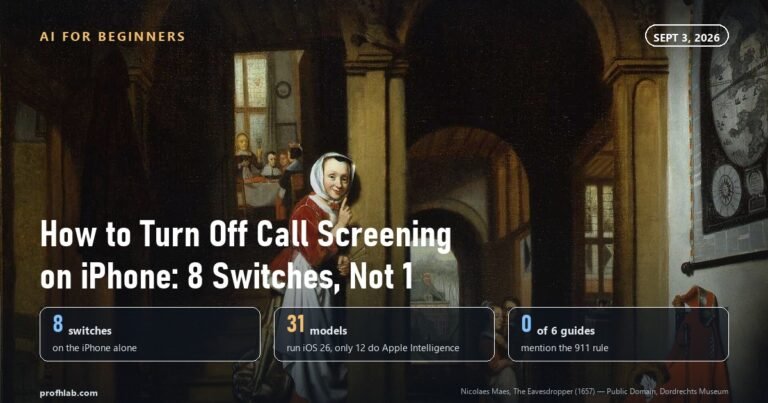
- “My phone is also screening my calls now.” Different feature, different menu — see how to turn off call screening on iPhone.
- “What about Android?” The equivalent assistant is covered in what is Gemini on my Android phone.
Two short videos that show the taps
If you would rather watch someone do it than read the steps, these two are worth your time. Apple’s own is under two minutes.
Questions people actually ask about iPhone summaries
How do I turn off AI summaries on iPhone?
Go to Settings > Notifications > Summarize Notifications and turn it off. That handles the rewritten alerts on your lock screen, which is what most people mean. Mail and Messages have separate switches under Settings > Apps, and there is a master switch under Settings > Apple Intelligence & Siri that removes everything at once.
How do I turn off AI summary on iPhone Mail?
Go to Settings > Apps > Mail and turn off Summarize Message Previews. Your inbox then shows the first lines of each message again instead of a written summary. Turning off notification summaries does not do this — they are two different settings.
How do I turn off AI summaries on iPhone Messages?
Go to Settings > Apps > Messages and turn off Summarize Messages. This is separate from the notification summary for the Messages app, which lives under Settings > Notifications. If summaries persist after you change one, change the other.
Why does my iPhone summarize my notifications?
Because Apple Intelligence is on, and summaries come with it. Apple describes the goal as condensing long or stacked notifications so they are easier to take in at a glance. It is on by default on supported iPhones, and turning it off is a setting change, not a repair.
Does turning off summaries turn off Apple Intelligence?
No. Turning off Summarize Notifications stops the rewritten alerts and leaves everything else running. Turning off Apple Intelligence in Settings > Apple Intelligence & Siri is the larger step, and Apple notes the on-device models are removed from your device when you do it.
Are Apple Intelligence summaries accurate?
Not reliably, and Apple says so on its own guide page: “Apple Intelligence uses generative models, and results may vary. Verify important information for accuracy.” In January 2025, after a BBC complaint about a misrepresented headline, Apple temporarily disabled summaries for News & Entertainment apps in iOS 18.3 and began showing summarized text in italics to separate it from the original.
Will an iOS update turn summaries back on?
It has happened. Apple’s iOS 18.3 release notes stated Apple Intelligence would be enabled automatically during onboarding for upgraders, and after iOS 18.3.2 MacRumors reported users finding it switched on regardless of their previous setting. Whether iOS 27, released September 14, 2026, does the same is not yet known. The safe habit is to check Settings > Notifications after every update.
Can Screen Time block AI summaries?
No. Screen Time’s Intelligence & Siri restrictions cover three things: Writing Tools, image generation, and intelligent extensions such as ChatGPT. Summaries are not among them. Use the Notifications, Mail and Messages switches instead.
I do not see these settings on my iPhone. What is wrong?
Probably nothing. Apple Intelligence requires iPhone 15 Pro, iPhone 15 Pro Max, or iPhone 16 and later, with the device set to a supported language. On an older iPhone the settings do not appear because the feature is not running, so there is nothing to turn off.
Sources
- Apple, “Summarize notifications and reduce interruptions with Apple Intelligence on iPhone”, iPhone User Guide (iOS 26) — menu path for switch 1 and the “results may vary” footnote. Read September 13, 2026.
- Apple, “Use Apple Intelligence in Mail on iPhone” — Summarize Message Previews.
- Apple, “Use Apple Intelligence in Messages on iPhone” — Summarize Messages.
- Apple, “Block access to Apple Intelligence features in Screen Time on iPhone” — the three restrictions Screen Time actually covers. Read September 13, 2026.
- Apple, iOS 27 product page — “iOS 27 available starting 9.14” and Apple Intelligence device requirements. Read September 13, 2026.
- Apple Newsroom, “Apple introduces Siri AI” — personal context and onscreen awareness.
- The Register, “Apple Intelligence turned on by default”, January 22, 2025 — quoting Apple’s iOS 18.3 release notes.
- MacRumors, “iOS 18.3.2 re-enables Apple Intelligence if you turned it off”, March 11, 2025.
- 9to5Mac, “iOS 18.3 makes 5 changes to Apple Intelligence notification summaries”, January 16, 2025 — the News & Entertainment pause, italics, and the lock screen shortcut.
- Our own check of the pages ranking for this question, September 13, 2026 — method described in the box at the top.
Keep reading
- How do I get rid of AI on my phone? — twelve places it appears, and which ones have a real off switch.
- Do I have to pay for Apple Intelligence? — the gates Apple’s page does not spell out.
- How to turn off call screening on iPhone.
- What is Gemini on my Android phone? — the same question, other side of the aisle.
- How to stop AI from reading my Gmail.
- How to stop Meta AI from using my photos on Facebook — two switches work, two do not.
- Is Meta AI reading my WhatsApp messages?
- How to turn off AI on Amazon.
- How to turn off AI on my TV — the same problem, one room over.
- How to remove Copilot from Windows 11.
- How to keep using Windows 10 safely after support ends — you just got another year, free.
- How to get the old Google search back.
- How to use ChatGPT: a beginner’s guide for readers over 50.
- The best AI tools for seniors — what is actually worth your time.
- AI scams targeting seniors — when the voice on the phone is not who it claims.
- What happens if you say yes on a scam call?
- How to tell if a phone call is AI.
- Start here — the whole beginners’ library in one place.
About the author. Prof. H writes profhlab.com for people who did not grow up with this stuff and would like a straight answer. We read the primary sources so you do not have to. Every menu path above was read in Apple’s own guide on September 13, 2026, and every source is linked. Found an error? Tell us — we correct in public.
Prof.’s H Newsletter
One short email a month, with the numbers in it
What actually moved in AI hiring, AI prices, and the scams aimed at older Americans. Counted here, dated, and linked to the source. One email a month, and your address goes nowhere else.