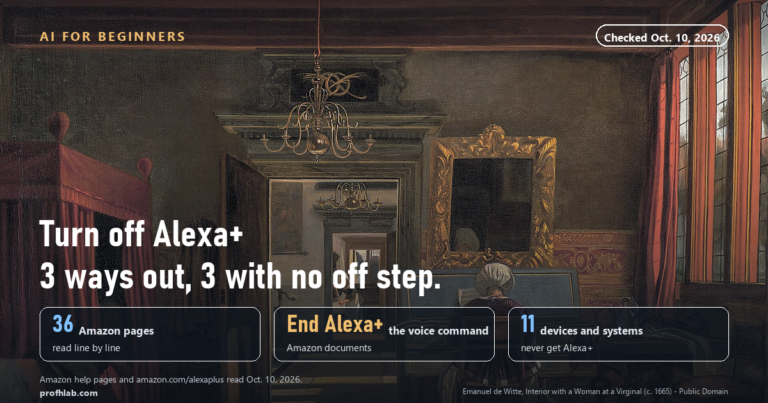
How to Turn Off AI on Amazon: The 7 Switches That Actually Exist
There is no single button that turns
off AI on Amazon, and the reason most guides fail you is that they are hunting for one.
The two controls that do work today are amazon.com/adprefs,
where you can pick Do not show me interest-based ads, and, in the Alexa app,
More → Alexa Privacy → Manage Your Alexa Data → Don’t save recordings.
On September 5, 2026 we went through Amazon’s own list of AI shopping features and its help
pages one by one: nine features in the store, zero off switches for any of them, and
seven switches everywhere else on your account.
The 60-second version
- The shopping assistant used to be called Rufus. Amazon now calls it
Alexa for Shopping. That name change is why so many how-to guides send you
looking for a toggle that was never there. - Seven switches exist. Ads, browsing history, voice recordings,
auto-delete, voice purchasing, notifications, and the Alexa+ plan itself. - None of them silences the assistant in the app or on amazon.com.
- The switch nobody writes about is the browsing history toggle — it is
the trail the recommendation features read.
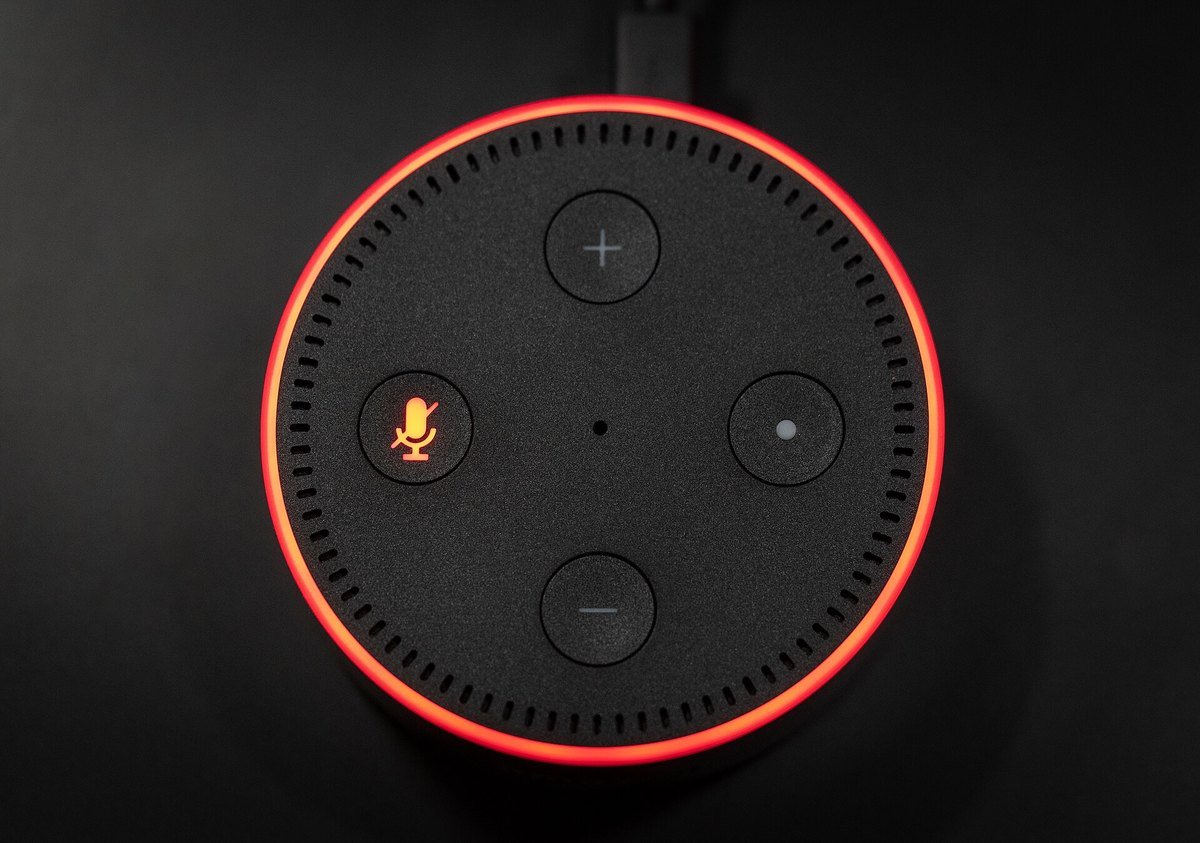
crossed-out microphone on an Echo and the ring turns red. Everything else in this article lives
inside a menu. Photo: Tony Webster, Wikimedia Commons — CC BY 2.0
Why you cannot find the switch: the name changed underneath you
In 2024 Amazon launched a shopping chatbot called Rufus. Every guide on the
first page of Google still calls it that. But open Amazon’s own help page today and the title
reads About Alexa for Shopping, and the first paragraph says: “Amazon is bringing
Rufus and Alexa together to create one AI assistant with shared memory and personalized
preferences. In the Amazon store, this appears as Alexa for Shopping.”
So when a guide tells you to look for a Rufus setting, it is describing a screen that no
longer exists under that name — and, as far as Amazon documents, never had an off switch
under any name. That same help page lists exactly two things you can do about the assistant:
review your history, and give it a thumbs up or a thumbs down.
The sentence worth reading twice. Amazon’s advice on that
page for anyone who does not want the assistant using sensitive information is this: “If
you do not want Amazon to use certain information, like sensitive personal data … do not
share it with Alexa.” That is not a setting. That is a request that you censor yourself.
The seven switches that actually exist
Every row below is documented on an Amazon help page, and we opened each one on September 5,
2026. The paths are what you tap, in order.
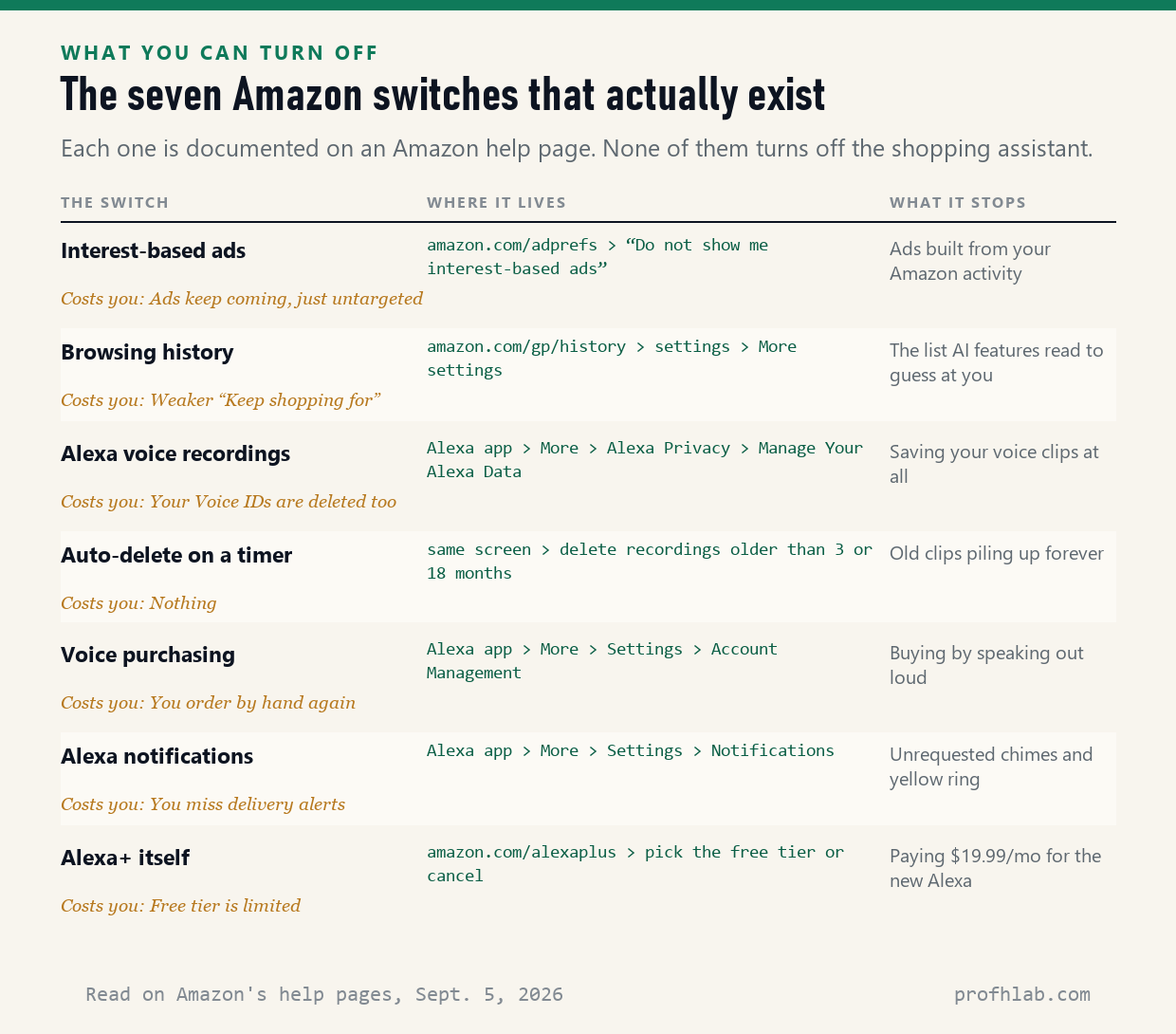
Not one of them turns off the shopping assistant. Chart: profhlab.com
1. Turn off interest-based ads (2 minutes, do this one first)
Go to amazon.com/adprefs, sign in,
choose Do not show me interest-based ads provided by Amazon, and press Submit.
Amazon’s own wording says that after this it will not “use information about your use of
our store and services to deliver ads to you off of Amazon’s own properties.” You will
still see ads. They will stop being built from what you looked at last night.
2. Turn off browsing history (the one nobody mentions)
Visit amazon.com/gp/history,
choose the settings symbol in the right corner, then More settings, then toggle
Browsing History off. This is the list that the “Keep shopping for”
rows, Shopping Guides and Help Me Decide all read. Turning it off does not remove those features,
but it starves them.
3. Stop Alexa saving your voice
Alexa app → More → Alexa Privacy →
Manage Your Alexa Data, then choose Don’t save recordings.
Read the next section before you do it — it has a price.
4. Set an automatic delete timer
Same screen. You can have Amazon delete recordings older than 3 months or older than 18
months. If you are not ready for option 3, this one costs you nothing.
5. Turn off voice purchasing
Alexa app → More → Settings →
Account Management → Voice Purchasing. If you have ever
worried about a grandchild ordering something by talking to the kitchen speaker, this is the
switch for it.
6. Turn off Alexa notifications
Alexa app → More → Settings →
Notifications, then use the toggle per feature. This is what stops the
unrequested chime and the yellow ring.
7. Choose your Alexa+ tier — or none
Covered below, with the prices.
What “Don’t save recordings” actually costs you
Amazon puts the trade-off in writing on the same help page, and it is easy to miss:
“When you choose ‘Don’t save,’ your voice recordings will be deleted, and future voice
recordings will not be saved … Any Voice IDs linked to this account will also be
deleted.” A Voice ID is how an Echo knows it is you speaking rather than your
spouse. Delete it and the speaker stops personalizing per person.
There is a second line, on Amazon’s Alexa device FAQ page, that is more important and that
no page-one guide we could read mentions at all:
“If we have used your data to improve our services, we may
continue to retain and use the systems trained on your data after your data has been deleted
from our data stores.”
In plain English: deleting your recordings deletes
your copy. It does not un-teach what the system already learned. This is normal across
the industry — we found the same pattern when we looked at whether
deleted ChatGPT chats
are really deleted — but it deserves saying out loud before you assume a delete button
rewinds the tape.
One more piece of history that explains a lot of confusion. Until March 2025 there was a
setting called Do Not Send Voice Recordings, which kept processing on the device.
Amazon retired it when the generative version of Alexa arrived, because the new assistant runs in
the cloud. If you remember that setting and cannot find it, you are not going crazy. It is gone.
The nine store features with no off switch at all
Amazon publishes its own catalog of AI shopping features. We took that list, then went looking
for a setting for each one. Here is what we found.
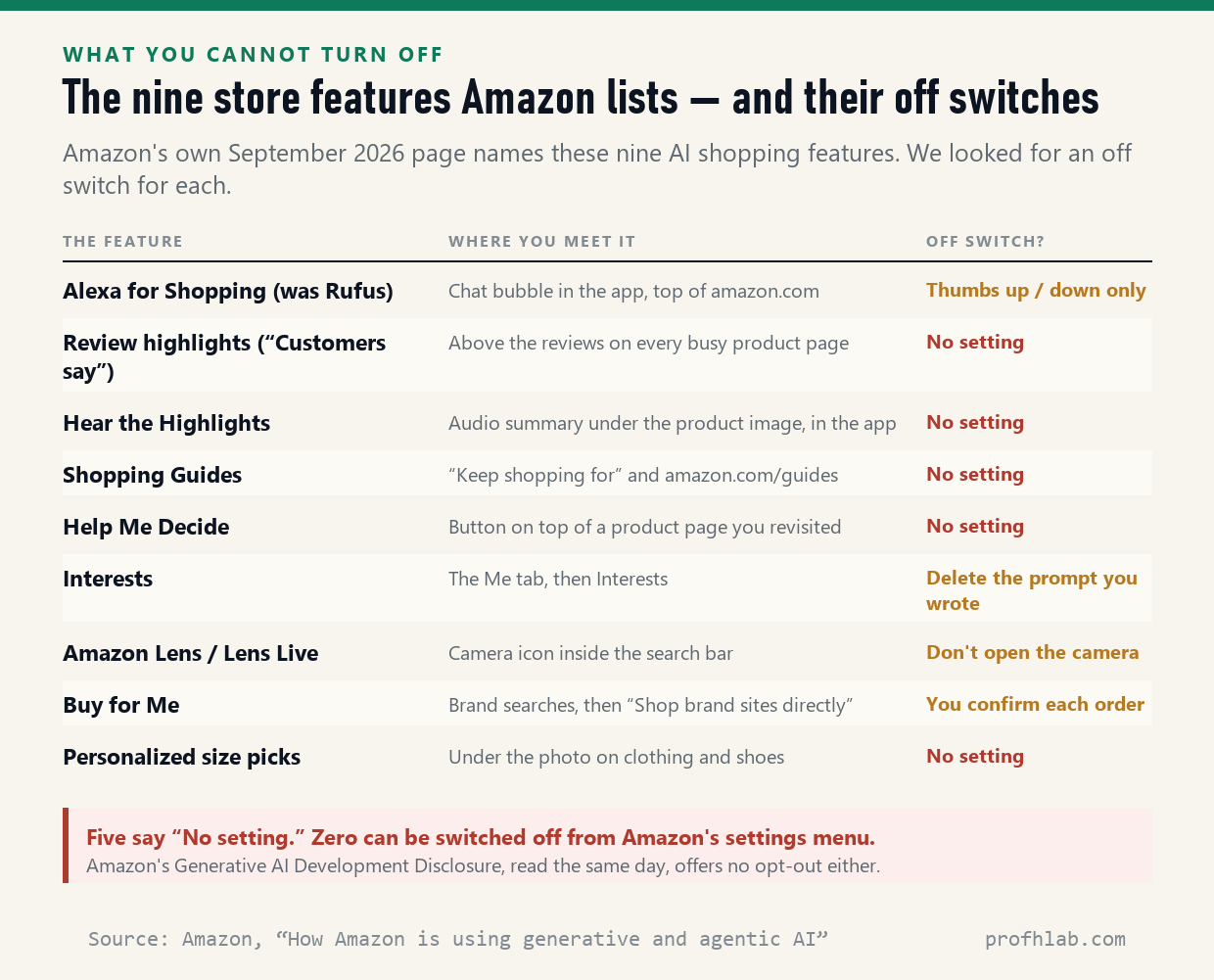
Five say “No setting” outright. Chart: profhlab.com
A few of these deserve a sentence of their own, because they behave differently from what the
name suggests.
| Feature | What it really does | Why it matters to you |
|---|---|---|
| Review highlights “Customers say” |
Writes a paragraph summarizing the reviews, and updates it as new ones arrive. | It sits above the reviews. Many shoppers now read the summary instead of the reviews. |
| Help Me Decide | Reads your browsing, searches and purchase history, then picks one product for you. | Appears only if you looked at similar things and did not buy. It knows you hesitated. |
| Buy for Me | Places an order for you on another company’s website when Amazon does not sell the item. | The one to slow down on. See below. |
| Hear the Highlights | An audio summary of the product, its reviews, and information gathered from the web. | “From across the web” means some of what you hear did not come from a buyer. |
It remembers you across every device you own
This is the part of Amazon’s help page that surprised us most, and it is stated plainly:
Alexa “remembers conversations across Amazon’s website and app, as well as Alexa on Echo
devices, Alexa.com, the Alexa app, Fire tablets, and Fire TV, so you can easily pick up where
you left off.”
Read that as a household, not as a user. A question typed into the shopping box on a laptop
can surface later on the Echo Show in the kitchen, where anyone in the room can see it. If you
have ever searched for a gift, a medication or a birthday surprise, that is the sentence to keep
in mind.
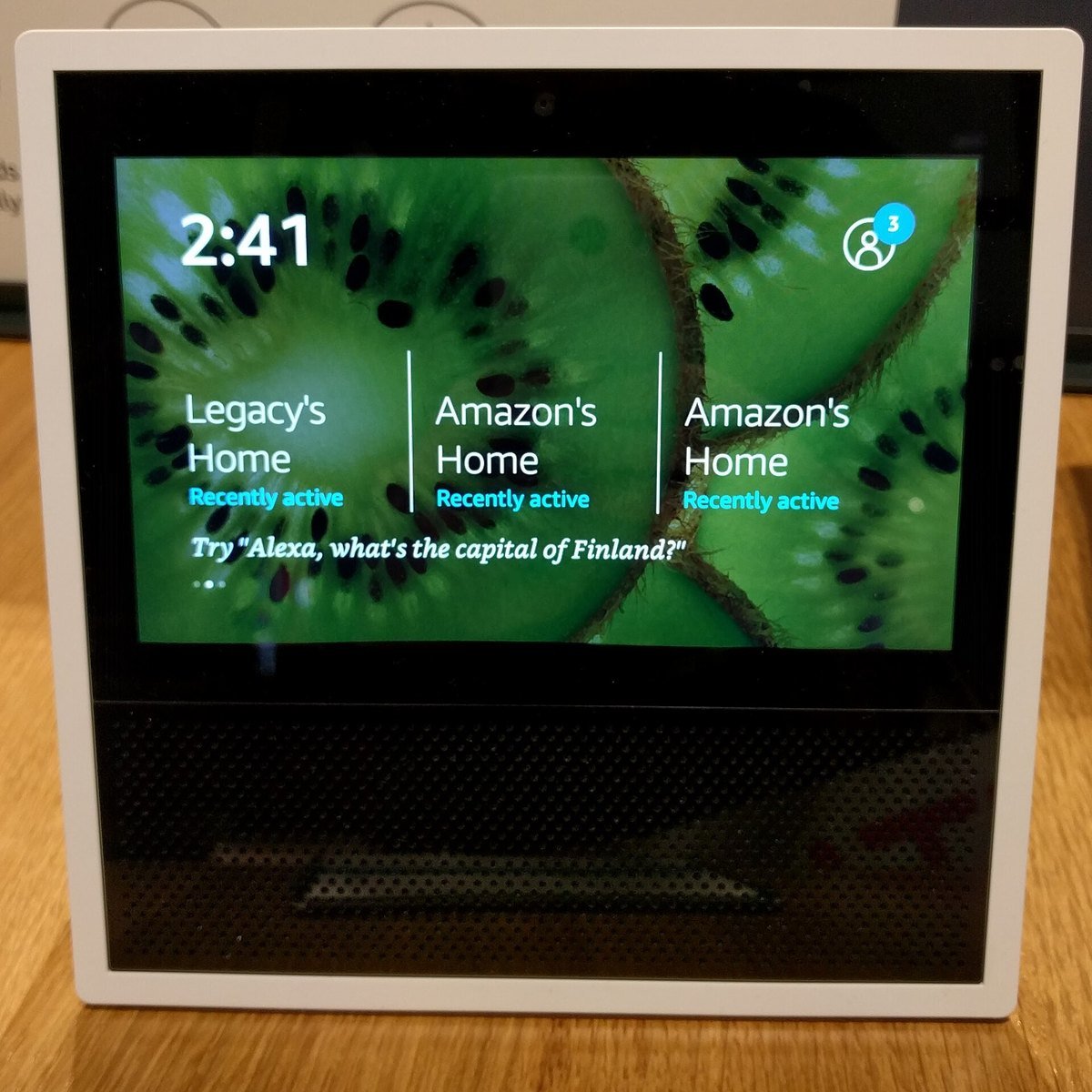
carries context between devices, what you typed on a laptop can show up on a screen like this
one. We wrote separately about
turning off the ads
on an Echo Show. Photo: Daylen, Wikimedia Commons — CC BY 4.0
Buy for Me: the one feature to slow down on
Most of the features on that list only suggest. Buy for Me acts. In Amazon’s
description it “can purchase select products on your behalf from brand websites if they
aren’t sold in Amazon’s store,” and Amazon says the catalog has grown from 65,000 products
at launch to more than half a million.
There is no setting to turn it off, because it is not always on: it appears as an option when
you search for a brand Amazon does not carry, and you confirm the order. That is the safeguard.
Our advice for anyone helping a parent or grandparent: agree in advance that orders placed on
someone else’s website go through a human. It is the same rule we suggest for
reaching a real person when an
automated system is in the way.
Does Alexa+ cost money? The three prices
Amazon’s own Alexa+ page lists three tiers, and the answer to “does it cost money”
depends entirely on which device you are standing in front of.
| Tier | Price | Where it works |
|---|---|---|
| Free | $0 / month | A limited Alexa+ on Alexa.com, in the Alexa app, and on compatible Fire TV devices |
| Included with Prime | No extra charge | Echo and other compatible devices, if you already pay for Prime |
| Standard | $19.99 / month | Echo, Fire TV and tablets, for people who do not want Prime |
If a charge on your statement is the reason you are reading this, the pattern is worth
knowing: the company that bills you is not always the company that provides the
service. We took that apart in detail for
an unexpected Google AI
Pro charge, and the diagnostic steps are the same. Our
AI price tracker logs what these plans cost
over time.
What page one told us, and what it left out
We searched how to turn off ai on amazon, opened the first page of results, and
scored the six whose text we could actually read. Four were excluded honestly: two blocked our
request outright, and two are forum threads that render only in a browser script.
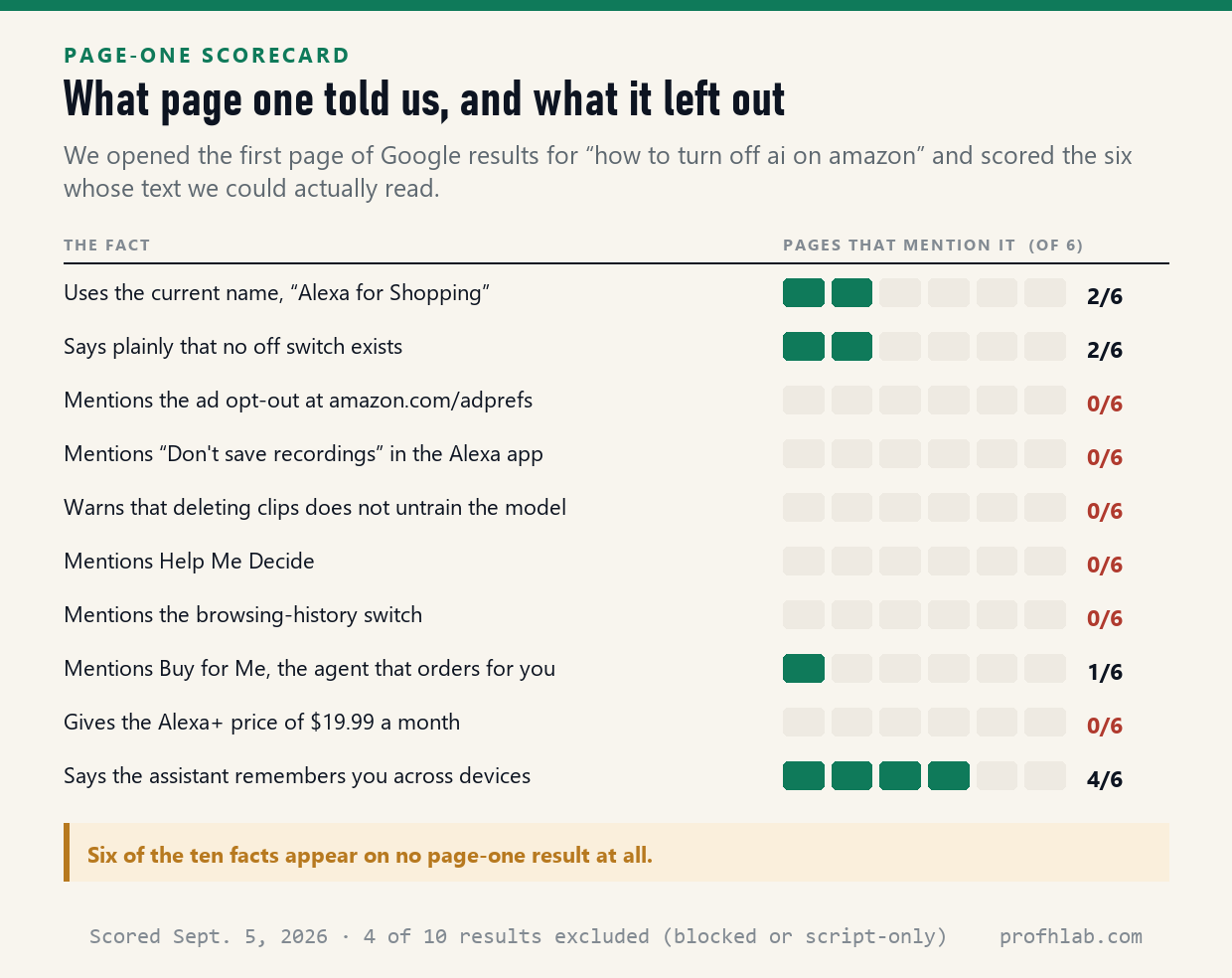
Scored September 5, 2026. Chart: profhlab.com
Only two of the six use Amazon’s current name for the assistant. None mentions the ad opt-out,
the browsing-history switch, the “Don’t save recordings” setting, the line about
trained systems surviving deletion, or what Alexa+ costs. Four of the six do get the important
part right: it follows you across devices.
Why this happens. A page written in 2024 about “how to
disable Rufus” keeps ranking because people keep searching that phrase. The product changed
its name and absorbed a voice assistant. The article did not. If a guide you are reading names a
menu you cannot find, check the date on it before you assume you are the problem.
Twenty minutes: ads, browsing history, then Alexa’s recordings
Twenty minutes, in this order. Each one is a real setting on a real page.
- Ads. Sign in at amazon.com/adprefs,
select Do not show me interest-based ads provided by Amazon, press Submit. - Browsing history. Go to amazon.com/gp/history,
settings symbol → More settings → toggle Browsing History off. - Voice. Alexa app → More → Alexa Privacy → Manage Your Alexa
Data. Either pick Don’t save recordings, or set the 3-month auto-delete if you want to
keep Voice IDs. - Voice purchasing. Alexa app → More → Settings → Account
Management → Voice Purchasing → off. - Notifications. Alexa app → More → Settings → Notifications.
- Check what you are paying. Open
amazon.com/alexaplus and confirm
which tier you are on before a $19.99 line appears. - Then stop looking for the eighth switch. It does not exist, and the guides
promising it will cost you an afternoon.
A word on scripts and “removal tools.”
In forums about this exact question, the accepted answer is often a browser
extension or a script from a stranger. Do not run those. Nothing above requires installing
anything, and an extension that can rewrite Amazon’s pages can also read what you type into them.
If you want the general version of this rule, we keep it in our guide to
AI scams aimed at older adults.
Amazon’s training disclosure is detailed, and it has no opt-out
“Is Amazon using what I say to train its AI?” Amazon’s Privacy
Notice says it uses personal information to “develop or deploy our generative AI models and
services,” and points to a Generative AI Development Disclosure. We read that disclosure on
September 5, 2026. It describes the training data in detail. It contains no opt-out.
“What about the same problem on my other devices?” The pattern
repeats everywhere, with different menus. We have walked through
the AI features on a phone,
on a television,
inside Gmail,
on a Windows 11 PC,
on an iPhone’s call
screen, and
in Facebook’s
photo settings.
“How do I know an Amazon message is really from Amazon?” That is a
different and more urgent question, and the answer does not live in a settings menu. Start with
how to tell if a phone call is
AI and how to spot a fake
ad, and check the current month’s
AI scam watch.

Disclosure, published here and read on September 5, 2026, explains what trains its models and
offers customers no way to opt out. Photo: Andy Li, Wikimedia Commons — CC0
What Alexa+ is, and deleting your Alexa voice history
Two videos, chosen for two different questions. The first explains what the paid assistant
actually is before you decide whether to keep it. The second shows the one privacy control in
this article that genuinely works, on screen, step by step.
457,000 subscribers, checked September 5, 2026.
recordings.” 16,016 views, 39,700 subscribers, checked September 5, 2026. Menu names have
shifted slightly since it was filmed; the path in this article is the current one.
Rufus, Alexa+ and the seven switches Amazon does offer
How do I turn off AI on Amazon?
There is no single switch. Amazon’s own help page for Alexa for Shopping, the assistant that used to be called Rufus, lists no setting that turns it off — only a thumbs up and a thumbs down. What you can turn off sits elsewhere on your account: interest-based ads at amazon.com/adprefs, your browsing history, and, on the Alexa side, voice recordings, voice purchasing and notifications. We found seven such switches on September 5, 2026.
How do I turn off AI on the Amazon app?
The chat bubble with sparkles at the bottom of the Amazon Shopping app is Alexa for Shopping. Amazon documents no way to hide or disable it. You can close it and ignore it. The settings inside the app that do work are Your Account → Advertising Preferences and Your Account → Browsing History.
Can I turn off Rufus on Amazon?
Not through a setting. Rufus is also no longer called Rufus — Amazon’s help page now reads “Amazon is bringing Rufus and Alexa together to create one AI assistant… In the Amazon store, this appears as Alexa for Shopping.” Guides that tell you to look for a Rufus toggle are describing a screen that does not exist.
What is Rufus on Amazon and how do I get rid of it?
Rufus was Amazon’s shopping chatbot, launched in 2024. As of 2026 it has been folded into Alexa for Shopping and answers questions about products inside the app and on amazon.com. You cannot remove it. You can stop feeding it by turning off browsing history and by not typing personal details into it — Amazon’s own advice is “do not share it with Alexa.”
How do I opt out of Amazon AI?
You can opt out of interest-based advertising at amazon.com/adprefs and you can stop Alexa saving your voice. You cannot opt out of Amazon using your data to build its generative AI models: the company’s Generative AI Development Disclosure, which we read on September 5, 2026, describes the training data and offers no opt-out.
How do I turn off Amazon recommendations?
Two places. Turn Browsing History off at amazon.com/gp/history (settings symbol → More settings), which removes the trail most “Keep shopping for” rows are built from. Then turn off interest-based ads at amazon.com/adprefs. Recommendations will not vanish, but they stop being built from your recent clicks.
Does Alexa+ cost money?
It depends where you use it. Amazon’s own page lists a free tier at $0 a month on Alexa.com, in the Alexa app and on compatible Fire TV devices; Alexa+ on Echo devices is included with Prime; and if you do not want Prime, the Standard plan is $19.99 a month. So an Echo in the kitchen either rides on a Prime membership you already pay for, or costs $19.99.
Is Alexa recording my conversations?
Alexa is designed to send audio to Amazon after it hears the wake word. The old “Do Not Send Voice Recordings” option was retired in March 2025. What remains is “Don’t save recordings” in the Alexa app, which deletes each clip after it is processed. Amazon warns in the same place that choosing it also deletes any Voice IDs on the account.
Sources
- Amazon, About Alexa for Shopping — the Rufus-to-Alexa renaming, and the absence of an off switch. Read September 5, 2026.
- Amazon, Advertising Privacy and Preferences — the interest-based ads opt-out.
- Amazon, Manage Your Browsing History.
- Amazon, Delete Alexa Voice Recordings and Transcripts Automatically — the “Don’t save” wording and the Voice ID consequence.
- Amazon, Change Your Alexa Privacy Settings.
- Amazon, Manage Your Alexa Voice Recordings.
- Amazon, Turn Alexa Voice Purchasing On or Off.
- Amazon, Turn Notifications On or Off for Your Echo Devices.
- Amazon, Alexa and Alexa Device FAQs — the line about systems trained on deleted data.
- Amazon, Alexa Privacy Settings.
- Amazon, Alexa+ — the free, Prime and $19.99 Standard tiers.
- Amazon, Privacy Notice.
- Amazon, Generative AI Development Disclosure — read in full; contains no customer opt-out.
- About Amazon, How Amazon is using generative and agentic AI to transform the shopping experience — the nine-feature list and the Buy for Me catalog figures.
- Amazon, Understanding Customer Reviews and Ratings.
The Echo Show side, and the case for keeping some AI on
- How to turn off Alexa+ ads on an Echo Show — the device-side companion to this article.
- How do I get rid of AI on my phone? — same problem, different menus.
- How to use ChatGPT: a beginner’s guide for people over 50 — if you would rather learn to use it than switch it off.
- The best AI tools for seniors.
- Start here — every beginner’s guide on this site, in order.
About the author. Prof. H teaches robotics and writes profhlab.com, where every
number is checked against a primary source and dated. Corrections and questions:
ask us here. Related data:
AI price tracker and
AI jobs tracker.
Prof.’s H Newsletter
One short email a month, with the numbers in it
What actually moved in AI hiring, AI prices, and the scams aimed at older Americans. Counted here, dated, and linked to the source. One email a month, and your address goes nowhere else.