How to Turn Off Grok in Tesla: Tesla’s Own Page Has No Off Step, So Here Is What You Can Switch
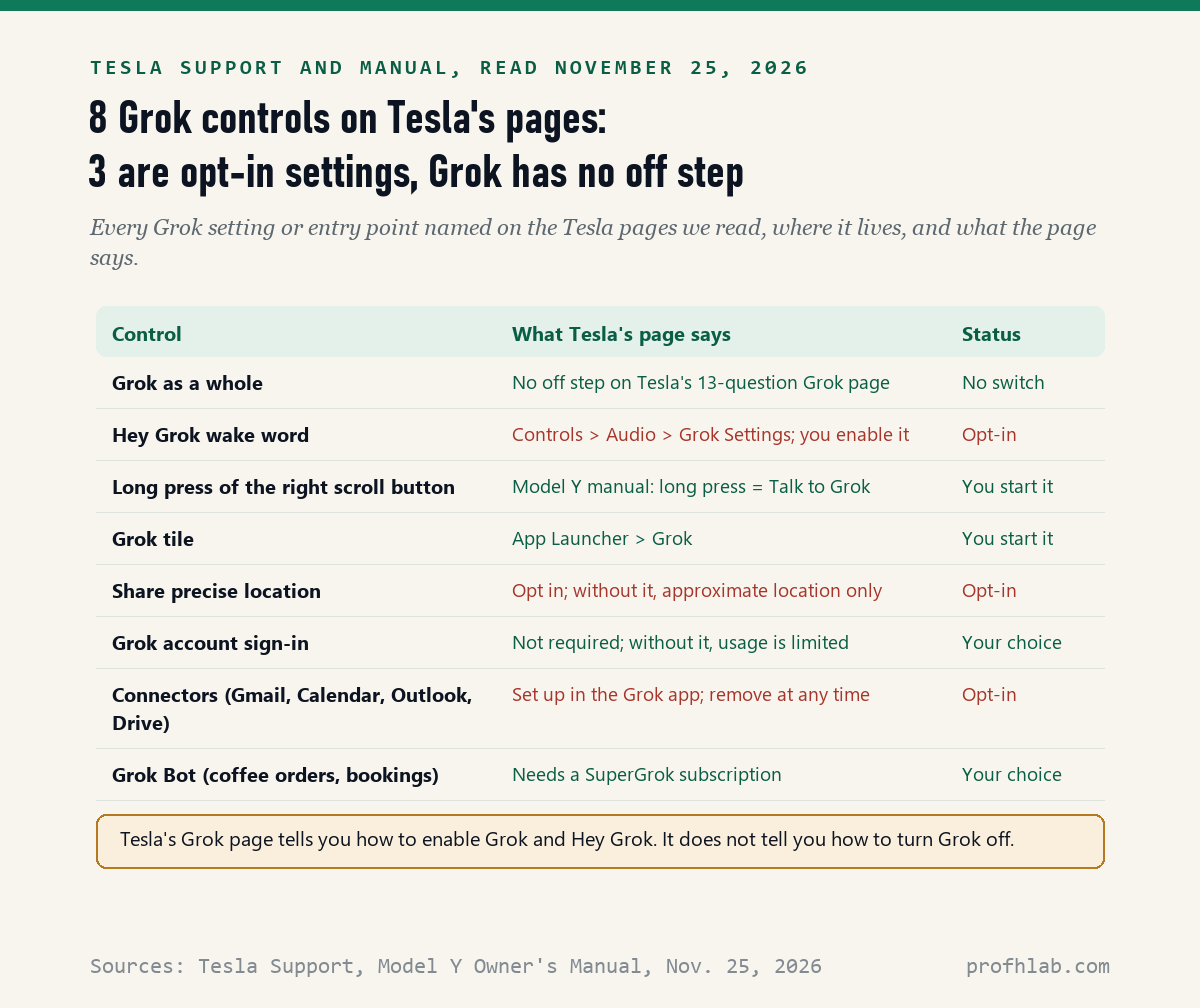
Tesla gives no off switch for Grok: on November 25, 2026, we read all 13 questions on Tesla’s Grok support page, and 0 of them explain how to turn Grok off. What the page does show is that Grok waits to be called. It starts when you tap it, long-press a steering wheel button, or say “Hey Grok” after you have turned that wake word on yourself.
So the useful question is not “where is the off switch?” It is “how do I keep Grok from starting, and from knowing more than I want?” Tesla’s pages name three opt-in settings that answer that: the “Hey Grok” wake word, precise location sharing, and Connectors to your email and calendar. This guide walks through each one in plain steps.
What we checked on November 25, 2026
We read Tesla’s Grok support page (13 questions and answers) and three pages of the Model Y Owner’s Manual for 2025 and newer cars, which showed software version 2026.38.3: the manual’s start page, Voice Commands and Steering Wheel. We counted every place Grok is named and every setting the pages give. We also read the release notes for Tesla software 2026.20.6.4 on Not a Tesla App, a third-party site that tracks updates.
The manual’s Media page has a Grok section, but Tesla’s site answered our browser with “Access Denied” when we opened it, so it is unread and we quote nothing from it. We did not sit in a Tesla for this test. Every menu path below is the page’s own wording, and menus can change with each software update.
Written and checked by Prof. H. An AI assistant helped draft this article and ran the page reads; every quote was read on the source’s own page on the date shown.
Can you turn off Grok in a Tesla completely?
Not according to Tesla’s own pages: the Grok support page we read on November 25, 2026 explains how to enable Grok, sign in and add Connectors, but none of its 13 answers gives a way to remove or disable it.
Grok is an AI chatbot, a program you talk to in everyday sentences, and in a Tesla it talks back out loud. Tesla says it can also give car commands, such as navigation, phone calls, music and temperature.
Think of it like a radio station you never tune to. The station is in the car, but it does not play unless you pick it. Tesla’s page lists three ways to pick it: tap App Launcher, then “Grok”; press and hold the microphone button on the steering wheel; or say “Hey Grok” once voice activation is on.
If you never do any of the three, Grok has no way in that Tesla’s page describes. That is the practical answer for most drivers who just want it gone.
How do I stop “Hey Grok” from listening for its name?
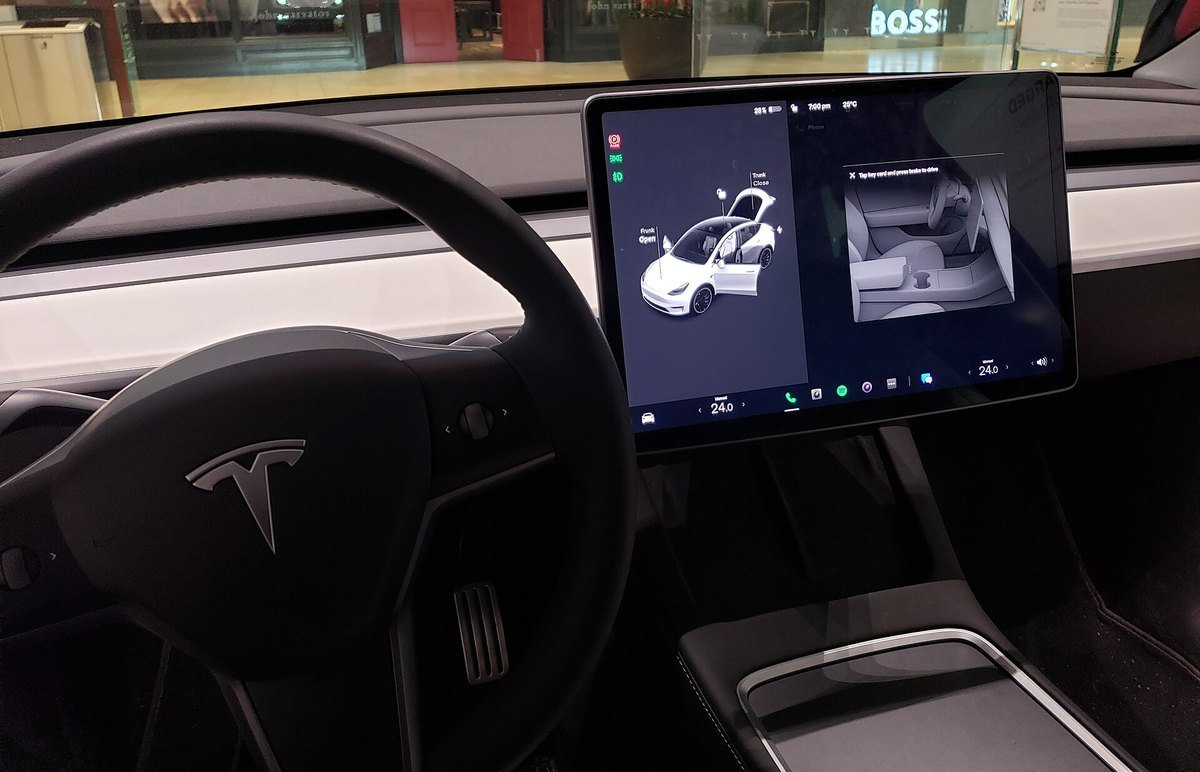
Leave voice activation off, or switch it back off: Tesla’s support page, read November 25, 2026, says you can say “Hey Grok” only “after enabling voice activation” under Controls, then Audio, then Grok Settings.
Here are the steps, one at a time:
- Park the car.
- On the touchscreen, tap Controls.
- Tap Audio.
- Tap Grok Settings.
- Look for the voice activation setting for “Hey Grok” and make sure it is off.
One note so you are not surprised. Tesla tells you where to turn this on. It does not say in words that the same setting turns it off. We expect it does, because that is how a setting works, but that is our inference.
Not a Tesla App’s copy of the 2026.20.6.4 release notes, dated July 13, 2026, puts the switch in a slightly different place: “Enable ‘Hey Grok’ in Grok > Settings.” That means the settings screen inside the Grok app itself. Check both places.
How do I use regular voice commands instead of Grok?
Use the button the way the manual describes for voice commands: the Model Y manual’s Voice Commands page, read November 25, 2026, says to “fully press the microphone button” on the right of the steering wheel and speak after the chime.
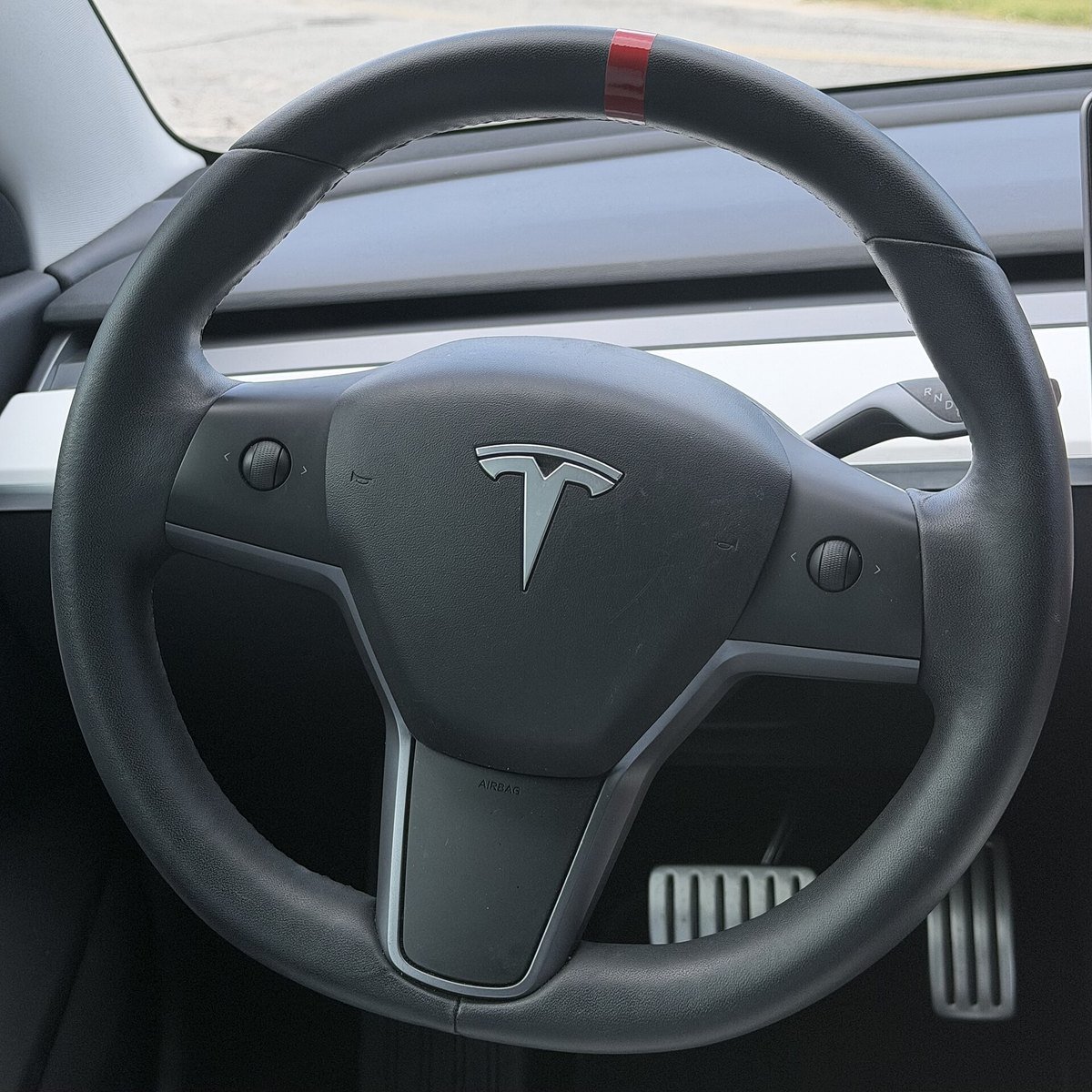
The difference is how long you hold the button. Tesla’s support page says to “press and hold” the microphone button to start Grok. The manual’s Steering Wheel page lists “Long press” on the right scroll button as “Talk to Grok.”
The Voice Commands page itself does not mention Grok even once. Its examples are the old, plain kind: “Make it warmer,” “Navigate home,” “Call” a contact. Not a Tesla App’s copy of the July release notes says, “Existing voice commands remain unchanged.”
If Grok starts by mistake, the same release notes say you can “Say ‘goodbye’ to dismiss.” That closes the conversation. It does not turn Grok off for good.
Does Grok in my Tesla know where I am and who I call?
Only roughly, unless you opt in: Tesla’s support page, read November 25, 2026, says location features need you to turn on “Share precise location,” and that without it Grok “can only determine your approximate location.”
On phone calls, the same answer says Grok checks your contacts in the car before it dials. Tesla writes that “your contacts are not sent” to the company that makes Grok.
On the conversations themselves, Tesla says they are processed by Grok’s maker under that company’s own privacy policy. Tesla adds that the chats “remain anonymous to Tesla.” We did not read Grok’s privacy policy for this article, so we make no claim about what Grok’s maker keeps.
Plain advice that fits any AI chatbot: do not read out card numbers, account numbers or medical details to it. Our guide on what is safe to tell an AI chatbot works the same way here.
What changes if I sign in to Grok or connect Gmail?
Grok can then read the services you connect: Tesla’s support page, read November 25, 2026, says Connectors link Grok to Gmail, Google Calendar, Outlook and Google Drive, and that Grok then “accesses information from the services you connect.”
None of this is on by default. Tesla says you need a Grok account to use Connectors, and that Connectors are set up from your phone or computer, not from the car’s screen.
To take a Connector away, the page says, “You can remove a Connector at any time.” Do that in the Grok app on your phone: tap the + icon, then Connectors. That is the same place Tesla’s page tells you to add one.
Grok Bot goes one step further. Tesla says it can place a coffee order or book a reservation for you, and it needs a SuperGrok subscription. If you never pay for SuperGrok, Grok Bot cannot run in your car.
The fastest privacy check, in under two minutes
Parked, open Controls, then Audio, then Grok Settings, and turn off “Hey Grok.” Then, in the same Grok screens, make sure “Share precise location” is off. Last, on your phone, open the Grok app, tap +, then Connectors, and remove any service you do not want Grok reading. Those are the three opt-in settings Tesla’s pages name.
Which Teslas have Grok at all?
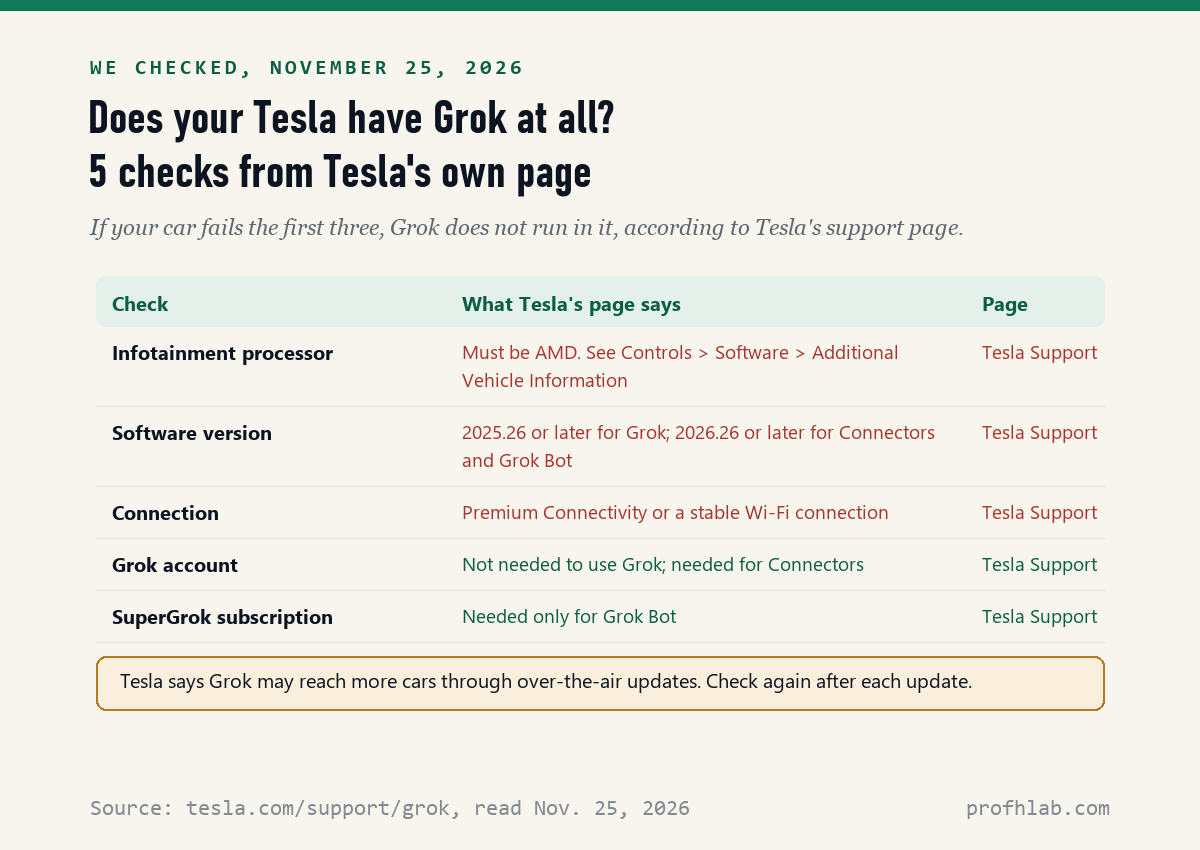
Only cars with an AMD processor, software 2025.26 or later, and a data connection: Tesla’s support page, read November 25, 2026, lists all three, and says Premium Connectivity or Wi-Fi is required.
To see your processor, Tesla says to tap Controls, then Software, then Additional Vehicle Information. Look for the infotainment processor. If it does not say AMD, Grok is not in your car today.
Tesla adds that Grok “may become available for additional Tesla vehicles” through over-the-air updates. So a car without Grok today could get it later, and the steps above would then apply.
One more fact from the same page: without Premium Connectivity or a stable Wi-Fi connection, Grok will not work. We did not check what else Premium Connectivity does in your car, so we do not suggest dropping it only to silence Grok.
“Hey Grok” from the Tesla Tutorials channel (74,400 subscribers), posted October 1, 2026; 69,769 views when we checked on November 25, 2026. It runs about 70 seconds and shows the wake word in use, so you can see what turning it off avoids.
Why turning Grok off is harder in a car than on a phone
On a phone, most AI helpers have an app you can delete; on November 25, 2026, Tesla’s Grok page listed only ways to open, sign in to and extend Grok. Our reading is that in the car Grok comes with the system software, not as an app you can remove.
We have seen the same pattern elsewhere. Google says Gemini on Google TV has no on or off switch, and the way around it there has side effects. We found similar trade-offs in Android Auto and on Pixel phones.
The car case has one extra reason to keep things simple. Every menu above should be used while parked. If Grok starts while you drive, say “goodbye” and keep your eyes on the road; change the settings later.
For families sharing a car, Tesla says you can choose Grok’s personality, “ranging from Storyteller to Unhinged.” We did not find the menu path for that on the pages we could read, so check the Grok settings screen yourself before a grandchild rides along.
“7 Hey Grok Commands Tesla Owners Don’t Know Work Yet” from All Things Tesla (2,440 subscribers), posted June 21, 2026; 27,063 views when we checked on November 25, 2026. Its description says the hands-free wake word is off by default, which matches Tesla’s own wording that you must enable it.
Six short answers on Model 3, Model Y, cost and limits
Can you disable Grok in Tesla?
Not on any page we read on November 25, 2026. Tesla’s Grok page has 13 answers and none of them disables Grok. You can keep it from starting by leaving “Hey Grok” off and not long-pressing the right steering wheel button.
How do you turn off Grok in Tesla Model Y?
Turn off “Hey Grok” under Controls, Audio, Grok Settings, and use a full press of the microphone button for regular voice commands. The 2025 and newer Model Y manual says a long press of the right scroll button is “Talk to Grok.”
How to turn off Grok in Tesla Model 3?
Tesla’s Grok support page does not split its steps by model, so the same settings apply to a Model 3 that has Grok. First check that your Model 3 has an AMD processor under Controls, Software, Additional Vehicle Information; without one, Grok is not there.
How do you turn on Grok in Tesla?
Tesla’s support page says to tap App Launcher, then Grok, or press and hold the microphone button on the steering wheel. To use “Hey Grok,” turn on voice activation under Controls, Audio, Grok Settings.
Is Grok in Tesla free?
Tesla says no Grok account or subscription is needed to use Grok in the car “at this time.” It does need Premium Connectivity or Wi-Fi. Grok Bot needs a paid SuperGrok subscription.
Why does my Tesla say Grok reached its limit?
Tesla’s page says usage is limited. If you are not signed in, the car tells you when you need to sign in to keep going. If you are signed in, your Grok account’s own limits apply, and the car asks you to open the Grok app.
More switches for the other AI in your life
Start with our Start Here page if you are new to AI. If you also use a phone or speaker, these guides follow the same “read the official page, count the switches” method:
- How to turn off AI on a Samsung phone
- How to turn off AI on an iPad and on an Apple Watch
- How to turn off Alexa+ and Gemini on Google Home
- How to turn off AI on a Ring doorbell
- How to stop AI from reading your Gmail and turn off AI in Outlook, the two mailboxes Grok Connectors can reach
- How to turn off AI in Chrome
On safety: scammers now copy voices with AI. Our AI scams guide for seniors, the family safe word examples and how to tell if you are talking to AI on the phone cover that side. If you are curious about the car itself, see our Tesla FSD subscription math and what physical AI means. New to chatbots in general? Try our ChatGPT guide for beginners over 50, and whether Alexa can call 911.
Where each Grok fact in this guide came from
- Tesla Support, Grok (13 questions and answers); read November 25, 2026.
- Tesla, Model Y Owner’s Manual, 2025+, North America, software version 2026.38.3; read November 25, 2026.
- Tesla, Model Y Owner’s Manual, Voice Commands and Steering Wheel; read November 25, 2026.
- Not a Tesla App, Tesla software 2026.20.6.4 release notes, July 13, 2026; read November 25, 2026 (third-party copy of Tesla’s notes).
Prof.’s H Newsletter
One short email a month, with the numbers in it
What actually moved in AI hiring, AI prices, and the scams aimed at older Americans. Counted here, dated, and linked to the source. One email a month, and your address goes nowhere else.